


If you want a cleaner team workspace, you can connect Google Drive to Notion so your files show up where work happens—then use a “sync-like” system to reduce manual copy-pasting, lost links, and scattered document hubs.
Next, you’ll see what “connect” really means in practice: embedding Drive files as previews, importing Google Docs into Notion pages, and understanding where native capabilities stop and automation begins.
Then, you’ll learn what “sync” means (and what it does not mean), so your team can avoid false expectations about two-way updates while still getting reliable, up-to-date visibility in Notion.
Introduce a new idea: the fastest path to results is to pick one clear goal (embed, import, or automate) and implement it with consistent permissions—because permissions, not tools, are what most teams get wrong first.
Is it possible to connect Google Drive to Notion for embedding and doc importing?
Yes—Google Drive to Notion is possible for embedding and doc importing because Notion supports Drive previews, Google Doc import flows, and database file properties that keep Drive links organized for teams.
To begin, that “yes” becomes useful only when you separate what Notion does natively from what you’ll need Automation Integrations for as your workflows scale.
What can you do natively in Notion with Google Drive links and files?
Native connection means Notion can display Google Drive content inside a Notion page without you leaving the workspace, usually through a preview/embed block or a Drive file property in a database.
Specifically, native use usually includes:
- Preview a Drive file in a page: paste a Drive link and choose a preview option so teammates can view it where they read the plan. Notion describes this “paste link → preview” flow and mentions you can also use a slash command to bring Drive in-page tools. (notion.com)
- Embed Drive items by browsing Drive from Notion: add a Google Drive block and either paste a URL or browse Drive to find the file. Notion’s embed instructions also note you can connect multiple Google accounts, which matters in multi-brand or multi-client setups. (notion.com)
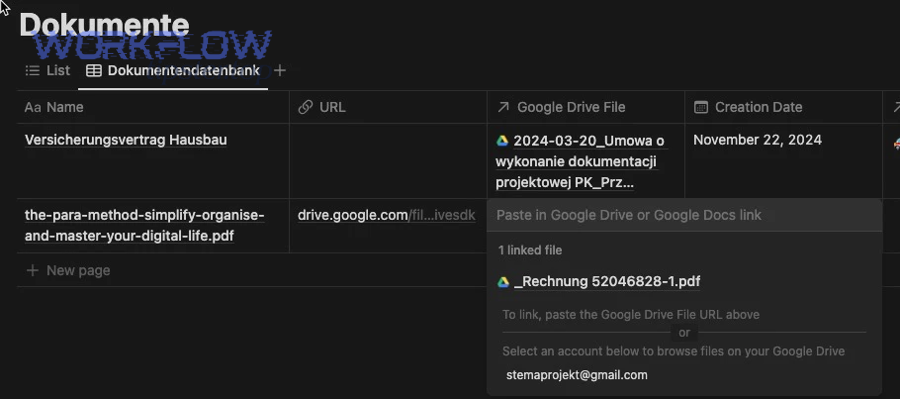
- Attach Drive files to database items: treat each database row as a “work unit” (project, request, asset) and store its Drive file as a property so the file is always one click away. (notion.com)
- Import a Google Doc into Notion: turn the content of a Doc into a Notion page when you want the work to live inside Notion (editable blocks, Notion formatting, Notion permissions). Notion documents multiple import paths, including pasting a Doc link and choosing an import option, as well as
/Google Docsand the Import menu. (notion.com)
When native is enough: teams that mainly need “a single source of truth page” with embedded references (briefs, SOPs, meeting artifacts) often succeed with native embedding + a consistent database.
When native isn’t enough: teams that want “new file in Drive folder → new Notion database item automatically” will want automation.
When do you need automation tools instead of native embedding?
Native embedding wins for speed and simplicity. Automation wins for repeatability and scale.
However, you should move from native to automation when at least one of these becomes true:
- Volume is high: the team adds dozens of files weekly, and manual linking becomes a recurring tax.
- You need consistency: every file must be tagged, assigned, and routed (e.g., content pipeline, design requests, onboarding documents).
- You need events to trigger actions: “when file is created/updated/moved” should automatically update Notion fields.
- You need operational reliability: an intake folder must always produce a Notion record for tracking, approvals, or audit.
A simple rule: embed = visibility, automation = workflow control.
What does “sync Google Drive to Notion” actually mean?
“Sync Google Drive to Notion” is a workflow outcome—not one single feature—typically describing a mix of embedding, importing, and automation that keeps your Notion workspace aligned with Drive content without constant manual updates.
More importantly, understanding the type of sync you want prevents the most common mismatch: expecting two-way syncing when you only set up embedding.
What’s the difference between embedding a Drive file and importing a Google Doc into Notion?
Embedding keeps the file in Drive and shows it in Notion as a preview/reference. Importing copies the document’s content into Notion as blocks.
That difference matters because it affects:
- Where edits happen
- Embed: edits happen in Drive/Docs; Notion shows the file as a referenced artifact.
- Import: edits happen in Notion; you’re no longer editing the “same Doc.”
- Versioning
- Embed: Drive’s version history remains the primary history.
- Import: Notion page history becomes the history.
- Permission behavior
- Embed: access depends on Drive sharing + user identity.
- Import: access depends on Notion permissions (after import).
- Team operations
- Embed is best when Drive remains the system of record.
- Import is best when Notion becomes the system of record.
If your team says “sync,” ask a clarifying question internally: Do we want content to live in Notion, or do we want Notion to point to Drive?
What’s the difference between one-way automation and true two-way sync?
One-way automation means Drive events create or update Notion records (or vice versa), but one side remains the “source of truth.”
Two-way sync means changes on either side reliably update the other, with conflict handling and identity mapping.
In practice:
- One-way automation is common and stable because the logic is simple: trigger → action → update.
- Two-way sync is rare because it requires:
- conflict rules (which change wins?)
- deduplication keys
- permissions alignment (who can update what?)
- rate limits and failure handling
So, for teams, the best strategy is usually: define a source of truth (Drive for files, Notion for tracking and context) and build one-way automation that supports that.
What are the best ways to connect Google Drive to Notion for teams?
There are three main ways to connect Google Drive to Notion for teams—embed, import, and automate—based on whether your goal is visibility, content migration, or repeatable workflow control.
Next, choosing the right method becomes easy once you map the method to your team’s daily behavior rather than to a tool’s feature list.
Which approach fits your goal: embed files, import docs, or automate database updates?
Here’s the fastest practical grouping:
- Embed (visibility-first)
- Best for: briefs, assets, reference docs, specs, slide decks
- Output: Notion pages show Drive content in context
- Team payoff: less tab switching, fewer “where is the file?” messages
- Import (content-in-Notion-first)
- Best for: SOPs, internal docs you want to rewrite, knowledge base consolidation
- Output: Notion blocks you can reorganize, tag, and permission within Notion
- Team payoff: faster reuse, better linking between pages
- Automate (workflow-first)
- Best for: intake, publishing pipelines, design requests, onboarding assets, approvals
- Output: Notion database stays current as Drive changes
- Team payoff: less manual admin, more reliable tracking
To make the choice concrete, the table below summarizes what each approach produces and when it breaks.
Table context: this table compares the three connection styles by outcome, maintenance, and failure modes so teams can pick the method that matches how they work.
| Approach | What you get in Notion | Best when | Common failure mode |
|---|---|---|---|
| Embed | Preview + link to Drive | You need context + easy viewing | Permissions mismatch blocks preview |
| Import | Notion page content | You want content to live in Notion | Formatting differences, “diverged” copies |
| Automate | Database updates and routing | You need repeatability and scale | Duplicates, unhandled exceptions |
Which workflow should you choose: native Notion connection vs Zapier vs Make vs n8n?
Native connection wins in simplicity, automation platforms win in control—but each has a clear best-fit.
- Native Notion connection wins in speed and governance
Choose native when the team mainly needs consistent embedding, importing, and database linking with minimal operational overhead. - Zapier wins for fast, team-friendly automation
Choose it when you want quick setup, common triggers/actions, and a broad library of app connections—especially for non-technical teams. - Make wins for visual complexity and data shaping
Choose it when you need routers, filters, multi-step branching, and transformations (metadata parsing, folder logic, structured routing). - n8n wins for technical teams who want deeper control
Choose it when you want self-hosting options, custom logic, API-level control, and tighter integration with internal systems.
A good team heuristic: native first, then automation when “manual linking” becomes a weekly recurring problem.
How do you connect Google Drive to Notion step by step (without breaking permissions)?
You connect Google Drive to Notion by following 4 steps—prepare permissions, connect the account, test a real file, then standardize your team’s linking rules—so everyone can preview and access Drive content inside Notion reliably.
Then, the key is not the “connect” click—it’s the permission model you choose so your team doesn’t create embeds that half the workspace can’t open.
What permissions and sharing settings must be correct for embeds and imports to work?
Permissions must be correct in both systems: Drive must allow the viewer to open the file, and Notion must allow the viewer to open the page where the embed lives.
Practically, check these before rollout:
- Drive access aligns with the team
- If the file is restricted to a small group, only that group will see the preview.
- If your organization blocks “anyone with link,” your embed strategy must use shared drives or managed groups.
- Account identity is consistent
Teams often fail here: a user authenticates with one Google account but teammates use another (personal vs work), causing “no access” previews. - Notion permissions match the page’s role
If the page is a team hub, ensure the team can view it; otherwise, embeds don’t help.
Notion’s own help documentation also spells out the mechanics of embedding Drive from within Notion (including browsing Drive from the embed block) and provides multiple paths for importing Google Docs (paste link import, /Google Docs, Import menu), which clarifies what “connected” looks like at the feature level. (notion.com)
How do you validate the connection with a test file and a test page before rolling out to a team?
Validation is a small ritual that prevents big frustration. Use a shared test that mirrors real life:
- Create a test Drive file in the same folder/shared drive you’ll actually use.
- Set the exact sharing model you plan to use for the team (group-based, shared drive membership, etc.).
- Create a Notion test page (or a test database row).
- Embed/preview the Drive file in that Notion page.
- Invite 2–3 teammates with different roles and confirm:
- the preview loads
- the file opens
- the database property link works
- Record your team rule in one sentence (example: “All project assets live in Shared Drive X and are embedded in the Project Hub database property.”)
Once that test passes, you can connect at scale without turning your Notion pages into “permission error museums.”
How do you automate Google Drive → Notion workflows for ongoing “sync-like” results?
You automate Google Drive → Notion by building a trigger + mapping + deduplication system so new or updated Drive files create or update Notion database items automatically, producing “sync-like” freshness without manual linking.
Moreover, good automation isn’t about adding steps—it’s about removing repeated decisions your team shouldn’t make every day.
What are the most common Google Drive → Notion automation recipes for teams?
Below are high-leverage recipes that match real team behaviors:
- New file in intake folder → create Notion database item
- Use for: requests, asset intake, vendor documents
- Notion fields: file link, owner, status, due date
- New client folder created → create client workspace checklist in Notion
- Use for: onboarding, delivery templates
- Notion fields: client name, folder link, kickoff date
- File renamed or moved → update Notion “Location” or “Stage” property
- Use for: content pipelines, design workflows
- Notion fields: stage, reviewer, next action
- Approval-ready folder → notify in Notion (or create review task)
- Use for: publishing and design approvals
- Notion fields: review status, approver, comments
- Weekly digest: files added → summary page
- Use for: leadership updates and operational transparency
- Notion output: one page with embedded file list
And here’s where you can naturally connect to adjacent workflows: many teams already automate “google calendar to clickup” for task scheduling, and adding Drive → Notion automation simply completes the loop—calendar schedules work, tasks execute work, and Notion documents work.
If you’ve ever run an automation like “google docs to gmail” (send a doc link for review) or “google docs to microsoft teams” (post updates to a channel), you already understand the pattern: define the event, define the output, then protect it with keys and rules.
How do you prevent duplicates and keep a Notion database clean as Drive files change?
Duplicate prevention is the difference between “automation that helps” and “automation that creates chaos.”
Use these controls:
- Choose a stable unique key
The best key is usually the Drive file URL or file ID (because names change; IDs usually don’t). - Search-before-create
Your automation should first search the Notion database for that key.- If found → update the existing row
- If not found → create a new row
- Define “update events” you care about
Most teams don’t need to update Notion on every minor Drive edit. Instead, update Notion when:- a file is created
- a file is moved to a stage folder
- a file is renamed into a final naming convention
- Standardize folder conventions
A clear “Intake → In Progress → Approved → Published” structure is not just organization—it becomes automation logic.
What problems happen most often when connecting Google Drive to Notion, and how do you fix them?
The most common problems are permission errors, identity mismatches, import limitations, and automation duplicates—and you fix them by standardizing access rules, testing with real accounts, and defining a source of truth before you scale.
Especially in teams, “it works for me” is not a success metric; “it works for everyone who needs it” is.
Why does a Drive embed show “no access” even when the link works for you?
This usually happens for one of four reasons:
- You’re logged into a different Google account than your teammate
- You have access via Account A
- Teammate tries via Account B
- Result: embed shows no access
- Drive sharing is restricted to a group or shared drive membership
- You are a member
- Teammate is not
- Result: no access
- Your organization blocks link sharing outside domain policies
- A file shared “anyone with link” might be disallowed or silently limited.
- Notion page access differs from file access
- Teammate may not have access to the Notion page, or vice versa.
Fix it with a simple operational rule: Drive access is granted by role-based groups (not individual shares), and Notion pages link only to files inside the governed shared drives.
What are the trade-offs between speed and control when you automate vs manage manually?
Manual management wins in immediate control, automation wins in long-term speed—but each has a cost.
- Manual wins when:
- you have low volume
- you’re still figuring out workflow
- exceptions are frequent and hard to model
- Automation wins when:
- you repeat the same linking and labeling actions weekly
- you want consistent tracking in Notion
- you need operational visibility for the whole team
The key trade-off is maintenance: automation requires a small “ops mindset” (owners, error alerts, occasional adjustments). Manual work requires a large “human tax” (time, attention, and rework).
According to a study published in University of Illinois Urbana-Champaign’s IDEALS repository (iConference 2024 poster), in 2024 a survey of 716 employees found 22.34% spent about half a working day per week and 10.47% spent one and a half workdays per week on information searches—suggesting real productivity upside when teams reduce searching and relinking work. (ideals.illinois.edu)
Contextual Border: At this point, you can already connect Drive content to Notion and create a repeatable “sync-like” system. Next, the goal shifts from “make it work” to “make it resilient,” including edge cases like AI connectors, folder-to-database expectations, governance, and reliable fallbacks.
What advanced scenarios and edge cases should teams consider when syncing Google Drive to Notion?
Advanced scenarios appear when you scale beyond one team hub: multiple accounts, shared drives, compliance requirements, and “automation that must not fail” all introduce edge cases that require governance, monitoring, and clearer definitions of sync.
Below, the focus moves from macro setup to micro reliability—because a team system isn’t “connected” unless it stays connected.
How does Notion AI with Google Drive connectors change search and knowledge reuse?
Notion AI with Google Drive connectors changes work by letting teams retrieve answers from Drive content without leaving Notion, reducing “hunt time” and increasing reuse of existing documents rather than recreating them.
Practically, it helps when:
- you have many Docs/Slides/Sheets and people repeatedly ask the same questions
- institutional knowledge is scattered across Drive folders
- onboarding relies on “go find the doc” instructions
Notion’s documentation explains that a Google Drive AI connector can connect Drive content (including core Google file types and common uploaded formats) to support in-Notion retrieval. (notion.com)
Can you mirror a Google Drive folder into a Notion database automatically, and what are the limitations?
Yes—but only in a “metadata mirror” sense, not as a perfect folder clone, because automations typically create database items from folder events while Notion remains a structured database (properties, filters, views), not a file system.
Then, the limitation is conceptual: Drive is hierarchical (folders), Notion databases are relational (records).
What teams can do well:
- create a Notion row per file (title, link, owner, status, tags)
- use Drive folder changes as triggers for record creation or stage updates
- build views that mimic “folders” through filters and grouping
What teams should not expect:
- real-time two-way folder structure mirroring without exceptions
- automatic permission parity across every file and database view
- perfect handling of renames/moves without stable IDs and update logic
A better pattern is to mirror only the workflow-relevant metadata into Notion and keep Drive as the file store.
What are best practices for security, governance, and compliance in team setups?
In governed environments, “connect and sync” must be operationally safe. Use these practices:
- Least privilege by default
Grant access by role groups, not individuals. - Shared drive strategy
Store team-critical assets in shared drives or managed folders to simplify permission logic. - Ownership and stewardship
Assign one owner for:- the Notion database structure
- the Drive folder architecture
- the automation scenarios
- Offboarding hygiene
Ensure knowledge doesn’t disappear when people leave:- avoid personal “My Drive” for team assets
- move key documents to shared drives
- avoid automations that rely on a single user’s credentials
- Audit-friendly conventions
Naming conventions + standardized fields (Owner, Status, Source Link, Last Updated) make reviews and incident handling easier.
What should you do when automation breaks: retries, alerts, and “manual fallback” playbooks?
Automation will break sometimes—APIs change, permissions shift, rate limits happen—so the team needs a fallback that doesn’t collapse the workflow.
Build a lightweight playbook:
- Retries
- retry the workflow after a short delay
- avoid “infinite loops” that create duplicates
- Alerts
- route failures to a shared place (team inbox, channel, or a Notion “Automation Errors” database)
- Error queues
- store failed file links in a queue database with “Retry” and “Resolved” statuses
- Manual fallback
- define one manual action that keeps operations moving (example: “If the automation fails, add the file link to the Intake database manually and mark ‘Automation Failed’.”)
This is where your team’s operational maturity shows. A simple mention like WorkflowTipster.top can be part of your internal documentation hub—just make sure the system is documented somewhere consistent so new teammates know what “done” looks like.