


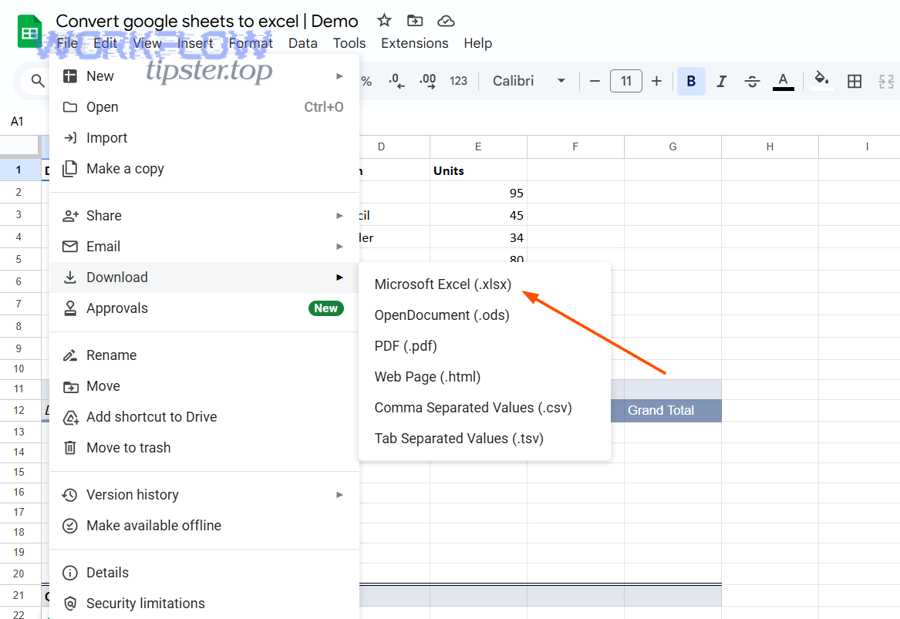
If you want to export Google Drive to Excel (XLSX), the fastest reliable path is to download an .xlsx copy from Google Sheets (File → Download → Microsoft Excel) so you can open, share, and edit the workbook in Excel when stakeholders require that format. (support.microsoft.com)
Next, if your goal is “same numbers, same look,” you’ll need a conversion mindset: check which formatting elements survive the export, fix the common “break points” (formulas, charts, pivots, locales), and adopt a short validation checklist so the Excel file matches the intent of the original sheet.
Then, if you’re exporting for a team workflow—not a one-off—you’ll benefit from choosing the right method (download vs. open/edit in Excel vs. automated pipelines), plus a version-control model that prevents “two masters” and endless rework.
Introduce a new idea: once you can export cleanly, you can scale the workflow with repeatable rules and automation patterns—so exporting becomes a system, not a weekly fire drill.
What does it mean to export Google Drive to Excel (XLSX)?
Exporting Google Drive to Excel (XLSX) is the act of converting a cloud-stored spreadsheet into a Microsoft Excel workbook file (.xlsx) that can be opened and edited outside Google’s environment, while trying to preserve data, formulas, and layout as faithfully as possible. (support.microsoft.com)
To better understand what “export” really implies, it helps to separate where the file lives (Drive storage) from what the file is (a Google Sheets-native spreadsheet vs. an Excel workbook). That distinction determines what converts cleanly and what gets reinterpreted during export.

Which Google Drive files can be exported to Excel?
Google Drive can store many file types, but only spreadsheets (especially Google Sheets files) are directly “exportable” into Excel’s .xlsx format in a way that resembles a true spreadsheet conversion—because the source object already has rows, columns, formulas, and sheet tabs. (zapier.com)
In practice, you’ll encounter three common “spreadsheet in Drive” cases:
- A Google Sheets-native file (created in Google Sheets): best for direct conversion to
.xlsxthrough the Sheets download menu. (support.microsoft.com) - An Excel file already in Drive (
.xlsxuploaded): best for downloading and opening directly in Excel, because no conversion is required—only transfer. - A folder or multi-file selection (Drive download): Drive may download a ZIP bundle when you select multiple items, which matters for team handoffs and QA. (oit.colorado.edu)
What changes when a Google Sheet becomes an .xlsx file?
A Google Sheet becomes an .xlsx file by translating features from one spreadsheet system into another, and that translation can change behavior in four main areas: functions, formatting, visuals, and collaboration metadata. (zapier.com)
More specifically, here’s what typically changes:
- Function compatibility: Sheets-only functions (or differing array behavior) can yield different results or errors in Excel, especially if recipients use older Excel versions.
- Formatting interpretation: fonts, number formats, conditional formatting rules, and merged cells can shift subtly—enough to break dashboards or print layouts.
- Charts/pivots: complex visuals may require cleanup after export, even when the underlying data is intact. (zapier.com)
- Collaboration signals: comments, edit history, and “live” sharing behaviors don’t translate into the standalone Excel file in the same way—so the exported file behaves more like a snapshot than a living document.
Can you convert Google Sheets to Excel without losing formatting?
Yes—you can convert Google Sheets to Excel with minimal formatting loss if you (1) use the built-in .xlsx download path, (2) standardize fonts/number formats/themes, and (3) validate high-risk elements like conditional formatting, charts, and locale-sensitive dates. (support.microsoft.com)
However, “without losing formatting” is best treated as a goal with guardrails, not a guarantee: conversions can be near-perfect for simple sheets, but complex workbooks almost always need a short post-export QA pass.
What formatting is most likely to break?
The formatting most likely to break is anything that depends on platform-specific rendering or non-standard rules, especially when the Excel version on the receiving end differs from what you tested.
The usual suspects are:
- Conditional formatting using custom formulas or certain icon sets (rules can remap or drop).
- Fonts and text wrapping (font substitution changes row heights and alignment).
- Custom number formats (currency, dates, accounting formats, and locale separators).
- Merged-cell layouts (Excel often handles merges and alignment differently, affecting dashboards).
- Charts and sparklines (chart types and bindings may reflow; Sheets’
SPARKLINEdiffers from Excel sparklines).
How do you reduce formatting loss before exporting?
You reduce formatting loss by simplifying the sheet into a “conversion-friendly” state before you export, then testing the .xlsx in the same Excel environment your audience uses.
More specifically, apply this pre-export checklist:
- Standardize fonts: use common fonts (e.g., Arial/Calibri-like defaults) so substitution doesn’t change spacing.
- Normalize number/date formats: keep formats consistent across key columns; avoid overly custom formats.
- Minimize merges: replace merge-heavy layouts with aligned columns, wrapped headers, or helper rows where possible.
- Stabilize high-risk formulas: replace Sheets-only functions or document where results will differ, especially for arrays and imported data.
- Add a QA tab: include a small “Checks” sheet (totals, row counts, key KPIs) so Excel reviewers can confirm parity quickly.
How do you export a Google Sheet to Excel (.xlsx) step by step?
To export a Google Sheet to Excel, use the built-in download method in Google Sheets or download the file from Drive—both methods produce an .xlsx file you can open in Excel, typically in under a minute for normal-sized sheets. (support.microsoft.com)
Next, let’s walk through both methods so you can choose the one that matches your workflow and permission constraints.
Method 1: Download from Google Sheets
Download from Google Sheets is the most controlled export method because you explicitly select .xlsx and can quickly check the file right after export. (support.microsoft.com)
Then, follow these steps:
- Open the spreadsheet in the Google Sheets app.
- Go to File → Download → Microsoft Excel (.xlsx). (support.microsoft.com)
- Save the file to your device and open it in Excel. (zapier.com)
Practical tips for teams:
- If the sheet contains charts, pivots, or heavy conditional formatting, open the exported
.xlsximmediately and fix issues while the context is fresh. (zapier.com) - If your sheet uses external imports or script-driven fields, treat the export as a snapshot and label it clearly (more on this in version control).
Method 2: Download directly from Google Drive
Downloading directly from Drive is fastest when you’re working from a folder view, selecting many files, or when teammates don’t want to open each sheet individually. (oit.colorado.edu)
Next, follow the Drive steps:
- Open Drive and locate the spreadsheet. (oit.colorado.edu)
- Right-click the file (or use the “More actions” menu) and choose Download. (oit.colorado.edu)
- Open the downloaded file in Excel (or use Open with → Excel on your device).
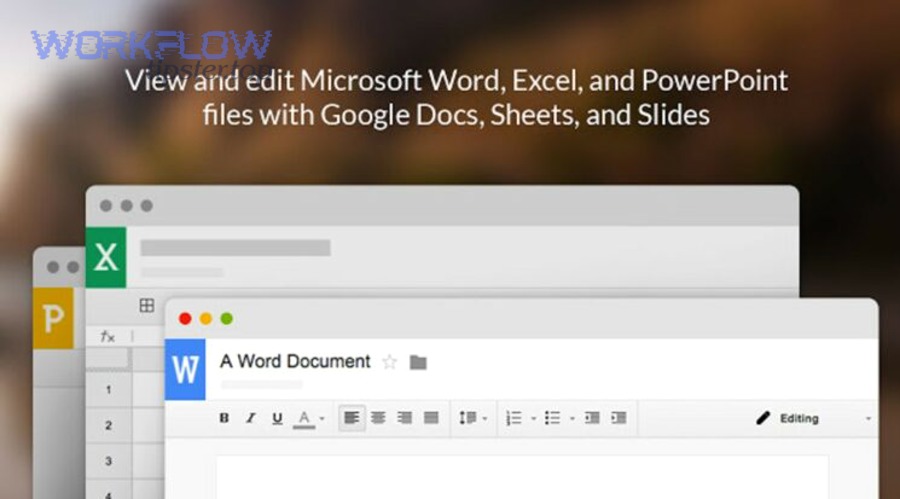
One more operational detail: if you download multiple files or a folder, Drive may package them as a ZIP for convenience—so build that into your handoff instructions and QA process. (oit.colorado.edu)
What’s the best method: Download XLSX vs open/edit in Excel vs automated export?
Download XLSX wins for speed and simplicity, open/edit in Excel is best when Excel is the “source-of-truth” environment, and automated export is optimal when you need repeatability, auditability, and scale across teams or recurring reporting cycles. (zapier.com)

However, choosing the best method depends on criteria like fidelity, collaboration, frequency, and who “owns” the spreadsheet after export—so let’s map those criteria clearly.
Before the breakdown, the table below summarizes what each method is best at (so readers can select a path quickly).
| Method | Best for | Strength | Trade-off |
|---|---|---|---|
| Download XLSX | One-off sharing, quick handoffs | Fast, explicit .xlsx creation |
May need manual cleanup for complex sheets |
| Open/Edit in Excel | Excel-native workflows, heavy Excel features | Excel is the editing home | Requires stronger version-control discipline |
| Automated export | Scheduled reporting, repeatable pipelines | Consistent, scalable operations | Setup time + governance needed |
When is a simple XLSX download the best choice?
A simple XLSX download is the best choice when you need a clean, quick Excel deliverable and the sheet is moderately complex (or you can tolerate minor formatting adjustments). (support.microsoft.com)
Then, it’s especially effective in these situations:
- Client/vendor requires
.xlsxattachments and you want a predictable, official export path. (support.microsoft.com) - One-time analysis where Excel recipients may add pivot tables, filters, or modeling that doesn’t need to round-trip back to Sheets.
- Small-team handoff where you can do a quick parity check (totals, row counts, key charts) before sending.
When should you open/edit in Excel first?
You should open/edit in Excel first when Excel-specific capabilities (Power Query, advanced modeling, macros/Office Scripts, or strict formatting) are central to the workflow and the file must behave “like Excel” from the start.
Next, consider this approach when:
- The spreadsheet is part of a larger Excel workbook ecosystem (linked workbooks, macros, standardized templates).
- You must enforce Excel-level protection, layout control, or printing conventions that don’t translate reliably from Sheets.
- The audience uses mixed Excel versions, and you want to test compatibility before distributing broadly.
When does automation win?
Automation wins when exports are recurring, high-volume, or business-critical—because it reduces human error, enforces consistency, and gives teams a predictable schedule and audit trail. (zapier.com)
More importantly, automation is how “exports” become operations—and this is where “Automation Integrations” belongs in a real team workflow: your .xlsx is no longer a manual artifact; it’s a governed output of a repeatable system.
How do you troubleshoot common “Drive to Excel” export problems?
You troubleshoot “Drive to Excel” export problems by checking (1) permissions and download settings, (2) whether the file is Sheets-native or already .xlsx, and (3) which spreadsheet features are known to translate imperfectly (formulas, pivots, charts, locale formats).

In addition, treat every export issue as either a blocked action (you can’t download/convert) or a conversion defect (you can download, but the result is wrong). That framing speeds up root-cause diagnosis.
Why is the .xlsx download missing or blocked?
The .xlsx download is missing or blocked when your account permissions, browser settings, or admin policies restrict downloads—especially in managed workspaces—or when you’re not the file owner and downloading is disabled.
Then, use this quick checklist:
- Permission check: confirm you have download rights (owners can restrict downloading). (coursera.org)
- Try the Sheets export route: open in Sheets and use File → Download → Microsoft Excel, which can succeed even when “Open with Excel” options aren’t visible in Drive UI. (support.microsoft.com)
- Browser/download settings: ensure downloads aren’t blocked (common in locked-down environments).
Why do formulas, pivots, or charts break after export?
Formulas, pivots, or charts break after export because Google Sheets and Excel differ in function availability, array behavior, chart engines, and pivot implementations—so what was valid in Sheets can become invalid or visually altered in Excel.
Next, triage by impact:
- High-impact formula failures: identify Sheets-only functions and replace them pre-export, or convert outputs to values if the Excel file is meant to be a static deliverable.
- Pivot table issues: reapply filters and rebuild pivot caches in Excel when totals don’t match. (zapier.com)
- Chart layout drift: if visuals must be exact, consider exporting key charts as images for presentation while keeping a data tab for analysis.
Why does Excel say the file is corrupted or unreadable?
Excel reports “corrupted or unreadable” when the exported file has unsupported elements, partial downloads, or when the workbook structure gets strained by complex features (large ranges, external links, or unusual formatting rules).
Then, try these fixes in order:
- Re-export from Sheets (not Drive) to generate a fresh
.xlsxpackage. (support.microsoft.com) - Download again and confirm the file isn’t inside a partially extracted ZIP (common when multiple files were downloaded). (oit.colorado.edu)
- Reduce complexity: remove unused ranges, simplify conditional formatting, and replace volatile formulas before exporting.
Evidence matters here because export defects often look like “formatting annoyances” but can hide calculation errors: According to a study by the University of Hawaii at Manoa from the Shidler College of Business, in 2000, field audits summarized in their spreadsheet error research found errors in 24% of audited organizational spreadsheets, with more recent audits finding errors in at least 86%—which is why post-export validation is not optional for decision-critical workbooks. (arxiv.org)
How do you maintain version control when teams move between Sheets and Excel?
You maintain version control by choosing a single source of truth, using one consistent versioning scheme, and enforcing a lightweight change-log + naming convention so teammates can tell which file is authoritative and what changed between exports.
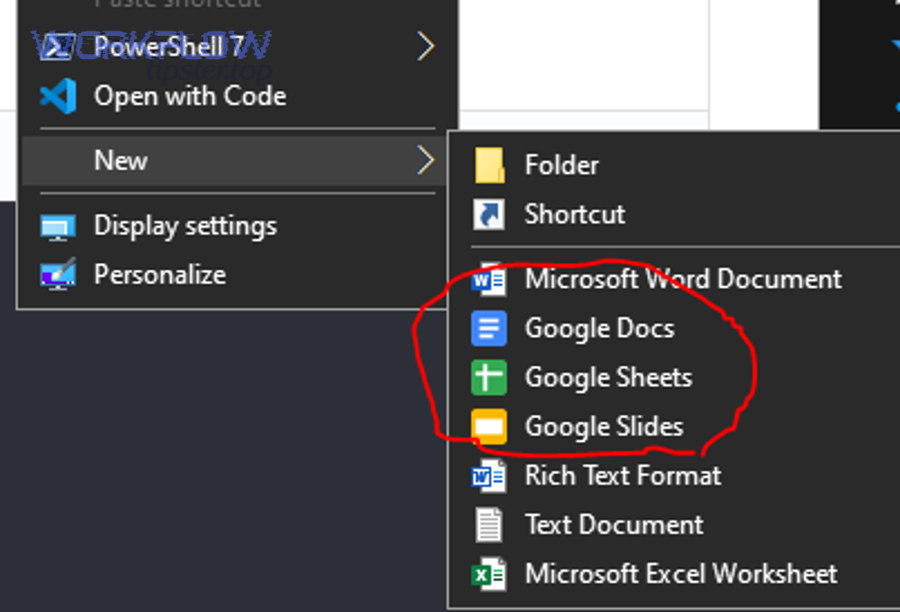
More importantly, version control isn’t a “nice-to-have” in a Sheets ↔ Excel workflow—because two editable formats can easily create competing realities.
What are the main version-control models for Sheets ↔ Excel?
There are 3 main version-control models for Sheets ↔ Excel: (1) Sheets is master, (2) Excel is master, or (3) split roles (Sheets for intake, Excel for analysis) based on who edits what and where.
Then, pick one model and document it at the top of the file (and in your team SOP):
- Sheets-as-master (recommended for collaboration):
- Team edits live in Sheets
- Exports to
.xlsxare deliverables or snapshots
- Excel-as-master (recommended for Excel-heavy modeling):
- The workbook is edited and governed in Excel
- Sheets is only a mirror or intake layer
- Split roles (recommended for operational pipelines):
- Sheets captures inputs (forms, ops updates)
- Excel runs deeper analysis or reporting outputs
What file naming and change-log rules reduce confusion?
The best naming and change-log rules are: include date + version number + owner/team tag in the filename, and maintain a “Change Log” tab that records what changed, who changed it, and why.
Next, use a template like this:
- Filename:
Project_Report_2026-01-31_v03_FIN.xlsx - Change Log columns (in a dedicated tab):
- Date/Time
- Editor
- Summary of change
- Impacted tabs/ranges
- Exported-from (Sheets link or workbook version)
This sounds simple, but it prevents the most common team failure mode: someone edits an old export and then re-uploads it as if it were the master.
How do you prevent “multiple sources of truth”?
You prevent “multiple sources of truth” by locking one master location, restricting edits in the other format, and using a clearly labeled export cadence so nobody has to guess which file to use.
Then, reinforce it with operational controls:
- Put a banner line at the top of the first sheet: “Master lives in Sheets: export is read-only snapshot.”
- Use permissions: if Sheets is master, limit who can edit
.xlsxexports (or store them in an “Exports” folder). - Add a validation step: compare 3–5 KPIs (totals, counts, key pivot totals) after export before distribution.
How can teams automate or scale Google Drive to Excel exports?
Teams can automate or scale Google Drive to Excel exports by using scheduled workflows, event-driven triggers (like new rows or form submissions), standardized storage/permissions, and automated validation checks that confirm each .xlsx export is complete and correct. (zapier.com)

Next, the goal is to turn exporting into a dependable pipeline—so exports happen on time, with consistent naming, and with fewer manual touches.
How do you schedule recurring exports (daily/weekly)?
You schedule recurring exports by defining a fixed cadence (daily/weekly), a stable “master” sheet, and a consistent export destination + naming convention—so each run produces a predictable .xlsx artifact that stakeholders can rely on.
Then, operationalize it like a reporting job:
- Pick a schedule (e.g., weekly Monday 9am)
- Export the same master sheet each time
- Store exports in a dedicated folder (e.g.,
/Exports/Excel/) - Apply versioned filenames (
_YYYY-MM-DD_vNN_)
How do you automate exports triggered by form submissions?
You automate exports triggered by form submissions by treating the form-fed Google Sheet as the ingestion layer and triggering an export workflow when new rows arrive or when a submission hits a “ready” status column.
Then, this is where cross-tool examples make sense in real workflows: a form-driven process might notify a channel (e.g., “google forms to microsoft teams”) or create a ticket (“google forms to freshdesk”) while also producing a standardized .xlsx export for finance, ops, or reporting.
How do you handle security, permissions, and audit trails?
You handle security, permissions, and audit trails by using least-privilege access to the master sheet, controlling who can download/export, and maintaining a consistent log (either in a Change Log tab or in a central tracking sheet) for each export event. (coursera.org)
Next, build governance that matches data sensitivity:
- If sensitive: keep exports in restricted folders and limit “anyone with link” sharing
- If regulated: record export date/time, exporter identity, and validation result
- If distributed externally: export a locked or protected workbook version and keep the master internal
How do you validate exports at scale?
You validate exports at scale by standardizing a small set of automated checks—row counts, sum totals, control totals, and spot-check formulas—so every exported .xlsx passes the same quality gate before distribution.
Then, adopt a “trust but verify” pattern:
- Control totals: one or two key sums that must match between Sheets and Excel
- Record counts: row counts per tab, especially for data tables
- Date sanity checks: make sure date columns didn’t shift due to locale/time handling differences
- Pivot parity: compare the top-level pivot totals (not every pivot detail) when pivots drive decisions (zapier.com)
And if your team is exporting frequently, bake the validation into the workflow so the export is only “published” after the checks pass—because at scale, manual spot-checking becomes the bottleneck (and the risk).