


If you want to convert Google Docs to Typeform, you can do it fastest by writing your questions and choices in a clean Doc format, then importing that structure into Typeform and polishing it in the form builder. Next, you’ll learn what “conversion” really means so your team avoids rework and gets a publish-ready form quickly.
Then, you’ll see how to format a Google Doc so an importer reads question boundaries and answer choices correctly, which prevents missing options and broken sections. In addition, you’ll get a practical, step-by-step import and QA workflow that teams can repeat without losing consistency.
Moreover, you’ll compare the built-in importer approach with no-code automation options so you can choose what fits your goal: one-time form creation or ongoing document workflows. Introduce a new idea: once your first import works, the real leverage comes from governance, reuse, and optimization so every new form ships faster and performs better.
Can you convert a Google Doc into a Typeform without coding?
Yes—you can convert a Google Doc into a Typeform without coding because Typeform supports importing structured questions and choices, teams can collaborate in Docs before import, and the form builder lets you fix types, logic, and layout after the import. (typeform.com)
To begin, that “no-code conversion” only works smoothly when you treat your Google Doc like a form blueprint instead of a free-form document.
Reason 1: Importing a Doc is a repeatable workflow (not a one-off hack).
A team can draft questions in a shared Google Doc, comment on wording, remove duplicates, and agree on the final choice sets before anyone touches the form builder. That single source of truth matters because the biggest time-waster in form projects is not the “clicking”—it’s the debate over what the form should ask.
Reason 2: The conversion is really a structured mapping of components.
When you convert Docs to Typeform, you are translating two components: (1) question blocks and (2) response options. Those components map cleanly when the Doc clearly separates one question from the next and lists choices in a consistent pattern.
Reason 3: The builder finishes what the Doc can’t express.
Docs are perfect for drafting, but they are not designed for conditional logic, validations, hidden fields, and UX pacing. After import, Typeform becomes the execution layer: you choose exact block types, mark questions required, add logic jumps, and test the experience on mobile.
According to a study by Loyola University Chicago from the School of Education, in 2022, the average online survey response rate across examined studies was 44.1%, which is why clarity and low-friction form experiences matter once you publish. (ecommons.luc.edu)
What does “Google Docs → Typeform conversion” mean in practice?
Google Docs → Typeform conversion is a no-code workflow that takes a structured document draft (questions, sections, and choices) created in Google Docs, imports it into Typeform as question blocks, and then refines it into a publish-ready interactive form for real respondents. (typeform.com)
Next, the practical meaning becomes obvious when you look at the workflow as a chain: draft → import → verify → polish → publish.
In practice, conversion includes four concrete phases:
1) Draft in Google Docs for team alignment
Teams use Docs because it’s fast to edit, easy to comment, and transparent. One person can own the structure while others add suggestions, rewrite questions, or flag compliance concerns. The Doc becomes your “spec.”
2) Import the Doc into Typeform as blocks
Typeform reads your question text and choices and creates corresponding blocks. This saves the repetitive setup work: you’re not retyping every question or re-entering every option.
3) Review and map question types
This is where conversion becomes real rather than theoretical. You confirm whether a question should be short text, long text, multiple choice, statement, or a rating scale. You also confirm whether any choice list needs cleanup.
4) Publish and track performance
Once the form is live, your job shifts from “building” to “improving.” You monitor drop-offs, update confusing questions, and shorten the experience where needed.
What information should be present in your Doc before importing?
There are 6 main types of information your Doc should contain before importing: (1) question text, (2) answer choices, (3) section headers, (4) optional help text, (5) required/optional markers, and (6) a simple order that matches the intended flow based on how respondents will experience the form.
Specifically, when your Doc contains these elements, Typeform can create a form structure that needs minimal rework.
- Question text (mandatory): Write each question as a single clear prompt.
- Answer choices (mandatory for choice questions): Put each choice on its own line in a consistent bullet format.
- Section headers (highly recommended): Use headings to separate chapters like “Background,” “Needs,” and “Contact details.”
- Help text (optional): Add a short clarification under complex questions so your future self knows what you meant.
- Required markers (optional but helpful): Add “(Required)” next to questions your team agrees must be answered.
- Intended flow cues (optional): Notes like “If No, skip to Q10” help you build logic later.
The payoff is speed. When the Doc is complete, the importer becomes an execution step, not a discovery step.
What will not import cleanly and must be rebuilt manually?
There are 5 main categories of elements that typically won’t import cleanly: advanced logic, strict validations, detailed design styling, embedded media layout, and complex scoring/branch conditions based on how interactive form engines differ from text documents.
For example, a Doc can describe logic, but Typeform must implement it with actual rules.
- Conditional logic and branching: “If they choose X, show Y” usually requires manual logic setup.
- Validation rules: Email formats, phone constraints, numeric ranges—these need proper field settings.
- Design system styling: Fonts, spacing, brand colors, and button style are handled in Typeform themes, not Docs.
- Media and layout nuance: Images and videos can be added, but layout control differs from a document.
- Scoring and advanced quizzes: Anything involving points per answer often needs dedicated configuration.
According to a study by Baylor University from the Academy for Teaching and Learning, in 2019, longer surveys increase response burden, which can cause respondents to skip questions or drop out—so keeping logic and complexity purposeful is a performance decision, not just a technical choice. (atl.web.baylor.edu)
How should you format a Google Doc so the importer reads questions and choices correctly?
To format a Google Doc for import, you should write one question per block, list choices as clean bullet lines under the question, and use headings to separate sections so Typeform can translate your document into stable question blocks and response options. (typeform.com)
Then, once you adopt a consistent “Doc-as-form-template” pattern, import issues drop sharply because the structure becomes predictable.
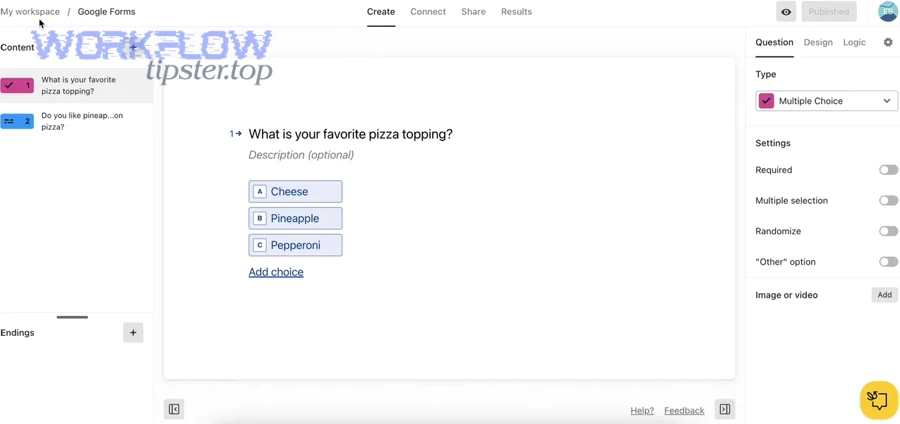
A practical formatting playbook your team can follow:
- Use a consistent question prefix: e.g., “Q1:” or simply the question sentence on its own line.
- Keep one question per paragraph: avoid multi-question paragraphs.
- Put each choice on a new line: don’t run choices inline separated by commas.
- Avoid mixed indentation styles: don’t combine bullets, dashes, and numbering randomly.
- Use headings as section dividers: “Section: Contact Info” signals a natural form page break.
- Keep instructions short: long blocks of explanatory text belong in help text or a statement block.
Which formatting patterns reduce import errors for multiple-choice questions?
Bulleted one-choice-per-line formatting wins for readability and import stability, numbered lists are best for forced ordering scenarios, and inline comma-separated choices are the most error-prone because boundaries become ambiguous for both humans and importers.
However, even the “best” pattern fails if you mix formats across the document, so standardization matters more than perfection.
Recommended pattern (most stable):
- Question on its own line
- Choices as bullets directly beneath it
- Blank line before the next question
Why this pattern works for teams:
It is easy to review in Docs, easy to comment on, and easy to keep consistent across contributors. It also makes it easier to reuse sections as “question libraries” for future forms.
How do you structure long forms (sections/pages) so they import as a clean flow?
You structure long forms by using clear section headings, grouping related questions under each heading, and inserting deliberate breaks between sections so the imported Typeform flow matches the respondent’s mental model rather than the writer’s draft order.
In addition, this approach improves completion because respondents feel progress as they move through logical chapters.
A simple long-form structure that converts well:
- Section 1: Context (who they are, what they need)
- Section 2: Details (requirements, preferences, constraints)
- Section 3: Confirmation (summary-style questions)
- Section 4: Contact (email, phone, company)
According to a study by Baylor University from the Academy for Teaching and Learning, in 2010 (cited within their guidance), prefacing a group of related questions with a short introductory paragraph can improve respondent understanding—so section framing is a quality tactic, not just formatting. (atl.web.baylor.edu)
How do you import the Doc and turn it into a working Typeform step by step?
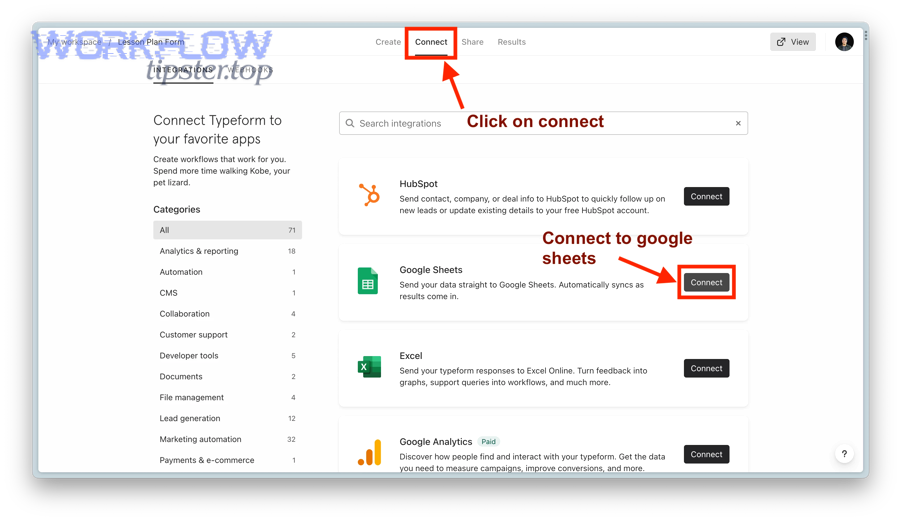
You import the Doc by running the Google Docs importer, authenticating your Google account, selecting the target Doc, creating the form, and then reviewing each imported block before publishing so the final Typeform matches your team’s intended questions and choices. (typeform.com)
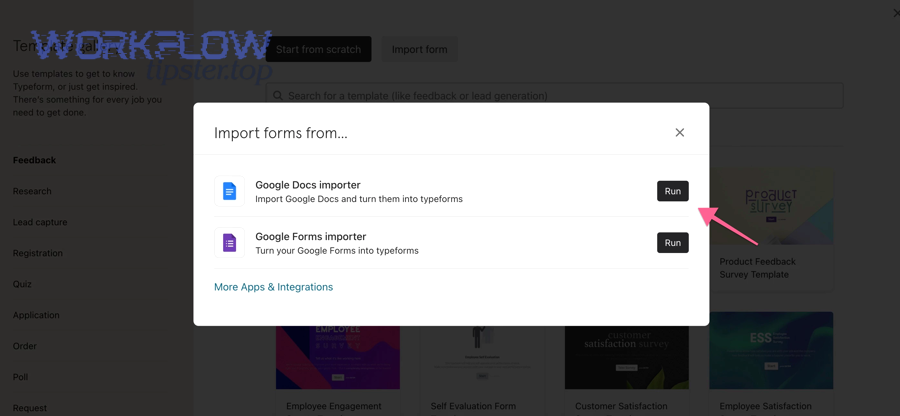
To better understand the workflow, treat import as a production pipeline where the most important step is not “Create form,” but “Verify mapping.”
Step-by-step checklist (team-friendly):
- Prepare the Doc
- Confirm each question is distinct
- Confirm each multiple-choice set is complete
- Confirm headings separate major sections
- Run the importer
- In your Typeform workspace, start a new form
- Choose “Import form”
- Select the Google Docs importer and authenticate
- Choose your Doc, name the new form, and create it (typeform.com)
- Do a first-pass structure review
- Confirm section order
- Remove accidental duplicates
- Convert instruction paragraphs into statement blocks
- Map question types
- Short text vs long text
- Single-select vs multi-select
- Rating scale vs multiple choice
- Email and phone fields with proper validation
- Publish a test version
- Send to your team
- Collect feedback on confusion points
- Fix before sharing externally
How do you verify each imported question is mapped to the right answer type?
You verify mapping by checking each block’s answer format, confirming the choice list matches the Doc, testing the question as a respondent, and validating any special fields (email, number, date) so the imported Typeform behaves exactly as the question intends.
Next, a fast verification routine prevents silent failures like “the question looks right but collects the wrong data.”
A practical mapping review routine:
- Visual check: Does the block type match the question’s purpose?
- Choice fidelity check: Are all choices present and spelled correctly?
- Data type check: Are you collecting a number, date, email, or text?
- Required check: Should this be mandatory?
- UX check: Does the question feel answerable on mobile?
What’s the fastest QA process teams can follow before sharing the form?
There are 5 main QA steps teams should follow: (1) a read-through for clarity, (2) a logic walk-through, (3) a device test, (4) a data test submission, and (5) a stakeholder approval pass based on how forms fail in real life.
More specifically, this QA sequence catches 80% of issues without turning QA into a project.
- Clarity read-through: remove jargon, shorten questions, ensure one idea per question
- Logic walk-through: test every branch and skip condition
- Device test: desktop + phone at minimum
- Data submission: submit once and verify captured data fields
- Approval pass: assign one owner to “final yes” to avoid endless cycles
According to a study by the University of Washington from the Office of Educational Assessment, in 2016, an overall survey response rate of 23.4% was reported in a large student survey context, and the report noted that survey fatigue and questionnaire length can depress participation—so pre-launch QA that shortens friction is directly tied to outcomes. (depts.washington.edu)
What question types and “Doc components” map best to Typeform blocks?
There are 6 main question-pattern-to-block mappings that work best: short-answer prompts → Short Text, open reflections → Long Text, single-choice decisions → Multiple Choice (single select), multi-selection needs → Multiple Choice (multi select), scaling opinions → Rating/Opinion scale, and instructions → Statement blocks based on how respondents interact with form UI.
Especially for teams, knowing these mappings upfront prevents the “import then rewrite everything” trap.
Doc components that convert cleanly:
- Plain questions: “What is your role?” → Short Text
- Bullet lists under a question: → Multiple Choice
- Section headings: → natural page/group boundaries
- Short instructions: → Statement blocks
Doc components that require extra care:
- Multi-part questions: split into separate blocks
- Tables: convert into sequences of questions or matrix-style alternatives
- Long paragraphs: move into statements or reduce
Which question patterns are best for surveys vs lead capture?
Survey patterns win with neutral wording, balanced scales, and short, focused questions, lead-capture patterns are best with minimal friction and clear value exchange, and hybrid patterns work when you collect just enough context to personalize follow-up without overwhelming the respondent.
Meanwhile, the right pattern depends on your goal: insight quality or conversion volume.
Survey-optimized patterns:
- “How satisfied are you with X?” (scale)
- “What is the main reason?” (single-select)
- “What should we improve?” (open-ended, optional)
Lead-capture patterns:
- “What are you looking to achieve?” (short text)
- “Which best describes you?” (single-select)
- “Where should we send the results?” (email)
How do you handle repeated choice sets and standardized fields across teams?
You handle repeated choice sets by building a shared “choice library” in your Doc, using consistent field names, and reusing proven blocks as templates so each new Typeform starts with standardized questions while still allowing team-specific customization.
In addition, this reduces data cleanup later because everyone collects information in the same shape.
A simple standardization system:
- Create a Doc section called “Shared Fields”
- Store reusable choice sets like industries, team sizes, priority levels
- Reuse the same wording and order unless there’s a reason to change
Which no-code approach should you choose: built-in importer vs automation tools?
The built-in importer wins for one-time Doc-to-form creation speed, automation tools are best for ongoing workflows that move responses into documents, and mixed approaches are optimal when you import once and then automate downstream reporting and collaboration. (typeform.com)
However, you should decide based on what you want to automate: form creation or post-submission document work.
Option A: Importer-first (best when you need a form fast)
Choose this when your Doc is already a near-final spec and your main goal is to publish a Typeform quickly. This is the most direct path to “Google Docs → Typeform.”
Option B: Automation-first (best when you need repeatable outputs)
Choose this when your real goal is to generate, update, or archive documents as people submit responses—like creating a client brief, a feedback report, or an onboarding summary.
This is where teams often expand into broader Automation Integrations that connect multiple systems, such as turning structured inputs into artifacts that other teams can review.
When is the importer better than Zapier/Make-style workflows?
The importer is better when you need the highest fidelity transfer of question wording and choice sets, Zapier is best when you need simple triggers/actions across many apps, and Make is optimal when you need more complex multi-step scenarios and data shaping. (zapier.com)
On the other hand, if your Doc changes frequently and you expect repeated “regenerations,” you should treat the Doc as the spec and use a governance process rather than expecting full re-import automation to solve alignment.
Importer is better when:
- You are converting a finished Doc into a first version of a form
- You want clean block creation without building workflows
- You want teams to finalize wording in Docs first, then publish in Typeform
Automation is better when:
- You need documents generated from responses repeatedly
- You need routing, alerts, or record creation elsewhere
- You need repeatable operations at scale
When should you generate or update Google Docs from form submissions instead?
Generating Docs from submissions is best when you need shareable summaries, templated reports, or internal briefs, updating an existing Doc is better for ongoing logs, and exporting to other systems is optimal when the “real home” of the data is a database or CRM.
More importantly, this is where teams broaden beyond one pair and connect workflows like google docs to salesforce when sales operations require structured lead data in a CRM rather than in a document.
Common document-generation use cases:
- Client intake summaries: turn answers into a formatted brief
- Research reports: group responses into a Doc for review
- Operational handoffs: create a one-pager for another department
If you already run other playbooks—like basecamp to onedrive for file management or airtable to bitbucket for tracking engineering requests—you’ll recognize the same principle: automate the handoff artifact, not the human memory.
Why did your import fail or look wrong—and how do you fix it quickly?
An import fails or looks wrong when the Doc structure is inconsistent, question boundaries are ambiguous, or the importer cannot confidently map text patterns to question blocks—so the fastest fix is to simplify formatting, standardize choice lists, and re-import using a clean template. (typeform.com)
Besides, most “broken imports” are predictable because they come from a small set of document-stage mistakes.
Fast triage approach:
- Identify the first place where the structure breaks
- Fix the Doc structure (not the form)
- Re-import to confirm the structure is stable
- Only then polish inside Typeform
What are the most common import mistakes teams make in the document stage?
There are 7 main Doc-stage mistakes teams make: (1) multi-question paragraphs, (2) mixed bullet styles, (3) inline choices, (4) missing blank lines between blocks, (5) inconsistent section headings, (6) copy-pasted formatting artifacts, and (7) ambiguous “other” options without instructions based on how importers interpret patterns.
To illustrate, “choices in a single line” often looks readable to a writer but looks like one long sentence to an importer.
Fixes that work immediately:
- Split multi-question paragraphs into separate questions
- Convert all choices into one-choice-per-line bullets
- Insert blank lines between question blocks
- Use consistent headings like “Section: …”
- Remove tables and rebuild as sequential questions
- Add “Other (please specify)” as a dedicated follow-up field
How do you handle edits after import without breaking team alignment?
You handle edits after import by choosing one source of truth, documenting changes, and using a controlled review loop so the Doc and the Typeform do not diverge into two conflicting versions of “the same form.”
Thus, alignment is not a tool feature—it is a workflow decision.
A simple alignment protocol for teams:
- Doc-first model: Edit the Doc, then re-import for major structural changes
- Form-first model: Edit in Typeform once imported, then update the Doc as documentation
- Change log: Keep a short list of changes with dates and owners
- Approval gate: One person merges feedback and publishes
According to a study by Baylor University from the Academy for Teaching and Learning, in 2019 (citing research on response burden), longer or more complex questionnaires can impair data quality through rushing or skipping, so uncontrolled edits that increase friction often reduce the value of your collected responses. (atl.web.baylor.edu)
How can teams scale, govern, and optimize Typeform forms after importing from a Doc?
Teams can scale, govern, and optimize Typeform forms after import by standardizing templates, controlling permissions and approvals, applying privacy checks, and iterating on performance signals (drop-off points and completion friction) so every new Doc-to-Typeform conversion becomes faster and more consistent.
In addition, this is where “a working form” becomes “a reliable system.”
Think in three layers:
- Governance (who can change what)
- Reuse (what gets standardized)
- Optimization (what gets improved over time)
Which collaboration and permission model prevents “who edited this?” issues?
Centralized ownership wins for compliance and consistency, distributed editing is best for speed and domain expertise, and a hybrid model is optimal for most teams because it combines controlled publishing with collaborative drafting.
Meanwhile, the hybrid model maps perfectly to Doc-to-Typeform: the Doc remains collaborative, while publishing stays controlled.
Hybrid model that works well:
- Doc editors: many contributors can propose changes
- Form builders: a smaller group implements changes in Typeform
- Publisher: one accountable owner publishes and manages versions
What privacy and compliance checks should you apply before sharing forms externally?
There are 6 main privacy and compliance checks you should apply: (1) data minimization, (2) consent language, (3) sensitive-data avoidance, (4) access controls, (5) retention rules, and (6) respondent expectations based on how form data becomes a business liability when over-collected.
More specifically, you want to collect only what you can protect and justify.
- Data minimization: remove fields you don’t truly need
- Consent clarity: explain what you’ll do with the data
- Sensitive data rule: avoid collecting regulated info unless required
- Access control: limit who can view results
- Retention: decide how long to keep submissions
- Expectation match: ensure confirmations and follow-ups align with what you promised
How do you add advanced logic and personalization that a Doc can’t express?
You add advanced logic and personalization by using conditional branching, hidden fields, and tailored endings so the Typeform experience adapts to the respondent’s answers while still collecting standardized data your team can use.
Especially, logic should reduce friction, not increase it.
Practical logic patterns:
- Branching by role: show different sections to different audiences
- Conditional follow-ups: ask “why” only when needed
- Personalized endings: confirm next steps based on responses
- Hidden tracking fields: keep campaigns and sources organized
What standardization system helps teams reuse question libraries without slowing down launches?
A strong standardization system uses a shared Doc question library, stable naming conventions, reusable Typeform templates, and a lightweight approval process so teams can launch quickly without creating inconsistent data structures across forms.
To sum up, standardization makes your form portfolio measurable and maintainable.
A “question library” system that scales:
- Store canonical questions in a shared Doc folder
- Tag questions by use case (lead, research, onboarding)
- Maintain approved choice sets (industry, budget, timeline)
- Review quarterly and retire outdated questions
According to a study by Loyola University Chicago from the School of Education, in 2022, the average online survey response rate across examined studies was 44.1%, which reinforces why optimizing friction and clarity is not cosmetic—it directly affects how much usable data your team receives after publishing. (ecommons.luc.edu)