


If you’re managing projects in Google Docs and tracking execution in Todoist, the fastest way to reduce “copy-paste busywork” is to connect the two so key document moments (or action items) automatically become structured tasks—complete with due dates, labels, and a link back to the source doc.
Next, you’ll learn what “automated task capture” actually means in plain terms, including how triggers and actions work, what can be mapped into a Todoist task, and what to expect from different integration styles so you don’t overpromise automation that can’t read your document content.
Then, you’ll follow a reliable setup path—from choosing an approach to testing it—so the workflow stays consistent under real-world conditions like repeated edits, shared docs, and recurring meeting notes.
Introduce a new idea: once the core connection is in place, you can push beyond “it works on my machine” into dependable, secure automation that scales without creating duplicate tasks or leaking document access.
What does it mean to “connect Google Docs to Todoist” for automated task capture?
Connecting Google Docs to Todoist for automated task capture means using an automation layer to turn document activity or document-embedded action items into Todoist tasks with consistent fields (title, due date, labels, and a doc link) without manual retyping.
To better understand why this matters, start by separating writing (documents) from executing (tasks): your doc is where ideas live, while your task list is where commitments get tracked, scheduled, and completed.
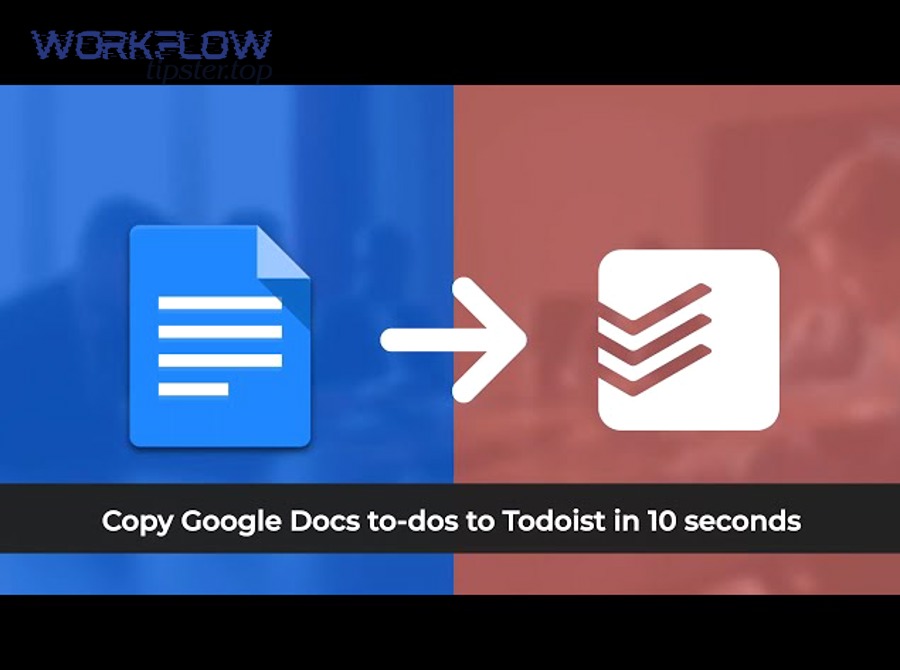
In practice, “automated task capture” is not a single magic button. It’s a repeatable mechanism:
- A trigger detects a meaningful event (or signal) in your document workflow.
- A rule decides what to capture and how to format it.
- An action creates or updates a Todoist task using mapped fields.
- A feedback loop (testing + monitoring) keeps the workflow clean as your docs evolve.
The manual → automated contrast in the title is intentional: manual capture fails under time pressure because it depends on memory and attention. Automated capture succeeds when it’s built on a stable structure—clear signals, consistent mapping, and guardrails against duplicates.
What is a trigger, and what is an action in a Google Docs → Todoist workflow?
A trigger is the “start signal” that tells your automation when to run, and an action is the “result step” that creates or updates something in Todoist.
To illustrate the difference, think of a trigger as your doorbell and the action as what you do after you hear it—open the door, send a message, or create a task.
Common trigger patterns you’ll see in real workflows include:
- Document lifecycle events: a new doc is created in a specific folder; a doc is updated; a file is moved or renamed.
- Collaboration signals: a doc is shared with a certain group; a comment is added; a mention appears (depending on tool capabilities).
- Structured capture signals: a line begins with “TODO:” or “Action:” (when using a tool that parses text, not just file events).
- Upstream doc creation: a form submission creates a doc; a meeting template is duplicated—then capture tasks immediately.
Common actions on the Todoist side include:
- Create a new task in a chosen project
- Add labels or priority
- Set a due date (fixed date, relative date, or rule-based)
- Add notes/description that includes the doc URL
- Create subtasks or a checklist-like structure
The important nuance: some automation tools can only “see” that a document changed, while others can “read” certain structured signals and turn them into task content. That distinction becomes your biggest decision point later.
What information from a document can be mapped into a Todoist task?
There are 6 core task fields you can reliably map from a doc-based workflow: task name, description, link, due date, labels, and project—plus optional ownership and subtasks if your process supports it.
More specifically, strong mapping is less about extracting everything and more about extracting the minimum that makes the task executable.
A practical “minimum viable mapping” for busy professionals looks like this:
- Task title: doc title + action phrase
Example: “Project Brief — Draft success metrics” - Task description: short context + the doc URL
Example: “See section 3 for assumptions: [doc link]” - Project: where this work belongs
Example: “Client A / Launch” - Labels: what kind of work it is
Example: “writing”, “review”, “follow-up” - Due date: either explicit (from text) or rule-based
Example: “Due 2 days after doc created” for meeting follow-ups - Priority: a simple rule can work
Example: docs tagged “URGENT” → priority 1
If you attempt to capture too much—owners, rich formatting, complex subtasks—you often increase friction and failure rates. Start with fields that improve execution the most: clear title, correct project, and a link back to the source doc.
Can you automatically create Todoist tasks from Google Docs without copying and pasting?
Yes—you can automatically create Todoist tasks from Google Docs without copying and pasting because automation tools can generate tasks from document events or structured signals, reducing manual effort, improving consistency, and cutting the “forgot-to-add-that-task” risk.
However, the key is choosing a method that matches how you work: whether you need simple event-based capture, content-based capture, or multi-step routing for teams.
The three most persuasive reasons busy professionals adopt this are straightforward:
- Speed: you stop rewriting the same commitment in two places.
- Consistency: tasks inherit the same schema every time (project, labels, naming).
- Reliability: the workflow runs even when you’re rushing from meeting to meeting.
The trade-off is that automation needs structure. Without signals and rules, the system either captures nothing—or captures everything and floods your task list.
Which 3 approaches work best for automated task capture from Google Docs?
There are 3 main approaches to automated task capture from Google Docs: (1) no-code connectors, (2) task-capture tools that parse action items, and (3) workflow builders, based on how much “logic” and “document understanding” you need.
To better understand the best fit, choose based on what you want the system to notice: events, action-item text, or multi-step workflow logic.
Here’s the practical breakdown:
1) No-code connectors (event-based capture)
- What it captures: doc lifecycle events and simple triggers
- Best for: “Create a task when a doc is created/updated/moved”
- Strengths: fastest setup, minimal learning curve
- Weaknesses: limited ability to extract detailed action items from inside the doc
- Typical examples include Zapier and IFTTT.
2) Task-capture tools (content-anchored capture)
- What it captures: tasks written in the doc using a format or markup
- Best for: meeting notes where action items live inside the doc itself
- Strengths: aligns with natural writing workflows; turns “TODO lines” into tasks
- Weaknesses: requires consistent writing conventions; may need templates
- A known pattern here is tools like TaskClone.
3) Workflow builders (logic + routing)
- What it captures: events plus conditional logic across multiple systems
- Best for: teams, approvals, multi-step processes, complex routing
- Strengths: branching logic, multi-app orchestration, governance options
- Weaknesses: more configuration and maintenance
- A common example is n8n.
The “right” approach is the one that fits your workflow reality. If your tasks live inside your meeting notes, you want content-anchored capture. If your tasks originate from document creation and handoff, event-based capture may be enough. If you need routing, approvals, or “if-this-then-that” logic across multiple steps, you’ll outgrow simple connectors quickly.
When is manual → automated task capture worth it for busy professionals?
Automation is worth it when manual capture causes missed commitments, inconsistent task structure, or repeated context switching—while the automated setup can be standardized once and reused daily with minimal upkeep.
More importantly, the ROI shows up when you reduce re-entry and refocusing: every time you stop writing, open Todoist, retype a task, and return to the doc, you pay a hidden “resume cost.”
A useful decision rule is this:
- If you create fewer than 5 doc-based tasks per week, manual capture might be fine.
- If you create 5–25 per week, automation usually pays off fast.
- If you create 25+ per week or work in a team, you need automation and rules to prevent duplicates.
According to a study by University of California, Irvine from the Department of Informatics, in 2008, workplace interruptions and task switching increased stress and time pressure even when people compensated by working faster, highlighting why reducing unnecessary switching can protect focus.
How do you set up a reliable Google Docs → Todoist automation step by step?
A reliable setup uses one main method—connect accounts, choose a trigger, map task fields, and test with real documents—so the workflow creates consistent Todoist tasks and avoids duplicates across repeated edits.
To begin, treat setup like building a small system, not “trying a trick.” Reliability comes from a stable doc template, a clear capture rule, and a test plan that reflects how you actually work.
Here’s the mindset shift that makes the rest easier: the goal is not “capture everything,” but “capture the next executable action.” That single principle keeps your task list clean.
What are the exact setup steps from start to finish?
You can set up Google Docs → Todoist automation in 7 steps: choose the approach, connect accounts, define the trigger, define the capture signal, map fields, add anti-duplication rules, and run a real-world test.
Then, once the workflow runs, lock in your naming and labeling so every task lands exactly where you expect.
- Choose your approach (event-based vs content-based vs workflow logic)
If you only need “doc created → task created,” start event-based.
If tasks are written inside docs, choose content-based capture.
If you need routing or approvals, choose a workflow builder. - Create a “sandbox” project in Todoist
Example: “Automation Inbox (Test)” - Connect accounts and confirm permissions
Make sure you’re connecting the correct Google account and the correct Todoist workspace.
Avoid granting more access than needed when the tool offers scopes. - Define the trigger
Examples: “When a doc is created in Folder X”, “When a doc is updated”, “When a doc is tagged/labeled (if supported)”. - Define the capture signal (your ‘what counts’ rule)
Pick a simple signal: Title contains “[ACTION]”; a line begins with “TODO:”; a heading starts with “Next steps”; a template includes an “Action Items” section. - Map fields into a task schema
At minimum: task title, project, labels, due date rule, and doc link in description. - Add guardrails against duplicates
Only capture from a dedicated section (e.g., “Action Items”).
Only create tasks when a keyword is present.
Prefer “update existing task” if your tool supports it (e.g., use doc ID in the task body).
If you want a quick visual walkthrough, this tutorial-style video format is often easiest to follow:
How do you test and validate the automation before using it daily?
You validate automation by running 5 realistic test cases—new doc, edited doc, repeated edits, shared doc, and edge formatting—then confirming correct task creation, correct field mapping, and zero duplicates.
Specifically, testing is where you convert “it worked once” into “it will work every week.”
- New doc test: create a doc in the target folder/template; expect exactly one task created with correct project and labels.
- Edit test: update the doc content; expect no duplicate task if your workflow is “create-on-create.”
- Repeated edits test: edit 3–5 times in a row; expect still no duplicates.
- Share/collaboration test: share the doc and add a comment; expect behavior matches your intended trigger rules.
- Edge formatting test: include checkboxes, headings, and bullet lists; expect captured task title remains readable and predictable.
After each test, verify the “task is executable” standard:
- The title clearly states the next action.
- The doc link is present.
- The task is in the correct project (not a random inbox).
- Labels make it searchable and batchable (e.g., “review,” “writing,” “follow-up”).
This testing habit is the same principle behind dependable checklists: you prevent small mistakes from scaling into recurring chaos.
Which fields and rules should you standardize so tasks are consistent every time?
You should standardize a task schema (title format, project, labels, due-date rules, and doc linking) plus two anti-chaos rules so every captured item becomes a clean, actionable Todoist task.
In addition, consistency is what makes automation feel “smart.” Without a schema, automation produces tasks that you still have to clean up—just in a different place.
Think of standardization as the bridge between macro semantics and micro execution: macro is the system , micro is each individual task . When those align, your task list becomes a reliable control panel.
What is a “task schema,” and what should it include for Doc-based work?
A task schema is a repeatable template for how every task is named, categorized, scheduled, and linked to context, so Doc-based action items become consistent Todoist tasks regardless of who wrote the document.
More specifically, it prevents three common problems: vague tasks (“Work on doc”), misplaced tasks (wrong project), and orphaned tasks (no link back to context).
A strong schema for document-driven work includes:
- Title format:
[Doc Topic] — [Action Verb + Object]
Examples: “Q1 Plan — Finalize KPI list”, “Client Brief — Draft onboarding steps” - Project mapping: one doc type → one Todoist project
Example: “Meeting Notes” docs always map to “Meetings / Follow-ups” - Labels: 3–6 stable labels you actually use
Examples:writing,review,call,follow-up,admin - Due-date rules: simple and predictable
Examples: meeting follow-ups due “tomorrow”; draft tasks due “+2 days”; review tasks due “+1 day” - Doc link placement: always in the first line of the description
Example: “Source doc: [link]” - Optional: priority rules
Example: tasks labeled “client” get higher priority
If you want automation to feel effortless, the schema must be easy enough that you don’t resist it. The best schema is the one you can sustain under pressure.
What rules prevent duplicates and messy task lists?
Two rules prevent most duplicates and mess: (1) define a clear capture signal (“only capture from here”), and (2) make tasks idempotent (“same input updates the same task instead of creating a new one”).
However, you don’t need advanced engineering terms to implement this—just write rules your automation can follow.
Use these practical anti-duplicate guardrails:
- Capture only from a dedicated section like “Action Items”
- Capture only lines with a marker such as “TODO:” or “NEXT:”
- One action item = one task
- Use a stable identifier in the task description (include the doc URL or doc ID so updates can match the original)
- Choose one trigger strategy (create tasks only on “doc created” or capture tasks only when a line is added in the action section)
This is also where Automation Integrations succeed or fail: the integration is only as good as the rules that define what the system should treat as a real task.
Which integration option should you choose: no-code connectors vs task-capture tools vs workflow builders?
No-code connectors win in speed, task-capture tools are best for pulling action items from inside docs, and workflow builders are optimal for advanced routing and team-scale automation—so your best choice depends on whether you need simplicity, content capture, or control.
Meanwhile, the wrong choice usually creates one of two pains: either the automation can’t capture what you need, or it captures too much and becomes noisy.
A quick decision framework for busy professionals:
- Choose no-code connectors if you want “doc event → task” and you’re done.
- Choose task capture if your tasks are written inside the doc as action lines.
- Choose workflow builders if tasks must be routed, approved, or enriched across systems.
How do no-code connectors compare to task-capture tools for pulling action items from document text?
No-code connectors are best for event-based automation, while task-capture tools win when you need to convert specific action lines inside a document into structured tasks with context, ownership cues, and consistent formatting.
On the other hand, reliability is about what the tool can “see.”
No-code connectors (event-based) typically see:
- Doc created, updated, moved, renamed
Task-capture tools (content-anchored) typically see:
- Marked action items inside the doc (e.g., “TODO: …”)
Here’s what that means in real life:
- If you want “create a task when a doc is created,” event-based is perfect.
- If you want “create tasks for each TODO line,” task capture is the natural fit.
For editorial teams, content capture can be especially powerful because action items often live in the doc itself. A content lead might keep an internal library that also covers other workflow pairs—like “airtable to docsend” for sharing assets or “airtable to freshdesk” for support handoffs—without forcing people to change how they write. Mentioning those examples once helps clarify that the principle generalizes beyond documents.
How do workflow builders compare for advanced routing and multi-step automation?
Workflow builders are best when you need branching logic (if/then), routing to different projects or people, and multi-step enrichment—while simpler tools are better when you want quick setup and minimal maintenance.
Especially in team environments, routing is the difference between “tasks exist” and “tasks land where work actually happens.”
Workflow builders typically excel at:
- Conditional routing: if doc title contains “Client,” route to client project; otherwise route to internal project.
- Enrichment: add labels based on keywords, assign priorities, attach metadata.
- Multi-app chains: create a task, notify a channel, log an entry, and create a follow-up reminder.
- Governance: central control, standardized recipes, shared templates.
The trade-off is ownership: someone has to maintain the workflows. If your team changes folder structures or naming conventions frequently, advanced workflows can break unless they’re designed with stable identifiers.
A practical middle path is to start simple, then graduate: build an event-based connector first, lock in your schema, then move to a workflow builder only when you feel consistent friction that logic can solve.
What are the most common automated workflows (templates) from Google Docs to Todoist?
There are 4 common automated workflows from Google Docs to Todoist—meeting follow-ups, project briefs, editorial pipelines, and recurring SOP checklists—based on the document type and the operational outcome you want the task list to produce.
Next, you’ll see templates you can copy as patterns, not rigid rules. The goal is to make your tasks predictable enough that you can scan your Todoist projects and immediately understand what’s next.
A good template always answers two questions:
- What doc signal creates the task?
- What fields make the task executable?
Which workflow templates work best for meeting notes and project briefs?
Meeting notes and project brief templates work best when they convert a dedicated “Action Items” section into tasks, attach the doc link for context, and assign due dates using simple follow-up rules (like next business day).
Then, once the template is stable, you can run it every meeting without rethinking the process.
Template A: Meeting Notes → Follow-up Tasks
- Capture signal: “Action Items” section with bullet lines starting “TODO:”
- Task title:
[Meeting Topic] — [Action] - Due date rule: tomorrow or next business day
- Labels:
follow-up,call,waiting - Description: include doc link + the decision context
Template B: Project Brief → Planning Tasks
- Capture signal: headings like “Next Steps” or “Deliverables”
- Task title:
[Project] — [Deliverable action] - Due date rule: set by milestone schedule (manual once, then reused)
- Labels:
planning,writing,review - Project: the project workspace in Todoist
A powerful behavioral benefit here is that the doc becomes the “why,” while Todoist becomes the “when.” That separation keeps your head clear.
According to a study by the University of California, Irvine from the Department of Informatics, in 2008, task switching and interruptions increased stress and effort even when people sped up to compensate, reinforcing the value of reducing unnecessary context shifts by capturing follow-ups automatically.
Which workflow templates work best for content production and editorial checklists?
Editorial workflow templates work best when they map document stages (draft, review, publish) into a consistent task schema with labels and due-date rules, so each piece moves forward without relying on memory or scattered messages.
In addition, editorial work benefits from predictable sequences, which is why checklists remain effective: they reduce omissions when you’re juggling multiple assets and deadlines.
Template C: Doc Draft → Review → Publish
- Capture signal: doc moved into “Ready for Review” folder
- Action: create a review task in the editorial project
- Labels:
review,content,blocked(as needed) - Description: doc link + reviewer notes section reference
Template D: SOP Doc → Recurring Compliance Tasks
- Capture signal: doc tagged “SOP” or updated monthly
- Action: create recurring tasks for checks (weekly/monthly)
- Labels:
ops,admin,recurring - Description: doc link + section anchors (“See Step 4”)
When people struggle with consistency in content pipelines, it’s rarely because they don’t know what to do—it’s because the work exists across too many places. Automated capture consolidates execution into one reliable lane.
How do you optimize Google Docs → Todoist automation for edge cases, security, and scale?
You optimize Google Docs → Todoist automation by hardening three areas—failure points (permissions and triggers), content extraction limits (formatting and signals), and governance (privacy, access, and maintainability)—so the workflow stays dependable as volume and collaboration increase.
More importantly, optimization is what turns automation from a “cool trick” into infrastructure. If you’re capturing tasks every day, the edge cases will eventually arrive—so it’s better to design for them now.
This is the micro-semantics layer of the article: the details that protect your system when life gets messy—multiple editors, repeated changes, reorganized folders, or stricter privacy requirements.
What are the most common failure points (permissions, triggers, duplicates), and how do you troubleshoot them?
The most common failure points are incorrect permissions, mis-scoped triggers, and duplicate task creation, and you troubleshoot them by checking access first, then verifying trigger conditions, then tightening capture rules and identifiers.
Specifically, don’t debug “the whole workflow” at once—debug in a predictable order.
Here’s a fast symptom → cause → fix playbook:
Symptom: Tasks aren’t created at all
- Likely cause: account not connected, token expired, or automation disabled
- Fix: reconnect accounts, reauthorize permissions, confirm the workflow is active
Symptom: Tasks appear in the wrong Todoist project
- Likely cause: default project selection or wrong workspace
- Fix: explicitly set the target project; avoid “inbox” defaults
Symptom: Duplicates appear after edits
- Likely cause: trigger fires on “updated” and creates tasks repeatedly
- Fix: switch to create-on-create triggers, or add an idempotent identifier (doc link/ID) and update instead of create
Symptom: Tasks have weird titles or missing context
- Likely cause: poor mapping rules or attempting to extract unstructured text
- Fix: simplify mapping; capture only tagged lines; move context into the task description
The bigger point: troubleshooting is easiest when you start from your schema. If your schema is stable, you can immediately see what “wrong output” means and where it likely came from.
How do you handle formatting and content extraction issues (headings, checkboxes, comments)?
Event-based automations win for reliability, while content-parsing automations are better for extracting headings and checkbox-style action lines—so handling formatting issues usually means choosing the simplest extraction method that still captures the right commitments.
However, you can improve content extraction dramatically by standardizing the document template.
- Put action items in one predictable section (“Action Items”)
- Use a consistent marker (“TODO:”, “NEXT:”, or checkbox bullets)
- Keep action lines short so task titles remain readable
- Avoid extracting from comments unless your tool specifically supports it cleanly
- Anchor context by always attaching the doc link, even when task text is extracted
If your automation can’t read the doc content reliably, don’t fight it—shift the signal upstream. For example, treat “doc moved to Ready” as the trigger, and then create a single “Review this doc” task with the link. That still eliminates manual copy-paste while staying stable.
What security and privacy practices matter when connecting work documents to a task manager?
Security and privacy practices that matter most are least-privilege access, controlled link sharing, workspace governance, and offboarding hygiene, because automation tools often require persistent access to the documents they monitor.
Besides protecting sensitive work, these practices also reduce operational risk: broken permissions and mismatched access are a top reason automations silently fail.
- Use the minimum permission scope available (if the tool supports folder-level scoping, use it).
- Avoid placing sensitive documents in monitored folders (keep the automation folder dedicated to safe-to-connect work).
- Review sharing settings for doc links (ensure links don’t expose documents outside your intended audience).
- Separate personal and team workflows (isolate workflows by folder and by Todoist project).
- Offboarding checklist (remove access to the automation tool, revoke tokens, and transfer workflow ownership).
The goal isn’t paranoia—it’s clarity. When the system is transparent, you can trust it.
When do advanced setups make sense (multi-step routing, team workflows, self-hosted automation)?
Advanced setups make sense when task volume is high, routing rules are non-negotiable, compliance requires tighter control, or multiple stakeholders need a governed workflow—because simple automations can’t reliably handle branching logic at scale.
In short, complexity is justified only when it removes recurring friction.
- Every task must be routed to the right project/person automatically
- You need auditability or stricter control over where data flows
- You want multi-step pipelines (create task + notify + log + follow-up)
- Your team maintains shared templates and wants consistent outcomes
If your day-to-day work is still mostly solo, keep it simple: one trigger, one schema, one test cycle. The cleanest automation is the one you barely notice—because it quietly turns your documents into action without adding noise.
According to a study by the University of the Pacific from its School of Education, in 2021, checklist-based training emphasized step-by-step task analysis and feedback to improve performance consistency, supporting the idea that standardized schemas and validation routines make automated workflows more dependable.