


Connecting Google Docs to Stripe is the simplest way for a no-code team to turn payment events into consistent, shareable documentation—so your receipts, payment logs, and internal summaries update automatically instead of being typed in by hand. This is “sync, not manual” in practice: Stripe becomes the source of truth, and Google Docs becomes the living record your team can read, share, and act on.
Next, you’ll want a clear menu of workflow patterns—because “Stripe → Docs” can mean very different things (logging payments, generating client confirmations, building finance summaries, or triggering team follow-ups). Once you pick the right pattern, the automation becomes a repeatable system instead of a one-off trick.
Moreover, choosing how you connect the apps matters. A quick no-code connector gets you live fast, but platform differences (templates, formatting, branching logic, team controls) change whether the workflow scales cleanly—or turns into a fragile chain you have to babysit.
Introduce a new idea: after you know the core setup, you can make the automation more resilient and safer—by preventing duplicates, minimizing sensitive data stored in Docs, and building a workflow your team can trust day after day.
What does it mean to connect Google Docs to Stripe for “sync, not manual” automation?
Google Docs–Stripe automation is a no-code workflow that listens for a Stripe event (like a successful payment) and then writes structured details into a Google Doc so the document stays updated without manual entry.
Then, once you understand that trigger → action pipeline, you can design a workflow that matches how your team actually documents revenue.
At a practical level, “connect Google Docs to Stripe” means three things happen in order:
- Stripe produces an event (payment succeeded, invoice paid, subscription created, etc.).
- A connector captures the event and extracts the fields you care about (amount, currency, customer name/email, invoice ID).
- Google Docs gets updated using an action (append text to a log, create a new doc from a template, or update a structured section like “Payment status”).
That’s why “sync” is the right mental model: your team does not rewrite Stripe information in Google Docs; instead, Docs becomes a readable mirror of what Stripe already knows.
A key reason this matters is accuracy. Manual entry errors are not hypothetical; they are common in routine data handling. Research led by Dr. Raymond R. Panko (University of Hawaiʻi, Information Systems) has repeatedly shown that spreadsheet-style human work contains non-trivial error rates, and errors appear in a meaningful share of real-world artifacts.
Which Stripe events are most commonly used as triggers for Google Docs automation?
There are 4 main types of Stripe triggers teams use for Google Docs automation: payments, invoices, subscriptions, and exceptions—based on whether you’re documenting revenue, billing, retention, or risk.
More specifically, the trigger you choose decides what the document “means” (a receipt log, a billing record, a lifecycle status file, or an issue tracker).
1) Payments (cash-in events)
Use payment triggers when the business question is: “Did money arrive?” Typical triggers include:
- Payment succeeded / completed
- Charge succeeded
- Payment link completed (if your flow uses payment links)
Best Doc outcomes: payment log doc, daily payment digest, receipts archive index.
2) Invoices (billing events)
Use invoice triggers when you operate on invoicing cycles:
- Invoice finalized / paid / payment failed
- Invoice sent / upcoming invoice (subscription billing)
Best Doc outcomes: invoice register, AR follow-up notes, client billing summary doc.
3) Subscriptions (lifecycle events)
Use subscription triggers when you track retention and plan changes:
- Subscription created / updated / canceled
- Trial started / ended
Best Doc outcomes: subscription change log, onboarding/offboarding checklist doc.
4) Exceptions (risk + operational events)
Use “exception” triggers when you want documents that help you respond quickly:
- Disputes created
- Refund issued
- Payment failed
Best Doc outcomes: incident response doc, refund tracker doc, dispute case notes.
When you pick a trigger category, you also pick the cadence of documentation. Payment triggers can fire often; subscription triggers are less frequent but more operationally important.
What Google Docs actions can you automate after a Stripe event occurs?
There are 5 main Google Docs actions you can automate after a Stripe event: create, populate, append, update, and share—based on whether you’re producing new documents or maintaining a single living record.
For example, a finance team often prefers “append” (one running log), while a client-success team prefers “create + populate” (one doc per customer or transaction).
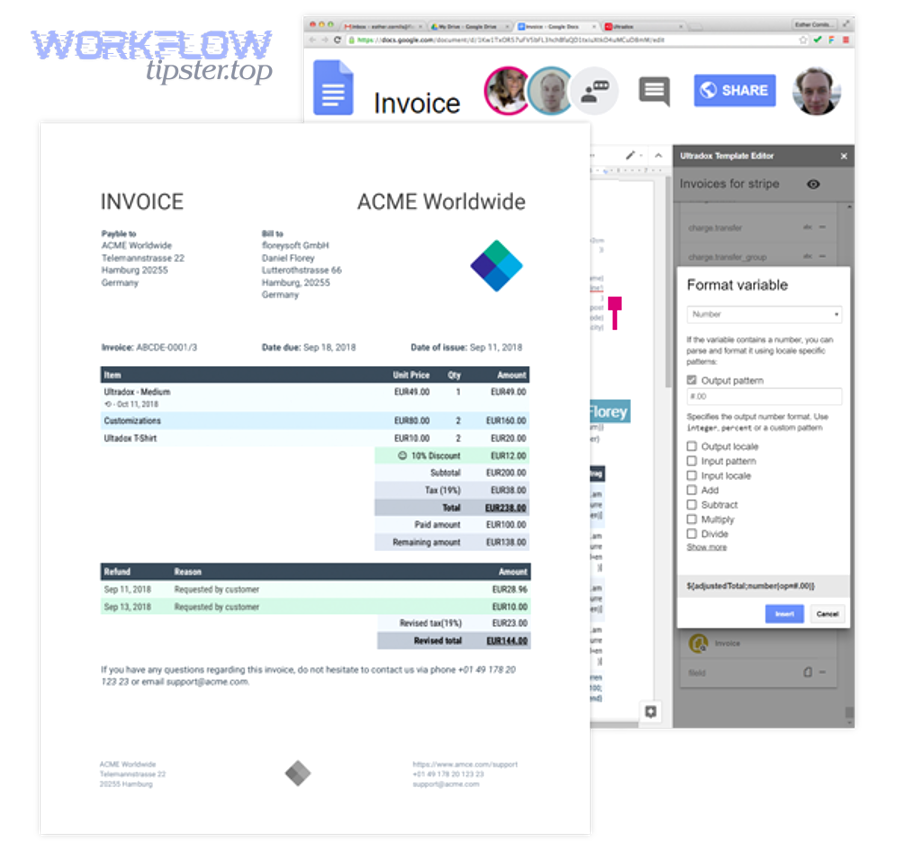
1) Create a new document from a template
This is ideal for: receipts, payment confirmations, customer onboarding summaries.
- Use placeholders (like
{{customer_name}}) and fill them from Stripe fields. Zapier’s “Create Document From Template” action explicitly supports placeholder replacement, which is why it’s a common backbone for doc automation.
2) Append a payment line into a single log doc
This is ideal for: “Stripe payments log” or “Daily revenue events” documents.
- Zapier even publishes a template workflow that appends new Stripe payment info into a designated Google Docs document.
3) Update a specific section inside a doc
This fits cases like: “Status: Paid/Unpaid,” “Last payment date,” or “Subscription tier.”
- You typically combine this with consistent headings or markers so updates land in the correct place.
4) Export a doc to PDF and store it
Many teams treat Google Docs as the generation layer and store PDFs in Drive or send them via email.
5) Share the doc or notify the team
The doc change may trigger:
- A Slack message
- An email to the customer or internal stakeholders
- A task for someone to review
This is where “Automation Integrations” become a broader operating system—because the document becomes a pivot point that other tools can react to.
Can you connect Google Docs to Stripe without coding?
Yes—you can connect Google Docs to Stripe without coding because (1) no-code connectors already support Stripe triggers and Google Docs actions, (2) OAuth/API-key authentication is handled by guided setup, and (3) field mapping tools let teams format payment data without writing scripts.
Moreover, “no code” still requires workflow design, which is where most quality outcomes are decided.
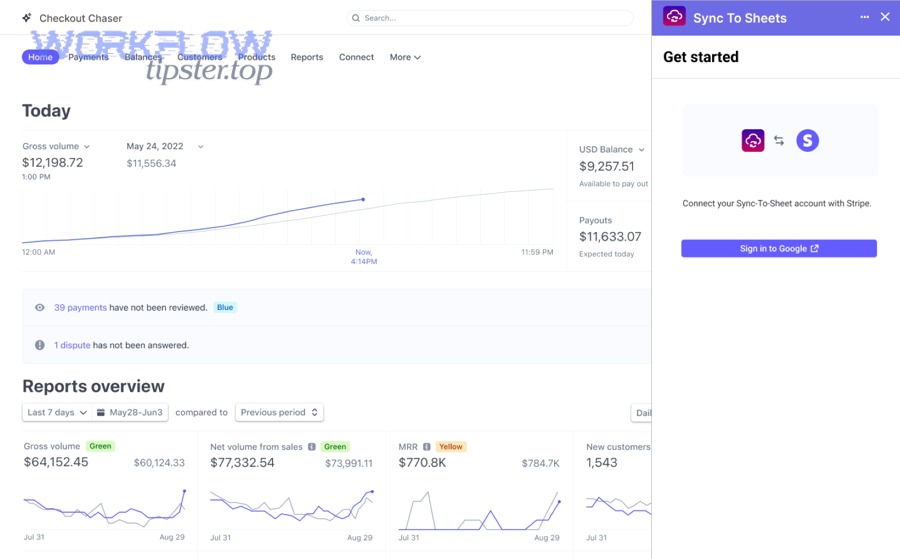
A realistic definition of “no-code” here is: you don’t write code, but you do make decisions. Specifically, you decide:
- Which Stripe event is reliable for your intent (e.g., “payment succeeded” vs “invoice paid”)
- Which Doc action creates the least future cleanup (append to log vs create per transaction)
- Which fields matter and how they should be formatted (currency, date, customer identifiers)
You also decide how the team will use the resulting doc: as a record, a checklist, a client artifact, or an operational trigger.
What information and permissions do you need before you start (Google + Stripe)?
You need three things before you start: Google Docs access, Stripe access, and a clear owner—because permissions decide whether the automation runs reliably when team members change roles.
Next, treat setup like governance, not just “click to connect,” because document automations often become financial workflows over time.
Google side (Docs + Drive permissions)
- A Google account that can access the target document or the template doc
- Access to the destination folder (especially if creating docs from a template)
- Clear ownership: a shared ops account or a service account strategy where appropriate (depending on platform)
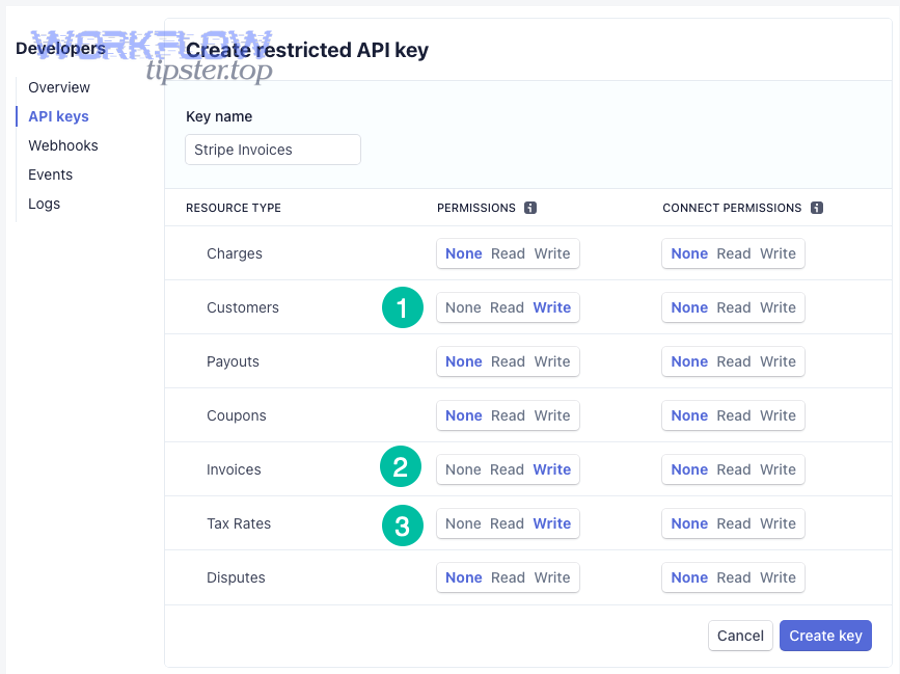
Stripe side (keys + scope)
- Stripe access that can read the relevant objects (payments, customers, invoices)
- Prefer restricted keys or least-privilege access when possible (the exact option depends on the platform and your Stripe settings)
Workflow ownership
- Decide who “owns” the automation: Finance Ops, RevOps, or a shared automation admin.
This prevents the classic failure mode: a workflow breaks because the person who connected the apps left the company.
According to a study by the University of Utah from the Department of Psychology, in 2020, researchers summarized evidence that human data-entry error rates in research contexts often fall in a measurable range (reported roughly 0.55%–3.6% in the paper’s review), reinforcing why workflows should reduce repetitive manual transcription.
When is a code-based approach better than no-code for Stripe → Docs workflows?
No-code wins for speed, but code-based approaches are better when you need deep customization, stronger governance, or higher-scale reliability.
However, the decision becomes clearer when you compare complexity, change frequency, and risk.
Here’s a practical comparison your team can use:
| Criterion | No-code connector | Code-based (Apps Script / API / platform) |
|---|---|---|
| Setup speed | Fast | Slower |
| Change management | UI-based edits | Version-controlled changes |
| Complex formatting | Moderate | High |
| Edge cases (dedupe, idempotency) | Possible but limited | Strong control |
| Governance/audit needs | Varies by vendor | Stronger if designed well |
| Long-term cost at scale | Can rise with task volume | Can be cheaper if stable |
Choose code when:
- You must implement strict deduplication and idempotency logic
- You need custom document formatting (tables, sections, conditional blocks) beyond what the connector supports
- You need to integrate with internal systems (ERP, data warehouse) in the same flow
Choose no-code when:
- You need a working automation this week
- Your workflow is standard (payment log, receipt doc, basic summaries)
- Your team prefers visibility and quick edits
How do you set up a Google Docs → Stripe automation end-to-end?
A reliable Google Docs → Stripe automation is built by choosing 7 steps—platform, accounts, trigger, doc action, field mapping, testing, monitoring, and rollout—so payment events produce consistent documents without manual effort.
To better understand why it works, focus first on mapping and testing, because most failures come from field mismatch and permissions drift.
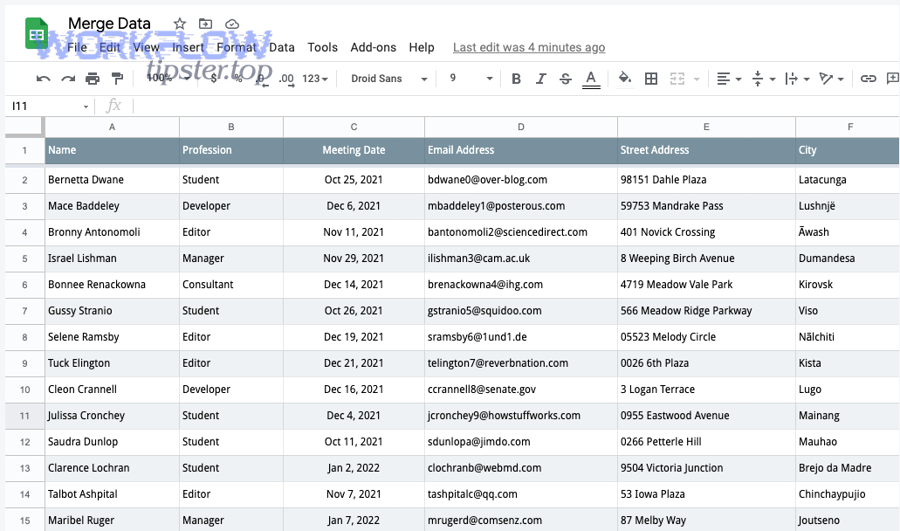
Step-by-step setup (no-code pattern)
Step 1: Choose your connector and workflow goal
Start with a single outcome:
- “Append every successful payment to one Google Doc”
- “Create a receipt doc from a template per payment”
- “Generate a weekly summary doc for finance”
Step 2: Connect Stripe and Google Docs
- Authenticate Google
- Authenticate Stripe
- Confirm the right workspace/folder access
Step 3: Select a Stripe trigger event
Pick the event that best matches the business definition of success (payment succeeded vs invoice paid).
Step 4: Select a Google Docs action
Common actions:
- Create doc from template
- Append to doc
- Update doc content
Step 5: Map Stripe fields into the document
This is where you define what “sync” actually means: which fields, what format, where they land.
Step 6: Test with realistic sample data
Use Stripe test mode where possible, and test edge cases:
- Missing customer name
- International currency
- Refund or dispute event
Step 7: Monitor and improve
Set alerts for failures, and add dedupe logic if necessary.
You can also add an optional “human oversight” step if the doc becomes customer-facing.
How do you map Stripe payment data into a Google Docs template reliably?
Mapping is reliable when you treat Stripe fields as a schema and your Google Doc template as a contract—so every placeholder has a known source, format rule, and fallback.
Specifically, your goal is to prevent “blank placeholders” and inconsistent formatting that makes the doc hard to trust.
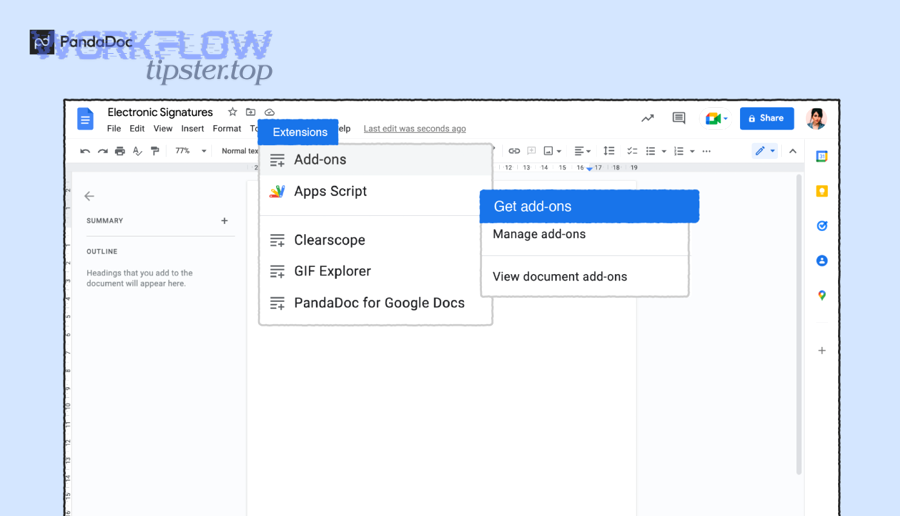
Use a consistent field set (a stable “minimum viable record”)
For most teams, a robust payment doc includes:
- Payment ID or invoice ID (unique key)
- Amount + currency (formatted)
- Customer identifier (name or email, but consider privacy—see safety section)
- Status (succeeded/paid/refunded/failed)
- Timestamp (converted to the team timezone)
- Link to the Stripe object (so Docs never becomes the only source of truth)
Add formatting rules up front
- Currency: always show symbol + ISO code if international (e.g., “$49.00 USD”)
- Dates: one format (e.g., “Jan 31, 2026”)
- Names: if missing, fall back to customer email or customer ID
Design placeholders to be obvious
{{payment_id}}{{amount}}{{customer_name}}{{paid_at}}
How do you test and validate the automation before your team relies on it?
You validate the automation by running 3 tests—happy path, missing-field path, and duplicate-event path—so you confirm accuracy, completeness, and resilience before production.
In addition, testing should include permission simulation, because many real failures happen after a folder permission changes.
Test 1: Happy path (normal payment)
Confirm:
- Doc created/appended correctly
- Amount/currency correct
- Payment ID captured
- Timestamp readable
- Doc saved in correct folder
Test 2: Missing field (customer name absent, or invoice empty)
Confirm:
- Fallback works (email or ID)
- Template doesn’t leak placeholders into the final doc
Test 3: Duplicate event / retry
Confirm:
- You do not append the same payment twice
- Your workflow uses a unique key check if available
Operational validation checklist
- Who receives failure alerts?
- Who owns edits to the template?
- Can a teammate reproduce the workflow logic?
What are the best workflow patterns for Stripe → Google Docs (and when should you use each)?
There are 4 best workflow patterns for Stripe → Google Docs: payment logging, document generation, exception tracking, and team handoff docs—based on whether your goal is record-keeping, customer-facing artifacts, risk response, or collaboration.
Besides choosing the pattern, you also choose the document structure that makes the pattern sustainable.
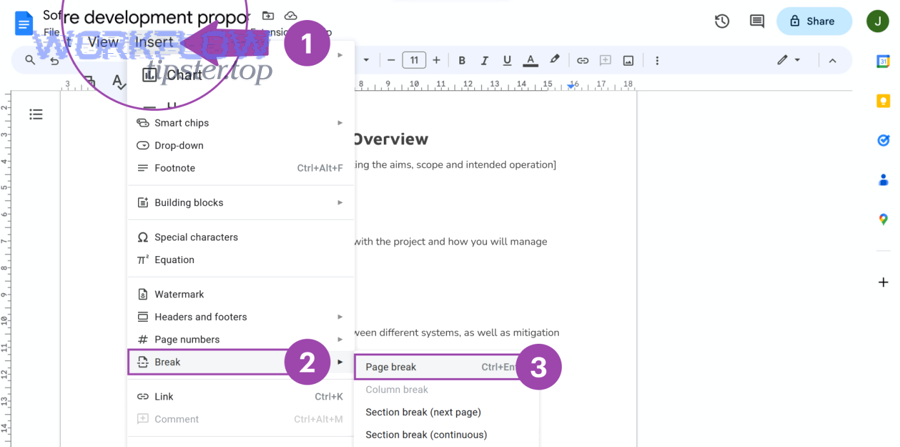
Which workflows help finance and ops teams the most (payment logs, reconciliation notes, monthly summaries)?
There are 3 main finance-and-ops workflows: running payment logs, exception + reconciliation notes, and period summaries—based on how often your team needs to act on the data.
More importantly, each workflow reduces a different kind of manual work.
1) Running payment log (append-only doc)
Best when: You want a “single pane” that’s easy to scan.
Structure idea: One line per event with a fixed pattern:
Date — Amount — Customer — Payment ID — Status
2) Reconciliation notes doc (ops-centric)
Best when: You need human context (“Why did we refund?” “Which invoice was disputed?”).
Structure idea: Sections by date or by exception type.
3) Monthly/weekly summary doc (executive-friendly)
Best when: You want aggregated reporting narrative.
Structure idea: Top metrics + notable anomalies + action items.
A strong practice here is to include links back to Stripe dashboards instead of copying too much sensitive detail.
Which workflows support customer-facing documentation (receipts, confirmations, onboarding summaries)?
There are 3 main customer-facing workflows: receipt/confirmation docs, subscription change summaries, and onboarding/on-payment milestone docs—based on whether you’re confirming a transaction, explaining a lifecycle change, or guiding the next step.
However, customer-facing docs raise the bar for accuracy, formatting, and privacy.
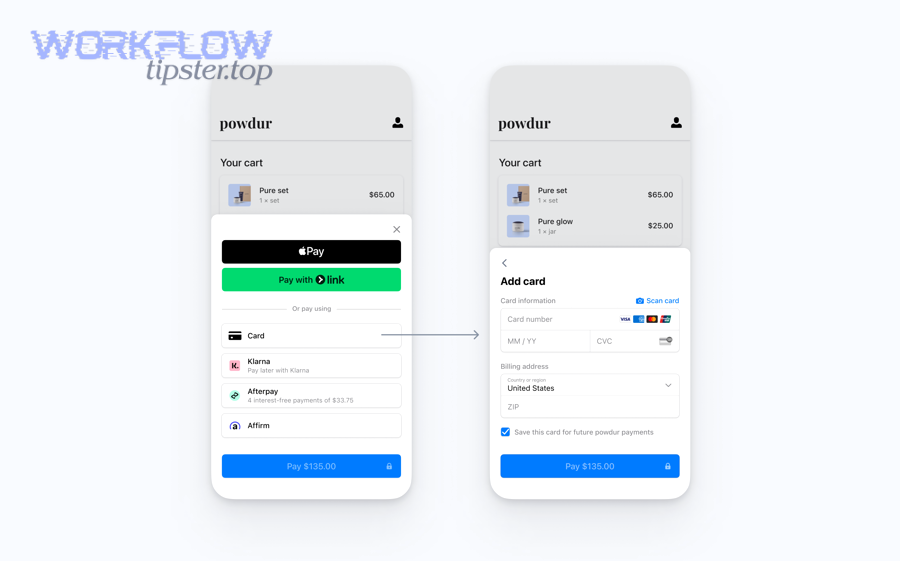
1) Receipt or payment confirmation doc (per payment)
Best when: You need a standardized artifact for the customer or internal fulfillment.
Key design: Use a template, populate placeholders, and export to PDF when needed.
2) Subscription change summary (per event)
Best when: You want a written record of “plan changed from A → B” with timestamps.
3) Onboarding milestone doc (per customer)
Best when: The payment triggers a workflow (welcome kit, service provisioning, access setup).
This is where you might also integrate other tools—like sending a message via team chat or assigning a task—similar in spirit to automations such as “airtable to google chat” for internal updates or “google calendar to microsoft teams” for meeting coordination (these are different workflows, but the same automation mindset).
Which integration option should you choose for Google Docs ↔ Stripe: Zapier vs alternatives vs custom?
Zapier wins for speed-to-live, many alternatives are best for specific workflow controls, and custom builds are optimal for high-governance or high-scale needs—so the right choice depends on whether you prioritize time, flexibility, or reliability.
Meanwhile, the “best” option is the one your team can maintain without breaking the sync.
To make this decision concrete, evaluate four criteria:
- Workflow complexity: Do you need branching, approvals, multiple outputs?
- Document complexity: Is it a simple append, or a multi-section template with conditional content?
- Governance needs: Do you need audit trails, least-privilege controls, retention policies?
- Scale and cost: How many events per day/week/month?
How do popular no-code platforms differ for this use case (templates, branching, formatting, team controls)?
Zapier is typically strongest for breadth and templates, alternatives often emphasize different workflow experiences, and custom options maximize control—so you should compare by capability buckets rather than brand names.
Specifically, the differences show up in how you build documents and how you manage logic at scale.
Here’s a capability table you can use to evaluate platforms during selection (the table summarizes criteria, not an endorsement of any single provider):
| Capability bucket | Why it matters for Stripe → Docs | What to look for |
|---|---|---|
| Template support | Enables receipts & standardized docs | Placeholder replacement, PDF export |
| Formatting utilities | Keeps docs readable | Date/currency formatting, text cleanup |
| Branching logic | Handles multiple product lines | Paths/conditions, filters |
| Team controls | Prevents “owner left, workflow died” | Shared ownership, admin roles |
| Monitoring | Stops silent failures | Alerts, run logs, retries |
| Data governance | Reduces risk in docs | Access control, masking, least privilege |
If your team also runs adjacent doc workflows like “google docs to docsend” (sharing docs externally in a controlled way), platform choices may shift toward tools with better document lifecycle and sharing controls—because the “Doc” is not just a record; it becomes a deliverable.
What should you prioritize if you care most about reliability and preventing duplicates?
If reliability is your priority, focus on (1) unique keys, (2) idempotent design, and (3) monitoring with alerts, because those three controls prevent duplicates and catch failures early.
More importantly, duplicates often come from retries, webhook replays, or “test + live” confusion.
A practical “no duplicates” checklist
- Always store a unique identifier in the doc entry (payment ID, invoice ID)
- Use a “lookup before append” pattern if your platform supports it
- Separate test and live environments
- Add alerts for failures and unusual volume spikes
- Prefer append-only logs for finance trails (less fragile than overwriting text)
According to a study by the U.S. National Library of Medicine (archived in PubMed Central) from the Department of Biomedical Informatics context, in 2008, researchers reported that electronic transcription/single-entry error rates can vary widely and can be measured per fields, highlighting why validation and error controls matter in data-transfer workflows.
How do you troubleshoot common failures in Stripe → Google Docs automations?
Troubleshooting Stripe → Google Docs automations is easiest when you classify failures into 4 buckets—authentication, permissions, missing fields, and platform limits—because each bucket has a direct fix path.
In addition, you should debug from the trigger forward, because a broken trigger means every downstream step is misleading.
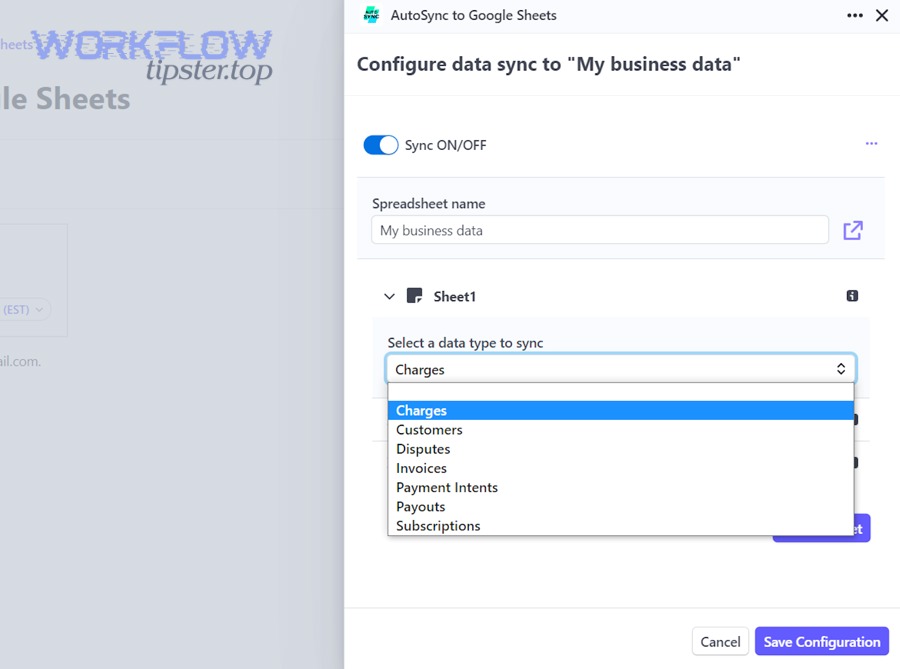
Start with the simplest rule: If the trigger did not fire, nothing else matters. Then work in this order:
- Trigger run logs: Did Stripe generate the event the connector expects?
- Connection health: Are tokens/keys still valid?
- Doc permissions: Can the workflow still access the template doc and destination folder?
- Data mapping: Did Stripe send a field you’re referencing, or is it empty?
- Limits and delays: Are you hitting rate limits, polling windows, or timeouts?
Why does the automation fail even though the accounts are connected?
An automation can fail even when accounts look connected because (1) tokens can expire or permissions can be revoked, (2) the workflow may be connected to the wrong environment (test vs live), and (3) Google Drive folder permissions often change silently.
Then, once you identify which of those three happened, you can fix the root cause instead of repeatedly re-connecting accounts.
Common root causes and fixes:
- Expired or revoked Google permission → Re-authenticate Google and confirm the workflow owner still has Drive access.
- Stripe key restrictions changed → Regenerate or update the key and confirm it can read required objects.
- Template doc moved → Update the template reference in the workflow action.
- Folder permissions tightened → Re-grant access to the workflow’s connector account.
- Changed placeholder names → Update mapping to match new placeholders.
A simple operational discipline helps: never edit the template placeholders without updating the automation mapping in the same change session.
How do you handle rate limits, timeouts, and partial runs without losing data?
You handle rate limits and partial runs by using (1) batching or digest docs, (2) retry-safe logging, and (3) a “staging then finalize” strategy—so your document trail stays intact even when events spike.
Besides preventing failure, these strategies keep your docs readable and consistent.
1) Batch events into summaries
Instead of creating a doc per payment when volume is high, create:
- Daily digest doc
- Weekly summary doc
This reduces the number of Doc writes and makes docs more human-friendly.
2) Retry-safe logging
Include the unique payment ID in every entry. If a retry happens, duplicates become detectable and removable.
3) Staging then finalize
If your workflow is complex:
- Write the raw event into a staging location (even a temporary doc or data store)
- Only after validation, write into the “official” doc log
4) Alerts + ownership
Configure alerts so failures are visible quickly. A silent failure turns “sync” back into “manual.”
Is it safe to store Stripe-related data in Google Docs for teams?
Yes, it can be safe to store Stripe-related data in Google Docs if you minimize sensitive fields, enforce access controls, and keep Stripe as the source of truth—because those three practices reduce privacy risk while preserving the benefits of shared documentation.
However, if you copy highly sensitive data into Docs without governance, it becomes unsafe and hard to audit.
A good rule is: Docs should store what humans need to act, not what systems need to process. Stripe already processes payments; your Google Doc should help humans coordinate work.
What Stripe data should you avoid putting into a Google Doc (and what’s safe to store instead)?
There are 2 main categories: avoid sensitive payment data and store minimal operational identifiers—based on whether the field increases risk without adding human decision value.
Especially in team environments, “less data” is usually “more secure.”
Avoid putting these into Google Docs
- Full card data (never)
- Highly sensitive personal data unless absolutely necessary
- Anything you wouldn’t want broadly searchable inside a Drive workspace
Safer alternatives to store
- Payment ID / invoice ID
- Amount + currency (often necessary for operations)
- Status (paid/refunded/disputed)
- Date/time (for reconciliation)
- Link to the Stripe record (so the detail stays in Stripe)
This approach also makes audits easier because the Doc becomes an index, not a shadow database.
How do you set access controls and an audit-friendly workflow in Google Drive?
You make Stripe → Docs workflows audit-friendly by setting (1) controlled ownership, (2) least-privilege sharing, and (3) consistent naming conventions—because those practices make it clear who can access what and why.
More importantly, governance prevents “random sharing” from turning internal docs into unmanaged data leaks.
1) Use shared drives or controlled folders
Place templates and generated docs in a managed area, not personal “My Drive.”
2) Define roles
- Admin: owns the connector and workflow
- Editor: can modify templates
- Viewer: can read logs
3) Standardize doc naming
Examples:
Stripe Payments Log — 2026-01Receipt — {{invoice_id}} — {{customer_id}}
4) Use change history intentionally
Google Docs has revision history; combine that with workflow logs from your connector for stronger traceability.
According to a study by the University of Hawaiʻi from the Information Systems discipline, in 2008, research synthesis highlighted that errors in spreadsheet-like artifacts are common and non-trivial—supporting the idea that controlled, automated pipelines reduce reliance on manual transcription.
How do you optimize Stripe → Google Docs automations for governance, edge cases, and “not manual” workflows?
Optimizing Stripe → Google Docs automations means adding 4 safeguards—deduplication, minimal-data design, auditability, and advanced escalation paths—so your workflow stays “sync, not manual” even when volume, retries, and organizational change happen.
Next, you improve the workflow by treating it like an operational system, not a one-time integration.
How do you prevent duplicates and replays when Stripe events fire more than once?
You prevent duplicates by using a unique key (like Stripe payment ID), checking before writing, and designing append actions to be idempotent—because retries and replays are normal in event-driven systems.
To illustrate, a single payment might generate multiple notifications across retries, but the payment ID remains stable.
Practical dedupe tactics:
- Write the payment ID into every doc entry
- Maintain a “seen IDs” list (in a table, sheet, or datastore) and check it before appending
- Use “create doc once” logic keyed by invoice/payment ID
- Separate test mode from live mode so test events don’t pollute production docs
If your connector cannot do a “lookup before append,” a lightweight workaround is to log events into a structured store first (like a database or sheet), then generate docs from the cleaned data.
What is the minimal-data strategy to reduce privacy/compliance risk in Google Docs?
Minimal-data strategy means you store references and summaries in Docs, not full sensitive records—because operational docs should enable collaboration without expanding your compliance footprint.
In short, your automation should be designed around “human-action fields.”
A minimal-data template for a payment log might include:
- Payment ID
- Date
- Amount + currency
- Status
- Customer reference (ID or partial masked email if needed)
- Link to Stripe record
This strategy also keeps your docs cleaner. Your team reads faster, searches faster, and shares with fewer privacy concerns.
How do you create an audit trail for financial documentation generated from Stripe events?
You create an audit trail by standardizing naming, controlling template changes, logging workflow runs, and limiting edit rights—because auditability is a system property, not a single setting.
Moreover, audit trails make your automation defensible during reviews and handovers.
A practical audit-friendly setup:
- Template governance: one template owner + change log
- Document naming convention: date + unique ID
- Workflow run logs: keep connector logs accessible to admins
- Access reviews: quarterly permission checks on the folder
- Retention policy: keep monthly docs in a dedicated archive folder
If your team already manages other “Automation Integrations” (like routing updates from “airtable to google chat” or syncing meetings from “google calendar to microsoft teams”), you can reuse the same governance pattern: clear ownership, clear logs, clear folder structure.
What advanced options exist beyond no-code (Apps Script, APIs, connector platforms) and when should you use them?
Beyond no-code, your main advanced options are Google Apps Script, direct Stripe API pipelines, and connector platforms with stronger governance—and you should use them when you need custom formatting, strict controls, or integration with internal systems.
Besides flexibility, these options give you better long-term maintenance if your workflow becomes core to finance operations.
Use advanced approaches when:
- You need conditional document sections (tables, dynamic blocks, multi-page formatting)
- You must enforce strict dedupe/idempotency rules
- You need to integrate with internal data (CRM, ERP, warehouse) before writing docs
- You must support compliance, auditing, and fine-grained permissions at scale
A final practical note: once your doc workflow becomes customer-facing, consider controlling document distribution. That’s where adjacent patterns like “google docs to docsend” can help—because your doc lifecycle shifts from internal notes to externally shared assets.