


If your team lives in Google Docs but manages deals in Pipedrive, the fastest way to reduce admin work is to automate how documents are created, linked, and updated inside the deal record—so every proposal, discovery note, or contract draft stays connected to the opportunity.
In this guide, you’ll learn what “Google Docs to Pipedrive automation” really means in day-to-day sales operations, and how it differs from simply attaching files by email. You’ll also see why linking (not copying) documents matters for version control and collaboration—especially when multiple reps, managers, and stakeholders touch the same deal.
Then, you’ll get a practical, step-by-step setup approach using built-in sync options and common automation patterns—so you can generate a doc from a template, attach it to the right deal, and keep it editable without breaking access permissions.
Introduce a new idea: once the basics work reliably, you can scale the same document workflow into a governed system (naming conventions, access rules, and QA checkpoints) that stays clean as your pipeline grows.
What does Google Docs to Pipedrive automation actually mean?
Google Docs to Pipedrive automation means you systematically create or connect a Google Doc to a specific Pipedrive item (deal/person/org), and ensure the “right doc” stays attached as it evolves, without reps manually downloading, re-uploading, or emailing versions back and forth.
More specifically, it’s about building a repeatable chain:
- A deal hits a stage (e.g., “Proposal”)
- A doc is created from a template (or an existing doc is linked)
- The doc is attached to the deal record
- Stakeholders can access the latest version consistently
- Editing, sharing, and storage follow rules (governance)
To make that practical, many teams rely on syncing file storage so attachments and linked docs are centralized. For example, Pipedrive’s Google Drive sync is designed to store deal/contact attachments in Google Drive and allows creating new Google documents inside Pipedrive or linking existing ones from Drive to deals/people/organizations. (support.pipedrive.com)
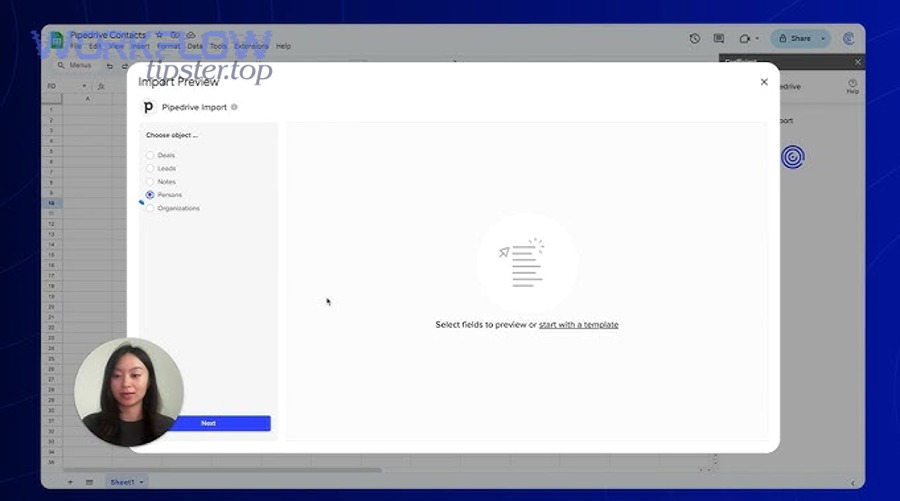
Because the document is linked to the deal, the deal becomes the “single source of truth” for which doc is current, while the doc remains the “single source of truth” for the content itself. That’s the operational meaning of the automation: reducing the gap between “work happening in documents” and “deal truth living in the CRM.”
Is Google Docs-to-Pipedrive better than emailing attachments or using PDFs?
Yes, Google Docs-to-Pipedrive is usually better than emailing attachments or defaulting to PDFs because it (1) improves version control, (2) reduces friction for collaboration, and (3) makes deal context searchable and auditable inside the CRM.
Next, let’s connect that to the real problems you’re trying to eliminate.
Reason 1: Version control stays intact (one doc, many touchpoints)
Email attachments create “forked reality.” A rep edits one version, a manager comments on another, and a prospect receives a third. With a linked Google Doc attached to the deal, the “latest” is always the same document reference.
Reason 2: Collaboration happens where work is already happening
Google Docs is built for collaborative writing, commenting, and suggestion workflows. A PDF is usually a final format; it’s not where internal teams want to co-author. When you automate the “attach/link” step into the deal, collaboration doesn’t require manual admin.
Reason 3: CRM visibility improves (less invisible work)
A deal record becomes a living workspace: doc links, file history, and context stay with the deal rather than buried in inbox threads. This makes pipeline reviews faster and reduces “status meeting” overhead.
Where PDFs still win: finalization and formal delivery. You can still generate a PDF at the last mile—but you don’t want your internal drafting workflow to start at the last mile.
 (
(How do you set up Google Docs to Pipedrive automation step by step?
A reliable setup is: (A) connect file storage to Pipedrive, (B) standardize document templates and naming, (C) choose an automation trigger, (D) attach/link docs to the right record, and (E) validate permissions + ownership.

Then, you can scale into more advanced flows.
Step 1: Turn on Google Drive sync (so storage and linking behave predictably)
Pipedrive’s help documentation describes a Google Drive sync that lets you use Drive as the storage location for attachments/files uploaded to Pipedrive, create new Google Docs inside Pipedrive, and link existing docs from Google Drive to Pipedrive items. (support.pipedrive.com)
A practical sequence (conceptually) looks like this:
- Connect the Google Drive account used for sales docs.
- Decide whether to store Pipedrive files in a separate Drive folder.
- Decide whether Drive files should be shared with other Pipedrive users by default.
This matters because your automation will inherit these decisions. If you skip them, you’ll feel the pain later as “missing access” and “where did the file go?” issues.
Step 2: Create templates that match deal stages
Pick 3–6 templates (not 30). Typical starters:
- Discovery summary template
- Proposal template
- Mutual action plan template
- Security/requirements response template (if relevant)
Use placeholder fields in the doc (e.g., COMPANY_NAME, DEAL_VALUE, NEXT_STEP_DATE). Even if you don’t auto-fill everything on day one, placeholders force structure and reduce rework.
Step 3: Decide your trigger model (manual button vs stage-based trigger)
You have two practical trigger styles:
Option A — Rep-controlled (recommended to start):
- A rep clicks a “Create doc” workflow step during the deal.
- Lowest risk. Highest adoption.
Option B — Stage-based (best after governance exists):
- When a deal enters “Proposal,” automatically create/link the doc.
- Great at scale, but only if naming + ownership rules are already solid.
Step 4: Choose the automation “bridge” if you need one
If you want no-code automation between apps, platforms like Zapier provide templates and connectors for linking activity across tools—for example, connecting Google Drive and Pipedrive through a configured workflow (trigger → action). (zapier.com)
In practice, common doc flows are:
- Create a doc from a template → attach link to the deal
- When a doc is created/updated in a folder → add a note to the deal
- When a deal hits a stage → generate a doc and share with internal reviewers
Step 5: Add a quick validation loop (the “2-minute QA”)
Before you roll out to the whole team, test 5 deals end-to-end:
- Can a rep create/link the doc?
- Can a manager access it without requesting permission?
- Does the doc stay attached after edits?
- Does the doc disappear if moved or deleted from Drive?
Pipedrive’s documentation explicitly notes that docs stored in Google Drive are stored there (not in Pipedrive), and removing a file from Drive can remove it from Pipedrive as well—so your process must account for that. (support.pipedrive.com)
What are the essential governance rules for sharing, permissions, and version control?
Governance is the difference between “automation that feels magical” and “automation that creates chaos.” The core rules are: ownership, access defaults, naming, version policy, and deletion/move discipline.
Besides, governance becomes more important as soon as your team has more than one pipeline, more than one region, or more than one person touching the same deal.
Rule 1: Define who owns the doc (and what “ownership” means)
Pick one:
- Deal owner owns the doc (simple, common)
- Sales ops owns proposal docs (controlled, consistent)
- Shared team drive owns everything (best for continuity)
Ownership affects:
- What happens when a rep leaves
- Whether docs remain accessible
- Whether docs stay in the correct folder structure
Rule 2: Set default access based on role, not personality
If you rely on “ask me for access,” you’re building a constant interruption machine.
Pipedrive’s Google Drive sync settings explicitly include options around sharing Drive files with other Pipedrive users in your company, and notes that privacy settings and sharing behavior matter once sync is enabled. (support.pipedrive.com)
A practical default:
- Sales team: edit/comment (depending on your style)
- Managers: comment
- Legal/Finance: comment or view (depending on sensitivity)
- Everyone else: no access unless added
Rule 3: Use a naming convention that supports search + audit
A naming convention is not “nice to have” in CRM-linked docs. It’s the difference between:
- “Proposal – Final – FINAL2 – UseThisOne”
- “PROPOSAL | Acme | Deal 10432 | 2026-01-31”
Minimum viable doc name format:
- Doc type (PROPOSAL / DISCOVERY / MAP)
- Account name
- Deal ID (or a stable CRM identifier)
- Date (YYYY-MM-DD)
Rule 4: Decide when Google Docs becomes PDF
A clean policy is:
- Google Doc = internal drafting + collaboration
- PDF = external delivery + final archive
This “Docs vs PDFs” rule reduces conflict because the team knows what format is expected at what moment.
Rule 5: Establish a “no-delete, only-archive” behavior
Because synced docs live in Drive, deleting or moving files can have downstream impact on what’s visible in Pipedrive. Pipedrive’s documentation notes that if a file is removed from Google Drive, it can also be removed from Pipedrive. (support.pipedrive.com)
So operationally:
- Don’t delete active deal docs.
- Move closed/lost deal docs to an archive folder at close.
- Only sales ops (or designated admins) can delete.
Evidence (university source): According to a study by Technical University of Munich from the Chair of Software Engineering for Business Information Systems, in 2020, researchers evaluated 13 document-automation tools and classified them into three categories (non-technical-user-oriented, technical-user-oriented, and workflow-based), emphasizing usability, documentation quality, and conditional logic as core evaluation dimensions for governed document workflows. (cs.cit.tum.de)
What are the most common failures—and how do you troubleshoot them fast?
The most common failures are access errors, broken links, duplicate docs, misfiled docs, and “automation ran but nothing attached.” Fixing them quickly requires a short diagnostic checklist.
More importantly, every failure type maps to one of three root causes: permissions, identifiers, or storage behavior.
Failure 1: “I can’t access the doc” (permission mismatch)
Fast fix checklist
- Confirm the doc lives in the expected Drive location (team drive vs personal drive).
- Confirm the sharing model you chose for synced files (company-wide vs selective).
- Confirm whether the user should have view/comment/edit.
Prevention
- Use role-based defaults.
- Avoid personal drives for shared sales docs.
- Train reps on the difference between “link visible” and “doc accessible.”
Failure 2: “We have two proposals for the same deal” (duplication)
This happens when:
- Stage-based automation fires multiple times
- Reps manually create docs and the automation creates docs
- Naming conventions don’t reveal duplicates early
Fast fix
- Keep one canonical doc; archive the rest.
- Add the deal ID into the doc title so duplicates stand out.
- Add a rule: “If proposal exists, don’t create another.”
Failure 3: “The doc link is there, but the doc is missing” (file moved/deleted)
When your system relies on Drive as the storage layer, you have to respect Drive’s lifecycle. Pipedrive notes that docs imported from or saved to Drive are stored in Drive (not Pipedrive), and removing from Drive affects visibility in Pipedrive. (support.pipedrive.com)
Fast fix
- Check Drive trash and restore.
- Re-link the restored doc to the deal.
- If the doc is permanently gone, rebuild from the last template and note the incident.
Prevention
- “No-delete, only-archive” rule.
- Archive at close, not during active deals.
Failure 4: “Automation ran, but nothing attached” (mapping problem)
This is usually an identifier issue:
- Wrong deal ID
- Missing required fields used in matching logic
- Trigger fired before the deal record had complete data
Fast fix
- Verify the trigger event includes the deal ID (or stable key).
- Verify the action step points to the same deal ID.
- Test with a deal that has all required fields filled.
Failure 5: “Everything is attached, but nobody can find anything” (information architecture problem)
This is not a tech failure; it’s a structure failure.
Fast fix
- Implement naming conventions.
- Create a small set of doc types.
- Enforce folder discipline by pipeline/stage.
At this point, your automation is probably working—but to make it truly valuable, you’ll want to scale beyond “create and attach.”
How can sales teams scale doc automation beyond basic “create and attach”?
Scaling means you move from single-doc convenience to a system of document operations: templates, triggers, QA, and metrics—integrated with the rest of your stack.

Then, once the base workflow is stable, the biggest wins come from standard patterns that repeat across deals.
Which automation patterns work best for proposals, contracts, and sales playbooks?
There are three high-ROI patterns:
- Proposal factory (template → review → approval → send)
- Trigger: deal enters Proposal
- Action: create doc, assign reviewers, set due date
- Output: PDF for external send, doc stays attached internally
- Deal room doc pack (multiple docs created together)
- Trigger: “Qualified” stage
- Action: create discovery summary + mutual action plan + proposal shell
- Benefit: reps stop starting from blank pages
- Sales playbook notes (standardized call notes that drive CRM cleanliness)
- Trigger: meeting completed
- Action: generate call notes template, link to deal, create follow-up tasks
This is where “Automation Integrations” becomes a real strategy rather than a buzzword: you’re not automating a task—you’re automating an operating model.
How do you measure ROI for Google Docs to Pipedrive automation?
Measure ROI using three categories:
Time saved
- Minutes saved per deal stage transition
- Admin time reduced per rep per week
Cycle impact
- Proposal turnaround time
- Review latency (manager/legal response time)
Quality
- Fewer missing fields in CRM
- Fewer “wrong version sent” incidents
- Higher consistency in proposals
A simple way to start is a baseline audit:
- Track how long it takes today from “Proposal requested” → “Proposal sent”
- Implement automation for 2–4 weeks
- Compare median turnaround time
What advanced integrations connect Google Docs, Pipedrive, and your stack?
Once your doc workflow is stable, teams often connect adjacent workflows like:
- Intake forms → deal creation → doc generation
- CRM stage change → task creation → doc review assignment
- Doc completion → send for e-sign → update deal stage
In many stacks, teams also run other workflows in parallel—like basecamp to onedrive for project handoff storage, or airtable to mailchimp for campaign segmentation—so the real scalability question is how you keep your doc automation aligned with everything else you already automate.
And if your organization is already building cross-functional flows like google docs to intercom for customer-facing knowledge and support alignment, it’s even more important that your sales docs follow clear governance rules and don’t fragment into “shadow versions.”
What security and compliance considerations matter in regulated teams?
Regulated teams should add four controls:
- Least-privilege by default
- Access is granted by role; exceptions are logged.
- Template governance
- Only approved templates can be used for regulated doc types.
- Auditability
- Document links and doc lifecycle events should be traceable to the deal timeline.
- Data residency / retention alignment
- Docs must follow company retention policies; archived deals must be handled consistently.
If you implement these controls, your “Google Docs to Pipedrive” workflow becomes not only faster—but also safer, more searchable, and easier to manage as your pipeline grows.