


If you want to send a Google Docs document through Outlook, the most reliable approach is to share a Drive link with the right permissions, because everyone sees the latest version and you avoid “which copy is correct?” confusion. Next, if you need a true file copy for offline users or strict email workflows, you can export the doc (PDF/Word) and attach it so recipients can open it without Drive access. Then, if you work in mixed environments, you can also connect Google Drive inside Outlook (web or add-ins) to insert links or attach copies more smoothly. Introduce a new idea: once you understand link vs attachment, every “Google Docs to Outlook” workflow becomes a simple choice based on collaboration, security, and recipient constraints.
What does it mean to integrate Google Docs with Outlook?
Integrating Google Docs with Outlook means you deliver a Google Docs document via Outlook either as a shareable Drive link or as an exported attachment, so recipients can view, comment, or edit based on the permissions you set. Next, to better understand what you’re really “sending,” you need to separate the document itself from the access method.
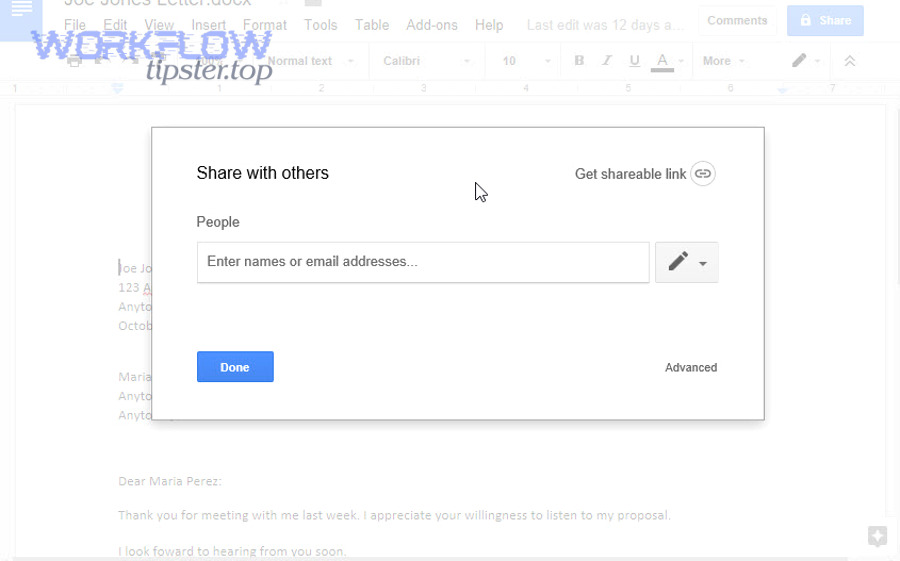
Google Docs links vs attachments (what Outlook receives)
When you email a Google Docs file from Outlook, there are two common outcomes:
- Drive link (recommended for collaboration): Outlook contains a clickable URL that points to the doc in Drive. Recipients open the doc in a browser, and everyone works on the same “single source of truth.”
- Attachment (a file copy): Outlook contains an actual file (usually PDF or DOCX) that was exported or downloaded from the doc. Recipients open it locally, and edits typically split into multiple versions.
This distinction matters because a Google Docs “native” file is not the same thing as an emailed file copy. In practical terms: links preserve shared version control; attachments freeze a moment in time.
Common use cases: sharing, review, and approvals
Most teams use “Google Docs to Outlook” for three macro workflows:
- Sharing for awareness: “Here’s the doc—please read.” (Often best as a link with view permission.)
- Review cycles: “Please comment by Friday.” (Best as a link with comment permission.)
- Approvals or compliance: “Attach the final PDF to the email thread.” (Best as an exported PDF attachment.)
If your organization relies on email threads as the official record, attachments may be required. But if your priority is fast collaboration, links win by default.
Can you send a Google Doc through Outlook?
Yes, you can send a Google Doc through Outlook, and the best option is usually Yes—send a Drive link, because it keeps one live version, reduces file size issues, and supports real-time collaboration. Then, once you decide link vs attachment, your next step is choosing the quickest method that fits your Outlook setup.

Yes—by sharing a Drive link (recommended for collaboration)
A Drive link is the “cleanest” way to send a Google Doc because:
- Everyone sees the latest version (no outdated attachments floating around).
- Permissions control access (view/comment/edit).
- Comments and suggestions stay in the doc, not scattered across email replies.
Your workflow is simple: set sharing permissions in Google Docs → copy link → paste into Outlook email → explain what you need (review, comment, approve).
Yes—by sending as an attachment (best for offline recipients)
An attachment is useful when:
- The recipient cannot access Google services (corporate restrictions or no Google account).
- The recipient needs a file for offline reading.
- You need a “final” snapshot for archiving (often PDF).
In that case, you export from Google Docs (PDF/DOCX) and attach the exported file in Outlook.
When the answer is “no” due to admin policies
Sometimes you can do everything correctly and still fail because:
- Your company blocks external Drive links.
- Your Outlook environment blocks certain add-ins or external cloud connectors.
- Recipients’ email security systems rewrite or quarantine links.
This is why it’s smart to keep a backup path: link first, and if access fails, export and attach as a controlled alternative.
What are the best ways to share Google Docs to Outlook?
There are 4 best ways to share Google Docs to Outlook: (1) paste a sharing link, (2) use a Drive add-in/plugin for Outlook, (3) connect Drive in Outlook on the web, or (4) export and attach as PDF/DOCX—chosen based on collaboration needs and recipient constraints. To begin, here are the methods in the order most teams succeed with them.
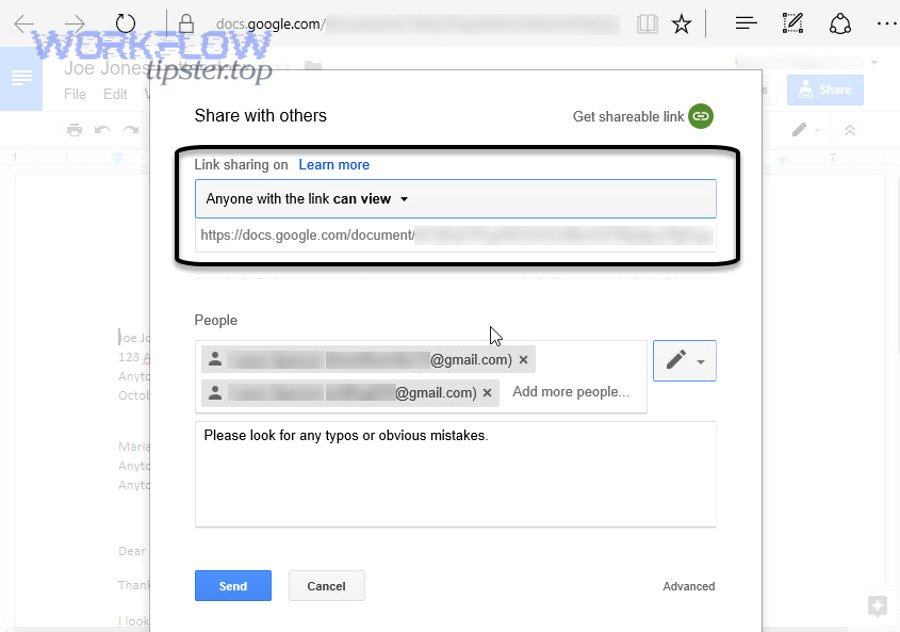
Method 1: Copy the sharing link from Google Docs
This is the fastest method and works in almost any Outlook environment:
- Open the doc in Google Docs.
- Click Share.
- Set access to the right level (Viewer/Commenter/Editor).
- Copy the link and paste into your Outlook email.
- Add a one-line instruction like: “Please comment directly in the doc.”
This method is especially effective for distributed teams because it avoids attachment size limits and keeps edits centralized.
Method 2: Use Google Drive plug-in or Workspace add-on for Outlook
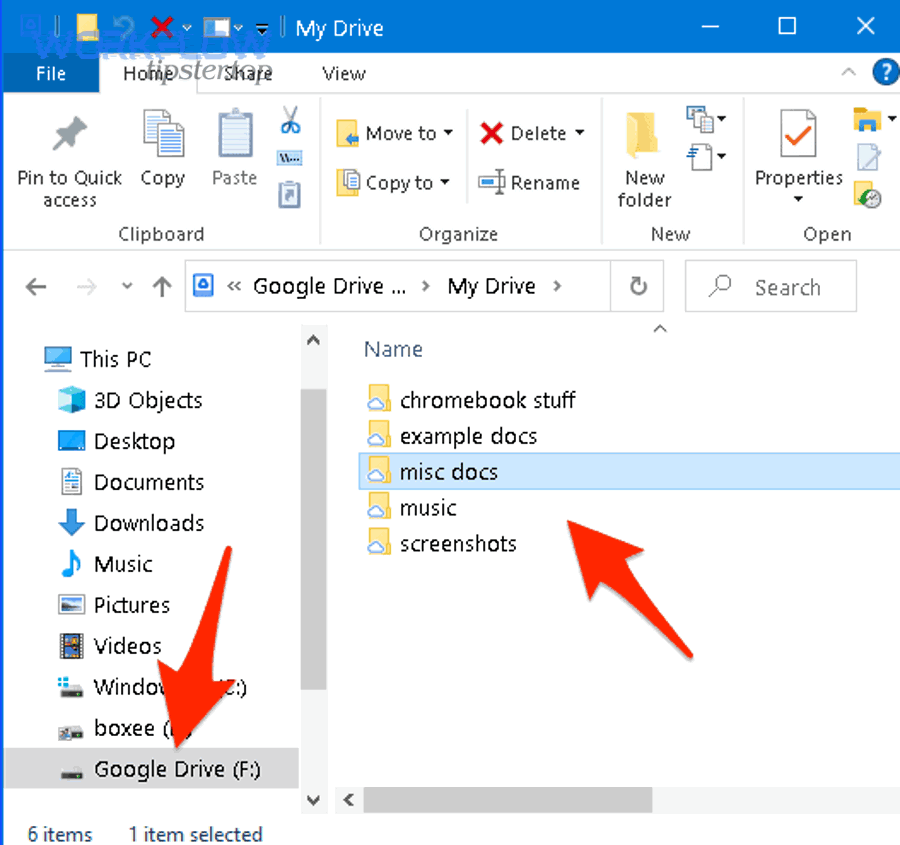
If you’re using an Outlook desktop environment that supports Drive integration, you may see a feature that lets you insert files using Drive and choose between a link or an attachment. Google describes this “Insert files using Drive” flow (including “Insert as Drive link” vs “Insert as Attachment”) in its Drive help documentation.
This method reduces manual steps because you can upload a local file to Drive and send the link in one motion.
Method 3: Use Outlook on the web with Google Drive connected
Outlook on the web can support attaching from cloud sources (including Google Drive) once your account is connected, allowing you to insert a share link or attach a copy depending on the message format and options available.
This is helpful when you’re in a browser-based workflow and want fewer context switches.
Method 4: Export to Word/PDF and attach
Exporting is the “universal compatibility” method:
- Export as PDF for final review, approval, or printing.
- Export as DOCX if the recipient must edit in Word.
Use this when the recipient environment is uncertain or the organization has strict access controls.
How do you attach Google Docs files in Outlook step by step?
To attach Google Docs files in Outlook, use one of two step paths—(1) attach as a Drive link via “Insert files using Drive,” or (2) attach a copy by exporting/downloading—so the recipient gets either a live document or a static file. Next, the key is matching the method to what the recipient can actually open.
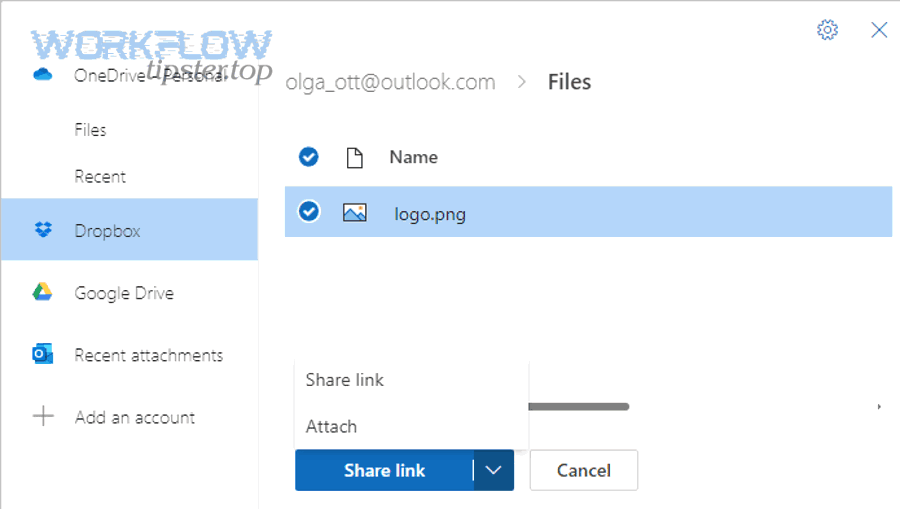
Attach as Drive link (Upload/Insert files using Drive)
Use this when collaboration matters:
- In Outlook, create a new email.
- Choose the Drive insertion option (often labeled similar to Insert files using Drive).
- Pick Insert as Drive link (or equivalent).
- Confirm the doc’s sharing permissions in Google Docs (Viewer/Commenter/Editor).
- Send the email with a clear instruction: “Please comment in Suggestions mode.”
Google’s official steps highlight choosing between inserting as a Drive link versus attaching as a file.
Attach as copy (download/export then attach)
Use this when the recipient needs a file:
- In Google Docs, export/download the document:
- PDF for final delivery
- DOCX for Word editing
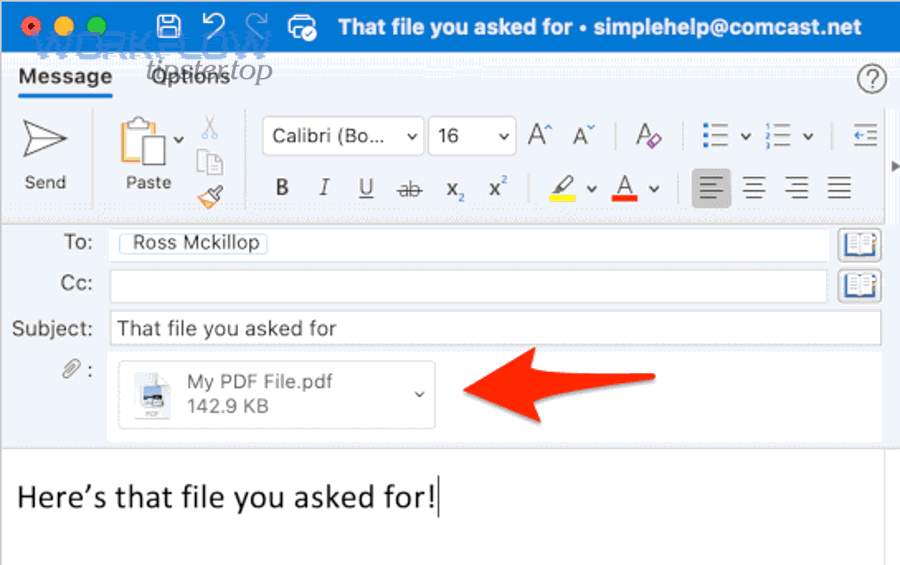
- In Outlook, click Attach file → browse to the downloaded file.
- Send with context like: “This is the final PDF version for approval.”
This avoids permission failures and “request access” loops when recipients are outside your Drive domain.
Set permissions and prevent “request access” loops
Most “it doesn’t open” problems come from permissions. Before sending:
- If recipients must interact, ensure sharing is set to Commenter or Editor.
- If recipients are outside your org, confirm external sharing is allowed.
- If you use “anyone with the link,” treat it as less controlled and use it only when appropriate.
A simple habit prevents most loops: open the link in an incognito window to sanity-check what an external viewer sees.
What’s the difference between attaching a Google Doc and sending a Drive link in Outlook?
A Drive link wins for version control and collaboration, an attachment is best for offline/locked-down recipients, and each choice changes security posture, deliverability, and user experience across devices. Meanwhile, the practical way to decide is to compare them across the criteria teams care about most.
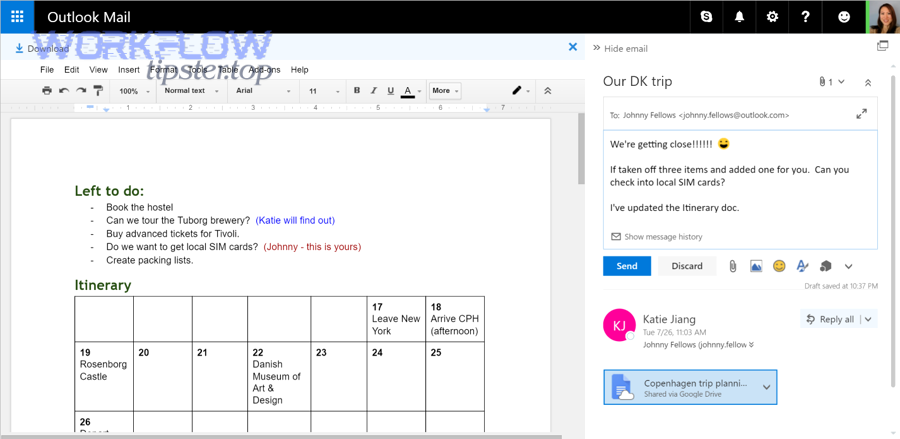
Here’s a quick comparison table showing what changes when you choose attachment vs link:
| Criteria | Drive link | Attachment (PDF/DOCX) |
|---|---|---|
| Version control | One live version | Multiple copies likely |
| Collaboration | Real-time comments/edits | Changes split across files |
| Deliverability | Small email payload | Can hit attachment limits |
| Access control | Permission-based | Forwardable file copy |
| Offline use | Not ideal | Excellent |
Version control and collaboration
Links keep everyone in one place. Attachments create duplicates.
This is why links are the default in modern collaboration—especially if your team already uses shared docs for planning, specs, or content. In fact, document “genealogy” is a real workplace problem: researchers at Oregon State University (School of EECS) ran a longitudinal study of knowledge workers at Intel and reported that provenance relationships are common and that provenance cues help people recall documents. That’s exactly the pain that link-based collaboration reduces: fewer confusing branches, fewer “final_v7_really_final.docx” moments.
Security and access control
Links let you:
- Remove access later
- Limit permissions (view/comment/edit)
- Audit who accessed the doc (depending on your environment)
Attachments:
- Can be forwarded outside your control
- Can persist indefinitely in inboxes and downloads folders
- Can bypass permission revocation (because the file is already copied)
If security is your main concern, prefer links with least-privilege permissions and expire access where possible.
File size and deliverability
Attachments are the classic reason emails fail to deliver—mail systems often block large files or certain formats. Links bypass most size limitations because the file stays in Drive and the email only contains a URL. For high-frequency workflows—like sharing weekly reports or sending multi-stakeholder drafts—linking reduces deliverability risk and keeps inboxes lighter.
Recipient experience (web vs desktop vs mobile)
- Link: best for recipients comfortable opening docs in a browser (and signed into the right Google account).
- Attachment: best for recipients who live inside Outlook/Office workflows, or need offline access.
In cross-tool operations—where teams also talk about “Automation Integrations” and workflows like “freshdesk to pipedrive” or “google forms to trello”—link-based sharing typically scales better because it keeps the document as a living artifact rather than a static email payload.
Why can’t recipients open Google Docs links from Outlook?
Recipients usually can’t open Google Docs links from Outlook because permissions are wrong, the recipient is signed into the wrong account, or the network/email security layer blocks or rewrites the link, and each cause has a specific fix. More importantly, once you diagnose which cause it is, you can resolve it in minutes instead of resending the same email repeatedly.
Wrong permission settings
Symptoms:
- “You need access”
- “Request access”
- Blank/denied page
Fix:
- In Google Docs sharing settings, confirm the recipient email is explicitly added or link-sharing is set appropriately.
- Confirm they have the needed role (Viewer/Commenter/Editor).
This is the most common failure mode—especially when emailing outside your organization.
Corporate firewall / blocked Google domains
Symptoms:
- Link won’t load on corporate network
- Security warning pages
- Recipient says Google Docs is blocked at work
Fix:
- Ask recipient to test from a different network/device.
- Provide an exported PDF/DOCX attachment if their IT policy blocks Drive.
- If internal stakeholders need access, route through approved platforms or request domain allowlisting.
Signed into the wrong Google account
Symptoms:
- Recipient has access, but still sees “request access”
- Link opens but shows a different account profile
Fix:
- Ask them to open the link in an incognito/private window.
- Ask them to switch to the account you granted access to.
This is extremely common for users with multiple Google accounts (personal + work).
Link formatting and tracking redirects
Symptoms:
- Link breaks after being clicked from Outlook
- Recipient gets redirected to a security scanner page
Fix:
- Paste the full Drive link (avoid truncation).
- If your org uses link rewriting, try sending the link in plain text as well.
- As a backup, attach an exported PDF.
Separately, beware of recipients’ security training: phishing and scam emails often use link tricks and similar wording. Researchers at Pennsylvania State University analyzed metadata from 2,092 reported scam emails and documented common scam categories (including malware-tagged emails among frequent tags), highlighting why security systems and users may treat unfamiliar links cautiously.
How do you keep Google Docs sharing secure when emailing from Outlook?
To keep Google Docs sharing secure when emailing from Outlook, use least-privilege access, time-bound sharing when possible, and an “audit + revoke” habit, so you keep collaboration benefits without letting links live forever. Next, you can harden security further by treating every shared link as a controlled access gate—not a forever invitation.
Use least-privilege permissions (viewer/commenter/editor)
Start with the minimum permission that still achieves your goal:
- Viewer: for read-only distribution
- Commenter: for review cycles
- Editor: only for true collaborators
If only two people need to edit, don’t grant “anyone with the link can edit.” Prefer explicit invites for sensitive docs.
Set expiration, disable download/print/copy when needed
If your environment supports it, security hardening looks like:
- Expiring access after the review window
- Disabling download/print/copy for view-only docs (when appropriate)
- Restricting re-sharing (where supported)
This is especially useful when sharing contracts, policy drafts, or documents with external parties.
Audit and revoke access after sending
A simple operational habit prevents long-tail access risk:
- After the project ends, check who still has access.
- Remove external collaborators who no longer need it.
- Move finalized docs into a controlled folder with restricted sharing.
This transforms “emailing a link” from a casual action into a maintainable system.
Alternatives when Google sharing is restricted (PDF, Word, or shared drives)
When Drive sharing is blocked or risky, use controlled substitutes:
- Export a PDF for final or legal-friendly snapshots.
- Export DOCX if recipients must edit in Word.
- Use your organization’s approved shared repository if Google is restricted.
And if you use Outlook on the web with connected cloud sources, be aware you may be able to insert a share link or attach a copy depending on the specific attachment flow and settings available.