


Moving a document from Google Docs into Notion is straightforward when you treat it like a two-part job: (1) import the content cleanly, and (2) re-apply the right permissions so the page is truly team-ready. Notion supports importing a Google Doc in multiple native ways (paste a Doc link and choose “Import from Google Drive,” use the /Google Docs command, or go through Settings → Import), which makes the transfer fast even for non-technical teams.
The next challenge is formatting fidelity—headings, tables, images, and links may not map perfectly unless you prepare the Doc first and run a quick post-import QA checklist. Notion also notes you can import only one Google Doc at a time, so teams should plan for repeatable steps and consistent page standards.
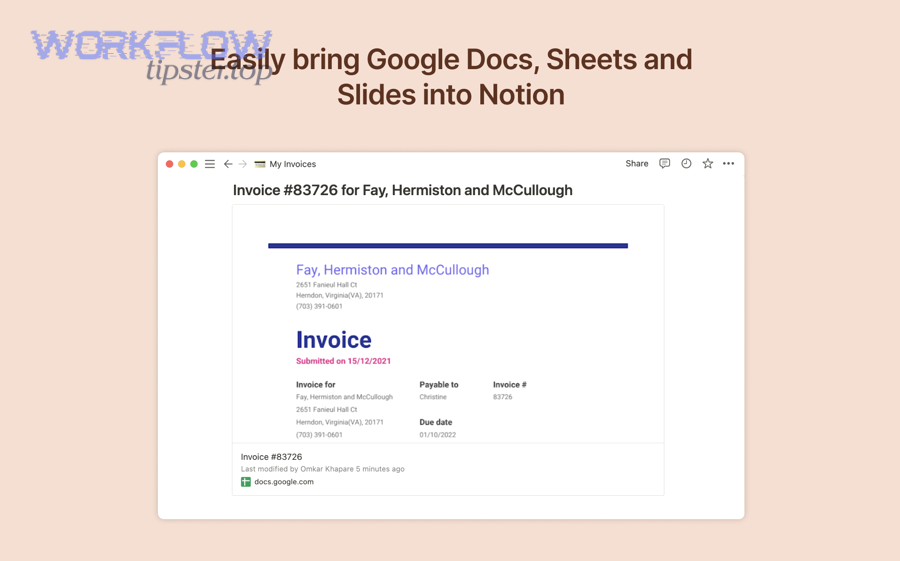
Permissions are the other half of “transfer.” Your Google Drive sharing settings influence who can access the Doc during the import flow, while Notion workspace and page permissions determine who can view, comment, and edit the imported Notion page afterward. Separately, embedding or previewing a Drive link in Notion can be a better option for “living docs” that must stay in Google Docs as the source of truth.
Introduce a new idea: once you understand import vs embed, you can design a team workflow that reduces context switching and keeps knowledge discoverable—so the “transfer” becomes an operational system, not a one-off action.
What does it mean to “import (transfer) Google Docs to Notion” for a team?
Importing (transferring) Google Docs to Notion is the process of converting a Google Doc into a Notion-native page so your team can search, edit, comment, and organize it inside a shared workspace—rather than keeping it as an external file link. To better understand this transfer, think of it as a controlled conversion: you bring the content over, then you align structure, ownership, and permissions so the page behaves like a first-class Notion document.
When teams say “transfer,” they usually mean three outcomes:
- Content becomes editable inside Notion (not just viewable).
- The page can be governed (permissions, ownership, workspace structure).
- The doc becomes findable and reusable (tags, databases, backlinks, and templates).
In practice, that means you should decide before you import whether you’re aiming for:
- A Notion-native document that replaces the Google Doc, or
- A Notion hub page that references Google Docs (via preview/embed) while keeping Docs as the source of truth.
What happens to headings, tables, images, and links when a Google Doc becomes a Notion page?
A Google Doc becomes a Notion page by mapping Doc formatting into Notion blocks, where headings become heading blocks, paragraphs become text blocks, and many elements convert into simpler Notion equivalents (especially complex tables). Specifically, the transfer works best when your Doc uses clean, consistent styles—because Notion’s importer can only convert what it can clearly interpret.
Here’s what to expect, element by element:
- Headings: Headings usually import well if the Doc uses built-in heading styles (Heading 1/2/3). If your Doc uses bolded text instead of real headings, Notion may import it as plain text, and your table of contents won’t behave like a doc outline.
- Tables: Tables often import as simple tables. If your Doc uses nested tables, merged cells, or heavy in-table formatting, expect cleanup work. Teams often choose to rebuild important tables as Notion databases after import because databases support sorting, filtering, and consistent properties.
- Images: Images typically come through, but layout may shift if the Doc relied on text wrapping or anchored images. After import, your job is to confirm images still support the narrative where they appear.
- Links: Links usually import as clickable URLs. However, the user experience depends on whether those links point to Drive files with restricted access. A link that “works for you” may fail for a teammate—so permissions must be part of QA.
To keep the hook-chain tight: if your goal is “transfer,” you need the imported page to feel like a document your team can read end-to-end without formatting friction. Therefore, after import, validate the page structure first (headings and section flow), then validate the functional elements (links, images, tables).
What’s the difference between importing a Google Doc and embedding it inside Notion?
Import wins for ownership and editing in Notion, while embedding wins for keeping Google Docs as the living source of truth and simply viewing it in Notion. However, the right choice depends on how often the content changes and where collaboration needs to happen.
Here’s the practical comparison teams care about:
- Import (transfer):
- Best when you want the doc to become a Notion-native asset.
- Ideal for playbooks, internal documentation, onboarding guides, and “finalized” specs.
- Lets you connect the doc to databases, tags, and workflows.
- Requires a formatting + permission QA step.
- Embed/Preview:
- Best when the doc must remain in Google Docs for compliance, external collaboration, or heavy Docs-based editing.
- Keeps the doc “live” without converting it.
So the core question isn’t “Which is easier?”—it’s “Where does the team do real work?” If the answer is Notion, transfer and standardize. If the answer is Google Docs, embed and govern access carefully.
Can you import Google Docs to Notion without losing access control?
Yes—you can import Google Docs to Notion without losing access control if you align Google Drive sharing before import and then set Notion page permissions immediately after import, because access control is governed by two systems, not one. Moreover, teams keep access control intact when they follow three principles: least privilege, clear ownership, and post-import permission QA.

The reason this matters is simple: a transfer is only successful when the right people can access the page and the wrong people cannot. Therefore, you must treat permissions like a checklist item, not an afterthought.
Which permissions must be set in Google Drive before importing to Notion?
There are 4 common Google Drive permission scenarios teams should validate before importing, based on how the Doc is shared and where it lives. For example, you may be able to import a Doc personally, but your teammates may not be able to open related links afterward unless Drive sharing is consistent.
- Private Doc (only you):
- Best for: personal drafts not ready for the team.
- Risk: your import may succeed, but other users cannot verify linked Drive assets unless those assets are shared later.
- Shared with specific people/groups:
- Best for: controlled collaboration (internal team or project group).
- Team tip: ensure your group permissions match the Notion workspace audience so you don’t create mismatched access layers.
- Link sharing enabled (anyone with link can view/comment/edit):
- Best for: fast sharing, external collaboration.
- Risk: link-sharing can be too permissive for sensitive docs; importing into Notion doesn’t automatically “fix” that risk.
- Shared Drive / organizational Drive controls:
- Best for: enterprise governance.
- Risk: strict organizational policies can block connections or prevent teammates from accessing referenced Drive files unless they’re inside the org.
Even if your goal is a Notion-native page, Drive permissions still matter for the import flow and for linked assets that remain in Drive. So, before you import, confirm: Who should have access today? Who should have access next month? Then set permissions to match.
How do Notion workspace roles and page permissions affect who can view or edit the imported page?
Notion access control works as workspace access + page-level permissions, which means the imported content becomes governed by Notion once it lands as a page. More specifically, the same doc can be “visible” in a workspace but not editable—or editable by a team but hidden from guests—depending on how you share the page.
A team-ready permission model usually includes:
- Workspace-level clarity: Who belongs in the workspace (members, guests, external collaborators)? If your workspace is open to many teams, you must assume discoverability is higher.
- Page ownership: Assign a clear owner (or owning team). Ownership prevents “orphan docs” that nobody maintains.
- Page-level permissions: Decide whether the team should view, comment, or edit. Editorial control matters most for policy docs, SOPs, and templates.
- Inheritance and subpages: If your imported page will become a parent page, ensure subpages inherit the right access rules—or explicitly override them where needed.
The hook-chain is straightforward: importing gets the content into Notion; permissions make it usable for the right audience. Therefore, teams should treat post-import sharing as a required step—just like verifying formatting.
How do you import Google Docs to Notion step by step (team confirmed workflow)?
The most reliable way to import Google Docs to Notion is a 3-phase workflow—prepare the Doc, import using one of Notion’s native paths, then QA formatting and permissions—so your team gets a clean Notion-native page. Next, let’s turn that into a repeatable checklist you can use every time, even though Notion currently notes you can only import one Google Doc at a time.

What should you do in Google Docs before importing to maximize formatting accuracy?
There are 7 preparation actions that dramatically improve import quality, based on how importers interpret structure:
- Use real heading styles (H1/H2/H3), not bold text. This preserves hierarchy and helps Notion recreate a navigable page.
- Normalize lists and spacing. Remove manual spacing tricks (extra blank lines, repeated tabs). Importers often translate “visual hacks” into messy blocks.
- Simplify complex tables. If a table is critical, consider converting it into a simpler table before import, then rebuilding as a Notion database later.
- Check image placement. Place images on their own lines where possible. Text-wrapped images can shift during conversion.
- Resolve broken or private links. Click every major link once. If a link is supposed to work for the team, confirm the team can access it in Drive today.
- Remove “comment-only” content that must become permanent. If key information lives in comments or suggestions, merge it into the main text before import.
- Add a clear title and doc purpose at the top. Notion pages benefit from a short “why this exists” line; importing without context creates pages nobody trusts later.
If your team wants consistent docs, standardize these steps in a short internal guideline. The point is not perfection—the point is that every import produces a page that reads cleanly and behaves predictably.
What should you check in Notion right after import to ensure the page is “team-ready”?
A team-ready import passes a two-part QA: structure + governance.
A) Structure QA (formatting + flow):
- Confirm headings follow the same order as the Doc.
- Scan tables: verify rows/columns line up, and no key data collapsed.
- Check images: ensure they appear near the correct paragraphs.
- Confirm link behavior: open a few links in an incognito window or as a teammate if possible.
B) Governance QA (permissions + ownership):
- Assign the doc owner (person or team).
- Set page permissions (view/comment/edit).
- Decide whether this page belongs in a database (Docs hub) with properties like:
- Owner
- Status (Draft / Approved / Deprecated)
- Last reviewed date
- Team
- Topic tags
- Add a small “Last updated” note or a review cadence so content doesn’t rot.
To keep the hook-chain strong: your import is “done” only when the page is easy to read and safe to share. Without both, you’re not transferring knowledge—you’re relocating mess.
Which import approach is best for your use case: one-off import, repeatable workflow, or bulk migration?
Import wins in conversion and Notion-native editing, embedding wins in living-doc continuity, and bulk migration is optimal for large-scale knowledge moves where consistency and rollout matter most. However, teams choose correctly only when they compare approaches by the same criteria: volume, update frequency, maintenance cost, and governance.

To make that decision concrete, the table below summarizes what each approach optimizes for (and what it risks):
| Approach | Best for | Main benefit | Main risk |
|---|---|---|---|
| One-off import | Single docs, finalized policies, handbooks | Fast conversion into Notion-native pages | Formatting cleanup + one-at-a-time importing |
| Repeatable workflow | Ongoing doc transfers, standardized documentation | Consistency, team training, fewer mistakes | Requires templates + QA discipline |
| Embed/Preview | Living docs that stay in Google Docs | Keeps Docs as source of truth while visible in Notion | Access issues if Drive permissions aren’t aligned |
| Bulk migration | Large libraries, multiple folders | Scalable knowledge move + organized rollout | Requires planning, staging, and governance |
In addition, a lot of teams realize this isn’t only about docs—it’s about reducing the “where is the latest version?” problem. A centralized, searchable hub is one way to reduce interruptions and re-orientation costs during work.
When is “one-time import” the right choice for teams?
Yes—one-time import is the right choice when the document is stable and your team wants to own and edit it inside Notion, because it reduces duplication and creates a single internal home for the content. Moreover, it works best for at least three team scenarios:
- Docs that are “final enough.” Policies, playbooks, onboarding checklists, and retrospectives typically change slowly.
- Docs that benefit from Notion’s structure. If you want tags, properties, backlinks, and databases, import is the fastest route.
- Docs that require controlled collaboration. Notion page permissions + ownership can be clearer for internal teams than scattered Drive sharing.
In short, if your team wants to move from “file storage” to “knowledge system,” importing is the direct path—because it turns content into Notion blocks you can manage, reuse, and connect.
When should teams keep Google Docs as the source of truth and use Notion only for embedding?
Yes—teams should keep Google Docs as the source of truth and use Notion for embedding when the doc needs Docs-native workflows (heavy co-authoring, external stakeholders, formal review processes) and Notion is primarily the hub where people find and reference the doc. Meanwhile, embedding is often safer when:
- The doc must remain in an organization’s Drive governance structure.
- External partners need access, and their access is already managed in Drive.
- The doc changes daily, and duplicating it as a Notion page would create version confusion.
This lets you keep one source of truth while still reducing the “hunt for the doc” problem.
How do you handle common formatting and collaboration issues after importing?
There are three practical ways to handle common post-import issues: fix structural formatting first, rebuild high-value tables as databases, and standardize collaboration rules (owners, review cadence, and permissions) so the imported page stays usable. In addition, teams reduce rework by treating imported pages as “draft conversions” until they pass a short QA checklist.
What are the most common formatting problems (tables, spacing, headings) and how do you fix them in Notion?
There are 5 recurring formatting problems after import, and each has a clean Notion-side fix:
- Headings import as plain text
- Why it happens: the Doc used bold text instead of heading styles.
- Fix: convert key lines into Notion heading blocks, then add a mini table of contents section if the doc is long.
- Spacing looks inconsistent
- Why it happens: manual line breaks, tabs, or inconsistent list indentation.
- Fix: consolidate paragraphs, reapply lists, and use dividers or callouts to recreate visual rhythm.
- Tables are readable but not “usable”
- Why it happens: simple tables import, but they don’t behave like databases.
- Fix: rebuild important tables as databases with properties (Owner, Status, Date) so the table becomes operational—not just visual.
- Images appear but feel “out of place”
- Why it happens: image anchors and wrapping don’t translate.
- Fix: group images with the paragraph they support, add captions where helpful, and keep one idea per section.
- Links work for some people but not others
- Why it happens: Drive permissions differ across teams.
- Fix: decide whether to (a) move those assets into a shared Drive location with correct access or (b) replace them with Notion-native attachments/pages.
A useful team habit is to add a small “Conversion notes” section at the bottom during the first pass, then remove it after cleanup. That keeps the doc honest while still moving forward.
How can teams standardize imported pages so they look consistent across a workspace?
Teams standardize imported pages by using a shared template + a lightweight editorial checklist + a doc database for governance, because standardization is a system, not a styling preference. More importantly, a consistent doc structure prevents the “every page looks different” tax that makes knowledge bases feel unreliable.
A simple standardization system includes:
- A Notion template for imported docs that adds:
- Purpose / TL;DR
- Owner
- Status
- Last reviewed date
- Audience (Team / Company / External)
- A naming convention
- Example:
[Team] – [Topic] – [Doc type] – [Status] - This prevents duplicates and helps search work better.
- Example:
- A governance workflow
- Draft → Review → Approved → Deprecated
- This stops old imports from silently becoming “the truth.”

When teams do this well, imports stop being random pages and start becoming reliable documentation assets. That’s when “transfer” turns into “team knowledge.”
Evidence: According to a study by University of California, Irvine from the Department of Informatics, in 2008, participants completed interrupted tasks faster but reported significantly higher stress and workload—suggesting that reducing unnecessary interruptions (like searching across scattered docs) supports healthier work patterns.
What advanced Google Docs → Notion workflows can you use beyond basic import?
Advanced workflows go beyond basic import by using automation, scalable migration patterns, and clear source-of-truth rules so your documentation system stays current without constant manual effort. Next, let’s expand from “how to transfer a doc” to “how to run a docs operation,” especially when teams also run broader Automation Integrations across tools and need documentation to keep up with the pace of work.

How can you automate creating Notion pages from new or updated Google Docs?
There are three automation patterns teams use to turn Docs activity into Notion documentation updates: “create,” “catalog,” and “notify,” based on what you want Notion to do when a Doc changes. For example, if your team already runs workflows like gmail to trello or google forms to clickup, you can apply the same thinking to docs: triggers produce structured updates, not manual reminders.
Pattern 1: Create (new Doc → new Notion page)
- Trigger: new Doc in a specific folder or with a naming convention
- Action: create a Notion page in a “Docs Inbox” database
- Result: every doc has a home, owner, and status field from day one
Pattern 2: Catalog (new/updated Doc → update a Notion database record)
- Trigger: Doc created or updated
- Action: update a Notion database property (Last updated, Link, Owner)
- Result: the Notion hub stays current even if the content remains in Docs
Pattern 3: Notify (Doc updated → notify reviewers in Notion)
- Trigger: major edit or status change
- Action: create a Notion task/comment to review and approve
- Result: updates become visible work, not silent drift
The key is governance: automation should route docs into a review step, not publish them blindly. Otherwise, automation simply accelerates mess.
What’s the best way to bulk migrate many Google Docs or Drive folders into Notion?
Manual batches win for small-to-medium libraries, specialized migration tools win for large libraries, and staged rollouts are optimal for teams that must preserve structure and reduce disruption—because bulk migration is as much about change management as it is about files. However, you’ll migrate successfully only if you control three variables: scope, structure, and validation.
A reliable bulk migration plan looks like this:
- Define scope (what moves, what stays)
- Decide which doc categories become Notion-native (policies, handbooks)
- Decide which remain in Drive but get cataloged/embedded (legal docs, partner docs)
- Preserve structure intentionally
- Translate folder hierarchies into Notion spaces/databases
- Use properties (Team, Topic, Status, Owner) instead of recreating infinite nested folders
- Migrate in waves
- Wave 1: high-value docs (most used)
- Wave 2: operational docs (SOPs, runbooks)
- Wave 3: archive or deprecate low-value docs
- Run validation
- Sample-check formatting and links
- Confirm permissions for real user groups
Because Notion notes Google Docs imports are currently one-at-a-time, bulk work often means building a system (templates + databases + cataloging) rather than relying on a single “import everything” button.
How do you decide between import vs embed for living documents (policies, SOPs, specs)?
Import wins in Notion-native governance, embed wins in Docs-native collaboration, and a hybrid approach is best when you need Notion for discoverability and Docs for editing—because living documents change often, and version confusion is the real enemy. Meanwhile, your decision becomes clear when you answer these questions:
- Where do edits happen most often? (Docs vs Notion)
- Who must approve changes? (internal owners vs external stakeholders)
- What’s the risk of duplication? (two “latest versions”)
- Do you need Notion properties and workflows? (Status, Owner, Review cadence)
A high-signal rule is this:
- If the doc’s purpose is execution (SOPs your team follows daily), import and govern it in Notion.
- If the doc’s purpose is collaboration across boundaries (partners, vendors, legal), embed or preview it and keep Drive as the source of truth.
What are the edge cases teams hit most (shared drives, external collaborators, restricted links) and how do you prevent them?
There are 4 edge cases that repeatedly break “perfect transfers,” and each can be prevented with one proactive control:
- Shared Drive content with strict org policies
- Problem: importing works for some users but not others due to org constraints
- Prevention: define a “Docs to Notion” folder standard and align it with your org’s access groups
- External collaborators
- Problem: external users can’t access Notion pages (or shouldn’t)
- Prevention: use Notion guest access intentionally and keep sensitive docs embedded (not imported) when appropriate
- Restricted Drive links inside imported pages
- Problem: the Notion page exists, but key references are dead links for teammates
- Prevention: run a pre-import link audit for any “critical path” doc
- Orphan docs (no owner, no review cadence)
- Problem: imported docs become outdated and still look “official”
- Prevention: require Owner + Last reviewed date on every imported doc page
And if your team also relies on ticketing/ops flows such as freshdesk to trello, treat documentation ownership the same way you treat incident ownership: assign it explicitly, review it on schedule, and make drift visible.
Evidence: According to a study by University of California, Irvine from the Department of Informatics, in 2008, interruptions increased measured stress and workload even when tasks were completed faster—reinforcing why teams benefit from clear source-of-truth rules that reduce “where is the doc?” interruptions.