


If you want to import Google Docs into Miro without copy-paste, the most reliable path is to connect your Google Drive, then add the Doc to a board as a linked/embedded file so everyone opens the same source of truth inside your workflow.
Next, many teams also need the “setup” layer: who must install the integration, which permissions matter, and how to prevent teammates from hitting “Request access” loops when the board is shared.
Then, the practical question becomes choice: when should you use a live link, an exported PDF/image snapshot, or a structured summary on the board—depending on whether you’re running a workshop, documenting decisions, or presenting a plan.
Introduce a new idea: once the basic import works, you can scale the workflow with Automation Integrations, governance rules, and even the reverse direction—embedding Miro context back into Docs—so your team spends less time moving content and more time deciding.
What are people trying to achieve when they search “import Google Docs to Miro”?
Searching “import Google Docs to Miro” is a how-to intent to bring a Google Doc into a Miro board as a shareable, permission-safe reference so teams can collaborate without duplicating content or manually copy-pasting. (help.miro.com)
Specifically, the search is less about “moving a document” and more about achieving a clean collaboration outcome: one Doc, one link, one board, and zero confusion about which version is current.
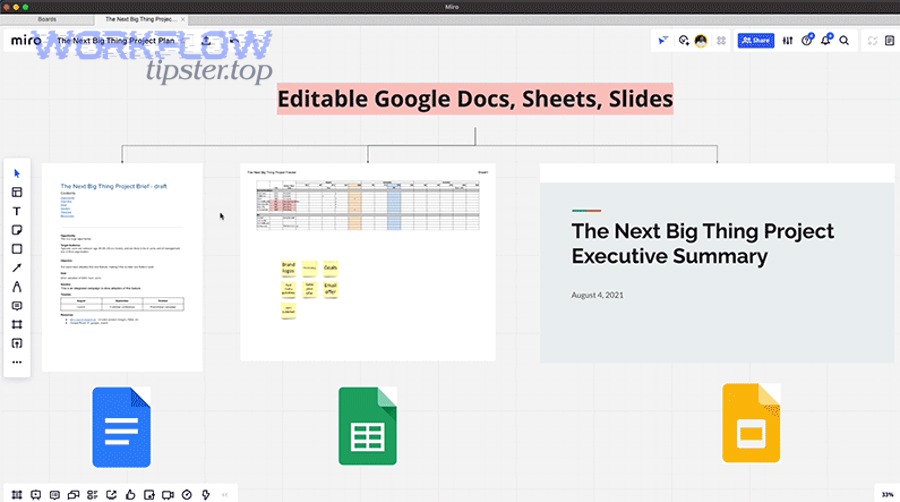
In practice, people land on this query when they’re doing one of these macro jobs:
- Bring writing into a visual space: Use a Doc for long-form text (requirements, meeting notes, research), while using Miro for clustering, mapping, and decisions.
- Reduce duplication: Keep the Doc as the canonical artifact, but make it accessible “in-context” on the board.
- Improve access control: Ensure the right people can open the Doc from the board without asking the owner each time.
- Work faster in meetings: Instead of screen-sharing a Doc and losing context, link it right beside the frames where decisions happen.
What does “import” mean in this workflow: embed, attach, or convert?
In this context, “import” usually means linking or embedding a Google Doc onto a board (not converting it into native Miro objects), so the Doc remains the editable source and the board becomes the visual hub. (help.miro.com)
More specifically, you’ll see three real-world outcomes:
- Embed/Preview on the board
You add the Doc as a board object that previews or opens the file. The Doc still lives in Drive.
Best for: quick access, keeping a “reading corner” inside the board. - Attach as a file reference
You upload or attach the Doc via a file picker so the board stores a reference to it (and permissions still depend on Drive).
Best for: teams that want consistent “board-side” file access patterns. - Convert into a snapshot (export → PDF/image → upload)
You turn the Doc into a static artifact and place it on the board.
Best for: workshops and presentations where you want a stable visual, not live editing.
The key idea is the title’s antonym: Not Copy-Paste. Copy-paste creates multiple versions instantly. Linking/embedding keeps one version and connects the board to it.
According to a study by Tecnológico de Monterrey from the School of Medicine and Health Sciences, in 2021, students rated a digital whiteboard as helping them understand abstract concepts (mean 4.83/5) and contributing to class engagement (mean 4.72/5), which supports the practical value of bringing structured content into a visual collaborative space. (pmc.ncbi.nlm.nih.gov)
Can you add a Google Doc to a Miro board without copy-paste?
Yes—adding a Google Doc to a Miro board without copy-paste works because (1) you can connect Google Drive and select Docs via a picker, (2) you can control access with Drive sharing settings, and (3) the board preserves a single reference link that teammates can open anytime. (help.miro.com)
Then, the real “make it work for teams” part is doing it in the right order: connect → set permissions → add to board → validate teammate access.
How do you connect Google Drive so Miro can access your Docs?
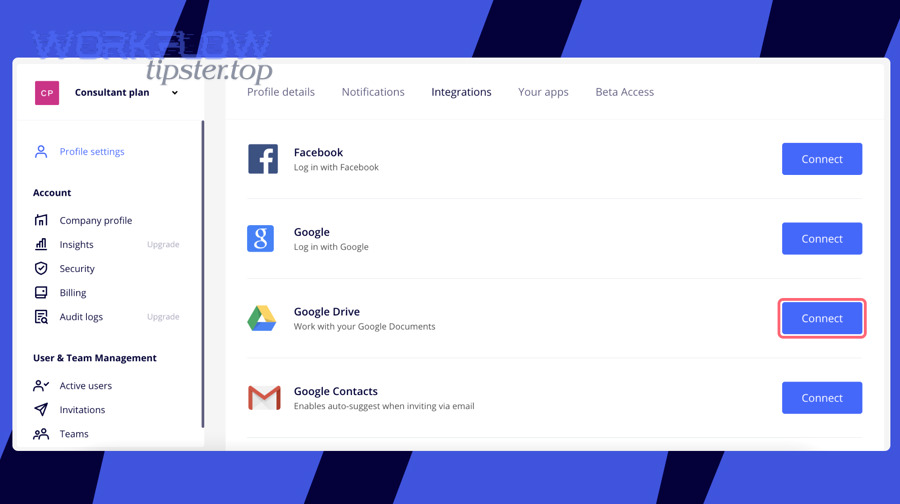
You connect Google Drive by authorizing Miro to access your Drive account, which enables a file picker inside Miro so you can select Google Docs and place them directly onto a board. (help.miro.com)
More specifically, the clean setup flow looks like this:
- Start inside Miro (where the board lives).
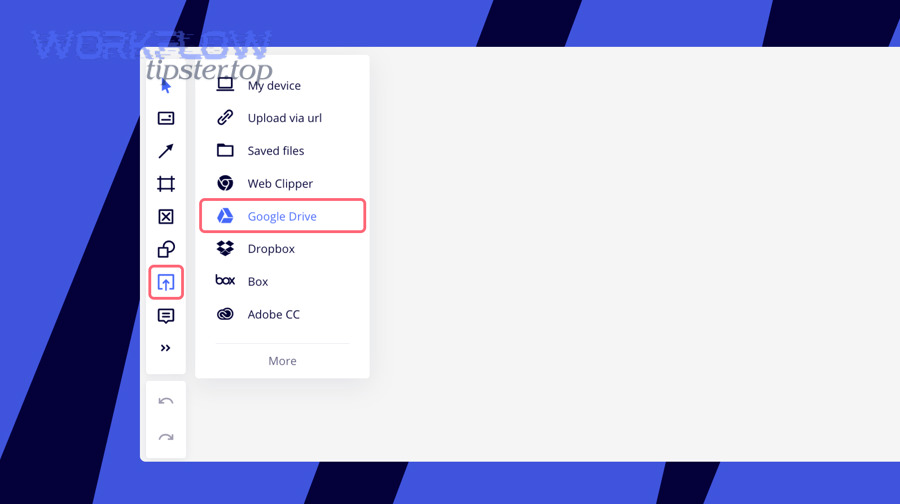
- Choose the upload/insert option and select Google Drive.
This triggers an authorization or account selection step. (help.miro.com) - Pick the correct Google account (especially if you have multiple profiles).
- Confirm the permission prompt so Miro can show your Drive files in the picker.
- Test once with a low-risk Doc to validate the connection.
Common “gotchas” to address immediately:
- Wrong account: People connect their personal Google account, then wonder why the work Doc isn’t visible.
- Workspace restrictions: Some organizations require an admin to approve add-ons/integrations. (workspace.google.com)
- Shared Drive vs My Drive: Team Docs may live in Shared Drives; ensure you’re browsing the right location.
Tip that saves time: treat this as a one-time “plumbing” step. Once Drive is connected, adding additional Docs becomes a repeatable, 30-second action.
How do you insert a Google Doc into a board so teammates can open it reliably?
You insert a Google Doc reliably by adding it from the Drive picker (or by pasting a shareable URL), then verifying that the Doc’s sharing settings match the board’s audience so teammates don’t hit access barriers. (help.miro.com)
More specifically, use this “team-safe” sequence:
- Set Doc sharing first (or confirm it). Decide: specific people, anyone in domain, or anyone with link (only if your org allows it).
- Add the Doc to the board. Use the Drive picker method so the selection is explicit and consistent across the team. (help.miro.com)
- Label it on the board. Add a small text label like “Sprint Plan (source)” or “Research Notes (live)”.
- Validate as a different user. Ask a teammate (or use another browser profile) to click it.
If you want a quick reliability checklist, use this:
- Does the Doc open without requesting access?
- Does it open with the intended account?
- Does the team understand whether it’s live (editable) or a snapshot (static)?
What are the best ways to bring Google Docs content into Miro boards?
There are 3 main ways to bring Google Docs content into Miro boards—(1) link/embed the Doc from Drive, (2) export the Doc to PDF/image and upload it, and (3) summarize the Doc into board-native objects—based on whether you need live updates, visual stability, or workshop-friendly collaboration. (help.miro.com)
However, most teams mix methods across the same project: a live Doc link for “truth,” plus a snapshot for discussion, plus board-native stickies for decisions.
To make the choice feel obvious, here’s a context table explaining what each method is best for:
| Method | Best for | Stays updated automatically? | Risk of access issues | Visual clarity in workshops |
|---|---|---|---|---|
| Link/Embed the Doc | ongoing documentation | Yes (Doc stays live) | Medium | Medium |
| Export to PDF/Image + upload | workshops, reviews, decks | No (static snapshot) | Low | High |
| Board-native summary (stickies/cards) | decisions, prioritization | N/A (board content) | Low | High |
Which method should you choose for live collaboration: linked Doc vs exported PDF/image vs copy-paste?
Linked Doc wins in accuracy and single source of truth, exported PDF/image is best for visual stability in workshops, and copy-paste is only reasonable for tiny excerpts where speed matters more than version control. (help.miro.com)
Meanwhile, the easiest way to choose is to ask: “What problem will happen next week?”
- If the risk is stale info, choose linked Doc.
- If the risk is people getting lost, choose exported snapshot.
- If the risk is low-quality thinking because everyone is rewriting, choose board-native summary.
A useful “anti-copy-paste” rule for teams:
- Copy-paste ideas (bullets, key conclusions) into Miro.
- Don’t copy-paste documents (entire sections that will change).
That single rule prevents the most common failure mode: a board full of text that becomes outdated immediately.
What content formats work best for Miro activities like workshops, brainstorming, and documentation?
There are 4 main content formats that work best in Miro—(1) a live Doc link for source reading, (2) a PDF/image snapshot for stable facilitation, (3) sticky-note synthesis for idea clustering, and (4) structured frames for decisions—based on how interactive you want the session to be. (help.miro.com)
More specifically, match format to activity:
- Workshops (fast-paced): Use a snapshot or a simplified board-native version so scrolling doesn’t kill momentum.
- Brainstorming (divergent): Keep the Doc as a reference, but run the session with stickies and quick frames.
- Documentation (convergent): Keep the Doc as the canonical output, and use the board to show the reasoning trail: options considered, votes, and final decisions.
A practical team pattern:
- During the meeting, the board is the “thinking space.”
- After the meeting, the Doc is the “decision record.”
- The link between them is what prevents rework.
Why isn’t your Google Doc showing up (or accessible) in Miro?
A Google Doc usually fails to show up or open in Miro because (1) the Doc’s Drive permissions don’t match the viewer, (2) the wrong Google account is connected, or (3) organization security settings restrict link access or third-party integrations. (help.miro.com)
In addition, teams often misdiagnose the issue as “Miro is broken” when it’s really a predictable access mismatch. So the fastest fix is to identify which category you’re in.
Is the issue permissions, the wrong Google account, or restricted link sharing?
Permissions is the most common cause, wrong account is the fastest to miss, and restricted link sharing is the most frustrating—so you should diagnose by checking the error behavior first, then mapping it to the likely root cause. (workspaceupdates.googleblog.com)
To illustrate, here’s a quick “symptom → cause → fix” mapping:
- Symptom: You can see the Doc in Drive, but it doesn’t appear in the picker
Likely cause: Wrong Google account connected or insufficient authorization
Fix: Disconnect/reconnect Drive using the correct account and reauthorize. - Symptom: Doc appears, but teammates see “Request access”
Likely cause: Drive permissions are too narrow
Fix: Share Doc with the same group who has board access (or your org’s standard group). - Symptom: Doc link opens, but content is blank or blocked
Likely cause: Browser restrictions, third-party cookie settings, or org security controls
Fix: Try a different browser profile; ask admin if integrations are restricted. - Symptom: Integration option is missing entirely
Likely cause: Workspace admin hasn’t enabled the add-on/integration
Fix: Request approval through your admin channel. (workspaceupdates.googleblog.com)
Once you find the category, the fix becomes predictable instead of trial-and-error.
What quick fixes resolve most “can’t open” or “not showing” problems?
There are 6 quick fixes that resolve most Google Docs access problems in Miro: verify sharing, confirm account, reconnect Drive, regenerate the link, test in an incognito/profile, and check admin restrictions—because these cover the most common failure points. (help.miro.com)
Moreover, applying them in the right order saves time:
- Open the Doc in Drive and confirm sharing (who can view/edit?).
- Confirm your connected Google account (personal vs work).
- Reconnect Drive authorization (sign out/in if needed).
- Use a “clean test”: incognito window or a second profile.
- Ask one teammate to test and share what they see (the exact message matters).
- Escalate to admin if the integration is missing or restricted.
If you handle those six, most teams restore access in minutes rather than hours.
How do you automate and govern Google Docs ↔ Miro at scale?
There are 4 main ways to automate and govern Google Docs ↔ Miro at scale—(1) trigger board actions from Docs events, (2) standardize permissions and ownership, (3) embed Miro context back into Docs, and (4) choose the right automation tool for complexity—based on how many people and workflows you’re coordinating. (zapier.com)
Below, you’ll move from “it works on my laptop” to “it works for the whole team every week,” which is the real promise behind Not Copy-Paste.
How can Zapier trigger Miro actions when a Google Doc is created or updated?
Zapier can trigger Miro actions by using a Google Docs event (like a new Doc or a new Doc in a folder) as the trigger, then performing a Miro action (like creating a board or creating a card widget) so your team’s boards stay current without manual setup. (zapier.com)
More specifically, the most useful “team-scale” automations look like this:
- New Doc → New Miro board
Great for repeatable projects (client onboarding, sprint planning, research cycles). (zapier.com) - New Doc in Folder → Add to a central Miro board
Keeps a board “library” updated with the latest assets. - Doc created from template → Board created from template
Ensures consistency across teams without policing behavior.
This is also where you can cross-reference other common integration patterns—like “google sheets to activecampaign”—to remind teams that the same automation logic applies: triggers, actions, and governance.
What governance and permissions patterns prevent broken links and access issues across teams?
The safest governance patterns are (1) store shared Docs in Shared Drives or team-owned locations, (2) share by groups rather than individuals, (3) assign clear ownership, and (4) standardize link policies—because these reduce permission drift when people change roles. (workspaceupdates.googleblog.com)
Especially in larger organizations, links break not because tools fail, but because:
- a Doc owner leaves,
- a folder is reorganized,
- or access policies change quietly.
A practical governance checklist:
- Ownership: Docs should be owned by a team account or Shared Drive, not a single person.
- Sharing model: Prefer group-based access (team@) over individual emails.
- Naming conventions: Include “(source)” or “(snapshot)” labels on board links to reduce misuse.
- Onboarding: New team members should get access to the Drive location before they get the board link.
When governance is in place, “import Google Docs to Miro” stops being a one-off trick and becomes an operational habit.
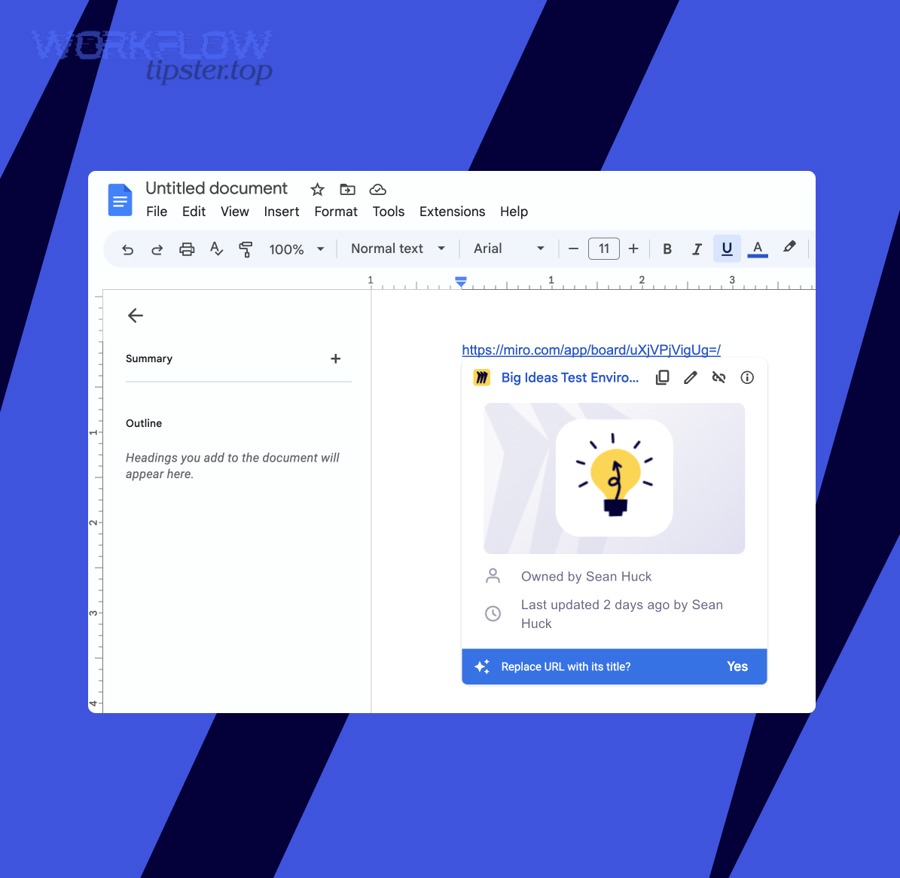
Can you embed Miro back into Google Docs using Google Workspace features like smart chips?
Yes—Google Workspace smart chips can embed a Miro board link as a rich, clickable chip inside Google smart apps (including Docs), giving readers a preview and an access path without leaving the document flow. (help.miro.com)
However, the key is installation and permissions:
- A user (or admin) may need to install the add-on first. (workspaceupdates.googleblog.com)
- Viewers still need permission to access the underlying Miro board. (help.miro.com)
Here’s a simple “reverse embed” use case that teams love:
- The Doc is the meeting agenda and decision log.
- A smart chip points to the Miro board frame where the reasoning and artifacts live.
That connection makes your documentation stronger without bloating the Doc.
When should teams use Make instead of simple manual linking?
Manual linking is best for low-volume work, but Make becomes optimal when you need multi-step workflows, branching logic, data transformations, or reliable operations across many folders/teams—because complex workflows break if they rely on humans remembering steps. (zapier.com)
To better understand the “threshold,” use this rule:
- If you create the same Doc→Board relationship once a month, link manually.
- If you create it every week (or across multiple teams), automate.
- If failures have a cost (missed deadlines, wrong version shared), automate earlier.
And if your organization is already managing content pipelines like “google docs to github” for versioned documentation, automation can ensure every Doc that matters is consistently connected to the right board, named correctly, and visible to the right group—without relying on memory.
According to Zapier’s published templates for Google Docs + Miro, common automations include creating Miro boards or card widgets when new Google Docs documents are created (including within a folder), which validates that Docs-triggered board creation is a mainstream integration pattern. (zapier.com)