


If you need a Microsoft Word file from Google Docs, the fastest reliable method is to export your document as a .DOCX from Google Docs and open it in Word—this gives you a shareable, editable Word version in minutes. (support.microsoft.com)
Beyond the “download” click path, most people also want one thing: the Word file should look the same as the Google Doc. That’s why it helps to know which elements usually convert cleanly—and which ones (like numbered lists, tables, and page layout) sometimes need quick fixes.
Teams have an extra layer: even if conversion is perfect, handoff can still fail because of version confusion, comments workflows, and where the “source of truth” lives. A clean export is only half the job; a simple team process finishes it.
Introduce a new idea: once you understand the conversion steps and the preserve-vs-fix tradeoff, you can treat Google Docs → Word as a repeatable workflow—similar to how teams standardize their Automation Integrations across other tools—so every DOCX you ship is consistent.
What does it mean to export Google Docs to Microsoft Word (.DOCX)?
Exporting Google Docs to Microsoft Word (.DOCX) is the process of converting a cloud-based Google document into a Word-compatible file format so the document can be opened, edited, and shared in Microsoft Word with most content and styling preserved.
To better understand this conversion, it helps to separate what changes from what stays stable. A DOCX file is not just “text in a box”—it stores text, styles, layout rules, and embedded objects (like images and tables). Google Docs and Microsoft Word both support those components, but they sometimes interpret layout and styles differently, which is why the same document can look slightly different after export.
Most exports succeed because both platforms share common concepts: headings, paragraphs, lists, tables, page breaks, and links. The trouble begins when a document relies on highly specific formatting rules—like multi-level numbering, complex tables, or section-based layouts. In those cases, the export still works, but you may need a “quality check” step before sending the file to someone else.
Finally, “export” also implies a moment-in-time snapshot. Google Docs auto-saves continuously while you edit online, but your exported DOCX is a separate file that will not update automatically if you keep editing the Doc. (support.google.com)
How do you export a Google Doc to Word (.DOCX) in the fastest way?
You can export Google Docs to Microsoft Word by using the built-in Download as Microsoft Word (.docx) option in 3 steps to produce a Word-ready DOCX file that opens immediately in Word.
Next, the easiest way to avoid mistakes is to treat exporting as a tiny checklist: finalize → download → open and verify. Microsoft’s own guidance for switching from Google Docs to Word describes the core action as going to File → Download → Microsoft Word (.docx) in Google Docs, then opening the file in Word. (support.microsoft.com)
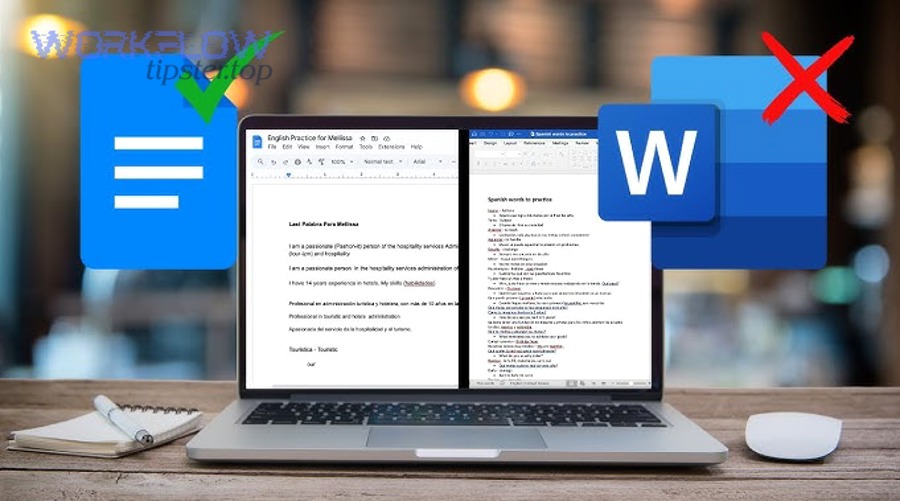
Here’s the “fast conversion” workflow that works for most teams:
- Step 1: Finalize the Doc
- Confirm the document title (so the downloaded filename makes sense).
- Resolve any last-minute edits and check key sections like headings and tables.
- Step 2: Export to DOCX
- In the Google Doc: File → Download → Microsoft Word (.docx). (support.microsoft.com)
- Step 3: Open and do a 60-second QA
- Open the DOCX in Word (desktop or Word for the web).
- Scan headings, lists, tables, and page breaks before sharing.
The reason this is “fast” is not just the click path—it’s the reduced rework. When you export with intention and verify quickly, you avoid the most expensive outcome: teammates spending time editing the wrong version or fixing formatting under deadline pressure.
Is the built-in “Download as .DOCX” method the best default for most users?
Yes, the built-in Google Docs “Download as Microsoft Word (.docx)” method is the best default because it’s native, fast, and widely compatible; it reduces tool friction, preserves most common formatting, and produces a standard DOCX file that teams and clients can open without extra steps. (support.microsoft.com)
Then, the key question becomes: when is it not the best default? The answer is usually about document complexity or workflow requirements, not about the export button itself.
Here are three clear reasons “Download as DOCX” is the default you should start with:
- Lowest complexity: You don’t need add-ons, scripts, or admin permissions—just export and go.
- High compatibility: DOCX is the expected format for many organizations, vendors, and clients.
- Predictable handoff: Teams can standardize review and versioning around a single file type.
However, you may choose a different approach when:
- Your document uses advanced layouts (multi-section formatting, complex numbering).
- You need bulk conversion at scale (dozens or hundreds of docs).
- You must enforce a strict corporate Word template before delivery.
In those cases, the export button still works—you simply add process steps (like template application and deeper QA).
How do you export from Google Drive instead of inside the document?
Exporting from Google Drive means downloading a Word-compatible file from the Drive interface—often useful for quick access, shared-drive workflows, or handling multiple documents without opening each one.
In addition, exporting from Drive is most valuable when your team organizes content by folders and projects. The workflow is simple:
- Go to Google Drive
- Find the document
- Use the file options (often right-click) to Download
- Drive will provide a downloaded file you can open in Word
This approach is especially helpful in shared environments where:
- The Doc lives in a team folder and you don’t want to open it just to export.
- You’re preparing a deliverable set and collecting files into a final package.
- You’re standardizing a delivery workflow for clients who require Word files.
Even if Drive-based export feels like a “small” difference, it matters for teams because it supports a consistent project flow: prepare files in one place, export in batches (when needed), and store final DOCX deliverables under a clear version label.
What formatting issues happen most often when converting Google Docs to Word?
There are 7 common formatting issues when converting Google Docs to Word—fonts, spacing, headings/styles, lists/numbering, tables, images, and page layout—mainly because Google Docs and Word interpret style and layout rules differently.
Specifically, you can avoid most surprises by knowing where conversions typically drift. The most frequent problems show up in areas where “visual layout” depends on many small rules—like paragraph spacing, list indentation, and table cell behavior. These aren’t failures of export; they’re differences in how each editor expresses formatting under the hood.
To make this practical, the table below summarizes what usually changes and the fastest fix you can apply after opening the DOCX in Word.
| Conversion area | What you might see in Word | Fast fix |
|---|---|---|
| Fonts | Font substitution or different character spacing | Apply a standard font and re-check headings |
| Line spacing | Paragraph spacing looks “looser” or “tighter” | Use Word paragraph settings; normalize spacing |
| Headings | Headings lose consistent style hierarchy | Re-apply Word Styles (Heading 1/2/3) |
| Lists | Numbering resets, indentation shifts | Restart list formatting; adjust multilevel list |
| Tables | Column widths shift; borders look different | AutoFit, fixed widths, reapply table style |
| Images | Images move or wrap oddly | Set wrap style; anchor images correctly |
| Page layout | Page breaks or margins shift | Confirm page size, margins, section breaks |
The best strategy is to identify which of these matters for your document’s purpose. A one-page memo can tolerate minor spacing changes; a proposal or contract often cannot.
Which document elements are most likely to shift in Word after export?
There are 6 elements most likely to shift after export—multi-level headings, numbered lists, tables, images with wrapping, headers/footers, and page breaks—because these rely on layout rules that differ between Google Docs and Word.
However, the pattern behind these shifts is consistent: the more your document depends on structure + layout, the more it benefits from a quick “Word QA pass” before distribution.
Here’s how each element tends to shift—and what to do:
- Headings and styles
- What shifts: spacing before/after headings, style inheritance, TOC compatibility.
- What to do: reapply Word’s built-in heading styles for consistent navigation.
- Bullets and numbering
- What shifts: indentation, numbering restart points, multi-level lists.
- What to do: set a consistent list style and confirm the numbering hierarchy.
- Tables
- What shifts: column width, text wrapping inside cells, border rendering.
- What to do: choose a Word table style; set fixed widths for stability.
- Images
- What shifts: wrap behavior (inline vs wrapped), alignment, captions.
- What to do: set a clear wrap style (inline or square) and anchor consistently.
- Headers/footers and page layout
- What shifts: spacing, page numbering, first-page rules.
- What to do: verify page size/margins and check section breaks if present.
- Links
- What shifts: link styling, sometimes long URLs wrap differently.
- What to do: verify clickable behavior and adjust hyperlink style if needed.
If you treat these as “known risk zones,” you’ll spend less time guessing and more time delivering a DOCX that looks intentional.
Does exporting preserve comments, suggestions, and revision context?
No, exporting Google Docs to Word does not always preserve comments, suggestions, and revision context perfectly because comments and suggestion states can map differently across platforms, some review metadata may not transfer, and the exported DOCX becomes a separate file with its own revision history. (support.google.com)
Moreover, teams often confuse “collaboration history” with “deliverable content.” Google Docs collaboration is built around live editing, suggestions, and a version timeline; the exported DOCX is built around a file-based workflow in Word. When you export, you’re choosing a new “container” for collaboration.
Here’s how to handle this reliably:
- Before export
- Resolve or accept critical suggestions that must appear in the final.
- Leave comments that the Word reviewer must see as explicit notes in the text (if necessary).
- After export
- Decide how reviewers should provide feedback:
- Use Word comments and Track Changes (common in client workflows)
- Or treat the DOCX as “final” and route feedback back to the Google Doc
- Decide how reviewers should provide feedback:
If your team needs a consistent practice, choose one default:
- Default A (Docs-first): Keep collaboration in Google Docs, export DOCX only at the end.
- Default B (Word-first review): Export early, then do review and tracking entirely in Word.
The mistake is mixing both without a rule—because that creates parallel review streams and version conflict.
How do you preserve formatting vs fix formatting after export?
Preserve formatting wins in preventing style drift before export, fix formatting is best for fast corrections after export, and a hybrid approach is optimal for teams because it standardizes Google Docs styles first and then applies a short Word QA and repair pass.
To illustrate, “preserve” and “fix” are not opposing philosophies—they are two stages you can control. The winning workflow is to preserve what you can (so the export is clean), then fix only what matters (so the DOCX is deliverable-quality).
Here’s the simplest mental model:
- Preserve = reduce conversion risk before export
- Fix = repair what conversion changed after export
Preserve steps inside Google Docs (before export):
- Use consistent headings (Heading 1/2/3, not manual bold + font size).
- Keep spacing rules consistent (avoid mixing multiple spacing patterns).
- Avoid overly complex tables if a simpler layout works.
- Place images intentionally (inline when possible, not floating everywhere).
Fix steps inside Word (after export):
- Re-apply Word styles for headings and body text.
- Normalize paragraph spacing.
- Repair lists and multi-level numbering.
- Adjust tables and image wrapping.
This is also where teams benefit from standardized workflows—because the same problems repeat. When you codify a “preserve vs fix” checklist, you convert a frustrating one-off task into a predictable process.
What should you check in a 60-second QA pass before sending the DOCX to others?
There are 8 items to check in a 60-second DOCX QA pass—document title, headings, spacing, numbering, tables, images, page breaks, and links—because these are the areas most likely to cause visible issues for the recipient.
Then, the QA pass works best when it’s fast and consistent. Here’s a practical checklist your team can reuse:
- Title and filename
- Is the filename correct and recognizable for recipients?
- Headings
- Are headings consistent (sizes, spacing, hierarchy)?
- Spacing
- Do paragraphs look evenly spaced or unexpectedly “gappy”?
- Lists
- Are bullets aligned? Does numbering restart correctly?
- Tables
- Do columns fit? Do borders and wrapping look acceptable?
- Images
- Are images in the right place? Is wrapping appropriate?
- Page breaks
- Do sections start where expected (especially for proposals)?
- Links
- Are links clickable and readable?
If you want a team-level improvement, assign the QA pass as a micro-role: the exporter does the first pass, a second person spot-checks high-stakes docs. That tiny redundancy often eliminates embarrassing formatting surprises.
According to a study by the University of California, Irvine from the Department of Informatics, in 2008, task interruptions were associated with increased stress and time pressure—even when people compensated by working faster—making fast, repeatable workflows valuable for teams. (ics.uci.edu)
Which approach is better: standardize styles in Docs first or repair in Word later?
Standardizing styles in Google Docs first wins for consistency, repairing in Word later is best for one-off speed, and a hybrid approach is optimal for teams because it reduces conversion errors while keeping the final DOCX aligned with Word’s expectations.
However, the right choice depends on your context:
- Choose “standardize in Docs first” when:
- Your team exports frequently (weekly/daily).
- Multiple people author docs and you need consistent output.
- You care about long-term quality (proposals, training docs, policies).
- Choose “repair in Word later” when:
- You’re exporting a single document once.
- The document is simple and only needs minor tweaks.
- The reviewer will apply a Word template anyway.
A hybrid approach looks like this:
- Standardize only the structural elements in Docs (headings, list patterns, table simplicity).
- Export to DOCX.
- Apply Word finishing touches (template, spacing normalization, final layout).
That hybrid approach usually delivers the best ROI because it keeps authors productive in Docs while ensuring the exported DOCX meets Word-centric expectations.
How should teams hand off a DOCX so reviewers can work efficiently in Microsoft Word?
Teams should hand off a DOCX efficiently by using a single “source of truth,” a clear versioning scheme, and a defined review method (comments or Track Changes) because these three practices prevent duplicate edits, reduce confusion, and speed up approvals.
In addition, team handoff is where most “conversion workflows” silently fail. The DOCX may be technically correct, but the process breaks when:
- Two people edit two different copies.
- Someone reviews an outdated attachment.
- Comments are scattered across email threads and chat messages.
A reliable DOCX handoff process includes:
- Define the source of truth
- Decide whether the Google Doc remains the source, or the exported DOCX becomes the source for the review cycle.
- Use consistent naming
- Example:
ProjectName_Deliverable_v01.docx,v02,v03_final.
- Example:
- Use one distribution channel
- Avoid sending multiple attachments to multiple threads.
- Prefer a shared location (Drive/OneDrive/SharePoint) and share one link.
- Define how edits should be made
- Word Track Changes for formal reviews.
- Word comments for feedback without re-writing content.
This is also where “process thinking” looks like other operational workflows. Teams that already maintain standardized Automation Integrations (for example, routing notifications from project tools or support tools) will recognize the same logic: one pathway, one source of truth, and predictable steps.
According to a study by Tilburg University from the Information and Archive Management team, in 2025, their mailboxes contained 16 terabytes of data (about 90 million emails) and they noted that duplicate file versions lingering in email threads can lead to confusion—highlighting why link-based sharing and clear versioning matter. (tilburguniversity.edu)
Should teams export to DOCX or keep the doc in Google Docs for collaboration?
Exporting to DOCX wins when reviewers require Word-native editing (Track Changes, Word templates, client standards), keeping the doc in Google Docs is best for live co-authoring and fast iteration, and a staged approach is optimal when teams draft in Docs and review in Word.
Meanwhile, the best workflow is usually determined by who the “final editor” is and what system the organization requires.
Use Google Docs as the collaboration space when:
- The team is drafting and iterating quickly.
- Multiple people need to write at the same time.
- You want real-time edits without merging files.
Use DOCX as the review/delivery artifact when:
- A client or stakeholder demands Word.
- The review process requires Track Changes and Word-based markup.
- A corporate template must be applied before delivery.
A staged approach is often the most stable:
- Draft in Google Docs (fast creation and collaboration).
- Export DOCX at review time.
- Finalize in Word if the deliverable must be Word-native.
- Store the final DOCX in a shared location with a locked “final” label.
If your team also runs other workflows—like piping support alerts from freshdesk to slack—the pattern is familiar: draft where collaboration is best, deliver where the audience expects to receive it.
Is it possible to avoid version confusion when multiple people edit the DOCX?
Yes, it is possible to avoid version confusion with exported DOCX files because you can enforce one shared location, adopt a simple version naming convention, and define a single review method—three controls that prevent duplicate copies and conflicting edits.
Especially in teams, “version confusion” is not a technical problem; it’s a coordination problem. Here is a practical method that works without complex tools:
- Rule 1: One home for the file
- Store the DOCX in one shared place, then share a link—not attachments.
- Rule 2: One naming convention
- Use
v01,v02,v03and reservefinalfor the last approved version.
- Use
- Rule 3: One review method
- Either Track Changes for edits or comments-only for feedback.
If someone needs to work offline, you can still reduce risk:
- Require them to rename their local copy with initials and date (e.g.,
_MQ_2026-01-31). - Require a merge step back into the shared copy.
For teams already disciplined with operational workflows—like exporting project data from asana to microsoft excel or syncing tables from asana to smartsheet—the same discipline applies here: consistent naming, one system of record, and clear rules for updates.
How can you handle bulk conversion, advanced formatting edge cases, and automation for Google Docs → Word?
You can handle bulk conversion and advanced edge cases by choosing a batch-friendly export method, focusing QA on rare formatting elements, and using automation only when volume or repeatability justifies it—so you scale output without sacrificing DOCX quality.
Below, the goal is to move from “I can export one doc” to “my team can export many docs reliably.” That requires three upgrades:
- A repeatable bulk method
- A checklist for rare formatting problems
- A decision rule for when automation is worth it
What are the best ways to convert multiple Google Docs to .DOCX at once?
There are 3 practical ways to convert multiple Google Docs to DOCX at once: folder-based exporting, Drive-managed downloading for organized sets, and process batching with a standardized QA step—chosen based on how many files you must convert and how strict formatting requirements are.
More specifically, “bulk conversion” succeeds when you reduce manual document-by-document effort while still preserving control:
- Method 1: Folder-based batching
- Gather all docs for export into one folder and process them in a single work session.
- Use consistent naming before export so outputs are clean.
- Method 2: Drive-centered project packaging
- Treat Drive as the staging area: identify all files, confirm ownership/access, then export.
- Method 3: Bulk workflow + QA sampling
- Export everything, then do a spot-check sample:
- Check 3–5 files for formatting risk zones (tables, numbering, page layout).
- If the sample looks good, proceed; if not, standardize styles and re-export.
- Export everything, then do a spot-check sample:
The key is to avoid false efficiency. Bulk exporting saves time only if you avoid mass rework later. A small sampling QA step prevents the nightmare scenario: exporting 50 documents that all share the same formatting problem.
Which rare formatting elements require special attention in Word after export?
There are 6 rare formatting elements that require special attention after export—section breaks, multi-level numbering, tables of contents, footnotes/endnotes, embedded drawings, and complex headers/footers—because these features depend on precise layout rules that can translate imperfectly between editors.
However, these edge cases can be managed with a targeted strategy: don’t “polish everything,” just validate the parts that are known to break.
Here’s a focused approach:
- Section breaks
- Confirm that orientation changes, margin changes, or section-level headers remain correct.
- Multi-level numbering
- Verify that levels don’t collapse and restart rules remain accurate.
- Table of contents (TOC)
- If a TOC is required, regenerate it in Word based on Word heading styles.
- Footnotes/endnotes
- Confirm numbering and placement; scan for formatting drift.
- Embedded drawings
- If drawings are essential, validate positioning; consider replacing with images if unstable.
- Complex headers/footers
- Check first-page and odd/even page rules and page numbering.
If your documents rely heavily on these features, the “preserve vs fix” model becomes more important: preserve structure in Docs, then fix layout behavior in Word with Word-native tools.
When should you choose automation instead of manual export?
Manual export wins for accuracy and control, automation is best for high-volume repetitive conversions, and a hybrid workflow is optimal when you standardize documents first and then automate conversion for scale.
To sum up the decision, choose automation when at least one of these is true:
- You convert at scale (dozens/hundreds of docs regularly).
- The conversion is repeatable (same template, same formatting rules).
- The output feeds a downstream system (publishing pipeline, document management, client delivery).
If you only export occasionally, automation often adds overhead: setup, permissions, debugging, and edge case handling. But for teams with recurring workflows, automation becomes a force multiplier—especially if your organization already runs structured Automation Integrations that move data and notifications across tools.
That said, don’t automate chaos. Automation works best when the input documents follow a standard style discipline; otherwise, you simply generate large volumes of inconsistent DOCX files.
Is “preserve formatting” always realistic, or should you design a ‘clean DOCX’ standard for teams?
No, “preserve formatting” is not always realistic for complex documents because layout engines differ, rare elements can translate imperfectly, and team-authored docs often contain inconsistent styling; a clean DOCX standard is the best way to reduce rework and stabilize exports.
Thus, the strongest team solution is to define what “clean” means. A clean DOCX standard is a lightweight rule set that makes conversion predictable:
- Approved fonts
- Heading style rules (Heading 1/2/3 only, no manual formatting for structure)
- Table rules (limit nested tables, prefer simple borders)
- Image rules (prefer inline images unless wrapping is necessary)
- List rules (avoid complex multi-level numbering unless required)
- Page layout rules (avoid unnecessary section breaks)
When teams adopt a clean standard, exporting stops being a risky one-off operation and becomes a stable delivery pipeline. You still fix occasional issues, but you fix fewer of them—and you fix them faster.