


Automating Jotform submissions into Google Docs means every new form response can instantly generate a ready-to-share document—so your team stops copying and pasting fields, reduces formatting mistakes, and delivers consistent outputs at scale.
To better understand what this automation really produces, you’ll see the common “outputs” teams create (templated docs, PDFs, and hybrid workflows) and why the output choice changes how you design your template and mapping.
Next, we’ll look at the practical no-code paths—what you can do with native integrations vs when you’ll need a workflow automation tool—and how to decide the simplest setup that still stays reliable.
Introduce a new idea: the highest-performing teams don’t just “connect apps”—they standardize patterns, permissions, naming rules, and testing so the workflow stays stable when volume grows.
What does it mean to automate Jotform submissions into Google Docs?
Automating Jotform submissions into Google Docs is a document-generation workflow where each new submission triggers the creation (or update) of a document using mapped fields, turning raw form answers into a consistent, readable deliverable.
Then, to make that definition practical, you should think in terms of inputs → template → output → storage, because each link in that chain affects accuracy and team ownership.

What outputs can you generate from a submission (new doc, templated doc, PDF, or both)?
Most teams generate one of four outputs, based on how “final” the document must be:
- New doc (raw write): A fresh Google Doc is created and populated with content (often simple text blocks). This is fastest to set up, but formatting control is limited.
- Templated doc (copy + replace): A pre-formatted template is duplicated, then placeholders are replaced with submission values. This gives you predictable formatting and brand consistency.
- PDF-only output: A PDF is produced for archival, compliance, or client delivery when edits should be minimized after creation.
- Doc + PDF combo: The workflow generates the doc first (for review or collaboration) and then exports a PDF for distribution.
A useful rule: If humans will collaborate on it, start with a doc. If the recipient needs a locked deliverable, end with a PDF.
Can you automate Jotform → Google Docs without coding?
Yes—automating Jotform → Google Docs without coding is possible because no-code automation platforms provide triggers (new submission) and actions (create document, copy template, export file) through guided connectors. (zapier.com)
Next, the real decision is not “code vs no code,” but native vs workflow tool, and simple vs advanced customization.
Is there a direct native integration, or do you need an automation tool?
In practice, you typically have three routes:
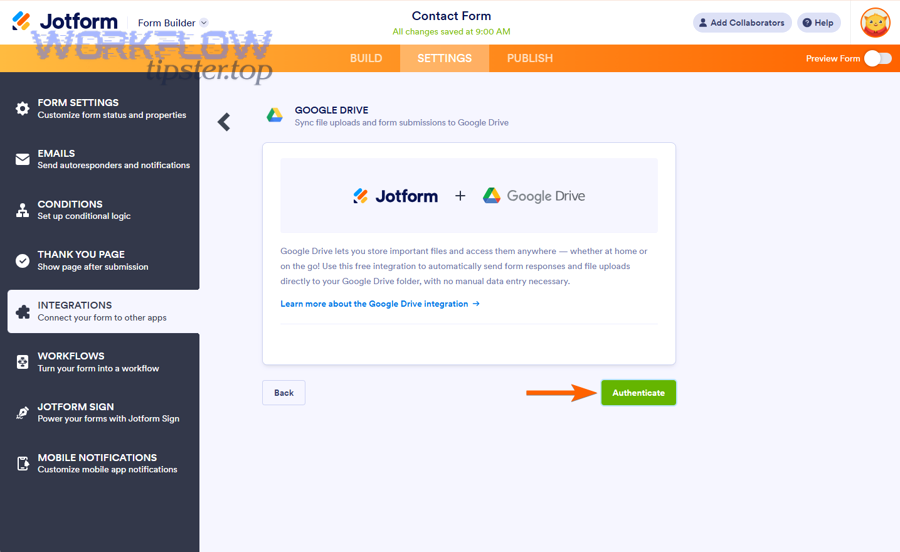
- Native storage/reporting integrations (partial): Great for sending submission data or files to storage (like Drive) or exporting reports, but often not designed for rich Google Docs templating.
- Automation tool route (common): A workflow tool connects the trigger (“new submission”) to doc creation actions like “create document” or “create document from a template.” (zapier.com)
- Custom API route (advanced): Used when you need deep logic, unusual formatting rules, or extremely high volume.
If your end goal is “a readable document for a person,” the automation-tool route is usually the shortest path with the most control.
When is no-code enough vs when do you need advanced customization?
No-code is usually enough when you can answer “yes” to these:
- Your document can be built from standard placeholders (name, email, address, short paragraphs).
- You can accept template-driven formatting rather than conditional layout logic.
- Your workflow needs basic branching (optional), not complex transformations.
You likely need advanced customization when:
- You must generate complex tables, repeated line items, or multi-section documents where content blocks appear only when certain logic is true.
- You require strict compliance controls (e.g., per-department governance, audit trails, or enforced retention).
- You have high-volume spikes that demand queueing, idempotency keys, and custom monitoring.
What are the best automation workflow patterns for teams?
There are four main workflow patterns teams use: log, report, client document, and internal approval, based on what the document is for and who needs to read or sign it.
Then, once you choose a pattern, you can decide whether you should create a new document each time or copy a template for consistent formatting.
Which pattern fits your goal (log, report, client document, internal approval)?
Here’s how teams typically choose:
- Log pattern (internal record): Each submission creates a row somewhere and/or a short doc for traceability. Great for simple operational logging.
- Report pattern (structured summary): Each submission generates a standardized summary doc (weekly intake, QA checks, onboarding packets).
- Client document pattern (deliverable): Each submission generates a branded document (proposal request, intake summary, confirmation letter).
- Internal approval pattern (workflow): Each submission generates a doc plus a review step (routing, approvals, signatures, comments, revision tracking).
If multiple teammates touch the output, the approval pattern often wins because it forces clarity on ownership and status.
Should you create a brand-new doc or copy a pre-formatted template?
Use brand-new doc when:
- The output is informal, short, and formatting doesn’t matter much.
- You want speed and minimal setup.
Use a template copy when:
- Formatting consistency matters (client-facing, brand tone, structured layout).
- Your team wants repeatability and fewer “why did this look different?” issues.
If you want durable team workflows, templates are the center of gravity.
What do you need before you build the automation?
Before building, you need access, permissions, and a template that’s “mapping-ready”—because most failures come from missing permissions or poorly prepared placeholders, not from the automation tool itself.
Next, treat setup like infrastructure: once permissions and templates are standardized, your automation becomes repeatable across teams.
What access and permissions should the team set up first?
A team-ready permissions checklist looks like this:
- Dedicated integration account: Use a shared service account (or team-owned account) rather than a personal login, so workflows don’t break when someone leaves.
- Drive folder ownership: The output folder should be owned by a team-controlled account with clear sharing rules.
- Editor vs viewer roles: Writers/reviewers need edit access, while recipients may only need view access.
- Least privilege principle: Only grant what the workflow needs (create docs, copy templates, export PDFs, write to a folder).
If you already store submission uploads in Drive, you can also structure subfolders per submission for cleaner traceability.
How should you prepare your Google Docs template for accurate field mapping?
A mapping-ready template is:
- Placeholder-driven: Clear tokens like
{{Full Name}},{{Email}},{{Address}}—and exactly consistent spelling across the workflow. - Sectioned for readability: Headings and labeled blocks prevent “wall of text” outputs.
- Built with predictable containers: For complex data, prefer tables or controlled bullet lists rather than freeform paragraphs.
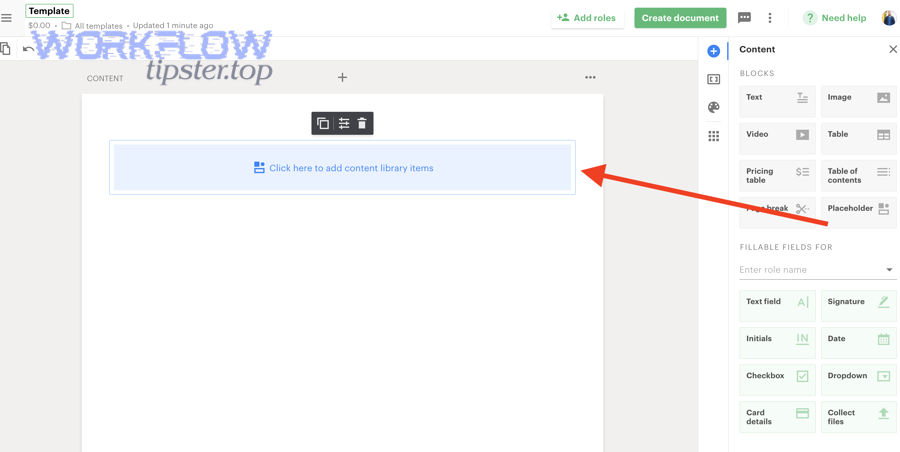
If you do this upfront, your “field mapping” step becomes mechanical instead of fragile.
How do you build the workflow step-by-step in a no-code automation tool?
A no-code Jotform → Google Docs workflow is typically built with 5 core steps—trigger, fetch/transform fields, create doc (or copy template), store/share, and validate—so you can reliably generate documents from each submission.
Then, you test like a product launch: you validate edge cases, formatting, permissions, and duplicate handling before rolling out to the whole team.
What are the exact steps from “new submission” to “new Google Doc”?
A standard team workflow looks like this:
- Trigger: “New submission” (or “new signed document,” depending on your process). (zapier.com)
- Normalize fields: Clean/format values (dates, phone numbers, multi-select answers) so they render cleanly in the doc.
- Create output:
- Store: Save the doc in a controlled Drive folder and apply a naming rule (e.g.,
Client - Date - SubmissionID). - Notify: Send a link to the right channel (email, chat, or task system), and include a status label (“Draft created,” “Needs review,” etc.).
How do you test and validate the workflow before rolling it out to the whole team?
Testing is where reliability is won. Use a structured checklist:
- Data coverage test: Submit forms that include every field, optional fields, and blank fields.
- Formatting test: Try long paragraphs, multi-select answers, addresses, and special characters.
- Permissions test: Run the workflow under the integration account and verify access from a normal teammate account.
- Duplicate test: Re-submit rapidly (or replay a submission if your tool supports it) to confirm you don’t create multiple docs accidentally.
- Link test: Confirm the final document link is accessible to the intended audience (internal vs external rules).
A team workflow is “ready” only when the edge cases look boring.
How does field mapping work from form fields to a Google Doc?
Field mapping is the process of binding submission fields to document placeholders or content blocks, so each form answer lands in the right spot and format inside your doc.
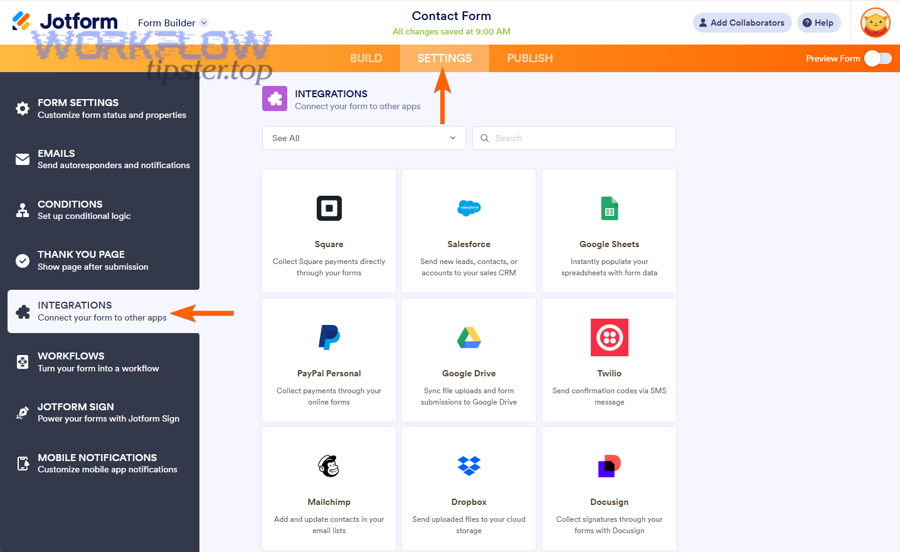
Next, the key to clean outputs is understanding which field types are naturally “doc-friendly” and which ones need transformation.
What field types cause the most formatting issues (paragraphs, addresses, lists, dates)?
These field types most often break formatting expectations:
- Long paragraphs: They can overflow a layout, especially in tight sections or tables.
- Addresses: Different regions format addresses differently, so you may need line-break logic.
- Lists / multi-select answers: They often arrive as comma-separated text and look messy unless converted into bullet lists.
- Dates and times: Tools may pass ISO strings; you often need a human-friendly format (
Jan 31, 2026) for a client-facing doc.
A simple mitigation is to add a “formatting layer” step that converts raw values into doc-ready strings before mapping.
What’s the difference between mapping into plain text vs structured sections (tables, bullet lists)?
- Plain text mapping is faster and works well for short, single-value fields (name, email, ID). It’s also more tolerant of tool limitations.
- Structured mapping (tables, bullet lists, labeled sections) is better for readability, but it requires more careful template design and transformations.
If your document is meant for someone to act on, structured sections usually produce better comprehension and fewer follow-up questions.
How do you handle files, signatures, and attachments from submissions?
There are two main approaches to handling files: store uploads in Drive and link them, or embed references directly in the doc, depending on whether the doc is a summary or the “source of truth.”
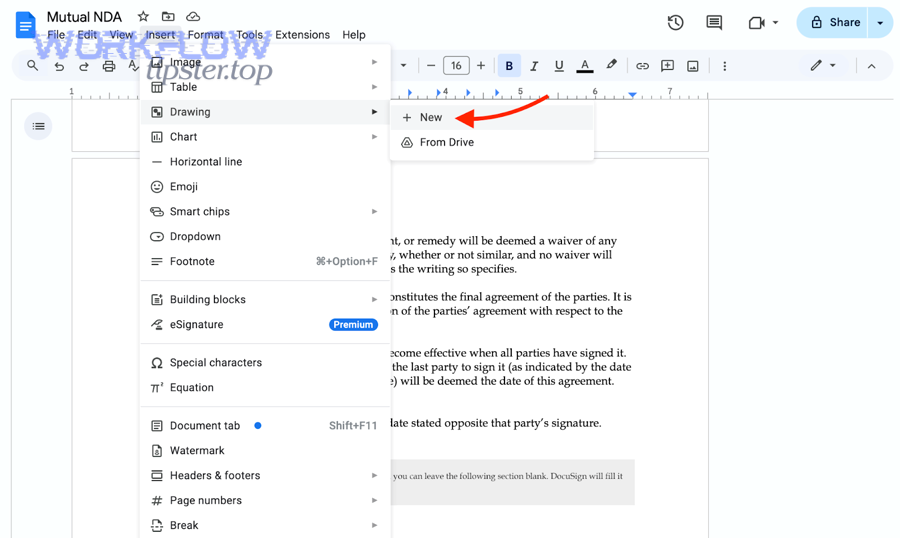
Then, if you need locked deliverables, you can add a second output step to automatically generate a PDF after the doc is created. (make.com)
How can you store uploads and insert links into the generated Google Doc?
A clean, scalable pattern looks like this:
- Send uploaded files to a Drive folder (optionally with a subfolder per submission).
- Capture shareable links (or internal links) for each file.
- Insert links into the doc under a section like “Attachments”:
- File name + link
- File type / size (optional)
- Submission ID (for traceability)
This makes your Google Doc a readable “cover page” while Drive remains the storage system.
Can you generate a PDF version automatically after creating the Google Doc?
Yes. The common approach is:
- Create the doc (preferably from a template).
- Export/download the doc as PDF using the automation tool’s “download document” or export capability. (make.com)
- Store the PDF in a designated Drive folder (often alongside the doc), and send the PDF link to stakeholders.
If external recipients should not edit, the PDF step is the final “lock it” move.
What are the most common failures and how do you fix them?
There are two main failure buckets: content integrity issues (missing fields, formatting breaks) and run integrity issues (duplicates, permission errors, polling delays).
Next, you’ll fix these faster by debugging from the workflow’s “contract”: what data must exist, what formatting rules must hold, and what “one submission = one doc” guarantee you need.
Why do documents create with missing fields, wrong formatting, or blank sections?
Common root causes include:
- Mismatch between placeholder names and mapped fields: Even small differences in spelling, spacing, or braces break replacements.
- Optional fields left blank: If your template assumes a value but submissions omit it, you may get empty lines or awkward headings.
- Unexpected field formats: Addresses, multi-select values, and dates often need transformation.
- Template drift: Someone edits the template and removes/renames placeholders without updating the workflow.
Fix pattern: lock the template (or formalize a template change process), and add a “validation” step that checks for required fields before document creation.
How do you prevent duplicate document creation and ensure reliable runs?
Duplicates usually happen because of one of these:
- The trigger fires more than once (polling, retries, or multiple “new submission” signals).
- Your workflow re-runs when you edit it.
- Team members test repeatedly without a dedupe key.
A practical prevention model:
- Use a dedupe key (submission ID) and store it somewhere (sheet/database/log) so the workflow checks “already processed?” before creating a doc.
- Add idempotency logic: if processed, update or skip rather than create.
- Define retry rules: retries should not create new docs—retries should “repair” the same doc.
According to a study by Kansas State University from the Department of Agricultural Economics, in 2022, inefficient manual processes were estimated to cost at least $143,710 over five years (NPV at a 5% discount rate). (krex.k-state.edu)
How can teams optimize and govern Jotform → Google Docs automation at scale?
Optimizing and governing this automation means choosing the right tool for complexity, then enforcing shared rules—naming, ownership, monitoring, dedupe, and template control—so the workflow stays stable as volume and team size grow.
Next, governance becomes even more important when your workflow sits inside a larger ecosystem of Automation Integrations, where one broken step can ripple into downstream processes.
Zapier vs Make vs IFTTT — which is best for simple docs vs complex scenarios?
A simple way to choose:
- Best for simple doc creation: Zapier is often easiest when you want a linear, straightforward trigger → action flow and quick time-to-value. (zapier.com)
- Best for complex scenarios: Make is typically preferred when you need visual branching, richer transformations, or more control over document creation actions like “create from template” and export/download steps. (make.com)
- Best for ultra-simple “if this then that” tasks: IFTTT can be fine for lightweight automations, but it’s often limiting for templated document workflows and can rely on polling-based triggers. (ifttt.com)
If your output is client-facing and formatting-sensitive, you’ll usually end up wanting template support and stronger error handling.
What hardening checklist improves reliability for teams (naming rules, ownership, monitoring, retries, dedupe)?
Use this checklist as your team baseline:
- Naming rules: Include stable identifiers (submission ID, date, client name) so docs are searchable and dedupe-friendly.
- Ownership rules: Output folders and templates must be owned by a team-managed account.
- Monitoring: Set alerts for failed runs; review logs on a cadence (daily/weekly).
- Retries: Retry on transient errors (timeouts), but ensure retries do not create new documents.
- Dedupe: Store processed submission IDs and check before creation.
- Access reviews: Re-audit folder and template permissions monthly or quarterly.
This is also where cross-tool consistency helps—if you run workflows like activecampaign to smartsheet or airtable to zoom, the same governance habits (naming, ownership, monitoring, dedupe) transfer cleanly.
How do you standardize templates and outputs (consistent formatting, PDF export, and document lifecycle)?
Standardization is a system, not a one-time setup:
- Template governance: One “master” template per doc type, with controlled edits and versioning.
- Placeholder conventions: A shared naming style guide (
{{client_name}}vs{{Client Name}}) so mapping stays predictable. - Output lifecycle: Define what happens after creation:
- Draft created → reviewed → finalized → exported to PDF → archived
- Consistent export rules: If you export PDFs, standardize where they go, how they’re named, and who can access them.
This turns your automation into an operational asset rather than a fragile hack.
What rare constraints matter in regulated or high-volume use (permissions governance, quotas, localization)?
In regulated or high-volume environments, “rare” constraints become decisive:
- Permissions governance: You may need strict separation between who can trigger creation, who can edit docs, and who can view exports.
- Quotas and rate limits: High submission volume can stress connector limits; you’ll want batching, queueing, and backoff strategies.
- Localization: Date formats, address structures, and language-specific templates require transformation rules and multiple template variants.
- Auditability: Document who changed templates, when workflows ran, and which submission produced which output.
When these constraints apply, choose the workflow design that makes compliance and observability easy—not just the one that’s fastest to launch.