


If you want a smoother meeting workflow, you can connect Google Docs to Google Meet by joining a call from the Doc itself and presenting the Doc without losing your place—so your team can talk, edit, and decide in one working context. (support.google.com)
Next, you’ll also need to understand what this “Docs-to-Meet” experience actually includes (join vs present vs join-and-present), because choosing the wrong path—like presenting without joining—can remove the meeting view from the Doc tab and break the collaboration rhythm. (support.google.com)
Then, you’ll want clear guidance on permissions and roles (Doc sharing + who presents) so meetings don’t stall with access requests, confused presenters, or people editing the wrong version of the Doc.
Introduce a new idea: once the core workflow is set, you can extend it with advanced options—like Meet add-ons governance and fatigue-reducing meeting design—so your video call workflow stays productive when your team scales. (vhil.stanford.edu)
What does it mean to “connect Google Docs to Google Meet” for a team video-call workflow?
Connecting Google Docs to Google Meet means running a video meeting from inside the Doc so your team can join or present while collaborating in context—reducing tool-switching and keeping discussion tied to the exact paragraph, table, or decision point. (support.google.com)
Specifically, this workflow matters because most meetings fail in the “handoff moments”: someone shares the wrong tab, someone can’t access the Doc, or the presenter loses the thread while bouncing between windows. A Docs-to-Meet workflow removes those friction points by making the Doc the home base for the call and the content.
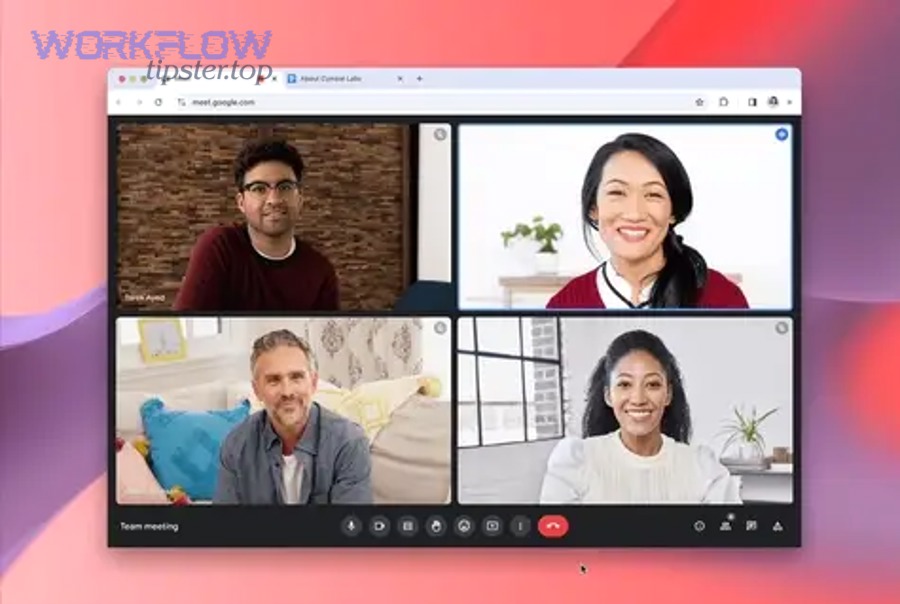
What can you do from inside a Google Doc: join a call, present a Doc, or both?
There are 3 main modes you can use inside a Google Doc—join a call, present a Doc, and join + present—based on whether you need full meeting controls and whether you want the meeting and the Doc to stay visible together. (support.google.com)
To better understand the differences, treat these modes as three “levels” of collaboration:
- Mode 1: Join a Meet call from the Doc (conversation-first)
- Best when the Doc is a working artifact (agenda, meeting notes, decision log).
- People speak and simultaneously edit or comment.
- The Doc stays central, and the conversation stays anchored to text.
- Mode 2: Present the Doc to a meeting (content-first)
- Best when one person is mostly showing the Doc as a reference.
- This can be quick, but it’s easy to do it in a way that separates the meeting view from the Doc tab, which hurts facilitation.
- Mode 3: Join + present from the Doc (hybrid “work session”)
- Best for real collaboration: discuss and edit, then present a section, then return to editing.
- This is the most “team-workflow” version of the feature because it preserves context.
In short, the practical meaning of “connect” is not just “share my screen,” but choose a mode that matches your team’s working style—discussion, review, or active co-authoring.
What do you need before it works (device, browser, and account requirements)?
There are 2 main requirements to use Meet from Docs reliably: a computer and a supported browser (Chrome or Edge), because the in-document Meet integration relies on desktop browser capabilities. (support.google.com)
Moreover, teams should treat readiness as a checklist before the call:
- Use a computer (not only a phone/tablet)
- If someone tries to run the workflow from an unsupported device, they often end up reverting to traditional screen sharing mid-meeting.
- Use Chrome or Edge
- When the feature doesn’t show, this is one of the first things to verify, because it’s a known requirement for join/present from Docs. (support.google.com)
- Confirm you’re signed into the correct account
- Teams often have multiple Google accounts (personal + work). The feature availability and meeting list can change depending on which account is active.
- Keep the Doc share-ready
- If the Doc is private, your meeting becomes a chain of access requests, which kills momentum.
This preparation step is small, but it’s the difference between a “one-tab workflow” and a frantic, multi-tab rescue operation.
Can you join a Google Meet call directly from Google Docs?
Yes, you can join a Google Meet call directly from Google Docs because (1) Docs includes a Meet entry point for joining meetings, (2) you can select scheduled meetings or use a meeting code, and (3) the join-in-context flow lets teams collaborate while talking in the same working tab. (support.google.com)
Next, the real question is not “can you,” but which join method matches your meeting type—scheduled work sessions versus fast ad-hoc calls.
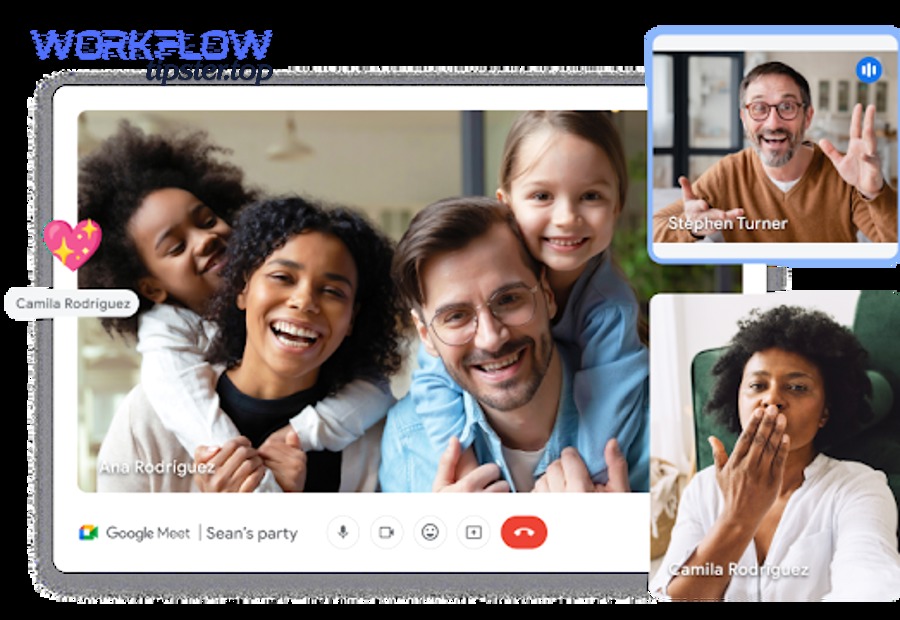
How do you join a scheduled Google Meet meeting from a Doc?
Joining a scheduled Google Meet meeting from a Doc is a built-in workflow where you open the Doc, click the Meet option, select the scheduled meeting you want, and enter the call—so you can discuss and collaborate on the document during the meeting. (workspaceupdates.googleblog.com)
To illustrate how teams use it in practice, think of a weekly planning Doc:
- Open the Google Doc that your team uses as the meeting’s agenda or workspace.
- Click the Meet entry point in the Doc interface.
- Choose the scheduled meeting from the list (typically tied to your calendar context).
- Join the call, then keep the Doc open as the shared artifact.
This flow matters because it supports the meeting’s real job: converting conversation into actions. When the Doc is the meeting’s center, you can:
- Turn discussion into bullet points immediately.
- Assign owners in-line (or at least document decisions).
- Reduce “what did we decide?” follow-ups, because the decisions live where the work lives.
How do you join a Google Meet call using a meeting code from Google Docs?
Joining a Google Meet call with a meeting code from Google Docs is a direct join method where you open the Doc, choose the “use a meeting code” option, enter the code, and start the call—ideal for quick, ad-hoc collaboration sessions. (support.google.com)
Besides being faster, the meeting-code method is useful when:
- Someone drops a code into a chat message.
- A client calls unexpectedly and you need to pull your team into a Doc-based working session.
- You’re running office hours or a support huddle and want a consistent Doc template.
Here’s how to make the meeting-code approach feel “team-ready” instead of chaotic:
- Standardize a “Meeting Workspace Doc”
- Include sections like Agenda, Decisions, Action Items, Parking Lot, and Links.
- When the code arrives, you already have a place for the work to land.
- Use the Doc as the meeting’s truth
- If two people mention different versions, the Doc is the reference.
- If a decision is made, it goes into the Doc immediately.
- Use comments for questions
- Comments keep questions anchored to the exact paragraph, which makes follow-up much cleaner than “I meant that thing we talked about.”
According to a study by Stanford University from the Virtual Human Interaction Lab, in 2021, a survey-based validation found that meeting frequency, duration, and “burstiness” were associated with higher video-meeting fatigue—so keeping meetings anchored to a single working context (like a Doc) can reduce unnecessary meeting load by making work sessions more decisive. (vhil.stanford.edu)
How do you present a Google Doc to a Google Meet meeting without breaking collaboration?
Presenting a Google Doc to Google Meet without breaking collaboration means choosing a present method that keeps participants aligned on the same content while preserving a clear path back to live editing—so the Doc remains the workspace, not just a screen share. (support.google.com)
Then, the key is understanding that “presenting” is not one thing: you can present without joining, or you can join and present, and those two options create very different meeting experiences.
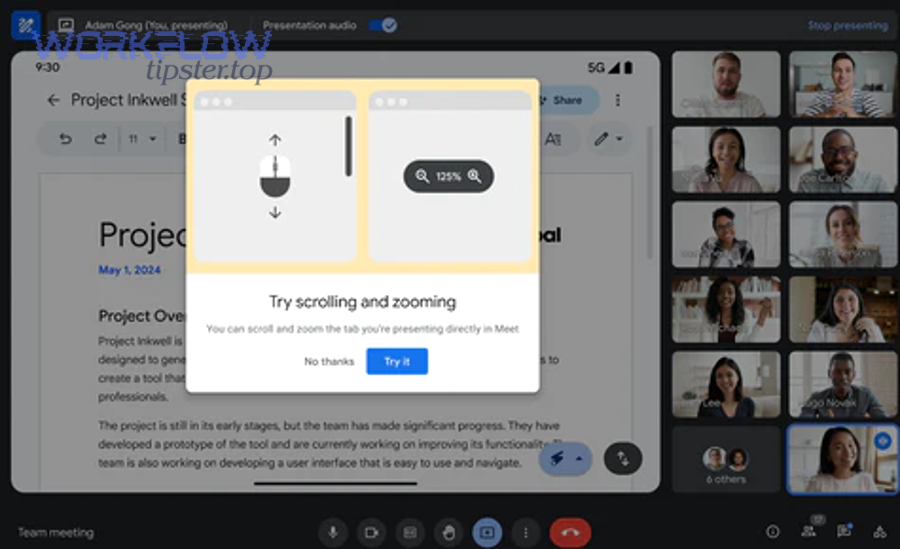
What is “Just present this tab,” and is it enough for team collaboration?
“Just present this tab” wins for speed, “join + present” is best for collaboration depth, and traditional Meet presenting is optimal for complex demos—because each option performs differently on meeting visibility, facilitation control, and real-time co-editing. (support.google.com)
More specifically, here’s how to choose:
- “Just present this tab” wins in speed
- Use it when you need to show content fast and discussion is minimal.
- Risk: if you present without already having the meeting open, you may present the file but won’t be able to view the Meet video meeting in that file tab, which makes facilitation harder. (support.google.com)
- “Join + present from the Doc” is best for true co-working
- Use it when the Doc is being edited live, decisions are being captured, or multiple people need to reference specific sections.
- Benefit: you preserve the “one-tab” collaboration pattern, reducing context switching.
- Traditional Meet presenting is optimal for multi-asset demos
- Use it when you need to show multiple windows, switch between apps, or demonstrate a workflow across tools.
On the other hand, teams often default to screen sharing out of habit. The problem is that screen sharing is passive: it shows content but doesn’t automatically keep the group anchored to the editable artifact. The more your meeting is about producing outcomes (notes, plans, decisions), the more you should bias toward join-and-collaborate workflows.
How do you join the call and present so the Doc and meeting stay in one working context?
To keep the Doc and the meeting in one working context, you should join the Google Meet call from within the Doc first and then present from that joined state—so you can see both the collaboration artifact and the meeting while presenting. (support.google.com)
Moreover, a practical “work session” sequence looks like this:
- Open the Doc (agenda, project plan, design review notes).
- Join the call from the Doc
- This ensures the meeting is active in your workflow context.
- Present when you need alignment
- Present a specific section when discussion requires shared focus.
- Stop presenting and return to co-editing
- Move from talk → show → edit → decide, without switching tools.
To better understand why this matters, consider the difference between meetings that “feel busy” and meetings that “finish work.” When the Doc is central:
- People can capture decisions immediately.
- You reduce after-meeting rework (“Can someone send notes?”).
- You make collaboration visible rather than implied.
If you want to make this workflow even more resilient, adopt a consistent Doc structure:
- Top: Goal of the meeting (one sentence)
- Middle: Discussion items + decisions
- Bottom: Action items with owner + due date
This simple structure turns the Doc into a lightweight meeting system—one that works whether you’re in-person, remote, or hybrid.
Which sharing settings and roles prevent interruptions during a Docs-to-Meet session?
There are 3 main role-and-permission layers that prevent interruptions in a Docs-to-Meet session—Doc access permissions, meeting roles for facilitation, and presenting responsibility—because collaboration fails when participants can’t open the Doc, can’t contribute appropriately, or don’t know who controls the flow.
In addition, the best teams set these rules before the meeting starts so the meeting doesn’t become a tech-support queue.
Which Google Docs permission level should each participant have (viewer, commenter, editor)?
There are 3 main Google Docs permission levels—viewer, commenter, and editor—based on how much you want a participant to change the document, and choosing the right one prevents accidental edits, missing input, and “who changed this?” confusion.
Specifically, match permission levels to meeting purpose:
- Viewer
- Best for: briefings, readouts, stakeholder updates.
- Meeting behavior: people discuss while the facilitator updates the Doc.
- Risk to manage: viewers can’t add structured input unless you collect it elsewhere.
- Commenter
- Best for: reviews, approvals, feedback sessions.
- Meeting behavior: participants highlight exact text and comment, keeping feedback anchored and trackable.
- Benefit: you avoid messy inline edits while still capturing input.
- Editor
- Best for: workshops, planning sessions, writing sprints.
- Meeting behavior: multiple people co-author in real time.
- Risk to manage: simultaneous editing needs structure—assign sections or use a “parking lot” to avoid overwriting.
A simple rule improves outcomes: give most participants commenter access by default, then elevate to editor access only for co-authors. That keeps collaboration focused without turning the Doc into a free-for-all.
When should you use Meet host/co-host vs “presenter,” and what changes during presenting?
A Meet host/co-host is responsible for meeting control and governance, while a presenter is responsible for sharing content; separating these roles improves meeting flow because the host maintains structure (timing, order, safety) while the presenter maintains clarity of content delivery.
Moreover, role separation prevents common meeting failure modes:
- The presenter gets pulled into admitting participants or troubleshooting.
- The facilitator loses the thread while screen sharing.
- No one is sure who should switch presenters or stop a share.
For a smooth Docs-to-Meet workflow, use this practical split:
- Host (or co-host)
- Runs the agenda in the Doc.
- Keeps the group moving (timeboxes, decisions, next steps).
- Ensures the meeting settings match your org’s rules.
- Presenter
- Presents specific Doc sections when alignment is needed.
- Stops presenting when the group returns to co-editing.
- Uses a consistent “callout” method (“We’re in section 2.3 now”) to prevent confusion.
This is especially important in hybrid sessions where side conversations and technical hiccups can fragment attention.
What should you do if Google Meet doesn’t show up in Google Docs or won’t work?
There are 4 main troubleshooting buckets—device/browser compatibility, account context, permissions/edition settings, and presenting workflow errors—because most “it doesn’t work” moments come from one missing requirement, not a mysterious bug. (support.google.com)
Next, the fastest fix is to start with the most likely blockers and only then move to deeper checks.
Is Meet-in-Docs limited to certain browsers or devices?
Yes, Meet-in-Docs is limited because (1) it requires a computer environment, (2) it requires supported desktop browsers like Chrome or Edge, and (3) the integration uses desktop sharing and in-doc UI elements that aren’t consistently available on unsupported platforms. (support.google.com)
Then, use this quick diagnostic flow:
- Are you on a computer?
- If not, switch to a computer first.
- Are you using Chrome or Edge?
- If not, try the Doc in Chrome or Edge before changing anything else.
- Are you signed into the correct Google account?
- If the meeting list looks wrong, you may be in the wrong profile.
For example, many teams “lose” the Meet option simply because someone opened the Doc in a browser profile tied to a personal account rather than the Workspace account.
Could Workspace admin settings or edition limits be blocking features like Meet access, recording, or add-ons?
Yes, admin settings or edition limits can block or change Meet-related features because (1) organizations can enable/disable certain capabilities, (2) availability can vary by Workspace edition, and (3) meeting controls (like add-ons or presenting policies) may be governed centrally for security and compliance. (workspaceupdates.googleblog.com)
Moreover, if you suspect an admin block, don’t guess—collect specific symptoms so your admin can fix it quickly:
- The Meet icon is missing for multiple users in the same org.
- The feature appears for some accounts but not others.
- You can join meetings normally, but not from within Docs.
- Add-ons are unavailable during meetings.
A tight troubleshooting message to your admin saves time: “Meet-in-Docs isn’t visible in Chrome on desktop for multiple users in our OU; can you confirm whether the join/present setting for Docs/Sheets/Slides is enabled?”
According to a study by Stanford University from the Virtual Human Interaction Lab, in 2021, researchers reduced 49 survey items to 15 and identified five fatigue dimensions—general, social, emotional, visual, and motivational—suggesting that when meeting setups create extra friction and cognitive load, fatigue increases and productivity drops. (vhil.stanford.edu)
What advanced options extend the Google Docs ↔ Google Meet workflow beyond the basics?
Advanced options extend the Docs ↔ Meet workflow by adding governance, richer in-meeting collaboration, and smarter facilitation patterns—so teams don’t just “meet,” they finish decisions and produce artifacts consistently even as meeting volume grows. (vhil.stanford.edu)
Below, these micro-level enhancements matter because the biggest problem in modern work isn’t a lack of meetings—it’s meetings that produce ambiguity. When you treat Google Docs as the “collaboration spine,” you can layer advanced practices on top without rebuilding your workflow.
Should you use Companion Mode, Meet add-ons, or standard presenting for collaborative work sessions?
Companion Mode wins for hybrid participation, Meet add-ons are best for structured in-meeting collaboration, and standard presenting is optimal for simple alignment—because each option specializes in a different collaboration constraint: location gaps, workflow tooling, or content clarity. (support.google.com)
More specifically, choose based on your session type:
- Companion-style participation (hybrid sessions)
- Best when people are both in-room and remote and need an additional collaboration surface.
- Practical benefit: it separates “being in the meeting” from “working in the Doc,” which reduces confusion in hybrid rooms.
- Meet add-ons (structured collaboration)
- Best when your meeting includes a repeatable collaboration pattern (structured ideation, decisions, formal reviews).
- Risk to manage: governance—your org may control add-ons availability for safety.
- Standard presenting (simple alignment)
- Best when the goal is “everyone look at this” and edits are minimal.
- Tip: stop presenting quickly and return to co-editing if the meeting is actually a working session.
On the other hand, don’t over-engineer: if your meeting is a 10-minute sync, standard presenting plus a well-structured Doc is often enough.
How can hosts and admins control what participants can do with Meet add-ons and meeting features?
There are 3 main control layers for Meet add-ons and meeting features—admin policies, host/co-host meeting controls, and user-level availability—based on how your organization balances collaboration speed with security and consistency.
Specifically, this is how control usually plays out in real orgs:
- Admin policies set the boundaries
- They decide what features are enabled by default and whether certain organizational units (OUs) have restrictions.
- Hosts/co-hosts control the meeting experience
- They can manage the flow and reduce disruption, especially in larger meetings.
- Users operate inside those constraints
- If a feature doesn’t show for users, it’s often not a user error—it’s a policy boundary.
This is where “Automation Integrations” often becomes a business decision, not just a technical one: your organization may allow simple in-doc meetings but restrict deeper integrations until they’re vetted.
And if you’re thinking in terms of a broader systems approach, this governance logic is the same logic that applies to other workflow connections—like gmail to zoho crm syncing for sales ops or convertkit to hubspot handoffs for lifecycle marketing—where admins care about data access, auditing, and consistency, not just convenience.
Can Google Meet create notes into a Google Doc automatically, and who is it for?
Yes, Meet can generate meeting notes into a Google Doc in certain environments because (1) AI-assisted note features exist in Workspace ecosystems, (2) they reduce manual note-taking burden, and (3) they create a durable Doc artifact for follow-up—especially useful for managers, project leads, and cross-functional teams. (vhil.stanford.edu)
Then, treat automated notes as a workflow accelerator, not a replacement for thinking:
- Use them to capture what happened.
- Use the Doc structure to decide what matters (decisions and action items still need explicit ownership).
- Use a consistent post-meeting step: confirm decisions, assign owners, and link the Doc in your project system.
If you already run meetings from a Doc, automated notes become even more valuable because they land in the same ecosystem as your agendas, decision logs, and project documentation.
What presentation upgrades change how you should present Docs content in Meet?
Presentation upgrades change how you should present Docs content by expanding what “presenting” can include—like clearer tab sharing behaviors and better meeting multitasking—so you can choose the present method that preserves clarity, audio, and audience visibility during demos.
Moreover, as your meetings evolve from “talking” to “showing real work,” your presenting strategy should evolve too:
- For text-heavy Docs: present only when needed, then return to co-editing quickly.
- For multi-asset workflows: prefer traditional Meet presenting with deliberate tab/window selection.
- For hybrid rooms: prioritize clarity and pacing, because hybrid attention fragments faster.
Finally, if your broader Google ecosystem matters, you can also design “adjacent” workflows—like google docs to google contacts for keeping stakeholder lists consistent—so your meeting Doc isn’t isolated from your operational data.
According to a study by Stanford University from the Virtual Human Interaction Lab, in 2021, the researchers reported fatigue increasing with meeting frequency and duration, reinforcing a practical takeaway: reduce unnecessary meeting overhead by using a single collaboration spine (a Doc) and running shorter, more decisive sessions. (vhil.stanford.edu)