


Google Docs already lives inside Google Drive, so “moving Google Docs to Google Drive” really means placing Docs files into the right Drive folders (or shared drives) so they’re easy to find, share, and manage without breaking access.
Next, once you understand what “move,” “copy,” and “shortcut” actually do, you can reorganize your Drive with confidence—especially when you’re collaborating and permissions matter more than folder aesthetics.
Then, you’ll learn a practical folder structure that works for both individuals and teams, plus a retrieval workflow (search + naming) that keeps your Docs discoverable even when your Drive grows.
Introduce a new idea: when organization becomes a productivity system—not just cleanup—your Google Docs workflow starts supporting faster collaboration, fewer permission surprises, and smoother handoffs into the main content below.
What does “moving Google Docs to Google Drive” mean?
“Moving Google Docs to Google Drive” is the process of assigning a Google Docs file to a specific Drive location (folder or shared drive), so the document is stored under a clear path, inherits the right access context, and stays discoverable for you and your collaborators.
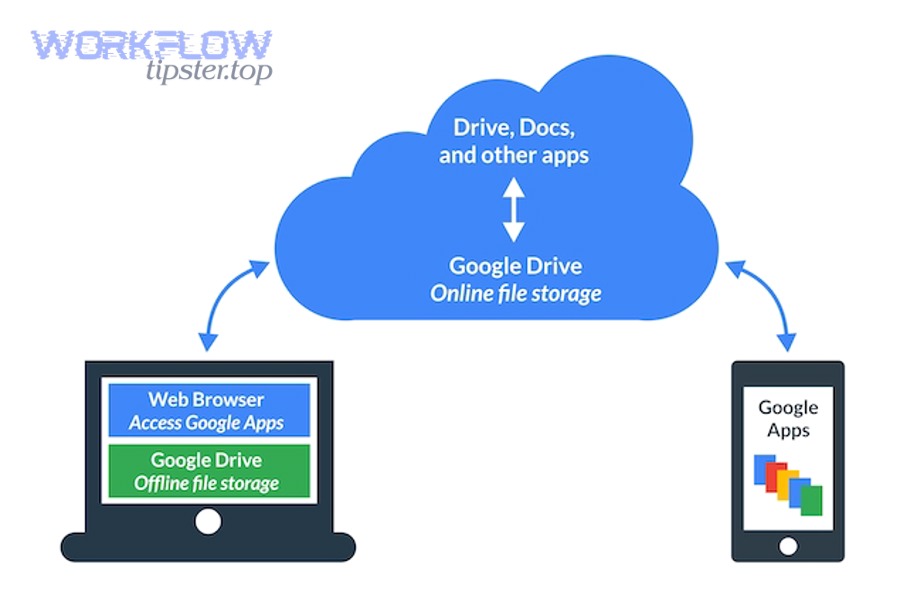
To better understand what’s happening, it helps to separate storage reality from interface language. Google Drive is the storage layer for Docs, and Google Docs is the editor. When you “move,” you’re not uploading the same file into a new system—you’re updating the file’s location and, in some cases, its permission context.
Are Google Docs automatically saved in Google Drive by default?
Yes—Google Docs automatically saves to Google Drive by default, and it does so continuously, for three practical reasons: (1) Docs is cloud-based, (2) collaboration depends on real-time saving, and (3) version history relies on frequent save points. (support.google.com)
Specifically, this changes how you think about “saving.” In a traditional desktop app, you create a file and choose a folder when you click Save. In Google Docs, the file exists immediately, and the key question becomes: “Where does this Doc live in Drive right now?”
- New Doc created from Drive inside a folder: it usually starts in that folder, which makes your initial organization clean.
- New Doc created from docs.google.com: it typically appears in a default area of My Drive until you move it into a project folder.
- Edits never depend on a manual save action: your organization strategy should focus on consistent placement and naming, not “remembering to save.”
Practical takeaway: if you want fewer “orphaned” files, create Docs from inside the right Drive folder whenever possible, then refine the name and sharing settings immediately.
What’s the difference between a Google Doc file and a Drive folder location?
A Google Doc file is the content object (the actual document), while a Drive folder location is the container that controls how you browse, group, and sometimes manage access context for that object.
To illustrate, think of a Doc as a single book, and Drive folders as shelves:
- The book stays the same even if you move shelves.
- The shelf changes how quickly you find the book, who can reach the shelf, and what rules apply when you move things around.
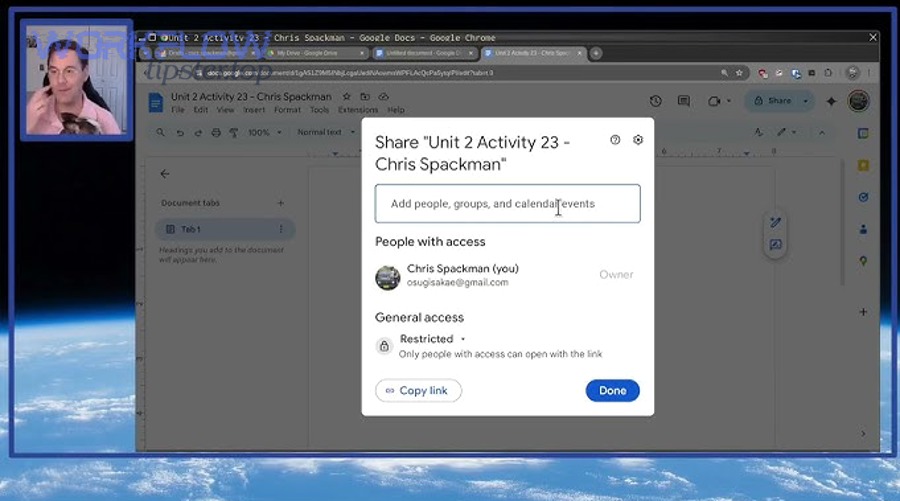
This distinction matters because “move” does not rewrite your content—it changes how the content is organized and sometimes how access is granted, especially in shared environments. For example, in shared drives, membership can determine visibility of files across the drive, while “My Drive” behaves more like personal storage. (support.google.com)
According to a study by the University of Washington from The Information School, in 2005, folder structures were observed to function as more than retrieval tools—they helped people represent project structure and “divide and conquer” complex work into manageable subfolders. (digital.lib.washington.edu)
How do you move a Google Doc into a Google Drive folder?
To move a Google Doc into a Google Drive folder, use a Move workflow (2 main methods) with a few simple steps—select the Doc, choose “Move,” pick the destination folder, and confirm—so your document appears under the correct path and your Drive stays organized.
Below, the key is choosing the method that matches your context: moving from inside Docs is fast when you’re already editing, while moving from Drive is best for bulk organization and folder-first workflows.
How do you move a Doc from inside Google Docs to a Drive folder?
You can move a Doc directly from the Google Docs editor by using the Move (folder) control, which updates the Doc’s location inside Drive without changing its content.
- Open the Doc you want to organize.
- Click the folder icon / Move option near the document title (or use the File menu path depending on UI layout).
- In the location picker, choose the target folder (or create a folder in the moment if your system allows).
- Click Move and confirm the new location.
After the move, do a quick verification:
- Open Drive in a new tab and check the folder path.
- Use Drive search with the Doc title to confirm it appears where expected.
- If collaborators rely on a folder view, confirm they still see it.
This method is particularly effective when you’re actively producing content—write first, then move and name properly once the draft becomes real work.

How do you organize multiple Docs efficiently in Drive?
You can organize multiple Docs efficiently by batching your moves—collecting a set of documents using search/filters, selecting them in bulk, and moving them together—so you don’t waste time handling files one by one.
A practical bulk workflow looks like this:
- Step A: Gather the set
- Use Drive search like “type:document” and include part of a project name.
- Filter by Owner, Last modified, or Location (when available).
- Use “Recent” if you’re cleaning up new documents created during a sprint.
- Step B: Select in bulk
- Shift-click ranges for consecutive items.
- Ctrl/Cmd-click to add specific files to the selection.
- Confirm you’re moving the right set before you commit.
- Step C: Move as a batch
- Right-click the selection and choose Move to / Organize → Move (UI wording varies).
- Navigate the folder tree, select destination, and confirm.
Where this becomes powerful is when you apply a consistent rule: “Every Doc created during Project X goes into the Project X folder before the day ends.” That rule turns cleanup into routine.
Evidence note: Google Drive Help provides step-based guidance for organizing and moving files and emphasizes organizing files in Drive as a core workflow. (support.google.com)
What folder structure best organizes Google Docs for individuals and teams?
There are 4 main folder structure types that best organize Google Docs—Project-based, Client-based, Time-based, and Process-based—based on the criterion of how you retrieve Docs most often (by what you’re working on, who it’s for, when it happened, or what stage it’s in).
Below, the goal is not to build a “pretty tree,” but to build a tree that matches your real retrieval behavior: what you search for when you’re busy, under pressure, and collaborating.
A simple decision rule:
- If your work is dominated by initiatives → Project-based
- If your work is dominated by relationships → Client-based
- If your work is dominated by reporting → Time-based
- If your work is dominated by repeatable workflows → Process-based
Here are examples that stay lean and scalable:
- Project-based
- /Projects/Project Phoenix/Docs/
- /Projects/Project Phoenix/Meetings/
- /Projects/Project Phoenix/Deliverables/
- Client-based
- /Clients/Acme/Contracts/
- /Clients/Acme/Proposals/
- /Clients/Acme/Meeting Notes/
- Time-based
- /2026/Q1/
- /2026/Q1/Weekly Notes/
- /2026/Q1/Reports/
- Process-based
- /Marketing/Briefs/
- /Marketing/Drafts/
- /Marketing/Review/
- /Marketing/Final/
The mistake to avoid is deep nesting that only makes sense to the person who created it. If you need more than 3–4 folder levels to find a common Doc, your naming and search strategy should take more responsibility.
Which naming rules make Docs easier to find later?
There are 5 main naming rule types that make Google Docs easier to find later—Purpose-first, Identifier-based, Date-stamped, Status-marked, and Version-aware—based on the criterion of what you need to recognize in 2 seconds when scanning results.
To illustrate, a great name removes ambiguity. A weak name forces you to open the file to know what it is.
Use these patterns:
- Purpose-first: Meeting Notes – Product Sync
- Identifier-based: ACME – Q1 Onboarding Plan
- Date-stamped: 2026-01-31 – Weekly Review
- Status-marked: DRAFT – Partner Proposal
- Version-aware (lightweight): Proposal v2 – Internal Review
A team-friendly naming system usually includes three elements:
- Who/what it’s for (client, project, function)
- What it is (proposal, notes, spec, checklist)
- When/status (date or DRAFT/FINAL)
If you want a fast, universal formula:
[Project/Client] – [Document Type] – [Specific Topic] – [YYYY-MM-DD]
This makes Drive search brutally effective because every keyword matters and every keyword is predictable.
How should teams design folder permissions without creating chaos?
Teams should design folder permissions by balancing three criteria: clarity (who should see what), control (who can change what), and continuity (what happens when people leave)—so collaboration stays smooth without oversharing.
Moreover, the cleanest “permission architecture” is usually a two-zone system:
- Team zone (Shared drive): durable, owned by the organization, designed for shared work.
- Personal zone (My Drive): drafts, experiments, personal work-in-progress that may not be ready for the team.
This matters because shared drives behave differently from My Drive in how ownership and access are handled; for example, shared drives are designed so files persist and remain accessible even when individuals leave. (support.google.com)
A simple policy that prevents chaos:
- Shared drive is the “single source of truth.”
- Personal Drive is where early drafts live temporarily.
- When a Doc becomes a team artifact, you move it into the shared drive and confirm access.
Does moving a Google Doc change sharing permissions or links?
It depends—but often yes in shared contexts: moving a Google Doc usually keeps the same file identity, yet it can change effective access in three common ways: (1) inherited folder permissions can be removed or replaced, (2) shared drive membership rules can change visibility, and (3) restricted folders can override expectations.
In addition, you should treat any reorganization as an access event, not just a filing event—especially if the Doc is used by multiple stakeholders.
When can a move cause someone to lose access?
A move can cause someone to lose access when the Doc relied on inherited permissions from its previous folder, but the destination folder has a different permission model.
- Moving out of a shared folder into My Drive may remove permissions that were inherited from the shared folder and replace them with destination rules. (support.google.com)
- Moving into a shared drive can change access because shared drives use membership-based visibility, and folder restrictions can further limit access. (support.google.com)
- Moving into a restricted subfolder can reduce access even for people who “had the link,” depending on how restrictions are set.
A practical mindset: assume the move is safe only after you test visibility with a non-owner viewpoint (or a teammate account).
What is the safest checklist before reorganizing a shared folder tree?
There are 7 main checklist steps to reorganize safely, based on the criterion of protecting access continuity while you change structure:
- Inventory critical Docs (the ones people need weekly/daily).
- Capture current sharing .
- Decide destination rules (who should access the new location).
- Move a small test set first (1–3 Docs) and validate access.
- Confirm link expectations (if people use “Shared with me” vs folder paths).
- Communicate the new structure with a short “where things moved” note.
- Monitor and fix regressions (if someone loses access, you want a fast repair path).
When you do this well, you protect the real business outcome: collaboration speed, not folder beauty.
According to a study by the University of California, Irvine from the Department of Informatics, in 2008, interrupted work led people to compensate by working faster, but they experienced increased stress, frustration, time pressure, and effort—meaning avoidable friction (like permission surprises) has a real cognitive cost. (ics.uci.edu)
What’s the best way to search and sort Google Docs inside Drive after organizing?
There are 6 main ways to search and sort Google Docs inside Drive—keyword search, type filtering, owner filtering, recency sorting, location-based browsing, and starring/prioritization—based on the criterion of how quickly you can retrieve a Doc without guessing.
Specifically, folder structure is only half the system; retrieval is the other half. The best Drive setups make retrieval predictable even when you can’t remember the exact folder path.
How do you quickly find Docs by owner, last modified, or folder context?
You can quickly find Docs by using Drive’s built-in metadata signals and a consistent naming approach:
- Owner view: find what you own vs what’s shared with you.
- Last modified: locate the latest working draft.
- Recent: recover your “what was I just working on?” context.
- Type filters: isolate Docs from PDFs, Sheets, and Slides.
A dependable retrieval routine for a busy day:
- Search a unique keyword from your naming convention (client name, project codename).
- Filter to Docs (not everything).
- Sort by last modified if you’re finding the current version.
- Star the Doc if it’s a daily driver.
This approach scales because it doesn’t rely on memory of folder paths—it relies on predictable naming and metadata.
Is search better than folders for some workflows?
Search is better than folders for some workflows, but folders are still essential, for three reasons: (1) search excels at finding a known item quickly, (2) folders excel at representing a project structure visually, and (3) folders help teams coordinate “where the source of truth lives.”
However, a search-first workflow wins when:
- You work across many parallel projects.
- You remember keywords more reliably than folder paths.
- You rely on recency (“the one I edited yesterday”).
On the other hand, a folder-first workflow wins when:
- You onboard new team members who need orientation.
- You manage deliverables that must be audited.
- You need a standard place for templates, final versions, and approvals.
The strongest system is hybrid:
- Folders define the structure
- Search retrieves specific items fast
- Naming makes both systems work
How do you share organized Docs with the right people without oversharing?
Sharing organized Docs works best when you choose the right method for the right goal: direct sharing wins for precise control, link-sharing wins for speed, and shared drives win for durable team collaboration—each optimal for a different criterion.
Besides, oversharing is almost always a role design problem. You prevent it by aligning access levels with real needs: view, comment, edit, or manage.
Which permission level should you use: Viewer vs Commenter vs Editor?
Editor wins for co-writing, Commenter is best for structured review, and Viewer is optimal for read-only distribution, because each role maps to a different collaboration outcome.
- Viewer: when the Doc is final or informational (policies, meeting outcomes, reference docs).
- Commenter: when you want feedback without content changes (approvals, reviews, stakeholder input).
- Editor: when multiple people are responsible for the content (co-authoring, live meeting notes).
To reduce risk, make “Editor” the exception, not the default, especially for executive-facing Docs or documents that drive decisions.
This is also where “Automation Integrations” can become valuable—not by replacing judgment, but by standardizing the workflow. For example, a team might set up a process where a “Final” folder triggers an automated review step and shifts permissions from Editor to Viewer after approval.
Should you share a folder or individual Docs?
Folder sharing is better for bundles of related materials, while sharing individual Docs is better for tight control. The key trade-off is convenience vs precision.
Share a folder when:
- A group needs access to many Docs over time.
- You want onboarding to be easy (“Everything you need is here.”).
- The folder is designed as a controlled workspace (like a client portal).
Share an individual Doc when:
- The Doc is sensitive or narrowly relevant.
- You want to avoid accidental access to adjacent files.
- You need fine-grained control per document.
If your sharing involves frequent updates and notifications, workflows like google docs to gmail can be useful for communication—such as sending a controlled update email when a Doc status changes from DRAFT to FINAL—without giving everyone edit access by default.
How do you transfer or migrate Google Docs safely across accounts or team drives?
There are 4 main ways to transfer or migrate Google Docs safely—move, copy, shortcut, and ownership/drive migration—based on the criterion of whether you need the same file identity, a duplicate, a reference, or a new ownership context.

More importantly, migration is where most “google docs to google drive” confusion actually lives. Many people aren’t trying to tidy folders—they’re trying to:
- hand work to a new owner,
- move files from personal to company storage,
- or set up a shared drive as a durable team repository.
What’s the difference between moving, copying, and creating a shortcut in Google Drive?
Moving, copying, and creating a shortcut solve different problems, and choosing the wrong one creates messy duplication or broken expectations.
Here is a quick comparison (the table below summarizes which action preserves a single “source of truth” vs creates a new file):
| Action | What happens | Best for | Biggest risk |
|---|---|---|---|
| Move | Same file, new location | Clean organization, single version | Access changes in shared contexts |
| Copy | New file created | Experiments, branching versions | Duplicate “truth” and confusion |
| Shortcut | Pointer to a file | Multiple teams referencing one Doc | People mistake it for a copy |
A shortcut is designed to help teams find and organize files across Drive locations without duplicating the content. (support.google.com)
A copy is not the same as a shortcut; a copy is a separate file that stands on its own. (support.google.com)
If you’re building a mature organization system, shortcuts can be extremely powerful: keep the Doc in one authoritative location (like a shared drive “Source of Truth” folder), then place shortcuts in team-specific folders for visibility.
This also pairs well with form-based workflows—like google docs to typeform—where a Typeform response might trigger a Doc creation, then your process decides whether that Doc is stored as a new file in a specific folder or referenced via shortcuts across multiple teams.
Can you transfer ownership of a Google Doc to another account or domain?
Yes, you can sometimes transfer ownership of a Google Doc, but not always, for three common reasons: (1) your account type (work/school vs personal) can restrict transfers, (2) cross-domain policies can block ownership changes, and (3) shared drive ownership behaves differently because the organization owns files.
In shared drives, the organization owns the files rather than an individual, which changes how “ownership” should be understood during migration. (support.google.com)
When ownership transfer is restricted, the safest practical fallback is:
- Make a copy into the destination environment (new owner controls it),
- share the original as needed for continuity,
- and clearly label which file is now the source of truth.
This prevents silent dependency on a file that someone might lose access to later.
How is organizing Docs different in “Shared drives” compared to “My Drive”?
Shared drives and My Drive differ mainly in ownership and access mechanics, which changes how you should organize Docs.
- My Drive: personal organization model—your folders, your hierarchy, your primary control.
- Shared drives: team organization model—files persist for the organization, and access is heavily shaped by shared drive membership plus folder-level restrictions. (support.google.com)
That difference changes best practices:
- In My Drive, deep folder nesting can work if it matches your mental model.
- In shared drives, prioritize clarity and onboarding: fewer levels, consistent naming, and clearly defined “Working” vs “Final” areas.
Also, when moving items from My Drive into a shared drive, Drive Help notes that by default you can generally only move files you own, so teams should plan migration with ownership in mind. (support.google.com)
How does offline access (Drive for desktop) affect where your Docs “live”?
Offline access changes availability, not the true storage location: Google Docs still “lives” in Google Drive, but offline features cache content so you can view and edit without a constant connection.
Next, the key is understanding what offline mode controls:
- Docs offline is managed through Docs settings and allows access when you’re disconnected. (support.google.com)
- Drive for desktop can sync or stream files, which affects how non-Google files behave locally, but Docs remains fundamentally cloud-first.
For teams, the operational takeaway is simple:
- Don’t treat offline copies as separate “versions.”
- Keep naming and folder location authoritative in Drive.
- When the connection returns, confirm the Doc is synced and visible in the expected Drive location.
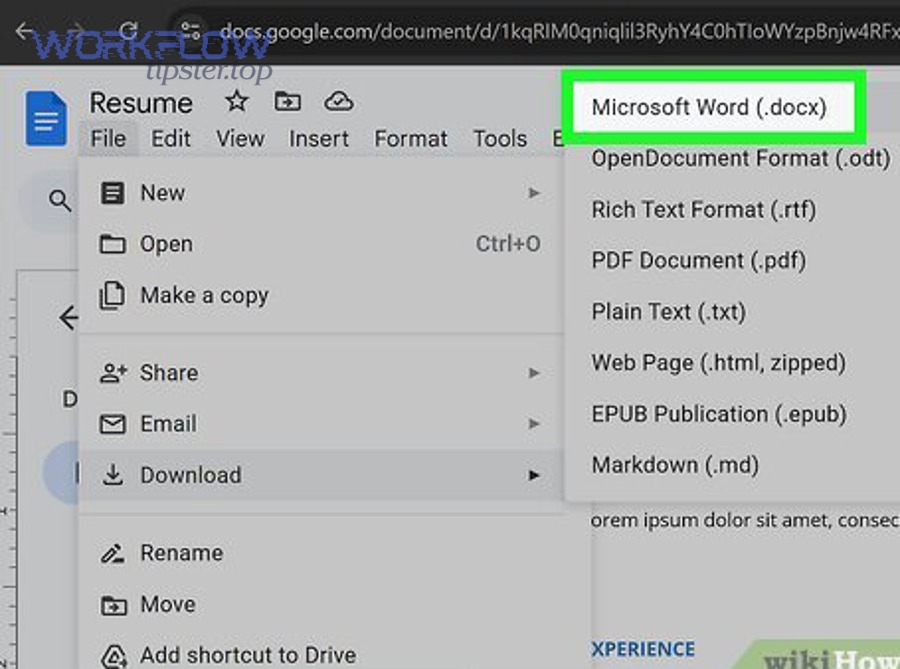
Finally, when you export or deliver externally, remember that “migration” can also mean format conversion—like google docs to microsoft word for stakeholders who require .docx—so your organization system should include a clear “Exports” or “Client Deliverables” area to avoid mixing editable Docs with distribution copies.