


Syncing Google Docs to Google Contacts is a practical way to turn contact details written in a shared document into real, searchable contacts—automatically—so your team stops retyping names, emails, and phone numbers across tools and devices. Instead of treating a Doc as “just text,” you treat it as a structured intake source that can create or update contacts consistently.
Next, the foundation is understanding what “sync” really means in this context: it’s not magic two-way teleportation—it’s a controlled flow from a document format your team already uses into the contact records your team relies on for calling, emailing, and CRM handoffs. When you know the direction, data fields, and rules, the workflow becomes predictable.
Then, you’ll choose the right implementation method for your environment: no-code automation when you want speed, add-ons when you want in-Doc usability for teams, or Apps Script when you need strict governance, advanced parsing, or a custom “upsert” (update-if-exists) strategy.
Introduce a new idea: once the core workflow is clear, you can design the same system like a product—define inputs, validate fields, prevent duplicates, and log every change—so the sync stays reliable even when the Doc grows, team members rotate, or your processes evolve.
What does it mean to sync Google Docs to Google Contacts for automated contact capture?
Syncing Google Docs to Google Contacts is a workflow pattern that converts contact details written in a Google Doc into Google Contacts records, using consistent field mapping, validation rules, and an automated trigger so your team can create or update contacts without repetitive manual entry.
To better understand why this matters, focus on what “automated contact capture” replaces: copying text from a Doc, pasting into Contacts, reformatting phone numbers, forgetting companies, creating duplicates, and losing context when multiple teammates handle the same list.
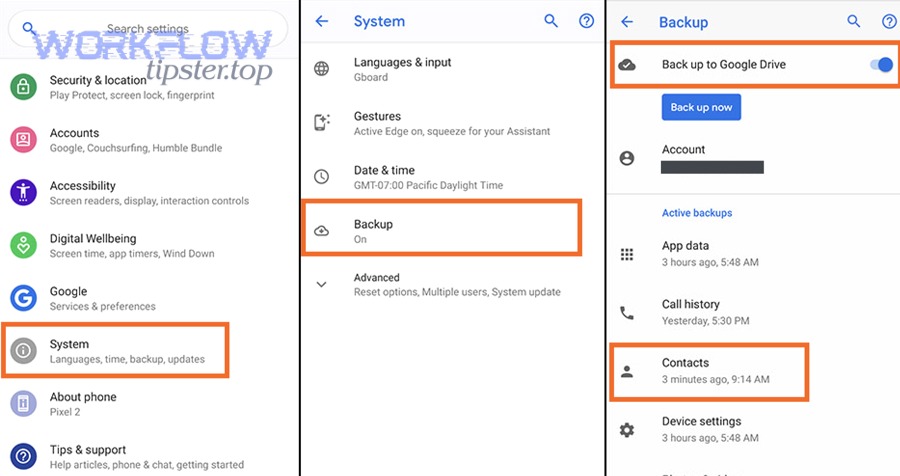
In practice, a Docs-to-Contacts sync usually includes five core elements:
- A predictable input format in Google Docs (table, template, or key:value blocks)
- A trigger (manual button, schedule, or workflow event)
- A parser (extracts the right fields from the Doc)
- A mapper (assigns extracted values to contact fields)
- A contact action (create new contact, update existing contact, add labels/groups)
When these elements are explicit, “sync” stops being a vague promise and becomes a repeatable system your team can trust.
Is syncing Google Docs to Google Contacts possible without coding?
Yes, syncing Google Docs to Google Contacts is possible without coding because no-code automation tools can connect triggers to actions, prebuilt contact actions can create/update records, and step-by-step setup wizards reduce the need for custom scripting in common scenarios.
Next, the key is to choose a no-code approach that matches how your team actually works—because “no-code” only stays easy if your document format is stable and your contact rules are clear.
Three reasons no-code works well here:
- Fast setup with standard actions: Many platforms support contact creation/update actions out of the box, which is ideal for straightforward “name + email + phone” capture.
- Built-in field mapping: You can map extracted values to contact fields without writing logic, especially if the Doc is structured as a table or standardized template.
- Operational visibility: No-code platforms often show run history, errors, and retries, which helps non-developers keep the workflow healthy.
Where no-code can struggle is when your Doc is inconsistent (free-form notes), your team needs complex matching rules (multiple emails, multiple phones), or you want tight governance (approval gates, staging labels, audit logs stored in a controlled system). In those cases, Apps Script becomes the stronger option.
What is the difference between “capturing contacts from a Doc” and “syncing contacts to a Doc”?
Capturing contacts from a Doc wins when you need fast intake and clean contact creation, syncing contacts to a Doc is best when you need a live directory view in a document, and a two-way sync is optimal only when you can enforce strict rules to prevent conflicts and duplication.
Then, use directionality as your first decision filter:
- Doc → Contacts (capture): The Doc is the intake source. This is perfect for partner lists, event attendee lists, vendor onboarding sheets, and meeting notes that include contact info.
- Contacts → Doc (publish): Contacts are the source of truth. This is useful when you want a “read-only directory” inside a Doc for teams to reference.
- Two-way sync (rare, riskier): Two-way sync is hardest because two systems can update the same person differently. Without a strong conflict-resolution policy, two-way sync creates “who changed what” confusion.
A reliable strategy is to pick one source of truth and keep the other system as a downstream output. For most teams, that means Google Contacts becomes the system of record, and Google Docs becomes the intake surface.
Which workflows can you automate between Google Docs and Google Contacts?
There are 6 main workflow types you can automate between Google Docs and Google Contacts—intake, enrichment, deduplication, labeling, routing, and audit logging—based on how the contact data moves and what business outcome your team needs.
Next, treat workflows like “trigger → transformation → action,” because that structure prevents half-built automations that look good but fail in production.
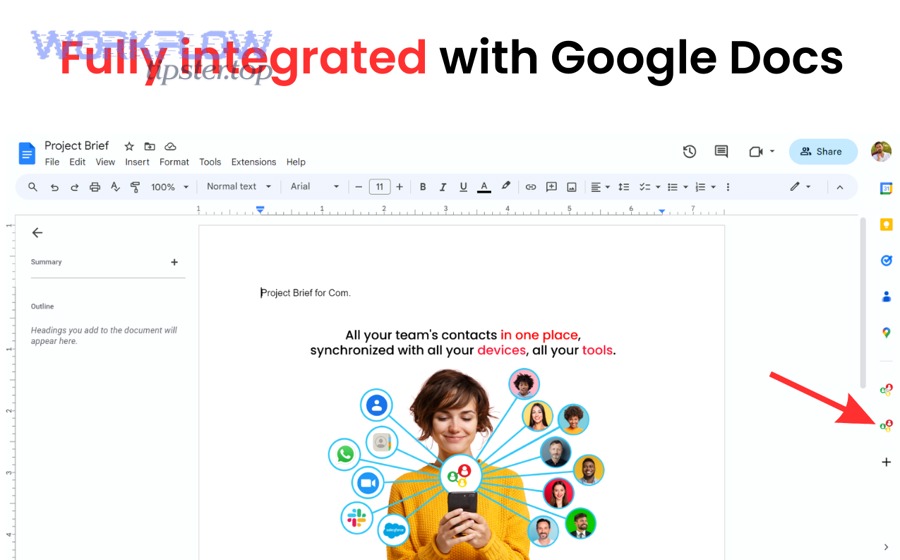
Here are the six workflow types, explained in team-friendly terms:
- Intake (Create contacts): Convert contact blocks in a Doc into new contacts.
- Enrichment (Update contacts): Add missing fields (company, title, address, notes) to existing contacts using a Doc as the “update request.”
- Deduplication (Prevent duplicates): Match new entries against existing contacts using email/phone as a key.
- Labeling (Organize contacts): Apply labels/groups such as “Vendors,” “Event Leads,” or “Partners 2026.”
- Routing (Notify or assign): Alert a teammate when a new contact is added, or tag ownership in a tracking log.
- Audit logging (Prove changes): Record what changed, when, and by which workflow run.
What are the most common contact-capture use cases for teams using shared Docs?
There are 5 common contact-capture use cases for teams using shared Docs: vendor onboarding, partner management, event attendee consolidation, client intake, and internal directory cleanup—based on how often contact data is collected collaboratively.
Then, connect each use case to the exact fields that matter, because field discipline is what makes the sync useful later.
Use case → fields that usually matter:
- Vendor onboarding: company, contact name, email, phone, billing address, notes, label “Vendors”
- Partner management: organization, main contact, role/title, email, LinkedIn (as a note), label “Partners”
- Event attendees: name, email, company, event name (note), label “Event 2026”
- Client intake: name, email, phone, industry, source (note), label “Leads”
- Internal cleanup: dedupe key (email/phone), canonical name format, merged notes
If your team already keeps these in meeting docs, the automation is not “extra work”—it’s a way to turn existing behavior into a clean dataset.
What data formats inside Google Docs make automation reliable?
Reliable automation-friendly data in Google Docs is structured content—typically a table, a form-like template, or consistent key:value blocks—because structured patterns reduce parsing ambiguity and allow stable field mapping as the document evolves.
Next, the simplest way to improve reliability is to standardize one format and enforce it with a lightweight template.
Three formats that work well:
- Tables (best for scale): Each row is a contact; each column is a field (Name, Email, Phone, Company, Notes).
- Key:value blocks (best for notes-heavy teams):
Name: …
Email: …
Phone: …
Company: … - Repeated sections (best for onboarding packets): A consistent “Contact Card” section repeated per person.
Avoid free-form paragraphs like “Met John at the conference, his email is…” unless you accept that a human needs to confirm the extracted data.
What are the best methods to sync Google Docs to Google Contacts?
No-code automation wins in speed and maintenance, Apps Script is best for custom control and deduplication logic, and add-ons are optimal for teams that need contact visibility and operations directly inside Google Docs.
Then, use four criteria to pick a method that won’t collapse after the first week:
- Reliability: Will it still work when the Doc changes?
- Governance: Can you control who can trigger contact creation?
- Data quality: Can it validate fields and prevent duplicates?
- Observability: Can you see logs, errors, and outcomes clearly?
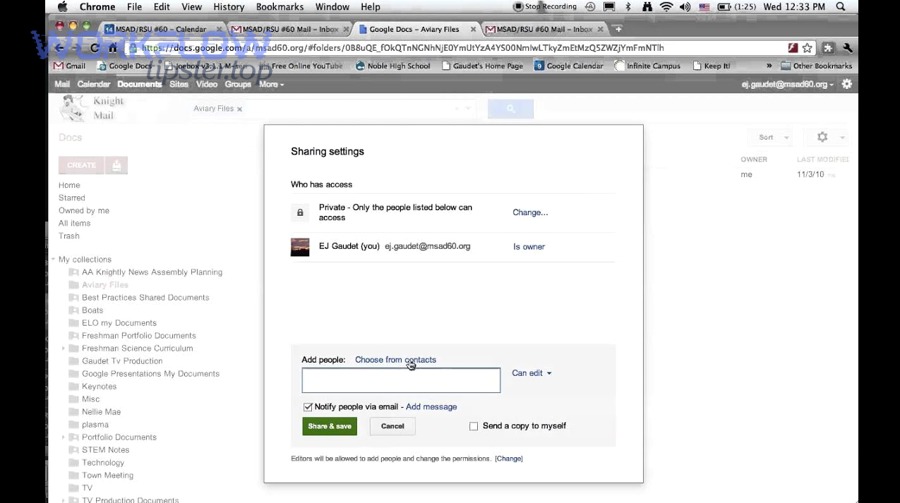
To make this decision concrete, the table below compares the methods by what teams usually care about: speed, control, and long-term risk.
| Method | Best for | Strength | Common risk |
|---|---|---|---|
| No-code automation | Quick setup, standard fields | Fast deployment + visible run history | Breaks when Docs are unstructured |
| Apps Script | Custom rules, strict upsert | Full control over parsing + logic | Needs ownership and maintenance |
| Add-ons | In-Doc usability for teams | Workflow stays inside Docs | Limited flexibility vs scripting |
| Hybrid (No-code + Script) | Balanced approach | No-code orchestration + script for logic | More moving parts if unmanaged |
This is where “Automation Integrations” should be treated as an architecture mindset: pick the simplest approach that still protects data quality and team governance.
Which is better for your team: no-code automation or Google Apps Script?
No-code automation wins in setup speed and non-technical ownership, Google Apps Script is best for advanced parsing and strict deduplication, and a hybrid approach is optimal when you want no-code orchestration but still need custom upsert logic.
Next, decide based on the shape of your data and the risk of duplicates.
Choose no-code when:
- Your Doc uses a table or consistent template
- You’re capturing standard fields (name, email, phone, company)
- You want quick deployment and easy maintenance
- Your team is okay with “human review” for edge cases
Choose Apps Script when:
- Your Doc is messy, semi-structured, or note-heavy
- You must guarantee “update existing contact if found”
- You need staging labels, approval gates, or strict logging
- You want custom rules like “normalize phone to E.164 format”
If you want an analogy, no-code tools behave like a reliable assembly line—great when the inputs are standardized—while Apps Script behaves like a skilled craft process—slower to set up but adaptable to complex inputs.
When should you choose an add-on instead of automation or script?
An add-on wins when your team needs contact operations inside Google Docs, automation is better when you want cross-tool workflows and notifications, and Apps Script is optimal when you need custom logic and enforceable governance beyond a UI layer.
Then, evaluate add-ons through one question: Do we need “contact visibility while writing,” or do we need “contact creation as a system process”?
Add-ons make sense when:
- Teams collaborate in Docs daily and want quick access to contact info
- You manage shared contacts or team directories and want consistency
- The primary goal is usability, not complex automation logic
However, if your goal is “turn every new entry into a validated contact with dedupe,” automation or script will usually deliver more control.
How do you set up a no-code “Doc → Contacts” pipeline end-to-end?
A no-code Doc → Contacts pipeline takes 7 steps—standardize the Doc, choose a trigger, extract fields, validate data, map fields, create/update contacts, and log results—so your team can capture contacts consistently without manual retyping.
Next, treat the setup like a checklist, not a “connect and hope” exercise, because most failures come from unstructured inputs and missing dedupe rules.
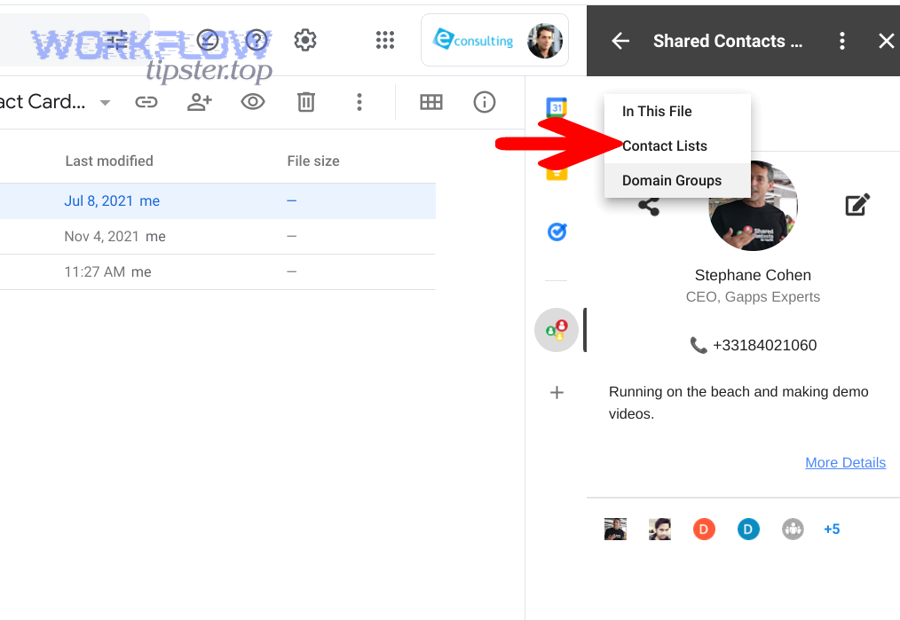
Step 1: Standardize your Google Doc format
- Use a table with columns: Full Name, Email, Phone, Company, Notes, Label
- Decide one “required field” (usually email) as the dedupe key
Step 2: Choose your trigger
- Manual trigger (button) is best for controlled teams
- Scheduled trigger works when you want batch processing
- Event-based trigger works when another tool updates the doc (rare)
Step 3: Extract contact fields
- Pull each row or each contact block
- Split “Full Name” into first/last only if needed (optional)
Step 4: Validate
- Email must contain “@” and a domain
- Phone should be normalized (country code, consistent format)
- Company name should be trimmed and consistent
Step 5: Map fields to contact attributes
- Name → givenName/familyName (or full name)
- Email → email address field
- Phone → phone field
- Company/title → organization fields (if supported) or Notes
- Notes → contact notes field
- Label → contact group/label
Step 6: Create or update
- Prefer “update if exists” if your tool supports it
- If not, create a “lookup then create/update” flow
Step 7: Log and notify
- Log the outcome to a tracking sheet or a log document
- Send alerts for invalid rows (missing email, invalid phone)
This flow can be extended later to connect to workflows like google docs to jira—for example, when a new VIP client contact is added, create a Jira ticket for onboarding tasks.
What triggers should you use to capture contacts from Google Docs reliably?
There are 4 main trigger types for capturing contacts from Google Docs reliably—manual, scheduled, form-driven, and event-driven—based on how much control your team needs and how quickly contacts must appear in Google Contacts.
Then, prioritize reliability over “instant,” because instant triggers often create duplicates unless your dedupe logic is strong.
Trigger types and when to use them:
- Manual trigger (best governance): A designated owner clicks “Run” after review.
- Scheduled trigger (best for batch): Runs daily/hourly, processes new rows only.
- Form-driven trigger (best for structured intake): A form feeds structured data, which then updates a Doc or table.
- Event-driven trigger (advanced): Triggered by changes, but requires careful handling to avoid running on every minor edit.
If your team frequently edits Docs, avoid “run on every change” unless you have a robust “only process new items” mechanism.
How do you map fields from a Google Doc to Google Contacts without losing data quality?
Mapping fields without losing data quality means assigning each Doc field to one canonical contact field, applying normalization rules (formatting, casing, phone standards), and preserving “extra context” in a notes field so you don’t force messy data into strict fields.
Next, a simple rule prevents most quality issues: keep strict fields strict, and put messy context in Notes.
Practical mapping rules:
- Use Email as the primary match key whenever possible
- Normalize phone numbers (remove spaces, unify country code)
- Use one consistent format for names (e.g., “First Last”)
- Store meeting context like “Met at Expo Booth 14” in Notes
- Add a label strategy (e.g., “Event Leads” or “Vendors”) so contacts stay organized
If a tool cannot write to “organization/title” fields reliably, store “Company | Title” in Notes rather than losing it.
How do you build the same workflow with Apps Script for more control?
A Google Apps Script version of Docs → Contacts typically uses 5 modules—document parsing, field validation, contact lookup, contact upsert (create/update), and audit logging—so your team can enforce strict dedupe rules and handle messy Docs without depending on third-party automation limits.
Next, Apps Script becomes valuable when you want your process to behave the same way every time, even when the document contains human variability.
Here’s what “more control” actually means in operations:
- You define a schema (which fields exist, which are required)
- You enforce validation (reject bad emails/phones)
- You implement upsert logic (update existing records)
- You create a staging mechanism (label contacts as “Pending Review”)
- You generate an audit trail (who/when/what changed)
To ground this in a visual walkthrough, you can follow a People API-focused Apps Script tutorial here:
How do you parse contact details from Google Docs in a repeatable way?
Repeatable parsing is the process of extracting contact fields using a stable pattern—like table columns or key:value markers—so the script can identify names, emails, and phones consistently even when the Doc contains extra text.
Then, parsing becomes straightforward if you enforce one “contract” with your team: contacts must be recorded using the template.
Two reliable parsing patterns:
- Table parsing: Read each row; map columns to fields; skip empty rows.
- Key:value parsing: Scan paragraphs for markers like “Email:” and “Phone:” and capture the next token.
Validation during parsing should include:
- Email format check
- Phone format check (at least digits + length sanity)
- Required field presence (email or phone as the dedupe key)
If you need human flexibility, keep it controlled: allow “Notes” to be free-form, but keep “Email” and “Phone” structured.
How do you update existing contacts instead of creating duplicates?
Yes, you can update existing contacts instead of creating duplicates because you can match by stable identifiers (email and/or phone), apply merge rules to preserve the most reliable fields, and log each change so your team can audit the upsert decision.
Next, the difference between a “spammy” integration and a trustworthy one is almost always the upsert strategy.
Three reasons upsert is achievable and worth doing:
- Stable match keys exist: Email and phone are strong identifiers in most real-world contact datasets.
- Merge rules reduce conflict: You can choose “new value overwrites empty only” or “prefer most recent source” rules.
- Logging prevents silent damage: When you log “updated phone from X to Y,” you can roll back or correct quickly.
A practical merge policy for teams is:
- If a field is empty in Contacts and present in the Doc → fill it
- If a field exists in Contacts and differs from the Doc → store Doc value in Notes (or stage for review) unless your team explicitly wants overwrites
- Always apply or maintain labels so updates remain traceable to the workflow source
Evidence: According to a study by the University of South Florida College of Medicine, in 2008, researchers reported that single-entry transcription error rates can be measurable and variable in practice, reinforcing why validation and controlled workflows matter when moving information from forms into systems of record.
What security, privacy, and admin controls should teams apply before syncing?
There are 7 core security and governance controls teams should apply before syncing Google Docs to Google Contacts—access control, least-privilege permissions, approval gates, data minimization, labeling policy, logging, and rollback planning—based on protecting personal data and preventing accidental contact spam.
Next, this matters because contact data is personal data; even “just a business email” becomes risky when it’s stored, shared, and replicated across devices.
Key controls your team should implement:
- Restrict Doc access
- Limit editing permissions
- Avoid public links
- Use named collaborators
- Least-privilege authorization
- Approve only the permissions required for contact creation/update
- Use dedicated service accounts where appropriate (admin-managed environments)
- Approval gate
- Stage new contacts as “Pending Review” (label)
- Allow only owners to “publish” (final label)
- Data minimization
- Capture only needed fields
- Store sensitive context in secure systems, not contact notes
- Label and ownership policy
- Standard labels (“Vendors,” “Leads,” “Partners”) keep scope clear
- Ownership rules define who is responsible for cleanup
- Audit logging
- Track each workflow run (timestamp, count, errors)
- Log each created/updated contact reference
- Rollback plan
- Keep a record of created contacts per run
- Define how to remove or revert incorrect entries
Is it safe to automate contact creation from shared Google Docs?
Yes, it can be safe to automate contact creation from shared Google Docs because controlled sharing reduces exposure, validation prevents bad data from entering Contacts, and logging enables accountability—provided you avoid open-sharing Docs and you define who can trigger or approve contact creation.
Next, safety depends more on workflow design than on the tool you pick.
Three reasons it can be safe:
- Access control is enforceable: Google Docs sharing can be restricted to the right people and roles.
- Validation reduces risk: Invalid emails, wrong phone formats, and incomplete contacts can be blocked or staged.
- Auditability creates discipline: When every change is traceable, teams correct mistakes quickly instead of repeating them.
Unsafe patterns include: “anyone can edit,” “runs automatically on every change,” and “no dedupe key.” If you fix those three, you eliminate most operational risk.
What governance rules prevent accidental contact spam in Google Contacts?
There are 6 governance rules that prevent accidental contact spam: required dedupe keys, staging labels, controlled triggers, row-level validation, rate limits/batch limits, and owner review—based on minimizing duplication and stopping garbage data at the source.
Then, build governance like guardrails, not bureaucracy—simple rules that protect the system.
Recommended rules:
- Require at least one dedupe key: email (preferred) or phone
- Use staging labels like “Pending Review” before final classification
- Allow only owners to run the workflow (or restrict by role)
- Reject invalid entries automatically; never “best guess” email/phone fields
- Limit each run to a safe batch size (e.g., 20–100) with clear logs
- Assign one workflow owner accountable for monitoring and cleanup
This is especially important if your team also runs other automations like airtable to sentry, where noise can bury real signals—contact systems, like alerting systems, degrade fast when low-quality entries flood them.
How do you test, monitor, and troubleshoot a Docs-to-Contacts sync?
There are 5 essential ways to test and monitor a Docs-to-Contacts sync—controlled test sets, validation checks, run logs, error handling, and periodic audits—based on ensuring the workflow stays correct as documents and team habits change.
Next, monitoring is not optional: the first time a Doc format changes, an unmonitored workflow either fails silently or creates messy contacts.
A practical operational routine looks like this:
- Start with a small test dataset
- 5–10 rows with known values
- Include edge cases: missing phone, extra spaces, different name formats
- Verify outcomes explicitly
- Confirm contacts were created/updated correctly
- Confirm labels were applied
- Confirm notes preserved context
- Turn on logging
- Store run results: total processed, created, updated, skipped, failed
- Keep error details: invalid email, missing required fields
- Add error alerts
- Notify an owner on failures
- Notify on validation rejects (so the Doc gets corrected)
- Schedule periodic audits
- Weekly quick scan for duplicates or mislabeled contacts
- Monthly review of workflow rules
What are the most common sync errors and how do you fix them?
There are 6 common sync errors—permission failures, inconsistent Doc formatting, invalid emails/phones, missing required fields, quota/rate limits, and duplicate creation—and each is fixable by tightening access, enforcing templates, improving validation, and implementing upsert logic.
Then, troubleshoot in the same order every time:
- Permissions error: Re-authorize the workflow with least-privilege permissions; confirm the account has access to both Doc and Contacts.
- Formatting error: Lock the template; move from paragraphs to tables or key:value blocks.
- Invalid email/phone: Add validation rules and a “Rejected” log so errors are visible.
- Missing required fields: Make email required for “publish,” or stage without publishing.
- Quota/rate limits: Batch changes; add delays; schedule runs during low-activity windows.
- Duplicates: Implement lookup + upsert; require a dedupe key; add merge rules.
Most teams solve 80% of errors by standardizing the Doc into a table and enforcing “email required.”
How do you prove the workflow is working with a clean audit trail?
A clean audit trail is a structured record of each workflow run—what input was processed, what contacts were created or updated, what errors occurred, and who triggered the run—so your team can verify correctness, investigate issues, and roll back changes if needed.
Next, think of audit trails as the difference between “automation” and “operations-grade automation.”
A strong audit trail includes:
- Run ID (timestamp-based)
- Doc reference (Doc name + section/table processed)
- Counts (processed, created, updated, skipped, failed)
- Change notes (updated phone, added label, merged notes)
- Owner (who ran it or approved it)
- Rollback references (IDs or identifiers of created contacts)
If you store this in a lightweight log (even a structured Doc table), you can answer hard questions quickly: “Why did this contact get added?” and “Which run created these duplicates?”
What advanced options and edge cases matter when syncing Google Docs to Google Contacts?
There are 4 advanced areas that matter most—platform choice, batch import vs live sync, shared/domain contact models, and scale limits—based on keeping your workflow reliable when the team grows, compliance tightens, or contact volume spikes.
Next, this is the micro-semantics layer: once the core sync works, advanced decisions determine whether the system stays healthy long-term or becomes a brittle pipeline you’re afraid to touch.
Which platforms can you use for no-code automation, and how do they differ?
Zapier wins for fast setup and broad integrations, IFTTT is best for simpler personal-style automations, and n8n is optimal for teams that want more control and advanced logic—especially when parsing and conditional upsert behavior matters.
Then, match the platform to your operational needs, not to popularity.
- Zapier: Strong library of apps, easy UI, good for standard workflows and quick deployments.
- IFTTT: Great for lightweight personal triggers, but often limited for complex business parsing and governance.
- n8n: More technical, but powerful for custom logic, branching, and self-hosted governance options.
If you already run cross-tool workflows, you can unify patterns: the same operational design you use for ticket creation in google docs to jira can also guide contact capture—standardize inputs, validate fields, and log results.
What is the best way to handle bulk imports or backups (CSV/vCard) instead of live sync?
Bulk imports and backups win when you need controlled, periodic updates with review, live sync is best for immediate availability and continuous intake, and a hybrid approach is optimal when you want real-time staging but only publish approved contacts in batches.
Then, use the antonym lens—automation vs manual/batch—to choose the safest route for your context.
Choose bulk/batch when:
- You’re migrating from another system
- You need human review for compliance
- You’re cleaning duplicates and standardizing names
Choose live sync when:
- Contacts must appear quickly for call/email workflows
- The Doc is a living intake surface (events, onboarding)
- Your validation and dedupe logic is already reliable
A practical hybrid is: live capture → staging label → weekly publish batch, which prevents accidental contact spam while keeping the team responsive.
How do shared or domain contact scenarios change the integration approach?
Shared or domain contact scenarios change the integration approach because ownership and visibility are no longer personal—teams need admin-managed governance, consistent labeling, and clear publishing rules so contacts are discoverable across the organization without uncontrolled edits or duplication.
Next, the real shift is from “my contacts” to “our directory,” which requires stricter operating rules.
In shared/domain scenarios:
- Decide who can publish contacts to shared visibility
- Enforce naming standards (company naming, role tags)
- Use organizational labels to prevent “everything everywhere” confusion
- Prefer workflows that log and support rollbacks
- Consider add-ons or admin-managed solutions when necessary
This is where Apps Script often becomes the best fit because you can enforce policies and centralize ownership.
What limits or quotas can break your workflow at scale, and how do you design around them?
Scale limits usually break workflows through rate limits, quota ceilings, large document parsing costs, and duplicate matching overhead, and you design around them by batching, caching lookups, processing only “new” items, and using staging-and-publish patterns that reduce risky bulk changes.
Then, design for scale even if you start small—because the Doc will grow faster than your team expects.
Design patterns that prevent scale failure:
- Incremental processing: Only process rows marked “New” or “Approved.”
- Batch writes: Update contacts in controlled chunks rather than one-by-one in a loop without limits.
- Lookup caching: Cache existing contacts or keys to reduce repeated searches.
- Retry strategy: Backoff and retry on transient errors.
- Staging labels: Keep new contacts staged until reviewed.
Evidence: According to analysis published by the University of Oxford’s Oxford Martin School in 2018, automation exposure estimates vary widely across studies, which is a reminder that “automation” outcomes depend heavily on task design and governance—not just the tool itself.