


Linking Google Docs to Google Calendar events is the fastest way to make every meeting invite “self-contained”: the agenda, pre-read, notes, and action items live where people already look—inside the event.
Most teams start with simple linking (attach a Doc, paste a Doc link, or use Meeting notes) and then level up to cleaner workflows like Calendar event drafts when multiple stakeholders need to collaborate before sending the invite. Evidence
If you’re wondering whether you can do this without third-party tools, the answer is yes for core scenarios—Google Calendar supports attachments and Google Docs supports Meeting notes that can be shared and (in some cases) attached to the event. Evidence
Introduce a new idea: once you understand the “link types” (attachment vs meeting notes vs event draft), you can standardize a workflow that scales across teams without breaking permissions or creating duplicate docs.
What does it mean to link Google Docs to Google Calendar events?
Linking Google Docs to Google Calendar events means adding a Doc so invitees can open the right document from the event (as an attachment, a meeting-notes doc, or a URL in the event description), turning the invite into a shared context hub. Evidence
Next, it helps to break “linking” into the exact pieces Google actually connects, because each option behaves differently.
What parts are actually “linked” between the event and the Doc?
A Google Calendar event can surface a Doc in three practical ways: (1) attachment, (2) meeting notes doc, or (3) link in the description, and each way changes how people access the doc and what’s visible in the invite. Evidence
- Attachment: The file appears in the event details as an attachment (stored in Drive), and the attachment name is visible to guests with event access.
- Meeting notes: Google can generate a notes Doc “pre-populated” with event details; depending on how it’s created and who owns the event, it may be attached and shared with guests.
- Description link: You paste the Doc URL into the event description; it’s “linked,” but not managed as an attachment.
When do changes sync automatically, and when don’t they?
In most native workflows, the link is stable but the data does not bi-directionally sync: editing the Doc doesn’t rewrite the event fields, and editing the event doesn’t automatically rewrite the Doc fields. Evidence
That’s why “linking” should be treated as shared access to the same artifact, not as a full data synchronization.
Who can open (and edit) the linked Doc?
Access depends on Google Drive sharing, not just the Calendar invite: guests may see the attachment or link but still get “request access” until the Doc is shared correctly. Evidence
A reliable team rule is: invitees should have at least “View” access by default, and editors (hosts, note-takers, owners) should be explicitly granted “Edit” access.
Can you connect Google Docs to Google Calendar without third-party tools?
Yes—Google Docs and Google Calendar connect without third-party tools because you can attach Docs to events, generate Meeting notes from Docs, and draft calendar invites inside Docs, all using native Google Workspace features. Evidence
Then, the real question becomes which native method fits your use case without creating permission friction.
Yes: What native options cover 80% of team workflows?
Most teams can cover the majority of needs using:
- Attach a Doc to an existing or new event.
- Take meeting notes from the event (or from Docs using “@ Meeting notes”).
- Use a Calendar event draft in a Doc to prepare an invite collaboratively before pushing it into Calendar. Evidence
What are the main limitations of “native linking”?
Native linking is strong for access + context, but limited for:
- True automation (e.g., “when a doc is approved, create an event and notify a channel”).
- Complex routing (e.g., different calendars, conditional guest lists, multi-step approvals).
- Cross-tool workflows (e.g., connecting meeting output to project management tools).
This doesn’t make native workflows “bad”—it just means they’re optimized for clarity, not orchestration.
When do you still need third-party tools?
You usually need third-party tools when you want trigger-based workflows across systems—for example, if your team treats the Doc as the source-of-truth and wants automated follow-ups, tasks, or synchronized fields beyond what Calendar and Docs do by default.
What are the main ways to link Google Docs and Google Calendar for teams?
There are 4 main ways to link Google Docs and Google Calendar for teams—attachments, meeting notes, calendar event drafts, and standardized templates—based on how structured you need the workflow to be and how many people collaborate before the invite is sent. Evidence
To begin, pick the method that matches your meeting’s “collaboration moment”: before scheduling, during the meeting, or after the meeting.
How does attaching a Google Doc to a Calendar event work?
Attaching a Doc puts the file directly into the event’s attachment area, so guests can open it from the invite while keeping the Doc stored and managed in Drive. Evidence
This is best when:
- The Doc already exists (agenda, pre-read, brief).
- The invite is already on the calendar.
- You want the event to be the “launch point” for the document.
How do Meeting notes connect Docs to a specific event?
Meeting notes let you create a notes document tied to a particular event selection; Docs can pre-populate event details, and depending on organizer permissions you may be prompted to share and attach it to the event. Evidence
This is best when:
- You want a repeatable structure (attendees, agenda, notes, action items).
- You want the notes created quickly from a template-like block.
- You want everyone to know “this is the official notes doc.”
How do Calendar event drafts connect Docs to Calendar invites?
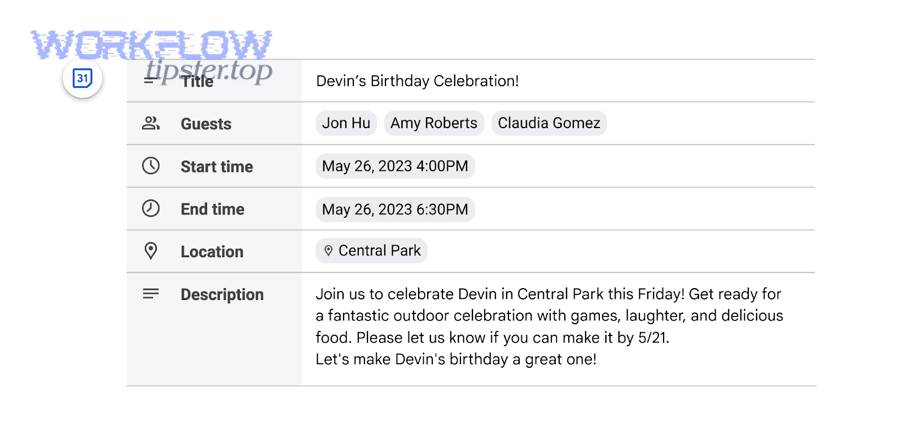
Calendar event drafts are a Docs building block that lets multiple stakeholders collaborate on the invite details inside a Doc, then push those details into Calendar when ready to send. Evidence
This is best when:
- Several people must agree on title, attendees, time, location, or description.
- You want a reviewable “draft” before scheduling.
- You don’t want 10 back-and-forth Slack messages to finalize the invite.
How do templates standardize the link for recurring meetings?
Templates standardize the linking method by ensuring every recurring meeting uses:
- The same Doc structure (agenda → notes → action items),
- The same naming convention,
- The same sharing model,
- The same “place” where the link appears (attachment vs notes vs description).
This is best when:
- Meetings repeat weekly/monthly.
- You want consistent meeting hygiene across teams.
- You care about governance and auditability.
How do you link a Google Doc to a Google Calendar event step by step?
The simplest method is to link a Google Doc to a Google Calendar event in 6 steps—create or open the Doc, open the event, attach or link the Doc, confirm sharing, notify guests, and verify access—so everyone can open the right file from the invite. Evidence
Then, you can choose the path that matches your situation: attaching an existing Doc, generating meeting notes, or simply placing a link in the description.
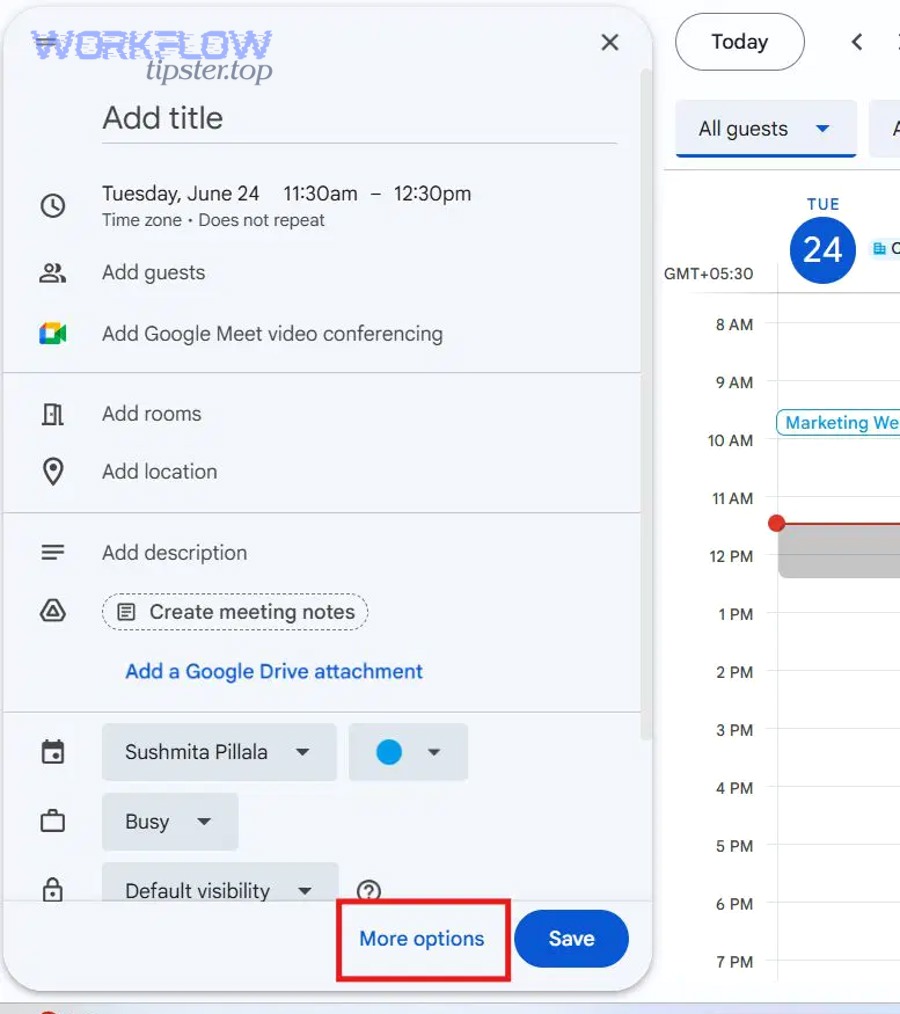
How do you attach an existing Google Doc to an event?
To attach an existing Doc to an event:
- Open Google Calendar on a computer.
- Open (or create) the event you want to update.
- Use the event’s attachment option to select the Doc from Drive.
- Save the event.
- Open the event as a guest (or use a second account) to confirm the Doc appears.
- If guests can’t open it, adjust Doc sharing in Drive. Evidence
Practical tip: If you’re attaching a doc to an event with external guests, verify the sharing setting matches your policy (e.g., “Anyone with the link” vs “Specific people”).
How do you create “Meeting notes” from Google Docs for the right event?
To create meeting notes from Docs:
- Open the Google Doc.
- Type @ and choose Meeting notes.
- Search for the event (or type “next” to find the next meeting).
- Select the event to pre-populate details.
- If you’re the organizer, use Share & attach when prompted.
- If you’re not the organizer, share the Doc appropriately; it may not attach automatically. Evidence
This approach is clean because it produces a notes doc that already includes the meeting’s “skeleton,” so people don’t waste time formatting.
How do you link the Doc in the event description as a lightweight option?
To add the Doc as a description link:
- Open the Doc and copy its URL.
- Open the Calendar event.
- Paste the URL into the event description near the top (so it’s visible without scrolling).
- Add one line of context: “Agenda & notes doc: [link]”.
- Save the event.
- Confirm access (Drive sharing still applies).
This works well when your org restricts attachments or when you want multiple links grouped in the description (agenda, deck, spreadsheet).
How do you make sure guests actually have access?
To prevent “permission surprises,” check these four points:
- Correct account: the Doc must be in the Drive account that’s connected to the Calendar used for the event.
- Share settings: guests need at least “View.”
- External guests: if outside your domain, your org policy may block access unless explicitly allowed.
- Organizer effect: some actions (like attaching notes) behave differently depending on whether you’re the organizer. Evidence
According to a study by Winthrop University from the Office for Clubs and Organizations (Leadership), in the 2000s, a properly thought-out agenda shared in advance “makes all the difference” in whether a meeting feels focused and useful. Evidence
How do you create Calendar events from Google Docs content using event drafts?
Creating Calendar events from Google Docs using event drafts means using the Calendar event draft building block to draft invite details collaboratively in a Doc, then pushing those details into Calendar when the invite is ready to be scheduled. Evidence
Next, treat this as a “pre-scheduling workspace”: it’s where stakeholders edit details before anything hits calendars.
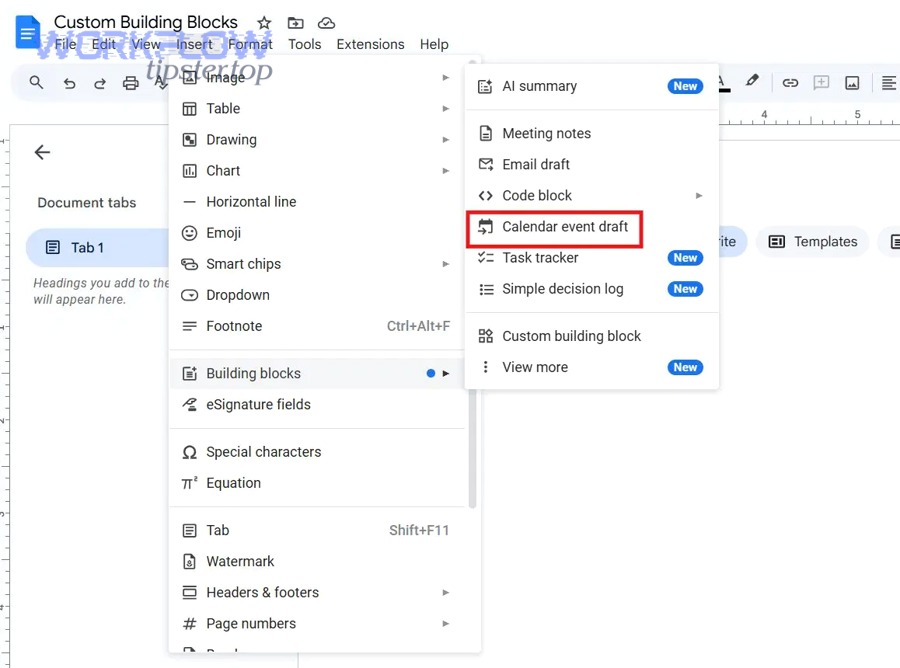
How do you create a Calendar event draft inside Google Docs?
You can create an event draft in Docs by:
- Opening a Google Doc where you have edit access.
- Typing @ and selecting Calendar event draft, or using Insert → Building blocks → Calendar event draft.
- Filling out key fields like title, guests, time, location, and description. Evidence
This format is powerful because it forces the invite to be structured before it’s sent.
How do multiple stakeholders collaborate on the draft?
Multiple stakeholders can collaborate by editing the same Doc:
- One person proposes times and location.
- Another confirms attendees.
- A lead refines the description and outcomes.
- The final owner checks the draft for clarity and sends it.
The collaboration is “Doc-native,” which is often more transparent than scattered chat messages. Evidence
How do you push the draft into Google Calendar correctly?
When the draft is complete, the sender uses the building block’s Calendar action to pull the details into Google Calendar and finalize the invite (including conferencing settings, reminders, and visibility rules). Evidence
Best practice: The person who will own the meeting should be the one to send the invite, so permissions and responsibility are clear.
How do you write event drafts so they stay clean and actionable?
Use a consistent structure in the description field:
- One-sentence purpose
- Agenda bullets (time-boxed if possible)
- Pre-read links (Doc, deck, spreadsheet)
- Desired outcomes (decisions, approvals, assignments)
- Action item capture method (where tasks will live)
This keeps the Doc draft aligned with what people actually need when they open the Calendar invite.
What’s the difference between “not manual” native workflows and true automation tools?
Native workflows win in simplicity and governance, while true automation tools are best for trigger-based orchestration across apps; the right choice depends on whether you need reliable linking or multi-step workflows that run without humans. Evidence
More specifically, “not manual” can still be very human-driven—it’s just faster than copying and pasting links everywhere.
What counts as “native automation” inside Google Workspace?
In practice, “native automation” usually means:
- You create the link with one action (attach file, take meeting notes).
- The Doc is pre-populated with event details.
- The event surfaces the Doc consistently for invitees. Evidence
This reduces manual work, but it does not create complex chains (like tasks, approvals, cross-tool notifications).
When should teams use automation tools instead?
Use automation tools when you need workflows like:
- When a Doc status changes to “Approved,” create a Calendar event draft and notify stakeholders.
- When an event is created, generate a Doc + folder structure and share with a group.
- When meeting notes are finalized, push action items into project tools.
That’s where broader “Automation Integrations” become the lever—especially if you’re also maintaining workflows such as clickup to onedrive or asana to calendly, where you already think in cross-app triggers and outcomes.
Pros and cons: Native vs automation tools for reliability, cost, and compliance
The table below compares common selection criteria to help you choose between native linking and true automation tools.
| Criteria | Native linking (Docs + Calendar) | True automation tools |
|---|---|---|
| Setup time | Low | Medium–High |
| Ongoing maintenance | Low | Medium |
| Permission clarity | High (Drive rules) | Varies (depends on connector) |
| Cross-app workflows | Limited | Strong |
| Audit/Governance | Strong in Workspace | Depends on tool + policy |
| Best for | Clear meeting context | Trigger-based orchestration |
If your goal is simply “everyone opens the right Doc from the invite,” native linking is usually the most stable choice. If your goal is “the system runs follow-ups automatically,” automation tools are often worth it—just treat them like production systems, not quick hacks.
Why isn’t the Doc visible or editable from the Calendar invite, and how do you fix it?
A Doc usually isn’t visible or editable from a Calendar invite because Google Drive permissions don’t automatically grant access to attachments, organizer permissions affect attachment behavior, or your account/domain configuration prevents attachments from appearing—so the fix is almost always a permission or account alignment change. Evidence
Then, troubleshoot in a strict order: account → event permissions → Drive permissions → org policy → device limitations.
Are Drive sharing permissions the #1 cause, and what’s the fastest fix?
Yes—Drive permissions are the #1 cause, and the fastest fix is:
- Open the Doc in Drive.
- Check sharing: are invitees included, or is link-sharing allowed?
- If external guests exist, ensure your policy allows external sharing (or explicitly add their emails).
- Re-open the Calendar event to verify the attachment opens. Evidence
A useful habit: test with a non-editor account before the meeting starts.
Does being the organizer change whether meeting notes get attached?
Yes—organizer status can change what happens when you generate meeting notes from Docs: organizers may be prompted to share and attach, while non-organizers may only be able to share the doc (without attaching it to the event automatically). Evidence
So if your team needs the notes doc attached every time, decide who must create it (often the organizer or a designated facilitator with event-edit permission).
Can domain settings block attachments or Drive access?
Yes—Google Calendar’s guidance notes that attachments live in Drive and that Drive can be disabled by administrators, which prevents attachment features from working as expected. Evidence
If you see admin-related messages or missing attachment options, escalate to your admin with:
- The exact error text
- The account/email you used
- Whether the file is in My Drive or a shared drive
Do device limitations (mobile vs desktop) cause “missing options”?
Yes—some features require a computer, so you may not see the same options on mobile. Evidence
Operational fix: do the “setup work” (attach docs, create meeting notes) on desktop, then use mobile for attending, not configuring.
According to a study by Stanford University from its Stanford Report newsroom coverage, in 2024, research discussed there suggests shorter, intentionally timed meetings can increase efficiency—so clean linking and faster access to the right Doc helps you reclaim time rather than burn it on “where’s the agenda?” moments. Evidence
How can teams scale (or restrict) Google Docs ↔ Google Calendar automation safely?
Teams can scale (or restrict) Google Docs ↔ Google Calendar automation safely by standardizing templates and ownership, enforcing least-privilege sharing rules, using consistent naming conventions, and training meeting roles—so linking stays reliable without leaking sensitive docs. Evidence
Besides, this is the difference between “helpful linking” and “a permission nightmare” after your org grows.
What governance rules should teams set first?
Start with four governance decisions:
- Who owns the event? (organizer role)
- Who owns the doc? (doc owner vs shared-drive ownership)
- Where do docs live? (shared drives for teams, My Drive for personal)
- What’s the default share model? (view-only for guests, edit for roles)
These choices make every later step simpler because people stop reinventing rules per meeting.
How do you reduce risk with least privilege and “share boundaries”?
Use least privilege by default:
- Give most invitees View access.
- Give a small role group Edit access (facilitator, note-taker, decision owner).
- For external guests, share only what they must see, and avoid attaching internal-only docs to mixed-audience events. Evidence
If your org is sensitive, prefer:
- An internal notes doc (internal-only),
- Plus a separate external summary doc (shareable).
What naming conventions prevent duplicate docs and confusion?
A simple naming formula scales well:
[Team] – [Meeting Name] – [YYYY-MM-DD] – Agenda & Notes
Pair that with a recurring meeting template doc and you reduce the “wrong doc attached” problem dramatically.
If you publish integration workflows, you can even document the standard on an internal wiki (or a public resource like WorkflowTipster.top) so new hires adopt it fast.
How do you train people so the workflow actually sticks?
Assign meeting roles and teach one repeatable loop:
- Create/confirm event
- Attach agenda doc (or meeting notes doc)
- Confirm permissions
- Run meeting
- Finalize notes + actions
- Store outcomes consistently
If you want to include a lightweight training clip, here’s a single video embed that demonstrates attaching files to Calendar events:
Finally, keep your workflow flexible: native linking will cover most cases cleanly, and when you truly need cross-tool orchestration, you can layer automation on top—without breaking the simple habit that makes meetings work: everyone opens the right Doc from the invite.