


Connecting Google Docs to the Dropbox Sign add-on is the fastest way to send a Google Doc for eSignature without exporting to PDF, because you can prepare fields, invite signers, and track status from a single document workflow.
Next, most people also want to know what the add-on actually does inside Google Docs and how “eSignature” relates to “electronic signature,” because those terms appear interchangeably in product pages and search results.
Then, setup questions matter just as much as usage: Google Workspace users often need clarity on accounts, permissions, and admin approvals, especially in managed domains where add-ons can be restricted.
Introduce a new idea: once you understand the core workflow, you can make smarter decisions about how you send documents (add-on vs PDF upload vs other tools) and how you scale the process with Automation Integrations and governance patterns.
What does it mean to connect Google Docs with the Dropbox Sign add-on for eSignature?
Connecting Google Docs with the Dropbox Sign add-on means you can prepare, send, and complete an electronic signature request directly from a Google Doc, using Dropbox Sign to handle signing, tracking, and the final signed record.
To better understand why this matters, it helps to see the integration as a “one-workspace signing loop”: you write in Google Docs, then you shift to signature preparation (fields and recipients), and Dropbox Sign carries the signature event to completion—without forcing you to rebuild the document elsewhere.
What is the Dropbox Sign Google Docs add-on, and what can it do inside a document?
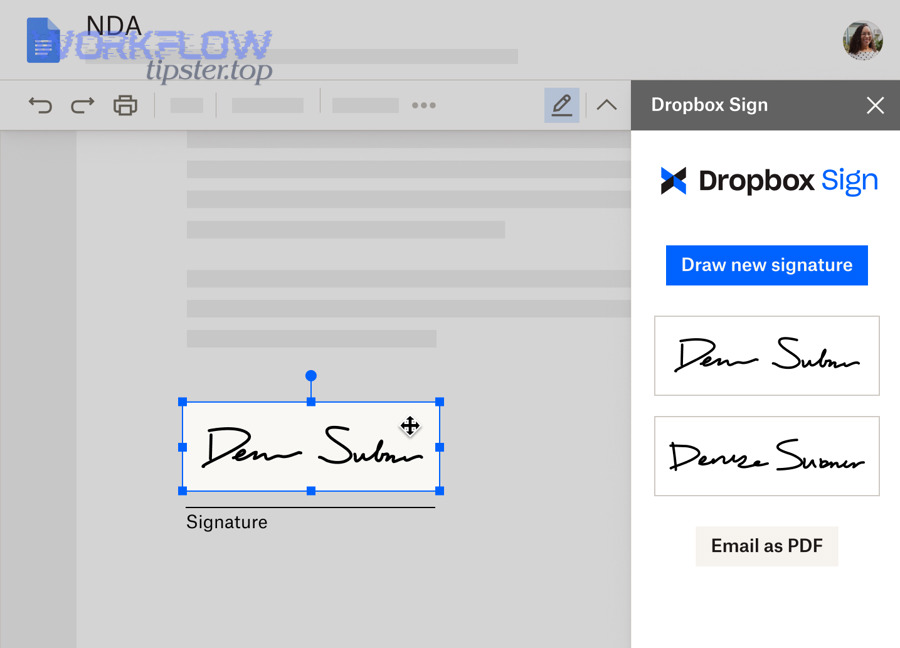
The Dropbox Sign Google Docs add-on is an extension that opens a Dropbox Sign sidebar in Google Docs so you can sign a document yourself or send it to other people for signature without leaving the Doc.
Specifically, it tends to support the actions people care about most when the document is already “final” in Google Docs:
- Sign “Just me” when you only need your own signature (common for internal approvals or acknowledgements).
- Send to “Me and others” or “Just others” when you need multiple signers (contracts, agreements, vendor forms).
- Place signing fields where signatures, initials, dates, or text entry must happen.
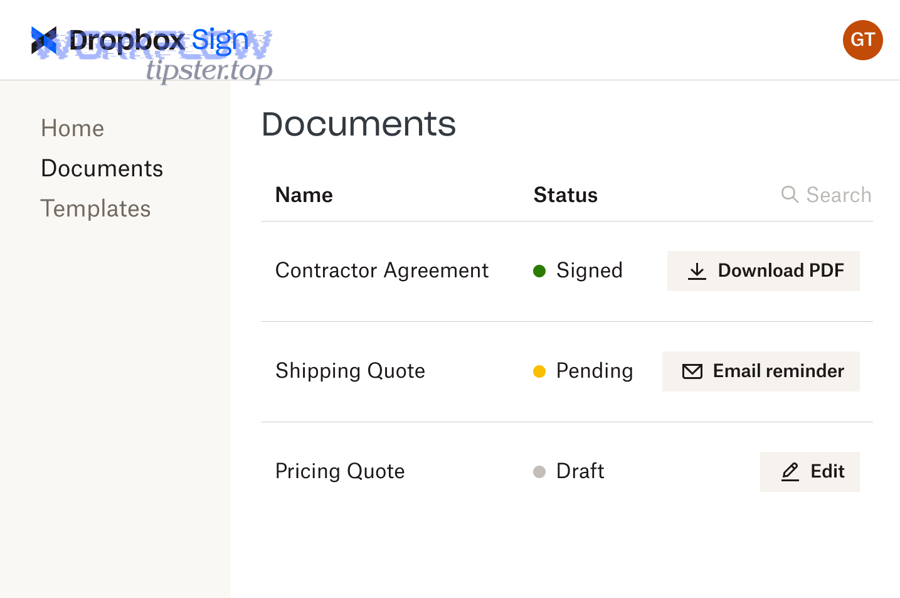
- Track the request lifecycle after sending—so you know whether it’s pending, viewed, signed, or completed.
The key benefit is not “more features,” but fewer workflow breaks. A typical manual loop is: export to PDF → upload to a signing tool → fix formatting → add fields → send. The add-on compresses that loop into fewer steps and fewer file versions.
What is an eSignature (electronic signature), and when should you use it for Google Docs?
An eSignature (electronic signature) is a digital method of capturing a person’s intent to sign, typically delivered through an email link or signing session that records who signed, when they signed, and what document version they signed.
More specifically, you should use an eSignature for Google Docs when:
- Speed matters (remote approvals, vendor onboarding, client signatures across time zones).
- Consistency matters (you want one “final” doc rather than multiple emailed versions).
- Proof matters (you need a signing record and a clear status trail for follow-up).
In practical terms, the moment your Google Doc becomes a decision artifact—an agreement, offer letter, NDA, policy acknowledgement, or internal approval—you’re no longer optimizing for writing. You’re optimizing for completion. eSignatures are designed for that “completion layer.”
Do you need a Dropbox Sign account and Google Workspace permissions to use the add-on?
Yes—you typically need a Dropbox Sign account and the right Google Workspace permissions to install and use the add-on, because the add-on connects your Google Doc workflow to a signing service that authenticates users and manages signature requests.
Next, the real question is not “do I need accounts,” but “what blocks me from installing and sending,” especially in organizations with strict Google Workspace administration.

What are the minimum requirements to install and run the Dropbox Sign add-on in Google Docs?
The minimum requirements usually come down to identity, access, and document readiness:
- Identity: A Google account that can open Google Docs, plus a Dropbox Sign account to authorize the signing workflow.
- Access: Permission to install add-ons (some organizations allow self-install; others require admin approval).
- Document readiness: A Google Doc you can edit or at least prepare for signature (field placement typically assumes you control the final version).
- Browser and session stability: A modern browser and a clean login session so authorization does not fail mid-setup.
If your organization uses managed Google accounts, one “silent blocker” is policy: an admin may restrict Marketplace add-ons, third-party OAuth access, or external app connections. That’s why your setup checklist should include a governance check before you spend time troubleshooting the wrong thing.
As Dropbox’s Help Center summarizes, the workflow is designed to let you prepare and send signature requests directly within Google Docs after you install the add-on and open Dropbox Sign from the Add-ons menu. (Source: help.dropbox.com, updated December 4, 2025.)
What should you do if your Google Workspace admin blocks add-ons or requires approval?
If your admin blocks add-ons or requires approval, you should request allowlisting/approval using a short, practical justification and the exact information IT needs to evaluate risk.
Besides speed, admins care about predictability. So your request should include:
- The business purpose (e.g., “sign NDAs and vendor agreements from Google Docs”).
- The user group .
- The permissions summary (what the add-on requests and why).
- The compliance value (audit trail, consistent records, fewer emailed attachments).
- The fallback plan (if denied, you’ll export to PDF and use manual uploads).
A useful way to phrase it is: “We want a controlled signing workflow, not a shadow process.” That positions the add-on as governance-friendly rather than “another app.”
How do you install and connect Dropbox Sign to Google Docs step by step?
Install and connect Dropbox Sign to Google Docs by adding the add-on, granting permissions, signing in, and confirming the sidebar loads, which typically takes a few minutes and results in a ready-to-send signing workflow inside Google Docs.
Then, once you’ve installed it, you should treat the first run like a system check: verify identity, verify document access, and verify you can generate a test request before sending anything important.
Where do you install the add-on, and what permissions does it typically request?
You typically install the add-on through the Google Workspace add-on marketplace flow, then grant permissions so the add-on can operate in Google Docs.
More specifically, your install sequence should look like this:
- Open the add-on listing in the add-on store from within Google Workspace.
- Install the Dropbox Sign add-on for Google Docs.
- Review permissions: you’re usually authorizing access that allows the add-on to interact with your Docs session and connect to Dropbox Sign.
- Authorize Dropbox Sign login: the add-on needs to connect your signing identity (Dropbox Sign) to your Docs environment (Google).
The important habit here is to read permissions as “workflow scope.” If you only sign occasionally, your tolerance is different than when you standardize signing for a team. In team contexts, admin review is normal and often beneficial.
How do you confirm the integration is working before sending your first signature request?
You confirm the integration is working by completing a short “test send” loop that proves the add-on can open, authenticate, send, and update status.
To illustrate, use this quick verification checklist:
- Sidebar check: Open a Google Doc → open the Dropbox Sign sidebar → confirm it loads without errors.
- Account check: Confirm the correct Dropbox Sign account is connected (especially if you have multiple emails).
- Field check: Try placing a signature field on a sample document.
- Send check: Send a signature request to yourself (or a test inbox).
- Status check: Confirm you can see a sent/pending status and that completion updates after you sign.
If any step fails, you immediately learn where the issue lives:
- Sidebar fails → installation/admin/policy.
- Login fails → authentication/OAuth/session.
- Send fails → recipient rules or domain restrictions.
- Status fails → account mismatch or notification filtering.
How do you send a Google Doc for signature using the Dropbox Sign add-on?
Send a Google Doc for signature using the Dropbox Sign add-on by choosing recipients, assigning roles, placing fields, and sending the request, so recipients can sign from a secure signing flow while you track progress.
More importantly, the sending workflow is where “good signing” happens: the clarity of roles, the placement of fields, and the order of signing determine whether your request completes quickly or stalls.
What signature fields and signer roles can you add, and how do you choose the right ones?
You can add multiple field types and assign them to recipients so each signer completes only the fields intended for them.
Specifically, the most common field types used in Google Docs signing workflows include:
- Signature field (the core legal/intent marker).
- Initials field (for multi-page or multi-section agreements).
- Date field (to capture signing date).
- Text field (name, title, address, payment terms, identifiers).
- Checkboxes (consent, acknowledgements, options selection).
For signer roles, think in terms of responsibility:
- Signer: must complete required fields.
- CC/Viewer: receives a copy but does not sign.
A reliable rule is: use the fewest fields that still eliminate ambiguity. Every extra required field adds friction, but missing fields create back-and-forth that delays completion.
If you want to standardize this at scale, define a “field minimum set” for your organization’s frequent documents (NDA, contractor agreement, service agreement). That turns one-off documents into repeatable workflows—similar to how teams standardize common flows like gmail to airtable when they want predictable intake and tracking.
Should you use a signing order or send to all signers at once?
Yes, you should use a signing order when approvals must happen sequentially, and you should send to all signers at once when signatures can be collected in parallel—because order directly affects speed, accountability, and how stakeholders interpret the request.
However, the most practical decision is based on dependency:
- Use signing order (sequential) when:
- One signer must approve before others should sign.
- Legal review must happen first.
- A manager’s signature unlocks the next step.
- Send to all signers (parallel) when:
- Multiple parties can sign independently.
- Time-to-complete is the priority.
- You want fewer coordination bottlenecks.
If you’re unsure, ask: “Will someone refuse to sign until someone else signs?” If yes, use signing order. If no, parallel usually wins.
How does the signing and tracking process work after you send the document?
After you send the document, the signing and tracking process works by delivering a signing request to recipients, collecting signatures through the signing flow, and updating status until completion, while keeping a signed copy and signing record available for reference.
Next, tracking is where this workflow becomes operational: you reduce follow-up because you can see whether someone has viewed, ignored, or completed the request.

What happens when recipients sign, and where do completed copies and records typically go?
Recipients generally receive a signing request, review the document, and add their signature and any required fields. Once everyone completes the request, you receive a completed result (often a finalized copy suitable for archiving) along with a signing record.
More specifically, a well-run signing cycle has these stages:
- Delivery: signer receives the request and opens it.
- Completion: signer fills required fields and signs.
- Confirmation: system confirms completion to relevant parties.
- Archiving: signed copy and record are stored for retrieval.
According to Dropbox Sign’s integration description, the Google Docs add-on lets you sign or send for signature from the sidebar and then save signed documents in your Dropbox Sign account, reducing the need to export and upload.
Optional workflow tip: If your organization also activates the Google Drive integration, you can simplify retrieval by using a designated Drive folder strategy—similar to how teams build a single source of truth for “finished artifacts” in other workflows such as google docs to servicenow, where the entire value comes from minimizing version confusion.
What should you do if a signer can’t open the link or says they didn’t receive the request?
If a signer can’t open the link or didn’t receive the request, you should resend the request after checking delivery, identity, and access constraints—because most failures come from email filtering, incorrect addresses, or external-domain restrictions.
More specifically, use this troubleshooting checklist:
- Confirm the email address is correct (typos are the #1 issue).
- Check spam/promotions folders and company email quarantines.
- Ask the signer to whitelist the sender or signing domain if their organization blocks unknown signing links.
- Resend the request (many signing tools support resend/reminder).
- Check for external recipient restrictions (some orgs block third-party signing links or require special review).
- Switch delivery method if needed:
- Send to an alternate email (with signer confirmation).
- Use a PDF export + upload workflow if the Doc environment is blocked.
- Use a controlled internal signing path first, then external.
If you consistently see this problem with external recipients, the fix is usually governance: agree on a standard “external signing method” and communicate it upfront in the email message and document title.
What is the best way to send a Google Doc for signature: add-on vs exporting to PDF vs other eSignature tools?
The Dropbox Sign add-on wins for speed and in-Docs convenience, exporting to PDF wins for formatting stability, and other eSignature tools can be optimal when you need specialized features or existing enterprise standardization.
Meanwhile, the best choice is rarely “the best tool,” but the best method for your document type, compliance context, and team workflow maturity.
How does using the Google Docs add-on compare to exporting to PDF and uploading to Dropbox Sign?
The add-on is usually better for fast turnaround and fewer steps, while PDF export is better when the document’s visual layout must be locked.
To better understand the trade-off, here’s a practical comparison table showing when each method fits best:
| Criteria | Google Docs add-on (in-Doc) | Export to PDF + upload |
|---|---|---|
| Speed to send | Faster (fewer steps) | Slower (export + upload) |
| Formatting control | Depends on Doc rendering | Strong (PDF is fixed-layout) |
| Version clarity | Strong if Doc is “final” | Strong if PDF is final |
| Best for | Standard agreements, internal approvals | Layout-sensitive contracts, strict formatting |
| Failure modes | Admin blocks add-on, Doc permissions issues | Wrong PDF version, manual upload errors |
In short, if your documents are simple and your priority is speed, the add-on is often the best default. If your document includes precise spacing, visual tables, or signature blocks that must not shift, PDF export reduces risk.
How does Dropbox Sign in Google Docs compare with alternative eSignature options for Google Workspace users?
Dropbox Sign inside Google Docs is best when your team wants a lightweight, integrated signing experience. Alternative eSignature options can be better if your organization already standardizes on another platform, needs deeper workflow automation, or requires specialized compliance features.
More specifically, compare based on decision criteria rather than brand names:
- Workflow location: Do you want signing initiated from Docs, Drive, or a separate contract system?
- Governance: Do you need central templates, admin policies, strict retention rules?
- Integration map: Do you need connections beyond Docs (for example, airtable to miro for visual collaboration workflows, or CRM routing)?
- Recipient experience: How easy is it for external recipients to sign without creating accounts?
- Scaling: Can the tool support templates, standardized naming, and consistent archiving?
If your organization is early in maturity, “in-Docs signing” reduces friction and adoption barriers. If you’re building a broader operations system, you may prefer a solution that aligns with enterprise workflow design and other standardized integrations.
According to a published analysis that reports process improvements including electronic signatures, the University of Washington (within a clinical and translational research process-improvement context) documented a 71% decrease in processing time as part of workflow redesign efforts reported in 2013. (pmc.ncbi.nlm.nih.gov)
Contextual Border: At this point you can connect, install, send, and manage signature requests inside Google Docs. Next, you’ll shift from the “how to do it” macro workflow to micro-level optimization—repeatability, governance controls, automation patterns, and edge-case prevention.
How can you optimize Dropbox Sign + Google Docs workflows for automation, governance, and edge cases?
You can optimize Dropbox Sign + Google Docs workflows by standardizing repeatable document patterns, choosing governance controls intentionally, reducing manual follow-up with process automation, and preventing uncommon breakpoints like formatting shifts and permission conflicts.
Besides saving time, optimization protects trust: when signing workflows fail, stakeholders blame the document, the sender, or the system—so your job is to make the process reliably boring.
What are the best practices for creating repeatable signature workflows (templates, naming, version control)?
Repeatable workflows come from document discipline, not fancy features.
To begin, use these best practices:
- Create a “finalization moment.” Decide when a Doc becomes “signature-ready” (e.g., after legal review, after stakeholder comments close).
- Use naming conventions that encode status. Examples:
NDA - ClientName - v3 - SIGNMSA - Vendor - Final - 2026-01-31
- Protect against late edits. The most common signing error is sending the wrong version. Close the comment loop, resolve suggestions, and confirm final text before you add fields.
- Keep a single source of truth. Store the authoritative doc in a known location and link to it in internal channels .
- Build a checklist for senders. A lightweight SOP (“5 checks before send”) outperforms training sessions because it travels with the work.
When you treat signing as a system, your team stops improvising. That’s what makes signing scalable.
When should you prioritize governance controls (admin approvals, user roles, audit logs) over speed?
You should prioritize governance over speed when the cost of a mistake is high—because strong controls reduce the risk of unauthorized sending, incorrect versions, and unclear accountability.
More specifically, prioritize governance if any of the following are true:
- You handle regulated or sensitive documents.
- External recipients are common, and you must prove who received and signed.
- Multiple departments send documents, and you need consistent rules.
- Your organization has experienced signing disputes or version confusion.
- You need standardized retention, archiving, and access policies.
Think of governance as the antonym of improvisation: it replaces “whatever works” with “always works.” If you want a practical middle ground, start with governance only for high-stakes document categories, then expand once adoption is stable.
How can you connect Google Drive storage and notifications to reduce manual follow-up?
You reduce manual follow-up by making storage predictable and follow-ups systematic—so tracking doesn’t live in someone’s memory.
Then, implement these process upgrades:
- Use a dedicated “Signed Documents” folder strategy and train the team to store results consistently.
- Create a simple status cadence: check pending requests daily (or twice weekly) and resend reminders on a known schedule.
- Define turnaround expectations: internal signers in 24–48 hours; external signers in 3–5 business days, depending on context.
- Use notification triage: route signature notifications to a team inbox or a shared channel if multiple stakeholders need visibility.
If you’re building Automation Integrations across operations, treat eSignatures as one node in a larger process graph: intake → review → signature → archive → downstream action. This is exactly how teams move from one-off automation (like airtable to miro brainstorm outputs) to operational automation that triggers real work.
What are uncommon issues that break the flow (formatting shifts, permissions conflicts, external recipients), and how do you prevent them?
Uncommon issues usually break signing flows because they appear “random” but actually follow predictable patterns—format instability, identity mismatch, and permission boundaries.
More specifically, watch these failure modes and apply the prevention steps:
- Formatting shifts (Doc → signature view):
- Prevention: simplify layout for signature-ready documents; avoid fragile spacing tricks; test-send to yourself; export to PDF when layout is mission-critical.
- Permissions conflicts (can’t open, can’t access fields):
- Prevention: confirm the sender has stable edit access; confirm recipients do not require special Google permissions to sign; consider external recipient constraints in enterprise environments.
- External recipient security filters:
- Prevention: warn recipients in advance (“You’ll receive a secure signing link”); use clear subject lines; provide alternate emails if corporate filters block the request.
- Account mismatch (multiple Google accounts, multiple Dropbox Sign identities):
- Prevention: sign out of extra accounts; use one dedicated signing identity; document which email is the “official” signing account for your team.
- Workflow drift (people revert to PDFs, email attachments, random tools):
- Prevention: publish a “default signing method” and a “fallback method” so people don’t invent a third method under pressure (this matters when teams also run multiple integration patterns like google docs to servicenow, where consistency is the difference between a reliable system and chaos).
In short, reliability comes from designing for the edge cases before they happen. When the process is stable, people trust it—and when people trust it, signing becomes fast by default.