


If your team writes agreements in Google Docs and still chases signatures by email, the Google Docs to DocuSign integration can turn that manual loop into a trackable, repeatable signing workflow. In practice, you create or finalize the document in Google Docs, send it to DocuSign for eSignature, and monitor every step until the signed copy lands back in Google Drive.
Next, you’ll want to know which “integration” you actually need—because “Google Docs to DocuSign” can mean an add-on inside Google Workspace, a PDF export route, or a no-code automation that triggers signature requests automatically when a Doc is approved.
Then, you’ll likely compare the options: is Google Docs eSignature “enough,” or do you need DocuSign for templates, routing rules, audit trails, and deeper workflow control?
Introduce a new idea: once you choose the right path, you can design the workflow so it stays fast and legally defensible—without adding friction for writers, approvers, or signers.
What is the Google Docs to DocuSign integration?
The Google Docs to DocuSign integration is a workflow that lets you prepare a document in Google Docs and send it to DocuSign for electronic signatures—then track status and store the completed agreement back in your document system.
To begin, it helps to picture “integration” as a chain with four links: (1) document creation in Google Docs, (2) conversion to a signable file, (3) signature request and routing in DocuSign, and (4) completed-file handling (storage + notifications).
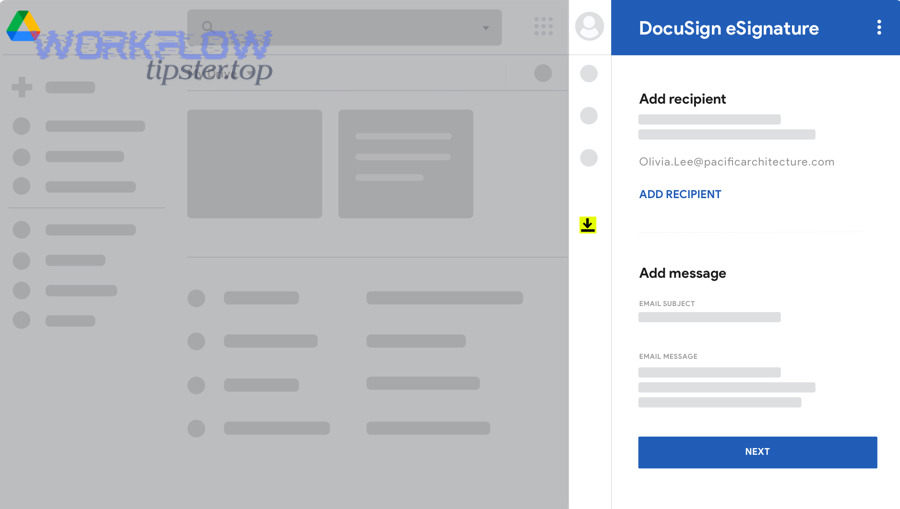
Specifically, most teams use one of these integration patterns:
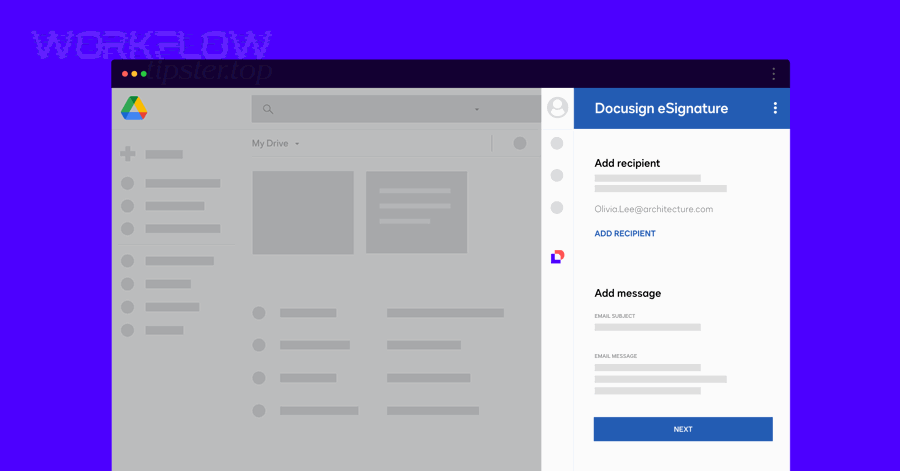
- In-app add-on pattern: Send and manage DocuSign envelopes from a Google Workspace side panel (Docs/Drive/Gmail) so users don’t leave their document context.
- Export pattern: Convert Google Docs → PDF, then upload into DocuSign for sending, templating, and routing.
- Automation pattern (no-code or API): A trigger (approval, status change, folder move) automatically creates a DocuSign envelope and routes it to signers.
In real workflows, you’ll usually blend patterns. For example, legal uses templates (DocuSign) + controlled fields, while sales uses a lighter “send this doc now” route, and ops uses automation for high-volume forms.
Can you integrate Google Docs with DocuSign without code?
Yes—most teams can integrate Google Docs with DocuSign without code because you can use a Google Workspace add-on, a PDF export workflow, and no-code automation tools to send, route, and track signatures without writing any scripts.
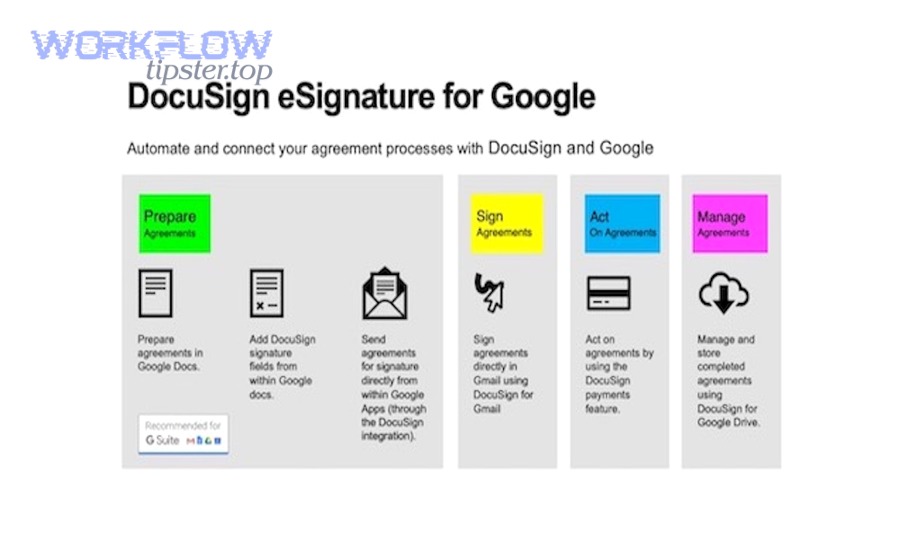
To better understand the “no-code” reality, separate it into three practical levels:
- No-code inside Google Workspace: Install the DocuSign add-on and run the signing workflow from the sidebar.
- No-code with simple file handling: Export to PDF from Google Docs, then upload to DocuSign.
- No-code automation: Use triggers like “Doc approved,” “File moved,” or “New row in a tracker” to auto-send envelopes and log results.
For example, if you manage lots of agreements and want consistent fields (name, title, date, company), no-code still works because DocuSign templates let you reuse the same structure while swapping the content document.
Evidence: According to a study by Université de Montréal from the Department of Radiology, in 2003, the median time from transcription to final signature decreased from 11 days to 3 days after electronic signature was introduced—showing how removing manual handoffs can compress turnaround time dramatically.
How do you connect Google Docs to DocuSign step by step?
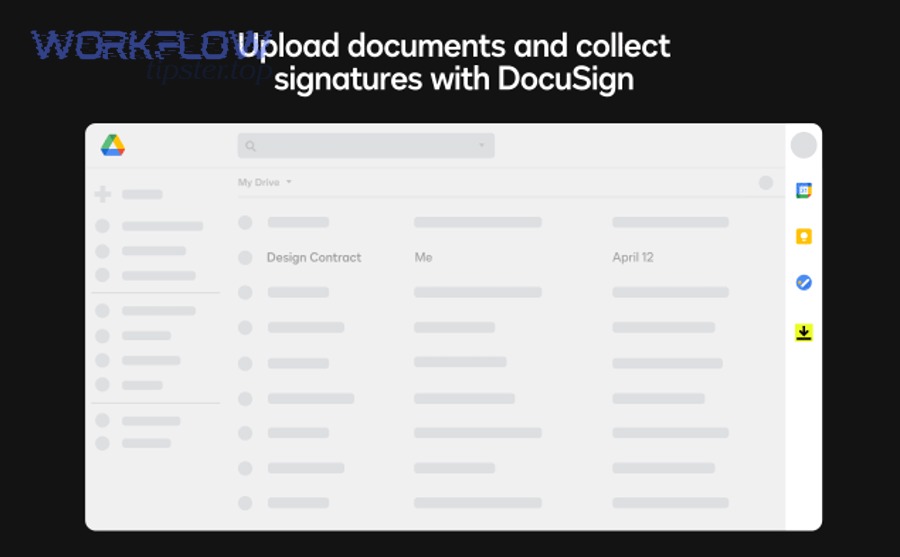
You connect Google Docs to DocuSign by installing the DocuSign integration, authenticating your DocuSign account, sending a Google Doc (often as a PDF) as an envelope, and then tracking and storing the signed copy in Drive—typically in 4 core steps.
Next, let’s turn that into a workflow your team can actually repeat without confusion.
How to install DocuSign eSignature for Google Workspace
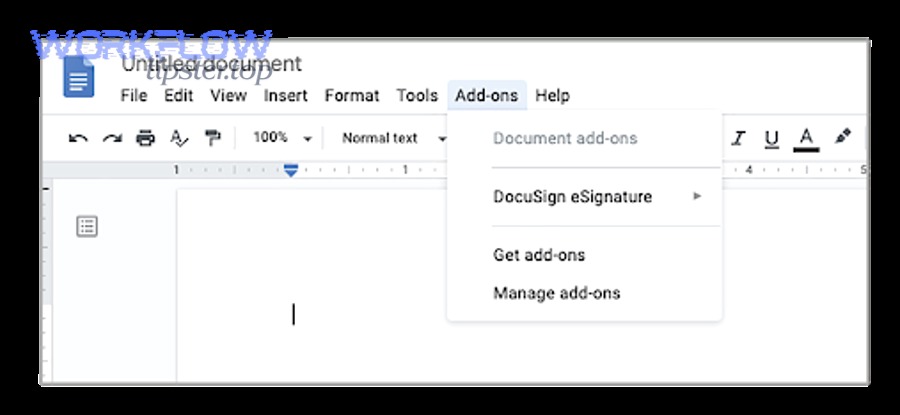
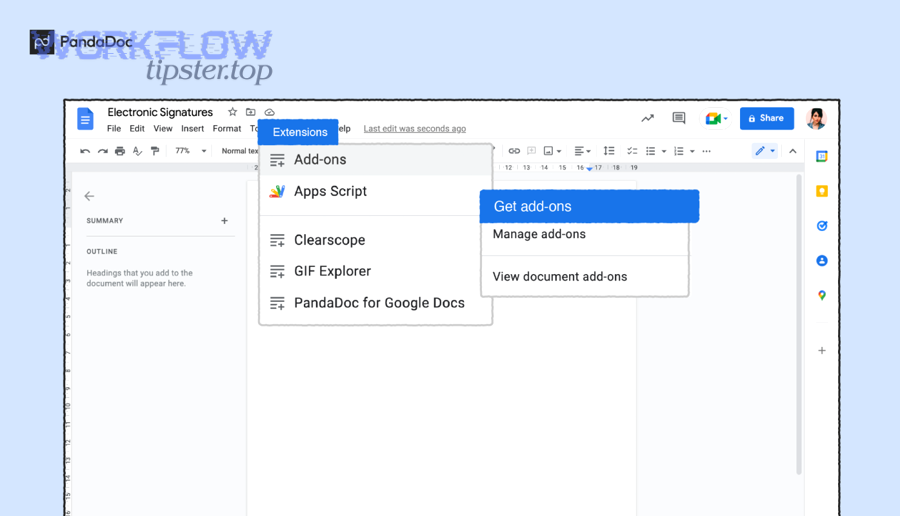
- Install from Google Workspace Marketplace (admin-managed for organizations, or user-installed if allowed). The marketplace listing notes support across Google Docs, Drive, and Gmail, which matters if your workflow spans all three.
- Accept permissions intentionally: Make sure you understand what the add-on can access (especially if your organization uses restricted Drive sharing).
- Open a Google Doc and launch the add-on sidebar: If you don’t see it, check the side panel icon and your organization’s add-on policy.
How to connect your DocuSign account safely
- Log in to DocuSign inside the add-on and confirm you’re in the correct account (especially if you have sandbox vs production).
- Confirm sending identity rules: Decide whether envelopes come “from” the document owner, a shared mailbox, or a service account (important for audit consistency).
- Set default storage behavior: If your policy requires saving signed PDFs to a specific Drive folder, define it early.
How to send a Google Doc for signature from Google Docs
- Finalize content first: lock the copy you intend to sign (versioning matters—especially when multiple people edit in parallel).
- Generate a signable file: many teams send a PDF to prevent layout shifts for signers.
- Add recipients and signing order: define who signs first, who is CC’d, and who needs to approve.
- Place tags/fields: “Sign Here,” date signed, printed name, title, and any required checkboxes.
How to track status and store completed agreements back to Google Drive
- Track envelope states: sent → delivered → viewed → signed/completed (or declined/voided).
- Use notifications: set reminders for signers and alerts for internal stakeholders.
- Auto-save completed agreements: store the final PDF in Drive in a consistent folder structure so people can find it later.
How to automate the workflow without coding
This is where “Automation Integrations” becomes a real productivity lever: you can trigger DocuSign sends from approvals, folder moves, or form submissions and then write results back to a tracker or notification channel.
Common no-code automation patterns include:
- Approval trigger: When a doc is marked “Approved,” automatically create an envelope and route to signer(s).
- Folder trigger: When a file moves to “Ready for Signature,” send it to DocuSign.
- Template trigger: When a new agreement type is selected, generate from a template and assign standardized fields.
The key is governance: automation should reduce repetitive work, not create a “black box” where nobody knows which version got sent.
What are the main ways to send a Google Doc for signature in DocuSign?
There are 3 main ways to send a Google Doc for signature in DocuSign: (1) send via a Workspace add-on workflow, (2) export to PDF and upload to DocuSign, and (3) generate/send from a DocuSign template—based on how much consistency and control you need.
Then, choose the method that matches your document risk level (simple acknowledgment vs contract) and your volume (few per month vs hundreds per week).
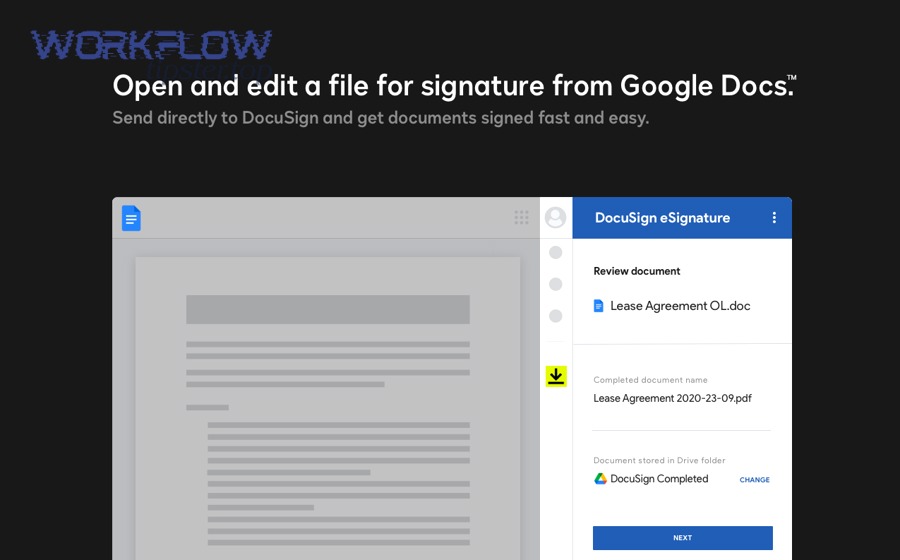
Convert a Google Doc to PDF before sending
If your agreements include tables, signature blocks, or strict formatting, the safest practice is:
- Lock the Doc version (or copy it to a “Signing” folder)
- Export as PDF
- Send the PDF through DocuSign
This reduces disputes like “the signed version doesn’t match what we wrote,” because the PDF becomes the canonical signing artifact.
Use templates and reusable fields
Templates win when you have recurring agreement structures:
- NDAs
- Offer letters
- Order forms
- Vendor agreements with standard clauses
A strong template approach also reduces errors because you can enforce required fields (e.g., signature + date) and keep routing consistent.
Use routing order and role-based recipients
DocuSign routing becomes crucial when:
- Someone must approve before signing
- Legal must sign last
- Finance must receive a copy but not sign
- Two signers must sign in parallel (or sequentially)
Routing rules turn “email everyone and hope” into “the system advances the agreement when requirements are met.”
Google Docs eSignature vs DocuSign: which should you use?
Google Docs eSignature wins for lightweight, in-document requests; DocuSign wins for deeper workflow control, reusable templates, and robust tracking—so the best choice depends on document complexity, compliance needs, and signing volume.
However, teams rarely ask this question in theory—they ask it after a real pain point, like needing stronger audit logs, routing, or a standardized process across departments.
Below is a quick comparison to clarify what you’re deciding between.
This table compares Google Docs eSignature and DocuSign across common decision criteria so you can match the tool to your document complexity, routing needs, and scale.
| Criteria | Google Docs eSignature | DocuSign (with Google Docs workflow) |
|---|---|---|
| Best for | Simple signature requests | Contracts, multi-step routing, repeatable workflows |
| Templates & reusable fields | Limited compared to dedicated platforms | Strong template + field reuse |
| Routing & roles | Basic | Advanced routing, roles, reminders, conditional logic |
| Tracking visibility | Basic progress | Detailed status, notifications, centralized dashboard |
| Team scale | Small teams, low volume | Medium/large teams, high volume |
Feature depth and workflow control
If you need multi-stage agreements (draft → approve → sign → archive), DocuSign tends to offer more knobs: routing order, templates, reminders, and structured envelope management.
Compliance and audit trail expectations
When you operate in regulated environments—or you simply want to reduce disputes—DocuSign’s workflow framing (envelope events, timestamps, recipient actions) can be easier to operationalize consistently across teams.
Pricing and scale considerations
The deciding factor is usually volume and standardization:
- Low volume, low risk: simpler tools may be enough
- High volume or higher risk: template-driven sending and consistent audit trails pay for themselves in reduced rework
What security and compliance features matter when signing Google Docs with DocuSign?
The security and compliance features that matter most are signer authentication, tamper-evident audit trails, document access controls, and retention rules—because these determine whether your signed agreement is trusted, traceable, and defensible.
Moreover, security is not a single checkbox; it’s a chain of “who accessed what, when, and what changed.”
Authentication methods
Common approaches include:
- Email-based access (baseline)
- SMS or phone verification (stronger)
- Knowledge-based checks (context-dependent)
- Identity verification (higher assurance)
Choose authentication based on the risk of impersonation and the value of the agreement.
Audit trail and evidence quality
A useful audit trail shows:
- When the envelope was created and sent
- When each recipient viewed it
- When each signature was applied
- Whether the document was declined, voided, or completed
This creates a narrative of consent and action that’s hard to replicate manually.
Evidence: According to a study by Université de Montréal from the Department of Radiology, in 2003, electronic signature implementation significantly shortened turnaround time (e.g., 11 days to 3 days for abdominal ultrasound reports), which illustrates how electronic signing systems can remove delay-inducing steps while maintaining trackable status changes.
Data storage and retention
You should define:
- Where completed agreements are stored (Drive folders, shared drives, restricted repositories)
- Who can access them
- How long they are retained
- How they are retrieved during audits or disputes
A good practice is to store completed PDFs in Drive with a naming convention that includes counterparty, date, and agreement type.
Consent and enforceability basics
Most teams don’t need a law lecture—they need operational clarity:
- Make signer intent explicit (“I agree” + signature action)
- Prevent silent changes after sending (use PDFs or controlled copies)
- Keep a consistent process across departments so exceptions don’t become liabilities
What are common problems and how do you troubleshoot Google Docs to DocuSign workflows?
The most common problems are missing add-ons, permission conflicts, formatting issues after export, and recipient delivery/signing errors—so troubleshooting usually starts with access checks, then document format, then recipient experience.
Especially in shared-drive organizations, small permission mismatches can look like “DocuSign is broken” when the real issue is Drive policy.
Add-on not showing or permissions issues
Check these in order:
- Is the add-on allowed by your Google Workspace admin policy?
- Are you signed into the correct Google account (work vs personal)?
- Does your DocuSign account allow the integration flow you’re trying to run?
- Are you launching from a file type the add-on supports?
If it works for some users but not others, it’s usually admin policy, OU restrictions, or marketplace install scope.
Formatting breaks after export
Common causes:
- Complex tables and embedded images
- Custom fonts not rendering consistently in export
- Page breaks shifting signature blocks
Fixes:
- Export as PDF and verify before sending
- Use standardized signature blocks (less custom formatting)
- Keep critical signature fields away from dynamic content regions
Recipients can’t sign or don’t receive emails
Troubleshoot with:
- Spam/quarantine checks in your email system
- Correct recipient email address and access
- Whether the signer is blocked by corporate security policies
- Resend with a different authentication method if needed
Wrong file saved to Drive after completion
This often happens when:
- Multiple versions of a Doc exist
- The team duplicates files and loses track of which one was “sent for signature”
- The completed agreement saves to a default folder nobody watches
Fix it with a clear convention:
- One “Ready for Signature” folder
- One “Executed Agreements” folder
- Naming that ties the executed PDF back to the originating Doc version
How do you optimize Google Docs to DocuSign workflows for advanced teams?
You optimize Google Docs to DocuSign workflows by standardizing templates, automating envelope creation, enforcing version control, and adding reporting—so your process stays fast at scale instead of collapsing into one-off exceptions.
In addition, optimization is where teams stop thinking “send a doc” and start thinking “run a signature process.”
Build a contract assembly workflow with templates and variables
Advanced teams reduce drafting time by combining:
- Google Docs templates (content)
- Standard clauses and placeholders (variables)
- A controlled “finalize → PDF → send” step
This prevents last-minute edits from sneaking into a signing version and makes approvals predictable.
Connect agreements to your operational tools
This is where broader workflows (like google drive to notion documentation, or activecampaign to microsoft teams notifications) become part of a single operating system: agreements get signed, then downstream systems update automatically.
Examples:
- When an agreement is completed, create a record in your workspace wiki (Notion) with the executed PDF link.
- When a customer signs, notify a channel (Teams) and trigger onboarding tasks.
Add reporting, dashboards, and SLAs
If you care about cycle time, track:
- Average time to first view
- Average time to completion
- Drop-off points (who delays signatures)
- Agreement types with repeated revisions
This lets you improve the process with evidence rather than opinions.
Governance and admin checklist
For a sustainable workflow, define:
- Approved templates and who can modify them
- Folder structure and permissions
- Naming conventions
- Who is allowed to send which agreement types
- A simple escalation path when a signer is stuck
Evidence: According to a study by Liverpool John Moores University from the Eco-I North West project, in 2022 (reported publicly in 2024), researchers estimated annual savings of £416,892 for a medium-sized law firm digitising paper document processes—illustrating how scaled signing workflows can translate into measurable cost reduction.