


Automating DevOps alerts from GitHub to Trello to Microsoft Teams means you turn engineering signals (like workflow failures, PR changes, and release events) into structured Trello work items and actionable Teams messages—so the right people see the right alert, with an owner and next step, the moment it happens.
Then, you need to decide whether to build this pipeline with native integrations (GitHub for Teams, Trello Power-Ups, Teams connectors) or to use a workflow layer (webhooks/automation tooling) that can add routing rules, deduplication, retries, and message formatting so the system stays reliable at scale.
Next, the “without manual triage” promise only holds if your alerts carry consistent fields (severity, environment, run ID, owner) and if Trello and Teams are designed like an operating system for incident flow—not just a place where messages go to die.
Introduce a new idea: once you understand the end-to-end pattern, you can implement the workflow step by step, then harden it against noise, duplicates, rate limits, and missed delivery—so the alert stream becomes a dependable automation workflow instead of another source of interruptions.
What does “GitHub to Trello to Microsoft Teams DevOps alerts” automation mean in practice?
GitHub → Trello → Microsoft Teams DevOps alerts automation is a workflow pattern that converts GitHub events into trackable Trello cards and delivers structured Teams notifications so engineering teams can respond quickly with clear ownership, context, and next actions.
To better understand why this chain works, start by separating the two synonyms you’ll see everywhere—alerts and notifications—and then defining what “no manual triage” really means.
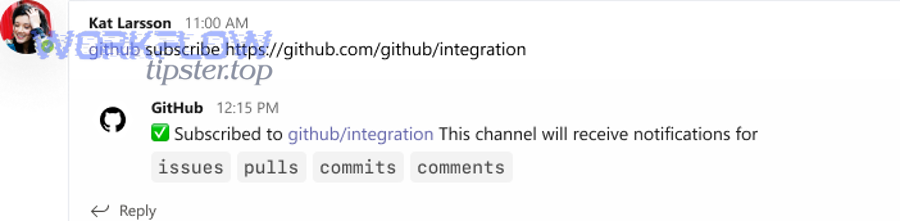
In practice, this automation has three responsibilities that must remain consistent:
1) Detect a DevOps-relevant signal in GitHub
A signal can be urgent (CI failure on main) or informational (PR opened). The key is that the event is machine-readable and can trigger downstream actions.
2) Normalize the signal into a work item in Trello
Normalization means: “Every serious alert becomes a card with predictable structure.” That structure becomes your anti-chaos layer: same fields, same labels, same lists, same checklist template.
3) Deliver an actionable Teams message (not just “FYI”)
A Teams post must answer: What happened? Where? Who owns it? What’s the next action? If those are missing, you’ve created noise—not an operational system.
The “without manual triage” standard is strict: the workflow must route and shape alerts automatically so a human does not have to interpret raw firehose messages. That typically requires:
- Routing rules (by repo, branch, environment, severity)
- Deduplication (so repeated failures don’t spam channels)
- Ownership assignment (card member + Teams mention when needed)
- A lifecycle model (New → Investigating → Mitigated → Resolved)
Which GitHub events should trigger DevOps alerts for engineering teams?
There are 6 main types of GitHub events that should trigger DevOps alerts—CI/CD failures, deployment/release changes, PR lifecycle events, issue incidents, security signals, and operational comments—based on how directly they affect reliability and delivery.
Then, choose events using one criterion: Does this event require a response, not just awareness? If yes, it belongs in the DevOps alert stream.
Below is a practical grouping you can implement immediately:
- Reliability-critical (high urgency)
- GitHub Actions workflow failure on
mainor release branches - Failed deploy / failed release pipeline
- Repeated flaky test failure crossing a threshold
- Production hotfix branch created or force-push detected (if relevant)
- GitHub Actions workflow failure on
- Delivery-critical (medium urgency)
- Release published / tag created
- PR merged into
main(especially if it triggers deploy) - Required checks failing on a PR close to merge
- Flow signals (low urgency, often batched)
- PR opened / ready for review
- Review requested (especially for code owners)
- Issue labeled as
bug,incident,P0,customer-impact
- Risk signals (medium to high, depending on policy)
- Security advisory events, dependency alerts (where you operationalize them)
- Changes to workflows that control deployment (governance-sensitive)
A simple operating rule keeps channels quiet:
Only fire a Teams alert if a Trello card is created/updated for a response. If no card is needed, the event is usually better as a digest or a dashboard.
To reinforce why this matters, research in software engineering shows interruptions change both task performance and stress indicators depending on interruption type and task type. According to a study by Duke University and Vanderbilt University researchers, in 2024, interruptions influenced time spent on code comprehension and affected physiological stress measures (for example, SDNN differed by about 25.0 ms for code comprehension versus code writing under interruptions, with statistical significance reported).
What information must every alert carry to be actionable (not noisy)?
There are 8 essential fields every DevOps alert should include—summary, system, environment, severity, owner, timestamp, unique run ID, and deep link—based on the criterion “can someone take the next step in under 30 seconds?”
Next, treat these fields like a schema that your automation always fills, so humans don’t have to reconstruct context from fragments.
Minimum schema (works across GitHub, Trello, and Teams):
- Summary: “CI failed on main: test suite timeout”
- System: repo/service name (and component if you have it)
- Environment: prod/staging/dev, or branch as a proxy
- Severity: P0/P1/P2 (or Critical/High/Medium)
- Owner: on-call engineer, team alias, or component owner
- Timestamp: when the event occurred
- Unique ID: run ID / workflow URL / commit SHA (for dedupe)
- Deep link: link to workflow run, PR, issue, or deployment log
How it maps into Trello (work item structure):
- Card title =
[Severity] [Service] [Env] – short summary - Description includes: reproduction, failing job, last-known-good, links
- Labels encode severity + component + environment
- Members represent owner/on-call
- Checklist template ensures consistent triage (acknowledge, mitigate, verify, postmortem)
How it maps into Teams (message structure):
- First line: what happened + severity
- Second line: owner + next action
- Links: Trello card + GitHub run/PR
- Optional: mention owner only for high severity
A highly effective pattern is “one incident = one thread”: your automation posts an initial Teams card, then posts updates as replies when the Trello card changes state.
Can you set up GitHub → Trello → Teams alerts using native connectors only?
Yes, you can set up GitHub → Trello → Teams alerts using native connectors only in limited scenarios because (1) native integrations often cover GitHub→Teams visibility well, (2) Trello can attach GitHub context via Power-Ups, and (3) Teams supports inbound posting via connectors/webhooks—however, native-only setups usually lack deep routing, deduplication, and multi-step chaining.
More importantly, the gap between “works once” and “works daily” is typically filled by workflow logic: filters, transforms, retries, and governance.
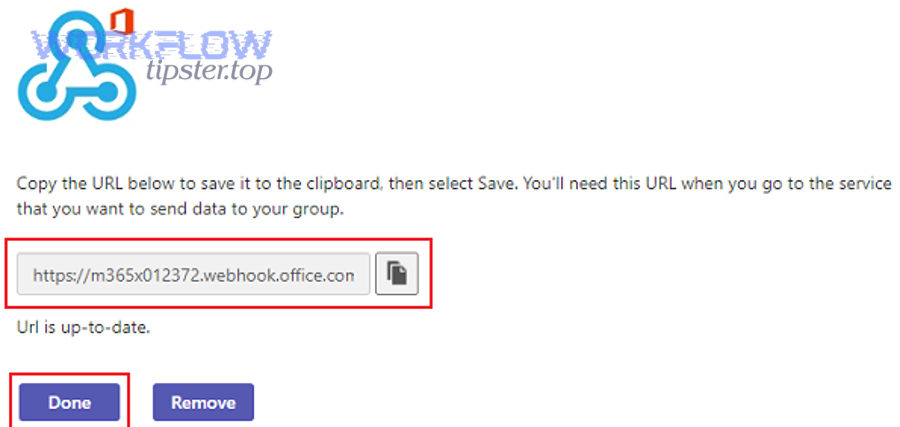
Native components are strong for visibility, but “no manual triage” requires operational controls that native connectors may not provide end-to-end.
What are the most common native paths (GitHub app, Trello Power-Up, Teams connectors) and their limits?
GitHub wins for Teams visibility, Trello Power-Ups win for in-board GitHub context, and Teams connectors/webhooks win for simple inbound notifications—but workflow tools are best for chaining and control across all three.
To illustrate the tradeoffs clearly, here is what each native path is good at:
- GitHub → Teams (GitHub for Teams app / notifications)
- Strength: fast setup; rich repository activity cards; good for “stay updated”
- Limits: may not create Trello cards automatically; routing granularity depends on commands/settings; not always designed for incident dedupe
- GitHub ↔ Trello (Trello GitHub Power-Up)
- Strength: attaches PRs/issues/commits directly to cards; keeps context close to work
- Limits: it enriches cards, but it’s not a full alert router; it won’t necessarily decide which events become incident cards without rules
- Teams inbound connectors / Incoming Webhook
- Strength: any system that can POST JSON can publish; simple and flexible
- Limits: you must build the logic elsewhere; Teams has practical limits (payload size, throttling), so you need retries and rate control
If your goal is “developers see updates,” native paths can be enough. If your goal is “incidents become owned work items with controlled noise,” native paths are usually only the foundation.
Here is a decision table (the table compares approaches by control vs simplicity, so you can choose based on your team’s operational maturity):
| Approach | Best for | Filtering & routing | Deduplication | Multi-step chaining (GitHub→Trello→Teams) |
|---|---|---|---|---|
| Native GitHub→Teams | Visibility & collaboration | Medium | Low | Partial |
| Trello GitHub Power-Up | Work item context | Low | Low | Partial |
| Teams Incoming Webhook | Delivering messages | Depends on sender | Depends on sender | Needs external logic |
| Automation layer (webhooks/workflows) | Operational alerting | High | High | Strong |
When should you use an automation platform or webhooks instead of native connectors?
You should use an automation platform or webhooks when you need (1) conditional routing by severity/environment, (2) deduplication and batching to prevent alert fatigue, and (3) reliability features like retries, backoff, and logging across the full chain.
In other words, the moment your team says any of these, native-only becomes risky:
- “Only alert on failures on
main.” - “Don’t spam the channel—group repeated failures.”
- “Create a Trello card with the correct checklist and owner.”
- “If Teams throttles, retry automatically.”
- “Track success/failure of the automation itself.”
This is exactly where mature automation workflows pay off: they treat alerting as a system with SLOs, not as a convenience feature.
How do you build the GitHub → Trello → Teams workflow step by step?
You build the GitHub → Trello → Teams workflow in 7 steps—define alert taxonomy, design Trello board structure, connect GitHub triggers, map fields, post to Teams, test with synthetic events, and harden with retries and dedupe—so alerts become owned work, not just messages.
Then, follow the steps in order because each step reduces ambiguity for the next.
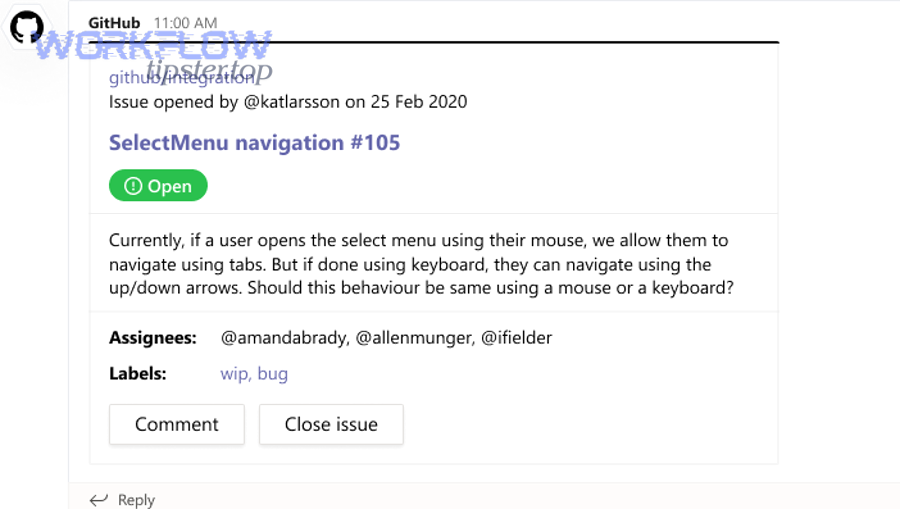
Step 1: Define your alert taxonomy (what deserves a card)
- Choose a severity model (Critical/High/Medium or P0/P1/P2)
- Define what qualifies for each level (e.g., “CI fail on main = High”)
Step 2: Design your Trello incident board model
- Lists represent the lifecycle (New → Investigating → Mitigated → Resolved)
- Labels represent severity/component/environment
Step 3: Connect GitHub triggers
- Start with workflow failures + releases
- Add PR/issue triggers only after you’ve proven noise control
Step 4: Map fields from GitHub to Trello
- Create consistent card titles, descriptions, labels, members, checklists
Step 5: Post to Teams with a stable message template
- First line summarizes
- Second line assigns
- Links to Trello + GitHub are always included
Step 6: Test end-to-end
- Simulate a failure event
- Confirm Trello card created correctly and Teams message is readable
Step 7: Harden
- Add dedupe keys (run ID / SHA)
- Add retries + backoff for Teams posting
- Add logging and alert on automation failure itself
This is where your operational chain becomes a repeatable playbook rather than an ad-hoc integration.
How should you structure Trello boards/lists to support DevOps alert triage?
You should structure Trello boards with a 4–6 stage lifecycle and consistent severity labeling because that design creates “built-in triage” where every alert becomes trackable work with visible progress.
Specifically, use lists to represent the state machine your team actually follows:
Recommended lists (simple, high signal):
- New (Untriaged): automation drops cards here
- Investigating: owner acknowledged and is working
- Mitigated: workaround applied / rollback done
- Resolved: fix merged and verified
- Postmortem / Follow-up: optional, for learning tasks
- Ignored / Noise: optional, for tuning rules (don’t delete—measure)
Recommended labels (keep it systematic):
- Severity: Critical / High / Medium
- Environment: Prod / Staging / Dev
- Component: API / Web / DB / CI / Infra
- Category: Build / Deploy / Incident / Security
Recommended card template (standardize the next action):
- Checklist:
- Acknowledge + assign owner
- Identify failing component
- Mitigation plan
- Verification steps
- Communication note (if needed)
- Close-out criteria
When your Trello board has this structure, the automation is not merely “creating cards”—it’s enforcing a triage operating model.
How should Teams channels and message formats be designed for fast response?
Teams channels should be designed around audience and urgency, and messages should be formatted as “action briefs” because that reduces scanning time and prevents the channel from becoming a firehose.
More specifically, design your channel topology using one of these models:
- By service/component (best when teams are service-aligned)
#alerts-payments,#alerts-auth,#alerts-platform
- By severity (best when on-call is centralized)
#alerts-critical,#alerts-high,#alerts-digest
- Hybrid (most scalable)
- Critical goes to a central channel; high/medium goes to service channels
Then apply a consistent message template:
Recommended Teams alert template:
- Line 1:
[SEV] [Service] [Env] – short summary - Line 2:
Owner: @oncall | Next: open Trello card + start checklist - Links:
Trello card | GitHub run/PR/issue | Logs - Optional metadata: branch, commit SHA, run ID
If you need a practical example of how Teams can display GitHub activity cards and threaded updates, the official GitHub–Teams integration demonstrates subscription-based notifications and threaded context, which is useful as a baseline for your own alert formatting.
And this is where you can naturally connect your broader operations: if your team already runs “freshdesk ticket to trello task to microsoft teams support triage,” you can mirror the same channel conventions and message schema so support and DevOps alerting feel consistent across the organization.
How do you prevent duplicate alerts and alert fatigue in this pipeline?
You prevent duplicate alerts and alert fatigue by combining (1) deterministic deduplication keys, (2) suppression rules based on severity and context, and (3) batching for bursty events—so Teams stays high-signal and Trello stays actionable.
Next, treat noise control as a first-class requirement, not an afterthought, because DevOps alerting fails the moment people stop trusting the channel.
Here’s the core mechanism:
Deduplication (stop repeats)
- Use a unique key per incident, such as:
repo + workflow_name + branch + run_idrepo + commit_sha + failing_job
- If the same key appears again in a time window, update the existing Trello card and post a threaded update, rather than posting a new Teams message.
Suppression (avoid low-value alerts)
- Don’t alert on non-main branches unless they’re release branches.
- Don’t alert on first flaky failure; alert on repeated failures.
- Don’t alert on PR opened events in real time; batch them.
Aggregation (roll up bursts)
- When 20 failures happen in 2 minutes due to a shared dependency outage, you want 1 incident with updates—not 20 separate incidents.
A key reason this matters is that interruptions measurably affect performance and stress in software engineering tasks. According to a study by Duke University and Vanderbilt University researchers, in 2024, certain interruption types increased time spent on tasks like code comprehension and influenced physiological measures—supporting the need to reduce unnecessary alert interruptions in engineering workflows.
Which rules reduce noise without missing critical incidents?
There are 9 high-impact rules that reduce noise without losing coverage—based on the criteria “alert only when a human must respond” and “escalate only when impact grows.”
Then implement them in this order (highest ROI first):
- Branch rule: only alert on
mainand release branches - Environment rule: only alert on production deploy pipelines for Critical
- Threshold rule: alert on repeated failure (e.g., 2 of last 3 runs)
- Ownership rule: only notify Teams when an owner is assigned
- Component rule: route to the channel that owns the component
- Time-window rule: suppress duplicates for 15–30 minutes
- State rule: update an existing incident card instead of creating new
- Quiet hours rule: batch low severity outside working hours
- Escalation rule: widen audience only if unresolved beyond SLA
One of the simplest tactics is “card-first alerting”:
If the automation cannot create/update a Trello card with a valid owner and severity, it should not post to Teams. That single rule blocks a huge portion of noisy FYI notifications.
Should you batch alerts into summaries instead of sending one message per event?
Yes, you should batch alerts into summaries for low-urgency, high-volume event types because (1) batching reduces cognitive load, (2) it prevents channel flooding during bursts, and (3) it preserves attention for truly urgent incidents—while still keeping a complete audit trail in Trello.
However, urgent incident types should not be batched because speed matters more than quiet channels.
Use this practical decision rule:
Batch (digest) these events:
- PR opened / review requested (unless code-owner critical)
- Non-blocking checks failing (until threshold exceeded)
- Informational release notes, dependency updates
Send immediate alerts for:
- GitHub Actions failures on main that block deploy
- Production deploy failures
- Security incidents meeting your threshold
A clean approach is a “two-lane system”:
- Lane A (Immediate): Critical/High incidents → instant Teams + Trello
- Lane B (Digest): Medium/Low signals → scheduled summary to Teams, with links to grouped Trello cards
This keeps the channel useful and makes “no manual triage” possible in day-to-day reality.
How do you troubleshoot when GitHub → Trello → Teams alerts fail, lag, or go missing?
You troubleshoot GitHub → Trello → Teams alert failures by checking the chain in order—trigger fired, authentication valid, mapping succeeded, message delivered, and rate limits respected—because each stage has distinct failure modes and fixes.
Then, apply a single diagnostic principle: never guess where it broke—prove it with logs and IDs.
Troubleshooting checklist (end-to-end):
- Confirm the GitHub event actually occurred (run/PR/issue exists)
- Confirm the trigger mechanism received it (webhook delivery log / workflow run)
- Confirm authorization is still valid (token scopes, app installation, org restrictions)
- Confirm Trello card creation/update succeeded (API response / board activity)
- Confirm Teams delivery succeeded (HTTP response code, throttling, payload size)
- Confirm dedupe logic didn’t suppress incorrectly (key and time window)
- Confirm routing logic chose the intended channel (rules and conditions)
Remember: Teams inbound messaging has practical constraints (like payload size and throttling), so “lag” can be a symptom of backoff and retries—not necessarily a broken workflow.
What are the most common failure causes across GitHub, Trello, and Teams?
There are 7 common failure causes—permissions, token expiry, org restrictions, schema changes, rate limiting, payload formatting errors, and misrouted channels—based on how often they break integrations across three systems.
Next, treat each cause as a pattern with predictable symptoms:
- Permissions / app not installed correctly
- Symptom: works for one repo but not another
- Fix: verify app installation scope; confirm repo access
- Token expiry / revoked authorization
- Symptom: alerts stop suddenly after working for days
- Fix: re-authorize Trello/GitHub app; rotate secrets; store securely
- Org security restrictions (third-party app approvals)
- Symptom: some org repos missing or inaccessible
- Fix: org admin grants access to the integration app
- Schema or field mapping mismatch
- Symptom: cards created but missing labels/members; Teams message malformed
- Fix: validate mapping; enforce required fields; add defaults
- Rate limiting / throttling
- Symptom: bursts fail, but single events succeed
- Fix: implement exponential backoff; batch; reduce frequency
- Payload size / formatting errors
- Symptom: Teams refuses message; webhook returns error
- Fix: shorten message; remove large blocks; keep consistent card format
- Wrong channel / routing logic bug
- Symptom: message lands in the wrong place—or nowhere
- Fix: add routing logs; test routing with synthetic events
A good operational safeguard is “automation health alerts”: if the pipeline fails to post a high-severity alert, it should create a fallback Trello card in a dedicated “Automation Failures” board/list and notify a maintenance channel.
How can you validate the workflow end-to-end before rolling out to production channels?
You validate the workflow end-to-end by running a staged rollout with synthetic events, a sandbox Trello board, and a test Teams channel, using pass/fail criteria for correctness, noise control, and reliability.
Then, make the rollout evidence-driven:
Stage 1: Sandbox validation
- Create a test repo or use a controlled workflow that fails on demand
- Route all events to
#alerts-sandboxand a sandbox Trello board - Verify:
- Correct Trello card title/labels/members/checklist
- Teams message readability + links + owner logic
- Deduplication works when triggering repeated failures
Stage 2: Limited production
- Pick one service/team and one event type (e.g., workflow failures on main)
- Monitor:
- Alert volume per day
- Duplicate rate
- Mean time to acknowledge (from Teams post to Trello movement)
Stage 3: Scale by adding event types
- Add deployments/releases
- Only then add PR/issue signals, and prefer batching
Operational acceptance criteria
- 0 missed Critical alerts in a week (as measured by cross-checking GitHub runs)
- Duplicate rate below a threshold you define (e.g., <5%)
- Teams channel remains readable during bursts (batching/backoff works)
According to a study by Duke University and Vanderbilt University researchers, in 2024, interruptions and their characteristics influenced task performance and physiological measures during software engineering activities—so validation should include a noise-control test, not just a “does it send?” test.
What advanced patterns and alternatives improve GitHub → Trello → Teams DevOps alerting over time?
Advanced patterns improve GitHub → Trello → Teams alerting by adding specialized routing, lifecycle automation, and governance controls—so the system scales from “notifications” to true operational alerting without creating manual triage burdens.
Next, focus on micro-optimizations that create big semantic and operational gains: hyponyms of DevOps alerts (like “GitHub Actions failure alerts”), antonyms that sharpen your model (manual triage vs automated triage), and alternatives that fit larger org needs.
How can you tailor alerts for GitHub Actions failures vs PR/Issue activity (hyponyms of “DevOps alerts”)?
There are 2 main alert playbooks—failure-response (GitHub Actions/deploy) and flow-management (PR/issue)—based on whether the event threatens reliability or simply signals work progression.
Then tailor both the Trello template and the Teams routing:
Failure-response (Actions/deploy)
- Immediate Teams alert for High/Critical
- Trello card created with incident checklist
- Deduplication keyed by run ID + workflow name
- Updates posted as thread replies when state changes
Flow-management (PR/issue)
- Batched Teams digest
- Trello card only for labeled incidents (
P0,customer-impact,security) - Routing based on code owners or labels
- Less aggressive mentions; focus on visibility without interruptions
This distinction prevents the common failure mode where PR chatter crowds out real incidents.
What is the difference between “manual triage” and “automated triage” in DevOps alert workflows?
Automated triage wins in speed, consistency, and focus, while manual triage is only best when context is ambiguous, ownership is unclear, or the signal quality is low—so the optimal model is automated triage by default with manual override for edge cases.
Then use the antonym lens—manual triage vs automated triage—to define the boundary:
Manual triage characteristics
- A human reads raw messages
- A human decides severity
- A human creates/assigns work items
- A human routes to channels
Automated triage characteristics
- The system assigns severity based on rules
- The system creates a Trello card with a template
- The system assigns an owner or owning team
- The system posts a structured Teams message
- A human only performs investigation and mitigation
If your workflow requires a person to interpret every alert, you don’t have operational alerting—you have a chat feed.
This same thinking generalizes across other operations content your team may already run, such as “automation workflows” that coordinate scheduling and support processes. For example, “calendly to calendly to zoom to basecamp scheduling” and “calendly to calendly to google meet to asana scheduling” remove manual coordination steps and replace them with consistent objects (events, tasks, notifications). DevOps alerting needs the same structure.
Which Trello alternatives fit better than Trello for DevOps alert work items (and when)?
Trello is best for lightweight, visual incident flow, while other trackers are better for strict workflows, reporting, and enterprise governance—so the right choice depends on scale, compliance needs, and how tightly you want incidents tied to engineering systems.
Then evaluate alternatives using these criteria:
- Incident lifecycle rigor (custom states, required fields)
- Reporting and analytics
- Permissions and audit controls
- Integration depth and automation primitives
If you are a small-to-mid team, Trello often wins because it’s fast and flexible. If you are a large org with formal incident management, you may outgrow Trello and prefer a system that enforces workflows more strictly. The key is to keep the conceptual model the same: event → work item → notification → lifecycle.
What security and governance practices keep alert automation safe in Teams channels?
There are 6 governance practices that keep alert automation safe—least-privilege access, scoped installations, secret rotation, channel permission hygiene, audit logging, and retention awareness—based on reducing both security risk and accidental oversharing.
Next, apply these controls as defaults:
- Least privilege tokens
- Only grant read scopes needed for GitHub event data
- Restrict Trello API tokens to required boards
- Scoped installations
- Install integrations only on relevant repos/teams
- Avoid org-wide access unless necessary
- Secret management
- Store webhook URLs and tokens in a secure secret store
- Rotate periodically and on staff changes
- Channel permission hygiene
- Post Critical alerts to restricted channels
- Keep digest channels broader, but avoid sensitive payloads
- Audit and traceability
- Log every alert creation and delivery attempt
- Keep correlation IDs (run ID, card ID, message ID)
- Rate and payload control
- Keep messages concise to avoid payload failures
- Backoff and retry to handle throttling safely
When governance is built into the workflow, your Teams channels stay trustworthy and your DevOps alerts remain an asset rather than a liability.