


Support triage becomes faster when you automate the handoff: capture a Freshdesk ticket, create a Trello card with the right context, and notify the right Google Chat space so the team can assign, prioritize, and act without manual copy-paste.
Then, you’ll decide whether you can do this with native integrations (for simple “ticket-to-card” needs) or whether you need an automation platform for filters, formatting, deduplication, and reliability controls that prevent noise.
Next, you’ll design a Trello triage structure that makes work visible at a glance—lists, labels, owners, and SLAs—so the workflow produces actionable cards rather than a messy backlog.
Introduce a new idea: once the foundation is set, you can make triage “quiet but effective” by tuning notifications, preventing duplicates, and troubleshooting the common failure points that break automation workflows.
What is a “Freshdesk ticket → Trello card → Google Chat notification” support triage workflow?
A Freshdesk ticket → Trello card → Google Chat notification workflow is an automation pattern that converts incoming support requests into trackable work items and instantly alerts the team in chat, so triage happens in one consistent system of record.
To better understand why this works, start by picturing triage as a relay: Freshdesk captures the customer issue, Trello organizes the team’s work, and Google Chat distributes the “who needs to act next” signal. The real value isn’t just speed—it’s standardization: every ticket becomes a card with the same fields, the same routing logic, and the same visibility.
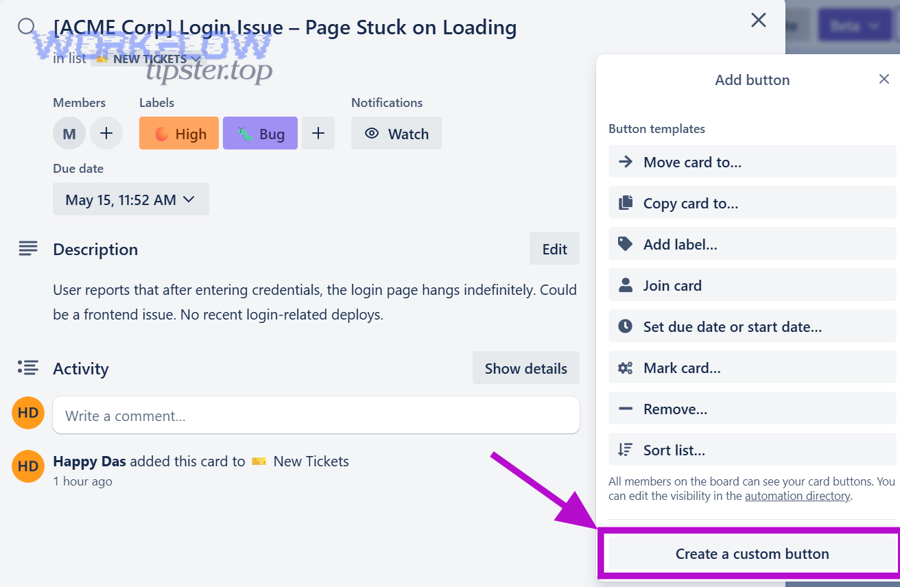

Here’s what this workflow typically includes (the foundational building blocks):
- Trigger (Freshdesk): a new ticket is created, or a ticket changes status/priority/group.
- Routing rules: only triage-worthy tickets become cards (filters prevent spam, duplicates, or low-value events).
- Field mapping: subject, description, requester, priority, product, and URL become card title/description/labels/custom fields.
- Card placement: a specific Trello board and list represent the triage stage (e.g., New).
- Notification (Google Chat): a message posts to a space with the ticket summary + links to the ticket and card.
- Ownership: the right person or queue is notified (not “everyone, always”).
- Reliability: duplicates are prevented; failures are logged; retries are controlled.
When you implement it well, your team stops “hunting for context.” Instead, they open the Trello card, see the complete handoff, and click back to the Freshdesk ticket when needed—a simple loop that keeps triage consistent across shifts and teams.
According to a study by University of California, Irvine from the Department of Informatics, in 2008, interruptions increased stress and speed-up behavior in knowledge work, helping explain why reducing manual context switching can improve triage efficiency. (ics.uci.edu)
Do you need Trello and Google Chat integrations, or can you run this workflow with an automation platform?
An automation platform usually wins for control and reliability, while direct integrations can be enough for basic ticket-to-card creation—so the best choice depends on whether you need filters, formatting, deduplication, and auditing.
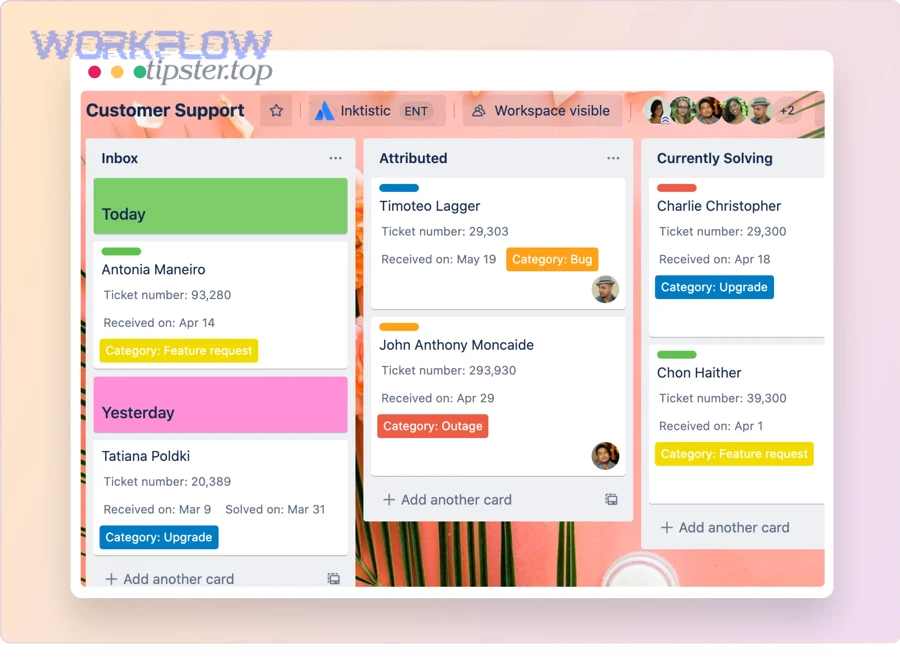
To better understand the tradeoff, treat this as a “simple vs. scalable” decision. If your only goal is “create a card from a ticket,” a native integration may work. If your goal is “create the right card, in the right place, with the right context, and notify the right people without noise,” you’ll want more control.
A practical comparison looks like this:
| Option | Best for | Strengths | Common limitations |
|---|---|---|---|
| Native Freshdesk ↔ Trello integration | Basic triage handoff | Quick to start, fewer moving parts | Limited formatting, conditional routing, dedupe controls |
| Trello Power-Ups + simple alerts | Board-level visibility | Board activity alerts, lightweight setup | Alerts can become noisy; not ticket-aware unless you build logic |
| Automation platform (no-code) | Production triage operations | Filters, templates, retries, logs, branching logic | More configuration and governance needed |
Is a native Freshdesk–Trello app enough for ticket-to-card triage?
Yes—sometimes, and it’s enough for at least three common scenarios: (1) your tickets are already clean and categorized, (2) you only need one board/list, and (3) you don’t need complex notification rules or deduplication.
More specifically, a native approach tends to work when:
- Your trigger is simple: “New ticket created” reliably represents “needs triage.”
- Your mapping is minimal: title + description + link is sufficient for the team to start work.
- Your routing is stable: one team owns triage, so you don’t need branching logic across products/regions.
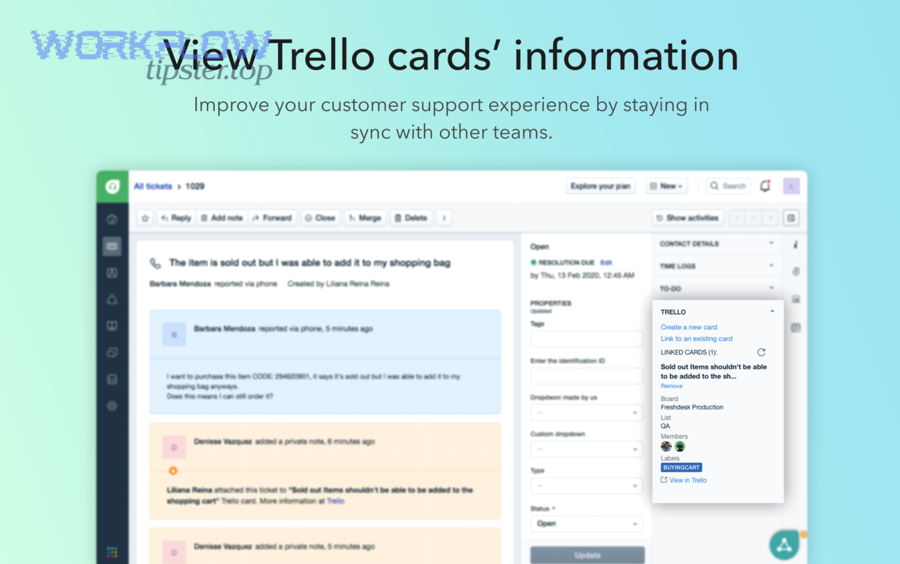
Freshworks’ Trello integration explicitly supports creating a Trello card from a Freshdesk ticket and linking cards to tickets, which matches this “basic handoff” use case. (freshworks.com)
However, once you need to reduce noise (only notify on high priority), ensure idempotency (one ticket → one card), or create rich, consistent Chat summaries, you’ll usually outgrow the simplest integration.
What’s the difference between Trello’s Chat features and an automation that posts to Google Chat?
Trello’s Chat features are board-activity alerts, while an automation posting to Google Chat is a triage signal designed around ticket data, team routing, and consistent message structure.
On the other hand, board-activity alerts can be useful when you want “what changed on this board” awareness. The Trello Google Chat Power-Up is designed to send updates to Google Chat when activity occurs on a board. (trello.com)
A true triage notification, by contrast, should answer three questions immediately:
- What happened? (New high-priority ticket, SLA risk, escalation, etc.)
- Who should act? (Team/owner/on-call)
- Where is the work item? (Trello card + Freshdesk ticket link)
That difference matters because triage quality is not “more alerts.” It’s better targeting.
How do you design the Trello board structure for triage (boards, lists, labels, owners)?
There are four core triage structures you can use in Trello—based on how your team routes work—so you should choose a board and list design that matches ownership and escalation paths, not just ticket volume.
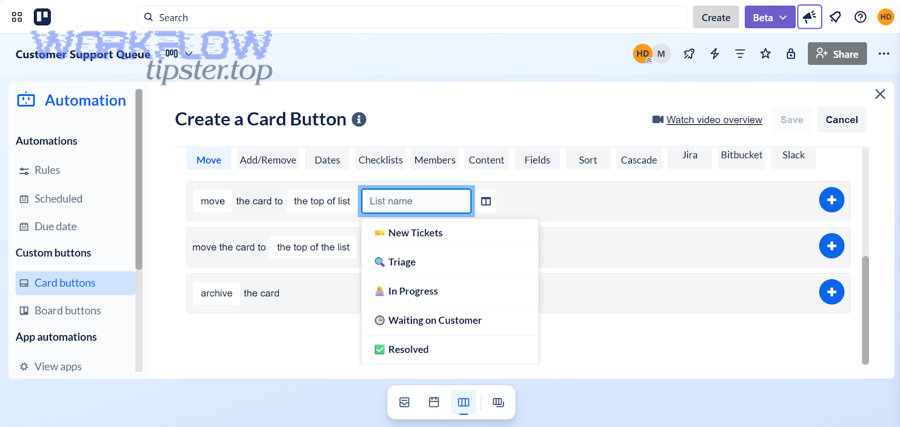
To begin, the biggest design mistake is building Trello like a generic project board. Triage boards have a different job: rapid sorting, fast assignment, and clear next actions. That means your lists represent decision stages, and your labels represent routing dimensions.
Here are 4 proven structures (choose one):
- Single triage board (most common): one board for support triage across one team.
- Multi-board by product/region: separate boards for ownership boundaries (less noise, clearer accountability).
- Board for intake + boards for execution: triage board creates clarity; execution boards do the work.
- Escalation lane model: one board with a strict escalation list (e.g., Escalate to Engineering).
A solid default list flow for support triage:
- New (Untriaged)
- Needs Info
- Assigned
- In Progress
- Escalated
- Resolved / Done
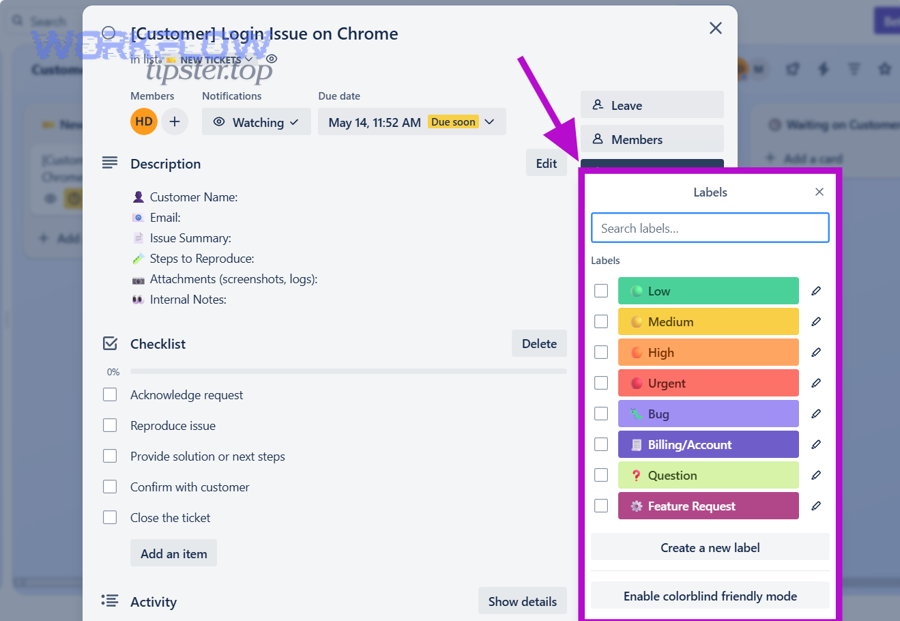
Use labels to encode routing at a glance:
- Priority: P1 / P2 / P3
- Type: bug / how-to / billing / account
- Product: Product A / Product B
- SLA: due today / overdue / breach risk
Which ticket fields should map to which Trello card fields for the cleanest handoff?
There are two mapping tiers—minimum viable mapping and operational mapping—based on how quickly your agent can understand and act on a ticket without opening extra tabs.
Specifically, the mapping should create a card that is readable even in a busy board view:
Minimum viable mapping (fastest to implement):
- Card title:
[Priority] [Ticket ID] Subject - Card description: ticket description + requester name/email + key metadata
- Card link: Freshdesk ticket URL (always)
- Labels: priority + type (if available)
Operational mapping (better triage quality):
- Custom fields: product, region, SLA due time, customer tier
- Members: auto-assign to triage owner/on-call rotation (or a default triage lead)
- Due date: based on SLA or priority policy
- Checklist: “Repro steps,” “Logs,” “Customer follow-up,” etc.
If you use a connector like Zapier, you can create Trello cards automatically from new Freshdesk tickets—making this mapping a first-class part of setup, not an afterthought. (zapier.com)
What naming conventions prevent confusion when many cards are created daily?
A good naming convention makes card scanning possible in seconds, so your title should carry the same “triage identity” every time: priority + ticket ID + short subject.
Next, standardize the exact pattern so the board becomes searchable and consistent:
- Recommended title:
P1 | #12345 | Login fails after password reset - Alternative (product-first):
ProductA | P2 | #12345 | Billing page timeout - Escalation format:
ESCALATE | P1 | #12345 | Data loss risk
Then add a “card header” at the top of the description:
- Requester name/company
- Channel (email/chat/phone)
- Ticket URL
- Key timestamps (created time, SLA due time)
- Current status and assignee (if any)
This turns Trello into a dependable triage surface—especially when multiple agents share the same board.
How do you set up the end-to-end automation (trigger → create card → post Google Chat message)?
The most reliable method is a 3-stage automation—(1) trigger on the right Freshdesk ticket events, (2) create or update a Trello card with consistent mapping, and (3) post a structured Google Chat message—so triage becomes fast, consistent, and visible.
Below, the key is to treat setup as “rules first, connectors second.” If you start with connectors, you’ll ship noise. If you start with rules, you’ll ship signal.
Step-by-step setup (vendor-neutral, production-ready)
Step 1: Define your triage trigger
- Start with New Ticket (baseline)
- Add a second trigger for updates only if needed (status/priority changes)
Step 2: Add filters (your “noise gate”)
- Only create cards for specific groups/products
- Only create cards for priorities that deserve a work item
- Exclude auto-replies/spam patterns if your helpdesk sees them
Step 3: Create the Trello card
- Choose board and list (New / Untriaged)
- Apply mapping (title, description, labels, link, custom fields)
- Assign member or set default owner (optional)
Step 4: Post the Google Chat message
- Post to the triage space
- Use a consistent template: summary + action + links
- Decide when to @mention (high urgency only)
Step 5: Add reliability controls
- Dedupe rule (ticket ID check)
- Retry policy for transient errors
- Error logging channel (optional)
For example, automation platforms commonly document “Freshdesk → Trello card creation” patterns as a ready workflow, which aligns with this end-to-end design. (zapier.com)
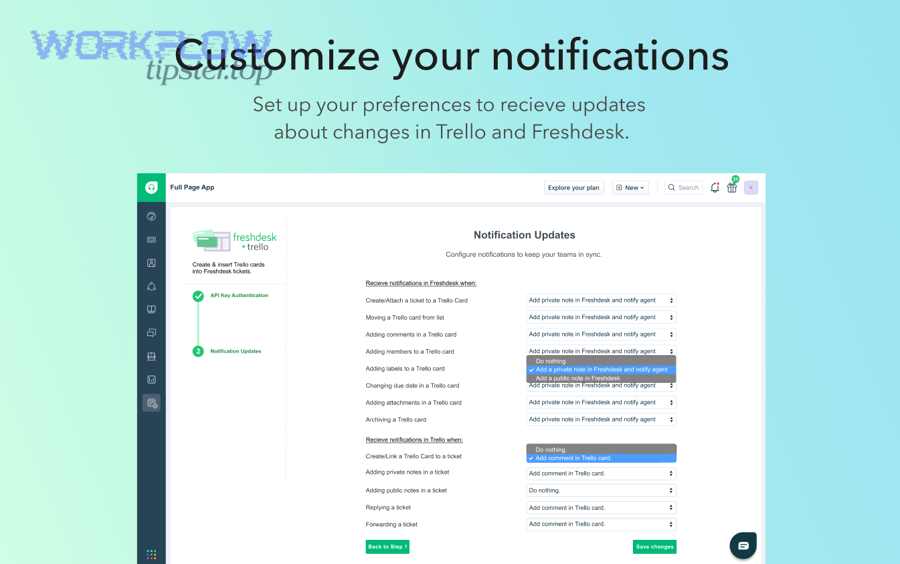
What triggers and filters should you use so only “triage-worthy” tickets create Trello cards?
There are five high-signal filters you can use—priority, group, product, keywords, and SLA risk—so the workflow creates cards only when the team truly needs a coordinated response.
Specifically, start with a simple policy you can explain to every agent:
- Priority threshold: create cards for P1/P2 only (or P3 if volume is manageable).
- Group routing: only tickets in “Technical Support” or “Escalations.”
- Product-based routing: only for products with a Trello execution pipeline.
- Keyword rules: “down,” “outage,” “payment failed,” “data loss.”
- SLA risk: create cards when SLA due time is within a defined window.
Then introduce “stop rules” to prevent noise:
- Do not create cards for tickets tagged “spam”
- Do not create cards for auto-replies or closed duplicates
- Do not create cards if a card already exists for the ticket ID
This is where your automation workflows become genuinely operational: they enforce triage policy automatically, rather than asking humans to remember it during peak load.
To keep semantic connectivity across your broader ops stack, you can apply the same “noise gate” logic to other pipelines too—like google forms to hubspot to google sheets to slack lead capture—where only qualified events should trigger notifications and record creation.
How should a Google Chat triage message be structured for speed (signal > noise)?
A Google Chat triage message should be short, scannable, and link-first, with consistent fields in a consistent order—because speed comes from instantly understanding the next action.
Next, choose one of two templates depending on urgency:
Template A: Minimal (default, low noise)
New ticket: P2 | #12345 | SubjectOwner: Triage queueTrello: <card link> | Freshdesk: <ticket link>
Template B: Rich (only for P1 / escalation)
🚨 P1 triage: #12345 | SubjectCustomer: Name / TierImpact: one-line impact statementAction: Assign owner + confirm response- Links: Trello + Freshdesk
- Optional:
@oncallmention
Google’s Workspace documentation explains that Chat supports formatted text and structured card-style UI for Chat apps, which is useful when you want consistent, readable triage messages. (developers.google.com)
You can also embed a richer “card message” approach later if you run a Chat bot, but in most teams, simple consistent text wins because it’s fast to read.
How do you prevent duplicates, loops, and broken links in ticket-to-card workflows?
You prevent duplicates and loops by enforcing idempotency (one ticket → one card), using a stable dedupe key (ticket ID), and choosing a clear sync direction—so your system updates the same card instead of creating new ones.
To better understand the failure mode, imagine what happens when you trigger on “ticket updated” without guardrails: every reply becomes a new card, every status change spams chat, and your triage board becomes unusable.
The fix is a simple control set:
- Dedupe key: Freshdesk ticket ID
- Lookup step: search for an existing card containing that ID (in title or custom field)
- Create vs. update: create only if not found; otherwise update the existing card
- Link integrity: always write both links (ticket URL + card URL) into the card description (and optionally the ticket)
If you later add two-way sync (Trello → Freshdesk updates), you must also add loop prevention:
- Mark the source of updates (e.g., “updated by automation” tag)
- Ignore updates that your automation itself caused
- Limit triggers to the smallest set of events that truly matter
Should the automation create a new Trello card every time a ticket updates?
No, because creating a new Trello card on every update causes (1) duplicate work items, (2) notification fatigue, and (3) loss of a single source of truth for the ticket’s triage history.
More importantly, triage depends on continuity. One ticket should correspond to one “work record” in Trello, and that record should evolve as the ticket evolves. The better pattern is:
- Create a card on ticket creation (or when it becomes “triage-worthy”)
- Update the same card when priority/status changes
- Notify Chat only on meaningful transitions (P1 escalation, SLA breach risk, assignment changes)
This is how you keep the system usable under load.
What’s the best practice for linking Trello cards back to the Freshdesk ticket (and vice versa)?
Best practice is to store both links in both systems so no one has to search: put the Freshdesk ticket URL on the Trello card, and store the Trello card URL back in Freshdesk (note or custom field) when possible.
Next, standardize the exact link placement:
On the Trello card (always):
Freshdesk Ticket: https://.../tickets/12345Requester: Name (Company)Priority / SLA / Product
On the Freshdesk ticket (recommended):
- Internal note:
Tracking card: https://trello.com/c/... - Or a custom field:
Trello Card URL
This creates traceability, reduces “where is the work?” questions, and helps managers audit triage throughput without chasing people in chat.
What are the most common setup problems—and how do you troubleshoot them quickly?
The most common problems fall into four buckets—triggers, permissions, mapping, and delivery—so you can troubleshoot fast by checking the bucket first, then applying a short checklist.
To begin, treat troubleshooting like a pipeline test: “Did the trigger fire?” → “Did the action run?” → “Did the data map?” → “Did the message deliver?”
Here’s a quick “symptom → cause → fix” guide:
| Symptom | Likely cause | Fast fix |
|---|---|---|
| No Trello cards created | Trigger not firing or filters too strict | Test with a known ticket; relax filters; check event type |
| Cards created in wrong list | Board/list mapping incorrect | Re-select list ID; verify default list behavior |
| Missing labels/custom fields | Field mapping mismatch | Ensure fields exist; add fallbacks for null values |
| Chat messages not posting | Bot/space permissions wrong | Re-authorize; confirm space and app permission |
| Duplicate cards | Update trigger creates instead of updates | Add lookup + dedupe key; update existing card |
Why didn’t a Trello card get created from a Freshdesk ticket?
A Trello card usually fails to create because (1) the trigger didn’t fire, (2) the filter blocked the ticket, or (3) the connector lacks permissions—so the fix is a step-by-step check from trigger to action.
Specifically, run this checklist in order:
- Trigger test: create a test ticket that clearly matches your criteria (es: P1, correct group).
- Filter check: confirm the ticket actually contains the field values you filter on (priority/product/tags).
- Credential scope: ensure the Trello account has access to the target board and list.
- Action mapping: verify board/list selection and required fields.
- Connector logs: check the last run error message (often reveals permissions or missing field).
If you want a stable baseline, use a well-documented “Freshdesk → Trello” recipe first, then layer complexity after you see consistent success. (zapier.com)
Why didn’t the Google Chat message post—or why did it post with missing details?
Chat posting usually fails because (1) the message target is wrong, (2) permissions are missing, or (3) your message template references fields that are empty—so you need to validate the space and add safe defaults.
Next, check these items:
- Correct space: confirm you’re posting to the right Chat space (not an old room).
- Authorization: if using an app/bot, re-authorize and confirm it can post.
- Template safety: if
{{requester_name}}is blank, showRequester: (unknown)instead of breaking the message. - Formatting constraints: keep messages simple; add richer cards only when you’ve validated the payload format.
Google’s documentation on Chat message formatting helps clarify what formatting is supported, which prevents templates from breaking when you add bolding, links, or structured layouts. (developers.google.com)
How can you optimize and govern support triage automation without increasing noise?
You can optimize triage automation by enforcing signal-over-noise policies, protecting sensitive data, choosing one-way vs. two-way sync intentionally, and adding advanced routing patterns—so the workflow scales across teams without turning Google Chat into a firehose.
Next, treat governance as part of the workflow, not a separate project. A triage automation that “works” but floods chat is functionally broken, because humans stop trusting it.
What are the best practices for “signal vs. noise” in Google Chat triage notifications?
Signal wins when you (1) alert only on meaningful events, (2) route messages to the smallest responsible audience, and (3) use escalation-based mentions—so people pay attention when it matters.
More specifically, apply these controls:
- Event gating: notify on “new P1/P2,” “SLA breach risk,” “escalated,” “assigned,” not on every update.
- Audience routing: product-specific tickets go to product-specific spaces.
- Mentions: reserve
@oncallor@leadfor P1 and urgent SLA risk. - Batching: summarize low-priority tickets in periodic digests instead of real-time pings.
- Threading policy: keep one ticket thread per incident to avoid fragmentation (if supported by your setup).
This same principle applies across other operational pipelines too. For example, calendly to google calendar to zoom to basecamp scheduling works best when only schedule changes that affect execution trigger notifications—otherwise, teams drown in confirmations.
How do you handle sensitive data (PII) in ticket-to-chat summaries?
You handle sensitive data by minimizing what you post, redacting risky fields, and pushing agents to click through to the ticket for full details—so Chat remains an alert surface, not a data store.
- Don’t post full email addresses, phone numbers, or private account identifiers in Chat.
- Replace sensitive values with placeholders:
Customer email: [redacted] - Include links to Freshdesk for the full record (access-controlled).
- Maintain a simple written policy: what can appear in chat and what cannot.
When should you use one-way sync vs. two-way sync between Freshdesk and Trello?
One-way sync is best for simplicity and stability, while two-way sync is best for tight operational coordination—so choose based on whether Trello actions must update customer-facing status in Freshdesk.
On the other hand, two-way sync increases the risk of loops and requires stricter governance. Use two-way only if:
- Trello status changes must update ticket status automatically.
- You have a clear source of truth for each field.
- You can mark and ignore automation-generated updates.
Otherwise, keep it one-way: Freshdesk creates/updates the card; Trello is where work happens; Freshdesk remains the customer communication record.
What advanced triage patterns improve speed (SLA-risk routing, VIP queues, intent tagging)?
There are four advanced patterns that increase triage speed without adding noise: SLA-risk routing, VIP queues, intent tagging, and escalation lanes—based on urgency and ownership.
Especially in higher-volume environments, these patterns turn triage from “first come, first served” into “right issue, right team, right time”:
- SLA-risk routing: create or escalate cards when SLA is nearing breach.
- VIP queues: route strategic accounts to a dedicated list/space with limited mentions.
- Intent tagging: classify tickets into “bug,” “billing,” “outage,” “how-to,” then route automatically.
- Escalation lanes: one list reserved for engineering escalation with strict entry rules.
According to a study by University of California, Irvine from the Department of Informatics, in 2008, interruptions and task switching increased stress and changed work patterns—supporting the idea that reducing unnecessary alerts and manual handoffs can improve operational performance. (ics.uci.edu)