


Automating support triage means you route every incoming ticket into a consistent, trackable workflow—so a new ticket becomes a task with an owner, a destination, and a clear next action, while the right team is alerted in real time.
Then, the real leverage comes from designing triage rules that decide where each ticket should go (project/section), who should own it (assignee/team), and how fast it must move (SLA and escalation).
In addition, reliable triage depends on operational details—field mapping, deduplication, and alert formatting—so you reduce noise and avoid missing critical tickets during peak volume.
Introduce a new idea: once you understand what the workflow is and how routing works, you can implement the end-to-end automation safely and choose the best integration approach for your environment.
What is an automated support triage workflow from Freshdesk tickets to Asana tasks and Microsoft Teams alerts?
An automated support triage workflow from Freshdesk to Asana to Microsoft Teams is a structured routing system that converts tickets into assigned tasks and sends actionable alerts, replacing manual handoffs with consistent execution.
Next, because “triage” often gets interpreted as “just assigning tickets,” it helps to anchor the workflow to a repeatable chain: intake → classify → prioritize → assign → track → resolve. That chain is what makes the automation measurable, not just convenient.
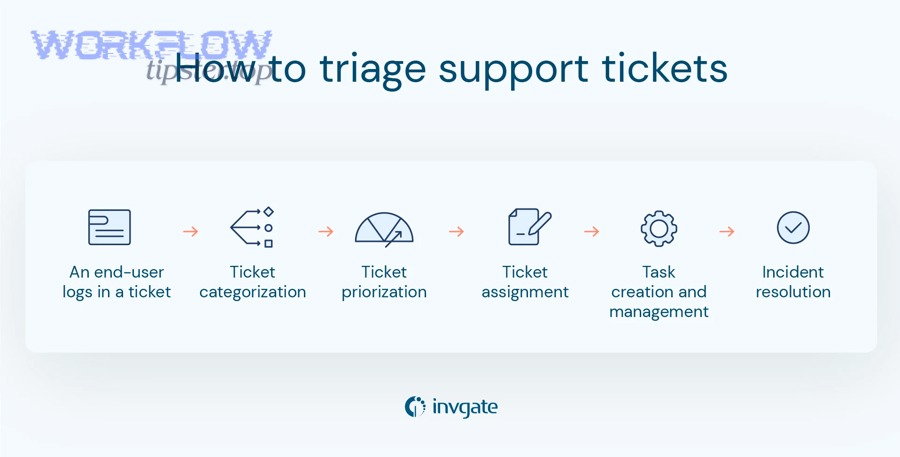
At a macro level, this workflow has five moving parts:
- Trigger: a new ticket is created (or a ticket changes status/priority).
- Transformation: ticket data is turned into a task payload (title, description, fields).
- Routing: the task is placed in the correct Asana project/section and assigned to the right owner.
- Alerting: Teams receives a message that prompts action (not just awareness).
- Lifecycle control: updates and closure rules keep tickets and tasks aligned without duplication.
The “Not Manual” part matters because manual triage forces constant context switching. When agents bounce between inboxes, ticket queues, task boards, and chat, focus fragments and follow-through becomes inconsistent. According to a study by University of California, Irvine (Department of Informatics), in 2008, interrupted work was typically resumed in about 23 minutes and 15 seconds, highlighting the hidden cost of constant disruptions. (ics.uci.edu)
What information should be captured when converting a ticket into a task?
The most practical ticket-to-task conversion captures one core storyline (what happened, who it impacts, what to do next) plus the minimum metadata needed for routing and reporting.
To illustrate, a strong task created from a ticket usually includes:
- Task title (short + actionable):
[Severity] [Product/Area] — [Problem statement]- Example:
P1 Checkout — Payments failing for EU cards
- Example:
- Task description (structured, scannable):
- Ticket link + ticket ID
- Requester/customer org + plan/tier
- Symptoms and reproduction steps
- Expected vs actual behavior
- Impact statement (users affected, revenue risk, time sensitivity)
- Attachments (logs/screenshots) or links to internal docs
- Routing fields (for consistent triage):
- Priority/severity
- Category/type (bug, incident, request, billing, access)
- Product tag(s)
- Channel (email, portal, chat)
- SLA target (if applicable)
- Lifecycle fields (to avoid “lost in transit” work):
- Owner/assignee
- Due date or SLA clock proxy
- Status/state (“Needs triage”, “In progress”, “Waiting”, “Done”)
More specifically, think of conversion as “turning an email-shaped object into an execution-shaped object.” Tickets are often narrative; tasks are operational. Your automation should translate narrative into action without losing context.
A simple mapping model that scales is:
- Ticket subject → Task name
- Ticket description + key fields → Task description
- Ticket priority/tags → Task custom fields + tags
- Ticket URL/ID → Task top-line link
This is also where you can naturally embed your “automation workflows” philosophy: every field you add should exist to support routing, ownership, or reporting—otherwise it becomes noise.
Is the goal triage speed, accountability, or both?
Yes—effective automation improves both triage speed and accountability for three reasons: it reduces manual sorting time, it forces ownership at creation, and it creates a visible trail for follow-up.
Then, the most important reason is ownership-by-default: the moment the system creates a task with an assignee (or at least a destination queue), you eliminate the “someone should handle this” gap that kills response times.
Second, automation reduces triage latency by removing human gatekeeping. Instead of waiting for an agent to read, tag, and forward, routing logic executes immediately, even outside peak staffing hours.
Third, automation strengthens accountability because work becomes measurable: you can track time-to-assign, backlog by category, and SLA risk based on task states, not just ticket timestamps.
If you want a mental model: speed is “how fast it starts,” accountability is “how reliably it finishes.” Good triage automation is designed for both.
How do you design the triage rules that decide which Asana project and assignee get each ticket?
Triage rules are a routing model that maps ticket signals (priority, category, tags, keywords, customer tier) to execution destinations (Asana project/section, assignee, and alert path) so the right team gets the right work at the right time.
To better understand why this matters, consider what happens without clear routing: teams either over-notify everyone (noise) or under-notify specialists (misses). A rule system prevents both by making the path deterministic.


At the macro level, your routing rules should answer four questions:
- Where does this ticket belong? (Which project/section/queue)
- Who owns the next action? (Assignee or triage captain)
- How urgent is it? (Priority → SLA clock → escalation)
- Who must be informed? (Teams channel/DM + mention strategy)
You can implement this with simple if/then logic at first, then evolve to richer rule sets as your ticket taxonomy matures.
What are the most common ticket-to-task routing patterns?
There are five common routing patterns for ticket-to-task triage, based on the criterion you choose to treat as “dominant” (urgency, topic, customer value, ownership, or time).
Next, here are the patterns that show up in high-performing support operations:
- Priority-first routing (Severity-driven)
- Criterion: P0/P1/P2 or “Impact × Urgency”
- Destination: Incident project/section + on-call assignee
- Alerts: Teams channel + @mention for the responder
- Works best when: outages/incidents drive the queue
- Topic/tag routing (Product/feature-driven)
- Criterion: tag = billing, auth, integrations, mobile
- Destination: product-specific project/section
- Alerts: team channel; avoid DM unless urgent
- Works best when: specialists handle narrow domains
- Customer-tier routing (Value-driven)
- Criterion: enterprise/VIP/high ARR
- Destination: “Priority Accounts” queue + named owner
- Alerts: dedicated channel for account support
- Works best when: customer experience risk is asymmetric
- Keyword routing (Signal-driven)
- Criterion: keywords like “refund”, “breach”, “downtime”, “cannot login”
- Destination: special handling queues
- Alerts: escalate only when threshold met
- Works best when: inbound quality is inconsistent
- Time-based routing (Coverage-driven)
- Criterion: business hours, region, weekend on-call
- Destination: follow-the-sun teams
- Alerts: scheduled escalations or paging integration
- Works best when: global support coverage matters
A practical way to document this is a simple “triage routing table” your team can audit and refine:
- Criteria → Asana destination → Assignee rule → Teams alert rule
This keeps your automation predictable and makes improvements easier.
Should you create one task per ticket or group related tickets into a single task?
One task per ticket wins for traceability, grouping wins for incident-style spikes, and a hybrid approach is optimal for teams that need both operational clarity and noise control.
Then, to choose correctly, compare them across three criteria: visibility, effort, and signal quality.
One-to-one (one ticket → one task)
- Pros:
- Best audit trail (every ticket has a task)
- Clear ownership and accountability
- Easier SLA tracking per customer request
- Cons:
- Can overwhelm Asana during spikes
- Increases Teams alert volume if not filtered
Many-to-one (many tickets → one task)
- Pros:
- Reduces duplicates during incidents (“same root cause”)
- Cleaner reporting for bug-fix or outage work
- Cons:
- Loses per-ticket ownership detail
- Requires extra discipline to link tickets to the parent task
Hybrid (recommended for most teams)
- Use one-to-one for normal flow
- Switch to many-to-one during recognized incidents (via tag like
incident) - Automate linking: add ticket IDs as subtasks/comments or maintain a “related tickets” field
If you’ve ever seen a queue melt down during a production outage, you know why hybrid helps: it keeps the team focused on root cause while still recording customer impact.
How do you implement the workflow end-to-end without creating duplicates or missing alerts?
You implement the workflow end-to-end by connecting the systems, mapping ticket fields into task fields, adding conditional routing, and enforcing deduplication and alert hygiene so every ticket creates one correct task and one useful notification.
Below, the safest way to think about implementation is “build the rails first, then add speed.” Rails are dedupe rules, loop prevention, and message formatting. Speed is the automation itself.
A robust implementation typically follows these steps:
- Choose the trigger
- Best default: “new ticket created”
- Secondary triggers: priority changed to P1, status changed to “Escalated”
- Normalize ticket data
- Convert priority names to a consistent scale
- Ensure category/tags exist (even if “Uncategorized”)
- Map fields into the task payload
- Title + structured description + custom fields
- Always include the ticket link/ID
- Route task destination
- Select project/section and assignee based on your rule set
- Send Teams alert
- Decide channel vs DM
- Include a clear call-to-action
- Write back identifiers (critical for dedupe)
- Store Asana task URL/ID in the ticket
- Test with real scenarios
- Normal ticket, VIP ticket, incident spike, attachments, reassignment
- Monitor and iterate
- Track duplicates, misses, noise rate, and SLA drift
If you’re using a no-code automation layer, you’ll often see a claim that integrations can run quickly; for example, Zapier positions Asana–Freshdesk connections as fast to set up and trigger-based. (zapier.com)
What “deduplication rules” prevent multiple Asana tasks for the same Freshdesk ticket?
Deduplication works when you treat the Freshdesk ticket ID as a unique key and enforce a “check-before-create” rule, supported by a write-back field that stores the created task reference.
Then, you can implement the most reliable dedupe pattern with three layers:
Layer 1: Write-back ID (the anchor)
- After creating the task, store the Asana task URL/ID into the ticket (custom field or private note).
- On future triggers (updates, reopens), your automation checks this field first.
- If it exists, update the existing task instead of creating a new one.
Layer 2: Idempotent create logic (the safety net)
- If the workflow retries due to a transient error, it should not create a second task.
- Practical approach: search Asana for an existing task containing the ticket ID in the title/description (e.g.,
[FD-12345]). - If found, stop or update.
Layer 3: Trigger discipline (the noise guard)
- Avoid triggering “create task” on every update.
- Use “create” only on new ticket (or first escalation).
- Use “update task” on status/priority changes.
A simple checklist you can hand to your team:
- Do we store task ID back into the ticket?
- Do we search before creating when task ID is missing?
- Do we separate create triggers from update triggers?
This is one of those rare “small decisions, huge consequences” areas: without dedupe, your task board becomes an unreliable mirror, and people stop trusting it.
How do you format Microsoft Teams alerts so they drive action instead of noise?
Teams alerts drive action when they include a clear priority signal, a direct link to the ticket/task, an explicit owner, and a next step—while suppressing low-value updates.
Moreover, this is where most teams unintentionally sabotage automation: they treat alerts as “FYI,” not “Do this now.” A triage alert is an instruction, not a broadcast.
A high-signal Teams alert includes:
- Severity badge:
P1 / Urgent(or emoji + label) - One-sentence summary of the issue
- Ticket link and task link
- Assigned owner (name or role)
- Next action: “Acknowledge within 10 minutes” / “Assign to Billing queue”
- Mention policy:
- @mention only for P0/P1 or SLA breach risk
- No mentions for low priority updates
Channel vs DM :
- Channel is best when:
- multiple people collaborate (incident triage, shared queues)
- you want visibility and shared context
- DM is best when:
- a single owner must act quickly
- you want accountability without flooding channels
Threading and updates:
- Post the initial alert to a channel
- Post subsequent updates as replies in the same thread (where possible)
- Suppress “chatter updates” (e.g., internal notes, minor field edits)
If you’re connecting Teams notifications from platform integrations, note that both Freshworks and Asana describe Teams integrations focused on surfacing ticket or notification context inside Teams. (support.freshdesk.com)
And if you want a real-world framing for noise control, consider how many automation scenarios compete for attention: you might already run “calendly to outlook calendar to microsoft teams to basecamp scheduling” for meetings, so your Teams channels can get saturated quickly. The only way triage alerts remain effective is if they are consistently higher signal than the average post.
Which integration approach should support teams choose: native connector, automation platform, or custom API?
A native connector wins in speed, an automation platform is best for branching logic, and a custom API is optimal for governance and scale—so the right choice depends on whether your priority is simplicity, flexibility, or control.
However, the selection is not “tool preference.” It is an operational decision about reliability, auditability, and total maintenance cost.
To make the choice objective, compare across six criteria:
- Time to launch
- Routing complexity (simple vs advanced branching)
- Bidirectional needs (one-way vs two-way sync)
- Observability (logs, replay, tracing)
- Security/governance (PII, retention, least privilege)
- Scale and failure modes (rate limits, spikes, retries)
A short comparison table helps stakeholders align (and prevents “we picked X because we already use it” decisions):
Table context: The table below compares common integration approaches by best-fit use case and the primary trade-off you must accept.
| Approach | Best for | Trade-off you must accept |
|---|---|---|
| Native/marketplace connector | Simple workflows, fast rollout | Limited branching + rigid mappings |
| Automation platform (no/low-code) | Multi-step routing + enrichment | Another layer to monitor and pay for |
| Custom API integration | Regulated, high-scale, deep governance | Engineering build + ongoing ownership |
This is also where your “Workflow Tipster” voice can shine in the article: treat the decision as a repeatable framework, not a one-off guess.
When is a marketplace/native connector the best choice?
Yes—using a marketplace or native connector is the best choice when you need to ship quickly, your routing rules are straightforward, and you can accept standardized field mapping for three reasons: speed to deploy, lower maintenance, and fewer moving parts.
Next, the most important reason is operational simplicity: fewer systems in the middle means fewer failure points, which is crucial when support must run even during internal chaos.
Second, connectors often offer “happy path” features like basic linking and notifications without requiring you to design an entire workflow engine.
Third, support leaders can own improvements without waiting on engineering roadmaps.
This is also where integration documentation becomes your friend; for example, Freshdesk’s Teams app documentation emphasizes bringing ticket context into Teams for collaboration. (support.freshdesk.com)
When do you need an automation platform instead of a native connector?
Yes—you need an automation platform when your triage requires branching conditions, multi-step enrichment, and cross-tool orchestration for three reasons: conditional routing, data normalization, and multi-destination alerting.
Then, the most important reason is branching logic: if ticket type, customer tier, and keyword signals all influence routing, a simple connector typically can’t express that decision tree cleanly.
Second, automation platforms support enrichment, such as:
- pulling customer tier from CRM
- mapping product area from internal taxonomy
- attaching playbook links based on ticket category
Third, they enable cross-workflow consistency when your org runs multiple automations. For example, you might also have “freshdesk ticket to trello task to google chat support triage” in parallel for a different team or legacy system—an automation layer can standardize how routing rules are applied across both workflows, even if the destination tools differ.
When is custom API integration justified?
Yes—custom API integration is justified when you require strict governance, advanced reliability controls, and bespoke workflow behavior for three reasons: compliance, scale, and observability.
Besides, custom builds become attractive when support operations are mission-critical and failures are expensive. With custom integration, you can implement:
- Stronger idempotency guarantees (no duplicates under retries)
- Queue-based execution (smooth out ticket spikes)
- Deep observability (trace every event from ticket to task to alert)
- Privacy-by-design controls (mask or redact fields before Teams posting)
- Tenant-aware routing (multi-brand or multi-region environments)
But the trade-off is real: you must own monitoring, on-call response, API versioning, and security patching. In short, custom integration can be “best” only when your organization is prepared to operate it like a product.
How do you troubleshoot and optimize Freshdesk → Asana → Teams triage automation when alerts fail or duplicates appear?
You troubleshoot and optimize triage automation by verifying permissions and triggers, inspecting execution logs, tightening deduplication, and redesigning alert rules so the system produces one task per ticket and only the highest-signal notifications reach Teams.
To begin, treat failures as belonging to one of four categories: delivery, logic, identity, or noise. Delivery is “it didn’t send.” Logic is “it routed wrong.” Identity is “it duplicated.” Noise is “it sent too much.”
Why are tasks or alerts missing even though tickets are created?
Missing tasks or alerts usually come from permissions gaps, trigger mismatch, filtering logic, or token/rate-limit failures—so you diagnose by validating the chain from trigger to action.
Next, use this diagnostic checklist in order:
- Trigger fired?
- Confirm the ticket event actually matches your trigger (new ticket vs status update).
- Check whether conditions accidentally exclude the ticket (tag missing, wrong priority).
- Authentication valid?
- OAuth/token expired or lacks scope to create tasks or post messages.
- Teams channel permissions may block bots/apps from posting.
- Routing logic correct?
- If your rules depend on custom fields, verify those fields are populated at ticket creation time.
- If not, add a “default route” (catch-all) so tickets never vanish.
- Destination exists?
- Asana project/section IDs can change if projects are duplicated or archived.
- Teams channel IDs can change if channels are recreated.
- Rate limits or transient failures?
- Look for retry behavior.
- Ensure errors are visible somewhere (email alerts, dashboard, logs).
If you rely on native integrations, it also helps to understand what the integration promises; for example, Asana’s Microsoft Teams integration documentation references receiving Asana notifications within Teams for certain customers, which frames what “expected behavior” should look like. (help.asana.com)
How do you stop duplicate tasks and notification loops?
You stop duplicates and loops by enforcing a ticket-ID anchor, separating create vs update triggers, and blocking “write-back events” from retriggering the workflow.
More importantly, you should assume loops will happen the moment you add bidirectional behavior. A classic loop looks like this:
- Ticket update → task update → ticket update → task update → …
To prevent that, implement three concrete controls:
1) Write-back marker (loop breaker)
- Add a field like
Last updated by automation = true/falseor store a “source” label. - Your automation ignores events that originated from itself.
2) One create trigger only (duplicate blocker)
- Only “new ticket created” can create a task.
- All other events can only update the same task referenced in the ticket.
3) Notification throttling (noise limiter)
- Post Teams alerts only on state transitions:
- New P1/P0 ticket
- Assignment change
- SLA breach risk
- Ticket reopened
- Suppress: internal notes, minor field changes, cosmetic updates.
This is the practical meaning of “Not Manual”: automation replaces manual triage without replacing human judgment. Humans decide the rules; automation executes them consistently.
What governance and privacy practices keep support triage secure in Teams alerts?
Secure triage in Teams requires least-privilege access, careful channel selection, and intentional data minimization so sensitive ticket details don’t become broadly visible.
Then, implement governance with a simple three-layer approach:
Layer 1: Control where alerts go
- Use private channels for customer-specific or sensitive queues.
- Avoid posting full ticket bodies into general channels.
Layer 2: Control what alerts contain
- Redact PII (phone, address, full email content)
- Post a summary + link instead of raw text
- Use classification tags like “Confidential” when appropriate
Layer 3: Control who can act
- Ensure only authorized users can access linked tickets/tasks.
- Restrict app permissions and audit who installed integrations.
A helpful internal policy is: Teams is for coordination; the ticketing system is the system of record. Alerts should pull people to the system of record, not leak the record into chat.
And if your organization already runs other document-heavy automations—like “airtable to google slides to onedrive to dropbox sign document signing”—privacy discipline becomes even more important, because Teams channels can become a high-visibility surface area for accidental oversharing.
How do you scale triage automation for high-volume support without hitting API limits?
Scaling triage automation works best when you reduce trigger frequency, batch low-priority work, and prioritize high-severity events—so spikes don’t create a cascade of retries and duplicates.
In addition, compare the two main scaling strategies:
Event-driven (real-time)
- Best for: P0/P1, high urgency
- Risk: burst traffic during incidents can trip rate limits
- Control: throttling + backoff + priority queues
Batching (interval-based or grouped)
- Best for: low priority tickets, routine requests
- Risk: slower time-to-assign
- Control: scheduled runs + consolidated alerts
Practical scaling tactics that preserve signal:
- Create fewer alerts than tasks (alerts are the bottleneck, not task creation)
- Aggregate low-priority alerts into a digest post (hourly)
- Escalate by exception (only when SLA threshold approaches)
- Use a “shadow triage” mode when launching new rules:
- run automation that labels or logs proposed routing
- do not create tasks or send alerts until accuracy is validated
Finally, if you want a narrative “north star” for scale: the goal is not maximum automation—it’s stable operations. Automation should keep working on your worst day (incident spike), not just your average day.
According to Zapier’s Asana–Freshdesk integration positioning, the connection runs on trigger-based behavior, which reinforces why controlling trigger volume and routing rules matters during spikes. (zapier.com)