


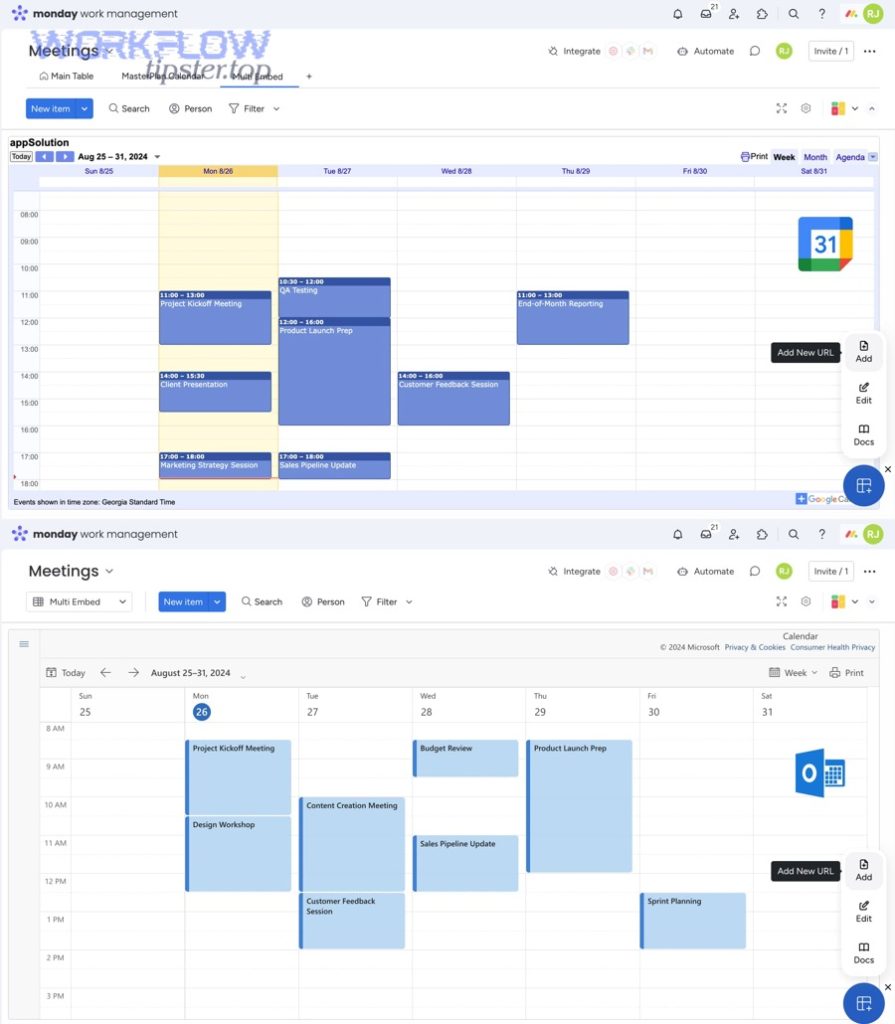
Automating Google Calendar to monday.com sync means your team stops retyping schedules and starts letting events and deadlines flow into a board as structured work—so dates stay current, owners stay accountable, and project timelines stay visible without manual updates.
Next, you’ll see how to connect the tools cleanly, choose what data should map (event time, title, attendees, notes), and create practical automations that turn meetings into actionable items rather than “calendar-only” commitments.
Then, you’ll learn how to decide between one-way and two-way sync based on your team’s reality—who edits what, where the source of truth should live, and how to avoid the chaos that happens when updates bounce back and forth.
Introduce a new idea: once the sync is running, the real win comes from reliability—preventing duplicates, handling recurring events, and keeping timezones and permissions consistent as your team scales.
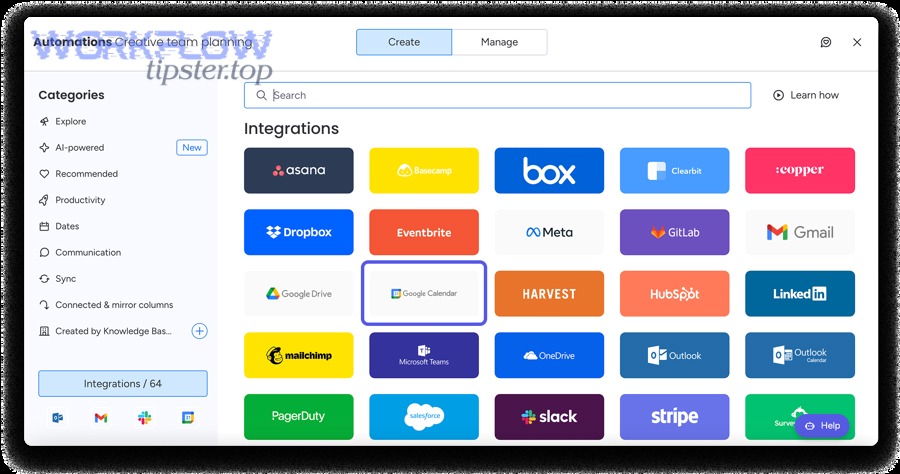
What does “Google Calendar to monday.com sync” mean for project teams?
Google Calendar to monday.com sync is a workflow connection that turns calendar events into structured work data (or vice versa) so project teams can plan, track, and update schedules inside a board without copying details manually.
To better understand why this matters, it helps to separate what “sync” truly does from what people expect it to do—because clarity here prevents broken workflows later.
A project team typically uses Google Calendar for time-bound commitments (meetings, milestones, reminders) and monday.com for work-bound commitments (tasks, owners, statuses, deliverables). Syncing them is not about making everything the same; it’s about deciding which system should own which facts and then mapping the right fields so your process stays consistent.
When you design the sync intentionally, you get three macro outcomes: visibility (the board shows what’s coming up, not just what’s assigned), accountability (each event becomes a trackable item with an owner and status), and continuity (schedule changes update work plans without rework).
What data can be synced between Google Calendar events and monday items?
There are 6 main categories of data that can be synced between Google Calendar and monday.com: event timing, event identity, event context, people, location, and work metadata—based on how consistently each field can be mapped into board columns.
More specifically, the most common clean mappings look like this:
- Event timing (highest value, easiest mapping)
- Start date/time → monday Date column
- Start–end range → monday Timeline column
- All-day event → date-only item (with a clear “All-day” indicator)
- Event identity (needed for updates)
- Event title → monday Item name
- Event ID (if available through your integration tool) → hidden reference field for deduping
- Event context (helps your team act)
- Description/agenda → monday Long Text column
- Meeting link → monday Link column
- People (useful, but depends on permission + structure)
- Organizer → monday People column (owner)
- Attendees → monday People or a text list (team-dependent)
- Location (nice-to-have, not always stable)
- Location field → monday text field
- Work metadata (this is where monday wins)
- Status (“Scheduled / Needs prep / Done”) → monday Status column
- Priority, project, tags → monday Dropdown / Tags columns
To make this practical, here’s a simple mapping table your team can copy as a starting point. It shows what the table contains: common Google Calendar event fields and the monday.com column type that most reliably holds each one.
| Google Calendar field | Best monday.com target | Why it works |
|---|---|---|
| Title | Item name | Fast scanning + consistent identification |
| Start time | Date column | Deadline-style workflows |
| Start–end time | Timeline column | Scheduling + resource planning |
| Description | Long Text | Preserves agenda and context |
| Meeting link | Link column | One-click access during execution |
| Organizer | People | Ownership and accountability |
| Location | Text | Works for in-person and hybrid events |
Why do teams automate this instead of updating monday manually?
Automation wins for speed, consistency, and trust, while manual updating is best only when the workflow changes constantly, ownership is unclear, or the team is too small to justify setup overhead.
However, when projects scale, manual updates create predictable failure points: dates drift, meetings don’t become action items, and plans live in different places. An automated sync reduces those gaps by pushing changes through the system the moment they happen.
The “not manual” payoff is usually visible in three ways:
- Fewer missed handoffs: a meeting becomes an item with an owner instead of a calendar entry no one tracks.
- Less administrative drag: PMs stop spending time copying dates and retyping agendas.
- Cleaner accountability: the board reflects reality, which makes standups and reporting faster.
Evidence (if any): According to a study by the University of California, Irvine from the Department of Informatics, in 2008, participants completed an email task faster in interrupted conditions (about 20.31–20.60 minutes) than in the uninterrupted baseline (22.77 minutes), but the researchers noted the tradeoff of higher stress and time pressure—showing why reducing extra coordination work matters in real workflows.
How do you set up Google Calendar to monday.com integration step-by-step?
Setting up Google Calendar to monday.com integration is a structured process of connecting accounts, choosing a board and calendar, mapping fields, and testing a small sync so events reliably create or update items without duplicates or permission failures.
Next, you’ll want to approach setup like a systems designer: define the source of truth first, then connect tools, then map columns, and only then automate at scale.
Before you click anything, align on two decisions:
- What is the source of truth for dates? (Calendar or board)
- What should happen when a date changes? (Update item, create a new item, or notify only)
Once those are clear, the setup becomes straightforward.
Step 1: Prepare your monday board for calendar data
- Create or confirm a board that represents work units (meetings to prepare for, milestones, client calls, launches).
- Add columns that match what you plan to sync:
- Date or Timeline (choose based on whether you need end times)
- Status (Scheduled / In progress / Done)
- People (Owner)
- Long Text (Agenda/notes)
- Link (Meeting link)
Step 2: Identify the calendar scope
- Choose one calendar, not all calendars, for the first version.
- If your team uses shared calendars, confirm access and ownership.
Step 3: Connect and authorize
- Use the integration method your team trusts (native integration or an automation platform).
- Authenticate with the account that has stable access (often a team-owned service account for consistency).
Step 4: Map and test
- Map a few fields first (title + date/timeline + link).
- Run a test with 3–5 events.
- Confirm updates behave correctly (edit the event time, see what changes in monday).
Step 5: Roll out gradually
- Add more mappings (attendees, agenda, status logic).
- Expand to more calendars only after the first workflow is stable.
Which permissions and access settings do you need to connect safely?
There are 5 essential permission checkpoints for a safe Google Calendar → monday.com integration: calendar access level, account type, admin approval, board permissions, and least-privilege scopes—based on who can create and edit data in each system.
To illustrate, here’s what to verify:
- Calendar access level
- The connecting account must be able to view event details (not just free/busy) if you want titles, descriptions, and links.
- Account type stability
- Personal accounts are easy but fragile (password changes, MFA resets).
- A team-managed account is more stable for ongoing operations.
- Admin approval / security controls
- Some organizations require admin consent for integrations.
- If you’re blocked, it’s usually not a bug—it’s policy.
- monday board permissions
- The integration account needs permission to create and edit items in the target board.
- If it can’t edit, updates will fail silently or partially.
- Least-privilege scopes
- Grant only what you need: reading events vs managing events, board edits vs full workspace access.
- This reduces risk and makes approvals easier.
How do you map calendar fields to monday columns correctly?
Correct mapping means each Google Calendar field is assigned to a monday column that can store it consistently, update it predictably, and stay readable for humans—without turning your board into a messy copy of the calendar.
Specifically, mapping works best when you start with the non-negotiables (title + time) and only add extra fields that improve actionability.
Use these mapping rules to avoid future cleanup:
- Use Timeline when end time matters. If meetings are the work unit, Timeline is often better than Date.
- Use Date when the event is a deadline. Milestones, launches, and due dates usually fit a Date column.
- Store agenda in Long Text, not updates. Long Text preserves detail without cluttering activity logs.
- Convert attendees into ownership. Most teams don’t need every attendee as a People field; they need one owner.
- Name items for scanning. A good item name is “Client Review — Project X” rather than “Meeting.”
If you want a simple, scalable naming convention, try:
- [Meeting type] — [Project/Client] — [Outcome]
Examples:
- “Kickoff — Website Redesign — Next Steps”
- “Weekly Sync — Marketing — Priorities”
This keeps your board searchable and reduces duplicates when events recur.
Is the native sync one-way or two-way—and what does that change?
No—most teams should assume the default/native sync behaves like a one-way flow unless they explicitly configure a two-way method, because it reduces conflicts, prevents update loops, and keeps one source of truth for scheduling decisions.
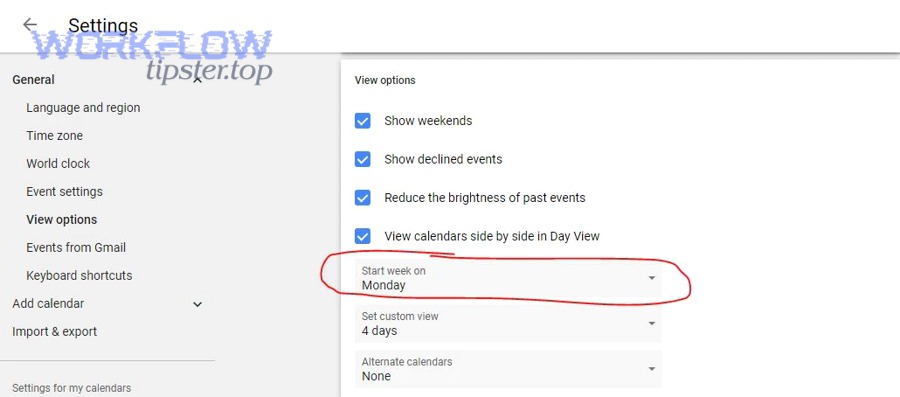
However, “one-way vs two-way” is not a technical detail—it’s a workflow decision that changes how your team edits dates, handles cancellations, and manages accountability.
Here’s what changes immediately when you choose the direction:
- Where people are allowed to edit: Calendar only, board only, or both.
- How conflicts are resolved: One-way avoids conflicts; two-way requires rules.
- How duplicates happen: Two-way can create loops if you don’t control triggers.
To keep this concrete, use this decision filter:
- If the calendar is the schedule, choose one-way into monday for visibility and execution.
- If monday is the plan, choose one-way into Calendar for time-blocking.
- Only choose two-way if you have clear rules about ownership and deduping.
What is the difference between one-way sync and two-way sync for scheduling?
One-way sync wins in stability, two-way sync is best for flexibility, and manual-only is optimal for highly custom workflows where every event is unique and exceptions are constant.
Meanwhile, here’s how they differ across the criteria teams actually feel:
- Stability
- One-way: fewer failures because only one system pushes updates
- Two-way: more moving parts, more edge cases
- Ownership
- One-way: clear source of truth
- Two-way: shared ownership, which can cause ambiguity
- Change management
- One-way: edits happen in one place; the other reflects them
- Two-way: edits in either place must be translated reliably
- Risk of duplicate items/events
- One-way: low risk (if the integration uses consistent IDs)
- Two-way: higher risk unless you have loop prevention rules
If you want a quick rule of thumb:
- One-way = operational clarity
- Two-way = operational negotiation
When should you choose one-way sync instead of two-way sync?
Yes—you should choose one-way sync instead of two-way sync when you need governance, predictability, and low-maintenance reliability, because it minimizes duplicates, reduces conflict resolution work, and keeps your process consistent across editors.
In addition, one-way is the better choice in these common situations:
- Many editors touch the calendar (multiple teams schedule meetings).
- High volume calendars (dozens of events per day).
- Compliance environments where only certain accounts can change schedules.
- Recurring meetings where exceptions happen often and two-way logic breaks.
- Distributed teams where timezones cause confusion if edits bounce around.
If your team says, “We just want the board to reflect the schedule,” one-way is almost always the correct first version—and you can always evolve later.
What automations can you build between Google Calendar and monday.com?
There are 7 practical automation patterns you can build between Google Calendar and monday.com: event-to-item creation, event-to-item updates, item-to-event creation, item-to-event updates, status-based scheduling, reminder workflows, and exception handling—based on whether you’re turning time commitments into work commitments or the reverse.
Below, let’s explore the automations that produce the highest project execution value first, because that’s where teams feel the benefit fastest.
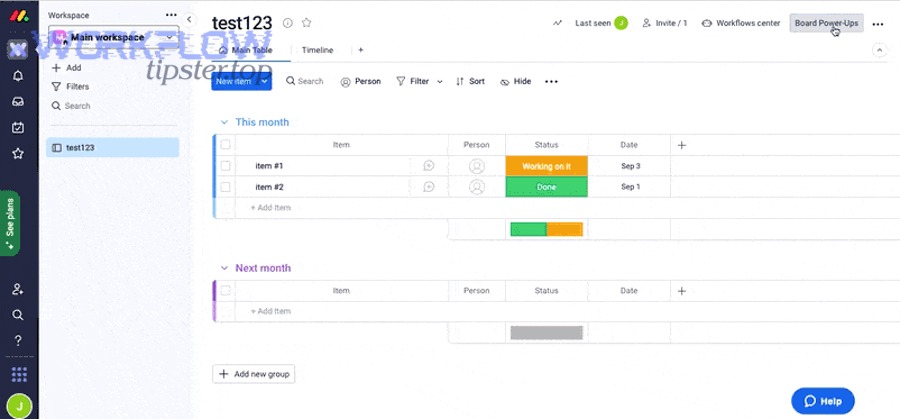
Before we dive in, here’s a helpful framing: these are Automation Integrations—the same class of workflow logic you might use for airtable to zoho crm pipelines or google docs to pandadoc document handoffs, but applied to scheduling and execution. The goal is the same: move reliable data across systems so humans focus on decisions, not copying.
Which “event → item” workflows are most useful for project teams?
There are 5 high-impact event → item workflows for project teams: create prep tasks, create deliverable tasks, update timelines automatically, assign owners based on calendar rules, and capture meeting outcomes—based on turning scheduled time into executable work.
Specifically, these workflows solve the most common calendar drift problem: meetings happen, but work doesn’t move.
- Create an item when a meeting is created
- Trigger: New event with a keyword (e.g., “Kickoff”, “Review”, “Client”)
- Action: Create item in a “Meetings” group with Date/Timeline filled
- Update the monday timeline when the meeting time changes
- Trigger: Event rescheduled
- Action: Update timeline/date column so the board stays accurate
- Assign an owner based on organizer or calendar
- Trigger: Event created on a specific calendar (e.g., “Client Success”)
- Action: Set People column to the default owner
- Create a prep checklist subitem set
- Trigger: Event created
- Action: Create subitems like “Agenda”, “Slides”, “Pre-read”, “Questions”
- Capture meeting link + agenda automatically
- Trigger: Event created/updated
- Action: Save meeting link and description into columns for quick access
A simple best practice: decide whether the event creates a task or a container.
- If the meeting itself is work: the item is the meeting.
- If the meeting produces work: the item is the container and subitems are tasks.
Which “item → event” workflows reduce scheduling friction?
There are 4 item → event workflows that reduce scheduling friction: create an event when status becomes scheduled, update the event when the timeline changes, cancel the event when the item is closed, and generate calendar blocks for deep work—based on turning execution plans into real time blocks.
For example, project teams often plan in monday but forget to time-block. These workflows fix that gap:
- Create a calendar event when a task is marked “Scheduled”
- Trigger: Status changes to Scheduled
- Action: Create event with item name + timeline + owner
- Update the event when the board timeline changes
- Trigger: Timeline updated
- Action: Reschedule the calendar event (keeps reality aligned with the plan)
- Cancel or mark event optional when item is Done
- Trigger: Status changes to Done/Closed
- Action: Update or cancel the event to reduce clutter
- Create focus blocks from priority items
- Trigger: Priority set to High
- Action: Create time blocks for the owner to execute
If you embed one video in this article, it should clarify the mental model—calendar as time, board as work—so your team aligns on workflow ownership before building rules.
Evidence (if any): According to a study by Stanford University’s Human-Computer Interaction group, in 2021, analysis of remote-meeting telemetry found that about 30% of meetings involved email multitasking—showing why turning meetings into structured, trackable items can reduce in-meeting drift and improve follow-through.
How do you keep the sync reliable and avoid duplicates or missed updates?
You keep Google Calendar ↔ monday.com sync reliable by enforcing one source of truth, using stable identifiers for deduping, limiting triggers, testing with a sandbox board, and monitoring failures—so updates happen predictably instead of creating duplicate items or silent gaps.
Moreover, reliability is not set it and forget it; it’s a small set of operational rules your team follows consistently.
Think of reliability as three layers:
- Design reliability (before launch)
- Choose one-way vs two-way intentionally
- Define naming conventions and mapping rules
- Decide what counts as a new event vs an update
- Operational reliability (during use)
- Monitor for failures (permission expired, mapping changed)
- Use a weekly check for duplicates
- Keep a fallback manual process for critical workflows
- Scale reliability (as you add calendars/teams)
- Expand one calendar at a time
- Document who edits where
- Train new users on the source-of-truth rule
What are the most common sync problems and how do you fix them?
There are 7 common sync problems and fixes: expired authorization, wrong calendar scope, timezone drift, recurring event exceptions, duplicate creation loops, missing permissions, and brittle mappings—based on why the integration fails at the account, data, or logic level.
Specifically, here’s what to do when each one shows up:
- Authorization expired
- Symptom: sync stops updating; new events don’t appear
- Fix: re-authenticate; switch to a team-managed account if it happens often
- Wrong calendar selected
- Symptom: it works but shows the wrong events
- Fix: limit scope to one calendar; rename calendars clearly (“CS – Client Calls”)
- Timezone drift
- Symptom: events appear one hour off or shift after DST changes
- Fix: standardize workspace timezone; store times in Timeline; confirm all-day event rules
- Recurring event exceptions break updates
- Symptom: one instance changes but monday creates a new item
- Fix: ensure the integration tracks event instance IDs (or use update-only logic for recurring series)
- Duplicates from looped triggers (two-way sync)
- Symptom: item creates event, event creates item, repeat
- Fix: add a “Created by automation” flag; prevent triggers when that flag is true
- Missing permissions
- Symptom: partial sync (title comes through, but details don’t)
- Fix: upgrade calendar access from free/busy to full details; verify board edit rights
- Brittle mappings after board changes
- Symptom: automation fails after someone edits columns
- Fix: lock critical columns; document “do not rename” fields used by integration
A practical reliability tip: create a “Sync Health” group in monday with a simple weekly checklist item:
- Check last 7 days for duplicates
- Confirm next 5 events exist as items
- Verify timeline updates still propagate
How do you validate that your automation is working before rollout?
You validate the automation by testing a controlled set of events in a sandbox board, forcing typical changes (reschedule, cancel, edit title), confirming updates happen in place, and documenting expected behavior—so rollout doesn’t create hidden mess at scale.
Then, treat validation like a mini launch, not a quick click-through.
Use this validation sequence:
- Create a sandbox board
- Clone your real board structure, but keep it isolated
- Create 5 test events
- One single event
- One all-day event
- One recurring event
- One event with a meeting link
- One event moved across days
- Run change tests
- Edit the event title → confirm the item name updates (or stays stable if you chose that rule)
- Move time by 30 minutes → confirm timeline shifts
- Cancel the event → confirm the item is closed, tagged, or updated according to your policy
- Run failure tests
- Temporarily remove board permission → confirm you can detect failure
- Rename a mapped column → confirm you know what breaks and how to fix it
- Write the user rules
- One paragraph is enough:
- Edit times in Calendar only.
- Don’t rename mapped columns.
- Recurring meetings use one item; exceptions get notes.
- One paragraph is enough:
Evidence (if any): According to a study by the University of California, Irvine from the Department of Informatics, in 2008, interrupted-task conditions showed faster completion times without higher error counts in their email-task experiment—suggesting that people often compensate by speeding up, which can increase stress; a reliable sync reduces the need for constant compensating behavior and coordination speed-ups.
What edge cases break Google Calendar ↔ monday.com sync, and how do you prevent them?
Edge cases break Google Calendar ↔ monday.com sync when recurring events behave differently than single events, timezones shift across users, two-way rules create loops, or enterprise permissions block data—so prevention means designing guardrails for recurrence, identity, and governance.
In addition, these edge cases usually appear only after you scale beyond one team, which is why handling them proactively keeps your workflow clean.
To keep this micro-semantic layer useful, focus on four rare but costly failure modes:
- Recurring events with exceptions
- Two-way loop behavior
- Timezone normalization
- Enterprise security constraints
How do you handle recurring events and exception instances without creating duplicates?
Recurring series updates are best handled by updating a single “series item,” while exception instances are best handled by logging changes or creating subitems—because treating every instance as a brand-new task creates duplicates and destroys reporting clarity.
Meanwhile, what makes recurring events tricky is that they can behave like three different objects:
- The series (the repeating pattern)
- The instance (a single occurrence)
- The exception (a modified occurrence)
To prevent duplicates, apply one of these stable policies:
- Policy A: Series-as-item (recommended for recurring team meetings)
- One monday item represents the recurring meeting
- The Timeline holds the next occurrence
- Exceptions are logged in updates or subitems
- Policy B: Instance-as-item (recommended for client calls with unique outcomes)
- Each occurrence becomes an item
- The integration must track instance IDs to update in place
- Naming must include date to avoid collision (e.g., “Client Review — Jan 30”)
If your integration tool can’t reliably track instance identity, Policy A is safer because it reduces the chance of new item per exception duplication.
How do you prevent two-way sync loops and ping-pong updates?
You prevent two-way sync loops by tagging automation-created records, filtering triggers so they don’t re-trigger on automated changes, and enforcing a single edit surface for each field—so the system doesn’t bounce updates between calendar and board endlessly.
More importantly, loop prevention is not a nice-to-have; it is the core requirement of two-way sync.
Use these loop-control mechanisms:
- Automation flag column
- Add a checkbox or status: “Created by sync”
- Rule: if Created by sync = true, do not trigger create new actions
- Field ownership rules
- Calendar owns: start/end time (or time blocks)
- monday owns: status, priority, owner, deliverables
- Update-only vs create-only separation
- One automation creates items
- Another automation updates items
- Avoid create on update logic
- Deduplication key
- Store an event ID (or a constructed key like title+date+calendar name)
- If key exists, update; if not, create
If you apply even two of these (flag + field ownership), most ping-pong loops disappear.
How do you manage timezones and timelines across distributed teams?
There are 4 timezone management strategies: standardize workspace timezone, prefer timeline columns for time specificity, define all-day event behavior, and document DST expectations—based on how time is stored, displayed, and edited across users.
Specifically:
- Standardize workspace timezone
- Choose the operational timezone (often HQ or the PMO timezone)
- Ensure board settings match
- Use Timeline when times matter
- Timeline reduces ambiguity compared to date-only columns
- It also visually communicates duration
- Define all-day event rules
- Decide whether all-day = deadline day or busy day
- Store a clear label so the team doesn’t assume a time exists
- Document DST behavior
- DST shifts are predictable but often forgotten
- A one-sentence reminder in your workflow doc prevents confusion
A simple team habit: if an event is mission-critical, store the time in the item title too (“Launch Call 2:00 PM ET”) so screenshots and exports preserve context.
What should enterprise teams do about security, admin approvals, and permission scope?
Enterprise teams should use least-privilege permissions, admin-approved integration methods, team-managed accounts, and clear audit ownership—because these reduce security risk, prevent unexpected access loss, and make the sync dependable under policy constraints.
Especially in regulated environments, “it works on my account” is not a deployment strategy. Instead, treat integration like infrastructure:
- Use a managed integration account
- Owned by IT or Ops, not an individual contributor
- Request admin consent once, intentionally
- Document scopes and why they’re needed
- Keep the scope minimal for faster approvals
- Separate boards by sensitivity
- Don’t push confidential meeting details into broad-access boards
- Use board permissions as a control layer
- Create an audit trail
- Track which automations create items
- Keep a sync change log process (even if it’s lightweight)
When enterprise constraints are handled upfront, the integration stops being a fragile convenience and becomes a stable system your team can trust.