


If your team lives in Google Calendar but meets in Microsoft Teams, you can connect the two so you can schedule and join Teams meetings directly from a Google Calendar event—without copying links, switching apps, or re-inviting people. The most direct path is the Microsoft Teams Meeting add-on for Google Workspace, which inserts Teams meeting details into your calendar invite and makes joining straightforward. (support.microsoft.com)
Next, you’ll want to choose the right method for your workflow: the add-on is best for creating meetings inside Google Calendar, while Zapier is better when you need automation like posting reminders to a channel or notifying teammates when an event changes. This “Add-On vs Zapier” decision matters most for remote teams because consistency beats cleverness when meetings happen every day. (zapier.com)
Then, it’s important to understand what “sync” really means here. Meetings created via the Teams add-on appear on Google Calendar and include Teams join info, but they don’t automatically sync into other Microsoft calendars the way many people assume. Knowing the limitations upfront prevents broken expectations and messy double-booking. (support.microsoft.com)
Introduce a new idea: once you understand the meaning of “connect,” pick a method, and confirm prerequisites, you can build a repeatable meeting workflow that stays reliable for recurring invites, time zones, and notifications—and you’ll know exactly what to do when something doesn’t connect as expected.

What does it mean to “connect (sync) Google Calendar to Microsoft Teams”?
Connecting (syncing) Google Calendar to Microsoft Teams means creating a workflow where a Google Calendar event can include Microsoft Teams meeting details—especially a join link—so attendees can join the Teams meeting from the calendar invite without manual copy-paste. To better understand the connection, it helps to separate the idea of “meeting creation” from “calendar synchronization,” because those two goals are often confused.
In practice, most people want three outcomes at once:
- Create a meeting link (Teams generates it).
- Attach that link to the invite (Google Calendar stores and emails it).
- Let people join with one click (from the event or email).
The Teams Meeting add-on is designed for exactly that: it lets you schedule and join Teams meetings from your Google Calendar by inserting the meeting metadata into the event. (support.microsoft.com)
What data typically transfers between Google Calendar events and Teams meetings?
There are 4 main “data buckets” that transfer from your event into a usable Teams meeting experience: event basics, attendee logistics, meeting join details, and reminder signals, based on the criterion “what attendees need to show up and join successfully.”
1) Event basics (Google Calendar → invite context)
- Event title (what the meeting is)
- Start/end time (when it happens)
- Time zone metadata
- Description/agenda text (what to prepare)
2) Attendee logistics (invite distribution)
- Guest email addresses
- RSVP status tracking (accepted/maybe/declined)
- Email invite delivery via Google Calendar
3) Meeting join details (Teams meeting payload)
- Teams meeting join link
- Dial-in information (if enabled in the organizer’s environment)
- Meeting identity (the thing the join link points to)
4) Reminder signals (behavioral layer)
- Calendar notifications (desktop/mobile)
- Email reminders (depending on settings)
- Changes/updates notifications when the event is edited
The key point: “connect” usually means the Teams join experience is embedded into the Google Calendar invite, not that every Microsoft calendar object mirrors into Google Calendar (or vice versa). (support.microsoft.com)
Is “sync” the same as “schedule and join from Google Calendar”?
Scheduling and joining from Google Calendar is not the same as full two-way calendar sync. The add-on solves “create + join” inside Google Calendar, while “sync” often implies that events automatically appear across Google Calendar and Microsoft calendars with consistent availability, edits, and metadata.
Here’s the practical comparison remote teams care about:
- Schedule & join (add-on behavior): You create a Teams meeting from a Google Calendar event and attendees join from that event. This is the primary use case. (support.microsoft.com)
- Calendar sync (what many people assume): Events automatically replicate into Microsoft calendars and remain mirrored. That is not what the add-on promises—Microsoft notes these meetings appear on Google Calendar and don’t sync to other Microsoft calendars. (support.microsoft.com)
So, when you say “sync,” it’s safer (and more accurate) to think: “connect the meeting workflow,” not “mirror two calendar systems.”
Can you schedule and join Microsoft Teams meetings directly from Google Calendar?
Yes, you can schedule and join Microsoft Teams meetings directly from Google Calendar because the Teams Meeting add-on inserts a Teams meeting into your Google Calendar event, and it supports a simpler join flow, which reduces manual link handling, lowers invite errors, and keeps remote teams aligned. (support.microsoft.com) Next, once you accept that “Yes” hinges on the add-on, the important move is to set it up correctly—because most failures come from account mismatch or permissions, not from the idea itself.
How do you install and connect the Teams Meeting add-on to Google Calendar?
The Teams Meeting add-on is a Google Workspace Marketplace add-on that you install into your Google environment and then sign into with your Microsoft account so Teams can generate meeting details. (workspace.google.com) Then, the installation becomes reliable when you treat it like an identity handshake: Google account + Microsoft account + permission grants must match the user who schedules meetings.
A clean install flow looks like this:
- Install the add-on from Google Workspace Marketplace or from Google Calendar’s “Get add-ons.” (support.microsoft.com)
- Sign in to the add-on using your Microsoft work or school account (this requirement is explicitly noted in the Marketplace listing). (workspace.google.com)
- Grant permissions so the add-on can interact with Calendar and generate meeting details.
- Verify the add-on is available in the Calendar event editor (typically in the side panel or add conferencing option).
If you manage a remote team, the fastest “sanity check” is this: create a new event, and confirm you can add a Teams meeting and see a join link appear in the event body.
How do you create, edit, and join a Teams meeting from a Google Calendar event?
Creating and joining follows a 3-part method: add the Teams meeting, invite attendees, and use the join entry point—resulting in a single event that functions as both schedule and doorway.
Create (event → Teams meeting)
- Create a Google Calendar event with a clear title and time window.
- Add the Teams meeting via the add-on so the join link appears in the event details. (support.microsoft.com)
- Add guests and send the invite.
Edit (keep the join link stable)
- Edit title/time/description normally.
- Be careful with repeated “add meeting” actions; if you re-add conferencing repeatedly, you can create confusion or duplicates in some workflows (especially if you also run automations).
Join (calendar → meeting)
- Open the event and click the Teams join link.
- Remote teams benefit from a consistent habit: “join from the calendar event” rather than hunting through chat history.
If you want to see the full flow visually, this tutorial video demonstrates the add-on usage inside Google Calendar:
Which method should remote teams use: Add-On or Zapier?
The Teams Meeting add-on wins for meeting creation, Zapier is best for workflow automation, and a hybrid is optimal for high-signal notifications, because each method optimizes a different criterion: link generation, cross-app triggers, and team visibility. (zapier.com) However, remote teams should decide with a simple rule: if the goal is to create a Teams meeting link inside a calendar invite, default to the add-on; if the goal is to notify or coordinate around events, use Zapier.
Before the details, here’s what the next table contains: a practical comparison of the add-on and Zapier across the criteria remote teams actually feel—setup effort, reliability, admin control, and what kind of “sync” you get.
| Criterion | Teams Meeting Add-on (Google Calendar) | Zapier (Google Calendar ↔ Teams) |
|---|---|---|
| Best for | Creating Teams meetings from events | Automation around events (alerts, messages, workflows) |
| “Sync” meaning | Event contains Teams join details | Event triggers actions (e.g., send Teams message) |
| Reliability | High when accounts/permissions are correct | High when zaps are well-scoped; can misfire if poorly designed |
| Admin control | Strong in managed Workspace/M365 environments | Depends on org policy + connector permissions |
| Common remote-team win | No more manual join links | No more “I didn’t see the update” moments |
When is the Teams Meeting add-on the best choice?
There are 4 main situations where the add-on is the best choice, based on the criterion “you need a correct meeting link inside the invite.”
- You primarily schedule meetings in Google Calendar
Your team already lives in Google Calendar, so the add-on meets them where they are. - You want one-click joining from the event
The join link becomes part of the calendar object, which reduces friction. (support.microsoft.com) - You want fewer moving parts
A single integration step beats a multi-tool chain when the meeting itself is mission-critical. - You need predictable behavior for recurring meetings
Remote teams often run weekly or daily recurring meetings; the add-on supports a stable “calendar as source of truth” habit.
This method also reduces “meeting metadata drift,” where different attendees save different versions of the join link.
When is Zapier (or automation) the better choice?
There are 3 main types of Zapier usage that fit this integration, based on the criterion “you need the calendar to trigger teamwork.”
- Event → Teams notification (broadcasting changes)
For example: “When a new event is created, post a message to a channel,” or “When an event is updated, notify the on-call group.” Zapier’s Google Calendar ↔ Teams integration is designed around triggers and actions like these. (zapier.com) - Event → workflow (beyond meetings)
This is where Automation Integrations become strategic: the calendar becomes a reliable trigger for downstream work (task creation, logging, reminders, follow-ups). - Cross-tool coordination (when calendar isn’t the whole story)
If your remote team also runs playbooks like gmail to notion (capturing meeting notes automatically) or document workflows like dropbox sign to dropbox (routing signed documents to storage), Zapier-style automations keep your meeting workflow connected to the rest of operations—without pretending the add-on should do everything.
The risk with Zapier is not that it’s weak; it’s that it’s powerful enough to create automation loops (duplicate messages, duplicated meeting creation) if you don’t scope triggers carefully.
What prerequisites and limitations should you know before connecting Google Calendar to Teams?
There are 5 prerequisites and limitations you should verify—account type, permissions, installation access, calendar expectations, and meeting policy constraints—because most “it doesn’t work” moments come from identity or expectations, not from the integration itself. (workspace.google.com) In addition, once you know what the tool requires, you can prevent the most common remote-team failure: one person schedules successfully while another can’t, creating inconsistent process.
Core prerequisites to check:
- You can install Marketplace add-ons (your org may restrict this).
- You have a Microsoft work or school account for the Teams Meeting add-on. (workspace.google.com)
- You can authenticate and grant permissions successfully.
- Your meeting policy supports the features you expect (dial-in, lobby rules, etc.).
- Your definition of “sync” matches what the integration actually provides. (support.microsoft.com)
Do you need Google Workspace and Microsoft 365 work accounts for this integration?
Yes, you typically need a Microsoft work or school account for the Teams Meeting add-on because the Marketplace listing states this requirement, because the add-on relies on Microsoft account authentication to generate meeting artifacts, and because org policies commonly govern installation and permissions in managed environments. (workspace.google.com) Moreover, this matters for remote teams because “one person can install it” is not the same as “the whole team can use it reliably.”
If your org uses Google Workspace plus Microsoft 365 (a common hybrid setup), the add-on fits naturally. If you’re using personal accounts or restricted tenants, you may need alternatives (like automation notifications or calendar visibility workarounds) rather than true in-calendar meeting creation.
What are the most common limitations of “calendar syncing” vs “meeting add-on”?
The add-on is best described as meeting creation and joining inside Google Calendar, not as a full calendar replication system; meanwhile, “calendar syncing” usually implies broader mirroring across ecosystems—so the limitation is often your expectation, not the feature. (support.microsoft.com) Specifically, Microsoft notes that meetings scheduled with the Teams meeting add-on appear only on Google Calendar and don’t sync with other Microsoft calendars. (support.microsoft.com)
Common limitation patterns remote teams run into:
- “It’s in my Google Calendar, why isn’t it in my Outlook calendar?”
Because the add-on flow is anchored in Google Calendar as the display surface. (support.microsoft.com) - “We want availability to mirror across systems.”
That’s a broader calendar integration problem, not just “add a Teams join link.” - “We expected Teams meeting options to be controlled from the calendar event.”
Some options live in Teams meeting settings; the calendar invite can’t represent every policy control cleanly.
The fix is to choose the method based on your real objective: create/join vs mirror/sync vs notify/automate.
How do you set up a reliable workflow for invites, recurring meetings, and notifications?
A reliable workflow is the add-on (for link creation) plus 3 practices—consistent ownership, clean recurring-series edits, and disciplined notifications—so remote teams get stable join links, fewer duplicate invites, and fewer missed updates. (support.microsoft.com) Especially, once a remote team starts meeting daily, “small invite mistakes” compound quickly, so you want guardrails—not heroics.
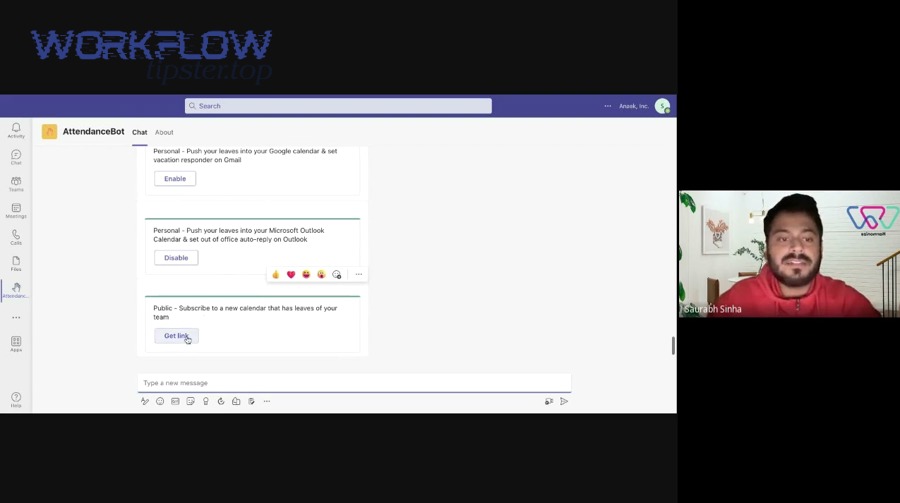
Here’s a stable “remote team standard” that works well:
- One owner per recurring series (avoid multiple people recreating the meeting).
- A predictable invite template (agenda, link location, expectations).
- Notification discipline (calendar reminders + optional Teams channel notices).
How do you avoid broken links and duplicate meetings in recurring events?
To avoid broken links and duplicates, you need 3 habits: add the Teams meeting once at series creation, edit the correct scope (single event vs full series), and avoid stacking multiple automation tools on the same trigger without clear boundaries.
Practically:
- Create the recurring event first, then add the Teams meeting so the series is consistent.
- When editing, choose “this event” vs “the entire series” intentionally:
- If only one instance changes time, edit one instance.
- If the series permanently shifts, edit the series.
- Don’t re-add conferencing repeatedly if a link already exists; it increases the chance of confusion.
If you also use Zapier, keep the zap focused on notifications (e.g., “post a message when updated”), not meeting creation, unless you are extremely sure you won’t create loops.
Evidence: According to a study by Stanford University from the Human-Computer Interaction community, in 2021, researchers found that multitasking is common in remote meetings, with about 30% of meetings involving email multitasking, and recurring meetings correlate with higher multitasking—suggesting recurring-meeting clarity and structure matter. (hci.stanford.edu)
How should remote teams handle time zones and calendar availability when using Teams links?
Remote teams should handle time zones and availability by standardizing the event time zone, labeling the meeting window clearly, and using availability settings consistently, because time zone confusion causes late joins, missed meetings, and unnecessary reschedules.
Best practices that stay simple:
- Pick a “home time zone” for the team (often the HQ or the highest-overlap zone).
- Include a short time-zone cue in the description for globally distributed groups (e.g., “10:00 ET / 15:00 GMT”).
- Use “Show as busy” for real meetings so availability remains meaningful.
- Add a short agenda so late joiners can catch up quickly.
When your meeting density rises, remote teams also need meeting hygiene to reduce fatigue.
Evidence: According to a study by Stanford University from the Department of Communication, in 2021, Jeremy Bailenson argued that video conferencing can trigger “nonverbal overload” through multiple interface-related factors, helping explain why too many remote meetings feel exhausting. (vhil.stanford.edu)
What should you do if Google Calendar and Microsoft Teams aren’t connecting correctly?
If Google Calendar and Microsoft Teams aren’t connecting, you should diagnose 3 layers in order—account identity, add-on availability, and event behavior—because most failures come from signing into the wrong Microsoft tenant, blocked installation permissions, or a join link that never gets generated. (support.microsoft.com) Then, once you fix the layer that’s broken, you can restore a consistent scheduling habit for the whole team rather than patching one user at a time.
A practical troubleshooting sequence:
- Identity check: Are you signed into the correct Google account and the intended Microsoft account?
- Install check: Is the add-on installed and visible in Calendar? (support.microsoft.com)
- Event check: Does creating a new event generate the Teams join details? (support.microsoft.com)
Is your Teams add-on missing or not showing up in Google Calendar?
Yes, the add-on can be missing when Marketplace installs are restricted, when you’re in the wrong Google account/profile, or when your org requires admin deployment—so the fix is to confirm permission to install, switch to the correct account, and retry the add-on entry points. (support.microsoft.com) More importantly, the “missing add-on” problem is usually structural, not personal: it’s policy, profile, or permissions.
Quick checks that solve most cases:
- Switch Google profiles (many people have multiple Chrome profiles).
- Install from Marketplace directly (not just from inside Calendar) if the in-app route fails. (support.microsoft.com)
- Ask IT/admin whether add-ons are restricted or require approval (common in managed Workspace environments).
Are meeting links not generating, not saving, or sending wrong invites?
Meeting links fail or behave strangely when authentication is stale, the wrong Microsoft account is connected, or edits are applied inconsistently across a recurring series, so the fix is to re-authenticate, verify the correct account/tenant, and test with a fresh event before touching a complex recurring one. (support.microsoft.com) Specifically, once you see a join link correctly appear in a new test event, you’ve proven the integration is healthy—and you can move your “real” meeting series safely.
A reliable recovery workflow:
- Sign out and sign back in to the add-on (forces fresh permissions).
- Create a new single event (not recurring) and add the Teams meeting—confirm the join link appears. (support.microsoft.com)
- Only then return to recurring events and make changes carefully.
If invite emails went out without the right join details, correct the event and send an update so attendees get the new content, rather than posting the join link ad hoc in chat (chat links get lost; calendar links persist).
What advanced scenarios can change the “best” Google Calendar ↔ Teams setup?
Advanced scenarios can change the best setup when governance, identity complexity, or strict workflow needs require you to prioritize control over convenience—so the same “add-on vs Zapier” decision shifts based on admin policy, automation risk, and whether you need visibility or true meeting creation. (zapier.com) Besides, these edge cases matter more for remote teams because the team can’t rely on hallway fixes—your calendar workflow has to be self-correcting.

Is the best approach different for IT admins vs individual users?
Yes—the best approach differs because admins prioritize standardization, security, and supportability, while individuals prioritize speed, personal productivity, and “just works” convenience.
For IT admins, the best setup is usually:
- Centralized policy decisions (who can install add-ons)
- Standard approved workflows (add-on as default meeting creation tool)
- Controlled automation permissions (Zapier or similar tools reviewed)
For individual users, the best setup is usually:
- Install add-on and schedule meetings from Google Calendar
- Add lightweight automations only after the core flow works (notifications, reminders)
In other words: admins aim for repeatable governance, individuals aim for repeatable behavior—and those are compatible when you pick the simplest method that meets requirements.
What’s the difference between “manual scheduling” and “automated notifications” for Teams meetings?
Manual scheduling wins for accuracy of meeting creation, automated notifications win for team awareness, and combining them is optimal for remote coordination, because the first creates the authoritative meeting object and the second reduces missed context. (support.microsoft.com) However, the antonym pair here—manual vs automated—matters because over-automation can produce noise that remote teams start ignoring.
A safe hybrid pattern looks like this:
- Manual (add-on) creates the meeting inside the calendar event. (support.microsoft.com)
- Automated (Zapier) posts context: “New event created,” “Time changed,” “Reminder 10 minutes before.” (zapier.com)
Avoid “automation that creates meetings from calendar events” unless you have strict controls, because it can create duplicates when users also add meeting links manually.
How do multi-account, guest access, or multiple tenants affect meeting creation and joining?
There are 3 common multi-identity scenarios—multiple Google accounts, multiple Microsoft tenants, and guest attendees—based on the criterion “who is authenticated where.”
- Multiple Google accounts (personal + work)
Users install add-ons in one account but schedule meetings in another, and then wonder why the option is missing. - Multiple Microsoft tenants
The organizer signs into the wrong tenant in the add-on; meeting creation still “works,” but the meeting policy and join behavior can differ from expectations. - Guest attendees
Guests can usually join via the link, but their experience (lobby, authentication prompts) depends on organizer tenant policy and meeting settings.
The operational fix is simple: make “which account schedules the meeting” a team norm, and keep a short checklist in the meeting template description (owner account, tenant, and join expectations).
When is calendar subscription (ICS) useful—and when is it not real sync?
Calendar subscription is useful for visibility but not real sync, because it typically provides one-way viewing of events without full interactive edits, meeting creation, or consistent cross-platform behavior—so it’s best when policy blocks add-ons but the team still needs schedule awareness. To illustrate, ICS subscription is often a “least-worst” option for orgs that restrict add-ons, where the priority is simply letting people see a schedule overlay.
Use calendar subscription when:
- You need read-only visibility of another calendar’s events
- Your org forbids installing add-ons
- You can tolerate delay or one-way updates
Avoid relying on it when:
- You must create Teams meeting links from events
- You need reliable attendee invitation behavior
- You need edits to propagate cleanly across systems
In short, ICS is “see the calendar,” not “run the meeting workflow.”