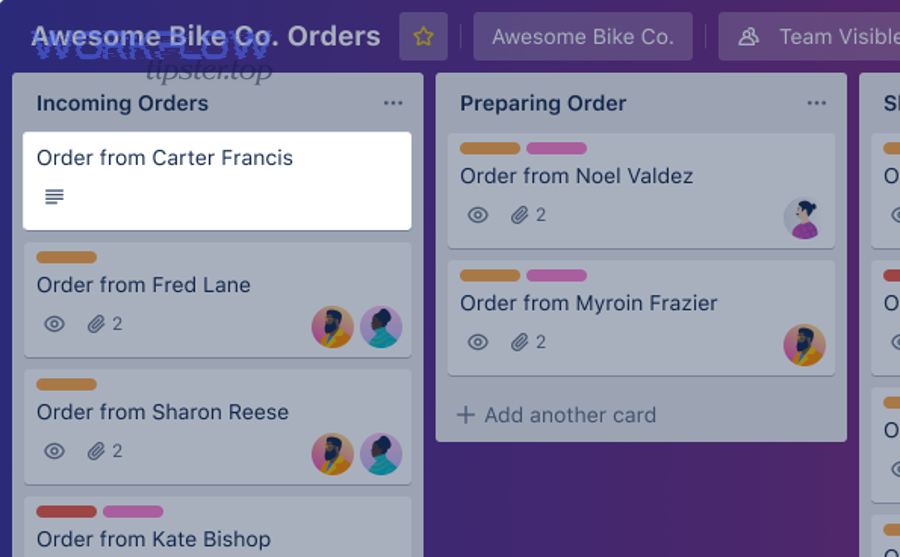
Yes—you can automate Gmail to Trello for teams by converting incoming emails into Trello cards automatically, so requests don’t get buried in inboxes and work becomes visible, assignable, and trackable without manual copy-paste.
Next, it helps to understand what “Gmail-to-Trello automation” actually means in a team workflow: you’re not just creating cards—you’re standardizing how email-based requests become structured work with owners, due dates, and status.
Then, the fastest path depends on your team’s needs and constraints: some teams prefer native add-ons inside Gmail, others use Trello’s email-to-board routing, and many choose automation platforms for advanced rules and routing.
Introduce a new idea: once the connection works, the real win comes from designing a repeatable setup—mapping fields, handling attachments and threads, and adding governance so automation creates signal (not noise) as your team scales.
Can you automate Gmail to Trello to turn emails into cards for teams?
Yes—you can automate Gmail to Trello to turn emails into cards for teams because it (1) reduces context switching, (2) creates shared visibility of work, and (3) standardizes intake so every request is captured, routed, and assigned consistently.
To better understand why this matters, consider what happens in most teams: an email arrives, one person remembers it, and everyone else stays blind to the task until it’s late. Gmail is excellent for communication, but it’s not designed to be a shared operational backlog. Trello is designed for flow, ownership, and status—and automation bridges the gap.
The most important benefit is work visibility. When an email becomes a Trello card, the request stops being “private knowledge” inside one inbox and becomes a shared unit of work that can move through lists like Inbox → In Progress → Waiting → Done. That single shift improves accountability without requiring additional meetings.
The second benefit is speed with fewer errors. Copying and pasting from Gmail into Trello invites mistakes: missing details, wrong links, forgotten attachments, or inconsistent titles. Automation preserves the original content and adds structured fields the same way every time.
The third benefit is team scalability. Automation enables consistent routing rules (labels, keywords, sender, alias addresses) so the right cards land on the right boards and lists—even when the team doubles and requests multiply.
What does “Gmail to Trello automation” mean in a team workflow?
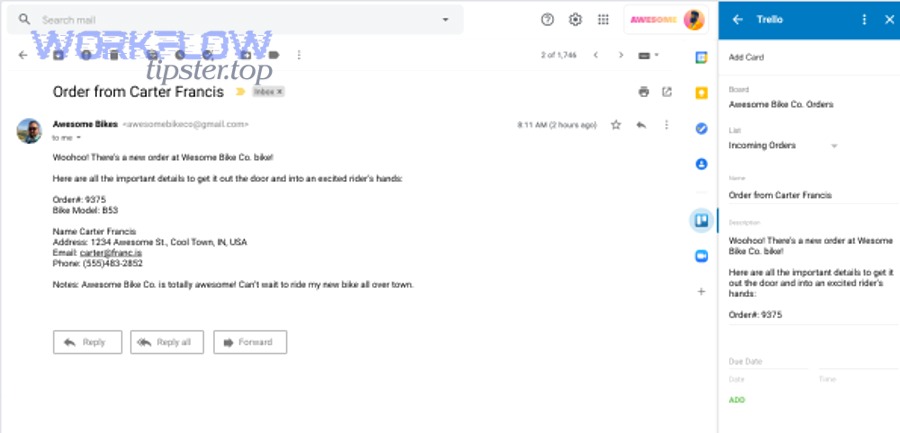
Gmail-to-Trello automation is a workflow integration that automatically converts an email message into a Trello card—capturing the email’s key information and placing it in the correct board/list so teams can assign, track, and complete the work without manual re-entry.
More specifically, “automation” is the antonym of manual copy-paste—instead of humans moving text between tools, rules move information into a consistent Trello structure. That consistency is what turns an inbox-driven team into a workflow-driven team.
In practice, this automation usually includes four elements:
- A trigger (a new email, a labeled email, an email to a specific alias)
- A transformation (subject/body/attachments become card fields)
- A destination (board + list + labels + members)
- A feedback loop (link back to the original message, or a consistent way to reply/update)
What information from a Gmail message becomes a Trello card?
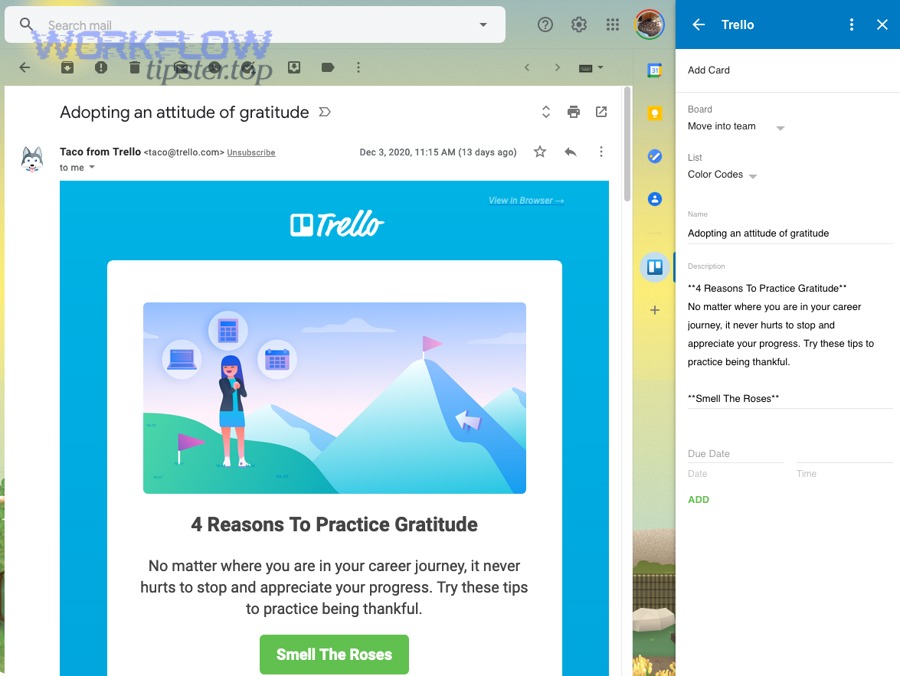
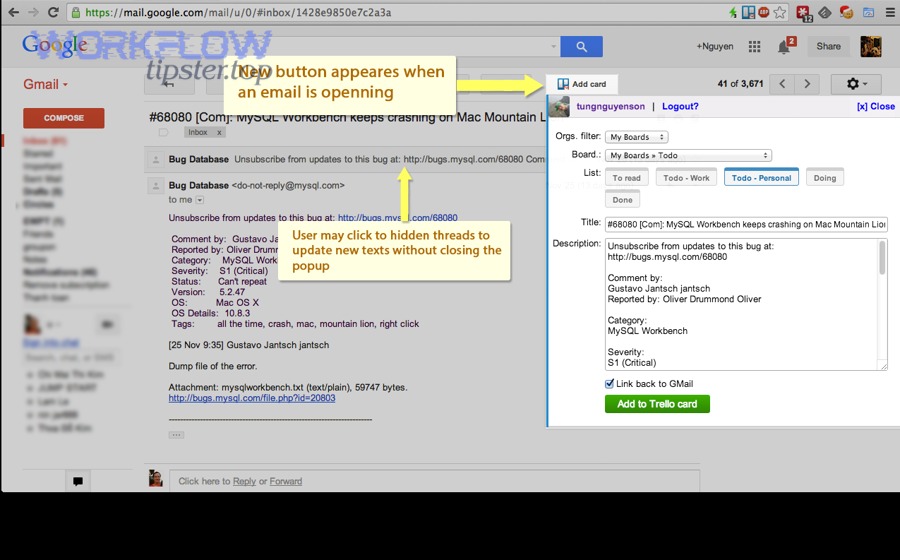
A Gmail message typically becomes a Trello card by mapping email components to card fields—most commonly subject → card title, message body → description, attachments → card attachments, and the email link/reference → a clickable source link for traceability.
Specifically, teams get the best results when they decide beforehand what “good intake data” looks like and treat the email as raw input that needs a structured Trello output. A practical mapping model looks like this:
- Card title: email subject (optionally prefixed with a category like
[Support]or[Ops]) - Card description: email body (with the key request summarized at the top if you use a template)
- Attachments: files from the email (or a link to the files if size limits apply)
- Requester identity: sender name/domain (stored as the first line, a label, or a custom field depending on your method)
- Source link: a URL to the original message or thread for auditability and follow-ups
To illustrate how teams standardize this, you can use a simple “intake header” at the top of every card description:
- Requester:
- Date received:
- Requested outcome:
- Deadline/SLA:
- Context link:
That structure makes cards scannable even when the email body is long.
When should teams convert an email into a card instead of replying only in Gmail?
Email-to-card wins when the work needs shared ownership, visibility, or a status lifecycle; reply-only wins when the email is informational, one-and-done, or doesn’t require coordination beyond a single response.
However, the decision becomes obvious when you compare by operational criteria:
- Accountability: A Trello card can have an owner, due date, checklist, and status; an email thread usually cannot.
- Visibility: A card is visible to the whole team; an email often isn’t (especially with shared inbox ambiguity).
- Lifecycle: A card moves through stages; an email just accumulates replies.
- Workload balancing: Cards can be assigned and redistributed; emails tend to stay “owned” by whoever opened them first.
A reliable rule is: If the email represents work that could be delayed, delegated, or tracked, it should become a card. If it’s purely communication, it can stay as communication.
According to a study by the University of California, Irvine from the Department of Informatics, in 2008, knowledge workers took an average of about 23 minutes to resume an interrupted task—highlighting how frequent inbox-driven interruptions can create hidden time costs that workflow systems help reduce. (ics.uci.edu)
Which methods can teams use to connect Gmail to Trello?
There are 4 main methods teams use to connect Gmail to Trello—(1) Gmail add-ons/Power-Ups, (2) Trello email-to-board forwarding, (3) no-code automation platforms, and (4) browser extensions—based on the criteria of routing complexity, admin control, and how consistently the method can be applied across the team.
To better understand what to choose, it helps to treat this as a decision between simplicity vs control. The simplest approaches are easiest to start with, while controlled approaches scale better for teams with multiple pipelines and rules.
What are the main ways to turn Gmail emails into Trello cards?
Teams can turn Gmail emails into Trello cards through four primary approaches, each with a different “center of gravity” (inside Gmail, inside Trello, or in an automation layer).
- Gmail add-on / Trello Power-Up style (inside Gmail UI):
Best when individuals triage from Gmail and want a “create card” workflow without leaving the inbox. - Email forwarding to Trello (email-to-board address):
Best when routing is handled by where the email is sent (support@, ops@, etc.) or by simple forwarding rules. - No-code automation (rules + mapping + filters):
Best when you need conditional logic (labels, keywords, sender domain, attachments) and standardized outputs at scale. - Extensions (“Send to Trello” button):
Best for lightweight personal workflows, but often weaker on governance and team consistency.
To make this selection more concrete, the table below summarizes how teams typically compare methods across decision criteria.
| Method | Best for | Strength | Trade-off |
|---|---|---|---|
| Add-on / in-Gmail creation | Individual or small team intake | Fast, minimal setup, low friction | Can be inconsistent across users |
| Email-to-board forwarding | Shared aliases + simple pipelines | Simple, reliable, low cost | Limited mapping + routing complexity |
| No-code automation layer | Team-wide standardization | Advanced routing + consistent card structure | More setup + admin oversight |
| Browser extension | Personal “send to Trello” | Quick capture | Weak governance + limited scaling |
This table helps teams align the method with the actual work reality: who triages, how many pipelines exist, and how standardized the resulting cards must be.
Which option is best for teams vs individuals?
Add-ons and extensions are often best for individuals; automation platforms and structured email-to-board routing are usually best for teams—because teams need standardization, governance, and predictable routing more than they need “one-click convenience.”
However, the real difference is not the tool—it’s the operating model. Individuals can tolerate inconsistency (“I’ll name my cards my way”), but teams cannot. Teams need:
- A consistent intake format
- A predictable destination (boards/lists)
- Shared labels and ownership rules
- Clear handling of duplicates and threads
- A way to audit what happened when automation runs
If your goal is “capture tasks quickly,” an add-on can be enough. If your goal is “run operations from Trello,” you want a method that enforces structure automatically.
You can also treat this as part of a broader category your organization may already manage—Automation Integrations—where you standardize how information moves between systems instead of allowing one-off personal workflows that fragment processes.
How do you set up Gmail to Trello automation without copy-pasting?
You can set up Gmail to Trello automation without copy-pasting by following a 6-step method—(1) define the intake rule, (2) connect accounts, (3) select board/list destination, (4) map fields, (5) test edge cases, and (6) roll out with standards—so emails reliably become actionable cards.
To begin, treat setup as a workflow design project, not a “quick integration.” The goal is not merely to create cards; the goal is to create the right cards in the right place with the right fields.
Step 1: Define your intake rule
Decide what qualifies as “work.” Common triggers include:
- A shared alias (support@company.com)
- A Gmail label applied by filters (e.g.,
ToTrello) - A specific sender domain (
@partner.com) - A keyword pattern in subject (
[Request],Bug:)
Step 2: Connect Gmail and Trello with the chosen method
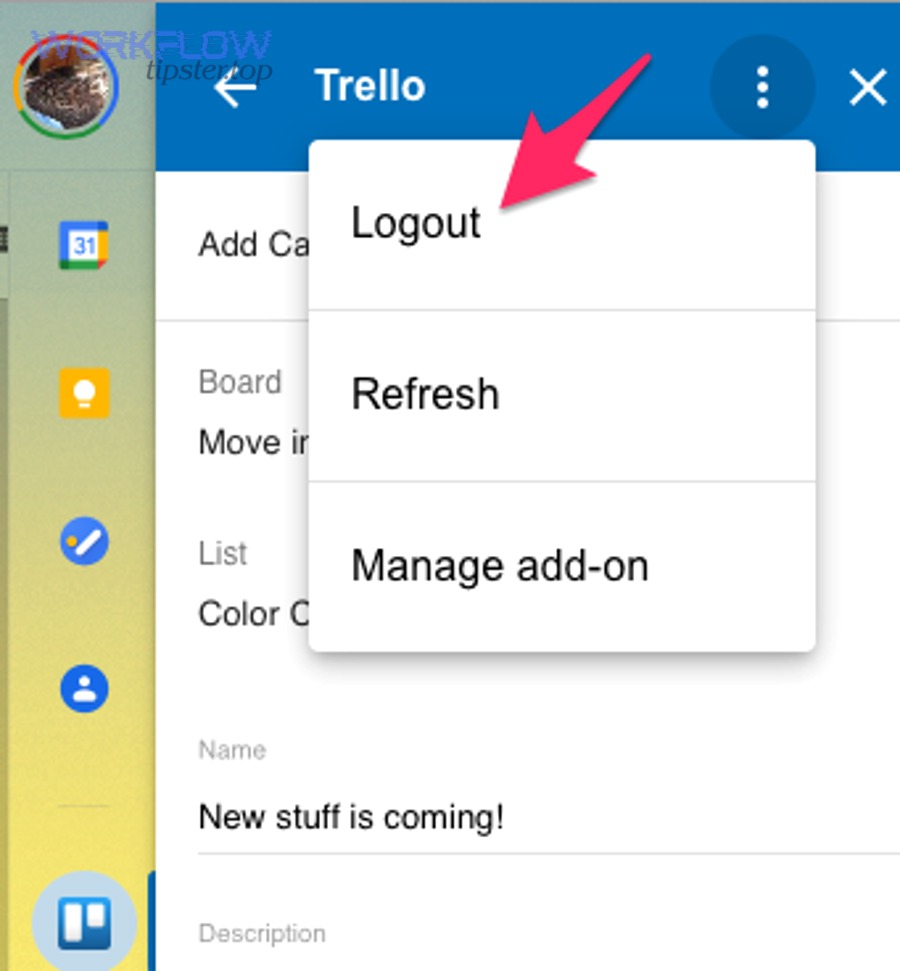
Use the integration’s permission flow and ensure the account used has correct access to boards.
Step 3: Choose a destination model
Pick a default board and “Inbox list” for new cards. Teams get the best control when every automation lands in an intake list first.
Step 4: Map email fields to Trello fields
Decide how subject/body/attachments translate. Build a consistent card naming pattern.
Step 5: Test edge cases
Before rollout, test:
- Reply chains (threads)
- Large attachments
- HTML-heavy emails
- Multiple recipients
- Emails with forwarded headers
Step 6: Roll out with standards
Publish a one-page policy: what becomes a card, how to label, and who owns triage.
If you want a quick visual walkthrough, this embedded video demonstrates a common “email to card” flow from Gmail into Trello:
How do you map Gmail emails to the right Trello board, list, and labels?
You map Gmail emails to the right Trello board, list, and labels by defining routing rules (labels, aliases, sender patterns, keywords) and then assigning a default destination plus conditional overrides—so every email lands predictably and is categorized consistently.
Specifically, routing should answer three questions:
- Which board? (Which team owns it—support, ops, sales, product?)
- Which list? (Where in the workflow does it start—Inbox, Backlog, Triage?)
- Which labels/owners? (What type is it, and who should see it first?)
A practical team routing design looks like this:
- Board selection: based on alias or label
- Emails to
support@→ Support board - Emails labeled
Ops-Request→ Operations board
- Emails to
- List selection: based on urgency or workflow stage
- Subject contains
URGENT→ “Priority Triage” list - Otherwise → “Inbox” list
- Subject contains
- Labels: based on request type
- Subject contains
invoice→ Finance label - Sender domain is
@vipcustomer.com→ VIP label
- Subject contains
- Member assignment: based on category
- Bugs → assign to on-call
- Content changes → assign to content lead
This becomes extremely powerful when your team runs multiple intake pipelines—and it’s conceptually similar to routing rules you might build for other workflows such as “google docs to smartsheet” content operations, where inputs are transformed into structured work items inside a tracking system.
How do you handle attachments, threads, and follow-up replies?
You handle attachments, threads, and follow-up replies by choosing a “thread strategy,” defining attachment rules, and enforcing a single source-of-truth pattern—so the Trello card represents the work while the email thread remains the communication log.
More specifically, teams usually choose one of these thread strategies:
- One card per email message:
Simple but can create duplicates for long threads. - One card per thread/conversation:
Cleaner but requires a method that can group emails reliably. - One card per request (manual merge):
Best for complex cases, but adds triage effort.
For attachments, decide what must be preserved:
- If attachments are small and critical: attach them directly to the card.
- If attachments are large or sensitive: store them in an approved system and link them (or link back to the email message containing them).
For follow-up replies, the key is to prevent the card from becoming stale:
- Add a source link to the original email/thread in the card.
- Use the card description top section as a living “summary of decisions.”
- Keep the checklist and due dates inside Trello, not buried in email replies.
This is also where your team benefits from defining which system owns which truth. A useful pattern is:
- Email owns communication
- Trello owns work status
- Shared files (where applicable) own documents
That pattern scales across integrations—for example, teams often follow a similar split when they coordinate scheduling and reporting between systems like “google calendar to google sheets,” where calendar events are the source of scheduling truth and sheets become structured reporting outputs.
How do you automate Gmail to Trello for teams safely and consistently?
You automate Gmail to Trello safely and consistently by applying a 5-part operating system—(1) intake standards, (2) card templates, (3) role-based access, (4) duplication control, and (5) failure monitoring—so automation produces reliable outcomes across the whole team.
Next, remember the core risk of automation: if you automate chaos, you get chaos faster. Team-safe automation is not only technical; it is operational.
What team standards prevent “automation noise” and duplicate cards?
Team standards prevent automation noise and duplicates by establishing clear intake rules, consistent naming/labeling conventions, and a triage workflow that de-duplicates and assigns ownership quickly—before cards spread across boards unchecked.
Specifically, the most effective standards are:
1) A single intake list per board
Everything lands in Inbox/Triage first. Nothing skips intake unless it’s a known “always actionable” category.
2) A required minimum card structure
Even if the email body is messy, the card must clearly show:
- Requested outcome
- Owner
- Next step
- Due date/SLA category
3) A naming convention that prevents ambiguity
Examples:
[Support] Password reset - Acme Co[Ops] Vendor onboarding - Q1
4) A label taxonomy with meaning
Avoid dozens of labels that no one understands. Keep labels tied to decisions:
- Priority
- Work type
- Customer segment
- Status flags (Blocked, Waiting, Escalated)
5) A deduplication habit in triage
Define a policy: if two cards represent the same request, merge into one and link the related email messages in the description.
These standards make the automation’s output trustworthy. When the team trusts the output, they actually use it—and that’s the difference between “installed” and “adopted.”
How do you troubleshoot when Gmail-to-Trello automation fails?
You troubleshoot Gmail-to-Trello automation by checking (1) authentication, (2) trigger conditions, (3) destination permissions, (4) field mapping constraints, and (5) volume/limits—then validating with a controlled test email to isolate the failure point.
More specifically, most failures fall into a few predictable categories:
1) Authentication expired or permissions changed
Symptoms: cards stop appearing suddenly.
Fix: reconnect the integration, confirm account access to the board.
2) Trigger conditions not firing
Symptoms: only “some” emails become cards.
Fix: confirm label/filter rules, keyword patterns, or alias routing. Test with a known subject line.
3) Destination mismatch
Symptoms: cards appear, but in the wrong board/list.
Fix: verify routing precedence (default rule vs conditional override).
4) Attachment and formatting limitations
Symptoms: card created but missing attachments, or description formatting breaks.
Fix: test attachment sizes and types; consider linking instead of attaching for oversized files.
5) Rate limits or volume spikes
Symptoms: delays or inconsistent runs during high email volume.
Fix: batch intake where possible, reduce triggers, and funnel to a single triage list during peak times.
A disciplined troubleshooting approach uses a “test packet” email that includes:
- A unique subject keyword
- A small attachment
- A known sender
- A predictable label application
That makes it easy to confirm whether the failure is in triggering, mapping, or destination.
How do you optimize Gmail-to-Trello automation for advanced team scenarios (and avoid the opposite of automation)?
You optimize Gmail-to-Trello automation for advanced team scenarios by improving routing precision, reducing duplication, clarifying one-way vs two-way expectations, and applying security controls—so the automation stays fast, accurate, and scalable instead of drifting back into manual triage.
Below, optimization is where micro semantics matter: not “can it create a card,” but “can it create the right card in the right place under real constraints?”
How can you route emails using Gmail labels, aliases, or shared inbox rules to different Trello lists?
You can route emails to different Trello lists by using Gmail labels and filters (or shared alias inbox rules) as your classification layer, then mapping each classification to a specific board/list outcome—so routing becomes deterministic instead of dependent on who reads the email first.
Specifically, teams often implement a routing ladder:
- Alias defines board
support@→ Support boardops@→ Ops boardsales@→ Sales board
- Label defines list
Urgent→ Priority listBilling→ Billing listBug→ Engineering intake list
- Keywords define labels and owners
- “refund” → Refund label
- “outage” → Incident label + assign on-call
This pattern works especially well when you treat Gmail as the “classifier” and Trello as the “workflow executor.” It also extends cleanly across other operational tooling—teams frequently apply the same principle when connecting signing workflows like “docusign to dropbox,” where the trigger and classification (completed agreement type) determine destination folders and processing steps.
Can you attach a Gmail email to an existing Trello card instead of creating a new one?
Yes—you can attach a Gmail email to an existing Trello card instead of creating a new one, but it usually requires deliberate workflow choices because many Gmail-to-card methods default to new-card creation; teams succeed by using (1) a source-link habit, (2) manual merge rules, and (3) thread-level routing.
However, it’s important to treat this as a “workflow design” problem, not a missing feature. If your reality is that one request generates multiple emails, you need a consistent policy:
- Policy A: One request = one card, emails get linked
The team links follow-up emails in the card description under a “Related emails” section. - Policy B: One thread = one card
The automation creates one card for the first email, and subsequent emails are handled by linking rather than creating duplicates. - Policy C: Allow duplicates, dedupe in triage
The triage owner merges duplicates daily.
In most teams, Policy A is the most stable because it doesn’t depend on perfect threading logic. It depends on human-in-the-loop triage—but only for exception handling, not for every single intake event.
Is Gmail→Trello one-way automation better than two-way sync for most teams?
One-way automation is better for most teams because it wins on simplicity and reliability, while two-way sync is best when your team truly needs bi-directional state updates and can manage the added complexity of conflicts, duplication, and governance.
Meanwhile, two-way sync sounds appealing (“everything stays updated everywhere”), but it introduces hard problems:
- What happens when a card changes owner—should that update email assignment?
- What happens when a thread continues after the card is done?
- What is the “source of truth” for status?
A practical comparison is:
- One-way (Gmail → Trello): Best for intake pipelines, operational queues, and request handling.
- Two-way: Best when the team needs Trello actions to drive communication workflows (and you can define strict rules to prevent loops).
If you’re unsure, choose one-way first. Most teams get 80–90% of the value from reliable intake alone, then selectively add advanced behaviors only where needed.
What security and compliance considerations matter when connecting Gmail and Trello in a workplace?
Security and compliance matter most in Gmail-to-Trello automation around access control, data sensitivity, auditability, and least-privilege permissions—because automation can unintentionally spread sensitive information to broader audiences if boards and rules are not designed carefully.
Especially in regulated or privacy-sensitive teams, implement these safeguards:
- Least privilege: The integration account should only access the boards it needs.
- Board permissions: Use private boards for sensitive pipelines; avoid routing sensitive aliases to public-ish boards.
- Data minimization: Don’t copy sensitive email content into card titles where it becomes highly visible. Keep sensitive details in controlled locations and link securely.
- Retention policy awareness: Understand how long Trello content persists relative to email retention rules.
- Audit trail: Preserve a source link or reference so you can track where the card came from and validate the request history.
This is also where standardization helps. When you define “what content is safe to copy” and “what must remain linked only,” your team avoids accidental leakage while still benefiting from automation speed.