


If you want Gmail-to-Slack notifications that actually help your team, the goal is simple: automatically send the right emails to the right Slack place (channel or DM) with enough context to act—without forcing anyone to manually forward messages or constantly check Gmail. (slack.com)
Next, you also need a clear method choice: some teams do best with the Slack for Gmail add-on for quick sharing from inside Gmail, while others need deeper automation control (filters, routing rules, escalations, and digests) using an automation platform. (zapier.com)
Then, the success factor becomes “signal vs noise”: the more your rules target urgency, ownership, and privacy, the more Slack becomes a fast triage layer instead of another noisy inbox. (slack.com)
Introduce a new idea: once you treat Gmail-to-Slack notifications as a team workflow (not a simple forward), you can design rules that make responses faster and calmer—starting with a clean automation baseline and building up from there.
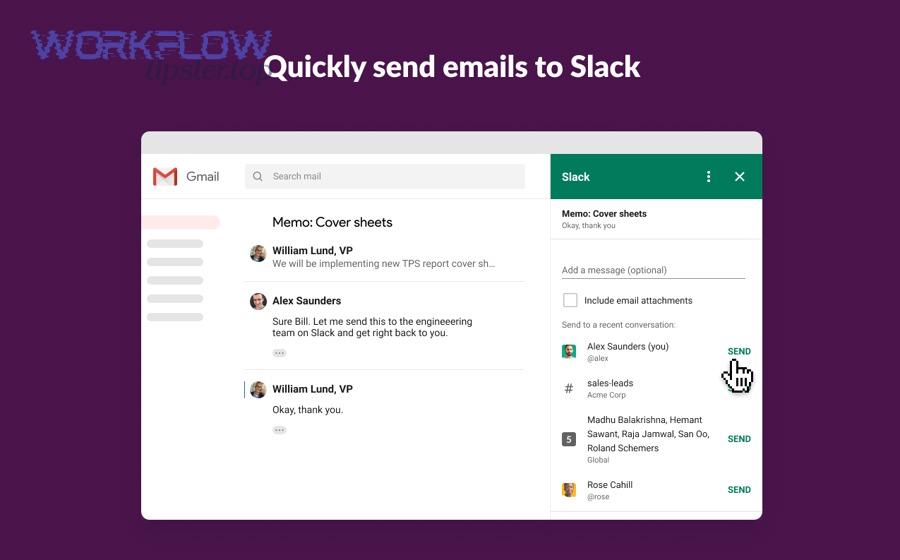
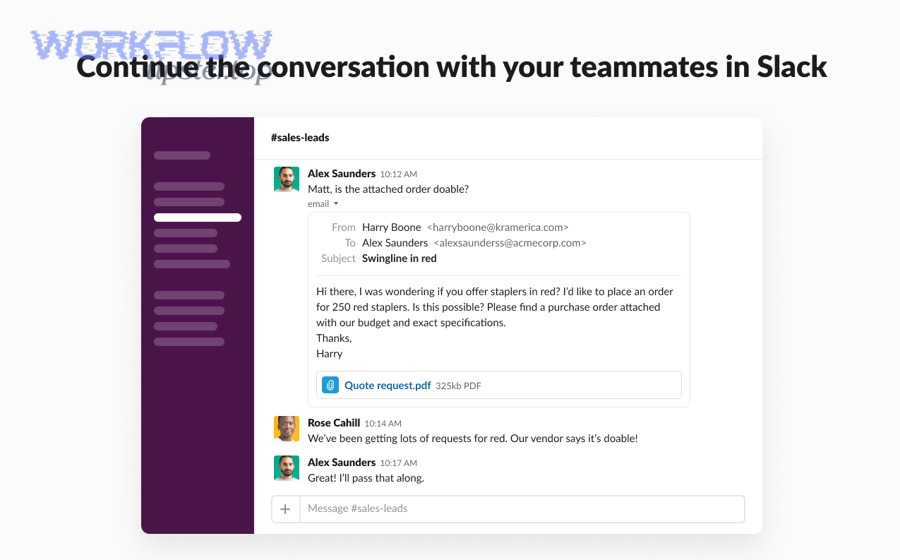
Is automating Gmail-to-Slack notifications better than manual email forwarding for teams?
Yes—automating Gmail-to-Slack notifications is better than manual forwarding for teams because it improves visibility, reduces repeat work, and enforces consistent routing rules that keep ownership clear.
To better understand why teams benefit, it helps to separate “sharing an email once” from building a repeatable notification workflow.
Manual forwarding is fragile because it depends on memory, timing, and personal judgment. One person forwards an email; another forgets; a third forwards to the wrong channel; and suddenly your team’s response speed depends on human luck. Automation, on the other hand, makes the workflow predictable: the same types of emails go to the same Slack destinations, every time.
Automation also creates shared awareness without forcing everyone into Gmail. Instead of asking “Did anyone see this customer email?”, the notification appears where the team already collaborates. That is the macro advantage: the workflow moves from individual inbox behavior to team coordination.
According to a study by University of California, Irvine (Department of Informatics), in 2008, people tended to compensate for interruptions by working faster, but they also experienced more stress, higher frustration, and greater time pressure—a useful warning that “more notifications” is not the same as “better communication.” (ics.uci.edu)
Does every team need Gmail-to-Slack notifications, or only high-velocity teams?
Not every team needs Gmail-to-Slack notifications, but high-velocity teams benefit the most because they face urgent messages, fast handoffs, and shared ownership.
High-velocity typically means at least one of these is true:
- The team receives time-sensitive emails (support issues, renewals, incident alerts, VIP requests).
- Multiple people may need to act on the same email.
- The email is a trigger for work elsewhere (task creation, escalation, or status updates).
- The cost of missing an email is high (lost revenue, SLA breaches, customer churn).
If your work is mostly deep-focus and low-urgency, notifications can be counterproductive. In that case, your “automation” should be more selective (digest style, label-based routing, or only high-priority senders).
A practical rule: if your team already uses Slack channels to coordinate responses, then Gmail-to-Slack notifications can remove friction. If your team mostly works independently, start with a limited pilot rather than a broad rollout.
Can Gmail-to-Slack automation reduce response time without creating alert fatigue?
Yes—it can reduce response time without alert fatigue when you design it around three constraints: filtering, routing, and formatting.
- Filtering ensures only relevant emails trigger Slack notifications.
- Routing ensures the notification lands where someone actually owns it.
- Formatting ensures the message is scannable and doesn’t dump unnecessary content.
If you skip any of these, you get alert fatigue. The fix is not “turn it off,” but “tighten the rules.” A healthy workflow sends fewer notifications than your total email volume—because it’s built for the team’s shared decision-making, not for mirroring the inbox.
What does “Gmail-to-Slack notifications” mean in practice?
Gmail-to-Slack notifications are an integration workflow where specific Gmail events trigger a structured Slack message (to a channel or DM) containing actionable email context—typically sender, subject, snippet, and a link back to the email. (zapier.com)
Let’s explore what “notification” should actually contain, and how that differs from simply “sending an email to Slack.”
In practice, the workflow has four parts:
- Trigger: what happens in Gmail (new email, labeled email, matching a search query).
- Rules: which messages qualify (sender, keyword, label, recipients).
- Mapping: what Slack receives (subject, snippet, link, attachments or attachment links).
- Destination: where it goes (a triage channel, an owner DM, a private channel).
This definition matters because it prevents a common mistake: teams push raw emails into Slack and then complain Slack is noisy. A good Gmail-to-Slack notification is not a copy of the email; it’s a decision prompt.
What information should a Gmail-to-Slack notification include to be actionable?
An actionable Gmail-to-Slack notification should include context + cue + path to action:
- Context: sender name/email, subject line, timestamp.
- Cue: why it matters (label name, keyword hit, VIP sender, routing reason).
- Path to action: direct link to open the email in Gmail, and (if needed) a link to the related system (CRM ticket, helpdesk case, order record).
A strong default template looks like this:
- Subject (first line) — so people can scan quickly.
- Sender + short snippet — enough to understand the intent.
- Link to Gmail — the source of truth.
- Optional note — a single sentence that frames what the team should do next.
If you add the full email body every time, you increase cognitive load and make Slack harder to use. If you include too little, people click everything and feel interrupted. Aim for “enough to decide, not enough to read.”
What’s the difference between “sending an email to Slack” and “automatic Gmail alerts in Slack”?
Sending an email to Slack is usually a manual action: someone opens an email and shares it into Slack for visibility or collaboration. Automatic Gmail alerts in Slack are rule-driven: Gmail events trigger Slack messages without human intervention.
That difference changes the purpose:
- Manual sharing is best for one-off context and “please look at this.”
- Automated alerts are best for repeatable triage and “someone must own this.”
It also changes governance: automation requires agreement on what counts as important, where it should go, and what content is safe to post in Slack. That’s why successful teams define a small set of notification categories first (for example: urgent customer emails, VIP leads, billing failures), then expand only after the workflow proves quiet and useful.
Which methods can you use to connect Gmail with Slack for notifications?
There are three main methods to connect Gmail with Slack for notifications: the Slack for Gmail add-on, an automation platform (like Zapier or Make), and email-to-channel addressing—each optimized for different levels of control, scale, and team governance. (slack.com)
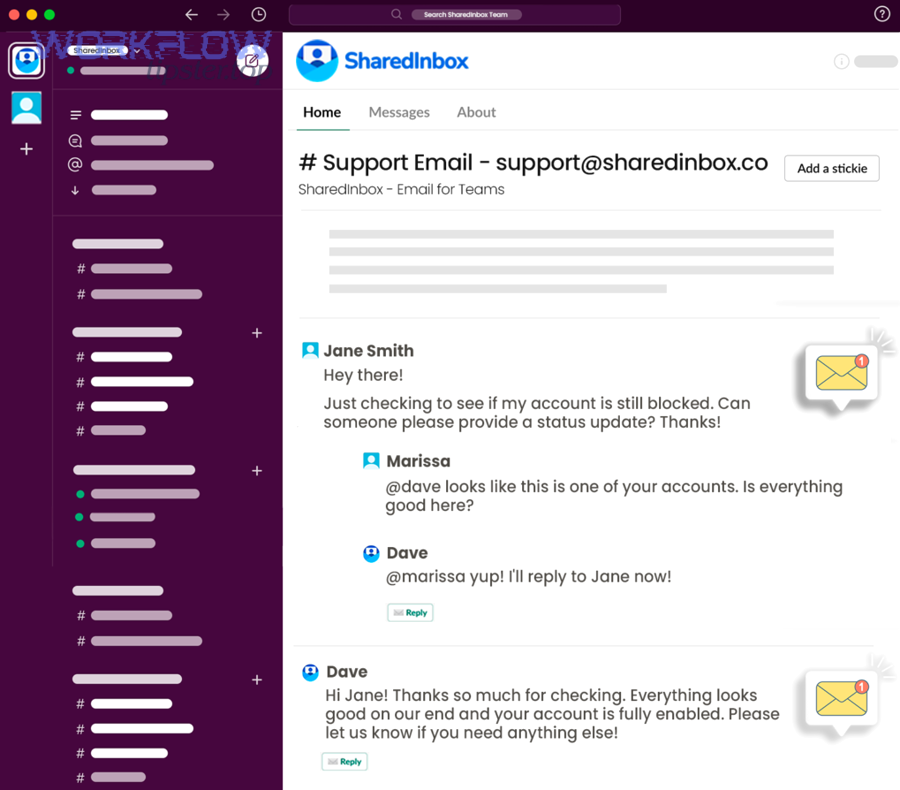
Below, you’ll see how to pick the method that matches your team’s workflow maturity.
Before choosing, decide what you need:
- If you need a quick way to share individual emails from Gmail, prioritize the add-on.
- If you need filtering, routing, and multi-step logic, prioritize automation platforms.
- If you just need a simple inbound email address for a channel, consider email-to-channel (but understand its limits).
Should you use the Slack for Gmail add-on, or an automation tool like Zapier/Make?
Slack for Gmail wins in convenience, Zapier/Make wins in control, and email-to-channel is simplest for basic forwarding. (workspace.google.com)
However, the “best” option depends on what your team is optimizing.
Use the Slack for Gmail add-on when:
- People frequently need to share one specific email into Slack with a note.
- You want minimal setup and a native Gmail experience.
- You don’t need complex filtering or routing trees. (workspace.google.com)
Use Zapier/Make (automation tools) when:
- You need advanced conditions (Gmail search queries, labels, multiple senders).
- You need routing based on rules (region, account owner, priority).
- You want multi-step actions (post to Slack + create task + log entry). (zapier.com)
This is where broader “Automation Integrations” strategy shows up: once you build a reliable trigger→route pattern for Gmail-to-Slack, you can reuse the same logic for other workflows—like routing contract events from dropbox sign to microsoft teams or syncing structured records from airtable to google docs when your team needs a shared document view.
Can you send Gmail to Slack using email-to-channel addresses instead of integrations?
Yes—you can send Gmail to Slack using an email address for a channel or DM, but it’s usually less “automation” and more “destination.” (slack.com)
This method is best when you want Slack to receive emails, but you don’t need Gmail-based triggers, advanced filtering, or workflow logic.
What it does well:
- Provides a simple “send to this channel” mechanism.
- Works for systems that can email reliably into Slack.
What it does poorly:
- Doesn’t automatically decide which Gmail emails should be sent.
- Often depends on forwarding rules that are harder to manage at team scale.
- Offers limited formatting and governance compared with purpose-built integrations.
If you choose this approach, treat it as a lightweight intake channel and keep the volume low—otherwise the channel becomes a noisy “email dump.”
How do you set up automated Gmail-to-Slack notifications step by step?
The simplest way to set up automated Gmail-to-Slack notifications is to follow six steps—pick a trigger, apply filters, map the message, choose a Slack destination, test, and tighten rules—so only qualifying emails post to Slack reliably. (zapier.com)
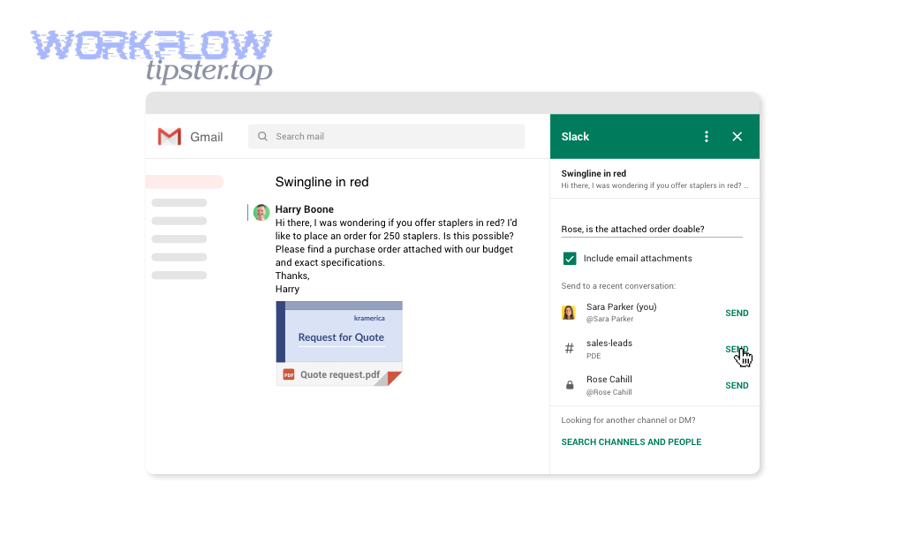
Then, you can scale the workflow from a single channel pilot to a team-wide system.
Here’s the baseline setup sequence (works whether you use an add-on or an automation platform):
- Define your notification category (what emails deserve Slack attention).
- Define the trigger (new email, labeled email, matching a search query).
- Define the filter rules (sender, keywords, label, recipients).
- Define the Slack destination (channel vs DM; public vs private).
- Define the message format (subject-first, short snippet, link).
- Test with real examples and refine until volume is manageable.
One reliable approach is to start with one high-value category, such as “urgent customer emails,” and only expand after the workflow stays useful for a full week.
How do you create Gmail filters/labels so only the right emails notify Slack?
You create Gmail filters/labels by defining clear criteria (sender, subject keywords, recipient, or content signals) and applying a label that your automation uses as the trigger—so Gmail-to-Slack notifications stay precise and repeatable.
Start with one label per workflow, such as:
Slack-Notify/Urgent-CustomerSlack-Notify/VIP-LeadsSlack-Notify/Billing-Failures
Then build the filter criteria:
- Sender-based: best for known systems (billing@, support@, alerts@).
- Subject-based: best for standardized patterns (e.g., “Payment failed,” “New lead,” “Escalation”).
- Recipient-based: useful for shared inboxes or group aliases.
- Keyword-based: useful but riskier; keep keyword sets tight to avoid false positives.
Finally, test the filter with real emails. If you get too many matches, tighten the criteria before Slack ever sees it. If you get too few, broaden slightly and add a second rule only if needed.
A best practice is to make the label reflect intent (“urgent,” “needs reply,” “triage”) rather than topic (“invoice,” “meeting”)—because Slack is about action, not storage.
How do you route notifications to the correct Slack channel or DM?
You route notifications by mapping each labeled email category to a Slack destination that matches ownership—so the right people see it without forcing the whole company to watch the same channel.
Use a channel when:
- Multiple people may need to act.
- The work requires shared context.
- You want a consistent triage queue (support, operations, inbound leads).
Use a DM when:
- One person owns the response.
- The email contains sensitive information.
- The notification is personal productivity, not team workflow.
For channel routing, define routing rules like:
- Topic-based:
#support-triage,#sales-inbound,#billing-alerts - Account-based: key accounts go to a VIP channel
- Urgency-based: urgent goes to a paging or escalation channel; non-urgent goes to digest
If you use an automation platform, you can implement conditional routing (if sender is VIP → post to #vip; else → post to #triage). If you use the add-on, you’ll rely more on human choice at share time, which is fine for smaller teams.
What filtering and formatting rules keep Gmail-to-Slack notifications useful (not noisy)?
There are four core rules that keep Gmail-to-Slack notifications useful: restrict triggers to high-signal events, filter aggressively, route by ownership, and format for scanning—so Slack becomes a triage layer rather than a second inbox. (zapier.com)
Specifically, you should treat every notification as a cost: it interrupts attention, so it must earn its place.
This section is where teams “graduate” from basic setup to a sustainable workflow. You’ll typically improve outcomes more by tightening rules than by adding new features.
Here are practical filtering rules:
- Only notify on labeled emails, not all new emails.
- Only notify on VIP senders or known alert systems.
- Only notify on keyword matches when the phrase is unambiguous.
- Exclude newsletters, promotions, and auto-replies by default.
- If volume is high, switch from real-time alerts to batched digests.
And here are formatting rules:
- Subject-first.
- Short snippet, not full body.
- One clear CTA: open in Gmail, or assign ownership in Slack.
- Use Slack threads to keep the channel clean.
Which Gmail triggers work best: new email, labeled email, starred/important, or keyword match?
Labeled email is best for precision, new email is best for simplicity, starred/important is best for personal workflows, and keyword match is best for narrow use cases with highly consistent language.
However, each trigger type behaves differently under real team load.
- New email: fast to set up, but highest risk of noise. Use only for extremely narrow inboxes (e.g., a dedicated alert mailbox).
- Labeled email: best for teams because Gmail does the first-stage filtering. Your automation becomes stable and explainable (“If it has this label, it goes to Slack”).
- Starred/important: best when an individual “promotes” a message into Slack flow—often used for executive or personal triage.
- Keyword match: powerful but risky; words drift, and false positives create fatigue. Use keyword match only when the language is standardized.
A good progression is: start with labeled email, add VIP sender exceptions, then add a tight keyword match only after you confirm the workflow is quiet.
How should you format Slack notifications for fast scanning?
You should format Slack notifications so a teammate can decide what to do in under five seconds: lead with the subject, identify the sender, include a short snippet, and provide a direct link back to Gmail.
A proven structure looks like:
- [Urgency Tag] Subject
- Sender → recipient/context (optional)
- 1–2 line snippet
- “Open in Gmail” link
- Optional: “Owner:” or “Next step:” line
If your Slack supports it, keep formatting consistent with:
- Bold subject line
- Clear separators
- No long paragraphs
- Minimal attachments (prefer links)
According to a study by University of British Columbia (Department of Psychology), in 2015, participants who limited how frequently they checked email reported lower daily stress—a useful reminder that your formatting should reduce “compulsion to check everything,” not amplify it. (dunn.psych.ubc.ca)
What are common Gmail-to-Slack setup problems, and how do you fix them?
The most common Gmail-to-Slack problems are missing notifications, duplicate notifications, permission blocks, and inconsistent attachment behavior—and you fix them by validating the trigger scope, tightening label logic, checking Slack channel access, and adding deduplication rules. (slack.com)
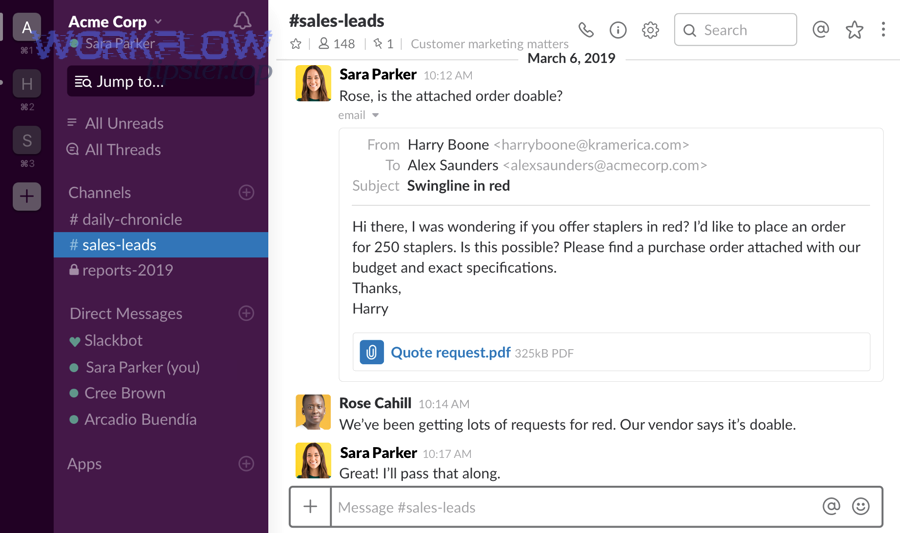
In addition, you should treat troubleshooting as part of workflow design: every failure mode teaches you where your system needs a guardrail.
A fast troubleshooting approach is to ask four questions:
- Did the email meet the trigger condition (label, query, or “new email” scope)?
- Did the integration have permissions to read the email and post to Slack?
- Did Slack accept the message (channel access, app approval, rate limits)?
- Did the workflow run more than once (duplicates, retries, overlapping automations)?
If you solve these in order, you usually find the issue quickly.
Why are Gmail-to-Slack notifications not sending (or sending duplicates)?
Notifications often don’t send because the trigger never fires, the integration loses authorization, or the Slack destination is misconfigured. Duplicates usually happen when two workflows match the same email or when retries post again after a temporary error.
Fix “not sending” with this checklist:
- Confirm the email matches your trigger (label applied? query correct? correct inbox?).
- Confirm the integration is connected and authorized (re-auth if needed).
- Confirm the Slack app can post to the target channel (especially private channels).
- Test with a controlled sample email and watch the workflow run.
Fix “duplicates” with this checklist:
- Ensure you don’t have overlapping rules (two labels that can both apply).
- Use one trigger label per workflow category.
- Add a dedupe key when supported (message ID, thread ID, or Gmail message ID).
- Avoid building multiple similar automations during testing without disabling older versions.
If you manage workflows across teams, document each rule and destination in a simple table (Label → Trigger → Slack Destination → Owner). That table becomes your governance layer and prevents “mystery automations.”
Do attachments and long email threads work reliably in Slack notifications?
No—attachments and long email threads do not always work reliably in Slack notifications because integrations often send links or partial context rather than full files, and permissions can block access. (workspace.google.com)
However, you can make the experience consistent by designing for “link-first” behavior.
In many setups:
- Attachments become links back to Gmail or Google Drive.
- Files may not be accessible to everyone in Slack unless sharing permissions are correct.
- Very long email threads may get truncated to a snippet, which is usually a good thing for Slack readability.
Best practices:
- Prefer links to source-of-truth files (Drive, CRM, ticketing system) rather than pushing files into Slack.
- If a file must be shared, ensure your team’s access model supports it (shared drive, consistent permissions).
- Keep Slack notifications short; use the Gmail link for deep reading.
If sensitive attachments are common (contracts, IDs, invoices), route those notifications to private channels or owner DMs—and limit the visible content to subject + sender + “Open in Gmail.” That’s how you keep both security and speed.
How can teams optimize Gmail-to-Slack automation for advanced workflows (and avoid the “too many notifications” trap)?
Teams optimize Gmail-to-Slack automation by adding batching, threading strategy, governance rules, and safe content handling—so notifications stay high-signal as volume grows and the workflow remains trustworthy.
Moreover, this is where your integration stops being a convenience and becomes a communication system.
The “too many notifications” trap usually happens when a team starts with good intent (“we don’t want to miss anything”) and accidentally mirrors the inbox into Slack. Optimization flips the mindset: Slack is for decisions and coordination, Gmail is for reading and replying.
Below are the four upgrades that matter most.
How do you build “signal over noise” rules like batching, quiet hours, and digest summaries?
You build signal-over-noise rules by deciding which categories need real-time alerts and which can be summarized—then implementing batching (digest messages), quiet hours, and priority routing.
A practical model:
- Real-time: urgent customer escalations, payment failures, executive VIP emails.
- Hourly digest: inbound leads, non-urgent support requests, operational updates.
- Daily digest: newsletters, FYI updates, internal notifications.
Quiet hours are not “turn off everything.” They are “route differently.” For example, outside business hours you might:
- Send urgent items to an on-call channel.
- Send non-urgent items to a digest that posts the next morning.
Digest formatting should remain consistent:
- Group by category (VIP, billing, support).
- Include counts and top subjects.
- Link to source emails rather than copying bodies.
This is the cleanest way to align productivity with attention. It respects the fact that interruptions carry a cost, so your automation should protect focus rather than break it.
Should Gmail-to-Slack notifications post as new messages or as threads—and why?
New messages win for visibility, threads win for cleanliness, and a hybrid approach is optimal for most teams.
On the other hand, the “right” structure depends on how your team triages.
Use new messages when:
- The channel is a true triage queue and every item must be seen.
- Your team assigns ownership quickly (emoji reactions, short replies).
- Volume is low enough that the channel stays readable.
Use threads when:
- You want discussion without flooding the channel.
- Each email notification may require multiple back-and-forth messages.
- The channel also contains other operational messages.
Hybrid approach (often best):
- Post a single new message per email in the channel.
- Require follow-up discussion to happen in the thread.
- Use a simple ownership convention: first responder replies “Taking this” in the thread, or reacts with a standard emoji.
This approach preserves scanning while keeping the channel usable over time.
What are the privacy and admin considerations for Gmail-to-Slack in Google Workspace and Slack workspaces?
Privacy and admin considerations come down to approval, access, retention, and least-privilege design—so the integration is allowed, secure, and aligned with how your organization handles data. (workspace.google.com)
Key considerations:
- Admin approval: Google Workspace may require admin approval for add-ons; Slack workspaces may restrict apps and integrations.
- Channel visibility: public channels are searchable and broadly visible; private channels and DMs reduce exposure.
- Data retention: your org’s retention policies in Slack may differ from Gmail; avoid pushing sensitive content into the wrong retention environment.
- Least privilege: grant only the access needed to run the workflow; avoid broad mailbox access when a label-based trigger is enough.
A governance habit that works: define “safe-to-post” categories (subject + sender only) vs “safe-to-post full snippet” categories, and apply the stricter option by default.
How do you handle attachments and sensitive content safely (links, permissions, redaction)?
You handle attachments and sensitive content safely by posting minimal context in Slack, using secure links to the source, ensuring permissions are consistent, and redacting content categories that should never appear in a chat channel.
A safe default for sensitive workflows:
- Slack message includes: subject + sender + “Open in Gmail.”
- No body snippet unless the content category is approved.
- Attachments are shared as links only, and only when recipients already have access.
For teams that handle customer data, contracts, or identity documents:
- Route to a private channel with restricted membership.
- Use an owner DM for highly sensitive categories.
- Never paste personal data fields into Slack notifications.
- If you must include context, include intent rather than data (e.g., “New contract received” instead of contract details).
This is the micro-level design work that keeps your Gmail-to-Slack notifications sustainable at scale: you protect focus, protect privacy, and still move faster than manual forwarding.