


To set up a Gmail to Salesforce integration for sales teams, you enable the Salesforce Gmail Integration, give users the right permissions, install the Gmail-side add-on, and then train reps to log emails to the correct Salesforce records consistently so pipeline context stays accurate.
Next, you should understand what “Gmail to Salesforce integration” really means in day-to-day work: a Salesforce panel inside Gmail that shows CRM context, lets reps create/update records, and supports email logging so sales activity is connected to opportunities, accounts, and cases.
Then, you need a clear decision between Native Gmail Integration and Einstein Activity Capture (EAC) because they behave differently: one is more user-controlled for precise logging, while the other is more automated for speed and adoption.
Introduce a new idea: once you connect Gmail and Salesforce, the real win comes from choosing the right capture method and rollout strategy so your team spends less time switching tools and more time selling—with fewer data-quality problems later.
What is “Gmail to Salesforce integration” for sales teams?
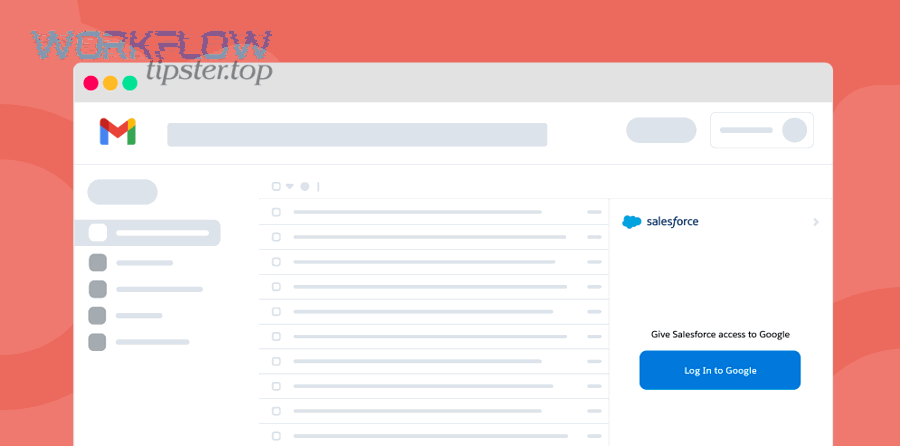
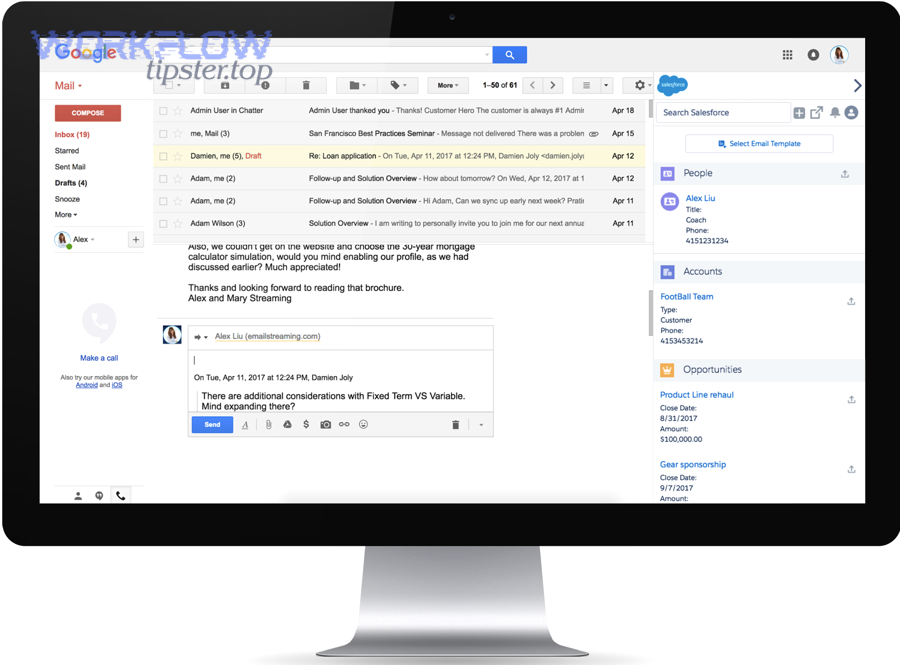
Gmail to Salesforce integration is a sales productivity setup that connects Gmail with Salesforce so reps can see CRM context inside Gmail, create/update records, and log emails to the right Lead/Contact/Opportunity/Case without constant tab switching.
To better understand the value, think of the integration as a “context layer” that travels with the email: every message can be linked to the Salesforce record that represents the relationship, the deal stage, and the next action.
In practice, this integration usually includes three moving parts that must work together:
- Salesforce-side enablement: admin settings, user permissions, and (often) permission sets that allow the Gmail panel and email logging.
- Gmail-side experience: an add-on/extension that shows a Salesforce panel in Gmail and lets users log emails or create records.
- Activity governance: rules and habits that determine what gets logged, how it’s related, and how reliably teams can report on activity.
When those parts align, reps don’t need to re-enter the same information twice. They can open an email thread, see related contacts and opportunities, and attach the message to the exact Salesforce record that matters for forecasting and follow-up.
What can you do in Gmail once it’s connected to Salesforce?
There are 6 main things you can do in Gmail once it’s connected to Salesforce: view CRM context, search related records, create new records, update fields, log emails, and add follow-up activities—based on the criterion of “actions a rep must take without leaving the inbox.”
Specifically, these actions map directly to common sales workflows:
- View context: see matching Leads/Contacts/Accounts and the most relevant Opportunities or Cases tied to the sender.
- Search and relate: find the right Opportunity or Case and connect the email to it so the conversation is visible in the record history.
- Create records: turn an inbound prospect into a Lead, or create a Contact when a warm introduction arrives.
- Update fields: capture a phone number, title, or next meeting date while the details are fresh.
- Log emails: write the email activity into Salesforce (manually or automatically depending on your method) to support reporting and pipeline inspection.
- Create follow-ups: add a task or calendar event so the deal doesn’t stall after a promising thread.
The key is consistency: the integration is only as valuable as the team’s habit of linking emails to the correct record, in the correct place, at the correct time in the sales cycle.
Is Gmail to Salesforce integration the same thing as Salesforce Inbox or EAC?
No—Gmail to Salesforce integration is not the same as Salesforce Inbox or Einstein Activity Capture (EAC) because they differ in purpose, data handling, and automation level: the native integration focuses on in-Gmail CRM actions, Inbox extends productivity features, and EAC emphasizes automatic activity capture.
However, the confusion is understandable because all three can touch email and calendar workflows. Here’s the simplest way to keep terminology consistent:
- Native Gmail Integration: puts a Salesforce panel inside Gmail so reps can act on Salesforce data while reading email.
- Salesforce Inbox: (when used) typically adds extra productivity features on top of the integration, depending on your Salesforce edition and licensing.
- Einstein Activity Capture (EAC): focuses on automatically capturing/syncing emails and events to reduce manual logging effort.
So the integration is the umbrella idea; the “vs” decision in this article is really about which activity method helps your team hit the right balance between speed and CRM accuracy.
Do you need Native Gmail Integration, Einstein Activity Capture, or both?
Native Gmail Integration wins in precision and user-controlled record association, Einstein Activity Capture is best for reducing manual logging effort, and using both is optimal when you want strong Gmail-side workflow plus automated capture—each choice depends on your team’s reporting needs and governance requirements.
Meanwhile, the fastest way to decide is to start from outcomes: do you need every important email thread reliably tied to a specific Opportunity or Case, or do you mainly need “activity coverage” so managers can see communication volume and meeting cadence?
This table contains a practical comparison of Native Gmail Integration vs Einstein Activity Capture across the criteria that most often determine success for sales teams (accuracy, reporting, control, and rollout speed).
| Criteria | Native Gmail Integration | Einstein Activity Capture (EAC) |
|---|---|---|
| Primary goal | Work Salesforce records inside Gmail + log with intent | Automatically capture emails/events to reduce manual effort |
| Association accuracy (Opportunity/Case) | Strong when reps link messages deliberately | Varies by configuration; best for broad coverage |
| User control | High (rep chooses what to log and where) | Lower (capture happens automatically within configured scope) |
| Adoption speed | Moderate (requires behavior + training) | High (less behavior change needed) |
| Governance/compliance fit | Often preferred for strict audit and intentional logging | Requires careful review for regulated workflows |
Native Gmail Integration vs Einstein Activity Capture: what’s the difference in outcomes?
Native Gmail Integration wins when the outcome is “every key email is correctly tied to the right Salesforce record,” while Einstein Activity Capture is best when the outcome is “more activity is captured with less rep effort,” and using both is optimal when you want Gmail workflow plus broader automatic coverage.
More specifically, the difference shows up in three day-to-day moments:
- Moment 1: Linking to the right record. Native Gmail Integration encourages intentional linking (Opportunity/Case), which improves pipeline clarity and handoffs.
- Moment 2: Reporting and coaching. Automatic capture can improve visibility into communication patterns, which helps managers coach outreach volume and follow-up cadence.
- Moment 3: Data quality pressure. Manual logging can be “cleaner,” but it fails if reps skip it; automatic capture can be “broader,” but it requires governance to prevent noise.
According to a study by the University of California, Irvine from the Donald Bren School of Information and Computer Sciences, in 2021, interruptions can require significant time to recover focus—often cited as about 23 minutes to get back on task—so reducing tool-switching and rework is a measurable productivity lever in knowledge work. (youtube.com)
When should sales teams choose Native Gmail Integration?
There are 5 main situations where sales teams should choose Native Gmail Integration: strict opportunity-level tracking, high-stakes account notes, complex deal teams, process-driven forecasting, and regulated sales motions—based on the criterion of “accuracy of association matters more than volume of captured activity.”
In addition, Native Gmail Integration is a strong fit when your team needs to answer questions like these without hesitation:
- “Which emails directly advanced this opportunity stage?”
- “What was the last customer objection and how did we respond?”
- “Did we attach the right conversation to the right case for support handoff?”
To make Native Gmail Integration work, you want a simple but strict logging rule: every meaningful thread gets logged to one primary record (Opportunity or Case), then optionally related to secondary records (Account/Contact) if your process requires it.
That approach also aligns well with broader Automation Integrations strategies because once emails are reliably attached to the correct objects, downstream workflows (tasks, sequences, reporting, and SLAs) behave predictably.
When should sales teams choose Einstein Activity Capture?
There are 4 main situations where sales teams should choose Einstein Activity Capture: low logging compliance, high email volume, fast onboarding needs, and manager visibility goals—based on the criterion of “coverage and adoption matter more than perfectly curated record association.”
Especially in larger teams, the biggest enemy is not a “wrong association”—it’s missing activity entirely. EAC can reduce that risk by capturing more interactions by default, which helps in coaching and capacity planning.
However, you should treat EAC as an operational decision, not just a feature toggle. You want to define:
- What counts as activity: emails, events, contacts (scope varies by configuration).
- Who sees what: role-based access and privacy expectations.
- What you still log manually: high-value threads that must be tied to a specific Opportunity or Case for audits and forecasting.
How do you set up the Native Gmail Integration step-by-step?
The best way to set up the Native Gmail Integration is an admin-first checklist followed by a user install-and-verify flow in 6 steps, producing the outcome of a working Salesforce panel in Gmail with reliable record search and email logging.
To begin, treat setup as two parallel tracks—admin configuration and user enablement—because most “it doesn’t work” tickets are really permission mismatches or incomplete enablement.
- Step 1: Confirm your Salesforce edition and prerequisites support Gmail Integration and the features you plan to use.
- Step 2: Enable Gmail Integration in Salesforce Setup and configure related email settings that your process requires.
- Step 3: Assign the correct permissions (and permission sets if used) for Gmail integration actions and email logging.
- Step 4: Users install the Gmail add-on/extension and authenticate both Google and Salesforce accounts.
- Step 5: Verify panel visibility and test record search + create/update from within Gmail.
- Step 6: Validate the logging workflow on real objects (Lead/Contact/Opportunity/Case) and document the team logging rule.
What does an admin need to enable in Salesforce before users install anything?
Yes—an admin must enable Gmail to Salesforce integration before users install anything because successful setup requires (1) feature enablement, (2) correct permissions, and (3) aligned email/activity settings that determine what users can see and log.
Next, use this admin checklist to prevent the most common rollout failures:
- Enable the Gmail integration feature: turn on the Salesforce-side capability that allows the Gmail panel and related actions.
- Permissions and access: ensure users have access to the objects they will touch (Leads, Contacts, Accounts, Opportunities, Cases) and the ability to create activities.
- Email logging configuration: confirm how emails are stored and displayed in Salesforce so logged emails appear where reps and managers expect.
- Security review alignment: validate authentication approach and any organizational policies about extensions/add-ons in managed browsers.
The most important reason to do admin-first enablement is that it prevents “false installs,” where users install the extension successfully but cannot log anything due to missing Salesforce permissions, which leads to early skepticism and abandonment.
How does a user install and connect the Gmail side?
A user connects the Gmail side by installing the Gmail integration add-on/extension, signing into the correct Google account, authenticating into Salesforce, and then pinning or opening the Salesforce panel in Gmail so the CRM context loads for each email thread.
Then, guide reps through a repeatable “first-run” sequence:
- Install: add the Gmail integration component using the method your IT policy permits (managed install if needed).
- Authenticate Google: confirm the inbox account is the one they use for selling (not a personal or secondary address).
- Authenticate Salesforce: log into the correct Salesforce org and verify the user profile matches their role.
- Open the panel: find the Salesforce panel in Gmail and ensure it appears consistently when viewing messages.
- Test record search: search for a known Contact or Opportunity and confirm the panel returns correct matches.
In teams where users juggle multiple inboxes, the simplest rule is: use one primary selling inbox per Salesforce user and document exceptions explicitly to avoid mis-attribution later.
How do you verify the integration works (quick test workflow)?
Yes—you can verify the integration works by checking (1) the Salesforce panel loads in Gmail, (2) record search and creation function, and (3) an email can be logged to a real Lead/Contact/Opportunity/Case with the correct association and visibility.
Specifically, run this quick test on a non-sensitive email thread:
- Panel test: open an email; confirm the Salesforce panel appears and does not error out.
- Search test: search for a known Contact; confirm the right record appears.
- Create test: create a Lead from the email sender if they’re not in Salesforce; confirm required fields and validation rules are satisfied.
- Log test: log the email to the correct primary record (Opportunity or Case); then open that record in Salesforce and confirm the activity appears where the team expects.
According to a study by the University of California, Irvine from the Donald Bren School of Information and Computer Sciences, in 2008, task interruptions were analyzed as a real productivity cost because workers must reorient after switching contexts—supporting the practical value of “CRM in the inbox” workflows that reduce unnecessary task switching. (ics.uci.edu)
How do you log Gmail emails to the right Salesforce records without messy CRM data?
You log Gmail emails to the right Salesforce records by applying a simple rule—one primary record per meaningful thread—then consistently relating the email to the correct Lead/Contact/Opportunity/Case and using standardized notes so the activity timeline stays searchable, reportable, and trustworthy.
Besides setup, this is the section that determines whether Gmail to Salesforce integration becomes a revenue tool or just another “installed but ignored” feature.
Start with a logging policy that matches how your organization actually sells:
- Opportunity-led sales teams: log most deal threads to the Opportunity as the primary record.
- Account-led teams: use the Account as primary for early-stage relationship building, then switch to Opportunity when a deal is created.
- Support or renewal motions: log to Case for issue-driven communication, then add Opportunity only when commercial discussions begin.
Then, teach reps to add minimal structure to unstructured email content by using consistent subject lines, short summaries in notes (when available), and clear next-step tasks.
What’s the fastest way to relate an email to Lead/Contact/Opportunity/Case?
There are 4 main steps to relate an email to Lead/Contact/Opportunity/Case: identify the sender record, pick the primary workflow object, attach the email to that record, and validate the activity appears in Salesforce—based on the criterion of “minimum actions that still produce reliable reporting.”
For example, a fast, repeatable workflow looks like this:
- Step 1 (Identify): confirm whether the sender is a Lead or Contact; if neither exists, create a Lead immediately.
- Step 2 (Choose primary): if the email is about an active deal, select the Opportunity; if it’s an issue, select the Case; if it’s early discovery, select Lead/Contact.
- Step 3 (Relate + log): log the email to the chosen primary record, then add secondary relationships only when they add clarity (Account is common).
- Step 4 (Validate): open the Salesforce record and confirm the email appears correctly in the activity timeline/history.
The biggest time-saver is deciding “primary record first” before clicking anything; that single habit prevents duplicate logging, mis-association, and confusing timelines later.
Should you use automatic logging or manual logging for sales teams?
Manual logging wins for accuracy and clean association, automatic logging is best for capturing more activity with less effort, and a hybrid approach is optimal for most sales teams because it keeps high-value deal threads precise while still improving overall coverage and adoption.
On the other hand, the decision becomes obvious when you match it to risk:
- High risk of missing critical context: choose manual logging (or enforce manual logging for specific deal stages) so key emails are always tied to the correct Opportunity.
- High risk of reps skipping logging entirely: choose automatic capture to reduce friction, then define what still requires manual association.
- High risk of “noise” in reporting: keep automation scoped and build a habit of manually logging the emails that truly drive stage movement.
According to a study by Utrecht University researchers focused on CRM platform delivery, in 2023, CRM platforms depend on high-quality data and poor data quality can negatively influence CRM adoption—meaning logging strategy must be designed as a data quality system, not a rep “nice-to-have.” (link.springer.com)
How do you set up Einstein Activity Capture for Gmail and what does it capture?
The most effective way to set up Einstein Activity Capture for Gmail is to enable EAC, configure scope and access in 5 steps, and validate captured emails/events appear as expected—delivering the outcome of broader activity coverage with less manual logging effort.
More importantly, you should set expectations early: EAC is designed to reduce rep workload, but you still need policy around what must be intentionally logged to specific records for forecasting and accountability.
A practical EAC setup flow typically includes:
- Step 1: enable Einstein Activity Capture in Salesforce and select Gmail/Google Workspace as the provider.
- Step 2: choose authentication and permission approach that fits your org’s admin model.
- Step 3: configure capture scope (emails/events/contacts as applicable) and define the users or groups included.
- Step 4: define visibility rules and align with privacy/compliance expectations.
- Step 5: run validation: confirm what users see, what managers see, and how activity is represented in Salesforce.
What does EAC capture from Gmail and Google Calendar?
Einstein Activity Capture can capture key activity signals from Gmail and Google Calendar—typically emails and events—so Salesforce shows communication and meeting activity with less manual effort, based on the criterion of “activity types that reflect sales motion and follow-up.”
Specifically, EAC is most useful for creating a reliable baseline of activity coverage, such as:
- Email activity coverage: making sure customer communication is visible for coaching and continuity.
- Meeting cadence visibility: surfacing how often prospects and customers are meeting with your team.
- Relationship continuity: helping new account owners see recent interactions without hunting through inbox history.
If your team relies heavily on meetings, EAC can be especially valuable because calendar-based activity is often under-logged when reps are busy.
Can you control what gets captured and who sees it?
Yes—you can control what gets captured and who sees it by configuring scope, user coverage, and access rules because EAC success depends on (1) clear capture boundaries, (2) appropriate visibility, and (3) alignment with governance and privacy requirements.
Moreover, control is not only about “turning it on or off”—it’s about designing a capture system that supports your sales process rather than flooding Salesforce with low-signal activity.
Use these control principles:
- Scope control: capture what you truly need for coaching and continuity, and keep your “must-log” list explicit for deals that require precise association.
- Visibility control: ensure teams understand what is visible to whom, especially when sensitive negotiations, renewals, or escalations are involved.
- Exception handling: define what happens with shared inboxes, aliases, or delegated access so captured activity is not misattributed.
According to a study by Microsoft Research collaborators and academic partners, in 2016, email usage patterns such as interruption habits and batching relate to perceived productivity and stress—supporting the operational case for reducing logging friction while still maintaining a clean “system of record.” (microsoft.com)
What are the most common setup problems (and fixes) for Gmail ↔ Salesforce?
There are 6 common Gmail ↔ Salesforce setup problems—panel not showing, login mismatch, missing permissions, object access errors, extension conflicts, and policy blocks—and you fix them fastest by checking browser/extension status, authentication alignment, and Salesforce permissions in that order.
In short, troubleshooting works best when you follow the dependency chain: Gmail panel visibility first, authentication second, permissions third, and then process rules like validation requirements.
Here’s a “first principles” troubleshooting approach:
- If the panel isn’t visible: it’s almost always an install/policy/extension issue.
- If the panel is visible but blank/erroring: it’s often authentication or blocked third-party access.
- If the panel works but logging fails: it’s usually Salesforce permissions, object access, or validation rules.
Teams that manage multiple systems often benefit from a standardized runbook—just like you’d do for other workflows such as clickup to google drive synchronization or dropbox sign to microsoft teams routing—because repeatable fixes protect adoption. Those are different products, but the operational principle is the same: make “supportable” the default.
Why can’t users see the Salesforce panel in Gmail?
Yes—there is usually a clear reason users can’t see the Salesforce panel in Gmail, and the top 3 causes are (1) the add-on/extension isn’t installed or is disabled, (2) the browser or admin policy blocks it, and (3) the user is signed into the wrong Google account.
Next, fix it with a fast checklist:
- Confirm install: verify the integration component is installed for the correct browser/profile.
- Enable and pin: make sure it’s not disabled, and that the panel is accessible from within Gmail.
- Check managed policies: corporate browser policies, security tools, or VDI setups often block extensions/add-ons.
- Account alignment: confirm the Gmail account is the intended selling inbox, not a secondary or personal account.
The most important reason to prioritize panel visibility is that it’s the “first impression” of the integration; if reps can’t see it, they assume the project failed.
Why can’t users log emails or create records?
Yes—users usually can’t log emails or create records because (1) Salesforce permissions are missing, (2) object/field access is restricted, and (3) validation rules or required fields block the save—each issue prevents the final write-back into Salesforce.
Then, troubleshoot by matching the error to the layer that controls it:
- Permissions layer: does the user have permission to create activities and interact with Leads/Contacts/Opportunities/Cases?
- Field-level security layer: are required fields editable, or are they locked by profile/permission settings?
- Process layer: do validation rules require specific fields that the Gmail panel isn’t prompting the user to fill?
In many orgs, the best “fix” is not a technical patch but a small process tweak: define the minimum required fields for quick creation from Gmail, and move non-essential fields to later stages of qualification.
What should you check before escalating to IT/Salesforce admin?
There are 7 checks you should do before escalating: confirm browser compatibility, verify the extension/add-on is enabled, check Google account selection, confirm Salesforce org and login, test with a known record, retry in a clean browser profile, and capture the exact error message—based on the criterion of “fastest checks that eliminate most causes.”
To illustrate, here is a practical escalation-ready checklist:
- Environment: browser version, whether you’re in incognito/private mode, and whether extensions are allowed.
- Authentication: correct Google account + correct Salesforce org + valid session.
- Repro steps: the exact click sequence that triggers the issue.
- Scope: whether it impacts one user, one team, or everyone (helps identify permission set vs global config).
- Error capture: screenshot or copied error text so admins can map it to a permission or policy.
According to a study by the University of California (system-level reporting on attention and interruptions), in 2023, recovering from interruptions can take over 20 minutes, reinforcing why support playbooks should minimize repeated trial-and-error during rollout. (universityofcalifornia.edu)
Introduce a new idea: now that the integration works and the common failures are covered, the next step is designing for real-world complexity—shared inboxes, compliance constraints, and adoption measurement—so your Gmail to Salesforce integration stays reliable at scale.
What advanced considerations matter when rolling out Gmail to Salesforce integration at scale?
Advanced rollout success comes from managing 4 factors—identity edge cases, security/compliance expectations, adoption behavior design, and measurement—so Gmail to Salesforce integration remains consistent across teams, regions, and workflows without damaging CRM data quality.
Especially in larger organizations, the integration becomes part of your operating system: it influences onboarding, forecasting hygiene, coaching, and even how cleanly territories and handoffs function across the customer lifecycle.
Before scaling, lock in these “non-negotiables”:
- Identity rules: how you treat aliases, shared inboxes, and multiple accounts per rep.
- Governance rules: what gets logged manually, what gets captured automatically, and what must never be captured.
- Behavior design: how you make the right behavior the easiest behavior (templates, checklists, and in-Gmail prompts).
- Measurement: leading indicators that prove the integration is being used correctly, not just installed.
This is also where “integration maturity” shows: once you have consistent email-to-record association, you can extend into broader Automation Integrations without breaking reporting, because your foundation (objects + activities) is stable.
How do you handle shared inboxes, aliases, and multiple Gmail accounts?
There are 4 main ways to handle shared inboxes, aliases, and multiple Gmail accounts: enforce one primary selling inbox, map aliases to a single identity, restrict shared inbox logging rules, and document exceptions—based on the criterion of “preventing misattribution and duplicate activity.”
More specifically, use these patterns:
- One primary inbox per Salesforce user: best for clean attribution; use it as the default operating rule.
- Alias normalization: decide whether aliases should roll up to one contact identity; keep it consistent to avoid fragmented timelines.
- Shared inbox policy: if a shared inbox is used for support or inbound, define whether those threads log to Cases, and who owns follow-up tasks.
- Multi-account reps: if reps truly use multiple inboxes (territory or brand), create a clear guideline for which inbox is “system-of-record” for Salesforce activity.
The goal is not to eliminate complexity; it’s to prevent activity from being logged under the wrong rep or the wrong record, which silently corrupts coaching and forecasting.
What security and compliance questions should admins validate first?
There are 5 main security and compliance questions admins should validate first: authentication model, data visibility, retention expectations, regulated-content handling, and audit requirements—based on the criterion of “risk reduction before broad adoption.”
Moreover, security validation should be practical and workflow-based, not theoretical. Use scenario tests:
- Scenario 1: a sensitive negotiation email—who can see it after it’s logged or captured?
- Scenario 2: a regulated customer record—what must be retained, and what must be excluded?
- Scenario 3: an employee offboarding—what happens to captured or logged activity tied to that user?
According to a study by Utrecht University researchers (CRM delivery and consultancy focus), in 2023, CRM systems depend on high-quality data and governance practices, meaning security decisions should be integrated into your data-quality design—not bolted on after the rollout. (link.springer.com)
How do you drive adoption for sales reps without hurting CRM data quality?
Adoption-first rollout wins in speed, quality-first rollout is best for strict reporting, and a guided hybrid approach is optimal because it builds habit while preventing noisy data—so reps actually use Gmail to Salesforce integration and managers still trust the CRM.
On the other hand, adoption fails when the “right” workflow is too hard. Build a lightweight enablement system:
- One-page rule set: “What to log, where to log it, and when.” Keep it short and stage-based.
- Two logging examples per stage: show what “good logging” looks like for discovery, proposal, negotiation, renewal.
- Manager reinforcement: pipeline reviews should reference logged emails to reward the habit.
- Reduce friction: minimize required fields for quick creation from Gmail; add deeper fields later in the process.
When you connect this to enablement tooling, your CRM becomes a system of action rather than a system of memory—and that’s where performance compounds over quarters, not just weeks.
What should you measure to prove the integration is working?
There are 8 metrics you should measure to prove the integration is working: active users, panel opens, emails logged, emails correctly associated to Opportunities/Cases, lead creation from Gmail, follow-up tasks created, meeting capture rate, and manager usage in reviews—based on the criterion of “behavior + outcomes, not installs.”
To sum up, measure both adoption and data quality at the same time:
- Adoption metrics: weekly active users, frequency of Gmail panel usage, and number of reps logging at least X meaningful emails per week.
- Quality metrics: percentage of logged emails tied to a primary Opportunity/Case, duplicate logging rate, and “unknown record” rate.
- Sales impact proxies: faster response time to inbound leads, higher follow-up completion rate, and improved stage progression visibility.
If you already track other workflow connections—like a standardized clickup to google drive handoff for assets or dropbox sign to microsoft teams notifications for signed agreements—use the same measurement mindset: adoption, reliability, and business outcome alignment. The tools differ, but the measurement logic is identical.