


You can connect Gmail to Microsoft Teams for instant email alerts by using an automation workflow that detects a new (or labeled) Gmail message and posts a structured notification to the right Teams channel or chat. This approach turns email into visible, shared work—without forcing your support team to constantly refresh an inbox.
If your main concern is access and governance, you’ll also want to know when a Teams admin must approve permissions, what “admin consent” means for Google Workspace, and how to keep the integration aligned with tenant policies and least-privilege security.
You may also be trying to reduce noise: not every email deserves a Teams ping. The practical value comes from prerequisites (filters, labels, routing rules) and message formatting that helps your team act quickly—especially in support operations where speed and clarity matter.
Introduce a new idea: once the core Gmail → Teams alerting is stable, you can expand into adjacent workflows like emailing a Teams channel directly, scheduling Teams meetings from Google Calendar, and improving cross-org collaboration with Gmail users—without breaking the “instant alerts” promise.
What does it mean to integrate Gmail with Microsoft Teams for instant email alerts?
Integrating Gmail with Microsoft Teams for instant email alerts means you connect a Gmail mailbox trigger (like “new email” or “new labeled email”) to a Teams action that posts an alert message to a channel or chat in near real time.
To better understand the value, it helps to think in terms of event → visibility → response: an email event becomes a Teams notification that the team can triage together.
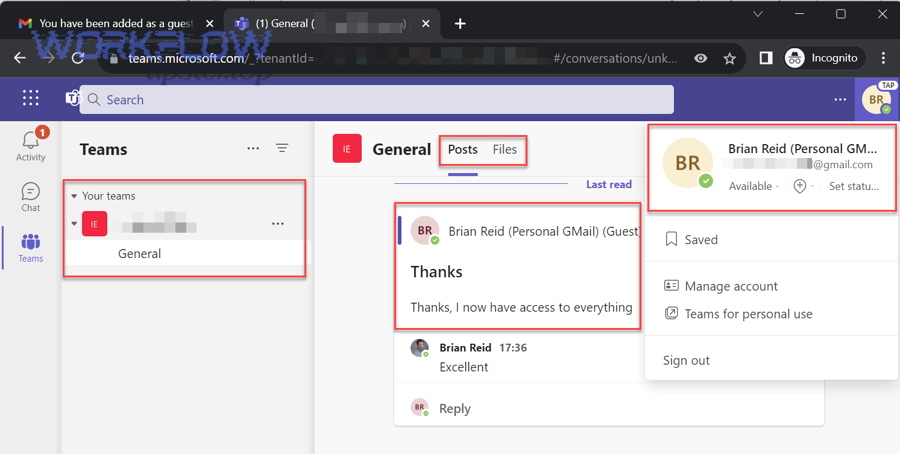
In practical terms, the “integration” is not Gmail and Teams magically merging into one product. It’s a workflow that does three things well:
- Detects the right email event
This could be “any new inbox email,” “any email with a label,” or “any email matching a search query.” The best integrations avoid blasting Teams for every marketing newsletter by narrowing the trigger to what matters. - Transforms email data into a Teams-ready alert
A helpful alert includes: sender, subject, received time, a short snippet (or redacted preview), and a link back to Gmail. This is where micro decisions matter—what you include determines whether the alert drives action or becomes noise. - Delivers the alert to the correct Teams destination
Teams has different “attention shapes”: a channel is shared and searchable; a direct message is personal and interruptive. A good design treats channel alerts like a shared queue and DMs like a last-mile escalation.
“Instant” is also worth defining honestly. Many popular automation setups check for new data on a schedule (polling), so “instant” typically means “fast enough to feel immediate” rather than “sub-second.”
According to a study by the University of California, Irvine (Department of Informatics), in 2008, interrupted work often led people to work faster but report higher stress and time pressure—highlighting why alert design must reduce unnecessary interruptions rather than increase them.
Do you need admin access to connect Gmail to Microsoft Teams?
No, you don’t always need admin access to connect Gmail to Microsoft Teams—but you do need it when your organization restricts app permissions, requires admin consent for OAuth scopes, or locks down Teams apps/connectors.
Next, the fastest way to avoid setup failure is to decide which of these three permission scenarios you’re in before you click “Connect.”
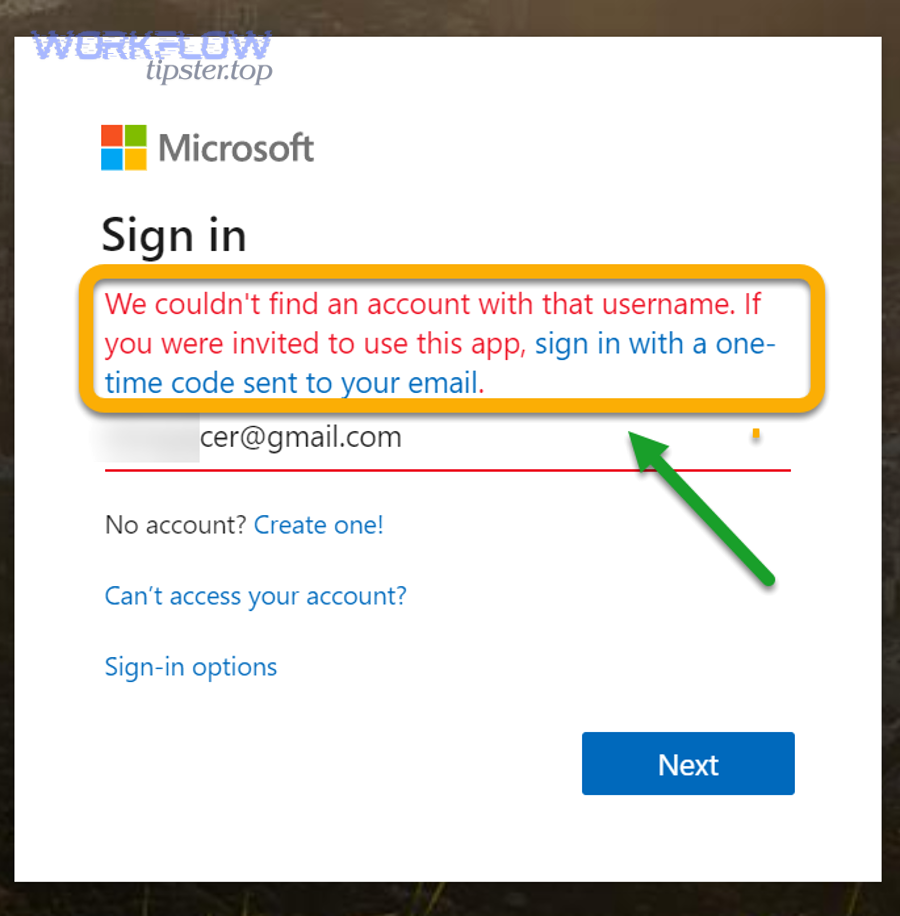
Here are the three most common reasons admin access becomes necessary:
- Your Google Workspace environment requires admin consent
In many companies, end-users can’t authorize third-party apps freely. Admins may need to allow the app, review scopes, and approve access to Gmail data. - Your Microsoft Teams tenant restricts who can install or use integrations
Some tenants require admin approval for apps, connectors, or messaging capabilities in certain channels (especially private channels). - Your target destination is governed (private channels, compliance controls, DLP)
Even if you can connect the apps, you may not be allowed to post into the specific channel you want without policy changes.
If you’re a Teams admin, your role is often less about “doing the clickwork” and more about setting guardrails: what tools are allowed, which scopes are acceptable, and which channels can receive automated content.
According to a study by UC Irvine and U.S. Army researchers, in 2012, removing work email access significantly reduced stress—reinforcing why admin-approved alert rules should prioritize signal and minimize constant inbox-driven interruptions.
What are the required prerequisites before you set up Gmail → Teams alerts?
There are 5 main prerequisites for Gmail → Teams alerts: (1) a clear alert goal, (2) correct account permissions, (3) an email selection rule, (4) a Teams destination rule, and (5) a safe message format—because those five decisions determine accuracy, noise level, and security.
Then, once your prerequisites are set, you can build the workflow in minutes instead of rebuilding it repeatedly after confusion and misrouting.
Before you pick a tool, lock in the macro-level intent:
- What problem are you solving?
Example: “Notify the support channel when VIP customers email us” or “Alert incident response when a labeled ‘Outage’ email arrives.” - What qualifies as an alert?
If you can’t define this, you’ll notify everything and the workflow will fail socially (people mute the channel). - Who owns the workflow?
Assign an owner (support ops, IT, team lead). Automation without ownership tends to silently break. - What is your failure mode?
If the integration fails, how do you notice? If you don’t design monitoring, you’ll find out during an escalation. - What data can be posted into Teams?
Decide if you post full snippets, metadata only, or redacted content.
Which Gmail settings and permissions must be enabled first?
You should enable the smallest Gmail access scope that still achieves your alerting goal, and you should prepare a deterministic way to select the right emails (labels, filters, or queries).
Key Gmail prerequisites that prevent 80% of noise:
- Use labels as a trigger control
Create labels like Support-Urgent, VIP, Billing, or Incident and apply them automatically via Gmail filters when possible. - Define filtering rules that match your workflow
Examples: sender-based, subject keyword-based, and recipient-based rules. - Decide how you handle threads
Gmail threads can cause duplicates if each reply triggers the automation. Decide whether to trigger on new emails or new labeled emails and whether to re-label after processing. - Choose how attachments are handled
Often the best practice is to post metadata and a link, not the attachment content, unless your security policy explicitly allows it.
Which Microsoft Teams settings and permissions matter most?
You need a destination that matches the operational behavior of your team (triage channel, escalation channel, individual DM), and you need posting permissions that won’t block the message at runtime.
Teams prerequisites to confirm:
- Pick the destination type intentionally
Channel = shared triage; group chat = small on-call rotation; DM = escalation. - Confirm who can post
Some channels restrict posting to owners or certain roles. Private channels can be more restrictive for automation actions. - Validate app/integration policies
If your org limits allowed apps/connectors, you’ll need approval before deployment.
This is also the right place to decide whether your organization treats this as part of broader Automation Integrations strategy (standardized tools, shared templates, and approved permission scopes) rather than “one-off” workflows.
According to a study by Microsoft Research and UC Irvine researchers, in 2016, email batching patterns were associated with differences in perceived stress and productivity—supporting the idea that alert prerequisites should enable structured triage rather than constant interruption.
How do you set up Gmail → Microsoft Teams instant email alerts step by step?
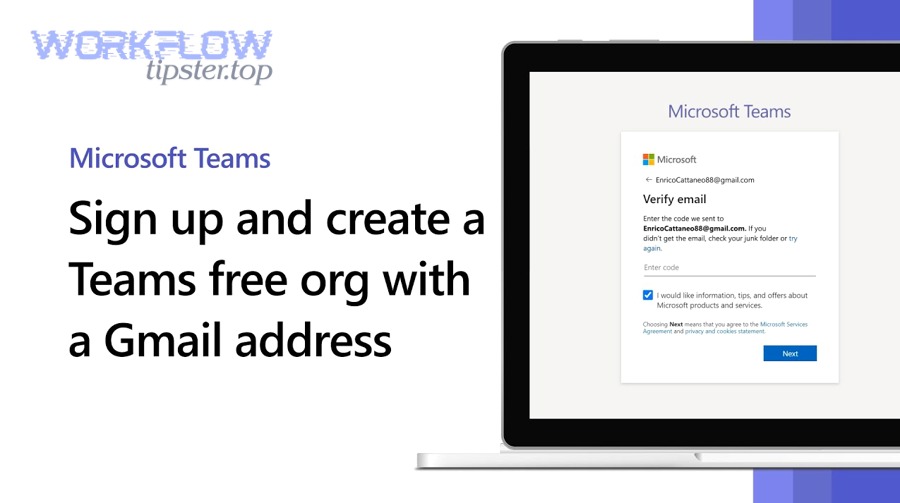
You set up Gmail → Microsoft Teams instant email alerts by using one automation method and following 6 steps—connect accounts, choose the Gmail trigger, define filtering, select Teams destination, map message fields, then test and monitor—so every relevant email becomes a useful Teams alert.
Below, we’ll connect each step to the real operational choices that prevent noise and improve response time.
- Choose the integration approach
No-code automation platform, email-to-channel, or a custom IT integration depending on governance needs. - Authenticate Gmail securely
Use OAuth and approve the minimum required scope; ensure the correct mailbox/account is connected. - Select the Gmail trigger
New email in inbox, new labeled email, or new email matching a search query. - Select the Teams destination
Channel message for shared triage or chat/DM for escalation. - Map email fields into a Teams message
Sender, subject, time, snippet (or metadata-only), link back to Gmail, and priority tags. - Test and operationalize
Send positive/negative tests, confirm no duplicates, and add monitoring and ownership.
How do you choose the right trigger for “new email” (inbox vs label vs search query)?
Inbox triggers win for simplicity, label triggers are best for precision, and search-query triggers are optimal for complex routing—because each trigger type trades setup effort for noise control and operational accuracy.
However, the best trigger is the one your team can maintain consistently after launch.
- Inbox trigger
Best for small teams and low email volume, but risks channel spam and alert fatigue. - Label trigger
Best for support operations because it creates deterministic, explainable alerting. - Search query trigger
Best for nuanced policies but harder to troubleshoot if the query is wrong.
If you want a practical rule of thumb: start with labels.
According to a study by the University of California, Irvine (Department of Informatics), in 2008, people compensated for interruptions by working faster but experienced more stress—supporting the trigger choice principle that fewer, higher-quality alerts are better than frequent inbox-level pings.
How do you format the Teams message so it’s useful for support teams?
A useful Teams alert message includes a clear subject, sender, time, category label, a short snippet (or metadata-only), and a direct link back to Gmail—because support teams need context fast, not a copy of the email thread.
More specifically, formatting determines whether the alert becomes an actionable queue item or an ignored notification.
- Title line: [Label] Subject
- Metadata line: From | To | Received time
- Snippet line: First 100–200 characters (or redacted)
- Link line: Open in Gmail
Add optional operational fields for support: owner, severity, and next action.
How do you filter noisy emails to avoid spamming Teams channels?
You avoid spamming Teams by filtering Gmail alerts through three layers—source filtering, intent filtering, and suppression rules—so the channel sees only emails that require action.
Specifically, every “instant alert” workflow should include at least one include rule and one exclude rule.
- Source filtering
Include: customer domains, support aliases. Exclude: noreply senders, newsletters. - Intent filtering
Include keywords like “urgent,” “down,” “refund,” and label-based intents like VIP or Incident. - Suppression / dedup
Exclude emails already labeled Processed, suppress duplicates, trigger only on new labeled email where possible.
According to a study by Microsoft Research and UC Irvine researchers, in 2016, email interruption habits and batching patterns related to perceived stress and productivity—supporting the idea that filters and batching logic can materially improve outcomes.
Which Gmail-to-Teams alert workflows should you implement for support operations?
There are 6 core Gmail-to-Teams alert workflows support teams should implement: VIP alerts, incident alerts, billing alerts, attachment alerts, escalation alerts, and after-hours alerts—because each workflow maps an email pattern to an operational response.
Next, we’ll anchor each workflow to a specific channel or DM strategy so it stays actionable.
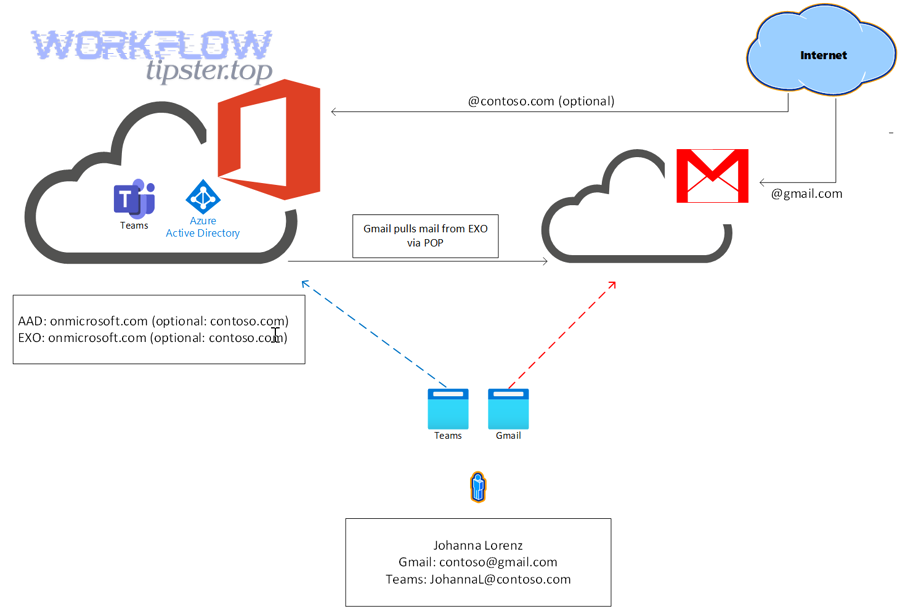
- VIP customer alerting
Trigger: VIP sender or label. Action: post to a VIP triage channel with high-signal formatting. - Incident/Outage alerting
Trigger: outage keywords or Incident label. Action: post to incident channel with severity tag. - Billing and refund alerting
Trigger: billing alias or Billing label. Action: post to billing triage channel with minimal necessary context. - Attachment-driven workflow
Trigger: attachment or attachment-review label. Action: post to review channel with attachment metadata. - Escalation to on-call
Trigger: Escalate label or P1 keywords. Action: DM on-call and post to escalation channel. - After-hours notification
Trigger: high severity outside hours. Action: notify on-call channel and DM only when criteria match.
What are the best alert types to post into a Teams channel vs send as a DM?
Channel alerts win for shared triage, DMs are best for personal accountability, and escalation channels are optimal for urgent coordination—because each destination type changes who feels responsible and how quickly people respond.
However, mixing them without rules causes confusion: people assume “someone else has it.”
- Post to a channel when the item should be triaged publicly, multiple people might collaborate, and you want searchable context.
- Send a DM when you must assign responsibility immediately and the audience is one person (on-call).
- Use both when you need accountability (DM) plus shared awareness (channel).
How can you route emails to different Teams channels based on label or sender?
You can route Gmail emails to different Teams channels by using label-based or sender-based rules that map each email category to a destination—because routing converts “a mailbox full of mixed work” into separate, focused queues.
More importantly, routing works best when the team agrees on the category model.
- Label VIP → #vip-support
- Label Incident → #incident-response
- Label Billing → #billing-triage
- Sender domain @partner.com → #partner-ops
According to a study by UC Irvine (Department of Informatics), in 2012, reducing work email access reduced stress—reinforcing that routing and categorization should reduce random interruption and increase structured handling.
Is Gmail → Teams automation secure and compliant for business use?
Yes, Gmail → Teams automation can be secure and compliant for business use if you enforce least-privilege permissions, control what content is posted, and apply governance over destinations—because the primary risks come from overbroad access and accidental data exposure in channels.
Moreover, security improves when you treat “instant alerts” as a controlled notification system, not a raw email replication pipeline.
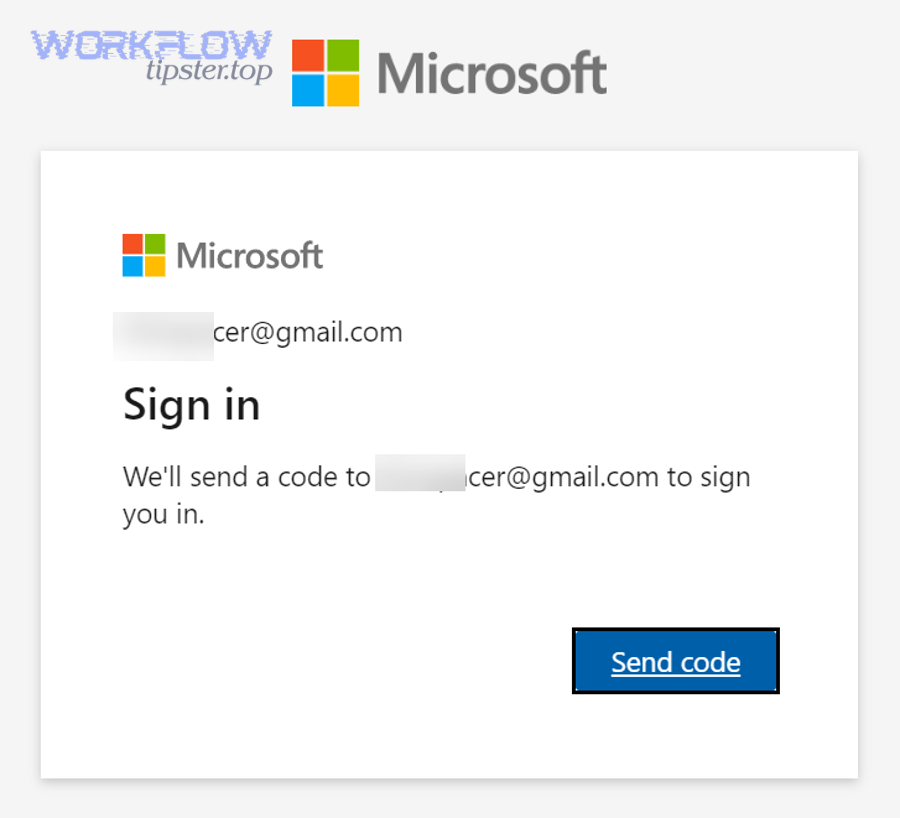
- Least privilege limits exposure
Use minimal OAuth scopes and restrict which mailbox/account is connected. - Content controls prevent leakage
Post metadata-only for sensitive emails, redact snippets, avoid posting attachments unless required and permitted. - Governance and monitoring detect drift
Centralize ownership, log failures, and review integration permissions periodically.
What permissions should you grant (least-privilege) and why?
You should grant the smallest set of permissions that still allows your workflow to trigger and post alerts—because every extra permission expands blast radius if credentials are compromised or misused.
Specifically, permission choice should follow “read to notify” rather than “read-write to manage” unless your workflow truly requires mutation.
- Prefer read-only email access if you only need alerts.
- Avoid delete/modify permissions unless you must label or move messages to prevent duplicates.
- Avoid broad workspace scopes that aren’t necessary for alerting.
How do you prevent sensitive email content from leaking into Teams?
You prevent sensitive content leakage by combining redaction, destination control, and policy alignment—because even a “small snippet” can contain personal data, credentials, or customer details.
In addition, you can design alerts that notify the team without copying the content.
- Post metadata-only for sensitive labels (HR, Legal, Security).
- Limit snippets and strip signatures.
- Use private channels for restricted workflows.
- Align with DLP and retention where applicable.
- Prefer link-back workflows: post a link to Gmail rather than content.
According to a study by UC Irvine and collaborators, in 2008, frequent interruptions increased stress even when work speed increased—supporting the compliance-friendly approach of reducing unnecessary alert content and frequency.
How do you troubleshoot Gmail-to-Teams alerts when they don’t send (or send duplicates)?
You troubleshoot Gmail-to-Teams alerts by checking five points in order—authentication, trigger match, filtering logic, Teams destination permissions, and dedup controls—because almost every failure or duplicate falls into one of these categories.
Next, we’ll use a fast diagnostic flow that helps you fix the issue without guessing.
- Authentication
Check if the connection is still authorized and tokens haven’t been revoked. - Trigger selection
Confirm the correct mailbox and folder/label is monitored and test emails match criteria. - Filtering logic
Verify exclusions aren’t blocking all emails and queries match Gmail behavior. - Teams destination
Confirm the integration can post to the channel and channel settings haven’t changed. - Dedup and thread behavior
Check thread replies, overlapping criteria, and processed labeling.
What are the most common causes of missing alerts and how do you fix each one?
The most common causes of missing alerts are expired authorization, mismatched filters/labels, posting restrictions in Teams, and polling delays—because these are the “silent failure” points where the workflow looks correct but cannot execute.
To illustrate, you can fix most missing alerts by applying one targeted correction per cause.
- Token expired or revoked
Fix: reconnect the Gmail or Teams account and re-approve scopes. - Label trigger never fires
Fix: confirm label name exactly, verify filters apply it automatically, test with a matching email. - Search query mismatch
Fix: simplify and test the query in Gmail search first, then apply it in the trigger. - Posting blocked by channel restrictions
Fix: use a standard channel or adjust permissions/policies to allow automation posting. - Delay due to polling
Fix: document typical latency and adjust expectations or choose faster-check methods where possible.
How do you reduce duplicates and false positives?
You reduce duplicates by using deterministic triggers (labels), adding a “processed” marker, and preventing thread-based refires—because duplicates usually come from replying threads, overlapping criteria, or re-processing the same message.
More importantly, dedup creates trust: if the channel shows the same email five times, people stop believing alerts.
- Label-first processing
Trigger on new labeled email, then replace the label with Processed. - Message ID tracking
Store a message ID and ignore repeats when the tool supports it. - Time-window suppression
Suppress repeats within a short window for identical sender/subject patterns. - Thread-aware filtering
Exclude thread replies or re-fires where possible.
How do you validate, monitor, and maintain Gmail → Teams alerts over time?
You validate and maintain Gmail → Teams alerts by running a structured test plan, monitoring delivery and latency, and assigning a workflow owner who reviews permissions and rules periodically—because integrations fail quietly and only show up when the team needs them most.
In short, maintenance is what keeps “instant alerts” reliable after the first week.
A simple operational model:
- Owner: one accountable person or role (support ops/IT).
- Change log: record when triggers, filters, or destinations change.
- Quarterly review: revisit permissions, channels, scopes, and content policy.
- Incident procedure: define what happens if alerts stop.
This is also where you can standardize templates and publish them internally—something a process-focused team like WorkflowTipster would treat as “automation documentation,” not just a one-time build.
What should your test plan include before rolling out to the whole team?
Your test plan should include at least 10 test emails across positive and negative cases, plus edge cases like threads and attachments—because those cases are what cause missing alerts and duplicates in production.
Then, once tests pass, you can roll out with confidence that the rules are stable.
- Positive matches: VIP sender, Incident label, Billing alias, search-query match.
- Negative matches: newsletters, missing keywords, wrong alias.
- Edge cases: thread replies, attachments, long bodies, sensitive content redaction paths.
What metrics indicate your alerting workflow is healthy?
Healthy Gmail → Teams alerting shows high delivery rate, stable latency, low duplicate rate, and a low “noise ratio” (alerts that don’t lead to action)—because those metrics reflect trust and operational usefulness.
Moreover, the best metric is the one your team actually reviews weekly.
- Delivery success rate
- Average latency
- Duplicate rate
- Noise ratio
- Routing accuracy
According to a study by UC Irvine and U.S. Army researchers, in 2012, removing work email reduced stress—supporting the principle that monitoring should focus on reducing unnecessary alerting while preserving critical signals.
What related Gmail ↔ Microsoft Teams workflows should you consider beyond instant alerts?
Beyond instant alerts, you should consider email-to-channel forwarding, Google Calendar-to-Teams meeting scheduling, guest collaboration with Gmail users, and advanced routing/escalation patterns—because these workflows expand capability without changing the core “Gmail → Teams” communication bridge.
In addition, these options help teams choose between automation and manual forwarding based on governance and urgency.
How can you send an email directly into a Teams channel without automation tools?
You can send an email directly into a Teams channel by using the channel’s email address and forwarding or composing an email to that address—because Teams channels can accept email as an input method in supported configurations.
However, this manual approach is best when you want occasional forwarding rather than always-on alerts.
Here’s when manual email-to-channel is a better fit than automation:
- You only forward emails occasionally.
- You want a human to decide what gets shared.
- You want to avoid granting any third-party app access to Gmail.
And here’s when it’s worse:
- You need consistent routing.
- You need dedup, filters, and structured message formatting.
- You need reliability without human intervention.
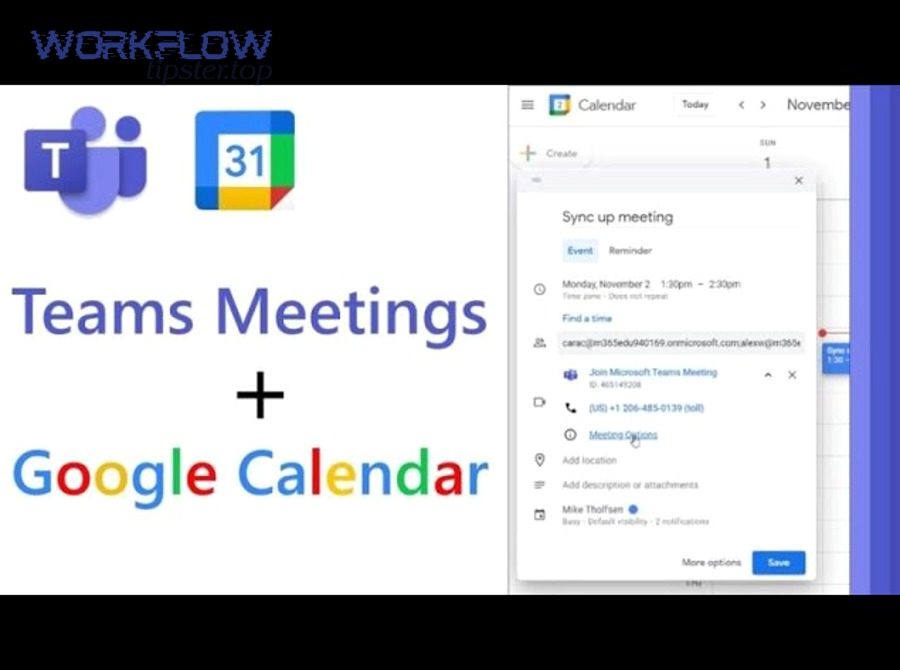
How do you connect Google Calendar and Microsoft Teams for meeting scheduling?
You can connect Google Calendar and Microsoft Teams meeting scheduling by using the Microsoft Teams Meeting add-on for Google Workspace, which lets users schedule and join Teams meetings directly from Google Calendar.
Next, this matters when your organization lives in Google Workspace but uses Teams meetings for calls.
This workflow complements Gmail → Teams alerts because it reduces context switching: support or ops teams can coordinate meetings quickly after an email-triggered escalation.
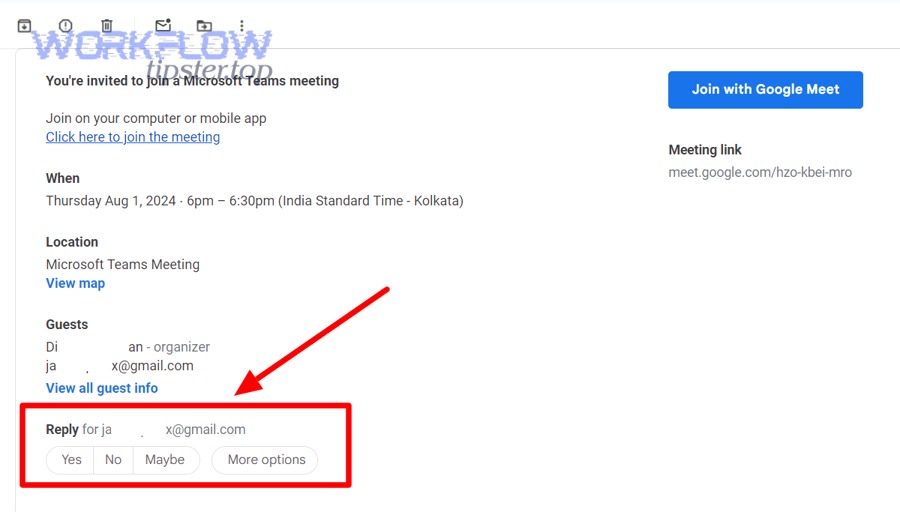
Can you collaborate in Teams with Gmail users (guests), and what are the tradeoffs?
Yes, you can collaborate in Teams with Gmail users by inviting them as guests (depending on your tenant’s external access policies), but the tradeoffs include tighter governance needs, access boundary management, and higher risk of oversharing in channels.
Moreover, guest collaboration is best when you have a clear external collaboration policy.
- Pros: faster coordination with external partners; shared context in one workspace.
- Cons: more governance overhead; higher risk of accidental exposure; permission complexity.
Which advanced workflows improve support-team outcomes (routing, escalation, archiving) when Gmail is the intake?
Advanced workflows improve support outcomes by combining routing, escalation, and archival steps—because the email alert is only useful if it leads to a tracked response and a closed loop.
To sum up, advanced workflows turn “notification” into “process.”
- Email → Teams alert → ticket/task creation
Post alert, then create a task for accountability (tool-dependent). - Label-based escalation ladder
Support-Urgent posts to channel; Escalate triggers DM to on-call. - Archive-and-log
After posting, apply a Processed label and log the event for audit. - Cross-tool examples for inspiration
Marketing automation analogs like airtable to convertkit, file-handling analogs like airtable to google drive, and time-tracking analogs like google docs to toggl.