


Connecting Gmail to Asana is one of the most reliable ways for teams to stop losing action items in inbox threads—because it converts email requests into assigned, due-dated, visible work with ownership and status in Asana.
To make that happen smoothly, you need to understand what the Gmail to Asana integration actually does (and what it doesn’t), so you choose the right setup: the native Asana for Gmail add-on for day-to-day triage, or more advanced automation when volume and rules increase.
Then, you need a step-by-step connection process that protects team workflows—permissions, projects, task templates, and consistency—so “create task from email” doesn’t become a messy, duplicated backlog.
Introduce a new idea: once Gmail emails become Asana tasks, the real productivity gain comes from the team workflow after task creation—standard fields, naming rules, update habits, and a clean tracking loop from request → work → done.
Is connecting Gmail to Asana the best way for teams to turn emails into trackable tasks?
Yes—connecting Gmail to Asana is one of the best ways for teams to turn emails into trackable tasks because it (1) captures action items at the source, (2) assigns clear ownership and due dates, and (3) keeps progress visible without “reply-all” status chasing.
Then, to avoid “integration enthusiasm” turning into chaos, it helps to choose the best conversion method based on how your team actually works:


This table contains common Gmail-to-Asana approaches and helps teams pick the option that matches volume, governance, and the need for automation.
| Approach | Best for | Strengths | Trade-offs |
|---|---|---|---|
| Asana for Gmail add-on (native) | Most teams doing manual triage | Fast, low friction, keeps email context | Still depends on people to click “create task” |
| Automation (rules-based) | High-volume inboxes, shared mailboxes | Consistent routing, less manual work | Needs governance, testing, and maintenance |
| Manual copy/paste into Asana | Occasional use | No setup required | Error-prone, inconsistent, easy to skip |
Most important reason: email is where requests arrive, but task systems are where work gets tracked. When you convert requests into tasks immediately, the team reduces “silent loss” (missed follow-ups, forgotten commitments) and makes work auditable: who owns it, what “done” means, and when it’s due.
According to the Radicati Group’s Email Statistics Report, 2024–2028 (Executive Summary), total worldwide emails sent/received per day exceeded 361.6 billion in 2024 and is forecast to rise through 2028—meaning email volume alone makes “inbox-only task tracking” structurally risky.
What does “Gmail to Asana integration” mean in practice?
“Gmail to Asana integration” means using Asana’s Gmail connection (typically the Asana for Gmail add-on) to create, search, comment on, and complete Asana tasks directly from your Gmail interface—while carrying the email context into the task.
Next, the practical value becomes clear when you break the integration into the actions teams perform repeatedly: capturing a request, adding structure, and maintaining traceability.
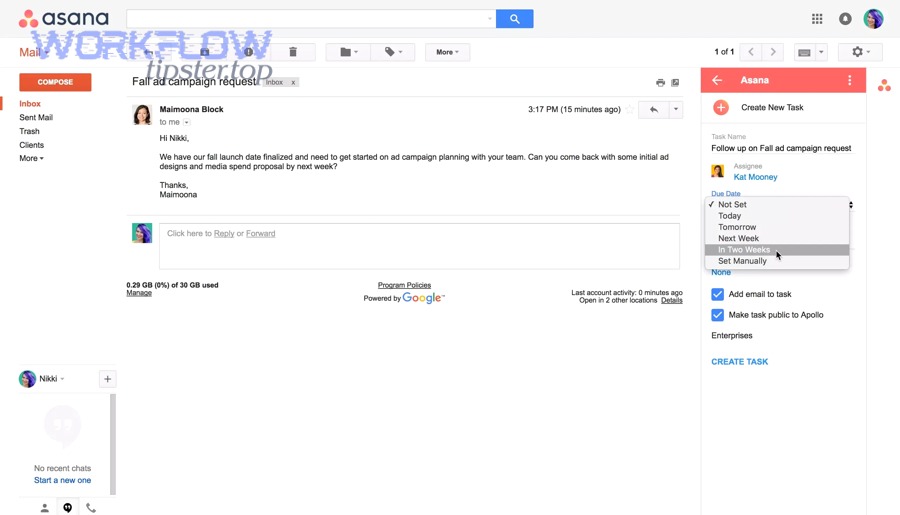
What can you do directly inside Gmail with the Asana add-on?
Inside Gmail, teams can typically create a task, assign it, set a due date, add it to a project, and keep email context attached—so the request doesn’t get separated from the work.
More specifically, the add-on is most useful at the moment you read an email and decide: “This is work, not just information.” Instead of forwarding, copying, or leaving it starred, you convert it into a task with a few structured fields:
- Task name that mirrors the action (not the email subject)
- Assignee (single owner)
- Due date (even if tentative)
- Project (where it will be tracked)
- Context (email link/content, attachments, key details)
This is a core reason teams adopt Automation Integrations as a category: it reduces the gap between communication and execution, especially when different roles share a single inbox.
What information gets carried into the Asana task (subject, body, attachments, links)?
In practice, a well-designed email-to-task flow carries enough context to execute without forcing the assignee to hunt through old threads. That usually includes:
- The email subject (often as a reference line)
- Key email content (often appended or referenced)
- Attachments (when relevant to delivery)
- A link back to the original email/conversation so updates remain verifiable
The key is consistency: if half the team copies the entire email and half writes a one-line task, you’ll get uneven task quality and slower execution.
What is the difference between “create a task” and “sync the email thread to the task”?
Creating a task captures a snapshot (request → task), while syncing the thread aims to keep the task connected to future replies so the task stays “alive” as the email conversation evolves.
In addition, thread syncing is crucial for long-running requests (vendors, clients, approvals) because the risk is not “creating the task”—the risk is losing the latest decision inside the email thread while the Asana task becomes outdated.
Asana’s Gmail integration guidance describes creating tasks from Gmail and syncing conversations so the task remains connected to the email context and replies.
How do you connect Gmail to Asana step by step without breaking team workflows?
Connect Gmail to Asana by installing the Asana for Gmail add-on, signing into the correct Asana account, and validating task creation rules (projects, permissions, naming, and ownership) in a small pilot before rolling it out team-wide.
To begin, treat setup as a workflow change—not a “plugin install”—because the real risk is inconsistency (duplicate tasks, wrong projects, unclear owners), not the installation itself.
How do you install the Asana for Gmail add-on and authorize accounts safely?
A safe install sequence prioritizes governance and identity:
- Install the add-on from the approved marketplace path your organization uses.
- Sign in with the Asana account that matches the Gmail identity (avoid creating tasks in the wrong workspace).
- Confirm permissions: can users add tasks to the right projects, and do they have access to the correct team spaces?
- Test in a pilot inbox (or with a small group) using real email scenarios.
Common safety rule: if your team uses shared inboxes or alias addresses, decide upfront whether tasks should be created under a service account, a team owner, or the individual triaging the inbox—because “who created the task” impacts follow-ups and accountability.
How do you choose default projects, task templates, and required fields?
Teams avoid task sprawl when they standardize a “minimum viable task” created from Gmail:
- Project destination: where does this type of email request belong?
- Owner/assignee: who is responsible for the next action?
- Due date: what’s the expected response time or delivery deadline?
- Task naming: verb + outcome + customer/system (e.g., “Confirm pricing for Q2 renewal – Acme”)
- Definition of done: what completes the request?
If you already use templates in Asana, map common email categories to templates:
- Support requests → triage template
- Sales requests → follow-up template
- Ops approvals → review/approve template
This is where teams often discover they need a simple routing rule: “If it’s a request, it must land in a project; if it’s information, it stays in email.”
How do you validate access, permissions, and role-based governance?
The fastest way to “break” workflows is letting people create tasks in projects they can’t fully access (or shouldn’t). Validate governance with these checks:
- Project access: can the assignee see the task once created?
- Team visibility: will teammates need to collaborate or only the owner?
- Confidentiality: are there email categories that should never be converted (HR, legal, sensitive client data)?
- Ownership policy: does the triager assign the task immediately, or does a coordinator assign later?
If you skip this, you’ll see patterns like: tasks created but invisible to the person who must execute, or tasks that land in personal “My Tasks” with no project context.
Asana’s Gmail integration setup steps emphasize installing the add-on, signing in, and creating/working with tasks from Gmail’s side panel—making it practical to pilot and validate permissions before scaling.
How do you convert an email into an Asana task so it stays trackable until done?
Convert an email into an Asana task by creating the task from Gmail, assigning a single owner, setting a due date, adding it to the correct project, and ensuring the email context (and updates) stays linked so the task remains the single source of truth until completion.
Then, the difference between “a task that exists” and “a task that gets done” is structure: a clear next action, the right project, and an update rhythm that prevents the email thread from becoming the hidden status channel.
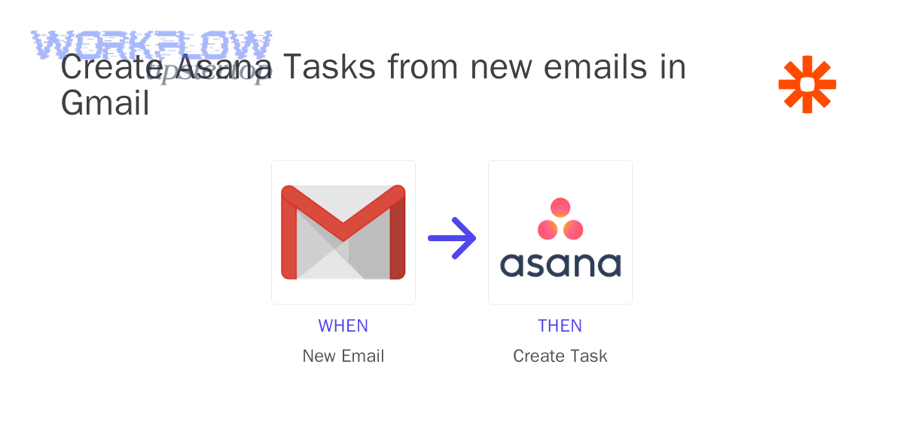
What is the fastest “email → task” checklist your team should follow?
Use a short checklist that prevents low-quality tasks:
- Rename the task into an action (avoid leaving the raw email subject if it’s vague)
- Set one owner (no shared responsibility)
- Add a due date (even if it’s a first-pass estimate)
- Select the project (so it shows up in team tracking)
- Add one line of clarity: “Outcome needed + constraints + next step”
- Attach or reference the email context so details remain verifiable
This takes less time than re-reading the thread later—and it prevents the worst-case scenario: “We saw it, but nobody owned it.”
How do you keep context without copying the whole email into the task?
The goal is decision-grade context, not transcription. A good pattern is:
- Add a short summary: “Client wants X by Y; needs approval from Z.”
- Include the key data points (dates, amounts, specs).
- Keep a reference back to the original email thread for auditability.
- Use Asana comments for ongoing updates, not a new email chain.
This prevents tasks from becoming unreadable walls of text while still keeping the “why” and “what” attached.
How do you handle follow-ups, replies, and status updates without duplicating work?
Define a single tracking path:
- Status updates live in Asana (task comments, status fields, subtasks).
- External communication lives in email (but key decisions are reflected back into Asana).
- If the thread continues, keep the task updated with the latest decision and next action.
This is where teams often create duplicates: someone replies to email, someone else creates a second task, and now there are two “sources of truth.” Prevent that by making the rule explicit: one request → one primary task.
Research summaries from UC Berkeley referencing UC Irvine work on interruptions report substantial time loss before returning to the original task after an interruption—supporting the idea that “later I’ll turn it into a task” is a costly habit when email is constant.
What is the best team workflow after creating tasks from Gmail?
The best team workflow after creating tasks from Gmail is a standardized pipeline: triage → clarify → assign → schedule → execute → update → close, with shared rules for task quality and a single tracking location (the Asana project).
Next, think of Gmail-to-Asana as the “capture mechanism,” and your workflow as the “execution engine.” Without a consistent engine, you’ll capture more tasks—but finish no faster.
What are the standard stages a “Gmail-created task” should move through?
A simple, scalable set of stages keeps everyone aligned:
- New (Captured): task created from Gmail, not yet clarified
- Clarify: define outcome, add missing info, confirm scope
- In Progress: owner actively working
- Waiting/Blocked: dependency, approval, or external reply needed
- Review/Approve: internal QA or decision required
- Done: completed with final note and link to outcome
Teams can implement this via sections, custom fields, or status tags depending on how mature the workflow is.
How should teams use assignees, due dates, subtasks, and dependencies?
A consistent rule-set prevents confusion:
- Assignee: exactly one owner for the next action (collaboration happens in subtasks)
- Due dates: reflect the next commitment, not the vague “someday”
- Subtasks: break multi-step email requests into a checklist the owner can execute
- Dependencies: only when another person must complete something first (avoid dependency overload)
If you use dependencies, define what triggers a status change: e.g., “When the dependency completes, the owner must post a comment and move the task to In Progress.”
What is the best naming, tagging, and reporting habit to avoid task sprawl?
Use a naming convention that answers: What action? What outcome? For whom?
- “Approve contract redlines – Vendor A – by Fri”
- “Schedule kickoff call – Project Nimbus – confirm attendees”
- “Send revised quote – Acme renewal – include discount terms”
Then, use lightweight tags or fields (request type, customer, urgency) so you can report on volume and bottlenecks.
A Harvard Business Review article citing a McKinsey analysis notes the large share of time professionals spend managing email—supporting structured workflows that reduce inbox-based coordination and convert work into trackable systems.
What are the most common Gmail-to-Asana integration problems and how do you fix them?
The most common Gmail-to-Asana integration problems are (1) tasks not appearing where expected, (2) duplicates and inconsistent task quality, and (3) broken context/updates—and you fix them by standardizing destination rules, permissions, and task-creation habits.
Then, treat problems as “workflow bugs,” not user mistakes: if many people do it wrong, the system is unclear.
Why can’t I see the Asana panel or add-on in Gmail?
Common causes:
- The add-on isn’t installed for the current account or browser profile
- The user is in the wrong Gmail identity (personal vs work)
- Browser settings/extensions block side panels or scripts
- The user needs to refresh after first install
Fix pattern:
- Confirm the correct Gmail account
- Re-check installation and sign-in
- Test in an incognito/private window to isolate extensions
Why are tasks duplicated or created in the wrong project?
This usually happens when:
- People create tasks in “My Tasks” without choosing a project
- Multiple team members triage the same inbox without a rule
- Automation rules overlap with manual creation
Fix pattern:
- Create a rule: “Every email-created task must be added to a project”
- Define inbox ownership windows (who triages when)
- Add a quick duplicate check: search in the target project before creating
Why is context missing, or why don’t replies/status stay aligned?
This shows up when:
- People reply in email but never update the task
- The task lacks a clear “next action,” so updates scatter
- The team treats Asana as a “parking lot” instead of the system of record
Fix pattern:
- Require one-line summaries in the task description
- Use a “Waiting/Blocked” stage when you’re awaiting email replies
- Post decisions back into Asana as comments so the task reflects reality
Asana’s documentation for its Gmail add-on highlights creating tasks from email and managing task actions directly in Gmail—so when teams can’t see tasks, misroute tasks, or lose context, the fix is usually aligning setup, permissions, and standardized usage rather than abandoning the integration.
What are the advanced options and alternatives for Gmail-to-Asana automation in teams?
Advanced Gmail-to-Asana automation works best when you use the native add-on for human triage and layer rules-based automation for repetitive patterns—while also evaluating alternatives when your destination system (or use case) is different.
Next, this is where micro-semantics matter: as volume grows, your team stops asking “Can we create tasks?” and starts asking “How do we route the right emails to the right workflows with minimal manual decision-making?”
When should you use native add-on vs automation platforms?
Use the native add-on when:
- Humans must interpret the request
- Requests vary and need judgment
- You want low friction and quick capture
Use automation when:
- The same sender/label/category repeatedly maps to the same project
- You need consistent routing from a shared inbox
- You want SLAs enforced via due-date rules and auto-assignment
A practical hybrid is: automation pre-sorts and labels; humans convert and clarify into tasks.
What is a “rules-based routing” model for shared inboxes?
A stable routing model uses predictable signals:
- Gmail label → Asana project
- Sender domain → request type
- Keyword patterns → template selection
- Priority flag → due-date policy
This reduces manual triage load while keeping quality high, because the system handles repeatable classification and people handle nuance.
What are “antonym” alternatives (when you should NOT convert emails into tasks)?
Sometimes the better move is the opposite of “email → task”:
- Do not convert informational emails (newsletters, FYIs, announcements)
- Do not convert messages that already represent a tracked item elsewhere (e.g., ticketing systems)
- Do not convert sensitive threads better handled in restricted systems
This antonym logic (task vs non-task) prevents turning Asana into an inbox mirror.
What are related cross-tool workflows (examples) that follow the same pattern?
Once teams master Gmail-to-Asana, they often apply the same execution mindset across other flows:
- If your execution tool is Jira instead of Asana, a similar pattern applies with gmail to jira for request capture into engineering tracking.
- If your work involves documentation and observability, teams often connect artifacts and monitoring updates in workflows like google docs to datadog, where documentation and operational signals stay connected.
These aren’t just “nice integrations”—they’re the same strategy: convert communication into trackable work, keep context attached, and standardize the execution loop.
Asana’s Gmail integration instructions describe creating tasks from Gmail, setting due dates, adding tasks to projects, and syncing future replies—capabilities that make both manual triage and selective automation viable at team scale.