


Connecting Gmail to Airtable is the fastest way to turn messy inbox traffic into structured records your team can search, assign, and track—by automatically capturing the right emails (and attachments) into an Airtable table.
Next, you’ll learn how to choose the best integration approach—native Airtable options versus automation tools—so you can balance speed, reliability, security, and team ownership without overbuilding.
Then, you’ll design a base that scales, map email fields correctly, and set filters so only the emails that matter become records—without duplicates, missing threads, or broken attachments.
Introduce a new idea: once capture is reliable, you can operationalize the workflow (status, owner, SLA) so the Airtable record becomes a living “work object,” not just an email archive.
What does “Gmail to Airtable automation” mean for teams?
Gmail to Airtable automation is an email-to-database workflow that captures selected Gmail messages (and attachments) into Airtable records so teams can search, assign, and track outcomes instead of hunting through inbox threads.
Next, because “automation” only helps when the captured data becomes usable, the key is deciding what to store and how to structure it for action.
What email data should you capture in Airtable to make it searchable and actionable?
There are 9 main types of Gmail data you should capture in Airtable—From, To/CC, Subject, Date, Labels, Snippet/Body, Message ID, Thread ID, and Attachments/Links—based on the criterion of “does it help a teammate decide what to do next?”
Then, use the list below as a practical field blueprint (you can add more later, but these are the minimum that keep the workflow stable):
- From (email + name): enables sorting by customer, vendor, or internal sender.
- To/CC: helps shared inbox workflows (who was included).
- Subject: strongest quick-scan identifier.
- Date/time received: essential for SLA, follow-ups, and timeline views.
- Labels (or inferred category): powers routing logic (Support / Billing / Sales / Hiring).
- Snippet or key excerpt: makes records usable without opening Gmail every time.
- Message ID: the best “unique key” for deduping when logging one record per message.
- Thread ID: the best “conversation key” when logging one record per thread.
- Attachments (files) or attachment links: enables handoffs (receipts, contracts, screenshots).
To keep teams aligned, add 3 operational fields that turn “data” into “work”:
- Status (New → In Progress → Waiting → Done)
- Owner (single select or collaborator field)
- Next step date (follow-up date)
This hook matters: the moment your table has status + owner + a unique key, it stops being a dumping ground and becomes a work queue.
Should you store the full email body in Airtable or store a link back to Gmail?
Storing the full email body wins for fast searching, storing a link back to Gmail is best for privacy and governance, and storing a short snippet + link is optimal for most teams.
However, the “best” option depends on how your team uses Airtable:
- Store full body when:
- You need in-table search for full context (support triage, dispute investigation).
- You want to analyze content later (themes, common requests, response patterns).
- Your governance allows storing message content outside Gmail.
- Store link + snippet when:
- You want quick scanning in Airtable but keep sensitive details in Gmail.
- You manage compliance constraints (PII, finance data, HR info).
- You want to minimize record size and keep the base fast.
A practical hybrid pattern:
- Snippet (1–3 paragraphs) in Airtable for scanning
- Gmail permalink for authoritative source
- Thread ID so teammates can jump to the right conversation
That way, Airtable becomes the “work layer,” while Gmail stays the system of record for full email history.
Which is the best way to connect Gmail to Airtable: native options or automation tools?
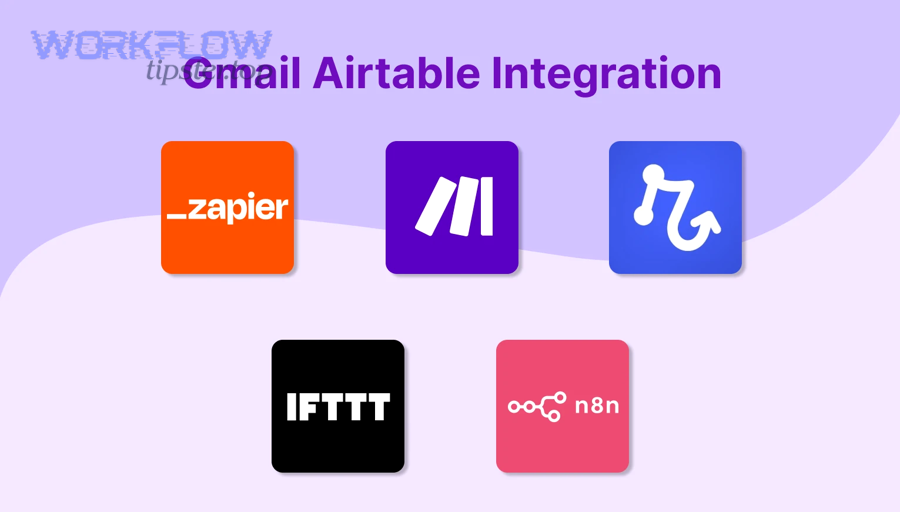
Native Airtable options win for simplicity, Zapier-style tools are best for speed-to-launch, and Make/n8n-style workflows are optimal for complex routing and dedupe—so “best” depends on whether you prioritize setup time, control, or scalability.
Next, use a decision lens: (1) triggers you need, (2) routing complexity, (3) dedupe reliability, (4) security ownership.

This table contains the common decision criteria teams use to select an integration approach and helps you match the tool to the workflow, not the other way around:
| Criterion | Native Airtable options | Zapier-style | Make/n8n-style |
|---|---|---|---|
| Setup speed | Fast | Very fast | Medium |
| Routing logic | Basic | Moderate | Advanced |
| Dedupe control | Limited | Moderate | Strong |
| Parsing flexibility | Basic | Moderate | Strong |
| Team governance | Varies | Varies | Strong (esp. self-hosted) |
| Best for | Simple logging | Quick wins | Complex, scaled workflows |
Can Airtable connect to Gmail without Zapier or Make?
Yes—Gmail to Airtable can work without Zapier or Make because (1) Airtable supports integrating email into Airtable-centric workflows, (2) you can capture email data through simpler patterns (like forwarding or email-based inputs), and (3) you can operationalize the record inside Airtable after capture.
However, the tradeoff is that “no extra tool” often reduces flexibility in filters, parsing, and deduping, which are exactly the parts that break at team scale.
Airtable explicitly positions Gmail as a way to incorporate email into Airtable workflows—such as attaching files from Gmail to records and automating email-related actions.
So the practical guideline is:
- If you need basic capture and your team will manually refine a small subset → native/simple patterns can be enough.
- If you need reliable routing + structured extraction + dedupe at volume → an automation tool is usually worth it.
When should teams use Zapier vs Make for Gmail → Airtable workflows?
Zapier wins in speed and simplicity, Make is best for complex routing and data transformation, and a hybrid approach is optimal when you need quick deployment now but expect growth later.
However, don’t compare tools by brand—compare them by the workflow realities your team faces:
- Choose a Zapier-style approach when:
- You want a fast, guided setup.
- Your workflow is mostly “one trigger → one action.”
- You can tolerate occasional manual cleanup (low risk, low volume).
- Choose a Make-style approach when:
- You need routers/branches (labels, senders, keywords).
- You need text parsing (extract invoice number, ticket ID).
- You need stronger control over “find or create” behavior.
A good rule of thumb for teams: if you say the words “except when” more than twice (“log all emails except auto-replies except newsletters except internal”), you’ll benefit from stronger routing capabilities.
When is n8n (or self-hosted automation) a better fit than SaaS tools?
n8n/self-hosted automation wins for control, SaaS tools are best for convenience, and self-hosted is optimal for security-sensitive or high-volume teams that can own operations.
Meanwhile, the deciding factor is not features—it’s who maintains the integration:
- Choose self-hosted when:
- You need stronger internal governance (data handling, audit needs).
- You want predictable costs at higher volumes.
- You have technical ownership (monitoring, updates, error recovery).
- Choose SaaS tools when:
- You want minimal setup and minimal maintenance.
- You prefer vendor-managed reliability.
- Your workflow is important but not mission-critical.
If your team already runs “Automation Integrations” across multiple systems, self-hosted options often become attractive because you can standardize logging, alerting, and governance across workflows—rather than managing dozens of separate “black box” automations.
How do you set up Gmail → Airtable automation step by step?
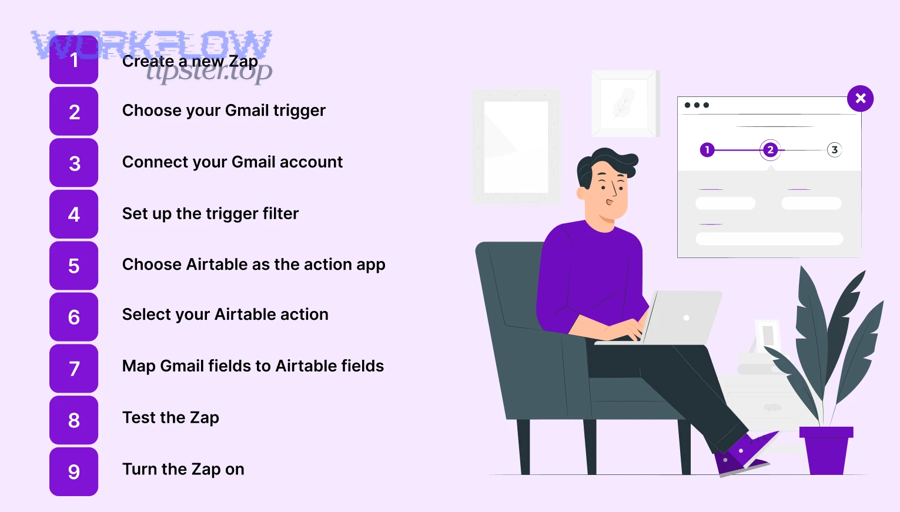
The fastest way to set up Gmail → Airtable automation is a 6-step method—define capture rules, design the table, connect Gmail, map fields, add filters + dedupe, then test and roll out—so you reliably sync emails (and attachments) into records your team can work from.
Below, the steps are ordered to prevent the two most common failures: a messy Airtable schema and unclear Gmail capture rules.
Step 1: Define the capture rule (what gets logged).
- Log emails with a specific label
- Log emails matching a Gmail search query
- Log emails from a specific sender/domain
- Log emails that have attachments
Step 2: Design the Airtable table (before connecting anything).
Create a table (e.g., “Inbox Log”) and add your minimum operational fields:
- From, Subject, Date, Snippet, Gmail link
- Message ID + Thread ID
- Status, Owner, Follow-up date
Step 3: Connect Gmail access (ownership matters).
Decide whether the workflow runs under:
- A shared inbox owner account (team mailbox)
- A role account (ops@ / support@)
- An individual (not ideal for team continuity)
Step 4: Map Gmail fields to Airtable fields.
Map the basics first, then add extras only when stable:
- Subject → Subject
- From → Sender
- Date → Received at
- Body/snippet → Preview
- Attachment → Attachment field or external link
Step 5: Add filters and dedupe controls.
Filters prevent noise; dedupe prevents chaos:
- Filter out auto-replies/newsletters
- Dedupe using Message ID (per email) or Thread ID (per conversation)
Step 6: Test with real emails, then roll out.
Test three categories:
- A normal customer email
- A reply in an existing thread
- An email with attachments
How do you design an Airtable table structure for email logging that won’t break later?
A durable email-log table structure is one that separates identity, content, and workflow state—so the record remains stable even when email volume, teammates, or downstream processes change.
To better understand “won’t break,” think in terms of what changes over time:
- Content changes (replies, new attachments)
- Ownership changes (handoffs, reassignments)
- Status changes (triage → resolution)
A stable table layout uses three field groups:
- Identity fields (rarely change):
- Message ID
- Thread ID
- Gmail link
- Received date/time
- Content fields (sometimes change):
- Subject
- Sender
- Snippet/body excerpt
- Attachments / attachment links
- Labels or category
- Workflow fields (always change):
- Status
- Owner
- Priority
- Follow-up date
- Notes / internal comments
If you expect scale, add related tables:
- Contacts table (link sender to a contact record)
- Companies table (link contacts to orgs)
- Tickets/Requests table (convert important threads into tracked cases)
This relational approach keeps the inbox log lightweight while allowing deeper operational reporting.
How do you map Gmail fields to Airtable fields correctly?
There are 8 core mapping pairs from Gmail to Airtable—Subject→Text, Sender→Email, Date→DateTime, Labels→Multi-select, Snippet→Long text, Link→URL, Message ID→Text, Attachments→Attachment/URL—based on the criterion “will this field be filtered, searched, or used for dedupe?”
Specifically, choose Airtable field types that match how people use them:
- Sender: Email field (so teammates can click-to-email)
- Received at: Date/time (so you can sort, group, and run SLA checks)
- Labels: Multi-select (so routing remains consistent)
- Snippet: Long text (but keep it short if you store bodies elsewhere)
- Gmail link: URL
- Message ID / Thread ID: Single line text (unique keys)
- Attachments:
- Use Attachment field if you truly need files inside Airtable
- Use URL field if you store files elsewhere and only reference them
Naming matters for teams. Prefer clear, stable names:
- “Received at” not “Date”
- “Gmail thread link” not “URL”
- “Message ID (unique)” to remind teammates why it exists
How do you filter Gmail messages so only the right emails become Airtable records?
You filter Gmail messages reliably by using labels + Gmail search operators + exclusion rules so your automation captures only actionable emails and avoids auto-replies, newsletters, and internal noise.
For example, start with a label-first strategy:
- Create a label like Airtable/Log
- Apply it manually for a week to validate what “should be logged”
- Convert that learning into automated rules later
Then add Gmail search filters that match your workflow:
- from:customer-domain.com
- has:attachment
- subject:(invoice OR receipt)
- -from:noreply@ (exclude)
- -subject:(unsubscribe) (exclude)
Finally, add an explicit “do not log” list:
- Auto-replies (“out of office”)
- Marketing newsletters
- System notifications not tied to work
Your hook chain here is simple: filtering is not just cleanup—it’s the difference between a table people trust and a table they ignore.
How do you sync emails and attachments into Airtable without creating duplicates?
You prevent duplicates by using a unique key + upsert logic + a clear record model (one record per email or one record per thread), so reruns and replies don’t spam your Airtable table with copies.
Next, choose the model first—because dedupe keys follow the model.

What is the best dedupe key for Gmail → Airtable: message ID or thread ID?
Message ID wins for one-record-per-email accuracy, Thread ID is best for one-record-per-conversation clarity, and a hybrid approach is optimal for teams that want both detail and a single “case view.”
Here’s how to pick:
- Use Message ID when:
- You need an audit trail of each inbound/outbound message.
- You expect multiple distinct actions per thread (approvals, escalations).
- You want precise metrics (response time per message).
- Use Thread ID when:
- Your team thinks in “cases,” not “messages.”
- The goal is to track a conversation to completion.
- You want one owner/status per conversation.
Hybrid pattern (recommended for many teams):
- Inbox Log table: one record per message (Message ID unique)
- Cases table: one record per thread (Thread ID unique)
- Link log records → case record
This gives you reliable dedupe and a clean operational dashboard.
Should attachments be stored in Airtable or linked from cloud storage?
Storing attachments in Airtable wins for quick access inside the base, linking attachments from cloud storage is best for performance and governance, and a hybrid “store small, link large” strategy is optimal for most teams.
However, attachments are where workflows often slow down, so decide by file reality:
- Store in Airtable when:
- Files are small and frequently referenced.
- You need the file visible directly on the record.
- The number of files per record is low.
- Link externally when:
- Files are large or numerous.
- You need retention controls and shared permissions.
- You want faster base performance.
Airtable’s Gmail integration highlights attachment-centric workflows—like attaching files from Gmail to Airtable records—which is exactly why teams should decide early whether they want “file storage” or “file references.”
What are the most common problems in Gmail → Airtable automations and how do you fix them?
There are 5 common problem categories in Gmail → Airtable automations—missing emails, duplicates, wrong parsing, broken attachments, and permission failures—based on the criterion “what stops the record from being trustworthy for team work?”
Next, treat troubleshooting like a checklist: confirm trigger → confirm filter → confirm mapping → confirm dedupe → confirm permissions.
Why are some emails missing from Airtable even though the automation is “ON”?
Emails go missing because (1) the trigger condition never matched, (2) the filter excluded the message, or (3) the workflow’s polling/timing didn’t capture the message state you assumed (label applied later, thread updated later).
Specifically, diagnose in this order:
- Trigger mismatch
- You expected “new email,” but the tool watches “new labeled email.”
- The email landed in a different category or mailbox than expected.
- Filter mismatch
- Your Gmail search query is too narrow.
- You excluded more than you intended (-from:noreply@ can remove real vendor mail).
- Timing issues
- Labels applied after the automation check.
- The email is part of a thread and the tool only logs the first message.
Fix pattern:
- Run a 24-hour test view that logs everything to a temporary table
- Compare: what arrived in Gmail vs what arrived in Airtable
- Tighten filters after you prove capture reliability
How do you prevent Gmail permission issues when multiple teammates share the same inbox?
You prevent permission issues by (1) assigning a stable workflow owner account, (2) using least-privilege access and documented credential ownership, and (3) avoiding “personal account” automations that break when a teammate leaves or changes passwords.
In addition, standardize the operational process:
- One owner account connects Gmail once.
- Team members work from Airtable views and assignments.
- If multiple inboxes exist, route them into one unified “Inbox Log” table using consistent labels.
For teams, the real issue is continuity: when a workflow depends on an individual login, it becomes a fragile single point of failure.
Evidence: According to a study by the University of California, Irvine from the Donald Bren School of Information and Computer Science, in 2005, researchers observed that work is highly fragmented and that 57% of working spheres were interrupted, highlighting why reliable routing and ownership matter in email-driven work.
How do you operationalize the workflow after capture (ownership, status, and team actions)?
You operationalize Gmail → Airtable by adding ownership, status, priority, and follow-up rules so every captured email becomes a trackable work item with a clear next action, not just a stored message.
Next, align Airtable views to how teams actually work—triage first, then assignment, then resolution.
What Airtable views and fields make an email log usable for support, sales, or ops?
There are 4 main operational view types—Triage, My Queue, Due Soon, and Escalations—based on the criterion “what decision does this view help a teammate make immediately?”
Specifically, build these views:
- Triage (Unassigned + New)
- Filters: Status = New, Owner is empty
- Sort: Received at ascending
- Purpose: quick first pass
- My Queue (by owner)
- Filters: Owner = current user, Status not Done
- Group: Status
- Purpose: daily execution
- Due Soon (follow-up driven)
- Filters: Follow-up date within next 7 days
- Sort: Follow-up date ascending
- Purpose: prevent drops
- Escalations (SLA risk)
- Filters: Priority high OR Received at older than X hours AND Status not Done
- Purpose: team accountability
Core fields that power these views:
- Status, Owner, Priority, Follow-up date, Category/Label, Last touched date, Notes
Now connect micro-semantics across your stack: once emails become records, you can chain downstream workflows—like generating a contract draft, turning specs into docs, or passing data to finance. For example, teams often pair the inbox log with document flows like google docs to microsoft word for stakeholder-friendly exports, or route billing emails into accounting workflows like google docs to freshbooks when a receipt triggers an invoicing task.
Should teams trigger outbound Gmail actions from Airtable records?
Yes—teams should trigger outbound Gmail actions from Airtable records because (1) it standardizes replies, (2) it reduces missed follow-ups, and (3) it creates a traceable workflow—but only when governance and approval rules are clear.
However, outbound automation is where you must be strict about safeguards:
- Reason 1: Standardization
- Use templates for common responses (support acknowledgments, scheduling, document requests).
- Keep personalization fields limited and controlled.
- Reason 2: Follow-up reliability
- Trigger a draft email when status changes to “Waiting on customer.”
- Trigger a reminder when follow-up date arrives.
- Reason 3: Traceability
- Store “last outbound action” and “sent/draft link” on the record.
Safeguards to require for teams:
- Approval step for high-stakes emails (billing disputes, legal, HR).
- Rate limits to prevent accidental bursts.
- Clear “manual override” rule: teammates can always edit or cancel drafts.
If your team also collaborates visually, you can push resolved cases into mapping tools—e.g., linking records into airtable to miro workflows for customer journey mapping or process retrospectives.
Evidence: According to a study by the University of California, Irvine (Donald Bren School of Information and Computer Science), in 2008, researchers found that people compensate for interruptions by working faster, but with a cost of higher workload, more stress, and higher frustration, reinforcing why inbox workflows must reduce interruptions rather than multiply them.
Contextual Border (transition): You now have everything needed to choose a connection method, capture the right Gmail messages into Airtable, dedupe reliably, and run a team workflow with ownership and status. Next, we’ll expand into advanced patterns—parsing, compliance, idempotency, and when to move beyond no-code.
What advanced Gmail → Airtable patterns improve scale, compliance, and data quality?
There are 4 advanced patterns—structured parsing, compliance-first storage, idempotent upserts, and API-level control—based on the criterion “does this reduce manual cleanup while keeping governance strong as volume grows?”
In addition, these patterns are what separate a “working prototype” from a workflow your team can trust for months.
How do you parse email content into structured Airtable fields (without manual copy-paste)?
You parse email content into structured fields by extracting stable markers (order number, invoice ID, ticket ID, customer name) using templates and rules, then writing each marker into a dedicated Airtable field for filtering and reporting.
To illustrate a reliable approach:
- Start with predictable email types
- Receipts
- Support requests
- Scheduling confirmations
- Lead inquiries
- Define extraction targets
- Invoice number
- Amount
- Customer ID
- Due date
- Product/service name
- Use a two-layer parsing strategy
- Layer 1: simple pattern matching (keywords, consistent labels)
- Layer 2: fallback “notes” capture when parsing fails
The key is repeatability: parsing should make your downstream views more powerful (e.g., “All invoices over $1,000 with attachments received this week”) without demanding perfect extraction on day one.
What’s the best approach for compliance and retention when logging emails into Airtable?
Storing links + minimal excerpts wins for compliance, storing full bodies is best for audit/search, and a tiered retention approach is optimal when you handle mixed sensitivity (support, billing, HR) in one system.
A compliance-first pattern:
- Keep sensitive email bodies in Gmail
- Store only what you need to act (snippet + metadata + links)
- Restrict fields or tables by role (HR vs support vs sales)
- Define retention rules (e.g., purge records or redact excerpts after X days)
This is also where antonym-style micro semantics help decisions:
- Store vs reference
- Centralize vs minimize
- Automate vs approve
Evidence: According to a study by the University of Glasgow (Department context reported in university research communications), in 2007, researchers reported that frequent email interruptions can leave workers tired, frustrated, and less productive, supporting the need for controlled capture rules and retention boundaries rather than “log everything forever.”
How do you design idempotent workflows (upsert) so reruns don’t create duplicates?
You design idempotent workflows by using a unique key (Message ID or Thread ID), a “find-or-create” step, and update-only logic so reruns update the same record instead of creating new ones.
A practical idempotency recipe:
- Choose your unique key:
- Message ID for one record per message
- Thread ID for one record per conversation
- On every run:
- Search Airtable for the key
- If found → update fields that can change (status, owner, latest snippet)
- If not found → create record
- Log every run outcome:
- created / updated / skipped / failed
This single pattern reduces 80% of the “why do we have duplicates?” pain—especially when tools retry tasks after errors.
When should you replace no-code tools with Gmail API / Apps Script for full control?
No-code wins for speed, API/App Script is best for precision, and moving to code is optimal when you need strict governance, complex parsing, or high-volume reliability that exceeds what your current tool can manage.
Move to code when at least one is true:
- You need custom thread logic (merge, summarize, detect duplicates across labels).
- You need advanced parsing with strict validation rules.
- You need centralized monitoring and alerting.
- You need predictable behavior under heavy volume.
Before migrating, keep a bridge:
- Run no-code for “standard flows”
- Run API/App Script for “exceptions and high-stakes flows”
That way, you keep momentum while building durable infrastructure.