


Setting up a Freshdesk-to-Slack integration means your support team can receive ticket alerts in the right Slack channels, so urgent issues get visibility immediately and agents don’t have to constantly refresh Freshdesk to stay informed. (support.freshdesk.com)
You’ll also want the setup to be intentional, not noisy: the best Freshdesk-to-Slack integration uses clear routing rules (by team, priority, or category) so the right people see the right tickets at the right time—without turning Slack into a second ticket queue. (support.freshdesk.com)
Beyond alerts, the workflow should support collaboration: Slack threads can help teams coordinate fast, but your process must preserve accountability by syncing outcomes back to the Freshdesk ticket so decisions don’t get lost in chat. (support.freshdesk.com)
Introduce a new idea: once the basics work, you can refine the integration with advanced patterns like escalation alerts, noise controls, and secure channel strategy—so your ticket alerts stay actionable as volume grows. (support.freshdesk.com)
What is a Freshdesk to Slack integration for support teams?
A Freshdesk-to-Slack integration is a support workflow that connects Freshdesk ticket events to Slack destinations so teams get ticket alerts in channels or DMs, then collaborate quickly while keeping the ticket as the system of record. (support.freshdesk.com)
Next, because “integration” can mean anything from simple notifications to richer workflows, you should first clarify what kinds of ticket events you want to broadcast and how agents should respond in Slack.
Which Freshdesk ticket events can be sent to Slack alerts?
There are 5 main types of Freshdesk ticket events that support teams typically send as Slack alerts—based on the ticket lifecycle stage: creation, assignment, status changes, priority/escalation changes, and updates from notes or replies. (support.freshdesk.com)
Then, once you group events by lifecycle, you can decide which ones are signal and which ones are noise.
- Ticket creation (new ticket): best for intake visibility and “someone should pick this up” moments.
- Assignment changes (agent or group): best for ownership clarity and preventing “everyone thought someone else had it.”
- Status changes (Open → Pending → Resolved): best for workflow checkpoints and handoffs.
- Priority changes (Normal → High / Urgent): best for escalation and incident response.
- Meaningful updates: selected notes/replies or specific field updates that matter (e.g., customer replied, SLA at risk).
A practical rule: send creation + assignment + priority changes by default, then add status/updates only when they help coordination, not just awareness.
Does Freshdesk to Slack integration support two-way actions or only notifications?
Yes—Freshdesk-to-Slack can support two-way actions, but most teams still rely on notifications-first workflows because they’re simpler, safer, and easier to govern at scale. (support.freshdesk.com)
Then, once you separate “alerting” from “acting,” you can decide where you want to allow actions and where you want Slack to remain read-only.
Three reasons notifications-first is common:
- Governance: it’s easier to control what leaves Freshdesk than what can be changed from Slack.
- Auditability: actions taken in Freshdesk are easier to review and standardize.
- Noise control: pushing fewer, clearer alerts reduces Slack overload.
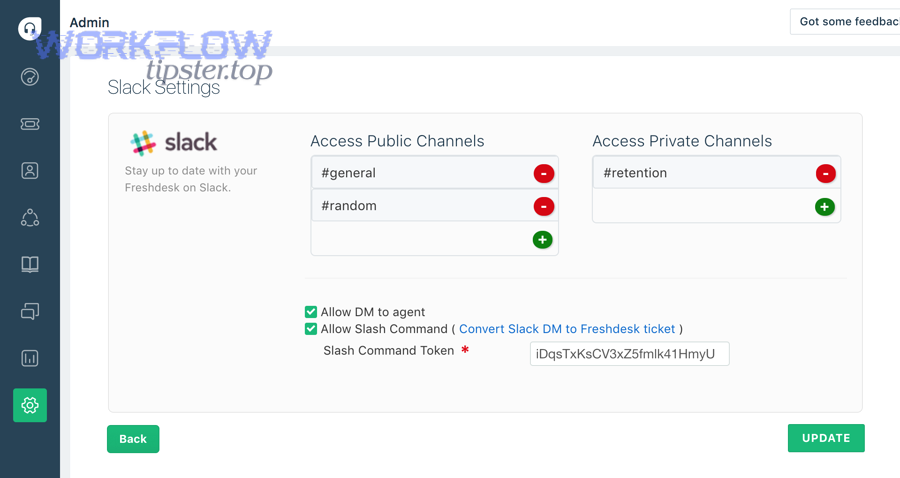
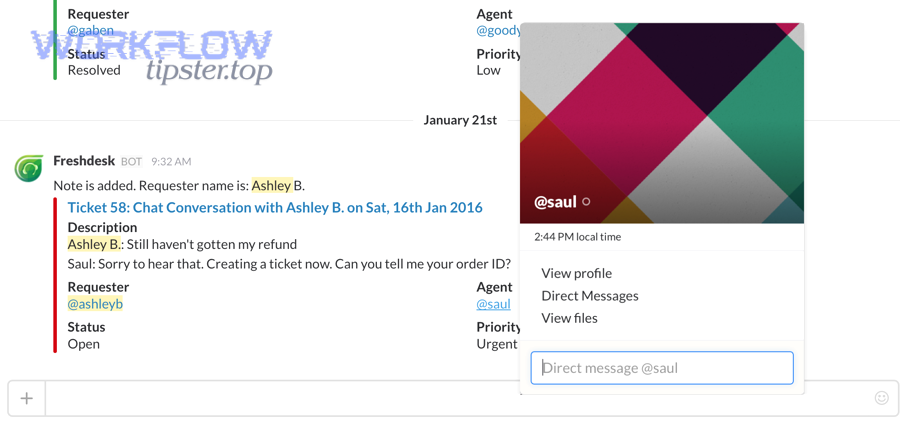
That said, Freshdesk’s Slack app also supports capabilities like posting to public/private channels, sending agent DMs, and using slash commands to create tickets from Slack conversations—useful when you want Slack to capture a request without losing context. (support.freshdesk.com)
According to a study by University of California, Irvine from the Department of Informatics, in 2008, people completed interrupted tasks in less time with no difference in quality, but reported higher stress and time pressure—showing why alert design must prioritize signal over interruption cost. (ics.uci.edu)
How do you set up Freshdesk to Slack integration step by step?
Set up Freshdesk to Slack integration using a clear 5-step method—install the Slack app, authorize Slack, select allowed channels, enable DM/slash options as needed, and then create automation rules—so ticket alerts reliably post to Slack channels. (support.freshdesk.com)
To begin, treat setup as two layers: (1) app connection and (2) automation rules, because most “it doesn’t work” issues come from skipping the rules layer.
What prerequisites do you need before connecting Freshdesk to Slack?
There are 6 main prerequisites for a smooth Freshdesk-to-Slack setup—based on access and workflow readiness: Freshdesk admin permissions, Slack admin access, a channel plan, routing logic, message standards, and a test ticket checklist. (support.freshdesk.com)
Then, with prerequisites in place, setup becomes predictable instead of trial-and-error.
- Freshdesk admin access to install/enable Marketplace apps and manage automation rules. (support.freshdesk.com)
- Slack workspace admin privileges (or the right permissions) to authorize the integration and approve channel access. (support.freshdesk.com)
- A channel map (which teams use which channels, public vs private).
- Routing criteria (priority, group, category/tag, VIP, product line).
- A message template baseline (what fields must appear in Slack alerts).
- A test plan (create ticket, change priority, assign, update status, verify Slack output).
If your support operation has multiple products or regions, decide channel naming early (e.g., #support-billing, #support-p1, #support-emea) so routing rules remain understandable months later.
How do you verify the integration works after setup?
You verify the Freshdesk-to-Slack integration by running a 4-part test—create a ticket, trigger an automation, confirm Slack message fields and link accuracy, and validate channel/DM behavior—so you know alerts are posting where you intended. (support.freshdesk.com)
Then, once the basics pass, you can test edge conditions like priority escalations and reassignment.
Verification checklist (fast but thorough):
- Create a test ticket with a distinct subject like “Slack integration test – ignore.”
- Trigger the exact condition your automation rule targets (e.g., set priority to High, assign to a group).
- Confirm the Slack alert includes the right ticket ID, subject, priority, status, and a direct ticket link.
- Validate channel permissions (the bot can post; the channel is allowed; private channel access is correct).
If Slack messages don’t appear, the fastest diagnosis is usually: the app is connected but no automation rule is firing, or the rule’s conditions are too strict.
How can you route Freshdesk ticket alerts to the right Slack channels?
Route Freshdesk ticket alerts to Slack by using 3 routing layers—team ownership (group), urgency (priority/SLA), and topic (category/tag)—so each Slack channel receives the tickets it can act on. (support.freshdesk.com)
Specifically, routing works best when you start broad (teams) and only then add refinements (severity, category), because over-precise rules become fragile.
Which routing rules should support teams use for Slack notifications?
There are 6 main routing rule types support teams use for Freshdesk-to-Slack alerts—based on who must act: group-based, priority-based, category-based, VIP-based, time-based, and escalation-based. (support.freshdesk.com)
Then, once your routing rules match real accountability, Slack becomes a triage layer instead of an attention sink.
High-impact routing recipes:
- By Freshdesk Group → Slack channel: Billing tickets → #support-billing; Technical → #support-tech.
- By Priority: P1/P2 → #support-p1 (or #incidents), Normal → team channels.
- By Category/Tag: “Refund” or “Login” tags route to specialized channels when expertise matters.
- By VIP requester: VIP customers route to a monitored channel with clear ownership.
- By timezone/business hours: after-hours urgent tickets route to an on-call channel.
- By SLA risk: tickets approaching breach route to escalation channels (when supported by your conditions).
Keep a rule naming convention like: [Trigger] + [Scope] + [Destination] (e.g., “On create: High priority → #support-p1”) so you can audit rules quickly.
Should alerts go to public channels, private channels, or DMs?
Public channels win in visibility, private channels are best for sensitive collaboration, and DMs are optimal for individual accountability—so the right choice depends on whether the alert is for awareness, restricted coordination, or a single agent’s queue. (support.freshdesk.com)
However, once you choose a destination type, you must align it with data risk and the behavior you want.
Public channels (best when):
- Cross-functional awareness matters (engineering, product, support).
- You want transparent prioritization and faster swarming.
- Ticket content is safe to share broadly.
Private channels (best when):
- Tickets include sensitive customer data or account details.
- Only a subset of responders should see escalations.
- You need controlled membership and strict disclosure.
DMs (best when):
- Alerts are truly personal (assignment updates, “your queue changed”).
- You want fewer channel interruptions.
- You want the agent to acknowledge and act quickly.
Freshdesk’s Slack app supports posting to public or private channels and sending DMs to agents, which gives you flexibility—but you still need a channel policy so routing remains consistent. (support.freshdesk.com)
How do you reduce noise so Slack alerts stay actionable?
You reduce noise by designing Freshdesk-to-Slack alerts around 3 signal rules—only notify on meaningful events, filter by severity/ownership, and prevent duplicates—so Slack channels stay actionable instead of becoming a scrolling log.
Moreover, “noise” isn’t just volume; it’s also irrelevant alerts landing in the wrong channel.
What are the best filters to prevent too many Freshdesk alerts in Slack?
There are 7 best filters to prevent excessive Freshdesk Slack alerts—based on urgency and actionability: priority thresholds, group scope, assignment state, status transitions, update type, requester class, and exception lists.
Then, once you add filters, you should re-check whether any critical ticket can still slip through unnoticed.
- Priority threshold: only send to shared channels when priority is High/Urgent.
- Group scope: only notify channels for tickets assigned to that group.
- Assignment state: notify on first assignment or reassignment, not on every edit.
- Status transitions: only send when status hits key states (Open, Pending, Resolved) rather than intermediate edits.
- Update type: exclude internal-only churn (e.g., minor field edits) unless it affects SLA/priority.
- Requester class: treat VIP or enterprise accounts differently from standard requests.
- Exception lists: exclude spam, merged tickets, duplicates, or known noisy categories.
If your workflow uses labels or tags heavily, filter on tags to create “expert lanes” without splitting your main channel into too many micro-channels.
Is it better to notify on every update or only on key lifecycle changes?
Notifying only on key lifecycle changes is better for most teams, because it reduces alert fatigue, keeps channels readable, and improves response quality—while still capturing the moments that change ownership, urgency, or customer impact.
On the other hand, high-volume teams sometimes need richer alerts for a small subset of tickets.
A practical compromise is a two-tier alert model:
- Tier 1 (always-on): new ticket + assignment + priority escalation + SLA risk.
- Tier 2 (selective): customer replied, status changed to Pending/Resolved, major note added—only for high priority or VIP.
According to a study by Cornell University’s Ellis Idea Lab, in 2021, a large survey reported that frequent tool switching made 45% of workers feel less productive and nearly 48% said they were making mistakes because they couldn’t track work across tools—supporting the case for fewer, clearer alerts instead of more chatter. (ciodive.com)
What should a “good” Freshdesk-to-Slack alert message include?
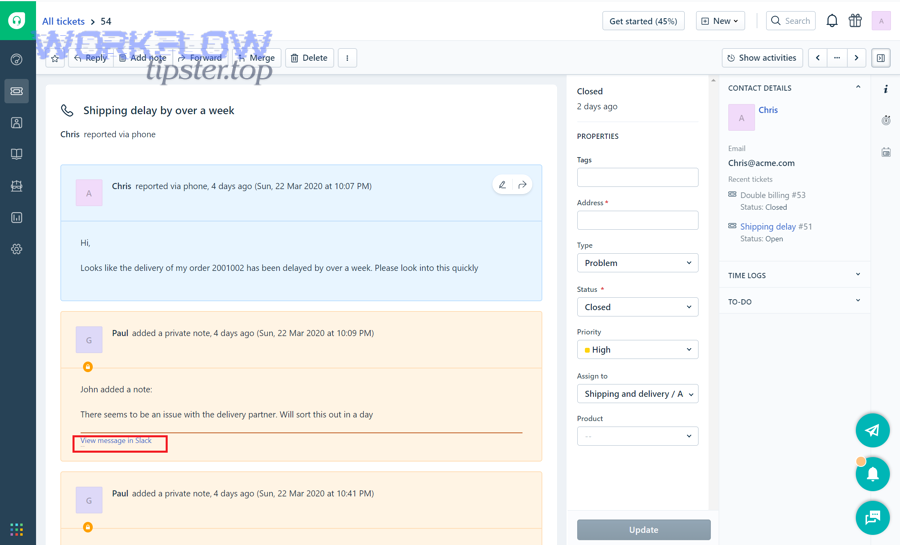
A good Freshdesk-to-Slack alert message includes the ticket identity, urgency, ownership, and next action in a scannable format so a support teammate can triage in seconds and click straight back to the ticket without hunting for context.
Next, once you standardize message content, your team learns to trust Slack alerts because they consistently answer “what is this and what do I do?”
Which ticket fields should be included in Slack alerts for faster triage?
There are 10 core fields you should include in Slack alerts—based on triage speed: ticket ID, subject, priority, status, requester, assignee/group, SLA or due timing, last update summary, category/tags, and a direct ticket link.
Then, once fields are standardized, you can tailor the order by channel type (incident channel vs team channel).
Must-have fields (non-negotiable for speed):
- Ticket ID + link (click-through is the fastest handoff).
- Subject + short summary (so humans can classify quickly).
- Priority + status (so urgency and stage are obvious).
- Assignee or group (so ownership is visible).
Nice-to-have fields (when they add signal):
- Requester type (VIP, enterprise, internal).
- Tags/category (to route expertise).
- SLA/due time (to prevent silent breaches).
- Last public reply timestamp (to assess responsiveness).
If you include sensitive details, keep them minimal and rely on the ticket link for the full record—especially in public channels.
Can you customize the Slack alert format for different channels?
Yes, you can customize the Slack alert format for different channels, and you should do it for at least three reasons: incident channels need urgency context, team channels need ownership clarity, and executive channels need impact summaries rather than raw ticket detail.
Then, once you customize by audience, each channel stays relevant instead of becoming a “dumping ground.”
- #support-p1 / #incidents: put priority first, add SLA risk, include “next action” line (“needs engineer,” “waiting on customer,” “rollback required”).
- Team channels: emphasize assignee/group, category/tag, and last update summary.
- Leadership channels: emphasize customer impact, business impact, and ETA—avoid PII.
Freshdesk’s Slack app is commonly configured alongside automation rules, which is where most teams implement “who sees what” and “what gets posted” behavior. (support.freshdesk.com)
How do support teams collaborate on Freshdesk tickets inside Slack without losing context?
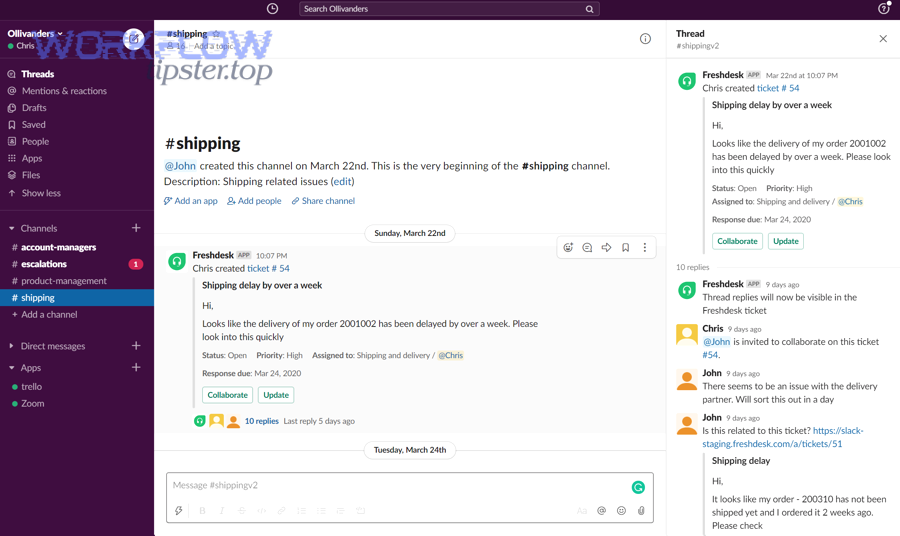
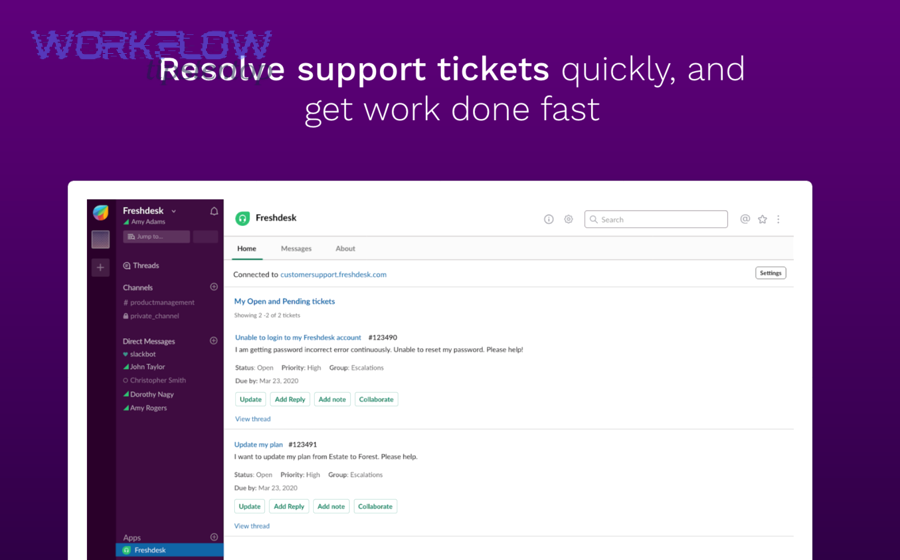
Support teams collaborate effectively by using Slack threads for rapid coordination while keeping Freshdesk as the source of truth—so every decision made in Slack becomes a recorded ticket update, not a forgotten chat moment. (support.freshdesk.com)
Besides, the biggest failure mode is not collaboration—it’s untracked collaboration that leaves the ticket history incomplete.
How should agents use Slack threads to discuss a Freshdesk ticket?
Agents should use Slack threads by anchoring discussion on the ticket alert, assigning an owner in the first replies, summarizing the hypothesis and next step, and closing the loop with a final “resolution summary” comment—so the thread stays structured and searchable.
Then, once you standardize thread behavior, teammates can join midstream without asking for repeated context.
- Reply #1: “Owner: @name — investigating.”
- Reply #2–#N: hypotheses, requested logs, reproduction notes, links to docs.
- Checkpoint reply: “Next step: escalate to engineering / request customer info.”
- Final reply: “Outcome: fixed by X / waiting on Y / ticket resolved.”
When you do mention external artifacts, keep them stable and relevant; for example, a shared troubleshooting doc or a decision record, not a pile of screenshots with no context.
What is the best workflow to sync outcomes back to Freshdesk?
The best workflow is a 3-step sync-back loop—summarize the Slack thread into a Freshdesk internal note, update the ticket fields (status/priority/assignee), and document the customer-facing message—so the ticket remains complete even if Slack history is noisy.
More importantly, the sync-back loop preserves continuity across shifts, time zones, and handoffs.
- Internal note: paste a short Slack summary: diagnosis → actions taken → current state → next step.
- Field updates: set assignee/group, update status, adjust priority, add tags.
- Customer update: record what was communicated, when, and what you need next.
This is also where “Automation Integrations” as a broader practice matters: if you later connect your support workflow to CRM or docs—like google docs to salesforce for knowledge capture, or CRM syncing in flows like freshdesk to hubspot or freshdesk to pipedrive—a clean ticket history makes those downstream automations far more reliable.
Should you use the native Freshdesk–Slack app or an automation tool?
The native Freshdesk–Slack app wins for fastest setup and simplest governance, while automation tools are best for multi-step customization, and hybrid setups are optimal when you need both reliability and advanced workflows—so your choice depends on complexity and control. (support.freshdesk.com)
However, picking a tool is less important than picking a workflow you can maintain, because brittle automations quietly fail.
When is the native integration enough for most support teams?
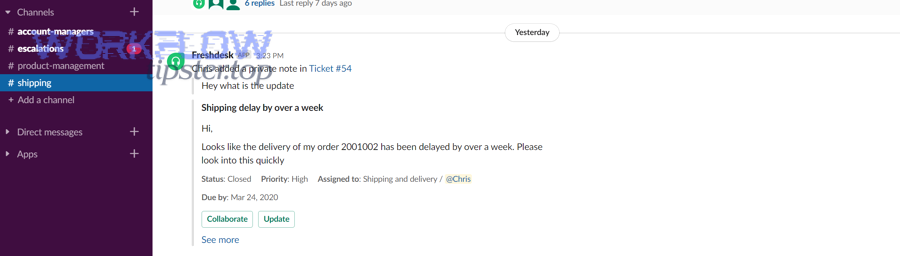
Yes, the native integration is enough for most support teams because it supports core ticket alerts to channels, agent DMs, and standard automation-driven notifications—while keeping configuration centralized and easier to troubleshoot. (support.freshdesk.com)
Then, once the native setup is stable, you can add only the minimum extra complexity needed for your environment.
- You mainly need ticket creation + updates → Slack alerts.
- Your routing rules are straightforward (by group and priority).
- You want lower maintenance and a simpler permission model.
Freshdesk’s support documentation describes using automation rules to post ticket messages to public channels, private channels, and agent DMs, which matches what most support teams need day to day. (support.freshdesk.com)
When do no-code automations make more sense than the native app?
Automation tools win when you need deeper customization—like enrichment, branching logic, multi-step actions, or cross-system syncing—because they can route, transform, and fan out ticket data beyond what a single native connector typically targets. (zapier.com)
Meanwhile, the more systems you connect, the more you must standardize fields and naming to prevent “automation drift.”
- Post to Slack and create a row in a tracker.
- Add conditional routing based on multiple fields (customer tier + product + region).
- Trigger follow-ups in other tools when a ticket hits a state.
- Sync key data into CRM or documentation workflows.
If you want a quick visual walkthrough of an automation-based connection, this video shows a Zapier-style approach (useful if your team prefers no-code setups):
How do you optimize Freshdesk-to-Slack for escalations, security, and advanced workflows?
You optimize Freshdesk-to-Slack by implementing 4 advanced controls—escalation design, safe data handling, deduplication, and incident channel strategy—so your Slack alerts scale with volume without leaking sensitive context or overwhelming responders. (support.freshdesk.com)
In addition, advanced optimization is where small policy decisions (what to post, where to post, who can see it) create big operational differences.
How can you send SLA breach or P1 escalations to Slack automatically?
There are 3 main ways to send SLA breach or P1 escalations to Slack—based on escalation criteria: priority-based alerts, time-to-breach alerts, and ownership-failure alerts (unassigned too long).
Then, once you pick a method, you should define what responders must do when the alert fires so escalations don’t become “FYI noise.”
- Priority-based: if priority becomes Urgent → post to #support-p1.
- Time-to-breach: if SLA remaining < X minutes → post to escalation channel.
- Ownership-failure: if ticket is unassigned for Y minutes → notify triage channel.
The practical key is to keep escalation rules few and explicit, because too many escalations dilute urgency.
What data should you avoid posting to Slack, and how do you handle PII safely?
You should avoid posting sensitive customer data to Slack, and you should handle PII safely for three reasons: Slack visibility can be broad, message history persists, and accidental forwarding/screenshots multiply exposure risk—so use minimal fields and prefer private channels when content is sensitive.
Then, once you define a data policy, you can implement it through field selection and channel strategy.
- Full addresses, payment details, sensitive IDs, authentication secrets, or account recovery info.
- Long conversation transcripts that include personal data.
- Internal-only notes that weren’t meant for broad visibility.
Safer pattern: post ticket ID + subject + priority + status + assignee + link, and keep sensitive details inside Freshdesk behind proper permissions.
How do you prevent duplicate or looping alerts across channels and teams?
You prevent duplicates by implementing 3 controls—single-source routing, dedupe conditions, and update throttling—so the same ticket doesn’t spam multiple channels with near-identical alerts.
Especially in high-volume desks, duplication is the hidden driver of alert fatigue.
- Single-source routing: one primary channel per ticket category, not three.
- Dedupe conditions: only notify when a field changes meaningfully (priority changes, assignment changes).
- Throttle updates: avoid posting on every minor update; batch or limit to key transitions.
If a ticket legitimately needs cross-team attention, route it once to an escalation channel rather than broadcasting it everywhere.
Should you create a dedicated incident channel per major ticket?
Slack incident channels are best for true P1/P0 events, team channels are better for routine tickets, and a hybrid “war-room only when criteria are met” approach is optimal—so create dedicated incident channels only when coordinated, time-sensitive response is required.
Thus, the question is not “can you,” but “will it improve resolution speed without increasing overhead?”
- Create an incident channel when: multiple teams must coordinate (support + engineering + ops), the incident is time-sensitive and high-impact, and you need a clear timeline of actions and decisions.
- Avoid it when: tickets are routine and solvable by one team, channel creation becomes a ritual rather than a necessity, and it fragments context more than it helps.
A simple standard keeps the decision objective: create an incident channel only for tickets labeled P1 (or higher) and confirmed to impact multiple customers or core service availability.
According to a study by University of California, Irvine from the Department of Informatics, in 2008, interruptions pushed people to work faster but at the cost of increased stress and frustration—so escalation design must minimize unnecessary alerts while preserving rapid response for true incidents. (ics.uci.edu)