


Yes—connecting Freshdesk to Salesforce is worth it for most support teams because it reduces context switching, keeps customer data consistent, and helps sales and support act on the same account reality instead of conflicting notes.
Next, you’ll learn what “Freshdesk to Salesforce integration” really means in practice (widget vs data sync), and which use cases it solves best—like turning tickets into cases, syncing contacts/accounts, and surfacing CRM context inside the helpdesk.
Then, we’ll walk through what you must prepare before you connect anything—Salesforce connected app settings, Freshdesk API key access, permissions, and the minimum data model decisions that prevent broken sync and duplicate records later.
Introduce a new idea: the easiest way to succeed is to treat the Freshdesk to Salesforce integration as a controlled data pipeline—define direction, map fields intentionally, test with real scenarios, and only then roll it out to your whole team.
What is a Freshdesk to Salesforce integration?
A Freshdesk to Salesforce integration is a support-to-CRM connection that surfaces Salesforce customer context inside Freshdesk and/or syncs shared records (like contacts and accounts) so both systems stay aligned. ([support.freshdesk.com](https://support.freshdesk.com/support/solutions/articles/50000009747-the-salesforce-connector-app))
To better understand what you’re actually “integrating,” it helps to separate two common integration layers: a context layer (what agents see while working tickets) and a data layer (what records synchronize automatically).

What does the integration sync between Freshdesk and Salesforce?
The integration typically syncs customer identity and relationship data—most commonly contacts and accounts/companies—so that a person’s email, phone, company association, and key identifiers match in both systems. ([support.freshdesk.com](https://support.freshdesk.com/support/solutions/articles/50000009747-the-salesforce-connector-app))
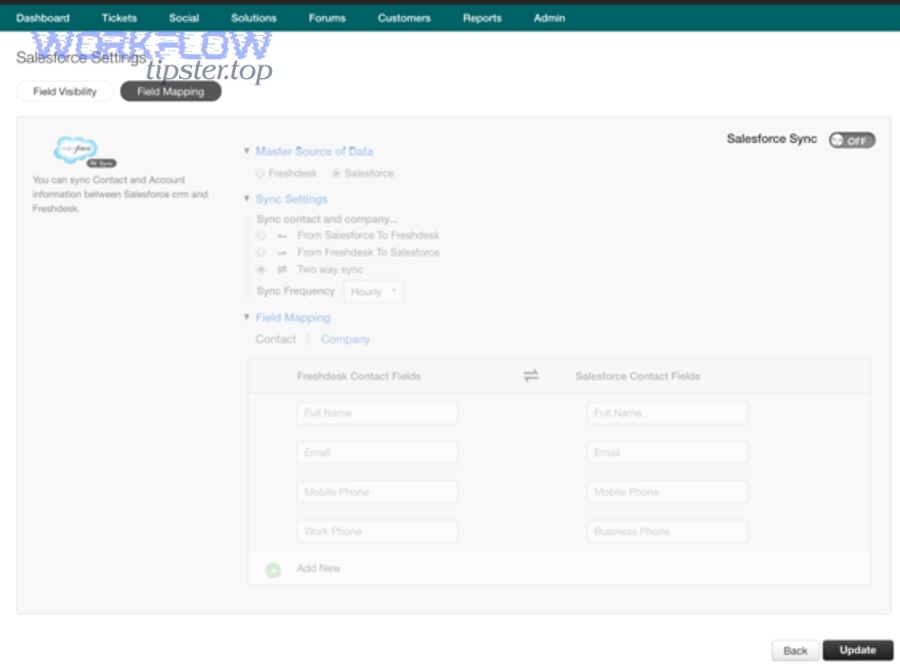
Specifically, official Freshdesk guidance describes data sync “recipes” and notes that you can choose the direction of data flow and currently sync contact and account information between Salesforce and Freshdesk. ([support.freshdesk.com](https://support.freshdesk.com/support/solutions/articles/50000009747-the-salesforce-connector-app))
- Contacts: name, email, phone, unique identifiers, and sometimes role/title
- Accounts/Companies: company name, domain, industry, region/segment, and account identifiers
- Tickets/Cases (optional depending on app/connector): subject, status, priority, links, notes, and related entities
However, the exact scope depends on your chosen connector (Freshdesk connector app, AppExchange package, or an automation platform), and your “source of truth” rules determine what truly updates what.
Is the integration a widget, a data sync, or both?
It’s often both: a widget displays Salesforce details in Freshdesk while a separate data sync feature runs workflows that move records between systems. ([support.freshdesk.com](https://support.freshdesk.com/support/solutions/articles/50000009747-the-salesforce-connector-app))
More specifically, Freshdesk’s Salesforce Connector App describes an inbox view (widget) that displays CRM details and a separate “data sync” capability powered by an add-on, where recipes control the flow and direction of data. ([support.freshdesk.com](https://support.freshdesk.com/support/solutions/articles/50000009747-the-salesforce-connector-app))
- Widget layer (agent experience): agents see Salesforce contact/account context while handling a ticket.
- Sync layer (system behavior): admins configure direction, field mapping rules, and uniqueness checks.
When you plan your integration, treat these as distinct components: the widget improves decision-making in the moment, while the sync prevents long-term data drift.
Do you need Freshdesk to Salesforce integration?
Yes—most teams need Freshdesk to Salesforce integration because it reduces duplicate data entry, improves handoffs between support and sales, and prevents customer context from being scattered across systems. ([ics.uci.edu](https://www.ics.uci.edu/~gmark/chi08-mark.pdf))
However, the most practical question is not “Do we need it?” but “Which business problem will it solve first?” That answer determines your sync direction, field mapping, and rollout plan.

Which teams benefit most: support, sales, or RevOps?
Support teams benefit most when Salesforce context appears inside Freshdesk during ticket handling, sales benefits most when ticket outcomes are visible alongside accounts, and RevOps benefits most when contact/account data stays consistent across both platforms.
For example, the biggest support win is faster triage because the agent can immediately see who the requester is in CRM and how they relate to the account. The biggest sales win is avoiding renewal surprises because open or recent support issues are visible when preparing for customer conversations.
- Support: fewer “who is this?” moments; better prioritization and routing
- Sales: clearer risk signals; fewer awkward calls; better customer narrative
- RevOps: cleaner lifecycle analytics; stronger attribution; fewer duplicates
What problems does the integration solve compared to manual updates?
The integration solves three recurring problems that manual updates rarely fix reliably: inconsistent customer identity, delayed context sharing, and duplicated work that increases stress and errors.
More importantly, fragmented work has a measurable cost: a study by the University of California, Irvine (Department of Informatics), published in 2008, found that people often compensate for interruptions by working faster, but at the cost of more stress, higher frustration, and greater time pressure. ([ics.uci.edu](https://www.ics.uci.edu/~gmark/chi08-mark.pdf))
- Identity drift: email/phone/company differs between Freshdesk requester and Salesforce contact.
- Context delay: sales doesn’t learn about escalations until it’s too late.
- Duplicate effort: agents retype notes; admins reconcile spreadsheets; leaders doubt dashboards.
This is why integration projects should be framed as “reducing operational friction,” not merely “connecting two apps.” If you track time saved per ticket and reduction in duplicate records, the ROI becomes visible quickly.
What should you prepare before connecting Freshdesk to Salesforce?
You should prepare three things before connecting Freshdesk to Salesforce: secure authentication (Salesforce connected app + Freshdesk API key), the minimum data model decisions (which objects you sync), and access controls (who can configure and who can act). ([support.freshdesk.com](https://support.freshdesk.com/support/solutions/articles/50000009747-the-salesforce-connector-app))
To begin, think of preparation as risk management: the better you define permissions, identifiers, and mapping rules upfront, the fewer production surprises you’ll face after launch.

What access and permissions are required in Freshdesk and Salesforce?
You need admin-level access in both systems to install apps, create/modify connected apps, and configure authentication, plus the right user permissions so agents can see the widget without gaining sensitive admin capabilities. ([support.freshdesk.com](https://support.freshdesk.com/support/solutions/articles/50000009747-the-salesforce-connector-app))
Specifically, Freshdesk’s guidance includes creating a connected app in Salesforce (via Setup → App Manager → New Connected App) and using a Freshdesk admin API key during installation. ([support.freshdesk.com](https://support.freshdesk.com/support/solutions/articles/50000009747-the-salesforce-connector-app))
- Salesforce: admin access to create a connected app and manage OAuth settings.
- Freshdesk: admin access to install marketplace apps and retrieve API keys.
- Ongoing governance: define who can change field mappings, recipes, and sync direction.
If you’re also using the AppExchange package (“Freshdesk for Salesforce”), Freshdesk notes that only Salesforce admins can install the package, and post-install steps include configuring Remote Site Settings. ([support.freshdesk.com](https://support.freshdesk.com/support/solutions/articles/50000009978-freshdesk-for-salesforce))
Which data objects should you standardize first: contacts, accounts, cases, or tickets?
You should standardize contacts and accounts first, because identity matching drives everything else—tickets, cases, and reporting all depend on consistently linking the right person to the right company.
Then, decide whether you need ticket-to-case alignment. Some organizations prefer Salesforce as the system of record for Cases, while others keep support execution inside Freshdesk and only push summarized outcomes into Salesforce.
- Start with: contact email + account/company association
- Next: ticket/case link strategy (one-way creation, two-way status, or read-only visibility)
- Later: custom objects (subscriptions, entitlements, product instances) if your process requires it
This is also where many teams bring in “Automation Integrations” platforms—useful when you want to automate ticket creation or enrichment without deploying custom code, but you still need strong identity rules.
How do you connect Freshdesk to Salesforce step by step?
The most reliable method is: create a Salesforce Connected App, install the Salesforce Connector App in Freshdesk, authenticate, then configure data sync recipes and direction based on your intended workflow. ([support.freshdesk.com](https://support.freshdesk.com/support/solutions/articles/50000009747-the-salesforce-connector-app))
Next, follow a strict sequence: authentication first, visibility second (widget), synchronization third (recipes), and only then field mapping and testing.

How do you set up the Salesforce Connector App in Freshdesk?
You set it up by installing the Salesforce Connector App from Freshdesk Admin → Apps, entering your Salesforce URL, Consumer ID/Secret from the Salesforce connected app, and your Freshdesk domain and admin API key. ([support.freshdesk.com](https://support.freshdesk.com/support/solutions/articles/50000009747-the-salesforce-connector-app))
Specifically, Freshdesk’s setup steps include creating a connected app, enabling OAuth settings (with a callback URL), and then installing the connector in Freshdesk with the generated credentials. ([support.freshdesk.com](https://support.freshdesk.com/support/solutions/articles/50000009747-the-salesforce-connector-app))
- Salesforce: Setup → App Manager → New Connected App → enable OAuth settings and scopes. ([support.freshdesk.com](https://support.freshdesk.com/support/solutions/articles/50000009747-the-salesforce-connector-app))
- Freshdesk: Admin → Apps → install “Salesforce Connector App” → enter Salesforce + Freshdesk credentials. ([support.freshdesk.com](https://support.freshdesk.com/support/solutions/articles/50000009747-the-salesforce-connector-app))
- Agent access: select which agents can access Salesforce configuration. ([support.freshdesk.com](https://support.freshdesk.com/support/solutions/articles/50000009747-the-salesforce-connector-app))
How do you install Freshdesk for Salesforce from AppExchange?
You install it by getting the Freshdesk package from Salesforce AppExchange, choosing sandbox or production, completing installation, and then finishing post-install configuration like Remote Site Settings and user access permissions. ([support.freshdesk.com](https://support.freshdesk.com/support/solutions/articles/50000009978-freshdesk-for-salesforce))
More specifically, Freshdesk’s AppExchange instructions include the “Enterprise Edition and above” note, Remote Site Settings steps, and guidance on granting access to relevant permissions or permission sets to avoid access issues. ([support.freshdesk.com](https://support.freshdesk.com/support/solutions/articles/50000009978-freshdesk-for-salesforce))
- Install: AppExchange → “Get it Now” → choose sandbox or production. ([support.freshdesk.com](https://support.freshdesk.com/support/solutions/articles/50000009978-freshdesk-for-salesforce))
- Remote Site Settings: add your Freshdesk URL in Salesforce security settings. ([support.freshdesk.com](https://support.freshdesk.com/support/solutions/articles/50000009978-freshdesk-for-salesforce))
- Permissions: assign the required permissions/permission sets so users can view/create/edit Freshdesk tickets in Salesforce as intended. ([support.freshdesk.com](https://support.freshdesk.com/support/solutions/articles/50000009978-freshdesk-for-salesforce))
Which fields should you map between Freshdesk and Salesforce?
You should map fields based on customer identity and workflow continuity—start with email and unique IDs for matching, then map status/priority and ownership fields that drive action across teams.
Then, use a field-mapping approach that prevents silent corruption: define a “source of truth” per field, set transformation rules, and document your exceptions.
This table contains a practical field-mapping starter set that helps you align identity, routing, and outcome tracking without overcomplicating the first implementation.
| Freshdesk | Salesforce | Why it matters | Common rule |
|---|---|---|---|
| Requester Email | Contact Email | Primary identity match | Salesforce as source; Freshdesk validates |
| Company / Organization | Account | Rolls up reporting and ownership | Account is source; Freshdesk creates if missing |
| Ticket Status | Case Status (if used) | Shared lifecycle visibility | One-way or two-way depending on process |
| Priority | Case Priority | Consistency in escalations | Normalize to a single scale |
| Assigned Agent | Case Owner / Queue | Routing alignment | Use queues for scale, users for accountability |
What are the “must-map” fields for ticket-to-case workflows?
The must-map fields are the ones that keep two systems talking about the same work: ticket/case identifiers, status, priority, subject, requester/contact link, and the canonical URL that lets a user jump to the source record quickly.
Specifically, if you ever want to report on “support load per account” inside Salesforce, you need consistent account/contact association and a stable link from Salesforce back to the Freshdesk ticket record.
- Identifiers: Ticket ID ↔ Case ID (and link fields)
- Lifecycle: Status, priority, created date, last updated
- Ownership: agent, group, or queue alignment
- Context: subject, product/category, tags
When people skip this, reporting becomes “almost right,” which is worse than “not available,” because teams make decisions on flawed dashboards.
How do you avoid duplicate contacts and mismatched accounts?
You avoid duplicates by enforcing one unique matching key (usually email), selecting one system as the identity source of truth, and adding controlled fallbacks only when the primary key is missing or untrusted.
More specifically, Freshdesk’s sync recipes include selecting a unique field for searching contacts (with email as the default mapping), which is exactly the kind of guardrail that prevents “same person, different record” chaos. ([support.freshdesk.com](https://support.freshdesk.com/support/solutions/articles/50000009747-the-salesforce-connector-app))
- Rule 1: pick one unique key (email) and enforce formatting (lowercase, trimmed).
- Rule 2: decide which system can create new contacts and under what conditions.
- Rule 3: require account linkage rules (domain match, account ID, or verified association).
- Rule 4: log conflicts and route them to an admin queue for resolution.
If your organization frequently captures leads before email verification, you may temporarily use a secondary key, but document the merge process from day one.
How do you choose one-way vs two-way sync for Freshdesk and Salesforce?
One-way sync is best when you want a single source of truth, while two-way sync is best when both systems actively edit shared fields and you have strict conflict rules to prevent overwrites. ([support.freshdesk.com](https://support.freshdesk.com/support/solutions/articles/50000009747-the-salesforce-connector-app))
Meanwhile, the “right” direction depends on ownership of each record type: contacts/accounts usually live in Salesforce, while ticket execution usually lives in Freshdesk.

When should Salesforce be the source of truth?
Salesforce should be the source of truth when the data governs revenue processes—accounts, contacts, ownership, segmentation, lifecycle stage, and key identifiers used for marketing, renewals, and forecasting.
Specifically, if sales and marketing automation depend on Salesforce, letting Freshdesk overwrite core CRM fields creates downstream errors that are expensive to detect and fix.
- Use Salesforce as source of truth for: account owner, account status, contact roles, opportunity linkage
- Allow Freshdesk to write back: support outcomes, risk signals, resolution notes (often in dedicated fields)
This is also where teams sometimes connect “freshdesk to clickup” to coordinate escalations outside CRM—fine, but it should not break CRM governance.
When does two-way sync create more problems than it solves?
Two-way sync creates more problems than it solves when multiple users update the same fields in both systems, when timestamps are inconsistent, or when your connector can’t resolve conflicts deterministically.
More importantly, sync load can create platform risks. Salesforce enforces API limits and encourages monitoring so large integrations don’t unexpectedly exceed entitlements; for paid org editions, daily API requests start at 100,000 per 24-hour period and scale with licensing. ([developer.salesforce.com](https://developer.salesforce.com/blogs/2024/11/api-limits-and-monitoring-your-api-usage))
- Risk 1: conflicting updates overwrite recent changes.
- Risk 2: hidden transformations (picklist values, status names) cause “flip-flopping.”
- Risk 3: excessive API calls trigger throttling or error bursts.
If you still need two-way, keep it narrow: sync only the smallest set of fields that truly require bi-directional edits, and make everything else one-way or read-only.
How can you validate, test, and monitor the integration after launch?
You can validate the integration by running controlled test scenarios (create/update/close), monitoring sync logs and API usage, and auditing record matching for duplicates and mismatches during the first weeks of production. ([developer.salesforce.com](https://developer.salesforce.com/blogs/2024/11/api-limits-and-monitoring-your-api-usage))
Besides testing “happy paths,” you need to test failure paths: missing emails, merged accounts, deleted contacts, permission changes, and rate-limit scenarios.

What test cases should you run before rolling out to all agents?
You should run at least five classes of test cases: identity matching, lifecycle changes, ownership/routing, error handling, and reporting accuracy.
To illustrate, here is a practical pre-rollout checklist:
- Identity matching: existing contact with email; new requester with no Salesforce match; contact with changed email.
- Lifecycle: ticket created → status changes → resolved → reopened; confirm downstream case/ticket visibility.
- Ownership: routing changes (agent/group/queue) and how that reflects across systems.
- Error handling: invalid picklist value; missing required field; permission removed; API limit exceeded.
- Reporting: “tickets by account,” “SLA breaches by segment,” and “escalations by owner” reconcile between systems.
If you are also using “clickup to microsoft excel” for weekly reporting, ensure your export logic uses the same IDs as your sync logic—otherwise you’ll reconcile three competing versions of truth.
How do you monitor sync health and API usage over time?
You monitor sync health by tracking failure rates, latency, duplicate creation, and API consumption—and by setting alerts before you hit hard limits or business-impacting backlogs.
More specifically, Salesforce describes monitoring daily API usage and limit behavior, including how API usage is tracked against a rolling 24-hour request limit and how enforcement can result in blocked calls once protection limits are reached. ([developer.salesforce.com](https://developer.salesforce.com/blogs/2024/11/api-limits-and-monitoring-your-api-usage))
- Operational KPIs: sync success rate, median sync latency, retry counts, error category distribution
- Data integrity KPIs: duplicates created per week, mismatched account associations, merge events
- Platform KPIs: API requests last 24 hours, burst patterns, top connected apps/users
According to a thesis by the University of Twente (Faculty of Electrical Engineering, Mathematics and Computer Science), in 2023, an analysis of customer service interactions noted an average response time of 6.5 hours and that 53.4% of customers expected a response within 2 hours—highlighting why monitoring throughput and delays matters after you launch automation. ([essay.utwente.nl](https://essay.utwente.nl/fileshare/file/95117/Pompe_MA_EEMCS_2.pdf))
Contextual border: At this point, you have the full “core path” for the Freshdesk to Salesforce integration—what it is, whether you need it, how to set it up, how to map fields, how to choose sync direction, and how to validate it. The next section expands into troubleshooting and hardening so the integration stays reliable under real-world conditions.
How do you troubleshoot and harden Freshdesk to Salesforce integration for scale?
You harden the integration by diagnosing failures systematically (auth, permissions, mapping, rate limits), designing conflict-safe workflows, and adding governance so changes to fields, picklists, and permissions don’t silently break sync.
Especially as your ticket volume grows, the integration becomes infrastructure. Treat it like infrastructure: observe it, protect it, and evolve it deliberately.

Why does authentication fail, and how do you fix it?
Authentication fails most often because OAuth settings were misconfigured, callback URLs don’t match, client secrets are rotated without updating Freshdesk, or the integration user loses required permissions.
To better understand fixes, map each symptom to a cause:
- “Invalid client” / “redirect mismatch”: callback URL mismatch or wrong connected app credentials.
- “Insufficient scopes”: OAuth scopes too restrictive for required API actions.
- “Access denied”: profile/permission set removed from the integration user.
- “Token expired” loops: refresh token handling settings changed; rotation policies differ.
If you follow Freshdesk’s connected app checklist (enable OAuth settings, provide the callback URL, set required checkboxes), you reduce these failures dramatically. ([support.freshdesk.com](https://support.freshdesk.com/support/solutions/articles/50000009747-the-salesforce-connector-app))
What are common field-mapping and picklist pitfalls?
The most common pitfalls are picklist value mismatches, required-field constraints, and “same field, different meaning” across systems—especially for status, priority, category, and type.
For example, “Urgent” might exist in Freshdesk priority but not in Salesforce Case priority, causing rejects or fallback mapping that silently downgrades tickets.
- Normalize enums: create a shared mapping table for each picklist field.
- Protect required fields: set defaults or static values when the source system doesn’t provide them.
- Separate meaning: use different fields for “support status” vs “customer health status.”
If your broader stack includes “google docs to shopify” automation for internal workflows, keep that separate from your CRM truth—otherwise non-CRM tools start defining CRM data.
How do you handle rate limits, retries, and large volumes?
You handle volume safely by batching where possible, using incremental sync windows, limiting two-way writes, and monitoring API consumption so retries don’t create runaway usage during incidents.
More specifically, Salesforce explains daily API request limits and emphasizes monitoring usage, plus the possibility of “REQUEST_LIMIT_EXCEEDED” responses when limits are enforced. ([developer.salesforce.com](https://developer.salesforce.com/blogs/2024/11/api-limits-and-monitoring-your-api-usage))
- Design for backoff: exponential retry with jitter, capped retries, and dead-letter queues for failures.
- Design for batch: group updates and avoid one-record-per-call patterns when possible.
- Design for observability: tag API calls by connected app/user to locate the noisy client quickly.
If you publish your setup as a repeatable internal playbook (for example on WorkflowTipster.top), keep a section that specifies “expected daily API call budget,” so growth does not surprise your platform owners.
When should you use a no-code connector vs custom API integration?
No-code connectors are best when you need speed, standard workflows, and low maintenance, while custom API integrations are best when you need advanced logic, custom objects, strict governance, or complex conflict resolution.
To sum up the decision, focus on three criteria: customization depth, operational ownership, and long-term scalability.
- No-code (Zapier/Make/others): fast to launch, easier for ops teams, but can become brittle with complex rules.
- Native apps (Freshdesk connector/AppExchange): aligned to product capabilities and supported patterns. ([support.freshdesk.com](https://support.freshdesk.com/support/solutions/articles/50000009747-the-salesforce-connector-app))
- Custom API: maximum control, but requires engineering ownership, monitoring, and ongoing maintenance.
If your support organization already uses a structured escalation pipeline across tools, decide early which tool owns which lifecycle step—otherwise the integration becomes a “sync storm” rather than a support accelerator.