


Connecting Dropbox to Smartsheet means you keep files in Dropbox while managing tasks, timelines, and approvals in Smartsheet—so project work stays organized without forcing your team to “choose one tool” for everything.
In practice, most teams want two outcomes: attach the right Dropbox files to the right Smartsheet rows (so every task has its proof, spec, or deliverable), and automate repetitive updates (so nothing gets lost when files change or new folders appear).
This guide breaks down what “Dropbox to Smartsheet” really does, how to set it up without code, and how to decide what should live in Dropbox versus what should be tracked in Smartsheet—especially when multiple people collaborate on the same deliverables.
Introduce a new idea: once you understand what gets connected and why, you can design a workflow that stays reliable at scale—without broken links, missing permissions, or messy versions.
What does “Dropbox to Smartsheet integration” mean in day-to-day project work?
Dropbox to Smartsheet integration means you use Dropbox as your file system and Smartsheet as your work system, then connect them so files (or file links) can be attached to rows, referenced in workflows, and shared with the right people in context.
To begin, the simplest way to understand the integration is to separate where files live from where work is managed—then connect them with consistent attachments, links, and automation rules.


What gets connected between Dropbox and Smartsheet?
What gets connected is primarily file access and file references: you select a file stored in Dropbox and attach it (or attach a link to it) to a Smartsheet sheet or a specific row so people can open the exact asset from the task that needs it.
Specifically, the connection typically includes:
- Dropbox files (docs, PDFs, images, videos) attached to Smartsheet rows, so each task has the correct supporting material.
- Dropbox folders referenced by link, so a row can point to a “project folder” that contains multiple deliverables.
- Smartsheet context (row, sheet, comments, approvals) acting as the “work wrapper” around Dropbox files.
- Optional automation events (via native options or third-party tools) that move files, create rows, or update status when something changes.
More specifically, most teams rely on a repeatable pattern: a Smartsheet row represents a unit of work (a task, request, deliverable, or approval), and the Dropbox attachment represents the asset that row is responsible for producing or reviewing.
What problems does the integration solve for teams?
The integration solves the “where is the latest file?” problem by keeping Dropbox assets discoverable from inside Smartsheet, while also reducing back-and-forth messages by putting files directly next to task owners, due dates, and approval steps.
For example, teams typically use Dropbox + Smartsheet to solve:
- Context loss: files shared in chat or email lose the project context; attachments in Smartsheet preserve the “why” and “who.”
- Version confusion: a row can point to the official file location and expected naming/version rules, reducing “wrong draft” reviews.
- Handoffs and accountability: Smartsheet assigns owners and deadlines; Dropbox stores the actual deliverables that prove completion.
- Auditability: approvals, comments, and change history in Smartsheet create a timeline around Dropbox content.
In addition, when you automate parts of this flow, you reduce the small interruptions that derail project momentum; research on workplace attention shows that it can take over 25 minutes to return to an original task after an interruption, which makes “hunting for files” a bigger cost than it looks.
Can you connect Dropbox to Smartsheet without coding?
Yes—most teams connect Dropbox to Smartsheet without coding by using Smartsheet’s built-in attachment options and available connectors/marketplace apps, and then layering no-code automation tools only when they need advanced triggers and cross-app workflows.
Next, the key decision is whether you only need manual attachments in-context (fast, simple, controlled) or you also need automated routing (powerful, but requires clearer rules).
Does Smartsheet have a native Dropbox connector or marketplace app?
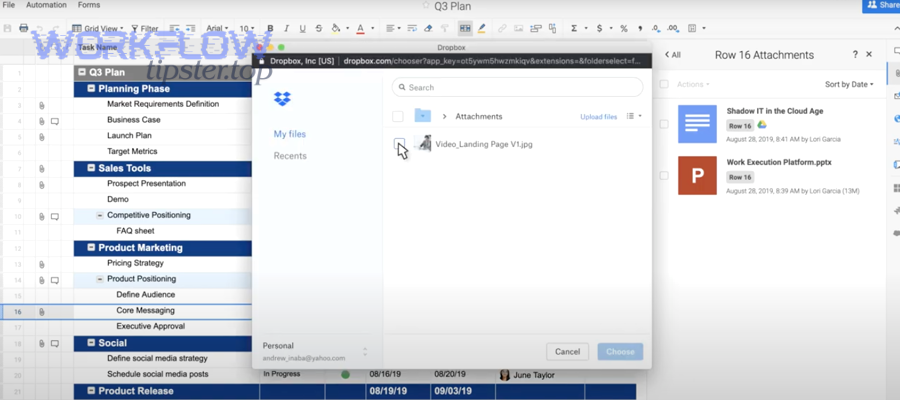
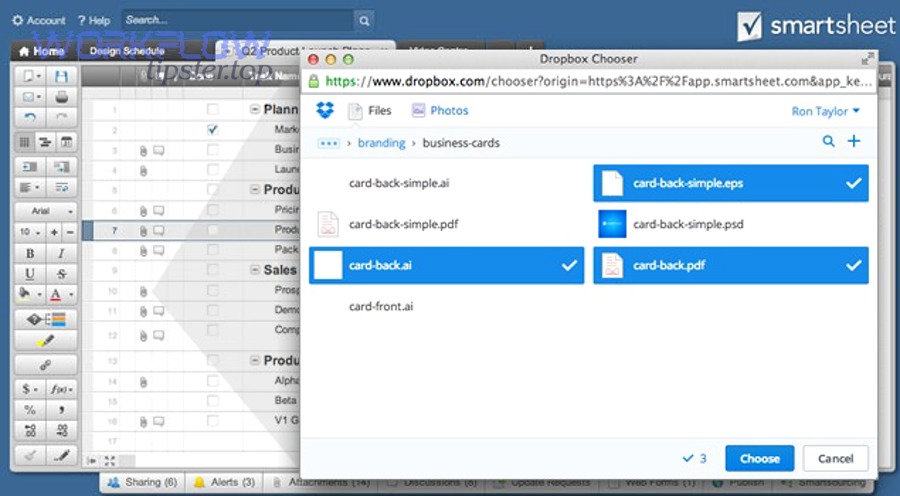
Yes—Smartsheet supports attaching files from Dropbox to sheets/rows through its attachment workflow, and Dropbox also lists Smartsheet as an app that can attach Dropbox files within Smartsheet, making this connection straightforward for day-to-day use without any development work.
Specifically, a typical “native” setup looks like this:
- Open a sheet (or the row you’re working on) in Smartsheet.
- Click the attachments area (sheet attachments or row attachments).
- Choose Attach from and pick Dropbox.
- Authenticate your Dropbox account once (or switch accounts if needed).
- Select the file to attach so the row now contains the file reference.
To illustrate why this matters: this approach keeps control tight—attachments happen intentionally at the row where the work is tracked, so you avoid “automation noise” while still gaining fast access to the right asset.
When should you use Zapier or another no-code automation tool instead?
You should use a no-code tool like Zapier when you need Dropbox activity (new file, new folder, updated file) to automatically create or update Smartsheet rows, assign owners, or notify stakeholders—without someone manually attaching each file.
However, automation only helps when your workflow rules are clear. Use an automation tool when you can define:
- Reliable triggers: e.g., “when a file is added to /Client_Requests/2026/January/…”
- Repeatable naming: e.g., “REQ-####_ClientName_AssetType_v##”
- Consistent destinations: which sheet, which columns, which owner logic, which status rules
- Exception handling: what happens if the file is missing, permissions fail, or a duplicate arrives
On the other hand, if your team’s requests are messy (random filenames, mixed folder habits, unclear ownership), manual attachments can be more trustworthy until you standardize inputs.
How do you attach Dropbox files to Smartsheet rows and sheets?
You attach Dropbox files to Smartsheet by opening the sheet (or row), choosing the attachment option, selecting Dropbox as the source, and then picking the exact file so the task and the file stay linked in the same workspace context.
Then, the biggest difference to master is row attachments vs sheet attachments: row attachments are ideal for task-level deliverables, while sheet attachments are better for “project-wide references” that everyone needs.
How do you attach a Dropbox file to a specific row?
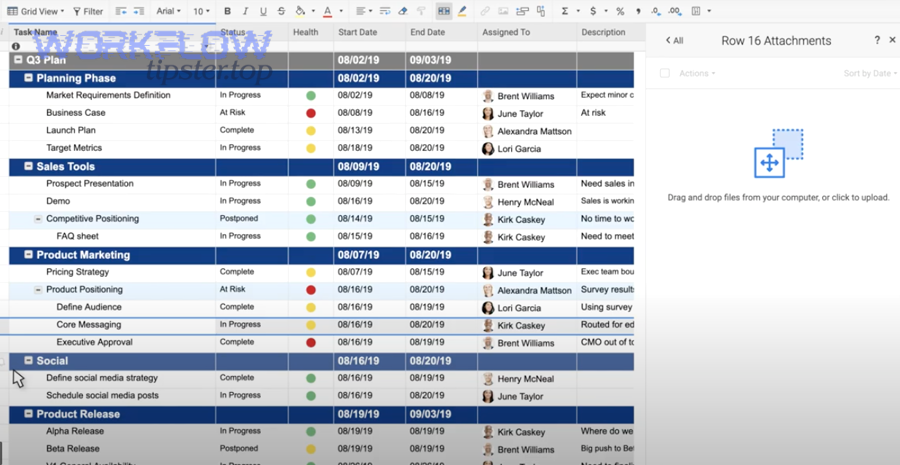
To attach a Dropbox file to a specific row, open the row’s attachment panel (paperclip/attachments), choose Attach from → Dropbox, authenticate if prompted, and select the file that represents the deliverable or supporting document for that row.
Specifically, make it reliable by following a short checklist before you click attach:
- Confirm the row is the right “unit of work” (one request/deliverable per row keeps attachments meaningful).
- Use a stable Dropbox location (avoid attaching from personal “loose files” areas that may be reorganized).
- Match the file to a status gate (e.g., attach “Draft v1” only when status = Draft, attach “Final v3” when status = Ready for Approval).
- Record version hints in the row (a Version column or a “File Name” column helps reviewers verify quickly).
More importantly, teach your team one habit: attach the file at the moment you assign or request work, not later. That prevents confusion and reduces “which file are we talking about?” messages.
How do you attach a Dropbox folder or shared link the right way?
You attach a Dropbox folder or shared link “the right way” by linking to a stable folder that won’t be renamed or moved, using a clear folder convention, and limiting access so the link stays useful without exposing more than the row actually needs.
For example, use a structure like:
- /Projects/ClientName/ProjectCode/01_Briefs
- /Projects/ClientName/ProjectCode/02_Working
- /Projects/ClientName/ProjectCode/03_Final
Then, link the folder at the row where it belongs, such as a “Project Folder” row at the top of the sheet or at a phase-level row (Design Phase, Review Phase, Delivery Phase). This keeps your sheet readable while still making assets one click away.
Finally, avoid the two most common link failures: (1) linking to a folder someone later reorganizes, and (2) linking to a file that requires permissions the reviewers don’t have.
What are the best ways to automate Dropbox-to-Smartsheet workflows?
The best way to automate Dropbox-to-Smartsheet workflows is to pick one core workflow, define the trigger and naming rules, map the file metadata into Smartsheet columns, and add guardrails for duplicates and permission failures so automation stays predictable.
Let’s explore how to start with the highest-impact scenarios, then build reliability through consistent triggers and versioning rules.

What are the most common automation scenarios teams use?
The most common scenarios are file intake, deliverable tracking, and proof-of-work logging—because they reduce manual copying while keeping Smartsheet rows up to date with what’s happening in Dropbox.
Specifically, teams often automate:
- New file → new row: when a new file lands in a specific Dropbox folder, create a Smartsheet row with file name, link, uploader, and timestamp.
- New folder → new project: when a new client/project folder is created, generate a new sheet (or populate a template sheet) and store the folder link in a “Project Assets” cell.
- Status-driven routing: when Smartsheet status becomes “Approved,” move/copy the final file to a “Final” Dropbox folder and notify stakeholders.
- Attachment mirroring: when a Smartsheet attachment is added, upload a copy to a specific Dropbox folder (useful for centralized archiving).
In addition, automation supports collaboration speed: McKinsey Global Institute has estimated that improved communication and collaboration through social technologies can raise the productivity of knowledge workers by 20–25%, which is exactly the kind of gain teams target when they remove repetitive handoffs from file-based workflows.
How do you design a reliable workflow (naming, versioning, and triggers)?
You design a reliable workflow by standardizing file naming, using folder-based triggers instead of “anywhere in Dropbox,” defining version rules, and adding a duplicate check so the same asset doesn’t create multiple rows.
To better understand reliability, focus on three layers:
- Naming layer: Require a predictable pattern (ProjectCode + AssetType + Owner/Team + Version). Example: ACME-042_Brief_Copy_v01.docx.
- Trigger layer: Trigger from a single “inbox” folder (e.g., /Intake) so automation doesn’t scan everything and misfire.
- Version layer: Decide whether “new version” means a new file name (v02) or a replacement in the same path, then align your Smartsheet row logic to that decision.
More specifically, add one “control column” in Smartsheet (like File ID, File Path, or a stored shared link) so your automation can match updates to the correct row instead of creating duplicates.
Should project teams use Dropbox or Smartsheet as the “source of truth”?
Dropbox should be the source of truth for the actual files, while Smartsheet should be the source of truth for task status, ownership, and approvals—because each tool is strongest when it owns the layer it was built for.
However, teams run into confusion when they treat both tools as “the master” for the same thing. So the goal is to define a clean boundary: files live in Dropbox; work state lives in Smartsheet.
When is Dropbox the right system of record for files?
Dropbox is the right system of record when the asset is a file that must be stored, versioned, accessed, and shared as a file—especially when multiple tools (design, video, docs) produce outputs that need a stable folder structure.
For example, Dropbox should be “truth” when you need:
- Folder-based organization across many file types and teams.
- Stable storage for large assets (videos, design exports, datasets).
- Cross-project reuse (brand assets, templates, legal docs).
- Controlled sharing with external users (clients, vendors) via links and permissions.
In addition, Dropbox works best when your team agrees on a predictable folder taxonomy and resists “random” storage locations that later break links from Smartsheet.
When is Smartsheet the right system of record for tracking and approvals?
Smartsheet is the right system of record when you need structured tracking—who owns what, when it’s due, what stage it’s in, who approved it, and what happens next—because rows, columns, automation rules, and approval flows make work state visible and measurable.
Specifically, use Smartsheet as truth for:
- Status and workflow stages (Draft → Review → Approved → Delivered).
- Assignments and accountability (owner, backup owner, due date, dependencies).
- Approvals and decisions (who approved, when, and what conditions applied).
- Reporting (dashboards, filters, rollups, SLA views).
More importantly, Smartsheet reduces coordination overhead: instead of asking “is it done yet?”, stakeholders read the row state and open the attached Dropbox file in one place.
What permissions and security settings matter for Dropbox-to-Smartsheet sharing?
Permissions matter because the integration only works when the right people can access the Dropbox file behind the attachment, and the safest setup is one where access is intentional, minimal, and consistent across both systems.
Moreover, good permission hygiene prevents the two most common failures: “I can’t open the attachment” and “I accidentally shared more than I should.”
What access levels do you need in Dropbox and in Smartsheet?
You need enough Dropbox access to view (or edit) the file you’re attaching and enough Smartsheet permissions to add attachments to the sheet or row—because Smartsheet can only reference what your account is allowed to access.
Specifically, align your permissions like this:
- Creators: edit access in Dropbox to upload/update files, and edit access in Smartsheet to manage rows and attachments.
- Reviewers: view (or comment) access in Dropbox and appropriate sharing access in Smartsheet to open row attachments and record decisions.
- Clients/external: limited access via carefully scoped shared links or shared folders in Dropbox, plus restricted Smartsheet access (often view-only) to avoid unintended changes.
To illustrate, the safest approach is role-based: not everyone needs edit permissions in Dropbox, and not everyone needs to modify Smartsheet structure—especially when the sheet controls approvals.
How do you avoid broken links, missing files, and oversharing?
You avoid broken links and oversharing by attaching from stable Dropbox locations, keeping folder ownership consistent, using clear naming, and reviewing link scope before you share a sheet externally.
More specifically, follow these guardrails:
- Don’t move “final” files after you attach them; instead, move drafts and keep finals in a stable /Final folder before attaching.
- Use a controlled shared folder for any workflow that involves external reviewers, so access is predictable.
- Prefer row-level attachments for sensitive items, so permissions can be managed by who can access that row/sheet.
- Document the “sharing rule” in the sheet (a short policy row at the top prevents accidental exposure).
In addition, design your workflow so that Smartsheet links users to the correct Dropbox content, but Dropbox remains the system that governs file access and sharing boundaries.
How do you troubleshoot common Dropbox-to-Smartsheet integration issues?
You troubleshoot Dropbox-to-Smartsheet issues by checking (1) account authentication, (2) feature availability and permissions, and (3) whether the attachment is a link versus a synced file—because most failures come from access mismatches, not “broken integrations.”
Below are the fastest root-cause checks that solve the majority of problems without rebuilding your workflow.
Why can’t I see Dropbox in “Attach from” or the Marketplace?
If you can’t see Dropbox, it’s usually because your Smartsheet plan/settings restrict the feature, your account is not authorized, your organization’s security policy blocks external attachments, or you’re using a view that doesn’t allow attachments.
Specifically, check these in order:
- Permission check: confirm you have enough rights in the sheet to add attachments (edit-level access is often required).
- Account check: sign out and back in to ensure you’re using the intended Dropbox account, especially if you have multiple accounts.
- Browser check: allow pop-ups or third-party authentication windows, since login often opens in a separate window.
- Org policy check: ask your admin if external attachment sources are restricted by policy.
Then, once Dropbox appears, do one test attachment to a blank row to confirm the connection works before applying it to critical workflows.
What should you do when attachments won’t open or won’t sync?
When attachments won’t open, the most common cause is permissions: the file exists, but the viewer doesn’t have access to the Dropbox file behind the attachment link.
More specifically, try this sequence:
- Open as the owner: if it opens for the person who attached it, the file is fine and the issue is viewer access.
- Validate the Dropbox link scope: confirm the link or folder is shared to the intended audience (and not only to an internal team).
- Confirm file still exists: if the file was moved/renamed, update the attachment to the stable location.
- Re-attach using a stable folder: especially for final deliverables, attach from /Final to reduce future re-org breakage.
In addition, if your team expects “sync” behavior (changes in Dropbox instantly reflected in Smartsheet), clarify whether you’re using a link to a file (which stays current when opened) or a copied file workflow (which may create separate versions).
Contextual Border: Up to this point, you’ve learned the core setup and best-practice rules for connecting Dropbox to Smartsheet. Next, we’ll expand into advanced, scalable patterns that broaden semantic coverage and help larger teams standardize intake, compliance, and multi-app automation.
What advanced Dropbox-to-Smartsheet integrations help scale operations?
Advanced Dropbox-to-Smartsheet integrations help scale operations by standardizing intake (forms and uploads), strengthening approvals and audit trails, connecting cross-app workflows, and designing the reverse flow when Smartsheet needs to publish files back into Dropbox.
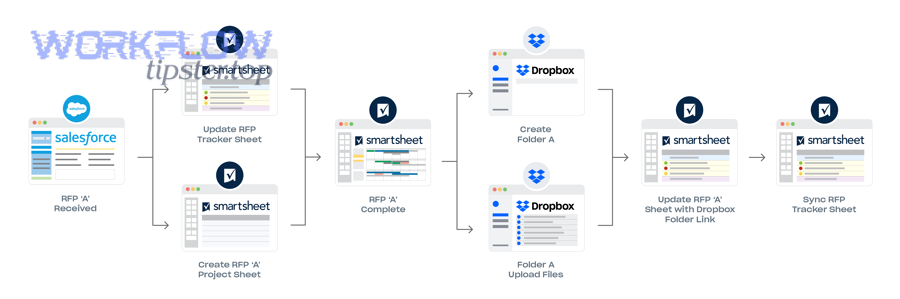
Especially as volume grows, these patterns reduce manual coordination and protect focus; researchers at the University of California have reported that it can take about 25.5 minutes to pick up an interrupted task again, so minimizing “where is that file?” interruptions is a real operational advantage.
How can you route form uploads into Dropbox and register them in Smartsheet?
You can route form uploads into Dropbox and register them in Smartsheet by using a controlled intake form (or submission process), storing the uploaded file in a designated Dropbox intake folder, and automatically creating a Smartsheet row that logs the request, file link, requester, and required SLA.
For example, a scalable intake pattern looks like this:
- Intake channel: a form or structured submission method that ensures consistent fields (request type, priority, due date, owner).
- Dropbox destination: /Intake/Year/Month/RequestType/ so all new assets land in predictable places.
- Smartsheet registration: a new row is created with columns for File Link, Status, Owner, Priority, and Approval Stage.
This approach is especially powerful when you run workflows like google forms to smartsheet and then store uploads into Dropbox for long-term file governance, creating a clean handoff between request capture, task tracking, and file storage.
How can you connect Dropbox to approvals, e-signature, and audit trails?
You can connect Dropbox to approvals and audit trails by using Smartsheet for structured approval steps and decision logs, while using Dropbox as the controlled repository for signed PDFs, approved assets, and final deliverables that must be stored and shared consistently.
Specifically, scale approvals by:
- Defining approval gates in Smartsheet: Draft → Legal Review → Client Approval → Final.
- Attaching the authoritative file: link the Dropbox file that is being approved (not a random exported copy).
- Capturing the decision trail: approver name, timestamp, decision notes, and conditions in Smartsheet columns.
- Archiving finals: move the approved file to /Final and attach that final link to the “Approved” row for long-term traceability.
If you need deeper compliance, you can add a “final archive” step where a signed artifact is stored in a restricted Dropbox folder and referenced by an immutable record in Smartsheet.
How can you combine Dropbox + Smartsheet with other Automation Integrations?
You can combine Dropbox + Smartsheet with other Automation Integrations by making Dropbox the file hub, Smartsheet the workflow hub, and then using connectors to notify, enrich, and route tasks across your stack while keeping one consistent file reference.
For example, advanced teams often connect:
- Notifications and scheduling: create reminders when a Dropbox deliverable is attached and a Smartsheet deadline is near.
- Cross-team work tracking: tie project milestones to external work systems so status changes propagate cleanly.
- Service workflows: register new assets, create review tasks, and push summaries into dashboards for leaders.
To illustrate cross-stack thinking, you might connect schedule signals like google calendar to jira for engineering delivery while still anchoring the final specs and assets in Dropbox and the cross-functional tracking in Smartsheet.
What is the opposite workflow (Smartsheet-to-Dropbox) and when is it better?
The opposite workflow is Smartsheet-to-Dropbox, and it’s better when Smartsheet is generating or collecting the “final artifact” (like approved exports, reports, or form attachments) and you want Dropbox to become the long-term archive and sharing surface for those deliverables.
More specifically, use Smartsheet-to-Dropbox when:
- Smartsheet is the intake point: files are uploaded through Smartsheet requests/forms and must be stored in a governed Dropbox structure.
- You need standardized archiving: every approved row must produce an archived file in a matching Dropbox project folder.
- You share deliverables externally from Dropbox: clients are trained on Dropbox links, not Smartsheet access.
This table contains a practical comparison of the three most common operating models so you can choose the cleanest “truth boundary” for your team.
| Model | Best for | Strength | Risk to manage |
|---|---|---|---|
| Manual attach (Dropbox → Smartsheet) | Small to mid teams, controlled work | High accuracy, low noise | Relies on human consistency |
| No-code automation (Dropbox ↔ Smartsheet) | High volume intake, repeatable rules | Speed and scale | Duplicates, trigger misfires, unclear naming |
| Archive-first (Smartsheet → Dropbox) | Compliance, client delivery, long-term storage | Governed final repository | Ensure links stay updated after moves |