


You can connect Dropbox to Microsoft Excel by making Dropbox the “home” for your Excel workbooks—so your team can open, edit, and save spreadsheets in a single, shared location without losing control of versions or access.
You can also automate Dropbox → Excel imports when your reporting depends on files landing in Dropbox (like CSV exports, invoices, or weekly data drops) and you want Excel to refresh on a schedule instead of relying on manual copy-paste.
You’ll get the best results by choosing the right method for your workflow: native Dropbox + Microsoft integration for collaboration, no-code automation for repeatable imports, or manual export for one-time tasks.
Introduce a new idea: once the workflow is running, a few practical rules—folder structure, permissions, and conflict prevention—make the difference between “it works sometimes” and a team process you can trust.
What does it mean to “connect Dropbox to Microsoft Excel” for a team workflow?
Connecting Dropbox to Microsoft Excel means you store Excel files in Dropbox and use Excel (desktop or web) to open, edit, and save those files while Dropbox handles syncing, sharing, and version history for the team.
Next, this is best understood as a workflow loop: Dropbox stores and shares → Excel edits and calculates → Dropbox syncs and protects versions → teammates collaborate.
In practice, teams “connect” Dropbox to Excel for three outcomes:
- A single source of truth for spreadsheets: one shared file location, not email attachments or scattered local copies.
- Collaboration that doesn’t break the workbook: clear access control, predictable saving, and fewer duplicate versions.
- Repeatable reporting: Dropbox becomes the intake folder for data files (CSV/XLSX), and Excel becomes the analysis layer.
To keep terminology consistent for this article, “Dropbox-Excel workflow” means: Excel files live in Dropbox, Excel is the editor, and Dropbox is the storage + sharing + versioning layer.
Why does this matter? Because spreadsheets often become operational assets long before anyone treats them like operational assets. According to a paper by the University of Hawaii, in 2000, surveys summarized in the research showed many organizational spreadsheets were large, frequently used, and often important to decision-makers—meaning the workflow around them needs reliability, not luck. (arxiv.org)
Can you edit Microsoft Excel files directly from Dropbox?
Yes—you can edit Microsoft Excel files directly from Dropbox because (1) Dropbox supports opening Office files through Microsoft integrations, (2) Excel edits can save back into Dropbox automatically, and (3) shared access controls allow multiple people to work from the same stored file without emailing copies.
Then, the key is to ensure your team uses one consistent editing path (desktop Excel or Excel for the web) and one consistent storage location (Dropbox folders, not local desktop duplicates).
Editing “from Dropbox” typically means one of these patterns:
- Open the XLSX from a Dropbox folder on your computer (because Dropbox syncs it locally) → edit in Excel desktop → save → Dropbox syncs changes.
- Open the file via Dropbox’s web experience (depending on your setup) → edit in Excel for the web → changes save to Dropbox.
The best practice for teams is to pick one primary editing pattern and document it in your workflow guide, because mixed habits create conflicts and “conflicted copy” files.
Is co-authoring supported when the Excel file lives in Dropbox?
Yes—co-authoring is supported in many Dropbox-Excel setups because (1) Excel for the web and Microsoft’s co-authoring features can enable simultaneous editing, (2) Dropbox permissions can grant shared access to the same workbook, and (3) autosave reduces “who saved last” confusion when everyone works in the same file.
More specifically, co-authoring works best when everyone is signed into the correct Microsoft account, the workbook is stored where all collaborators have access, and the team uses a consistent editing mode (often web-based co-authoring for live collaboration).
To make co-authoring reliable, align these three workflow rules:
- One workbook owner, clear access: define who owns the folder and who has edit rights.
- One collaboration mode: “We co-author in Excel for the web” or “We take turns editing in Excel desktop,” but don’t mix randomly.
- One communication habit: use comments or a “Change log” tab for important edits so changes remain legible.
If your team edits sensitive formulas or financial logic, add a lightweight “release process”: one person reviews and approves major formula changes before they become the new baseline.
Does Dropbox keep version history for Excel edits, and can you roll back?
Yes—Dropbox can keep version history for Excel edits and you can roll back because (1) Dropbox tracks file versions over time, (2) you can restore earlier versions after mistakes or overwrites, and (3) version recovery reduces the risk of permanent loss when changes go wrong.
In addition, version history works best when the team avoids duplicate files and focuses edits into a single workbook per purpose.
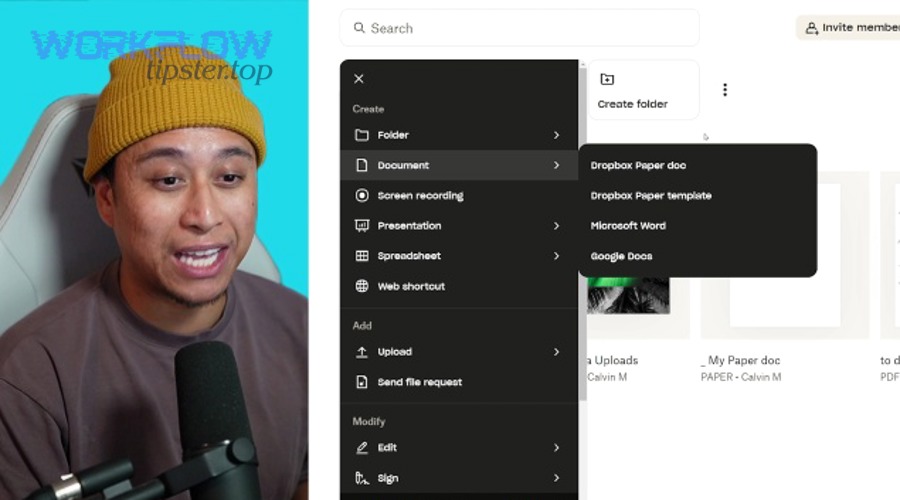
To operationalize version history (instead of assuming it will “save you”), set these habits:
- Name files like products: Revenue_Report_Master.xlsx, not Report_final_FINAL2.xlsx.
- Use milestones intentionally: when a reporting period closes, duplicate to an “Archive” folder and lock it.
- Limit structural edits: if someone must rewire formulas, that’s a planned change, not a casual edit.
Version history is not a substitute for good workflow—but it is an excellent safety net when a process is still maturing.
How do you set up Dropbox so Excel can open and save files smoothly?
You set up Dropbox for smooth Excel use by following a simple checklist: connect accounts where relevant, standardize folder structure, confirm permissions, and define one editing flow—so Excel opens the right file and saves back without conflicts.
To better understand why this matters, most Dropbox-Excel failures are not “technical”—they’re workflow mismatches: wrong folder, wrong permission, wrong editing pattern.
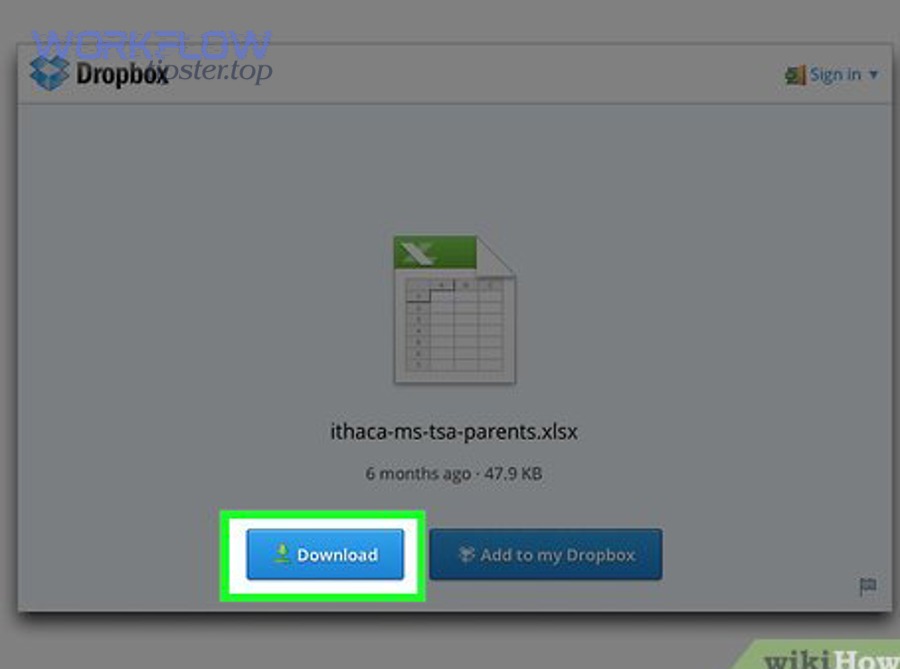
Use this setup checklist for teams:
- Folder architecture: create one top-level folder per team or function (Finance, Operations, Sales Ops).
- Workflow subfolders: 01_Input, 02_Working, 03_Outputs, 04_Archive.
- Permission tiers: viewers vs editors, and define who can share externally.
- File governance: decide which spreadsheets are “official” vs “personal drafts.”
Then, document the workflow in one paragraph inside the folder (a short README text file or a pinned note): “Where to drop files, which workbook is master, and how to collaborate.”
How do you add Dropbox as a “Place” in Microsoft Office for Excel save/open?
Adding Dropbox as a “Place” in Microsoft Office means Excel can treat Dropbox like a first-class save/open location—so your team spends less time downloading, re-uploading, or hunting files across devices.
Next, this is the simplest “connective tissue” between Dropbox and Excel because it reduces friction at the exact moments where teams create duplicates: Save As and Open.
When you set this up, your goal is predictable behavior:
- People open the workbook from Dropbox (not from email attachments).
- People save to Dropbox (not to the desktop by default).
- People share the Dropbox link (not the file copy).
If your organization uses multiple Microsoft accounts (personal vs work), make sure the “Place” is connected to the correct identity. Identity confusion is a top cause of “I can’t see the file” even when the file is shared.
What folder and naming structure prevents Excel version conflicts in teams?
A conflict-proof Dropbox-Excel structure groups files by purpose and lifecycle, not by person, and uses consistent names so everyone edits the same master workbook instead of spawning clones.
Then, the winning pattern is: one master + controlled archives + a dedicated intake folder.
Here is a team-ready structure that prevents conflict copies and “final-final” chaos:
- Finance/Revenue Forecast/
- 01_Input/ (CSV exports, raw dumps)
- 02_Working/ (the active master workbook)
- 03_Outputs/ (PDF exports, presentations, snapshots)
- 04_Archive/ (locked monthly copies)
Naming rules that actually work:
- Master workbook: Revenue_Forecast_Master.xlsx
- Monthly snapshot: Revenue_Forecast_2026-01_Archive.xlsx
- Input files: CRM_Export_2026-01-29.csv
If you want a simple internal policy, use this: Only one “Master” file per reporting process. Everything else is input, output, or archive.
What are the best ways to automate “Dropbox → Excel” imports for reporting?
There are three best ways to automate Dropbox → Excel imports: append rows, replace a sheet, or consolidate multiple files—chosen based on whether your reporting is incremental, snapshot-based, or multi-source.
Specifically, automation turns Dropbox into your “data inbox” and Excel into your “analysis destination,” reducing manual copy-paste and lowering the chance of hidden data-entry mistakes.

This is where the phrase Automation Integrations belongs in a real workflow: not as a buzzword, but as the operating system of repeatable reporting. When you automate imports, you reduce routine labor and make your reporting cadence predictable.
Common automation use cases:
- A vendor drops a daily CSV into Dropbox → Excel refreshes daily.
- A team exports weekly data into Dropbox → Excel consolidates into one dashboard.
- Multiple departments upload monthly files → Excel merges them into one standardized report.
Which automation patterns work best: append rows, replace sheet, or consolidate multiple files?
Append rows wins for time-series tracking, replace sheet is best for “latest snapshot” dashboards, and consolidate multiple files is optimal for multi-team reporting where each contributor drops a standardized file into Dropbox.
However, the right choice depends on what changes over time: new rows, the entire dataset, or the number of source files.
This table contains the most common Dropbox → Excel automation patterns and when each pattern is the best fit:
| Pattern | Best for | What must be consistent | Typical risk |
|---|---|---|---|
| Append rows | Daily/weekly logs, transactions | Columns/headers must not change | Duplicates if filenames aren’t controlled |
| Replace sheet | “Latest” KPIs, current pipeline | Same schema each refresh | Silent schema drift breaks formulas |
| Consolidate files | Department uploads, multi-source reporting | Standard template for every file | Missing files or inconsistent naming |
If your team is new to automation, start with replace sheet because it’s easiest to validate: you compare “last refresh” with “new refresh” and confirm totals.
How do you keep automated imports reliable (file naming, templates, and validation rules)?
You keep automated imports reliable by enforcing (1) stable file naming, (2) a template-based schema, and (3) basic validation checks that catch missing columns, wrong formats, or unexpected empty files.
Moreover, reliability is not “set it and forget it”—it’s “standardize and verify.”
The reliability checklist that prevents most failures:
- A drop-zone rule: all inbound files land in 01_Input/ and nowhere else.
- A template rule: every source file must match expected headers (case and order).
- A validation rule: Excel checks row counts, missing fields, and date ranges before updating dashboards.
- A quarantine rule: files that fail validation get moved to a Rejected/ folder.
Why prioritize this? Because manual checking can be dramatically less reliable than systematic verification. According to a study by the University of Nevada, Las Vegas from the Department of Psychology, in 2011 research comparing data entry methods found visual checking produced far more errors than double entry, and accuracy differences materially affected statistical results. (academia.edu)
If your “imports” still involve humans copy-pasting, consider that a transitional phase—not the end state.
Should you use native integration, no-code automation, or manual export for Dropbox-to-Excel?
Native integration wins for collaboration, no-code automation is best for repeatable imports, and manual export is optimal for one-time or low-frequency tasks where setup time isn’t justified.
Meanwhile, the decision becomes easy when you evaluate three criteria: frequency, complexity, and governance.

Here’s a practical decision framework:
- If people need to co-edit the same workbook frequently: choose native integration.
- If you refresh reports on a schedule from inbound files: choose no-code automation.
- If you only need a folder list or a one-time extraction: choose manual export.
This is also where it helps to think across your wider stack. If your organization already runs workflows like airtable to xero for finance ops or gmail to basecamp for project intake, then adding Dropbox → Excel automation is usually a natural extension of your process maturity—because the team already understands standardized inputs, repeatable outputs, and ownership.
What are the pros/cons of native Dropbox + Microsoft Office integration for Excel collaboration?
Native integration is strong because it minimizes friction, centralizes file storage, and supports consistent collaboration—but it is weaker when your goal is scheduled data pipelines and complex transformations.
On the other hand, it’s the fastest path to “teams stop emailing Excel attachments.”
Pros
- Low setup cost for most teams
- Strong day-to-day collaboration flow
- Clear storage location for Excel workbooks
Cons
- Doesn’t automatically solve reporting automation
- Can still produce conflicts if users edit offline without coordination
- Linking-heavy models may be fragile depending on your environment
Best use: “We live in the workbook together” workflows (budgets, forecasts, shared trackers).
What are the pros/cons of no-code automation tools for Dropbox → Excel?
No-code automation is strong because it schedules imports, enforces repeatable patterns, and reduces manual steps—but it adds tooling complexity and requires schema discipline to stay reliable.
Especially for reporting teams, automation is the difference between “monthly scramble” and “continuous refresh.”
Pros
- Scheduled refresh and consistency
- Repeatable transformations (cleaning, merging, mapping)
- Clear operational ownership (who maintains the pipeline)
Cons
- Cost and connector limits can apply
- Requires stable naming and schema discipline
- Debugging needs process ownership, not just a “power user”
Best use: dashboards, weekly reporting, multi-source consolidation.
When is manual export to CSV/Excel the right choice?
Yes—manual export is the right choice when Dropbox-to-Excel is (1) a one-time task, (2) a low-frequency workflow, and (3) simple enough that automation would cost more time than it saves.
Thus, manual export still has a place—if you treat it as controlled and documented.
Use manual export when you’re doing:
- Folder inventory and audits (file lists, shared links)
- One-time migrations or spot checks
- Small, low-risk analyses
But add two guardrails:
- Record the extraction date and scope (what folder, what filters).
- Avoid reusing “manual” outputs as operational truth—because they go stale immediately.
What are the most common Dropbox-Excel problems, and how do you fix them?
The most common Dropbox-Excel problems are conflicted copies, permission mismatches, sync timing issues, and broken workbook links—and you fix them by standardizing editing behavior, tightening folder permissions, and designing workbooks for cloud-friendly collaboration.
Next, treat troubleshooting like a checklist, not a guessing game.

A fast troubleshooting playbook:
- If someone can’t open a file: check folder permissions first, not Excel settings.
- If edits “disappear”: confirm whether the file was edited locally but not synced yet.
- If there are duplicates: identify the master and archive the rest immediately.
- If formulas break: diagnose whether the workbook depends on external links.
Why do you get “conflicted copy” or overwrite issues, and how do you prevent them?
Conflicted copies happen because (1) two people edit the same Excel file offline or in different modes, (2) the sync client receives competing edits, and (3) Excel files are not always merge-friendly when changes happen simultaneously in separate local copies.
Then, prevention is mostly behavioral plus structure.
Prevention rules that work in real teams:
- Define “collaboration mode” per workbook: co-author in web, or take turns in desktop.
- Use a master workbook only: eliminate duplicates aggressively.
- Create an edit window for high-stakes files: e.g., Finance edits forecast master between 9–11am.
- Avoid editing during unstable sync: don’t edit when you’re offline if the file is shared and sensitive.
If the workbook is critical, add a lightweight “change control” tab with: date, editor, summary of change, and link to relevant input files.
Why do links between Excel workbooks break when files are in Dropbox, and what’s the workaround?
Links break because Excel workbook references often rely on file paths and environment assumptions, and cloud-synced paths can change across devices, users, or editing modes—so formulas that point to external files may not resolve consistently.
In addition, the workaround is to reduce brittle external links and use more stable import methods.
Practical fixes:
- Keep linked workbooks in the same folder and avoid moving them.
- Replace fragile formula links with data import methods (for example, importing tables rather than referencing cell-by-cell across files).
- Consolidate into one model when feasible (one workbook with multiple tabs).
- Create standardized “input sheets” so the main model pulls from stable structured tables.
This matters because spreadsheet errors and inconsistencies are a known risk area, especially as complexity grows. According to a paper by the University of Hawaii, in 2000, research presented to EuSpRIG emphasized that spreadsheet errors are common and non-trivial and that rigorous inspection approaches (like cell-by-cell review) are among the demonstrated ways to reduce error impact. (arxiv.org)
What advanced considerations affect Dropbox-Excel workflows in large teams?
Advanced considerations include governance (permissions, retention, audit trails), performance constraints (large files, sync latency), and “when to migrate instead of integrate”—all of which become critical as teams scale.
Moreover, this is the point where your Dropbox-Excel workflow should start behaving like a managed system, not a collection of individual habits.

How do permissions, retention, and audit trails change the “right” setup for regulated teams?
They change the “right” setup by forcing clarity: who can edit, who can share externally, how long files must be retained, and how changes are tracked—so your workbook is defensible, not just functional.
Then, regulated teams should move from informal sharing to policy-backed access tiers.
Regulated-team checklist:
- Least-privilege access: most users view, fewer users edit, only a few can share externally.
- Retention clarity: define how long masters and archives must exist.
- Auditability: keep version history meaningful by controlling duplicates and naming.
According to a study by Illinois State University from the Department of Technology, in 2024 research on document version control in higher education highlighted that implementing version control supports more effective and efficient communication and improves collaborative document work—exactly the governance goal scaled teams need. (ir.library.illinoisstate.edu)
What performance limits show up with large Excel files in synced folders, and how can you mitigate them?
Large Excel files hit limits because (1) sync takes longer, (2) multiple editors increase conflict risk, and (3) calculation-heavy workbooks strain devices differently—so teams experience lag, stale data, or accidental overwrites.
Especially at scale, mitigation is about reducing file “weight” and isolating responsibility.
Mitigations that work:
- Split the model: separate raw data, transformation, and reporting into layers (even if all layers still live in Dropbox).
- Reduce volatility: avoid volatile formulas where possible and use structured tables.
- Limit simultaneous editing: reserve co-authoring for sections designed for it; assign owners to high-risk tabs.
- Archive aggressively: keep the working file lean, move old periods out.
When should you NOT use Dropbox-Excel and instead migrate to Microsoft 365 storage?
Yes—there are cases where you should not use Dropbox-Excel as the long-term solution because (1) your workbooks depend heavily on cross-file links, (2) you require deep Microsoft admin controls and centralized governance, and (3) you need collaboration behaviors optimized for Microsoft’s native storage layer at enterprise scale.
However, this is not a “Dropbox is bad” conclusion—it’s a “fit-for-purpose” decision.
Clear signals that migration may be better:
- You manage many linked workbooks that must resolve reliably across users.
- You need standardized policy enforcement across hundreds of files.
- You require integrated Microsoft governance features as the primary control plane.
If those are your realities, “integrate” becomes “migrate”—the antonym decision that protects your team from future instability.
What’s the best practice for CSV imports (encoding, delimiters) to avoid broken data in Excel?
Best practice is to standardize (1) encoding (prefer UTF-8), (2) delimiter rules (comma vs semicolon), (3) date formats, and (4) required headers—so automated imports don’t silently corrupt columns or misread values.
In short, CSV is simple until it isn’t, so teams must treat CSV as a contract.
CSV reliability rules:
- Lock headers: never rename columns without updating the workflow.
- Normalize dates: use ISO-like formats where possible.
- Validate row counts: compare today vs yesterday to catch missing files.
- Keep one schema per folder: don’t mix different CSV “types” in one intake folder.
When you follow these rules, Dropbox becomes a predictable intake system and Excel becomes a stable analysis layer—exactly what teams want when they search “dropbox to microsoft excel.”