


Yes—if your goal is to connect ClickUp to Slack, you can do it quickly and get immediate value because the ClickUp–Slack integration reduces context switching, speeds up task handoffs, and keeps execution visible in the channels where your team already communicates.
Next, you’ll learn what “connecting” actually means in practice—native integration versus automation workflows—so you can pick the simplest approach that still delivers the outcomes you want: the right notifications, the right channels, and fewer missed updates.
Then, you’ll follow a clear setup path for the native integration, including permissions, validation checks, activity routing, message-to-task patterns, and link previews—so Slack becomes an action layer, not just a chat feed.
Introduce a new idea: once the basics work, the real advantage comes from shaping signal quality—when to use automations, how to prevent duplicates, and how to troubleshoot edge cases—so the ClickUp–Slack connection stays reliable as your team scales.
What does “connecting ClickUp to Slack” mean for teams—an integration, a sync, or an automation?
Connecting ClickUp to Slack is a workflow integration that links your ClickUp workspace to your Slack workspace so task updates can appear in Slack and Slack messages can become ClickUp tasks, with link previews and quick actions reducing back-and-forth.
To better understand the value of the ClickUp–Slack connection, it helps to separate three concepts that people often mix together: native integration features, “sync” expectations, and automation-based workflows.
1) Native integration: This is the built-in connection ClickUp provides to Slack (and that Slack exposes through its app ecosystem). It typically includes capabilities like posting ClickUp activity into channels, turning Slack messages into tasks, and previewing ClickUp links inside Slack. The advantage is speed and stability: fewer moving parts and fewer “it broke overnight” surprises.
2) “Sync” as a goal (not always a feature): Teams often say “sync ClickUp to Slack,” but what they really mean is “make Slack reflect the important parts of work in ClickUp.” In reality, Slack is a conversation stream and ClickUp is a system of record for tasks, statuses, and due dates. A good connection doesn’t copy everything; it routes what matters to where it’s acted on.
3) Automation workflows: Automation tools sit in the middle and connect triggers to actions. For example, “When a task moves to ‘Blocked’ in ClickUp, post a message in #engineering-help,” or “When a message is posted in #bug-triage, create a ClickUp task in the Bugs list.” Automation is ideal when your rules are more complex than the native integration can express.
In practical terms, the best ClickUp–Slack setup is usually a layered model: start with the native integration for core actions and previews, then addaz using automation for missing pieces.
Can you connect ClickUp to Slack using the native integration?
Yes, you can connect ClickUp to Slack using the native integration because it supports secure authorization, team-friendly notification routing, and fast task capture from Slack—three fundamentals that cover most real-world “clickup to slack” needs.
Next, the fastest way to avoid setup friction is to confirm permissions and clarify what “success” looks like before you authorize anything.
Do you need Slack admin and ClickUp admin permissions to install and authorize?
Yes, you usually need the right admin-level access in either Slack, ClickUp, or both because installation can be restricted by Slack workspace app policies, authorization requires permission to connect workspaces, and channel posting often depends on who can add apps and manage integrations.
Specifically, think of permissions as a three-part gate:
- Workspace policy gate (Slack): Some Slack workspaces allow anyone to install apps; others require an admin approval workflow.
- Workspace connection gate (ClickUp): Some ClickUp workspaces restrict who can enable integrations and which spaces/lists can be exposed through those integrations.
- Channel visibility gate (Slack): Even if the app is installed, it may not be able to post into certain channels unless it is added to those channels—especially private channels.
To keep governance clean, assign one owner for the ClickUp–Slack connection. That owner should document what’s authorized, which channels are configured, and which notifications are allowed. This single-owner model prevents “shadow integrations” that create duplicate notifications and confuse the team.
What information should you prepare before connecting (workspace, channels, notification goals)?
There are 5 main items you should prepare before connecting ClickUp to Slack: the ClickUp workspace scope, the Slack workspace scope, the target channels, the notification event set, and the task-capture rules—because those five choices determine whether Slack becomes signal or noise.
More specifically, use this setup checklist:
- ClickUp scope: Which spaces/folders/lists are “in scope” for Slack visibility?
- Slack scope: Is this one Slack workspace or multiple? Are guest users common?
- Channel map: Which channels are execution channels (work happens) vs broadcast channels (updates only)?
- Notification goals: What decisions should Slack updates enable (triage, unblock, approve, assign)?
- Task-capture rules: When a Slack message becomes a ClickUp task, what minimum fields must be captured (owner, list, priority, due date)?
A simple way to confirm you’re prepared is to write one sentence: “When X happens in ClickUp, Y should be notified in Slack, and the next action should be Z.” If you can’t write that sentence, your setup will likely drift into spam.
How do you connect ClickUp to Slack step by step (native setup)?
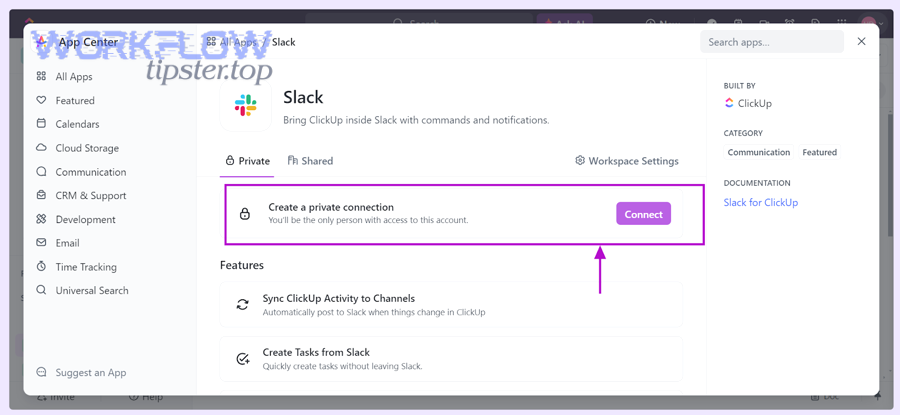
Connect ClickUp to Slack using the native setup in 6 steps—choose the integration entry point, install/authorize, select the correct workspaces, configure where activity should post, validate link previews and actions, and run a live test so your team sees real updates immediately.
Then, once you treat setup like a short rollout (not a one-click toggle), you’ll avoid the most common failure mode: “It connected, but nothing shows up.”
Here’s a reliable, team-safe sequence:
- Pick your entry point: start from ClickUp integrations or from the Slack app directory, depending on who controls permissions.
- Install the app (Slack side): ensure the ClickUp app is approved and installed for the workspace.
- Authorize the connection (ClickUp side): log in and grant access so ClickUp can post updates and create tasks from Slack interactions.
- Set posting destinations: choose which channels receive which ClickUp activity and confirm the app is added to those channels.
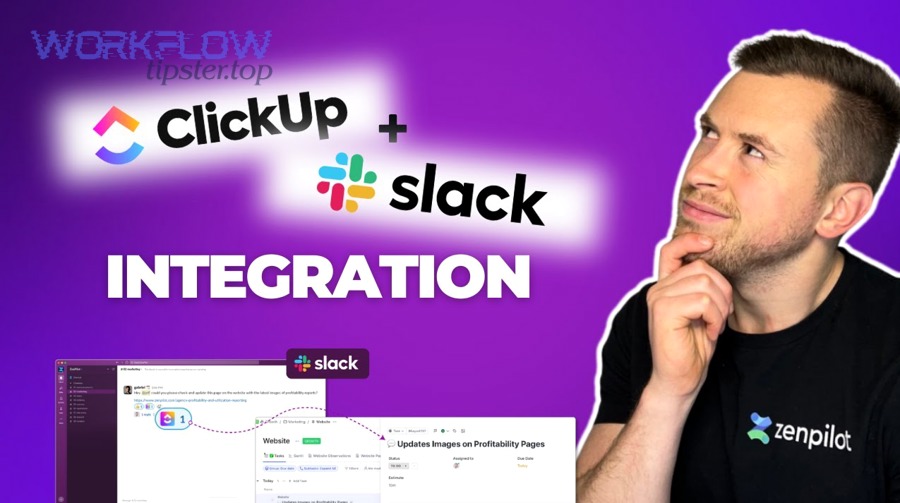
- Enable previews/actions: confirm that ClickUp links render previews in Slack and that users can take basic actions without leaving Slack.
- Run a live test: create a test task, change status, add a comment, and confirm Slack posts the update in the expected channel.
The ClickUp Help Center describes the Slack integration as supporting capabilities such as syncing activity to channels, creating/editing tasks from Slack, and previewing ClickUp content in Slack. ([ics.uci.edu](https://www.ics.uci.edu/~gmark/chi08-mark.pdf?))
How do you install the ClickUp app in Slack and authorize ClickUp access?
Install and authorize the ClickUp app by adding it to your Slack workspace, approving it if your Slack policy requires, and completing the ClickUp authorization flow so Slack can send the right events and ClickUp can receive the right commands.
To illustrate the cleanest path, follow this pattern:
- Slack-first path: Add the ClickUp app from Slack’s marketplace, then complete authentication so ClickUp can connect your workspace.
- ClickUp-first path: Enable the Slack integration inside ClickUp, then follow the prompts to sign in to Slack and approve permissions.
In both cases, the key is to match the correct workspace: teams often have multiple Slack workspaces or multiple ClickUp workspaces, and one wrong selection produces “silent failure” that looks like a bug.
How do you confirm the integration is working after setup?
Yes, you can confirm the integration is working in minutes because a controlled test creates visible Slack posts, validates channel routing, and proves link previews/actions—three checks that expose almost every configuration mistake immediately.
Below is a quick “green check” test you can run with a small pilot group:
- Create a ClickUp task named “Slack Integration Test.”
- Assign it to a test user and set a due date.
- Change status (e.g., To Do → In Progress → Done).
- Add a comment containing a clear keyword (e.g., “Blocking issue”).
- Paste the task link into Slack and confirm it previews correctly.
If any step fails, don’t expand rollout. Fix routing and permissions first, then re-run the test so the team trusts the signal from day one.
What types of ClickUp activity should be sent to Slack—and where should it go?
There are 4 main types of ClickUp activity you should send to Slack—task lifecycle changes, risk/exception alerts, collaboration events, and deadline signals—based on the criterion of whether the update triggers a decision or action inside a specific channel.
However, the most important move is not “send more updates,” but “send fewer updates to the right destinations,” because Slack is a shared attention surface.
Use these four categories as your routing foundation:
- Lifecycle changes: created, assigned, status changed, moved lists.
- Risk/exception alerts: blocked, overdue, priority escalated, SLA risk.
- Collaboration events: mentions, comments, approvals requested.
- Deadline signals: due soon, due today, just missed deadline.
Which ClickUp events are worth notifying in Slack (task created, status change, comments, due date)?
There are 6 ClickUp events worth notifying in Slack for most teams—assignment, status change, blocking flag, comment mention, due-date risk, and completion—based on the criterion of whether the event changes who should act next and by when.
More importantly, each event should map to a single “next action,” such as:
- Assignment: acknowledge and plan next step.
- Status change: unblock dependencies or review output.
- Blocked flag: swarm help or escalate.
- Mention/comment: answer a question or provide an asset.
- Due-date risk: renegotiate scope or shift resources.
- Completion: announce deliverable and link results.
If an event does not change behavior, it does not belong in Slack; it belongs in ClickUp reporting or dashboards.
How do you route updates to the right Slack channels without spamming everyone?
Channel-per-team wins in ownership clarity, channel-per-project is best for cross-functional delivery, and DM-based alerts are optimal for personal accountability—so your routing choice should follow who must act and who only needs awareness.
Specifically, use this decision logic:
- Channel-per-team: Best when work is owned by a stable group (engineering, design, ops) and you want consistent cadence.
- Channel-per-project: Best when multiple teams collaborate and you need a single shared “execution room.”
- DM alerts: Best when the update is actionable for one person and noisy for everyone else.
To reduce spam, use a “two-layer signal” rule: send only exceptions (blocked, overdue, escalation) into broad channels, and keep routine lifecycle updates in narrower channels or personal alerts.
How do you create and manage ClickUp tasks from Slack messages?
Creating and managing ClickUp tasks from Slack messages means capturing a conversation artifact as a task with an owner, a destination list, and a next action—so the request becomes trackable work instead of a forgotten thread.
In addition, this is the fastest way to turn Slack into an intake funnel—if you define task standards that prevent messy, duplicate tasks.

At a minimum, a Slack-to-ClickUp task should include:
- Clear title: verb + outcome (e.g., “Fix onboarding email link”).
- Owner: one accountable assignee.
- Where it lives: the correct ClickUp list for reporting.
- Context: the Slack thread link and key requirements.
- Time: due date or SLA expectation.
Can Slack messages be turned into ClickUp tasks with the right fields (assignee, due date, priority)?
Yes, Slack messages can be turned into ClickUp tasks with the right fields because the message provides context, the conversion flow captures a structured title and destination, and you can add ownership and deadlines so the task is actionable instead of informational.
For example, make your team follow a “3-field rule” when converting a Slack message into a task:
- Assignee: who owns the next action.
- Priority: what should be done first when time is limited.
- Due date: when the work must be delivered or reviewed.
If the task cannot be assigned and dated, it’s not a task yet—it’s a note. Keep notes as Slack bookmarks or ClickUp Docs, and convert only when the work becomes real.
How do you prevent “task duplicates” when multiple people convert the same thread?
Single-owner conversion wins in accountability, reaction-based claiming is best for speed, and an intake-channel gate is optimal for scale—so preventing duplicates is a choice between clarity, velocity, and governance.
Meanwhile, here are three practical anti-duplication patterns:
- Single-owner conversion: Only one role (e.g., PM on duty) converts Slack threads into ClickUp tasks.
- Reaction-based claiming: First person to react with a defined emoji (e.g., ✅) “claims” the conversion, and others do not convert.
- Intake-channel gate: Only messages posted in #intake or #triage can be converted, reducing random conversions across Slack.
Whichever pattern you choose, document it and repeat it, because duplicates are not a tooling problem—they’re a team agreement problem.
How do ClickUp link previews and Slack actions improve execution speed?
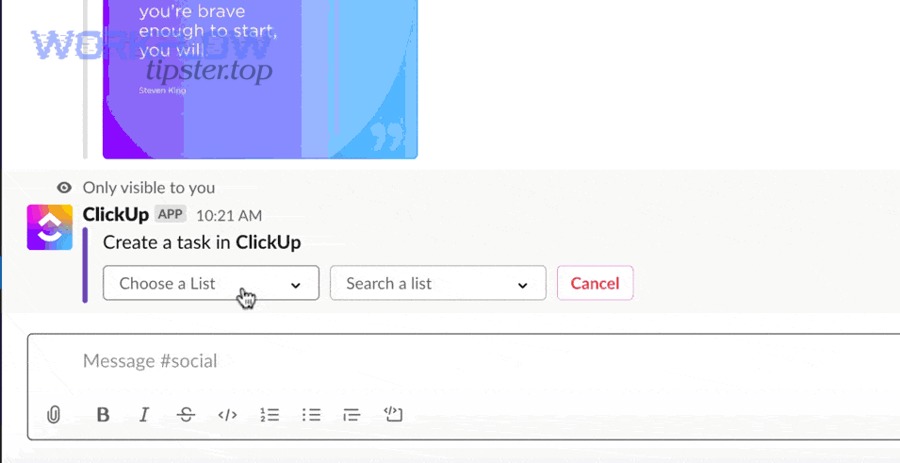
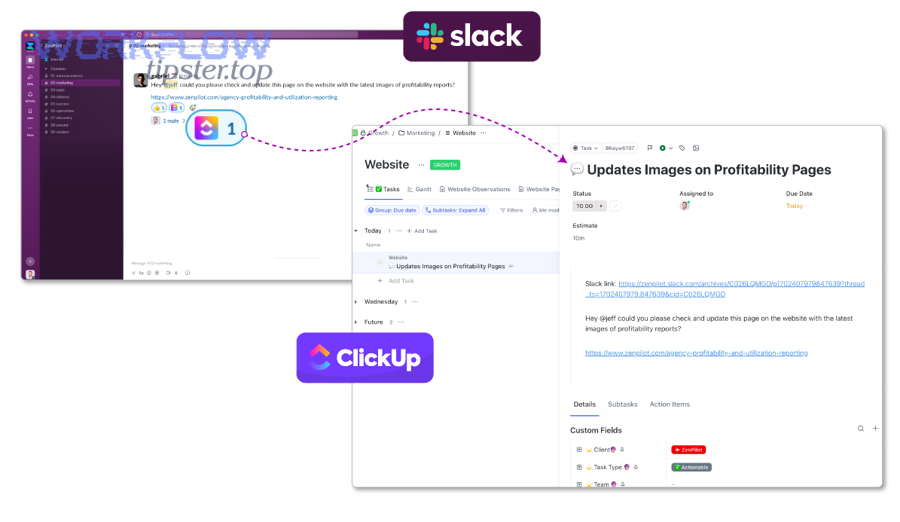
ClickUp link previews and Slack actions improve execution speed by letting teams see task context instantly, confirm status and ownership without opening new tabs, and perform lightweight updates from Slack—so decisions happen where the conversation already lives.
Besides, these features are the key to a low-friction workflow: you keep Slack conversational while keeping ClickUp authoritative.
When previews and actions work well, you get three execution benefits:
- Faster triage: teammates can evaluate a task without asking “what is this about?”
- Fewer status meetings: the channel shows reality, not guesses.
- Cleaner handoffs: the task link carries context, owners, and deadlines.
Do ClickUp task and Doc links preview correctly in Slack by default?
Yes, ClickUp task and Doc links often preview correctly in Slack by default because the integration supports link unfurling, authorized users can see shared context, and Slack can render rich previews—though workspace permissions and privacy settings can block previews in some cases.
Specifically, if previews fail, the cause usually falls into one of these buckets:
- Authorization: the user or workspace has not authorized the integration for previews.
- Visibility: the ClickUp item is private or restricted, so Slack cannot show details to the viewer.
- Channel policy: the app is not allowed in the channel, or unfurl settings are restricted.
When you fix previews, you reduce “context pings” like “what is this link?” and the team stays in motion.
What are the most useful “in-Slack” actions for teams (comment, update status, assign)?
There are 5 most useful in-Slack actions for teams—comment, assign, update status, set priority, and share/announce—based on the criterion of whether the action advances the task without requiring deep edits or multi-field configuration.
To better understand why these matter, map each action to a common Slack moment:
- Comment: answer a question while the thread is active.
- Assign: turn “someone should do this” into “Alex owns this.”
- Update status: reflect progress immediately after agreement.
- Set priority: clarify urgency when multiple tasks compete.
- Share/announce: broadcast a completed deliverable with the single source of truth link.
These actions are powerful because they preserve ClickUp as the system of record while allowing Slack to remain the coordination layer.
When should you use automations instead of the native integration?
The native integration wins in simplicity and core features, automation platforms are best for complex routing and multi-app chains, and hybrid setups are optimal for scaling teams—so you should use automations only when you need rules and workflows the native integration cannot express.
Next, the clearest way to decide is to compare your workflow requirements against three criteria: complexity, reliability, and governance.
Before the table below, here is what it contains: it compares native integration versus automation tools across practical criteria that directly affect teams—setup time, flexibility, failure handling, and scaling—so you can choose the right approach without overengineering.
| Criterion | Native ClickUp–Slack Integration | Automation Workflows (e.g., Zapier/Make) | Hybrid (Native + Automations) |
|---|---|---|---|
| Setup speed | Fastest | Medium | Medium |
| Routing flexibility | Good for common cases | Best for complex rules | Best overall |
| Multi-app workflows | Limited | Strong (chains, branching) | Strong |
| Maintenance | Low | Medium–High | Medium |
| Failure handling | Simple, fewer moving parts | Needs monitoring and retries | Balanced |
| Best for | Most teams starting out | Ops-heavy, rule-driven teams | Scaling teams with mature processes |
Which workflows are better with automations (bi-directional routing, filters, multi-app chains)?
There are 5 workflows that are better with automations—conditional notifications, bi-directional routing, multi-app chains, enrichment steps, and escalation logic—based on the criterion of whether your workflow needs branching rules or data transformation beyond a standard integration toggle.
For example, automations become the right tool when you want patterns like:
- Conditional routing: “If priority is Urgent, post in #incident-room; otherwise post in #team-updates.”
- Bi-directional capture: “When a message hits #bug-triage, create a task and reply with the task link.”
- Multi-app chains: “ClickUp task created → update spreadsheet → post Slack summary.”
- Enrichment: “When a task is created, append a template checklist and tag a stakeholder.”
- Escalation: “If blocked for 24 hours, DM the owner and notify the lead.”
To keep semantic continuity across your broader automation content, it helps to think in terms of Automation Integrations as reusable patterns, not one-off zaps. In the same way you might build workflows like gmail to smartsheet for reporting, airtable to aha for roadmap updates, or freshdesk to airtable for support triage, ClickUp-to-Slack automations work best when you standardize naming, ownership, and failure alerts.
Native integration vs automation tools: which is better for your team size and use case?
Native integration wins for small-to-mid teams that want fast adoption, automation tools are best for process-heavy teams that require complex rules, and hybrid setups are optimal for larger organizations that need both stable core features and custom routing at scale.
More specifically, use this sizing framework:
- Small teams (2–15): start with native integration; focus on a few high-signal notifications and message-to-task capture.
- Growing teams (15–60): add automations for exceptions (blocked, overdue, escalation) and keep routine updates narrow.
- Large teams (60+): formalize governance—channel taxonomy, integration owners, auditability—then use a hybrid model to balance flexibility and reliability.
The best choice is the one your team can maintain: a perfect automation that nobody monitors will fail quietly and erode trust faster than a simpler native setup.
What should you do if the ClickUp–Slack integration isn’t working?
There are 6 main troubleshooting steps when the ClickUp–Slack integration isn’t working—verify authorization, confirm channel app access, check event routing, test link previews, inspect permissions, and run a controlled end-to-end test—based on the criterion of finding the earliest failure point in the chain.
Then, once you troubleshoot in sequence, you stop guessing and start isolating the root cause quickly.
Use this diagnostic flow from fastest to deepest:
- Authorization check: confirm the integration is still authorized and hasn’t been revoked.
- Channel app check: confirm the ClickUp app is added to the destination channel(s).
- Routing check: confirm you selected the correct ClickUp space/list and the correct Slack channel.
- Event filter check: confirm the events you expect are enabled (status changes, comments, etc.).
- Preview check: paste a ClickUp link and confirm whether preview fails for everyone or only some users.
- End-to-end test: recreate the exact trigger with a test task to confirm behavior.
Are missing notifications usually caused by permissions, channel settings, or event filters?
There are 3 most common causes of missing notifications—permissions, channel settings, and event filters—based on the criterion of where the message can be blocked: at authorization, at destination access, or at the rules that decide what should be posted.
To better understand each cause, match symptoms to fixes:
- Permissions symptom: “It works for one person but not another.”
Fix: re-check user access to the ClickUp item and Slack policies. - Channel settings symptom: “It posts nowhere, or only in public channels.”
Fix: add the app to the channel and confirm channel permissions. - Event filters symptom: “Some updates post, others never do.”
Fix: confirm event types are enabled and mapped to destinations.
Once you know the category, you can fix the exact gate instead of rebuilding the integration from scratch.
Do private channels and enterprise policies change how the integration behaves?
Yes, private channels and enterprise policies can change how the integration behaves because apps may require explicit channel access, link previews may depend on viewer permissions, and admin restrictions can limit where bots can post—three common enterprise controls that affect visibility.
Especially in regulated organizations, apply these safe practices:
- Use public execution channels when possible: keep work visible and reduce private-channel routing complexity.
- Limit sensitive previews: use restricted ClickUp permissions for confidential tasks, and avoid broadcasting details in Slack.
- Centralize changes: treat integration settings like infrastructure—changes should have an owner and a quick rollback plan.
How can you optimize ClickUp–Slack for governance, scale, and edge cases?
Optimizing ClickUp–Slack for governance and scale means designing a channel taxonomy, defining notification rules that protect attention, standardizing task-capture conventions, and managing edge cases like private channels and multi-workspace routing so the integration stays high-signal over time.
In addition, optimization is where the integration becomes an operational asset rather than a novelty feature.
One reason optimization matters is attention recovery cost: according to a study by the University of California, Irvine from the Department of Informatics, in 2008, researchers reported that interruptions can be costly and that resuming work after disruption can take significant time—making high-signal notification design a performance issue, not just a preference. ([ics.uci.edu](https://www.ics.uci.edu/~gmark/chi08-mark.pdf?))
What’s the best notification governance model (channel taxonomy, naming rules, escalation paths)?
There are 4 building blocks of a strong notification governance model—channel taxonomy, naming conventions, escalation paths, and ownership reviews—based on the criterion of controlling where updates land, who is responsible, and what happens when work is at risk.
To illustrate a simple but effective model, use these blocks:
- Channel taxonomy: separate execution channels (work happens) from broadcast channels (updates only) and intake channels (requests become tasks).
- Naming conventions: use consistent patterns like #proj-*, #team-*, #triage-* so routing rules remain understandable.
- Escalation paths: define what triggers escalation (blocked > 24h, overdue, priority urgent) and where those alerts go.
- Ownership reviews: schedule a monthly review of notification rules to remove spam and add only proven signals.
Governance is successful when people stop muting channels—because the updates are relevant, timely, and actionable.
How do you handle multi-workspace or cross-team routing without breaking accountability?
Single-workspace routing wins in simplicity, centralized intake is best for accountability, and distributed routing is optimal for autonomy—so cross-team success depends on deciding where tasks should be owned and reported before you spread notifications across multiple spaces and channels.
More specifically, choose one of these patterns:
- Central intake + assignment: all Slack requests go to one intake channel and one ClickUp list, then owners triage and assign.
- Team-owned intake: each team has its own intake channel and ClickUp list, with shared standards for minimum fields.
- Hybrid: central intake for urgent/escalation; team intakes for routine work.
The accountability rule stays the same in every pattern: one task, one owner, one “next action,” and one reporting destination in ClickUp.
What are common enterprise/security constraints (data visibility, retention, audit logs) to plan for?
There are 4 common enterprise constraints to plan for—data visibility, retention expectations, app approval workflows, and auditability—based on the criterion of how information moves between systems and who is allowed to see it in shared channels.
Especially in enterprise environments, implement these safeguards:
- Visibility controls: avoid broadcasting sensitive ClickUp details to broad channels; prefer links with permission-based access.
- Retention alignment: remember that Slack message retention may differ from ClickUp’s recordkeeping, so tasks should store the durable context.
- Approval workflows: document who can install apps, who can change routing rules, and how changes are reviewed.
- Auditability: keep a simple change log of integration settings and automation rules so incidents can be traced.
Planning for constraints early prevents the most painful failure mode: rolling out a workflow that later gets shut down by policy, forcing the team to re-learn a new process.
What’s the antonym of “over-notifying”—and how do you design for high-signal Slack updates?
The antonym of over-notifying is high-signal notifying, and you design it by sending fewer updates, choosing exception-based triggers, and using summarized cadence posts—three practices that protect attention while still keeping delivery transparent.
In short, high-signal design looks like this:
- Exceptions over exhaust: post blocked/overdue/escalations to shared channels; keep routine updates narrow.
- Summaries over streams: post daily or weekly rollups for awareness instead of every micro-change.
- Ownership over broadcasting: DM the person who must act; only broadcast when the team must coordinate.
When you achieve high-signal notifying, Slack becomes a decision surface and ClickUp remains the system of record—exactly what a healthy clickup to slack workflow is meant to deliver.