


If you’re searching for “clickup to microsoft word”, your core job is simple: convert ClickUp Doc content into a Word-friendly file so stakeholders can review, edit, sign off, or store it in a DOCX-centered process. In practice, ClickUp doesn’t export DOCX directly, so the winning approach is to export in a supported format (PDF/HTML/Markdown) and convert, or to generate a Word document via an automation flow. (Source: help.clickup.com)
Next, you also need to choose the right transfer method for your intent—review-only, collaborative editing, or compliance archiving—because each method preserves formatting and collaboration context differently. (Source: help.clickup.com)
Then, if your workflow repeats (weekly reports, client proposals, meeting minutes), the real speed gain comes from Automation Integrations that map ClickUp fields into a Word template and produce consistent documents on demand—without manual copying. (Source: help.clickup.com)
Introduce a new idea: once you understand what ClickUp can export and what Word expects in the DOCX ecosystem, you can pick a conversion path that’s fast, predictable, and easy to standardize across a team. (Source: help.clickup.com)
Can you convert ClickUp Docs to Microsoft Word?
Yes—you can convert ClickUp Docs to Microsoft Word, but not by exporting a native DOCX from ClickUp; you typically export a Doc as PDF, HTML, or Markdown, then convert or rebuild it inside Word depending on whether you need review-only fidelity or editable structure. (Source: help.clickup.com)
To better understand what “conversion” really means here, it helps to separate file format compatibility (what ClickUp can output) from Word’s editing model (what DOCX is designed to store and preserve). (Source: help.clickup.com)
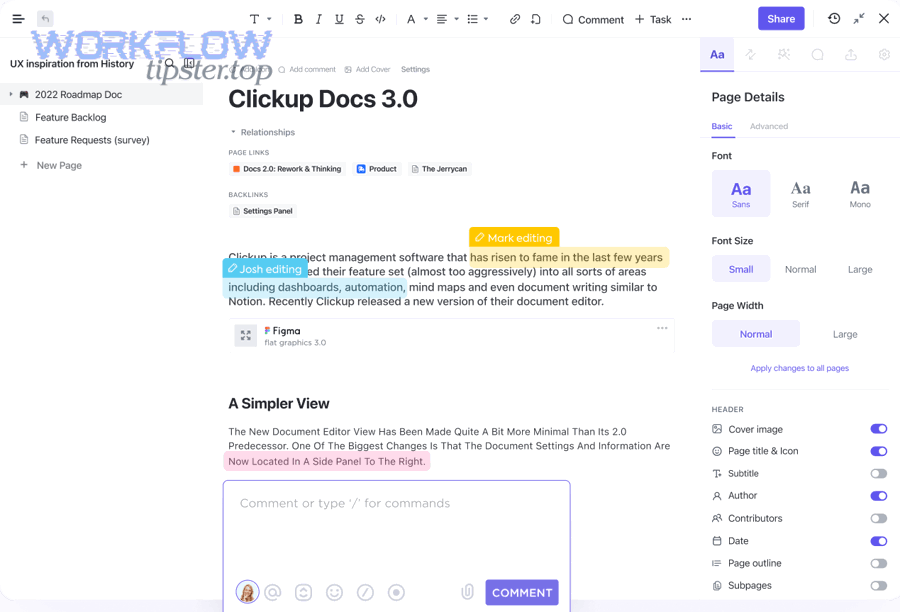
Is there a one-click DOCX export from ClickUp Docs?
No—ClickUp Docs does not offer a one-click DOCX export, because the supported export formats are HTML, PDF, Markdown, and Print (and embedded content may not be included in exports). (Source: help.clickup.com)
However, “no direct DOCX export” doesn’t mean “no DOCX outcome.” It means your DOCX result will come from one of these patterns:
- Export → convert: Export HTML/Markdown/PDF from ClickUp, then convert into DOCX using Word (or another converter).
- Copy → paste → restyle: Copy from ClickUp Doc and paste into Word, then apply a Word template/styles.
- Automate → generate DOCX: Use a Word template system (DOCX templating) connected to ClickUp data, producing DOCX files consistently.
That’s the key mental model: ClickUp is the source of truth for content, while Word becomes the deliverable format.
What export formats does ClickUp Docs support today?
ClickUp Docs supports exporting in these formats: HTML, PDF, Markdown, and Print, and ClickUp notes that embedded content is not included when exporting a Doc. (Source: help.clickup.com)
This matters because each format “carries” different parts of your Doc:
- PDF: best at visual fidelity (what you see is what reviewers see), weaker for editing.
- HTML: good at keeping headings, links, and structure; conversion to DOCX often preserves hierarchy well.
- Markdown: great for clean text structure (H1/H2/H3, lists, checkboxes as text), but tables and advanced formatting may need cleanup.
- Print: useful if your goal is simply a printable layout, not structured editing.
So when your end goal is “Microsoft Word,” you don’t ask “How do I export DOCX?”—you ask: Do I need fidelity, editability, or standardization? That decides the export format.
How close will the formatting look in Word after conversion?
It depends: PDF conversions usually look the closest visually, but often produce messy editable structure; HTML/Markdown conversions usually preserve structure better, but may require style cleanup (fonts, spacing, tables, checkboxes).
More specifically, Word’s DOCX format is part of Microsoft’s Open XML ecosystem, designed to store rich document structure (styles, sections, numbering, tables) in an XML-based package. (Source: support.microsoft.com) That’s why a “clean structure in” (HTML/Markdown with headings and lists) tends to become a “clean structure out” (DOCX that’s pleasant to edit), while “pixels in” (PDF) often becomes a DOCX that looks okay but edits poorly.
A practical rule:
- If stakeholders will edit heavily → start with HTML or Markdown export.
- If stakeholders will review/approve → start with PDF export.
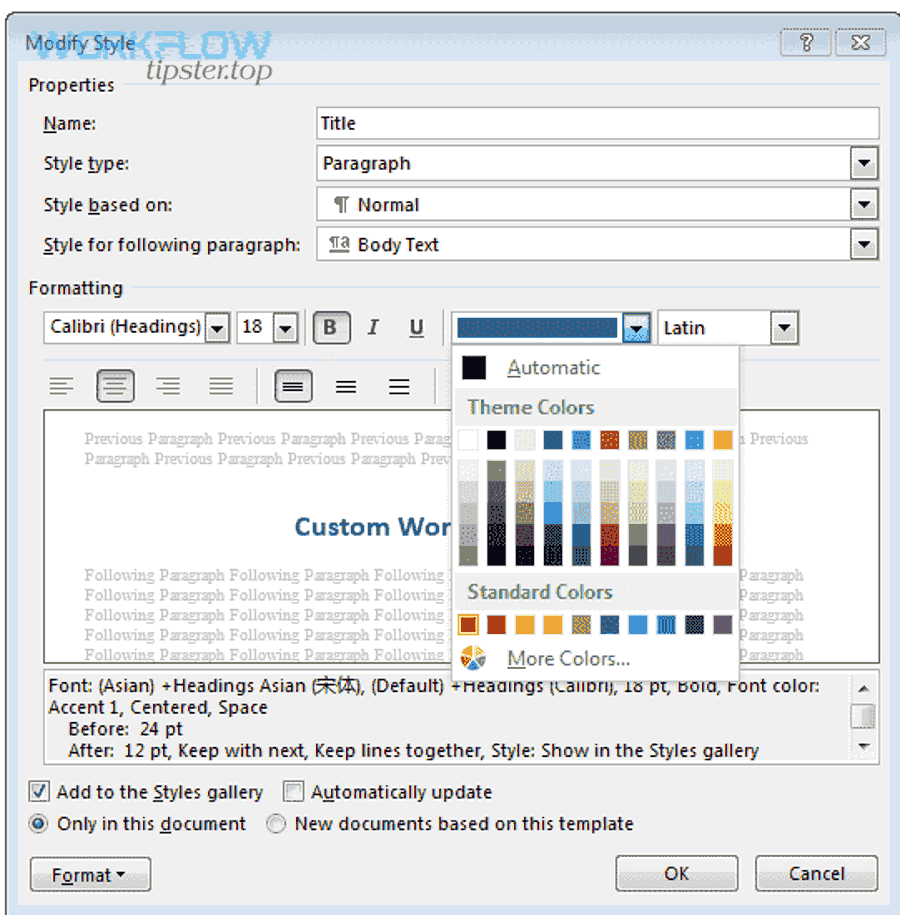
- If you need consistent branded formatting → use a Word template and reapply styles after import (or generate DOCX from a template).
What is the best way to move ClickUp content into a Word document?
The best way is choose the transfer method based on intent: copy-paste for quick drafts, export-to-PDF for review-only, export-to-HTML/Markdown for editable structure, and automation when the document is repeated and must stay consistent. (Source: help.clickup.com)
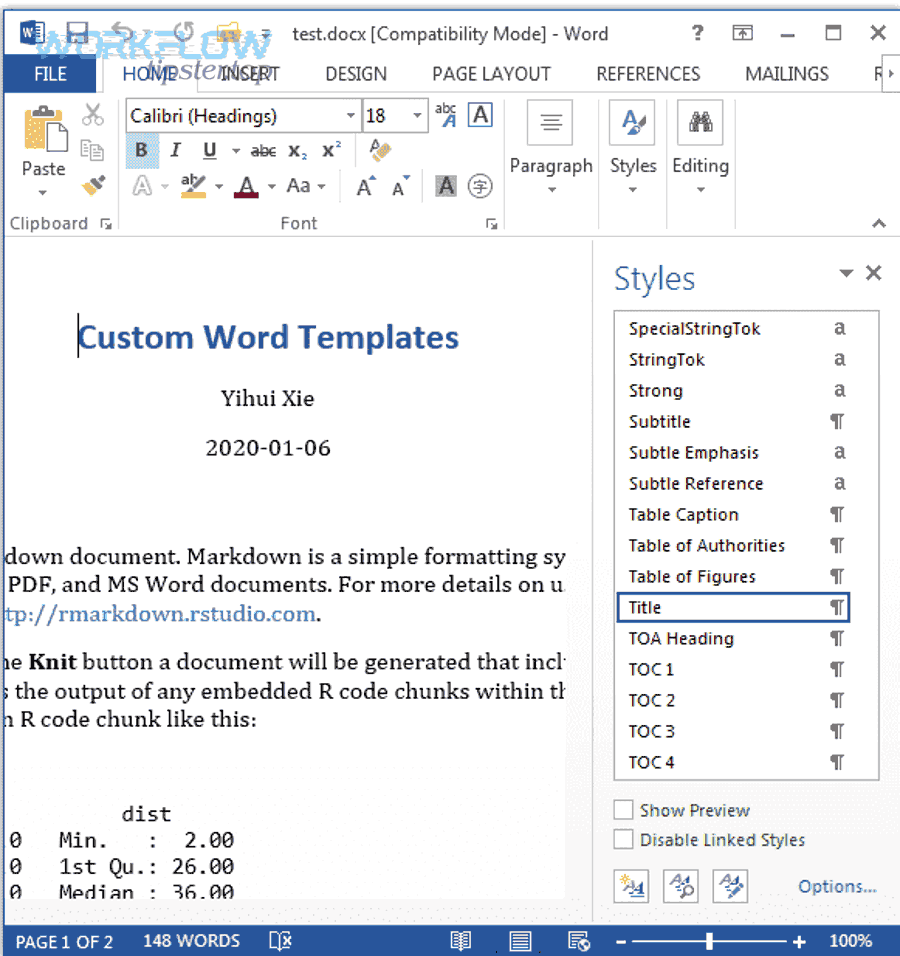
Next, you’ll get better results if you treat Word as a styled output system (templates + headings + paragraph styles) rather than a place to “fix everything manually” after a messy conversion.
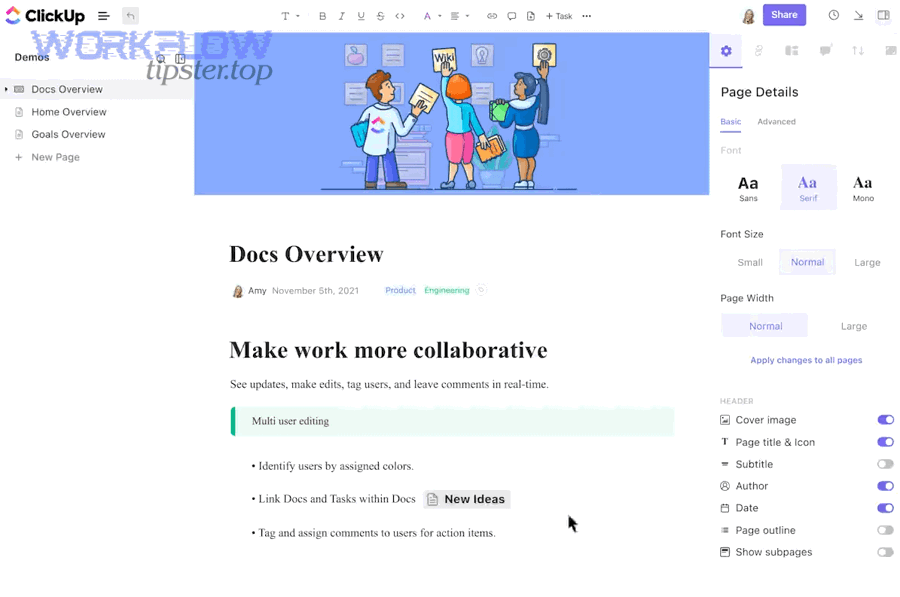
Should you copy-paste, export to PDF, or export to HTML/Markdown first?
Copy-paste wins for speed, PDF wins for review fidelity, and HTML/Markdown wins for editable structure—so the “best” choice is the one that matches what the Word recipient will do next. (Source: help.clickup.com)
Use this decision grid (it contains the most common transfer paths and helps you pick the right one based on editing needs and formatting expectations):
| Goal in Word | Best ClickUp export/method | Why it works | Typical cleanup |
|---|---|---|---|
| Final review / sign-off | Maintains layout and is easy to comment on | Minimal; only if you must convert back to DOCX | |
| Real editing + restructuring | HTML or Markdown | Preserves headings/lists that Word can restyle | Fonts, spacing, table tweaks |
| Fast draft for internal use | Copy-paste | Fastest path | Styles, numbering, checkboxes |
| Branded deliverable | HTML/Markdown + Word template | Lets Word styles control the final look | Apply template styles and map headings |
If you need one “default” method for teams, HTML export is often the best balance because it preserves structure that Word can interpret more predictably than a PDF-to-DOCX conversion.
How do you preserve headings, tables, and checklists during transfer?
Use this how-to sequence: export for structure → import → reapply Word styles (instead of trying to preserve every visual detail in the conversion).
Then, follow these tactics:
- Headings
- In ClickUp, keep headings truly as headings (not bold paragraphs).
- Export as HTML or Markdown so headings remain semantic.
- In Word, map imported heading levels to your Word template’s styles (Heading 1/2/3).
- Tables
- Prefer HTML export if tables matter; it usually carries table structure more directly than Markdown.
- After import, click into the table and apply a consistent Word table style (one action standardizes the entire doc).
- Checklists
- Expect checklists to import as text bullets or symbols.
- Convert them to Word checkboxes only if needed (for many teams, a consistent checklist style is enough).
If your organization already relies on standardized Word formatting, a template-driven approach is the most scalable: you import the structure, then the template enforces brand consistency.
What should you do about embedded content and attachments?
Plan for embedded content to be missing in exports, and replace embeds with links + captions in Word so the reader still has context. (Source: help.clickup.com)
- Embedded videos, live widgets, or rich embeds: add a short “Embedded item” line in Word with the URL.
- Attachments referenced in ClickUp: copy over the download link (or include the file separately in your deliverable package).
- Images: reinsert key images directly into Word if they’re critical to understanding.
This is also where teams often decide to keep ClickUp as the collaboration layer and use Word only as the “final artifact.” That split prevents constant rework every time the ClickUp Doc changes.
How do you export a ClickUp Doc so Word users can review it?
Export the Doc in the format that matches the review style: PDF for review-only and HTML/Markdown for editable review, because ClickUp’s Doc exports are designed around these supported formats. (Source: help.clickup.com)
To begin, confirm whether reviewers will annotate the document (comments/markup) or revise it (rewrite sections). That single question prevents the most common mistake: creating a “convertible” file when you really needed a “reviewable” file.
How do you export a ClickUp Doc to PDF for review-only workflows?
Exporting to PDF is the simplest review path: export the Doc as PDF, then reviewers can comment in their PDF tools or in Word (if they insist on opening PDFs in Word). (Source: help.clickup.com)
- Freeze the version: include a version line at the top of the Doc before export (e.g., “Version 1.3 — Jan 2026”).
- Keep headings consistent: PDF readers navigate better with clear heading hierarchy.
- Add link-friendly references: if your Doc includes external references, ensure URLs are visible and clickable.
If you must turn that PDF into a DOCX afterward, understand the tradeoff: PDF-to-DOCX often creates odd text boxes and spacing issues, so treat it as “good for extracting content,” not “good for perfect editing.”
You can also follow a visual walkthrough (one video is enough for most users):
How do you export a ClickUp Doc to HTML or Markdown for editing workflows?
Use HTML/Markdown export when Word users will edit, because these exports preserve structural elements that Word can restyle. (Source: help.clickup.com)
- Open the HTML file in Word (Word can import HTML and convert it into an editable document).
- Apply a Word template (to enforce fonts, spacing, headings, and branding).
- Normalize lists and numbering (Word’s list styles are powerful, but they need consistency).
Markdown is best when your content is mostly headings + lists + paragraphs. HTML is best when you need better table fidelity and inline formatting.
How do you share a Doc link vs exporting a file?
A shared Doc link is best when you want live collaboration and a single source of truth; exporting a file is best when you need a static artifact for email, compliance, or external stakeholders. (Source: help.clickup.com)
However, the real difference is what gets preserved:
- Link sharing preserves context: comments, updated content, and the “living document” experience.
- File exporting preserves a snapshot: a frozen version at a point in time.
So if the request is “Send me a Word file,” ask yourself: do they really need Word, or do they really need something portable and frozen? If it’s portability, PDF might satisfy the true intent better.
How do you automate ClickUp-to-Word document creation?
You automate ClickUp-to-Word creation by using a trigger → field mapping → document template flow that pulls ClickUp data into a Word template engine and outputs a DOCX consistently, with minimal manual formatting. (Source: make.com)
Next, automation becomes most valuable when your documents repeat: weekly status reports, client deliverables, SOWs, meeting minutes, audit logs, or project summaries.
What does an automation scenario look like (trigger → map fields → generate DOCX)?
A typical scenario looks like this:
- Trigger (ClickUp)
- New task created, task moved to a “Ready for Report” status, or a Doc updated event (depending on tool support).
- Fetch content
- Pull task fields (name, description, assignee, due date, custom fields) and/or Doc content (if available via the method you’re using).
- Map fields into a template
- Replace placeholders like {{ProjectName}}, {{Owner}}, {{Summary}}, {{Risks}} inside a Word template.
- Generate DOCX
- Output a Word document file and save it to your storage (SharePoint/OneDrive/Drive) or attach it back to the ClickUp task.
- Notify + approve
- Post a link to the generated DOCX in ClickUp comments or send it to email/Teams for approval.
The advantage is predictability: every document follows the same structure, which makes review faster and lowers formatting friction.
Which tools can connect ClickUp with Word templates?
There are several practical options, but the core idea is the same: pick a tool that supports ClickUp triggers/actions and DOCX templating.
- Make: provides ClickUp integration and supports connecting ClickUp with Microsoft Word template workflows (DOCX templater). (Source: make.com)
- Zapier: connects ClickUp with Microsoft Office 365 apps through no-code Zaps (often best for simpler flows). (Source: zapier.com)
If you want a scalable automation strategy, keep the document template in one place (your “source template”) and let automation generate versions per project/task, rather than editing each DOCX manually.
How do you keep version history and approvals under control?
Use a versioning pattern that mirrors what software teams do:
- One template, many outputs: treat the template as “master,” and each generated document as a versioned artifact.
- Include a version stamp: add fields such as doc version, ClickUp task ID, and generated date/time in the document header/footer.
- Approval gates: only generate a “final” DOCX when a task reaches a specific status (e.g., “Approved”).
- Storage discipline: save generated DOCX files into a consistent folder structure (Client → Project → Reports), and link back to ClickUp.
This avoids the “multiple DOCX copies floating around” problem that kills trust in documentation.
Which method should you choose for Docs, tasks, and reporting data?
ClickUp Docs are best for collaborative drafting and living knowledge, Word is best for formal deliverables, and spreadsheets are best for structured reporting—so your method should match whether the output is narrative, operational, or analytical. (Source: help.clickup.com)
More importantly, your team should standardize one default per output type, because inconsistency (everyone exporting differently) produces inconsistent documents and review friction.
Docs vs tasks: what content should live in Word vs ClickUp?
ClickUp Docs are ideal for content that benefits from ongoing collaboration (planning, specs, meeting notes), while Word is ideal for content that needs external distribution (clients, legal/compliance, signed approvals).
A clean split that works for most teams:
- Keep in ClickUp Docs:
- Drafts, evolving SOPs, internal playbooks, project discovery notes
- Move to Word:
- Client-facing proposals, final reports, contractual deliverables, formally approved policies
That way, ClickUp stays the “source of truth,” and Word becomes the “published edition.”
When should you export to spreadsheets instead (clickup to google sheets)?
Choose clickup to google sheets when the output is primarily rows, filters, and metrics—like task lists, time tracking exports, KPIs, or pipeline reporting—because spreadsheets outperform Word for sorting, grouping, and calculations.
Then use Word as the narrative layer: summarize the spreadsheet insights in a short report section, and link or attach the sheet for detail. This produces reports that read well and still have data depth.
How do you handle presentations (google docs to google slides) and other outputs?
When your deliverable is a presentation, the right mental model is “narrative → slides,” not “Doc → slide screenshots.” If your team’s workflow includes google docs to google slides, treat Docs (or ClickUp Docs) as the script and Slides as the presentation layer, then move the key headings and visuals into slide format.
For other outputs, standardize by deliverable type:
- Word: formal narrative deliverables
- PDF: frozen approvals and archives
- Slides: stakeholder presentations
- Sheets: structured reporting
- ClickUp: collaboration and source-of-truth content
This reduces rework because each tool does what it’s good at.
Contextual Border: Up to this point, you’ve covered the core intent—how to get ClickUp content into Word using the right export, conversion, or automation method. Next, you’ll expand into micro-level issues: what breaks during conversion, why it breaks, and the fastest ways to fix it without redoing the entire document.
What are common conversion problems when moving from ClickUp to Word, and how do you fix them?
The most common problems are broken tables, inconsistent spacing, lost checklist formatting, and missing embedded content, and the fastest fixes come from choosing the right export type first (HTML/Markdown for structure, PDF for fidelity) and applying Word styles deliberately. (Source: help.clickup.com)
Next, treat conversion as a two-step process: (1) get structure across, (2) enforce consistency with Word styles/templates—because trying to preserve every pixel usually wastes time.
Why do tables, indentation, or checkboxes break—and what’s the fastest fix?
They break because the conversion path changes how layout is represented:
- PDF represents layout visually, so conversions may reconstruct tables as text blocks.
- HTML/Markdown represent structure, but Word may map lists and spacing into default styles that don’t match your template.
Fast fixes:
- Tables: reapply a Word table style (one action can normalize the whole table).
- Indentation: clear direct formatting and reapply paragraph styles.
- Checkboxes: standardize them as either bullet symbols or Word checkbox controls—don’t mix.
If you need repeatable consistency, anchor the formatting in a Word template rather than hand-formatting every import.
How do you prevent font and spacing changes across devices?
Use a Word template and rely on styles, not manual formatting:
- Apply Heading/Body styles consistently.
- Avoid multiple fonts unless required.
- Keep line spacing controlled by the template (not by pasted formatting).
This matters because DOCX is designed to store structured formatting rules, and style-driven documents behave more consistently across Word versions than “manually formatted” docs. (Source: support.microsoft.com)
How do you avoid lost links, comments, and collaboration context?
Accept the tradeoff: exported files are snapshots, so they won’t carry ClickUp’s live collaboration features the same way.
- Keep the ClickUp Doc link at the top of the Word document as the “live source.”
- Convert key comments into a short “Decisions” section in Word.
- Preserve links by exporting HTML when links matter most.
Also remember: embedded content may not export—so include link placeholders for critical embedded items. (Source: help.clickup.com)
When is it better to not convert at all?
Yes—sometimes it’s better not to convert, especially when the “Word request” is actually a request for visibility and access, not a specific file type.
Don’t convert when:
- The content is still changing daily (you’ll create instant version confusion).
- Stakeholders need real-time collaboration more than a static file.
- The Doc includes many embeds that won’t export cleanly. (Source: help.clickup.com)
Convert when:
- You need a formal deliverable, archived snapshot, or external distribution format.
According to a study by the University of Florida from the Department of Pediatrics (College of Medicine Jacksonville), in 2022, optimizing standardized note templates saved an average of 2.6 hours per day, illustrating how templated, structured documentation can materially reduce time spent producing “final-form” documents. (Source: pmc.ncbi.nlm.nih.gov)