


Automating ClickUp to Google Docs templates means you can generate a clean, consistent Google Doc the moment a ClickUp task hits the right moment—so your team stops rewriting briefs, meeting notes, and deliverables from scratch and starts working from a standard template.
Next, you’ll learn how to choose the “right trigger” in ClickUp (task created vs status changed), because the trigger controls whether your automation feels reliable—or creates duplicates and noise for the team.
Then, you’ll compare the most common no-code approaches (like Zapier vs Make) and see how field mapping actually works—so task data (assignee, due date, custom fields) lands in the right place inside the Google Docs template.
Introduce a new idea: once the core workflow is working, you’ll lock it down with testing, de-duplication, and permission strategy so it scales safely across a real team.
What does “automate ClickUp tasks to Google Docs templates” mean in practice?
Automating ClickUp tasks to Google Docs templates is a workflow automation pattern where a ClickUp event triggers the creation of a new Google Doc from a preset template, then fills placeholders with task data and returns the Doc link to the task for team visibility.
Next, to make the concept concrete, imagine this everyday use case: a “Content Brief” task enters “Ready,” the system generates a Google Doc brief from a template, fills in title, keywords, owner, due date, and links it back to ClickUp—so everyone works from one standardized document.

In practice, the workflow has five moving parts that should stay consistent across your team:
- Trigger (ClickUp): the moment the automation starts (task created, status changed, etc.).
- Template (Google Docs): a standardized doc your team already agrees on (brief, report, meeting notes).
- Field mapping: rules that put task values into template placeholders (e.g., {{TaskName}}, {{Assignee}}, {{DueDate}}).
- Output location: where the doc lives (Drive folder or shared drive), named so it’s easy to find later.
- Link-back: where you store the final Doc URL in ClickUp (custom field, comment, or description).
This is also why teams describe these setups as “document generation” or “template-based docs”—you’re turning ClickUp tasks into repeatable documentation without relying on someone’s memory to do the copy/paste work.
According to a study by the University of California, Irvine from the Department of Informatics, in 2008, interrupted work increased workload and stress-related measures (including frustration and time pressure) compared with uninterrupted work.
Do you need an integration tool to connect ClickUp to Google Docs?
Yes, you typically need an integration tool to connect ClickUp to Google Docs for template-based document creation because (1) ClickUp and Google Docs don’t natively “create doc from template on task trigger,” (2) you need reliable field mapping, and (3) teams need repeatable sharing and link-back behavior.
Next, it helps to distinguish “linking” from “automating,” because many teams confuse the two:
- Linking: you paste a Google Doc link into ClickUp (manual).
- Automating: the doc is created, populated, stored, and linked back automatically (system-driven).

You might not need an automation tool only if your “workflow” is intentionally manual and low-volume (e.g., one brief per month). But the moment you have multiple teammates, recurring deliverables, or strict templates, automation becomes the practical choice—because standardization is hard to maintain by hand.
A simple way to decide: if your team asks “Where’s the doc?” more than once a week, you’ve already crossed the threshold where automation pays off.
Which ClickUp task events should trigger Google Doc creation?
There are 4 main types of ClickUp task events that can trigger Google Doc creation—Task Created, Status Changed, Custom Field Updated, and Task Moved—based on how strictly you want to control timing and prevent duplicates.
Next, the key is matching the trigger to the team’s real behavior: do you want docs created early (at task creation) or only when work is “ready” (status change)?

Should you trigger on “task created” for predictable document creation?
Yes, triggering on “task created” is often the most predictable option because (1) it creates one doc early, (2) it supports consistent intake workflows, and (3) it avoids relying on teammates to remember a later status change.
Next, the reliability comes from making the task creation itself structured. For example, your team creates tasks from a ClickUp template that already includes the fields your Google Docs template expects.
Use “task created” when:
- Every task of a certain type always needs a doc (e.g., every client onboarding task needs an onboarding doc).
- You want documentation to exist before execution begins (brief first, then work).
- You can apply filters (only in a specific list/folder) to keep noise low.
Caution: if teammates create “draft” tasks and later delete or duplicate them, a “task created” trigger can generate unwanted docs unless you filter properly.
When is “status changed” the better trigger than “task created”?
Status changed wins in timing control, task created is best for consistency, and custom field updated is optimal for precision—because a status gate can reduce noise, while task creation maximizes coverage, and custom fields can enforce intentionality.
Next, status-based triggers work best when your team uses a clear workflow like:
- Draft → Ready for Brief → In Progress → Review → Done
If the doc should only exist once something is “Ready,” status change prevents early document creation that might confuse reviewers or clients.
Use “status changed” when:
- You want a doc generated only at a milestone (e.g., “Ready for Review”).
- Tasks are created in bulk and many never become real work.
- You need to ensure required fields are completed first.
In practice, many teams combine strategies: status change creates the “client-facing doc,” while task created creates an “internal working doc.”
What do you need before building the automation?
There are 6 essentials you need before building the automation—ClickUp workflow clarity, a Google Docs template, placeholder conventions, a Drive folder strategy, field mapping rules, and a link-back location—based on what the automation must create and how the team will find it.
Next, treat this as a short preflight checklist; skipping it usually creates broken docs or messy folders later.

What ClickUp fields should you standardize to make templates reliable?
There are 7 core ClickUp fields to standardize—Task Name, Description, Assignee, Due Date, Status, Priority, and 1–3 Custom Fields—based on how consistently they translate into template sections.
Next, standardization doesn’t mean “more fields,” it means “the same fields every time.” Here’s a practical set that works for most teams:
- Task Name → Doc title (and first heading).
- Description → Background/context block.
- Assignee → Owner/DRI line.
- Due Date → Deadline section.
- Status → Current phase (useful in headers).
- Priority → Risk/urgency marker.
- Custom Fields (choose a few) → Client name, deliverable type, channel, stakeholder, or sprint.
If your ClickUp task types vary widely, create separate task templates (and separate Google Docs templates) rather than forcing one template to handle everything.
What Google Docs template elements should you prepare first?
There are 5 template elements to prepare—consistent headings, placeholder variables, repeatable tables, link slots, and an “instructions” section—based on the information your team must capture every time.
Next, your template should be designed for both humans and automation:
- Clear placeholders: use a consistent style like {{TaskName}}, {{Owner}}, {{DueDate}}.
- Stable structure: headings and tables should not move around weekly.
- Link slots: include a place for “ClickUp Task URL” and “Related assets.”
- Standard tables: e.g., Requirements, Acceptance Criteria, Review Checklist.
- Light guidance: a short note for humans like “Fill in items marked TODO.”
If your template contains complex formatting, test whether your automation tool preserves it (some tools can flatten spacing or tables in edge cases).
Which integration method is best for teams: Zapier vs Make vs other connectors?
Zapier wins in speed-to-setup, Make is best for advanced routing and transformations, and “other connectors” are optimal when you need a specialized feature or governance model—because each tool trades simplicity for flexibility in different ways.
Next, the fastest way to pick is to compare what matters for your team: setup time, branching logic, debugging, and scaling.
Before the table, note: this comparison table contains practical criteria that help teams choose between Zapier and Make for ClickUp → Google Docs template automation, including complexity, governance, and typical use cases.
| Criteria | Zapier | Make | Other connectors |
|---|---|---|---|
| Best for | Standard workflows | Complex logic & data transforms | Niche needs (document engines, internal tools) |
| Setup speed | Very fast | Moderate | Varies |
| Branching & conditions | Good | Excellent | Varies |
| Data formatting | Basic–good | Excellent | Often excellent (if specialized) |
| Debugging logs | Good | Very detailed | Varies |
| Team scaling | Strong | Strong | Varies by vendor |
Is Zapier best for faster setup and common workflows?
Yes, Zapier is often best for faster setup because (1) it has ready-made ClickUp/Google Docs actions, (2) it minimizes configuration overhead, and (3) it supports repeatable “template doc creation” patterns for non-technical teams.
Next, Zapier is a great fit when your workflow is “clean and consistent,” like:
- When a task is created → create doc from template → post link back to ClickUp.
This is also where teams often expand into broader Automation Integrations across their stack once the first workflow proves value—because one reliable automation reduces friction and builds trust in the system.
Is Make better for advanced routing and complex field mapping?
Yes, Make is typically better for advanced routing because (1) it supports deeper multi-step scenarios, (2) it’s strong with conditional branches and transformations, and (3) it handles complex data structures more gracefully when you have many custom fields.
Next, Make shines when you need logic like:
- If Deliverable Type = “Report” → use Report Template
- If Deliverable Type = “Brief” → use Brief Template
- If Client = “Enterprise” → save to Shared Drive folder + add extra approval section
If your team regularly builds multi-document packages (brief + checklist + report), Make-style routing can prevent you from creating separate automations for every variation.
How do you create a Google Doc from a template when a ClickUp task is created?
The best method is to build a trigger-and-action automation in 6 steps—select a ClickUp trigger, filter the right tasks, choose a Google Docs template action, map fields, choose a Drive folder, and write the Doc link back to ClickUp—so each task produces a consistent document.
Next, think of this as a “one pipeline” approach: every task that qualifies goes through the same predictable path.

A practical step-by-step build looks like this:
- Pick a ClickUp trigger (Task Created or Status Changed).
- Add filters (only certain Space/List, only a specific tag, only a template task type).
- Choose Google Docs “Create doc from template” action.
- Name the new Doc using a convention (so it’s searchable).
- Choose destination folder (per team or per client).
- Update the ClickUp task with the Doc link (custom field or comment).
If you want one workflow to cover multiple task types, add a routing step before the Google Docs action and select templates based on a custom field like “Doc Type.”
How should you name documents so teams can find them later?
There are 4 reliable naming patterns for automated docs—TaskName-first, Client-first, ID-first, and Date-first—based on how your team searches (by deliverable, by customer, by system ID, or by time).
Next, the most team-friendly option is usually “Client + Deliverable + Task ID,” for example:
- Acme – Content Brief – CU-1842
- Acme – Weekly Report – CU-1901
Here’s what works well in practice:
- Include a unique identifier (task ID or a unique custom field) to prevent collisions.
- Keep the first 30–40 characters meaningful; many tools display truncated titles.
- Avoid special characters that cause inconsistent sorting.
If you operate across many clients, set the Drive folder name and Doc name to mirror each other (folder = client, doc name = deliverable + ID).
How do you automatically add the new Google Doc link back into ClickUp?
You add the Doc link back into ClickUp by writing the generated Google Docs URL into a consistent ClickUp location—typically a URL custom field, a comment, or the task description—so anyone opening the task can access the doc instantly.
Next, choose one “source of truth” location and stick to it:
- Best for clarity: a custom field named “Google Doc” (URL type).
- Best for visibility: a comment that mentions the assignee + doc link.
- Best for context: a doc link inserted under a “Documentation” section in the description.
For many teams, the custom field is the cleanest because it supports sorting, filtering, and reporting (e.g., “show tasks missing doc link”).
How do you map ClickUp task data to Google Docs template placeholders correctly?
Mapping ClickUp task data to Google Docs placeholders is a data translation process where each task field is assigned to a matching template variable, with formatting rules for dates, people fields, and custom field types, so the generated doc reads naturally instead of looking like raw database output.
Next, treat mapping as “content design,” not just a technical step—because the doc is what humans will actually read and act on.

A reliable mapping approach looks like this:
- Create a mapping plan in plain English first (what goes where).
- Normalize field formats (dates, names, lists).
- Decide defaults (what happens if a field is empty).
- Keep placeholders stable (don’t rename variables weekly).
Common placeholders your team can standardize:
- {{TaskName}}
- {{Owner}}
- {{DueDate}}
- {{Priority}}
- {{Client}}
- {{AcceptanceCriteria}}
- {{TaskURL}}
This is also the moment to think about “connected assets.” Many teams keep files in Drive and want the doc to link to them; it’s common to include a “Assets” section that points to google drive to google docs workflows—where Drive files are the repository and the doc is the narrative hub.
Which ClickUp fields map cleanly, and which need formatting?
Task name and plain text fields map cleanly, people/date/multi-select fields need formatting, and complex custom fields require transformation—because humans expect readable text (e.g., “Jan 29, 2026”) instead of raw timestamps or internal IDs.
Next, use these simple formatting rules:
- Assignee: output display name only (not email) unless your workflow needs emails.
- Due date: convert to your team’s standard format (e.g., “Jan 29, 2026”).
- Multi-select: join items with commas, or convert to bullets in the doc.
- Dropdown: output label (e.g., “Blog Post”), not index values.
If your automation tool supports it, create a “formatted due date” step once and reuse it across multiple doc templates.
How do you handle empty or optional fields without breaking the document?
Yes, you can handle empty or optional fields without breaking the document because (1) you can set default values, (2) you can route only when required fields exist, and (3) you can design templates with “optional sections” that still read well when blank.
Next, aim for a doc that never looks “broken”:
- Use defaults like “TBD” or “Not provided yet.”
- Include prompts like “Add notes here” for sections that are intentionally human-filled.
- Filter automation so it only runs when essential fields exist (Owner, Client, Doc Type).
A practical rule: treat “missing data” as a workflow signal. If required fields are often empty, the real fix is training or task templates—not more automation complexity.
How do you test, troubleshoot, and prevent duplicate document creation?
There are 3 layers to test and prevent duplicates—trigger discipline, uniqueness checks, and post-creation flags—because most duplicate docs come from triggers firing multiple times or from tasks being edited after creation.
Next, you’ll get a more stable automation by testing like a product release rather than “hoping it works.”

A practical test plan for teams:
- Create 3–5 test tasks that represent real variations (different assignees, priorities, clients).
- Run through the workflow the same way the team will (create, update, change status).
- Confirm outputs: doc created, correct naming, correct folder, correct placeholder replacement, link-back works.
- Review failure logs: permission errors, template mismatch, missing fields.
- Stress test: create 10 tasks quickly to see whether your tool hits rate limits.
When you troubleshoot, start from the most common root causes:
- Wrong Drive folder permissions
- Placeholder names don’t match
- Trigger too broad (runs on every update)
- Link-back step fails (wrong ClickUp field)
What are the most common failure points—and how do you fix them?
There are 6 common failure points—permissions, wrong template selection, placeholder mismatch, missing required fields, folder routing mistakes, and rate limits—based on what breaks most often in real team automations.
Next, here are direct fixes that usually work fast:
- Permissions: ensure the automation connection has access to the destination Drive folder and the template doc.
- Template mismatch: lock template IDs and don’t swap templates without updating the automation.
- Placeholder mismatch: keep a “template variable dictionary” that everyone edits in one place.
- Missing fields: add ClickUp task templates that require essential fields.
- Routing mistakes: test folder paths and naming with a single client first.
- Rate limits: batch triggers or add short delays if your tool supports it.
If your team also runs other automations like google forms to smartsheet or airtable to zoho crm, treat troubleshooting the same way: start with permissions, then mapping, then trigger scope—because the failure pattern is surprisingly consistent across tools.
How can you prevent “one task update = many docs” duplicates?
Preventing “one task update = many docs” duplicates means you must enforce idempotency: ensure each task can only generate one doc by checking a “doc already exists” indicator before creating a new one.
Next, use one of these proven approaches:
- Approach A: Doc URL flag (simple)
- Create doc once
- Write Doc URL into a ClickUp custom field
- Add a filter: only run if Doc URL is empty
- Approach B: Status-gated creation (clean)
- Only run when status changes to “Ready”
- After creation, move status to “In Progress” or set a “Doc Created = Yes” field
- Approach C: Unique ID in doc name (defensive)
- Always include Task ID in doc name
- If your tool can search Drive, check whether doc with that ID already exists
These de-duplication patterns are what make a workflow “team-safe,” because they protect you from normal human behavior like edits, reassignments, and iterative updates.
How do you secure and manage permissions for team-wide automations?
There are 5 core security practices for team-wide automations—least-privilege access, shared ownership, controlled folders, standardized sharing rules, and auditing—because automated doc generation touches real team data and often client information.
Next, security becomes simpler when you decide who “owns” the documents and how access is granted by default.

A practical permissions model for teams:
- Store documents in a shared drive or a team-owned Drive folder.
- Ensure the automation connection uses an account that remains stable (not a personal account that can be deactivated).
- Create a clear rule for sharing:
- Internal doc: share with team group
- Client doc: share only with specific stakeholder group
- Keep a “template library” folder with restricted edit rights.
Automation also reduces “micro-interruptions” where teammates ask for missing info repeatedly. According to a study by the University of California, Irvine from the Department of Informatics, in 2008, interruptions increased stress and workload measures compared to uninterrupted work—one reason standardized, automated documentation improves team flow.
Should the Doc be owned by an individual or a shared account?
A shared account wins for continuity, an individual owner is best for simple setups, and shared drive ownership is optimal for governance—because individual ownership breaks when people change roles, while shared structures keep access stable.
Next, if you expect the workflow to last longer than a quarter, default to a shared structure:
- Best long-term: Shared drive ownership + group permissions
- Good compromise: Team service account owns docs + shares with groups
- Risky at scale: Individual ownership for production workflows
This is the hidden reason many teams “lose docs” over time—ownership and folder strategy weren’t decided early.
Do you need separate folders per client/project for permission control?
Yes, you often need separate folders per client/project because (1) it reduces accidental oversharing, (2) it makes audits easier, and (3) it keeps search and retrieval fast for teams working across multiple clients.
Next, don’t over-segment: create folders only when permissions truly differ. A clean pattern is:
- Shared Drive
- Clients
- Client A
- Client B
- Internal
- Templates
- Team Docs
- Clients
When done well, your automation becomes a “document factory” with predictable outcomes: every doc has the right name, in the right folder, with the right access.
According to a report by Zapier, in 2021, marketers using automation tools reported saving an average of 25 hours per week, highlighting why teams prioritize repeatable workflows once the first automation proves value.
What are the best alternatives and expansions to “ClickUp → Google Docs template automation”?
Google Docs automation is best for externally shareable documents, ClickUp Docs is best for in-workspace collaboration, and reverse workflows (Docs → ClickUp) are optimal for capturing action items—because “document work” can flow in multiple directions depending on where the team actually writes.
Next, exploring alternatives helps you expand the system without breaking your main pipeline.
When should you use ClickUp Docs instead of Google Docs?
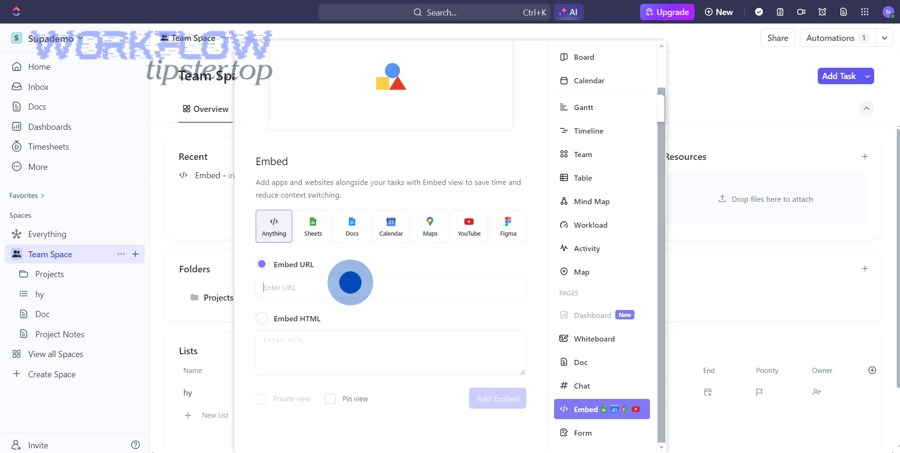
Use ClickUp Docs instead of Google Docs when your priority is tight workflow proximity, real-time internal collaboration, and reduced context switching—because docs live inside the same workspace where tasks are assigned and executed.
Next, ClickUp Docs is a strong fit when:
- The doc is primarily internal
- The doc must stay connected to tasks and comments
- You want fewer tools in the loop
However, Google Docs remains a better default when:
- You need external sharing with clients
- You rely on Docs formatting, comments, and established sharing habits
- Your organization is standardized on Google Workspace
How can you turn a Google Doc into ClickUp tasks (reverse workflow)?
Turning a Google Doc into ClickUp tasks means extracting action items from a doc and creating structured tasks in ClickUp with owners and deadlines, so narrative planning becomes executable work.
Next, this reverse flow works well for meeting notes and workshop docs:
- Use a standard “Action Items” section in the doc
- Format each item consistently (Owner, Due date, Description)
- Run an automation or manual process to create tasks
If you already maintain a “doc-first” culture, reverse workflows can feel more natural than forcing everything to start in ClickUp.
Should you generate one doc or multiple docs per task (brief + checklist + report)?
Single-doc workflows win for simplicity, multi-doc workflows are best for complex delivery, and “doc packages” are optimal for client-facing work—because different document types serve different stages of execution.
Next, pick the model based on how your team reviews work:
- One doc per task if the deliverable is straightforward (content brief only).
- Multiple docs per task if each artifact has a different audience (internal checklist + client report).
- Doc packages if you need standardized bundles across projects.
A strong approach is to drive doc selection from a ClickUp custom field (Doc Type) so the automation can route intelligently.
What is the best way to version templates without breaking existing automations?
The best way to version templates is to create a versioned template library (Template v1, v2, v3), update automations to point to the new version during a controlled rollout, and keep older templates read-only—so you can improve templates without disrupting active workflows.
Next, template versioning is what keeps teams stable as processes evolve:
- Store templates in a restricted “Template Library” folder
- Use clear naming: “Client Brief Template v3”
- Roll out in phases:
- test with one team
- update automation
- monitor for a week
- expand rollout
If you publish process guidance, you can document these best practices and link to your own internal knowledge base (or a public workflow hub like WorkflowTipster.top) to keep the team aligned without repeating training every quarter.