Yes—your team can integrate Calendly to Google Sheets so every new booking automatically appears as a new row, which reduces manual copy-paste, keeps a shared booking log consistent, and makes reporting easier across sales, support, or operations. ([zapier.com](https://zapier.com/blog/add-calendly-events-to-google-sheets/))
Next, the real decision is which method fits your workflow best: a no-code connector (fastest), a more flexible automation builder (best for branching), or an API-style approach (best for custom governance and scale). ([zapier.com](https://zapier.com/apps/calendly/integrations/google-sheets?))
Then, once you choose the method, the quality of your booking log depends on correct field mapping—invitee details, event type, date/time, status, and any custom questions—plus a Sheet structure that prevents duplicates and keeps updates readable for the whole team. ([zapier.com](https://zapier.com/blog/add-calendly-events-to-google-sheets/))
Introduce a new idea: reliability matters more than “it worked once,” so you’ll also build a small test plan for bookings, cancellations, and reschedules—because that’s what turns a simple automation into a dependable team system. ([zapier.com](https://zapier.com/blog/add-calendly-events-to-google-sheets/))

Can you automatically log Calendly bookings into Google Sheets for a team?
Yes—Calendly to Google Sheets automation can log bookings for a team because it captures each scheduled event, writes it as a row, and preserves shared visibility, which reduces manual entry, improves consistency, and speeds reporting. ([zapier.com](https://zapier.com/apps/calendly/integrations/google-sheets?))
To better understand why this works in practice, focus on the “booking lifecycle” and what your team wants to see at each stage—new booking, reschedule, cancellation, and follow-up.
A team booking log is most useful when it delivers three concrete outcomes:
- One source of truth: everyone checks the same Sheet instead of personal inboxes or scattered calendars.
- Faster handoffs: the moment a meeting is booked, the next owner (sales rep, onboarding specialist, coordinator) can act.
- Cleaner reporting: the team can sort by event type, owner, status, and date range without rebuilding data weekly.
Specifically, most teams succeed when they treat Google Sheets as a log (append rows and mark status) rather than a fragile two-way sync that tries to edit Calendly from Sheets. This keeps the process stable even as your scheduling volume grows.
What does “Calendly to Google Sheets integration” mean in a booking log workflow?
Calendly to Google Sheets integration is a workflow automation setup that takes a Calendly scheduling event as the trigger, converts it into structured fields, and writes those fields into a Google Sheets row so your booking log stays current without manual updates. ([zapier.com](https://zapier.com/blog/add-calendly-events-to-google-sheets/))
Let’s explore what “integration” really means at the operational level, because this is where teams either build a usable log—or end up with confusing rows that nobody trusts.
At a macro level, the workflow has three predictable parts:
- Trigger: something happens in Calendly (for example, a new invitee schedules a meeting).
- Transform: the automation tool maps Calendly fields into your chosen column structure.
- Write: Google Sheets receives a new row (or an updated row) in the correct worksheet/tab.
At a micro level, “integration” also includes the operational rules your team depends on, such as which time zone is stored, how cancellations are represented, and whether reschedules update an existing row or create a new one.
What information from Calendly should a booking log capture to match team tracking needs?
A practical booking log should capture a focused set of meeting fields—invitee identity, meeting identity, timing, and status—because those fields support routing, follow-up, and reporting without bloating the Sheet. ([zapier.com](https://zapier.com/blog/add-calendly-events-to-google-sheets/))
More specifically, choose columns based on the team action you want after a booking is created. If the booking creates work, capture what the next person needs to do that work immediately.
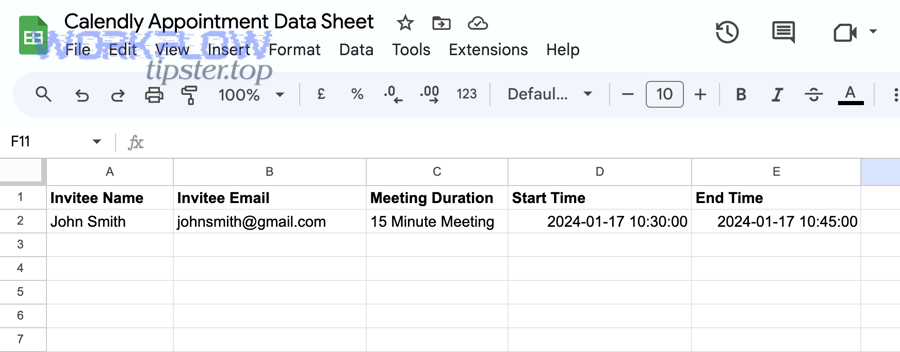
Here is a clean, team-friendly “baseline schema” that fits most use cases:
- Invitee Name and Invitee Email (who booked)
- Event Type (what they booked)
- Start Time and End Time (when it happens)
- Time Zone
- Status (Scheduled / Rescheduled / Canceled / No-show if you track it later)
- Booked At and Last Updated (audit trail)
- Owner (team member responsible, if applicable)
- Notes / Custom Answers (key routing details, not everything)
This table contains a recommended “column blueprint” so your team can keep rows consistent and make filters reliable:
| Column | Purpose | Why it helps teams |
|---|---|---|
| Invitee Email | Stable identifier | Supports de-duplication and follow-up sequences |
| Event Type | Meeting classification | Enables routing by meeting type and reporting by funnel stage |
| Start/End Time | Scheduling clarity | Makes capacity planning and daily prep easier |
| Status | Lifecycle tracking | Separates active meetings from canceled/rescheduled entries |
| Last Updated | Audit field | Helps troubleshoot and validate automation behavior |
What is the difference between logging, syncing, and two-way updates in Sheets?
Logging is best for a booking record, syncing is best for keeping one dataset aligned, and two-way updates are only optimal when you must push changes back—because each step increases complexity, permissions, and failure risk. ([zapier.com](https://zapier.com/blog/add-calendly-events-to-google-sheets/))
However, many teams say “sync” when they actually want “logging,” so aligning definitions prevents you from overbuilding the automation.
- Logging (append-only): every booking creates a row; cancellations and reschedules create a new row or update status fields.
- Syncing (update-in-place): the same booking always maps to the same row via a unique key; changes update columns.
- Two-way updates: Sheets changes attempt to modify Calendly (rarely needed for booking logs).
For most teams, a “log-first” approach wins because Sheets becomes a durable history. When something breaks, you still have a trace of what happened and when it happened.
Which Calendly events should trigger updates in Google Sheets?
There are three main trigger types for a Calendly booking log—new booking, cancellation, and reschedule—based on the meeting lifecycle your team needs to track, because each trigger changes what should appear in your Sheet. ([zapier.com](https://zapier.com/apps/calendly/integrations/google-sheets?))
In addition, the goal is not to track every possible event—it’s to track the events that change team action and reporting accuracy.
Most booking logs start with these triggers:
- Booking created: a row is written when an invitee schedules.
- Booking canceled: a row is added or the original row status is updated.
- Booking rescheduled: the original booking is linked to the new time.
Which trigger is best for capturing new bookings: “Invitee Created” or alternatives?
“Invitee Created” is the best trigger for capturing new bookings because it records the moment scheduling happens, provides the cleanest “new row” logic, and supports near-real-time team visibility. ([zapier.com](https://zapier.com/apps/calendly/integrations/google-sheets?))
Specifically, when a team’s priority is fast follow-up, the earliest reliable trigger is the best one.
Use alternative triggers only if your workflow requires them, such as:
- Event scheduled variants: when you want event metadata tied to a specific event type or host.
- Invitee canceled variants: when your Sheet must reflect cancellations as first-class reporting data.
How should you log cancellations and reschedules without breaking reporting?
You should log cancellations and reschedules by keeping a stable “status + last updated” model, because it preserves reporting integrity while still reflecting lifecycle changes your team cares about. ([zapier.com](https://zapier.com/blog/add-calendly-events-to-google-sheets/))
Moreover, you can choose between two stable patterns, and the best choice depends on how your team reports on meetings.
- Pattern A (append rows): write a new row for cancellation/reschedule events and link it with a shared identifier (email + booked time + event type, or a unique ID if available).
- Pattern B (update row): store a unique key and update the original row’s Status, Start Time, and Last Updated.
Pattern A is often simpler for no-code tools; Pattern B is cleaner for dashboards, but it requires a reliable “lookup then update” capability.
What are the best ways to integrate Calendly to Google Sheets without code?
There are four main no-code integration approaches—Zapier-style templates, Make-style visual scenarios, IFTTT-style applets, and sheet-based add-ons—based on how much flexibility, branching, and governance your team needs. ([zapier.com](https://zapier.com/apps/calendly/integrations/google-sheets?))
To illustrate the tradeoffs clearly, treat each tool as a different “automation operating system” for your booking log, not just a connector.
This table contains a practical comparison so you can pick a method that matches team scale and complexity:
| Method | Best for | Strength | Watch-out |
|---|---|---|---|
| Zapier | Fast team deployment | Quick templates, simple setup | Complex branching can become multi-step |
| Make | Advanced routing | Visual logic, routers, flexible scenarios | More configuration overhead |
| IFTTT | Very simple personal automations | Easy to start | Limited control for team-grade logs |
| API + Apps Script | Custom governance | Full control of updates and keys | Requires technical ownership |
When you’re building a broader Automation Integrations ecosystem, this decision also affects how easily you can expand later to related workflows, like pushing meeting outcomes into tasks or syncing lead data into finance tools.
How do you set up Calendly → Google Sheets using Zapier step-by-step?
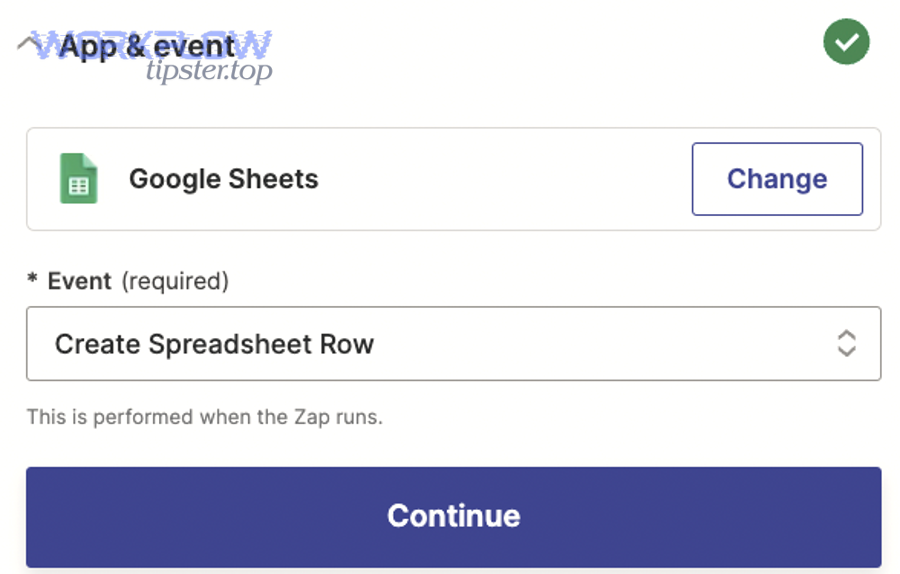
Zapier setup works by using an Invitee Created trigger and a Create Spreadsheet Row action, then mapping fields to your header columns, testing the row creation, and turning the automation on so bookings flow into your Sheet automatically. ([zapier.com](https://zapier.com/apps/calendly/integrations/google-sheets?))
Below is a “team-safe” setup sequence that avoids the most common breakpoints (missing headers, wrong worksheet, and mis-mapped fields).
- Prepare your Sheet: create a header row first (each column name should be stable and not change casually). ([zapier.com](https://zapier.com/blog/add-calendly-events-to-google-sheets/))
- Choose the trigger: select Calendly as the trigger app and Invitee Created as the event. ([zapier.com](https://zapier.com/apps/calendly/integrations/google-sheets?))
- Choose the action: select Google Sheets as the action app and Create Spreadsheet Row as the action event. ([zapier.com](https://zapier.com/apps/calendly/integrations/google-sheets?))
- Select Drive, Spreadsheet, Worksheet: point the automation to the exact worksheet/tab that contains your header row. ([zapier.com](https://zapier.com/blog/add-calendly-events-to-google-sheets/))
- Map fields to columns: map Invitee Name, Invitee Email, Event Type, Start Time, and any critical custom answers. ([zapier.com](https://zapier.com/blog/add-calendly-events-to-google-sheets/))
- Test with real data: run a test step and confirm that the row lands in the right place with correct formatting. ([zapier.com](https://zapier.com/blog/add-calendly-events-to-google-sheets/))
- Turn it on: publish the automation and book a live test meeting to confirm end-to-end behavior. ([zapier.com](https://zapier.com/blog/add-calendly-events-to-google-sheets/))
If you want one embedded walkthrough, this video shows a simple Calendly-to-Sheets build you can compare against your own configuration:
([youtube.com](https://www.youtube.com/watch?v=Dw5CucFdoo8&))
How do you build the same workflow in Make, and what changes?
Make builds the same result by connecting a Calendly trigger module to a Google Sheets “Add a Row” module, then using filters/routers for branching, which is ideal when your team needs event-type routing or multi-step enrichment. ([digidop.com](https://www.digidop.com/tools/make-integromat))
Meanwhile, the biggest shift is that Make encourages “scenario thinking,” where you model the whole system rather than a single linear automation.
In Make, a team-ready scenario often includes:
- Router by event type: send sales demos to one tab and onboarding calls to another.
- Normalization step: standardize date formats and time zones before writing to Sheets.
- Retry behavior: handle intermittent API failures more gracefully for higher volumes.
If your team plans to expand beyond a booking log, Make-style scenarios can make it easier to add enrichment steps, such as writing to a CRM and then creating a follow-up task.
Is IFTTT suitable for team booking logs, or is it too limited?
IFTTT can be suitable for simple booking logs, but it is often too limited for team-grade accuracy because teams usually need reliable field mapping, reschedule logic, and structured status tracking that basic applets may not handle well. ([sciencedirect.com](https://www.sciencedirect.com/science/article/abs/pii/S0747563211000707?))
Besides, when multiple people rely on the same log, “good enough” automation becomes expensive if it silently skips rows or cannot represent cancellations cleanly.
IFTTT is most appropriate when:
- One person needs a lightweight log for personal tracking.
- The sheet schema is minimal (for example, email + date/time only).
- You do not need updates-in-place for reschedules or cancellations.
For teams, prioritize tools that support robust testing, clear error visibility, and consistent mapping.
How do you structure Google Sheets so your booking log stays clean and usable?
You structure a clean booking log by using stable headers, a consistent schema, a dedicated status column, and a unique identifier strategy, because those four elements keep team collaboration orderly and prevent reporting from collapsing when schedules change. ([zapier.com](https://zapier.com/blog/add-calendly-events-to-google-sheets/))

More importantly, the Sheet is not just storage—it is the interface your team uses to make decisions, so your structure must support speed, clarity, and trust.
Start with three structural rules:
- One header row, never moved: automation tools read headers to map fields; changing them breaks mappings. ([zapier.com](https://zapier.com/blog/add-calendly-events-to-google-sheets/))
- One “log tab” per use case: use a master log for reporting, and optionally separate tabs for event-type routing.
- Status-first design: schedule changes should update status fields rather than rewriting history.
Which columns should you include in a Calendly booking log sheet?
There are two main column sets you should include—core booking columns and workflow columns—based on whether the field describes the meeting or describes what your team will do next. ([zapier.com](https://zapier.com/blog/add-calendly-events-to-google-sheets/))
Specifically, separating these two sets prevents your Sheet from becoming a cluttered dump of fields nobody uses.
- Core booking columns: Invitee Name, Invitee Email, Event Type, Start Time, End Time, Time Zone, Booking URL.
- Workflow columns: Status, Owner, Follow-up Due Date, Outcome, Notes, Last Updated.
As your team matures, you can add micro-fields like UTM source or routing form answers, but only when they change how your team operates.
How do you map Calendly fields to the right columns (including custom questions)?
You map Calendly fields correctly by matching each column to one stable Calendly data point, formatting time fields consistently, and reserving a dedicated area for custom answers so the Sheet remains queryable even when different event types collect different information. ([zapier.com](https://zapier.com/blog/add-calendly-events-to-google-sheets/))
For example, if one event type asks “Company size” and another asks “Primary goal,” don’t force both into the same ambiguous column unless you standardize the question text across event types.
A team-safe mapping practice looks like this:
- Standardize time: store an ISO-like timestamp in Start Time, and optionally create a separate Display Time column for human-friendly formatting.
- Group custom answers: use columns like Custom Q1, Custom Q2 only if the questions are consistent; otherwise use a single Notes/Answers column for variable text.
- Keep identifiers stable: Invitee Email + Event Type + Start Time is often enough for basic de-duplication; add a unique ID if your integration provides one.
How do you verify the integration is working correctly before your team relies on it?
You verify Calendly to Google Sheets automation by running a controlled test plan across bookings, cancellations, and reschedules, then confirming row accuracy, column mapping, and worksheet placement—because “successful once” is not the same as “reliable daily.” ([zapier.com](https://zapier.com/blog/add-calendly-events-to-google-sheets/))
Then, you lock the parts that must not change—headers, worksheet name, and connection ownership—so your team’s booking log doesn’t silently drift over time.
Verification has two layers:
- Functional checks: the right row appears in the right place with the right data.
- Operational checks: your team can maintain and troubleshoot it without rebuilding it monthly.
What test cases should you run for bookings, cancellations, and reschedules?
There are eight main test cases you should run—two for booking creation, three for lifecycle changes, and three for data integrity—based on the most common ways scheduling data breaks in real team usage. ([zapier.com](https://zapier.com/blog/add-calendly-events-to-google-sheets/))
Below is a lightweight test plan that catches the majority of issues before they become team-wide confusion.
- New booking (standard): verify row creates and fields map correctly.
- New booking (with custom answers): verify custom answers land in the correct columns.
- Cancellation: verify status changes to Canceled (or a cancellation row is created).
- Reschedule (same invitee): verify the log reflects the new time without duplicating “active” meetings.
- Reschedule (different time zone): verify time zone and formatting remain consistent.
- Wrong worksheet defense: verify the automation points to the correct tab when multiple tabs exist.
- Header stability: confirm that renaming a header would break mapping—so the team agrees not to rename headers casually.
- Access control: confirm the connected Google account can write to the Sheet even if the owner is out of office.
How do you troubleshoot missing rows, wrong columns, or permission errors?
You troubleshoot booking log failures by checking connection authentication, worksheet selection, header matching, and task history logs, because those four checkpoints explain most missing rows, mis-mapped columns, and “permission denied” errors. ([zapier.com](https://zapier.com/blog/add-calendly-events-to-google-sheets/))
Moreover, troubleshooting is faster when you follow a predictable order, starting with what breaks most often.
- Missing rows: confirm the trigger is firing (book a test meeting), then confirm the automation is turned on, then check task history for a failed run.
- Wrong columns: confirm your Sheet headers still match what the automation expects; header edits often shift mapping.
- Wrong worksheet/tab: confirm the worksheet selection is correct and hasn’t changed names.
- Permissions: confirm the connected Google account has editor access and the Sheet is not restricted by organizational sharing policies.
- Time formatting issues: confirm the time zone setting and whether the tool writes a string or a datetime value.
According to a study by University of South Florida College of Medicine from the Department of Surgery, in 2008, a measured single-entry workflow produced an error rate of 36 errors per 10,000 fields—showing why teams should validate data capture and not assume “automatic” always means “accurate.” ([pmc.ncbi.nlm.nih.gov](https://pmc.ncbi.nlm.nih.gov/articles/PMC2409998/))
What’s the best setup for teams: one shared spreadsheet or separate sheets per person/event type?
One shared spreadsheet wins for consolidated reporting, separate sheets win for ownership and isolation, and separate tabs in one spreadsheet are optimal for most teams because they balance visibility, routing, and governance without fragmenting your booking history. ([zapier.com](https://zapier.com/blog/add-calendly-events-to-google-sheets/))
However, your “best” setup depends on how your team uses the booking log: a reporting layer, a handoff layer, or both.
Use these decision criteria:
- Reporting-first teams: prefer a master log (one file) to keep metrics consistent.
- Ownership-first teams: prefer tabs or separate files to keep responsibility clear.
- High-volume teams: prefer a master log plus filtered views or dashboards to avoid performance issues.
When should you use one “master log” sheet vs multiple tabs or files?
A master log is best for organization-wide reporting, multiple tabs are best for event-type segmentation, and multiple files are best only when you must enforce strict access boundaries—because splitting files usually increases maintenance overhead and breaks unified reporting. ([zapier.com](https://zapier.com/blog/add-calendly-events-to-google-sheets/))
In short, start with one master log and add segmentation only when you can name a concrete benefit your team will gain.
- Choose one master log if leadership wants a single weekly report.
- Choose tabs if different teams own different meeting types (Sales, Onboarding, Support).
- Choose separate files if client confidentiality or internal policy requires it.
How can you route different event types to different tabs automatically?
You route event types to different tabs by adding a filter or router that checks the Calendly event type name, then writes the row to the matching worksheet, which keeps each team’s tab clean while preserving a standardized schema. ([digidop.com](https://www.digidop.com/tools/make-integromat))
Next, treat event-type routing as a naming discipline problem as much as an automation problem.
- Standardize event type names: consistent naming makes routing rules stable.
- Keep schemas aligned: even if data differs, core columns should match so you can aggregate later.
- Use a master log when needed: write to a master log first, then copy or route to team tabs if your tool supports multi-step flows.
If your team also wants tasks created from new bookings, a common extension is pairing your booking log with project work—for example, a calendly to asana workflow that creates a task for prep, notes, and follow-up the moment a meeting is scheduled.
Contextual Border: At this point, you’ve solved the primary intent—automatic logging from Calendly into a team-friendly Google Sheets booking log—so the next section shifts from core setup to edge cases that improve reliability, governance, and semantic coverage.
What advanced scenarios and edge cases make Calendly → Google Sheets automation more reliable?
There are four main reliability upgrades—de-duplication, time-zone normalization, access governance, and API-level control—based on what most often causes booking logs to drift or break as volume and team usage increase. ([zapier.com](https://zapier.com/blog/add-calendly-events-to-google-sheets/))
Besides, these micro-level improvements are what make your booking log stay trustworthy when your team scales, changes event types, or adds new owners.
How do you prevent duplicates and link reschedules to the original booking entry?
You prevent duplicates by storing a unique key for each booking and using it to update status or time fields on reschedule, because reschedules often create “new booking-looking” events that can double-count meetings if you only append rows. ([zapier.com](https://zapier.com/blog/add-calendly-events-to-google-sheets/))
Specifically, you can choose one of two reliable keys depending on what your integration exposes.
- Best key (if available): a unique booking/invitee identifier from Calendly payloads.
- Fallback key: Invitee Email + Event Type + Original Start Time, plus a “Rescheduled From” column.
A stable pattern is:
- Write the first row as Scheduled.
- On reschedule, update the original row to Rescheduled and store the new meeting time in a “New Start Time” field (or create a new row linked via the key).
- Ensure reporting filters count only Scheduled meetings (or only the latest status per key).
How do you normalize time zones and date formats for consistent reporting?
You normalize time zones by storing one canonical timestamp format and one explicit time zone field, because teams misinterpret meeting times when logs mix local formats, daylight savings changes, or tool-specific date strings. ([zapier.com](https://zapier.com/blog/add-calendly-events-to-google-sheets/))
More specifically, think of your Sheet as both a human tool and a reporting dataset.
- Store: a consistent timestamp (and keep it consistent across rows).
- Display: a human-friendly formatted column if needed for daily use.
- Document: whether the stored value is UTC or a specific local time zone.
This approach prevents a subtle failure mode where meetings “shift” in reports when the spreadsheet interprets strings differently than your automation tool.
What data privacy and access controls should teams apply when logging invitee information?
Teams should apply three main controls—least-privilege access, PII minimization, and retention rules—because booking logs often contain personal data that does not need to be visible to everyone forever.
Moreover, privacy controls are easier to implement early than to retrofit after the log becomes business-critical.
- Least privilege: give edit access only to those who must maintain the Sheet; others can view filtered dashboards.
- Minimize PII: store only what the workflow needs (often email + name is enough; avoid copying sensitive notes into broad-access tabs).
- Retention: decide how long you keep booking history and whether older rows are archived.
If your organization already manages multiple systems, apply the same discipline you’d use for finance or CRM pipelines—especially when your automation portfolio grows into cross-domain examples like airtable to freshbooks billing workflows that also touch sensitive customer data.
When should you use the Calendly API or webhooks instead of a no-code connector?
No-code connectors are best for speed, but an API/webhook approach is optimal for strict governance, de-duplication at scale, and custom update logic, because you can control identifiers, retries, and row updates precisely instead of relying on generic templates. ([zapier.com](https://zapier.com/blog/add-calendly-events-to-google-sheets/))
In addition, API ownership can be worth it when your booking log becomes a foundational dataset used for automation, forecasting, and revenue operations.
Consider API/webhooks when:
- You must guarantee “exactly-once” writes (no duplicates).
- You need complex update-in-place behavior for reschedules and cancellations.
- You want centralized monitoring and audit logs beyond what basic automation histories provide.
- You handle high volumes where rate limits and retries become frequent.