


If you want fewer scheduling errors and fewer “who owns this?” follow-ups, the most reliable approach is to automate a single scheduling chain where Calendly captures the booking, Google Calendar holds the time, Microsoft Teams generates the meeting link, and monday.com tracks the work—so every booking becomes a consistent, repeatable process instead of a manual scramble.
Next, you also need to know what “sync” actually means across these tools—what data moves, where it lives, and which account permissions must be in place—because most failed setups are not “bugs,” they are missing prerequisites or unclear ownership between calendar, meeting link, and task tracking.
Moreover, even a good setup can drift over time through duplicates, reschedules, cancellations, and timezone shifts, so you need a troubleshooting playbook that prevents double-creates and ensures updates land on the same calendar event, the same Teams meeting, and the same monday item.
Introduce a new idea: the fastest teams don’t just “connect apps”—they design one source of truth per field and choose the right integration route (native vs automation layer) so the workflow stays stable as volume grows and edge cases appear.
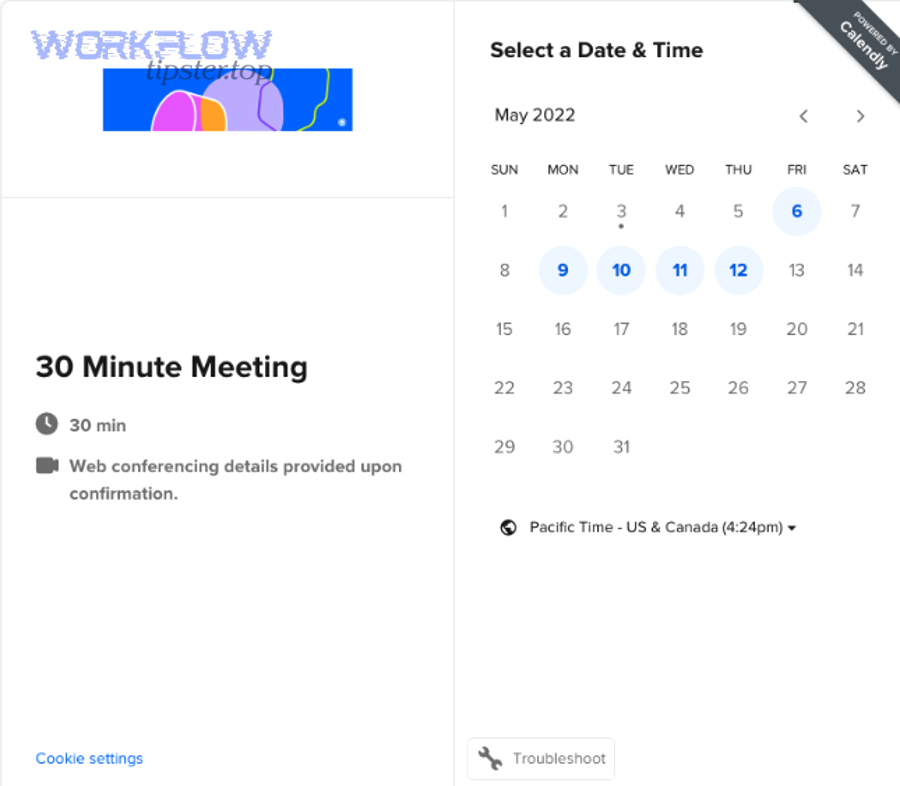
What does “Calendly + Google Calendar + Microsoft Teams + monday.com scheduling automation” mean in practice?
Calendly + Google Calendar + Microsoft Teams + monday.com scheduling automation is a four-app workflow chain that turns a booked meeting into a calendar event, a Teams meeting link, and a trackable monday item with consistent fields, ownership, and updates.
To better understand why this matters, start with the real problem: scheduling is not a single action, it is a sequence of micro-actions (confirming time, creating the invite, adding the link, notifying people, and tracking follow-up) where manual steps create silent failure points.
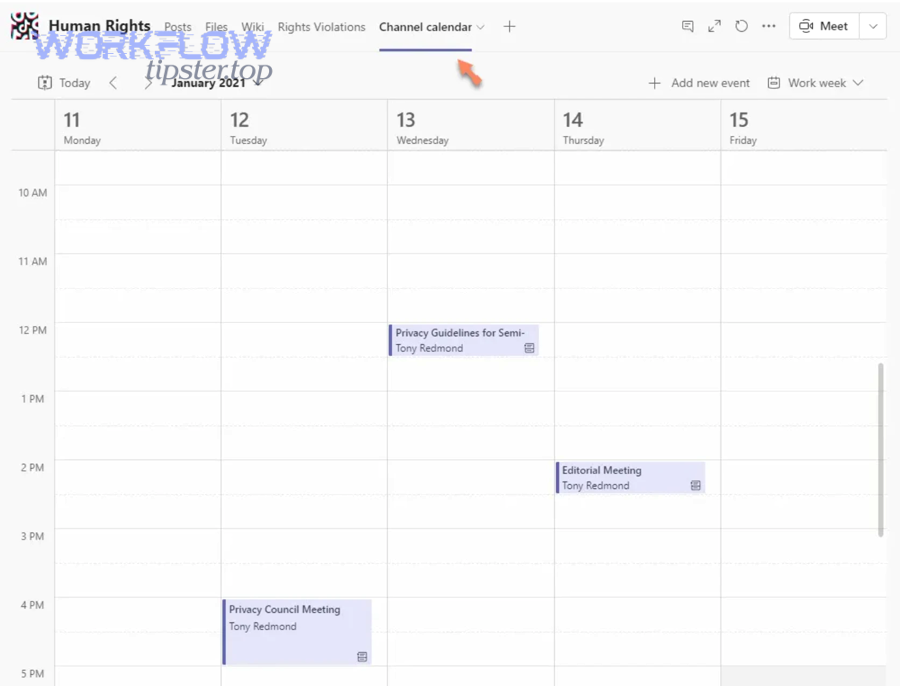
In practice, your automation should accomplish three outcomes that humans often fail to do consistently:
- Consistency: every booking generates the same set of artifacts (event + link + work item) with the same structure.
- Continuity: reschedules and cancellations update the original artifacts rather than creating new, conflicting ones.
- Context: the right details (invitee, purpose, notes, owners, and links) follow the meeting wherever the team works.
Think of this chain as a controlled “handoff” between systems:
- Calendly is your intake and rules engine (availability, booking form fields, routing).
- Google Calendar is your time ledger (blocking, visibility, conflict prevention).
- Microsoft Teams is your meeting container (join link, conferencing policy, attendee experience).
- monday.com is your operational memory (status, owner, follow-up tasks, SLA, reporting).
What data should flow from Calendly into Google Calendar, Teams, and monday.com?
The cleanest workflow sends a single, consistent dataset from Calendly—invitee identity, event type, time, timezone, and notes—then uses those fields to populate the calendar event, attach the Teams meeting link, and create (or update) the matching monday item.
Specifically, the goal is not “move everything everywhere,” but to assign each field a home and a purpose so you do not maintain conflicting versions of the truth.
Use this field model to keep your chain stable:
- Identity fields: invitee name, invitee email, host, team/department, company (if captured).
- Scheduling fields: start time, end time, timezone, event type, location (Teams), buffer rules (implicit).
- Context fields: meeting purpose, agenda notes, answers to booking questions, links to records (CRM, ticket, board item).
- Operational fields: owner/assignee, status (“Booked,” “Confirmed,” “Completed,” “No-show,” “Canceled”), follow-up due date.
Then define the “source of truth” per field:
- Time and attendance: Google Calendar is authoritative because it is where conflicts and availability are enforced.
- Meeting access: Microsoft Teams is authoritative because the join link and meeting policy live there.
- Work status and follow-up: monday.com is authoritative because teams need a single place to own next steps.
- Intake answers: Calendly is authoritative because it collects structured inputs at booking time.
When you design it this way, you remove ambiguity: Calendly captures intent, Google Calendar preserves time, Teams provides access, and monday preserves accountability.
Does this workflow remove manual scheduling work (yes/no)?
Yes, this workflow removes manual scheduling work because it (1) automatically creates the correct event artifacts, (2) keeps updates consistent during reschedules and cancellations, and (3) standardizes follow-up ownership in monday.com instead of relying on memory and ad-hoc messages.
However, the automation only replaces the repetitive parts; humans still do the valuable parts, like clarifying goals, preparing materials, and making decisions.
Here’s what gets removed when the chain is properly implemented:
- Manually creating calendar events after a booking lands.
- Manually generating or pasting the Microsoft Teams link.
- Manually creating a monday item or remembering to log the meeting.
- Manually updating multiple places when someone reschedules.
Here’s what typically remains human-led (and should):
- Preparing the agenda, documents, and pre-reads.
- Deciding whether a request should be accepted, escalated, or rerouted (unless you formalize rules).
- Handling exceptions: VIP requests, compliance constraints, or out-of-policy bookings.
According to a study by University of California, Irvine from the Donald Bren School of Information and Computer Sciences, in 2023, it can take up to 25 minutes to return attention to a task after an interruption—one reason automation reduces the “hidden cost” of constant manual switching between tools.
Which integrations do you need to connect these four tools (and in what order)?
You typically need three integration links—Calendly↔Calendar sync, Calendly↔Teams conferencing, and Calendly→monday.com item creation—arranged so that the booking event triggers downstream updates in a controlled sequence rather than ad-hoc, parallel automations.
Then, to keep your chain predictable, decide whether you will rely mostly on native integrations or add an automation layer for conditional logic, deduping, and update handling.
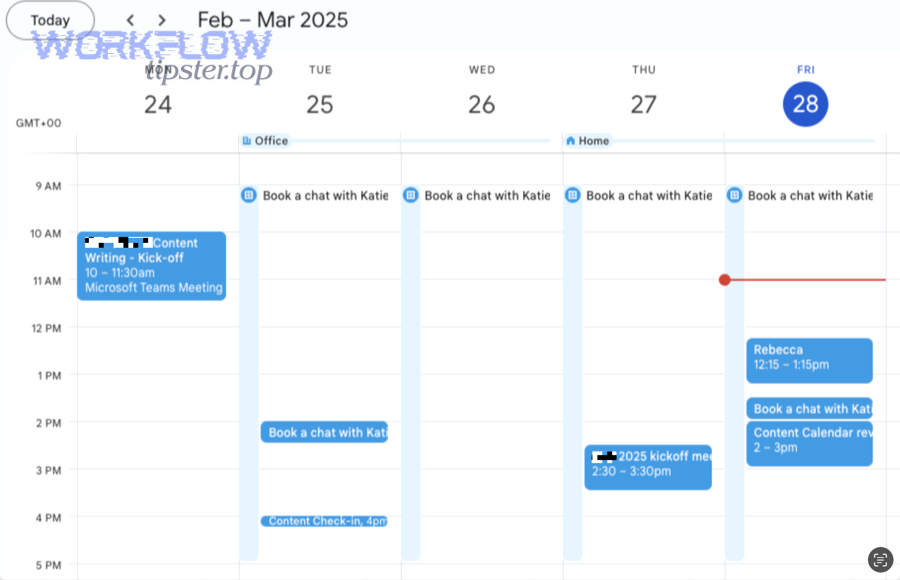
A practical ordering that reduces failures looks like this:
- Foundation: Connect Calendly to the calendar(s) that control availability and event creation.
- Conferencing: Enable Microsoft Teams as the conferencing method so links are generated consistently.
- Operations: Create or update the monday.com item using the booking data and the meeting link.
This order works because the calendar and meeting link are the “meeting itself,” while the monday item is the “work around the meeting.” When you build the meeting first, you can reference it reliably in the work item.
Which parts can be done with native integrations, and which usually require automation tools?
Native integrations handle the core scheduling mechanics, while an automation layer is usually needed for reliable monday.com item creation, updates, and conditional routing that mirrors real operational processes.
However, you should not treat “native vs automation tool” as a popularity contest; treat it as a capability match.
Native is usually best for:
- Availability sync: Calendly reading your busy times to prevent conflicts.
- Event creation: Calendly writing the booking into a specific Google Calendar.
- Conferencing link generation: adding Microsoft Teams meeting details when a booking is confirmed.
An automation tool layer is usually best for:
- Creating monday items: mapping booking fields to columns and enforcing naming conventions.
- Update logic: reschedule updates the same item (not a new one) and preserves history.
- Conditional routing: different boards or groups based on event type, region, or priority.
- Dedupe protection: preventing double-creates when triggers fire twice or retries occur.
If your team runs at low volume and only needs a simple “log the meeting” record, native-only can be enough. If your team needs SLAs, handoffs, and reporting, an automation layer becomes the difference between “connected” and “operational.”
What accounts, permissions, and admin settings must be ready before you start?
You need four clean, permissioned connections—Calendly, Google account(s), Microsoft 365/Teams tenant access, and monday.com workspace permissions—because scheduling failures usually originate from blocked OAuth scopes, restricted conferencing policies, or insufficient board access.
More importantly, permissions are not a one-time checkbox; they define what your automation is allowed to do under real security policies.
Use this readiness checklist before building any automations:
- Calendly: workspace access to integrations; permission to configure event types and routing.
- Google Calendar: access to the calendar that controls availability; ability to create and edit events.
- Microsoft Teams: permission to create meetings; tenant settings that allow meeting links for your users.
- monday.com: board create/edit permissions; ability to set column values and create items via integration.
Then verify these common blockers:
- SSO enforcement: single sign-on can require admin approval for third-party apps.
- OAuth restrictions: some tenants block unapproved apps from accessing calendars or Teams.
- Meeting policies: Teams policies can limit meeting creation or guest access behavior.
- Board governance: monday permissions can prevent item creation in private boards or certain groups.
Once your foundations are stable, you can build the workflow with confidence instead of debugging invisible permission walls after launch.
How do you set up the automated workflow step-by-step for Project & Ops Teams?
Set up this scheduling chain with four steps—configure calendar sync, enable Teams conferencing, map fields into monday.com, and validate updates—so every booking produces a Teams meeting and an accountable monday item without manual intervention.
To illustrate the setup clearly, treat it like an operational rollout: you start with the smallest reliable flow, then add complexity only after the chain is stable.
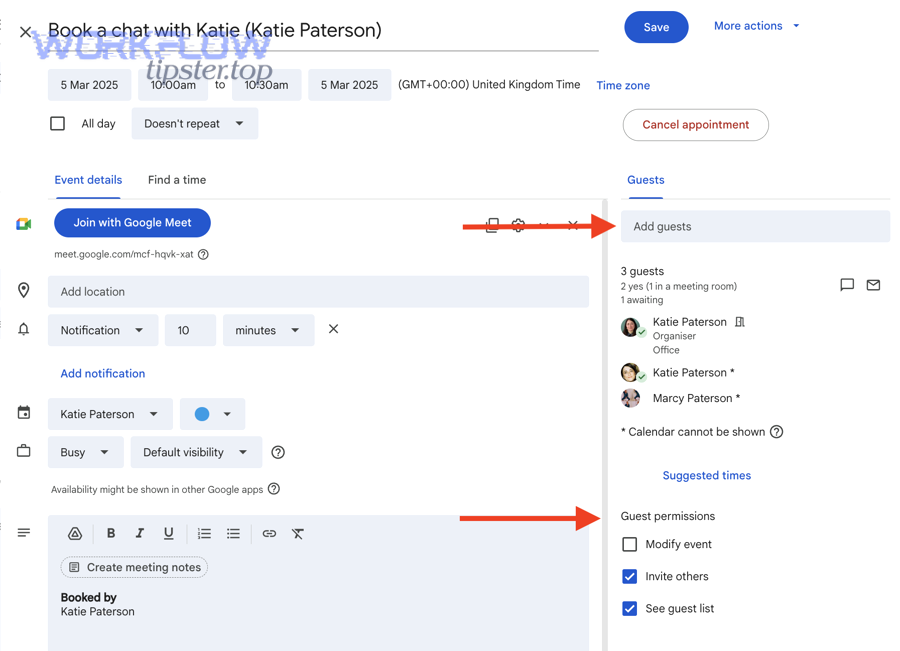
Here is the implementation blueprint most Project & Ops Teams can use:
- Define the workflow scope: which event types will be automated and which board will track them.
- Connect Calendly to Google Calendar: availability and event creation.
- Enable Microsoft Teams conferencing: ensure join links are created consistently.
- Create monday automation: create/update items with meeting metadata and ownership.
- Test updates: book, reschedule, cancel, and confirm the chain stays consistent.
How do you configure Calendly → Google Calendar so availability and events stay accurate?
You configure Calendly → Google Calendar by selecting the correct calendars for availability checks and the correct calendar for event creation, then testing conflicts, buffers, reschedules, and cancellations to ensure the calendar remains the authoritative time ledger.
Specifically, accuracy comes from reducing ambiguity: one calendar (or a controlled set) should define “busy,” and one calendar should receive the new event.
Follow this configuration pattern:
- Availability calendars (read): include the calendars that truly represent your availability—work calendar, on-call blocks, and approved personal blocks if relevant.
- Event creation calendar (write): choose a dedicated calendar for scheduled events if you need clean reporting, or your primary work calendar if you need maximum visibility.
- Conflict behavior: confirm that existing events block new bookings as expected.
- Buffer and notice rules: set buffer time and minimum notice to protect the host’s focus and reduce last-minute churn.
Then test the lifecycle:
- Book: verify the event appears in the correct Google Calendar with correct time and title.
- Reschedule: ensure the original event updates rather than producing two events.
- Cancel: ensure the event is removed or marked canceled (depending on your settings) and does not remain “live.”
When this step is correct, downstream automations stop guessing because the calendar state is reliable.
How do you ensure every booked event automatically includes a Microsoft Teams meeting link?
You ensure every booked event includes a Microsoft Teams meeting link by enabling Teams as the conferencing method for the relevant Calendly event types and validating that the join URL is injected into the event’s location/details field for every host and every booking scenario.
However, the most common reason Teams links appear inconsistently is policy mismatch—some users can create meetings while others cannot under the same tenant.
Use this reliability checklist:
- Standardize the event type: keep conferencing settings consistent across the event types you publish publicly.
- Validate host permissions: confirm each host can create Teams meetings under your Microsoft 365 policies.
- Confirm link placement: decide where the link will live (location field vs description) and keep it consistent.
- Test guest behavior: confirm external invitees can join based on lobby and guest policies.
If you run a hybrid environment, document one operating rule: “All external meetings are Teams by default.” That single decision prevents confusion where some meetings have links and others do not.
How do you map scheduling data into monday.com items without losing context?
You map scheduling data into monday.com without losing context by using a stable item naming convention, a clear column schema, and a find-or-update rule so reschedules update the same item rather than creating duplicates.
More specifically, monday.com becomes powerful when it reflects the real operational lifecycle: booked → prepared → held → followed up → closed.
Before building automation workflows, design the board so it can hold the meeting’s identity, not just its time:
- Item name: “<Meeting Type> — <Invitee/Account> — <Date>”
- Date/time column: start time and timezone (or store timezone in a text column).
- Status column: Booked / Confirmed / Completed / No-show / Canceled.
- Person column: host or owner responsible for preparation and follow-up.
- Link column: Teams join URL and/or calendar event link.
- Email/text columns: invitee email, company, phone (if captured).
- Long-text column: booking answers, notes, and agenda inputs.
To make this concrete, the table below shows a practical “field-to-column” mapping used by many Project & Ops Teams to keep the chain consistent and audit-friendly.
| Source Field (Calendly / Event) | Destination in monday.com | Why it matters | Update rule |
|---|---|---|---|
| Invitee name | Item name (part) + Text column | Human recognition and searchability | Update if changed (rare) |
| Invitee email | Email column | Identity key for dedupe and follow-up | Never blank it; update if changed |
| Start / end time | Date column + optional time zone text | Scheduling visibility and reporting | Update on reschedule |
| Event type | Dropdown / Tags | Routing, metrics, and playbooks | Stable; update if reclassified |
| Teams meeting link | Link column | One-click join and consistent access | Update if link changes |
| Booking questions / notes | Long text | Preparation quality and context | Append updates with timestamps |
| Cancel / no-show | Status + update log | Operational truth and auditability | Set status on cancel; keep history |
Finally, store at least one unique identifier (such as an external event ID or a derived key using email + start time) in monday. That single “identity anchor” is what prevents duplicates when reschedules and retries happen.
What are the most common problems (duplicates, missing updates, timezones), and how do you fix them?
The most common problems are duplicate artifacts, missing updates on reschedules/cancellations, and timezone drift, and you fix them by enforcing a unique identifier, standardizing update rules, and testing the full event lifecycle rather than only the initial booking.
However, troubleshooting becomes easy only when you diagnose the layer that is failing—intake, calendar, conferencing, or monday tracking—instead of “blaming the integration” as a single black box.
Use a simple diagnostic model:
- Symptom: What did the user see (duplicate item, missing link, wrong time)?
- Layer: Which system created or failed to update the artifact?
- Trigger: What event caused it (book, reschedule, cancel, retry)?
- Identity: Did your workflow know it was the same meeting as before?
Why do duplicate monday items or duplicate calendar events happen, and how can you prevent them?
Duplicates happen because the automation lacks a stable identity key or runs multiple triggers for the same meeting, and you prevent them by using a “find-or-create” approach keyed on a unique identifier and consolidating triggers into one authoritative path.
Specifically, duplicates rarely come from “one bad click”; they come from repeated creations without a memory of what was already created.
Common duplicate causes:
- Parallel workflows: more than one automation listens to the same booking event.
- Retry behavior: a temporary failure triggers retries, producing multiple creates.
- Reschedule treated as new: a reschedule triggers a “new booking” create instead of an update.
- Calendar sync confusion: events are created in multiple calendars and appear as duplicates.
Prevention pattern (simple but powerful):
- Pick one identity: store a unique event ID (preferred) or build a deterministic key (invitee email + start timestamp).
- Store it once: write the identity into a dedicated monday column.
- Find before create: search monday for the identity; update if found; create only if not found.
- Use one trigger path: consolidate “create item” into a single workflow per event type.
This is where many teams evolve from “connected apps” to true automation workflows: the workflow becomes stateful and therefore reliable.
Why might Teams meeting links not appear (or appear inconsistently), and what should you check first?
Teams links fail to appear because the conferencing step lacks permission, policy support, or consistent configuration across hosts, and the fastest fix is to check (1) host meeting creation rights, (2) event type conferencing settings, and (3) where the link should be written in the calendar event.
Meanwhile, don’t ignore the simplest failure mode: the meeting link exists, but it was written to a place nobody looks.
Use this “first checks” list in order:
- Host permission: can the host create Teams meetings under your tenant policies?
- Integration connection: is the Teams account properly connected for the host?
- Event type configuration: is Teams enabled for that event type (and not only for some)?
- Link location: is the join URL placed in the “Location” field or inside the “Description”?
- Guest/lobby policy: do external attendees have access consistent with the meeting’s purpose?
If the issue is inconsistent across hosts, treat it as a policy and permission problem first, not a mapping problem.
How do you handle timezones and daylight saving changes so schedules don’t drift?
You prevent timezone drift by storing time in a consistent standard (with timezone explicitly captured), displaying time in the invitee’s timezone when needed, and testing bookings across DST boundaries so the same event stays aligned in Calendly, Google Calendar, Teams, and monday.com.
More importantly, you should decide whether your organization runs on “host timezone” or “invitee timezone” for reporting and operations.
Operational rules that prevent drift:
- Capture timezone explicitly: store the timezone in a dedicated field or in the event metadata.
- Standardize internal reporting: choose one timezone for reporting dashboards (often the host’s or UTC).
- Display for humans: show the invitee-friendly timezone in confirmations and reminders.
- Test DST weeks: book meetings before and after DST changes to confirm the chain stays accurate.
When this is done well, the calendar event stays correct, the Teams meeting remains joinable, and monday stays a faithful operational record instead of a confusing parallel timeline.
Should you automate this workflow instead of keeping it manual (yes/no), and which approach fits your team?
Yes, you should automate this scheduling chain if you want (1) fewer coordination mistakes, (2) faster handoffs into operational work, and (3) consistent reporting—while a manual approach fits only when volume is low, stakes are low, and edge cases are rare.
However, the real choice is not “automation vs people”; it is “manual repetition vs designed reliability,” which is exactly why the title frames the antonym: Automate (Not Manual).
Use these criteria to decide fit:
- Volume: more meetings means more opportunities for manual mistakes and more value from automation.
- Complexity: multiple event types, multiple owners, or multiple timezones pushes you toward automation.
- Cost of error: missed calls, wrong links, or duplicate work items create real operational cost.
- Need for reporting: if leadership wants visibility, monday tracking is not optional.
If you have a related chain like calendly to outlook calendar to microsoft teams to monday scheduling, you’ll notice the same decision pattern: the more systems you touch, the more your team benefits from one engineered workflow rather than manual copy-paste between tools.
Is native-only setup enough, or do you need a no-code automation layer?
Native-only wins in simplicity, a no-code automation layer wins in control, and a combined approach is optimal when you need stable updates, routing, and dedupe protection at scale.
On the other hand, complexity without discipline is not progress—so you should add an automation layer only when it solves a clear operational requirement.
Native-only is often enough when:
- You only need to block time and add a Teams link.
- You do not require a structured operational pipeline in monday.
- You can tolerate occasional manual cleanup on reschedules.
You likely need an automation layer when:
- You need a monday item every time, with consistent columns and a clear owner.
- You need reschedules to update the same item and preserve history.
- You need conditional routing by event type, region, or priority.
- You need auditability and reporting across teams.
In short, native handles “meeting creation,” while automation handles “operational truth.”
What’s the simplest “starter” version vs the scalable “ops-grade” version of this workflow?
The starter version creates a calendar event, adds a Teams link, and logs a monday item, while the ops-grade version adds identity keys, update-on-reschedule logic, routing rules, and governance so the same meeting stays consistent across every system as volume and complexity grow.
Thus, the difference is not more steps—it is more reliability.
Starter workflow (minimum viable):
- Calendly booking creates a Google Calendar event.
- Teams conferencing is enabled so the join link is added automatically.
- A monday item is created with time, invitee, and link.
Ops-grade workflow (scale-ready):
- Store a unique meeting identity in monday (external ID or deterministic key).
- Reschedule updates the existing calendar event and the existing monday item.
- Cancellation sets monday status to Canceled and preserves notes/history.
- Routing sends different meeting types to different boards/groups with owners and SLAs.
- Governance controls who can publish event types and who can modify mappings.
When you graduate to ops-grade, your scheduling chain becomes a system your team can trust, not just a convenience.
How can you optimize and extend Calendly → Google Calendar → Teams → monday.com scheduling for advanced cases?
You optimize and extend this workflow by improving board design, adding routing logic, engineering edge-case protections, and applying governance controls so the chain remains reliable under reschedules, multi-timezone teams, and security restrictions.
Besides core setup, optimization is where micro semantics matter: the small design decisions (identity keys, naming conventions, and policy boundaries) determine whether your system scales or breaks.
This section also helps you connect adjacent operational patterns. For example, teams that automate meetings often automate incident response too—such as github to monday to google chat devops alerts—because the underlying principle is the same: capture a trigger, enrich context, route to owners, and track status in one place.
How do you design a monday.com board schema that scales for scheduling pipelines and handoffs?
You scale a monday.com scheduling board by using a consistent lifecycle status model, separating “meeting metadata” from “work outcomes,” and standardizing ownership fields so every meeting record can be filtered, reported, and handed off without ambiguity.
More specifically, a scalable board is not a dumping ground—it is a pipeline that mirrors how your team actually executes work.
Design principles that scale:
- One item = one meeting instance: avoid merging multiple meetings into one item unless you are tracking a series intentionally.
- Statuses reflect operations: Booked → Prepared → Held → Follow-up → Closed (plus Canceled/No-show).
- Ownership is explicit: host owns preparation; ops owner owns handoff; follow-up owner owns outcomes.
- Links are first-class: store Teams join link and any calendar/record links in dedicated link columns.
- Outcomes are structured: capture decision, next step, and due date in fields that can be reported.
When the schema is right, your meeting record becomes an operational object—easy to search, easy to audit, and easy to hand off.
How can you route meetings (round-robin, by region, by request type) without breaking sync?
You route meetings without breaking sync by defining routing rules at the Calendly intake level, then passing the assigned host and routing label downstream so the calendar event, Teams meeting, and monday item all reference the same owner and the same meeting identity.
Especially in Project & Ops Teams, routing is not “nice to have”; it is how you protect focus and ensure the right expertise shows up.
Routing patterns that work well:
- Round-robin: distribute meetings across a team to balance load.
- Region/timezone routing: assign hosts based on geography to reduce timezone strain.
- Request-type routing: different meeting types create different monday groups, owners, and SLAs.
- Priority routing: VIP or escalations follow a different path with stricter governance.
To keep sync intact, ensure the assigned host is the same identity used for calendar ownership and Teams meeting creation, and ensure the monday item stores that owner in a consistent person column.
What rare edge cases break scheduling automations, and how do you engineer around them?
Rare edge cases break scheduling automations when the workflow cannot recognize the same meeting across updates, and you engineer around them by implementing idempotency (dedupe keys), stable update paths, and explicit handling for reschedules, cancellations, retries, and multi-timezone transitions.
More importantly, edge cases become common at scale, so “rare” is often just “not tested yet.”
Edge cases to plan for:
- Reschedule loops: invitee reschedules multiple times; you must update the same monday item each time.
- Retry duplicates: automation retries after a temporary failure; without idempotency, you create multiple items.
- Host reassignment: routing changes the host after initial booking; your workflow must update ownership cleanly.
- DST boundary booking: events created around DST changes can drift if timezone handling is implicit.
- Partial cancellations: event canceled in one system but not propagated; you need a single cancellation truth.
Engineering safeguards:
- Identity column: store unique event identifiers in monday and never overwrite them.
- Update-first logic: search and update before creating new items.
- Audit trail: log each status change and keep reschedule history in updates.
- Lifecycle testing: book → reschedule → cancel → rebook should be tested before go-live.
When you implement these safeguards, you turn edge cases into predictable paths.
What are the security, compliance, and admin controls to review before scaling this workflow?
Security and compliance are strongest when Calendly, Google Calendar, Teams, and monday.com operate under approved OAuth access, tenant meeting policies, and board governance controls, and scaling is safest when you compare a “fast setup” against a “governed rollout” and choose the one your organization can sustain.
In addition, governance protects the workflow from silent drift when different users change settings independently.
Controls to review before scaling:
- OAuth approval: ensure third-party apps are approved under your Google and Microsoft admin policies.
- Tenant meeting policies: confirm who can create meetings and how guests join.
- Data minimization: capture only booking fields you truly need in monday to reduce exposure.
- Board permissioning: use private boards or controlled groups for sensitive meeting categories.
- Audit and retention: confirm how long meeting records and notes should remain accessible.
To sum up, “automate (not manual)” is not just a productivity slogan—it is a systems decision: when you design the scheduling chain with stable identity, consistent field ownership, and controlled governance, your team gets fewer errors, faster handoffs, and a workflow that stays reliable as you grow.