


A reliable Calendly → Google Calendar → Microsoft Teams → ClickUp scheduling workflow is the fastest way to turn a booked meeting into a blocked calendar, a generated Teams link, and a trackable ClickUp task—without manual copy-paste and without double-booking.
Beyond the core setup, teams usually want clarity on what you can do natively versus what requires a no-code automation layer, so you can choose the simplest method that still captures the right ClickUp data and keeps ownership clear.
You also need a conflict-prevention system: one set of rules to stop calendar overlaps, and a second set of rules to stop duplicate ClickUp tasks when a meeting is rescheduled, canceled, or booked through multiple event types.
Introduce a new idea: once the workflow is working end-to-end, the same structure can be standardized for remote teams so it scales cleanly across multiple users, meeting types, and time zones.
What is a “Calendly → Google Calendar → Microsoft Teams → ClickUp” scheduling workflow?
A Calendly → Google Calendar → Microsoft Teams → ClickUp scheduling workflow is a no-code automation chain that converts one booking into (1) a calendar event, (2) a Teams meeting link, and (3) a ClickUp task with mapped details.
To better understand why this chain matters, it helps to separate “sync” from “workflow”: sync keeps schedules accurate, while the workflow keeps work execution consistent across tools.

At a macro level, the chain answers one operational question: how do we move from “someone booked time” to “the team can execute the meeting and follow-up” with no gaps? Calendly sits at the entry point, collecting invitee details and locking a time slot. Google Calendar sits at the scheduling truth layer, preventing overlaps and reflecting availability. Microsoft Teams sits at the meeting logistics layer, generating the conferencing access your participants need. ClickUp sits at the execution layer, where your team plans, assigns, and documents outcomes.
The standout feature of this workflow is that each step produces a different kind of “truth”:
- Calendly truth: who booked, what type of meeting, and what inputs they provided.
- Calendar truth: the time block that prevents overlaps and shows availability.
- Teams truth: the actual meeting access (link, meeting ID) and conferencing metadata.
- ClickUp truth: the operational unit of work (task) that survives beyond the meeting.
When teams skip one link, you get predictable failure modes:
- Skip calendar sync → availability isn’t accurate → double-booking happens.
- Skip Teams link creation → attendees scramble → meetings start late.
- Skip ClickUp task creation → follow-up falls through → revenue/support outcomes degrade.
Evidence: According to a report by Microsoft Work Trend Index, in 2025, meetings starting after 8 pm were up 16% year over year, and 30% of meetings spanned multiple time zones—making standardized scheduling workflows more important for distributed teams.
Does Calendly sync with Google Calendar and Microsoft Teams without extra tools?
Yes—Calendly can sync with Google Calendar and generate Microsoft Teams conferencing links without extra tools because it supports calendar connections for availability/event creation, Teams conferencing configuration, and invite automation.
Next, the key question becomes what “without extra tools” excludes—because ClickUp task automation typically requires an automation layer or a dedicated integration.
Here are three practical reasons the native setup can be enough for many teams:
- Availability accuracy improves immediately when Calendly checks conflicts against the correct Google Calendar(s). This directly reduces overlaps because the booking engine is reading real busy times.
- Teams links become automatic when Teams conferencing is enabled for the event type, so every booked meeting includes a consistent join URL and location.
- Invite communication becomes standardized because confirmations, reminders, and calendar invites are consistently generated using the same event-type template.
However, native-only breaks down when your intent includes ClickUp execution—like creating tasks, routing tasks to lists, adding custom fields, or managing reschedule/cancel lifecycle. That’s where no-code tools or ClickUp automation rules become necessary.
A useful way to decide is to ask: Do you need ClickUp to be the operational source of truth after the meeting is booked?
- If no, native-only can work: calendar sync + Teams links + solid notification templates.
- If yes, you need to automate task creation and updates so your workflow doesn’t become manual again.
Evidence: According to an article by Harvard Business Review in 2022, research cited shows that about 70% of meetings keep employees from doing productive work—so reducing scheduling friction and follow-up gaps can protect focused work time.
How do you set up the workflow step-by-step from Calendly to Google Calendar to Teams to ClickUp?
Use this 4-step method—connect Google Calendar, enable Teams conferencing, automate ClickUp task creation, and map fields—so each Calendly booking reliably produces a conflict-free calendar event, a Teams link, and a ClickUp task.
Then, the most important principle is sequencing: you build availability first, meeting access second, execution tracking third, and only after that do you optimize.
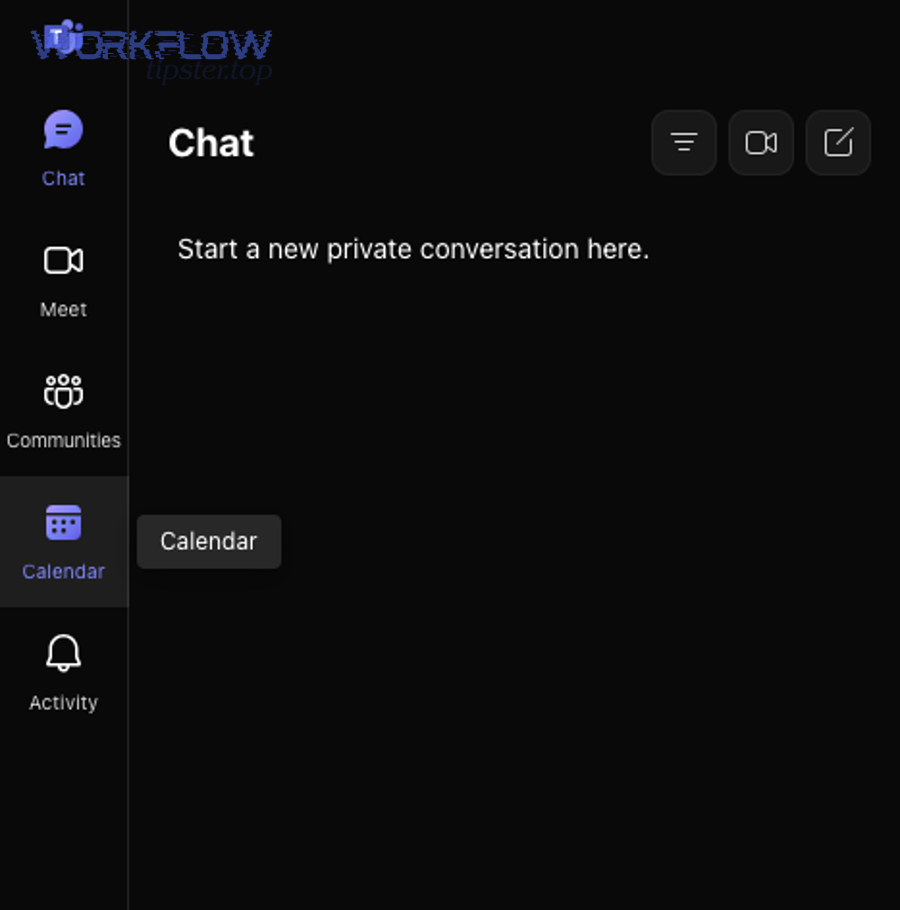
How do you connect Calendly to Google Calendar for availability and event sync?
Calendly-to-Google-Calendar sync is a calendar connection that reads busy times to prevent conflicts and writes confirmed bookings into a chosen calendar, so your availability stays accurate and your schedule stays centralized.
Specifically, you should set this up before anything else, because every later step depends on the time slot being trustworthy.
Practical setup steps (team-safe and repeatable):
- Choose the calendars to check for conflicts. If you check only one calendar but you actually book time on two, you’ll still get double-booking. Include the calendar(s) where meetings appear as “busy.”
- Choose the calendar where new events get added. For most teams, pick one “work meetings” calendar to keep the output clean.
- Add buffers and working hours at the event type level. A global rule is helpful, but event types often need different buffers (sales discovery vs. onboarding vs. support).
- Confirm timezone behavior. Ensure your organizer timezone is correct and test with an invitee in a different timezone.
Quick validation test:
- Book a test slot in Calendly.
- Confirm a Google Calendar event appears.
- Confirm the event blocks availability for the same time slot.
How do you generate a Microsoft Teams meeting link automatically in Calendly invites?
A Teams link is generated automatically when Microsoft Teams conferencing is enabled for the Calendly event type, so each booking creates a consistent join URL and meeting location without manual creation.
Next, your goal is consistency: the Teams link should appear in the same place every time so attendees never hunt for it.
Best-practice configuration:
- Set Teams as the meeting location for the event type (not as an optional add-on).
- Verify the link is inserted into calendar invites and confirmation emails, not just the event description in Calendly.
- Standardize naming. A clear event title helps participants find the meeting inside Teams and inside Google Calendar.
Operational check:
- Book a test meeting → open the Google Calendar event → confirm the Teams meeting link is present and clickable.
How do you create a ClickUp task automatically when a Calendly meeting is booked?
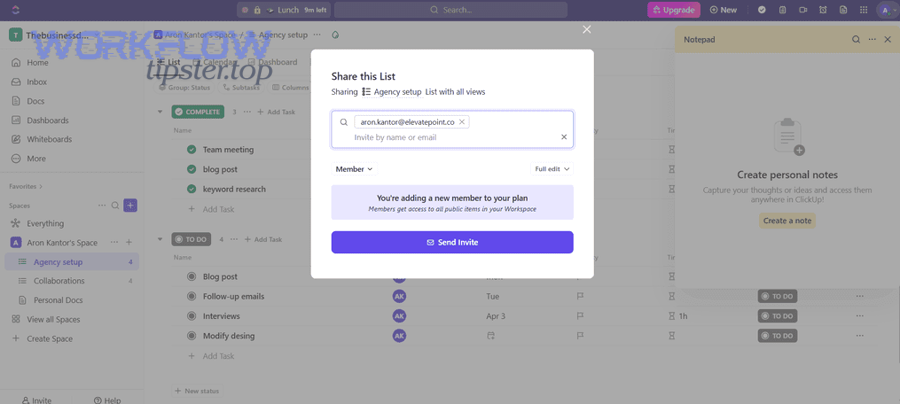
A ClickUp task can be created automatically when a Calendly meeting is booked by using a trigger (invitee scheduled) that sends meeting data into ClickUp as a new task with a due date, owner, and meeting link in the description or custom field.
To illustrate why this matters, the task is what preserves accountability after the meeting ends—especially when remote teams run many meetings per week.
Implementation pattern (works regardless of the no-code tool you use):
- Trigger: “Invitee Scheduled” (or equivalent booking-confirmed trigger).
- Action: “Create Task” in a defined ClickUp List.
- Task name template: [Meeting Type] – [Invitee Name] – [Date]
- Due date: meeting start time (or the end time if your workflow is follow-up oriented).
- Description: include agenda, invitee answers, participants, and the Teams join link.
Where teams go wrong:
- Creating tasks with no owner → tasks drift.
- Creating tasks in a generic list → tasks become unsearchable.
- Not capturing the Teams link → the “workflow” still has friction.
Natural fit with modern automation workflows: once your meeting creates a ClickUp task, you can attach checklists, notes, handoff steps, and follow-up templates without rebuilding the process each time.
How do you map fields so ClickUp tasks stay aligned with the calendar event details?
There are 2 main field groups to map—(1) identity/context fields and (2) scheduling/logistics fields—based on whether the data helps your team understand the “who/why” or execute the “when/how.”
More specifically, mapping is where most workflows either become reliable or become noisy, so treat it like a small data model.
Group 1: Identity & context (who/why)
- Invitee name
- Invitee email
- Company (if collected)
- Event type / meeting purpose
- Answers to Calendly questions (pain points, goals, ticket IDs)
Group 2: Scheduling & logistics
- Start time + end time
- Time zone (invitee and organizer if available)
- Google Calendar event link (if you capture it)
- Microsoft Teams join link
- Reschedule/cancel status (important for task updates)
A simple rule keeps everything consistent:
- Put critical execution data (Teams link, time, status) into a custom field so it’s searchable and standardized.
- Put long-form context (answers, agenda) into the task description so it’s readable.
Evidence: According to a study by the University of California, Irvine (Department of Informatics), in 2008, researchers found that people compensate for interruptions by working faster, but at a cost of higher stress and effort—supporting the value of reducing manual “context switching” in scheduling workflows.
Which no-code method is best: native integrations vs Zapier/Make/Relay/Integrately for this workflow?
Native integrations win for simplicity and speed, Zapier is best for quick app-to-app task creation, Make is optimal for complex routing and data shaping, and Relay/Integrately are best when you want prebuilt workflows and simpler branching.
However, the best method is the one that matches your ClickUp requirements without creating duplicate automations or fragile dependencies.
To make this decision concrete, compare across criteria that affect reliability:
1) Reliability and lifecycle handling
- Native-only: reliable for calendar + Teams; no ClickUp lifecycle.
- Zapier: reliable for create/update patterns if you design it carefully.
- Make: highly reliable when you design idempotent flows and use routers/filters.
- Relay/Integrately: strong for templates and fast setup, weaker for highly customized “update vs create” logic depending on the exact workflow.
2) Field mapping depth
- Zapier: good mapping for common fields and straightforward transformations.
- Make: best for transformations (formatting dates, conditional text, advanced branching).
- Others: good for standard patterns, less flexible for advanced data shaping.
3) Governance for remote teams
- Make and Zapier generally provide clearer run history and debugging for teams managing many workflows.
- Prebuilt tools are excellent for speed but can become “black boxes” if you scale without documentation.
And this is where semantic intent matters: your title promises “Avoid Double-Booking,” which is not only a calendar problem—it’s also a duplication problem in task creation. So your tool choice should support update-on-reschedule and close-on-cancel patterns.
When is a native-only setup enough for remote teams?
Yes, a native-only setup is enough for remote teams when (1) the only goal is accurate availability, (2) Teams links must be generated consistently, and (3) ClickUp task tracking is optional or handled manually in a lightweight way.
Besides, native-only reduces tool sprawl, which can be a real advantage for smaller teams.
Use native-only if these conditions match:
- You don’t need ClickUp tasks created automatically.
- You don’t need meeting-based routing (sales vs onboarding vs support).
- You can live with manual follow-up tasks or you already have a separate, simple task routine.
Avoid native-only if any of these are true:
- You need ClickUp assignments to happen immediately.
- You need templates/checklists created automatically.
- You need reschedule/cancel events to update existing tasks.
What trigger and action combinations are most reliable for Calendly → ClickUp automation?
There are 3 reliable lifecycle combinations—Create on Scheduled, Update on Rescheduled, and Close/Archive on Canceled—based on the criterion of preserving a single “source task” per meeting.
Moreover, this structure is the easiest way to prevent task duplication as your scheduling volume increases.
1) Scheduled → Create Task
- Trigger: Invitee Scheduled
- Actions: Create Task, set due date, add Teams link, attach answers
2) Rescheduled → Update Task
- Trigger: Invitee Rescheduled
- Actions: Find task by unique key, update due date/time, update Teams link if it changes, add reschedule note
3) Canceled → Close Task
- Trigger: Invitee Canceled
- Actions: Find task, move status to “Canceled,” remove it from active workload views
Where you can naturally broaden your automation workflows: once you have this lifecycle, you can attach downstream automations like reminders, post-meeting follow-up subtasks, and notes capture—without rethinking the entire chain every time.
And if you also run workflows like google forms to hubspot to notion to discord lead capture, the same reliability principle applies: you want one record per real-world entity (one lead, one meeting) and clear update paths when the entity changes.
How do you avoid double-booking and duplicate ClickUp tasks in this scheduling workflow?
Avoiding double-booking and duplicate tasks requires a two-layer system: calendar controls prevent time overlaps, and automation controls prevent multiple ClickUp tasks for the same meeting when it’s rescheduled, canceled, or booked through different event types.
Next, treat these as separate problems with separate fixes—because teams often solve one and accidentally ignore the other.

What settings prevent double-booking in Calendly and Google Calendar?
There are 4 main settings that prevent double-booking—conflict calendars, buffer time, availability windows, and event limits—based on the criterion of reducing accidental overlaps and unrealistic back-to-back scheduling.
Especially for remote teams, these settings also reduce late starts and “meeting fatigue.”
1) Conflict calendars (most important)
- Add every calendar that can contain “busy” time: personal blocks, internal meetings, focus blocks, travel time blocks.
- If you miss a calendar, you create “false availability.”
2) Buffer time
- Add buffers before/after meetings to prevent overlap and to protect transition time.
- Use longer buffers for high-prep meetings and shorter buffers for quick check-ins.
3) Availability windows
- Set working hours and days.
- Use different windows for different event types if needed.
4) Event limits
- Set meeting limits per day if your role requires deep work.
- Use minimum scheduling notice to prevent surprise bookings.
Evidence: According to guidance from Acuity Scheduling in 2025, adding buffer time between appointments helps prevent overlaps and gives flexibility between bookings—reinforcing buffer time as a practical anti–double-booking control.
How do you prevent duplicate tasks when meetings are rescheduled or edited?
You prevent duplicate ClickUp tasks by using one unique identifier per meeting, creating the task only once, and updating that same task on reschedule or cancel rather than creating a new one each time.
Then, the most effective tactic is to design your workflow as “idempotent”: the same meeting change should always produce the same single task outcome.
Three reliable techniques:
- Unique key matching: store a unique key (event ID if available, or a composite like invitee email + start time + event type) in a ClickUp custom field and use it to “find task” before updates.
- Update-first logic: on reschedule triggers, always search and update; only create if no task exists.
- One automation per lifecycle stage: avoid overlapping Zaps/scenarios that both “create task” for the same scheduled event.
Common duplication causes (and fixes):
- Two automations listening to the same trigger → consolidate into one.
- Separate event types feeding the same list → add routing rules or unique keys.
- Manual edits in ClickUp causing matching failures → lock the key field or standardize edits.
What should a remote team standardize so the workflow scales across multiple people?
There are 5 standardization areas—ownership, structure, naming, templates, and QA—based on the criterion of making the workflow repeatable across multiple users without breaking permissions, creating duplicates, or losing context.
More importantly, standardization turns a “personal automation” into an operational system your team can trust.
- Ownership and permissions: Assign one owner for each integration connection (Calendly, Google, Teams, ClickUp), and document what happens if a team member leaves.
- ClickUp structure: Decide where meeting tasks go (List/Folder/Space), define default statuses, and define required custom fields like Meeting time, Teams link, Event type, and Unique key.
- Event-type taxonomy: Keep a limited set of event types and standardize questions so the same fields map into ClickUp consistently.
- Templates and checklists: Add checklists for prep and follow-up so meetings are executed consistently.
- QA and monitoring: Test booking/reschedule/cancel monthly, and keep a simple manual backup process for emergencies.
This is also where lexical comparison helps: automation vs manual is an antonym pair that explains the “why.” When the workflow is standardized, manual steps become exceptions instead of the default.
And if your organization also runs scheduling chains like calendly to outlook calendar to zoom to monday scheduling, standardization becomes even more valuable—because the same governance model (ownership, naming, QA) applies across different tool stacks.
How should you name events and tasks so Teams links and ClickUp context are always findable?
A scalable naming system is a consistent title format for both calendar events and ClickUp tasks that includes meeting type, invitee identity, and date/time, so humans and search filters can find the right meeting in seconds.
Specifically, naming is the simplest “no-code” reliability upgrade because it reduces confusion without changing any integration settings.
Recommended naming formula:
- Calendar event title: [Meeting Type] – [Invitee Name] – [Company]
- ClickUp task name: [Meeting Type] – [Invitee Name] – [YYYY-MM-DD]
Where to store key information:
- Store the Teams join link in a dedicated ClickUp custom field called “Teams Link” (searchable).
- Store the agenda and invitee answers in the task description (readable).
- Store the Google Calendar event link (if available) in a “Calendar Link” custom field.
What checklist should you run to verify the workflow is working end-to-end?
There are 6 verification checks—book, confirm calendar, confirm Teams, confirm ClickUp, reschedule, cancel—based on the criterion of validating each link in the chain and the lifecycle behavior.
Thus, the checklist should be run whenever you change an event type, edit automation rules, or onboard new team members.
End-to-end QA checklist
- Book a test meeting using a real email address and a known event type.
- Confirm Google Calendar event appears in the correct calendar and blocks time as “busy.”
- Confirm Microsoft Teams link exists and works from the calendar invite.
- Confirm ClickUp task creation in the correct List with correct owner, due date, and mapped fields.
- Reschedule the meeting and confirm the same ClickUp task updates (no duplicate tasks).
- Cancel the meeting and confirm the ClickUp task closes or moves to “Canceled.”
Pro tip for remote teams: run the same test with an invitee in another timezone to confirm the meeting time displays correctly across Calendly, Google Calendar, and Teams.
How can you optimize and troubleshoot advanced Calendly → Teams → ClickUp scheduling at scale?
Advanced optimization means you diagnose breakpoints quickly, route meetings intelligently, choose update vs create behavior intentionally, and add governance controls so your scheduling workflow remains reliable as volume, time zones, and team size increase.
In addition, this is where micro semantics matter: you’re no longer just “syncing,” you’re preventing “disconnects” like missing links, wrong routing, and duplicate records.
What are the most common failure points—and how do you fix them fast?
There are 5 common failure points—calendar mismatch, missing Teams link, timezone errors, task creation failures, and duplication loops—based on where the chain breaks between booking, invite creation, conferencing, and task automation.
Next, the fastest fix approach is to isolate the failing link rather than changing everything at once.
- Calendar mismatch: Add the correct conflict calendars, verify “busy” status, and retest.
- Missing Teams link: Verify Teams conferencing is enabled for that event type and confirm link insertion via a fresh booking.
- Timezone mismatch: Confirm timestamp mapping behavior (UTC vs local) and store timezone explicitly in a field.
- ClickUp task not created: Check automation run history, confirm permissions, and validate List settings and required fields.
- Duplication loops: Implement unique key matching + update-first logic and ensure only one create-task automation is active per event type.
How do you route meetings into different ClickUp Lists using event type rules and custom fields?
Routing meetings means applying conditional rules—based on event type, answers, or tags—to create or update ClickUp tasks in different Lists with the correct assignees and templates, so each meeting lands in the right operational lane.
To begin, treat routing as a small taxonomy: meeting categories determine destination and behavior.
A practical routing model:
- Sales meetings → Sales pipeline List → owner = account executive → template = discovery checklist
- Customer onboarding → Implementation List → owner = onboarding lead → template = onboarding steps
- Support escalation → Support List → owner = support manager → template = escalation steps
How to implement routing reliably:
- Use event type as the primary router (most stable).
- Use invitee answers as a secondary router (more flexible but less predictable).
- Use custom fields for stable reporting (source, segment, priority).
This is also how your workflow stays aligned with “avoid double-booking” at scale: when meeting types are cleanly separated, rules are clearer, and you reduce accidental duplicates from overlapping automations.
Should you update an existing ClickUp task or create a new one when a meeting changes?
Updating wins for reschedules and minor edits, creating a new task is best for genuinely new meeting instances, and closing the existing task is optimal for cancellations—because each approach matches a different lifecycle outcome and prevents duplicates.
Meanwhile, the antonym pair “duplicate vs unique” is the decision lens: you want one unique task per real meeting instance.
Use Update when:
- The meeting time changes (reschedule).
- The meeting location link changes.
- The invitee adds new information.
Use Create new when:
- A follow-up meeting is intentionally separate (e.g., “Discovery Call” then “Demo”).
- A series meeting must have separate tasks for separate agendas.
Use Close/Cancel when:
- The meeting is canceled and no follow-up is needed.
- The meeting is replaced by another meeting type and the old intent is no longer valid.
If you standardize this rule team-wide, your ClickUp data stays clean and your workflows remain trustworthy.
Can you make the workflow compliant and auditable for teams with stricter controls?
Yes, you can make the workflow compliant and auditable because you can (1) centralize ownership and permissions, (2) standardize logged fields like unique keys and status history, and (3) document and test changes with a simple governance checklist.
In short, compliance is mostly about consistency: consistent access, consistent records, and consistent change control.
Practical compliance tactics:
- Least-privilege access: only grant the permissions needed for calendar reads/writes and task creation.
- Audit fields: store “Created by workflow,” unique meeting key, and timestamps in ClickUp custom fields.
- Change management: keep a small changelog (“what changed, when, who changed it”) and rerun the QA checklist after any change.
- Documentation: create a one-page “workflow contract” describing triggers, actions, routing rules, and failure recovery steps.
When these controls are in place, your remote team can scale scheduling safely, keep follow-up reliable, and protect deep work time by reducing unnecessary administrative overhead.