


Building a Calendly → Google Calendar → Google Meet → Linear scheduling workflow is the fastest way for product teams to turn “a meeting got booked” into “work is now clearly owned, tracked, and deliverable,” without relying on manual copy-paste or memory.
If you set the foundation correctly, Calendly reads real availability from Google Calendar, writes a conflict-free calendar event, and attaches a Google Meet link so every attendee joins the same call reliably—no last-minute “Where’s the link?” messages.
Then, the workflow becomes truly operational: the same booking event can create or update a Linear issue with a structured template—agenda, attendees, decisions, and next steps—so outcomes don’t die in chat.
Introduce a new idea: when you replace manual booking with automation, the biggest wins come from reliability design (deduplication, reschedule logic, permissions) rather than “connecting apps,” and that’s exactly what the sections below will walk you through.
What does an automated Calendly → Google Calendar → Google Meet → Linear scheduling workflow mean for product teams?
An automated Calendly → Google Calendar → Google Meet → Linear scheduling workflow is a team operating system that converts a scheduled meeting into a calendar event with conferencing details and an actionable Linear work item, so product execution doesn’t depend on manual booking.
To begin, the key is to treat “a meeting” as structured data that your workflow can route, transform, and track.
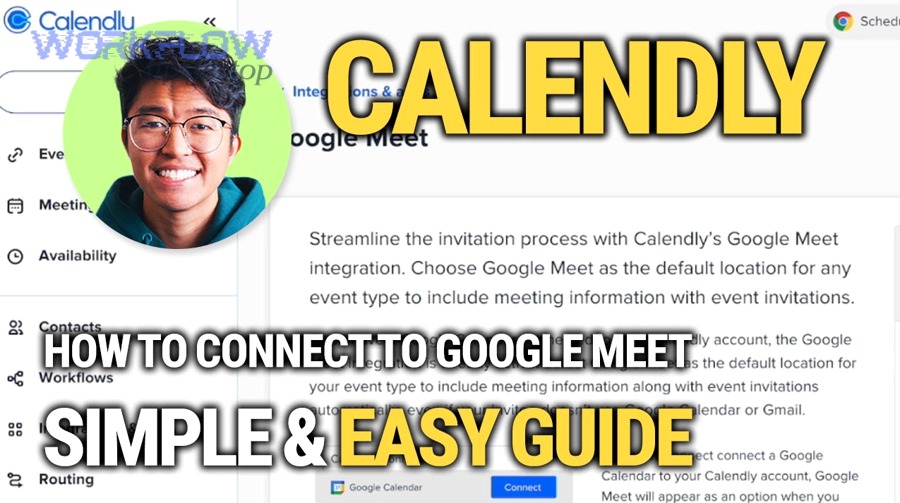
In practice, this workflow replaces the fragile chain of manual steps—copying a time, pasting a Meet link, writing notes somewhere, then hoping someone creates a task later. Instead, it turns scheduling into an event-driven trigger that always produces the same minimum outcomes:
- A confirmed time slot that respects availability (Google Calendar)
- A single join link for everyone (Google Meet)
- A clearly owned artifact of work (Linear issue)
That “manual vs automated” contrast matters because manual booking fails quietly: the meeting still happens, but the outcome becomes ambiguous. Automation makes the outcome explicit and repeatable.
A second benefit is cognitive load reduction. When teams stop relying on memory to create follow-ups, they reduce context switching after meetings. According to a study by University of California, Irvine from the Department of Informatics, in 2008, interrupted work led people to complete tasks faster but with increased stress, frustration, and time pressure—showing why structured workflow design matters for sustainable productivity.
What meeting data must be captured to create a correct calendar event and a useful Linear issue?
There are 7 core data fields you must capture to make the workflow both accurate (calendar) and actionable (issue): event type, start/end time, timezone, host, invitee identity, meeting purpose, and conferencing details.
Specifically, the most common failure is not missing “a lot of data,” but missing the right data—like timezone, reschedule state, or the single unique identifier you’ll use for deduplication.
A practical “minimum dataset” looks like this:
- Scheduling identifiers: Calendly event ID / invitee ID (unique key for updates)
- Time fields: start time, end time, timezone
- People fields: host, invitee name, invitee email, additional guests
- Context fields: event type name, meeting topic, intake answers (e.g., product area, priority)
- Join details: Google Meet link or conferencing metadata
- Routing fields: team label, owner, project name (for Linear)
To make this easier to implement, create a consistent mapping table (below) that tells your automation exactly where each field goes. This table contains the meeting-to-issue mapping that prevents “beautiful automation” from producing vague issues.
| Calendly data | Google Calendar event | Linear issue field | Why it matters |
|---|---|---|---|
| Event type name | Title | Issue title prefix | Enables consistent triage patterns |
| Invitee email | Attendees | Issue body | Ownership + follow-up clarity |
| Intake answers | Description | Issue template sections | Turns conversation into action |
| Start/end time | Start/end | Due date / SLA hint | Prevents “someday” issues |
| Event ID | Private notes (optional) | External reference | Enables idempotent updates |
| Meet link | Location / conferencing | Issue body link | One-click join + traceability |
Is it possible to make the workflow reliable without duplicate calendar events or duplicate Linear issues?
Yes—reliability is absolutely achievable for calendly to google calendar to google meet to linear scheduling, as long as you design (1) a unique key strategy, (2) an update path for reschedules, and (3) a cancellation rule that closes the loop.
Next, reliability becomes easier when you decide one principle: create once, then update forever.
Here are three practical reasons duplicates happen—and how you prevent them:
- Retries that re-create instead of update
- Fix: store the Calendly event/invitee ID as a persistent key and “upsert” the Linear issue.
- Reschedules treated as brand-new meetings
- Fix: detect “rescheduled” events and update the existing issue’s date/time and status.
- Multiple triggers for the same real-world change
- Fix: filter by event state (created vs updated vs canceled), and only run the correct branch.
The benefit is compounding: once you stop duplicates, the workflow becomes trustworthy. When a workflow is trustworthy, teams adopt it—and adoption is what replaces manual booking at scale.
How do you set up the scheduling foundation in Calendly so it syncs correctly with Google Calendar?
Calendly syncs correctly with Google Calendar when you connect the right calendar(s), define whether Calendly should only check availability or also create events, and standardize timezone and conflict rules for the whole team.
Then, the setup becomes less about “turning on integration” and more about preventing edge cases before they happen.
Most product teams run into problems here because calendars are messy: personal calendars, shared calendars, PTO calendars, and multiple meeting types all collide. A correct foundation clarifies three decisions:
- Which calendars are read (availability source)
- Which calendar is written (event destination)
- What counts as “busy” (conflict prevention rules)
Calendly’s own guidance emphasizes that connecting Google Calendar helps check availability, prevent double bookings, and add scheduled meetings automatically.
What are the correct availability and conflict-prevention rules for multi-host product teams?
Multi-host availability works when you set shared availability logic, buffers, and calendar visibility boundaries so the team doesn’t accidentally overbook or expose private time.
More specifically, you want rules that optimize both customer experience (fast booking) and internal sustainability (focus time).
A strong baseline for product teams:
- Working hours aligned to team timezones
- Minimum notice to prevent “surprise meetings”
- Buffers (e.g., 10–15 minutes) between meetings to allow transition time
- Daily meeting limits for deep work protection
- Conflict checking across the calendars that actually represent commitments
This matters because meetings don’t just consume time—they create transition costs. According to a study by University of Utah (with authors also affiliated with Brigham Young University), published in 2022, meeting recovery and transition time are meaningfully related to meeting outcomes such as satisfaction and effectiveness, highlighting why buffers and transitions should be designed into scheduling systems.
Should you use one shared calendar or individual calendars for scheduling across the team?
A shared calendar wins in central visibility, individual calendars are best for ownership, and a hybrid approach is optimal for scaling product teams without permission chaos.
However, the right choice depends on whether you prioritize operational control or personal autonomy.
Shared calendar is better when:
- You need one canonical team schedule (e.g., product intake hours)
- You want consistent event formatting and Meet link behavior
- You run pooled scheduling (round-robin) and need predictable event routing
Individual calendars are better when:
- Each host owns their availability and meeting load
- You need separate privacy boundaries
- You want per-person policies (different buffers or working hours)
Hybrid (recommended for many teams):
- Read availability from individual calendars
- Write events to a shared “Product Intake” calendar (or a per-team calendar)
- Keep internal 1:1s on personal calendars
This comparison matters because a scheduling workflow that looks “simple” can fail due to permissions and competing calendar policies. When you choose the model deliberately, the automation becomes stable instead of surprising.
How do you ensure Google Meet links are created and attached to calendar events consistently?
Google Meet links are consistent when you set Google Meet as the event location (or conferencing option) in Calendly, ensure the connected Google Calendar is the calendar that actually receives the event, and standardize which account generates conferencing details.
Specifically, the goal is that every invitee receives one join link automatically—every time.
This section is where many workflows feel “almost done” but still frustrate users. The Meet link is the visible proof that automation is working, so you want it to be boringly reliable.
Calendly states that connecting Google Calendar allows it to automatically add Google Meet conferencing details to Calendly meetings, and that those details appear in confirmations and calendar events.
Do Google Meet links automatically appear in invites and confirmations in every case?
No—Google Meet links do not appear in every case, because they depend on correct event-location settings, the right Google account permissions, and ensuring the event is created on a Google Calendar that can generate Meet conferencing details.
Moreover, “it works for me” failures often come from multi-calendar setups where the event lands on a different calendar than expected.
Three common reasons the Meet link is missing:
- Wrong event location configuration
- The event type is not set to Google Meet, or the location field is overridden.
- Event is created on the wrong calendar
- Calendly checks one calendar for availability but writes the event to another.
- Permission mismatch
- The account creating the event lacks the ability to generate Meet conferencing details.
Once you resolve those causes, Meet link consistency improves immediately, and users stop treating scheduling as an unreliable process.
What is the difference between adding a Meet link as the “location” versus as conferencing details?
Meet as “location” wins in simplicity, conferencing details win in structure, and the best choice is the one that stays visible across calendar clients used by your invitees.
Meanwhile, both approaches can work—but they behave differently when invitations are forwarded or viewed on different devices.
- Location field approach:
- Easy to see at a glance
- Risk: location can be overwritten by other tools or user edits
- Conferencing details approach:
- More canonical for video meetings
- Usually shows a dedicated “Join” button in many calendar clients
- Better for consistency when invites are forwarded
When you are building a scheduling automation workflow, you typically want conferencing details to be the system of record, then optionally mirror the link in the description for redundancy.
How do you turn booked meetings into actionable work by creating the right Linear items?
You turn meetings into actionable work by creating Linear issues with a consistent template, assigning clear ownership, and linking meeting context so the issue becomes a work artifact—not just a reminder.
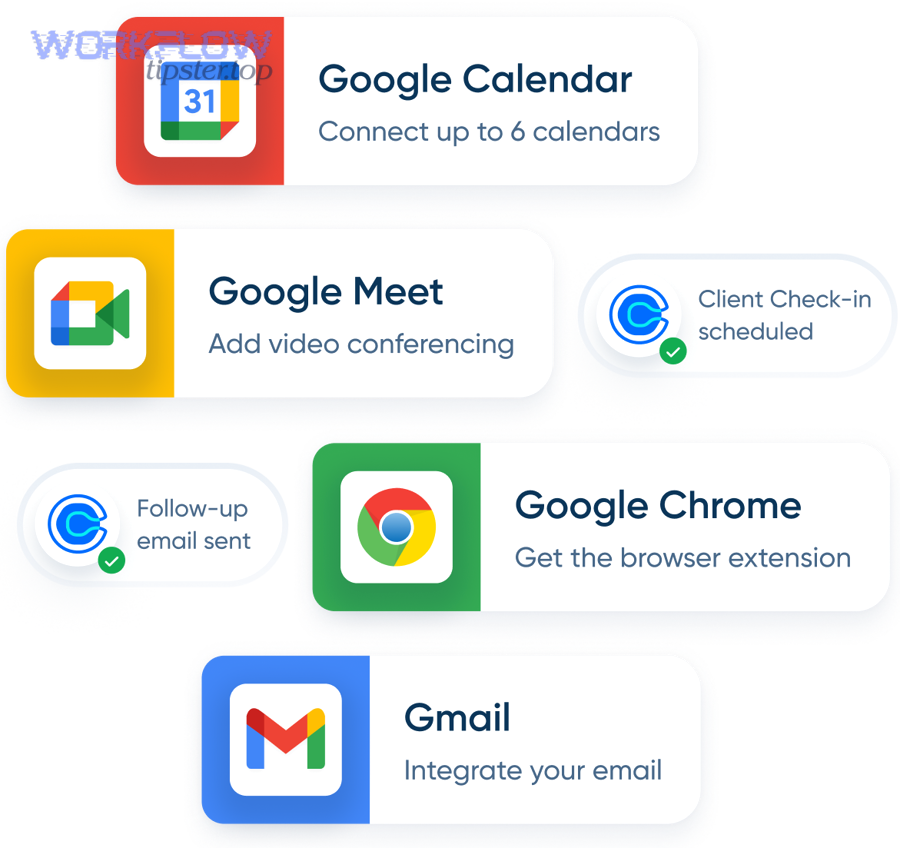
In addition, the right structure ensures that “meeting output” becomes “deliverable input.”
This is the core product-team leap: scheduling isn’t the finish line. Scheduling is the trigger that starts execution.
A strong Linear issue created from scheduling typically includes:
- What happened (meeting purpose + brief context)
- What was decided (decisions or constraints)
- What must be done (next steps, owners, due hints)
- Where to reference (Meet link + calendar link + docs)
If you skip any of those, you still create issues—but you don’t create momentum.
Which issue template structure makes Linear issues readable and immediately actionable?
There are 4 essential template sections for meeting-driven issues: Context, Decisions, Actions, and Links, based on the criterion “can a teammate execute without attending the meeting?”
To illustrate, this structure prevents vague issues like “Follow up with customer” and replaces them with executable tasks.
A practical template:
- Context (1–3 sentences): why the meeting exists
- Attendees: who was present (optional but useful)
- Decisions: bullets of what is now true
- Actions: checklist with owners and due hints
- Links: Google Meet + calendar + docs
Example issue title patterns (consistent, scannable):
- [Intake] <Customer/Stakeholder> — <Topic>
- [Discovery] <Problem area> — <Hypothesis>
- [Review] <Feature> — <Decision needed>
This template becomes even more powerful when your workflow maps Calendly intake answers into specific sections—so the issue is “pre-filled” with the right context.
Should you create a new issue for every meeting or update an existing issue when rescheduled?
Creating a new issue wins for traceability, updating an existing issue is best for continuity, and the optimal approach is a hybrid rule: new issue for new topic, update for reschedule/cancel.
Besides, product teams rarely want “two issues for one meeting” unless the topic truly changed.
A decision rule that works:
- Create a new issue when:
- Event type indicates a new intake (e.g., “New request”)
- Intake answers indicate a new scope (new product area or initiative)
- Update the existing issue when:
- The meeting is rescheduled (time changes but topic remains)
- The host changes but the meeting identity is the same
- Close or mark canceled when:
- The invitee cancels
- The meeting no longer requires action
This is where deduplication becomes more than “technical correctness.” It becomes operational clarity.
What are the best workflow rules to replace manual booking with automation without losing control?
The best workflow rules are a simple 3-part method—standardize triggers, route by intent, and enforce ownership—so your team replaces manual booking while keeping predictable triage and quality.
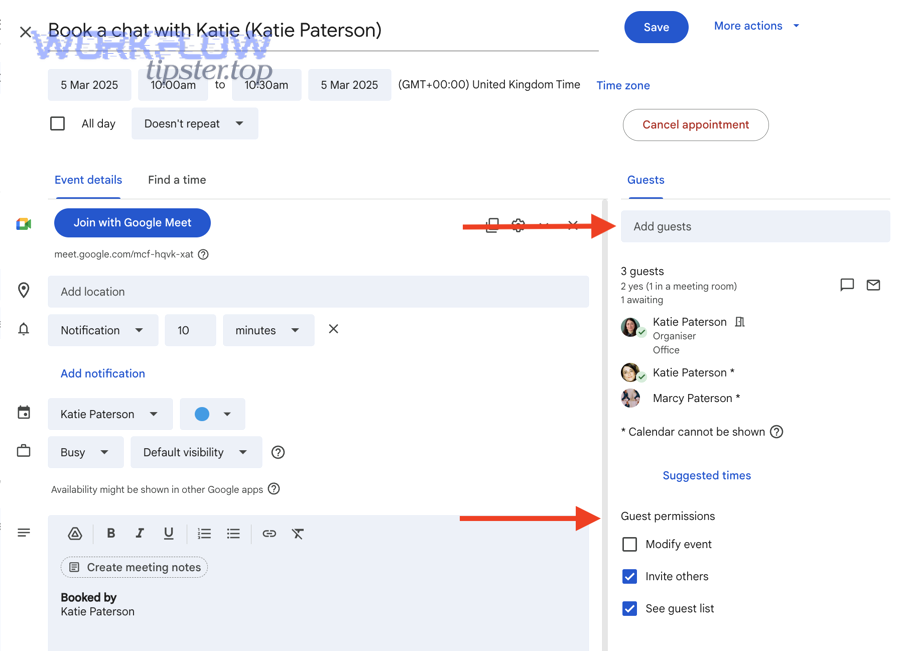
Let’s explore how control and automation can coexist without turning Linear into a noise machine.
The risk of automation is not “it won’t work.” The risk is “it will work too well,” creating issues that nobody wants. You avoid that by designing workflow rules that reflect product operations:
- Only automate meeting types that produce work
- Not every meeting should create an issue.
- Route based on meaning, not just source
- Use event type + intake answers for routing.
- Assign ownership at creation time
- Unowned issues are where automation goes to die.
What routing rules should product teams use to assign issues to the right team and owner?
There are 5 routing rule groups product teams should use: event type, product area, priority signals, stakeholder category, and escalation keywords, based on the criterion “who should own the outcome.”
More importantly, routing should be deterministic enough that anyone can predict the result.
A routing checklist:
- Event type routing: intake vs discovery vs review vs bug triage
- Product area routing: use a dropdown intake answer (e.g., Billing, Onboarding, Mobile)
- Priority routing: urgent keywords + customer tier + time constraints
- Stakeholder routing: internal exec vs customer vs partner
- Escalation routing: “outage,” “security,” “blocker,” “launch” trigger different teams
A good rule of thumb: if routing can’t be decided automatically, route to a triage owner—not to an individual contributor.
Is a “triage-first” workflow better than auto-assigning directly to a developer?
Yes—triage-first is better for calendly to google calendar to google meet to linear scheduling because it improves accuracy, reduces noise, and protects developers’ focus, as long as you include clear triage SLAs and templates.
Especially, triage prevents the hidden cost of automation: misassigned work that wastes time.
Three reasons triage-first wins:
- It captures ambiguity safely
- Meetings are often exploratory; triage interprets intent before assignment.
- It reduces context switching for ICs
- Developers get fewer low-quality issues.
- It creates a consistent intake surface
- Product ops can standardize labels, priorities, and scope before handoff.
If you want speed for specific meeting types (e.g., known bug reports), you can still auto-assign those—while keeping triage for everything else.
How do you troubleshoot common failures in this scheduling automation workflow?
You troubleshoot this scheduling automation workflow by isolating the failure stage (trigger, calendar sync, Meet creation, Linear creation), checking data mapping and permissions, and then fixing duplicates with an idempotent update strategy.
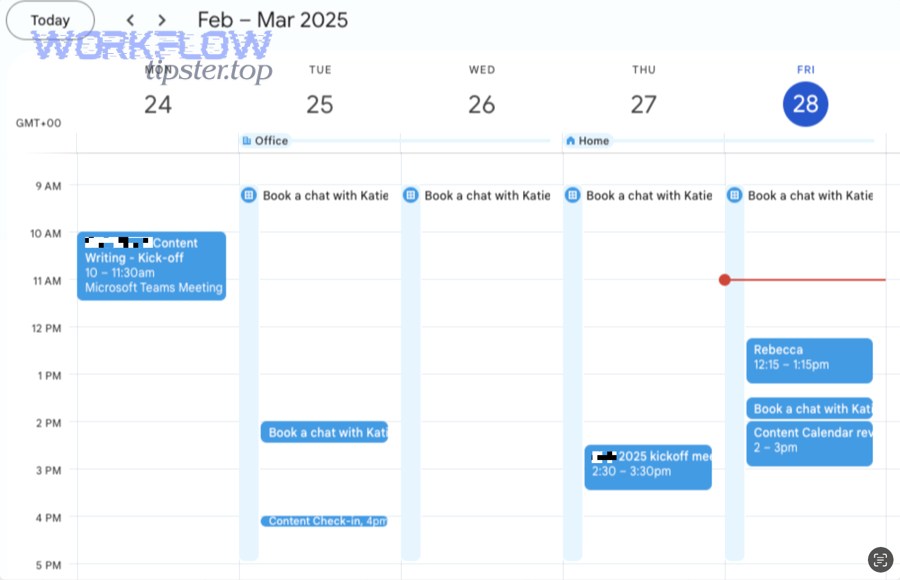
In short, the fastest troubleshooting is stage-based, not tool-based.
A reliable diagnostic flow:
- Did the meeting trigger fire?
- If not, confirm the event type and trigger condition.
- Was the Google Calendar event created correctly?
- If times/attendees are wrong, it’s usually mapping or timezone.
- Did the Meet link appear?
- If not, it’s usually event location settings or calendar mismatch.
- Was the Linear issue created/updated?
- If not, check workspace permissions, fields, and dedupe logic.
This stage approach prevents the most common mistake: changing five settings at once and not knowing which change fixed the problem.
Why do duplicates happen, and how do you prevent them systematically?
Duplicates happen because workflows re-run without an update path, reschedules are treated like new creates, or multiple triggers fire for the same meeting—so you prevent them with one unique key, one canonical issue, and one update branch.
Then, your workflow becomes predictable instead of noisy.
Systematic duplicate prevention:
- Create a unique key (Calendly event/invitee ID)
- Store it inside Linear (in a custom field or issue body line like
ExternalRef:) - On workflow run:
- If key exists → update
- If key doesn’t exist → create
- On reschedule: update the same issue’s time block + status label
- On cancel: move issue to “Canceled” or close with a reason
Once you implement this, duplicates stop being a “mystery” and start being a solved design problem.
What permission and authentication problems commonly break the workflow, and how do you fix them safely?
Permission and authentication problems commonly break the workflow because tokens expire, scopes are insufficient, or workspace policies restrict calendar/issue creation—so you fix them safely by re-authenticating, minimizing scopes, and using dedicated integration accounts where appropriate.
Moreover, the safest fix is the one that prevents repeated breakage.
Common break points:
- Revoked access (user changed password or removed app access)
- Insufficient permissions (can read calendar but cannot create events)
- Workspace policy restrictions (Linear team/project creation limits)
- Account mismatch (Meet links require a specific Google account context)
Safe remediation practices:
- Reconnect accounts with least-privilege permissions
- Use a dedicated “team integration” account for stability (when policy allows)
- Document ownership: who maintains credentials and where logs are reviewed
At this point, your workflow is not just “connected”—it is operationally supported.
Which automation approach fits your team best for Calendly → Google Calendar/Meet → Linear scheduling?
Zapier wins for speed, Make is best for complex routing, and n8n is optimal for deep control and customization—so the best approach depends on whether your team values fast deployment, advanced logic, or engineering-grade governance.
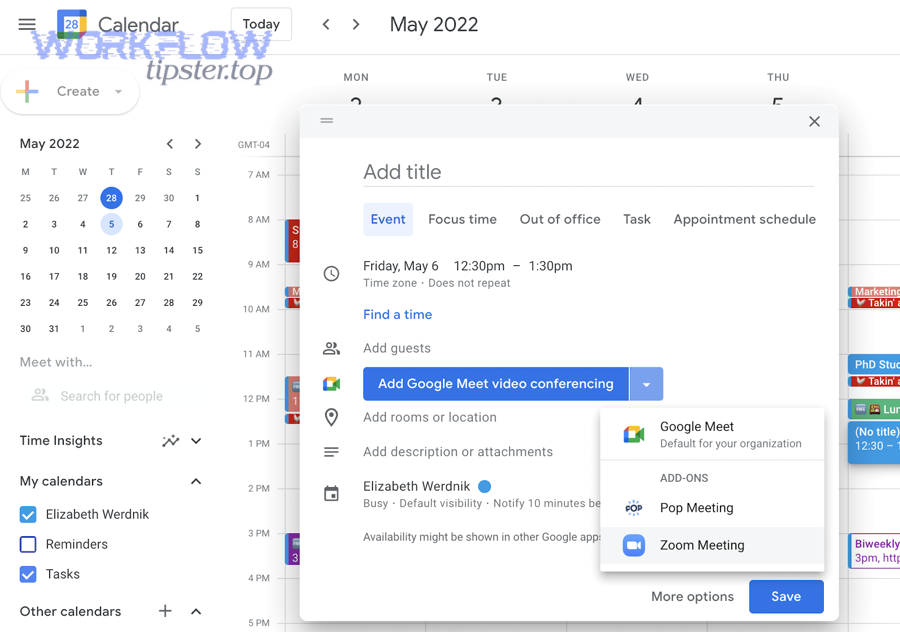
Below, you’ll pick the tool path that matches how your product team actually works.
Before comparing tools, keep one anchor: your scheduling automation workflow is only as good as its reliability and templates. Tools change the “how,” but your design determines the “why” and the “outcome.”
What are the differences between Zapier, Make, and n8n for this workflow?
Zapier wins in time-to-launch, Make is best for branching depth, and n8n is optimal for custom logic and extensibility, especially when you need advanced deduplication and data transformation.
However, the best decision comes from matching tool capabilities to workflow complexity.
- Zapier (best for MVP):
- Quick setup, common triggers, easy issue creation patterns
- Strong fit when you want “meeting booked → issue created” fast
- Make (best for complex routing):
- Strong visual scenario building for branching rules
- Better when you need multiple conditions, transformations, and fallbacks
- n8n (best for engineering control):
- Excellent when you want custom idempotency, advanced logic, or self-hosted governance
- Strong fit for teams that treat automation like a product
Your rule of thumb: if the workflow is mostly linear, start simple; if it’s operationally critical, choose control.
Is Relay.app better for structured, human-in-the-loop product operations?
Yes—Relay.app is better when you need approvals, review steps, and standardized playbooks, because human-in-the-loop checkpoints reduce automation noise while preserving speed.
Especially, this matters for product teams where “correct assignment” is more important than “instant assignment.”
Relay-style structures are useful when:
- A triage owner must confirm labels and priority
- Issues should be created only after meeting relevance is verified
- Work needs a standardized playbook (e.g., discovery → spec → delivery)
If your team is smaller or your meeting types are already standardized, you can keep the workflow fully automatic and skip approvals.
What rare edge cases should you design for: multi-calendar, reschedules, cancellations, and time zone drift?
There are 4 rare edge-case groups—multi-calendar mismatch, reschedule cascades, cancellation closure, and timezone drift—based on the criterion “does the workflow still behave predictably under change?”
More specifically, these edge cases are what separate a demo from a system.
Design fixes that work:
- Multi-calendar mismatch: enforce one “write calendar” for events
- Reschedule cascades: always update the same Linear issue (don’t create new)
- Cancellations: close/cancel the issue automatically or move it to a canceled state
- Timezone drift: store times in one canonical timezone and display local times as a derived view
These are “rare” because teams don’t notice them until they scale. Once you design for them upfront, the workflow stays stable.
How can you measure success after replacing manual booking with automation workflows?
You measure success with 5 operational metrics—meeting-to-issue lead time, duplicate rate, triage SLA compliance, assignment accuracy, and workflow success rate—so you can prove the workflow replaced manual booking instead of simply shifting work elsewhere.
Thus, measurement becomes the final step of operational adoption.
A simple success scorecard:
- Meeting-to-issue lead time: how fast meetings become tracked work
- Duplicate rate: should trend toward near-zero after idempotency
- Triage SLA: time from issue creation to correct assignment
- Assignment accuracy: % of issues routed to the correct team/owner
- Workflow success rate: % runs completed without human repair
And because teams rarely run only one automation, you can also compare impact across other automation workflows you may already operate—like “airtable to microsoft excel to onedrive to dropbox sign document signing” or “airtable to google docs to onedrive to pandadoc document signing”—to standardize governance and reliability patterns across your stack.