


When you automate Calendly → Google Calendar → Google Meet → Jira scheduling, you turn every booked meeting into a reliable, trackable Jira work item—so your team stops copying invite details by hand, stops missing changes, and keeps execution aligned with the calendar.
Next, you’ll see what this workflow actually moves across each “hop” (Calendly → Calendar → Meet → Jira), and which booking events you should treat as triggers—created, rescheduled, or canceled—so Jira always reflects reality.
Then, you’ll evaluate the best implementation path for your environment (native tools vs no-code automation vs Jira-side automation vs custom API), with a practical checklist for cost, permissions, reliability, and long-term maintenance.
Introduce a new idea: once the intent is clear, the rest is execution—building the flow step-by-step with deduping, update logic, and team rollout controls so the automation stays stable as usage scales.
What does “Calendly → Google Calendar → Google Meet → Jira scheduling automation” mean in practice?
It means a booked Calendly meeting becomes a Google Calendar event with a Google Meet link, and then becomes a Jira issue that stays synchronized through updates and cancellations. To begin, the key is understanding that your workflow is not one action—it’s a chain of state changes.

In practice, this automation is valuable because it converts “scheduled time” into “planned work.” A calendar event is a commitment, but a Jira issue is an accountable unit of execution: it can be assigned, tracked, estimated, linked to epics, included in sprints, and reported on. When the two are connected, the meeting doesn’t just happen—it produces a defined outcome.
More specifically, this workflow typically answers four operational questions:
- Who is meeting and why? (name, email, agenda, routing questions)
- When will it happen? (date/time, time zone, duration, working hours)
- Where is the meeting? (Google Meet link + dial-in details)
- What should happen next? (create an issue, update an issue, or close/cancel an issue)
What data moves through each hop?
Calendly booking data moves through the chain in a predictable way, but you only get stability if you standardize the “fields you trust” at each hop. Next, think of it as four payloads:
- Calendly payload (source of truth for booking intent)
- Event type name, invitee name/email, answers to routing questions
- Start/end time + timezone, location preferences, UTM/source, notes
- Unique booking identifiers (critical for dedupe)
- Google Calendar event (source of truth for schedule + attendees)
- Event ID, organizer, attendees, start/end time, updated timestamp
- Description/body (where you can store a “sync token” or booking ID)
- Conference data (Google Meet link)
- Google Meet details (source of truth for joining link)
- Meet URL, phone entry points (if enabled), conference solution type
- Sometimes “pending” or delayed creation (important for timing)
- Jira issue (source of truth for execution)
- Issue key, status, assignee, labels/components
- Custom fields for meeting metadata (Meet URL, event ID, booking ID)
- Links to related work (epic, sprint, customer ticket, CRM record)
To illustrate why “field discipline” matters: if your Jira issue is keyed only by the event title, you will create duplicates the first time someone edits the title. If your Jira issue is keyed by an immutable booking/event ID, updates become safe.
Which events should trigger Jira work: booking created, rescheduled, canceled?
You should treat this workflow as three triggers, not one: created, rescheduled, and canceled. Then, map each trigger to a Jira action:
- Booking created → Create Jira issue
- Create the issue once, store the booking ID and calendar event ID inside it.
- Rescheduled → Update Jira issue
- Update due date/time fields, description, and status if needed (e.g., “Replanned”).
- Canceled → Transition or close Jira issue
- Move to “Canceled/Done” (depending on your workflow), and add a cancellation reason if available.
Specifically, you get better outcomes when you define “what rescheduling means” for your team. For example, rescheduling might keep the same Jira issue (preferred), while cancellation might close it and create a follow-up only if the meeting is business-critical.
Can you set this up using only native Calendly + Google tools?
No, you can’t complete the full Calendly → Google Calendar → Google Meet → Jira automation using only native Calendly + Google tools, because Jira is outside Google’s native scheduling stack. However, you can fully cover the Calendly → Google Calendar → Google Meet portion natively, and then hand off to an automation layer to reach Jira.

The practical takeaway is simple: use native integrations for what they do best (calendar sync + conferencing), and use a connector-based system for what they don’t do (issue creation, updates, and workflow transitions).
Does Calendly generate Google Meet links automatically?
Yes, Calendly can automatically generate Google Meet details when you connect it to Google Calendar and enable Google Meet as the conferencing location, and it does this because the calendar event can carry conference data that becomes the Meet link. Next, the reliability depends on using the correct calendar connection and making sure the event type is configured to use Google Meet consistently.
Where teams get tripped up is assuming “Google Meet link = always immediate.” In real setups, Meet link creation can lag behind event creation, especially when you create/patch conference details asynchronously or when account permissions restrict conferencing defaults. That’s why “timing” and “update checks” matter later in the workflow.
Can Google Calendar create Jira issues by itself?
No, Google Calendar cannot create Jira issues by itself in a native way, because Google Calendar doesn’t include Jira as a built-in action target for issue creation and workflow transitions. Then, you need one of these bridges:
- A no-code automation platform (trigger: calendar event created/updated)
- Jira-side automation rules that listen to an incoming webhook
- A Marketplace app that directly links calendar objects and Jira fields
- A custom integration using APIs (Google Calendar API + Jira REST API)
This is also where your “automation workflows” governance begins: once you add a bridge, you should decide who owns it, who can edit it, and how failures are reported.
Which setup path is best: no-code automation platform vs Jira Marketplace app vs custom API?
No-code automation platforms win for speed and flexibility, Marketplace apps win for deeper Jira-native behavior, and custom APIs win for maximum control and unique edge cases. However, the “best” path depends on your constraints: security, permissions, volume, error tolerance, and how often the workflow will change.
Next, use a simple decision lens: time-to-value vs long-term maintainability.
Before you choose, here’s a quick comparison (the table summarizes what each approach typically optimizes for):
| Path | Best for | Strength | Main risk |
|---|---|---|---|
| No-code automation (Zapier/Make/n8n) | Fast rollout, iterative workflows | Easy triggers + field mapping + multi-step logic | Cost at scale, connector limits, governance sprawl |
| Jira-native automation + webhooks | Jira-first teams, tight workflow control | Transitions, assignments, validations inside Jira | Needs a clean inbound event source and stable payload design |
| Marketplace app | Standardized integration with support | Purpose-built mapping and Jira conventions | Vendor lock-in, less flexible for custom routing |
| Custom API integration | Complex rules, high volume, strict governance | Full control of idempotency, retries, data model | Engineering cost, monitoring burden, change management |
When should you use Zapier/Make/n8n vs Jira Marketplace app vs custom API?
You should use a no-code platform when you need to iterate quickly, a Marketplace app when you want a packaged “calendar-to-issue” pattern with support, and a custom API when your workflow must handle complex business rules at scale. Then, validate your choice with three questions:
- How many meetings per week will become Jira issues?
- Low to moderate volume favors no-code; high volume pushes you toward API or a robust platform with better control.
- How strict are your permissions and data policies?
- If you need least-privilege, auditability, and tighter access controls, Jira-native automation or a custom service often fits better.
- How complex is the “update logic”?
- If reschedules and cancellations must update the same issue reliably, prioritize idempotency and strong mapping features.
For example, a common pattern is: start with no-code for proof-of-value, then stabilize into a Marketplace app or custom service once the workflow becomes mission-critical.
How do cost, permissions, and maintenance compare?
No-code usually has the lowest setup cost but can become expensive at scale, Marketplace apps shift cost into licensing while reducing maintenance, and custom APIs have the highest build cost but the lowest per-transaction cost when engineered well. More importantly, permissions and maintenance are where teams feel pain:
- Permissions
- No-code tools often require broad OAuth scopes across Google + Jira.
- Jira-native rules keep work inside Jira but still need safe inbound triggers.
- Custom APIs can be locked down with service accounts, scoped tokens, and strict logs.
- Maintenance
- No-code changes are easy but can lead to “mystery automation” if not documented.
- Marketplace apps reduce upkeep but depend on vendor updates.
- Custom APIs require monitoring, retries, and version management—worth it only if the workflow is a core operational system.
How do you build the workflow step-by-step without creating duplicates or missing updates?
The best method is to implement the workflow in 4 steps—connect Calendly to Google Calendar, ensure Meet links are reliably created, sync events to Jira with create/update/cancel logic, and enforce idempotency keys—so the same meeting always maps to the same Jira issue.
Then, treat your build like a pipeline: each step must produce a stable identifier for the next step, and each update must be safe to replay.
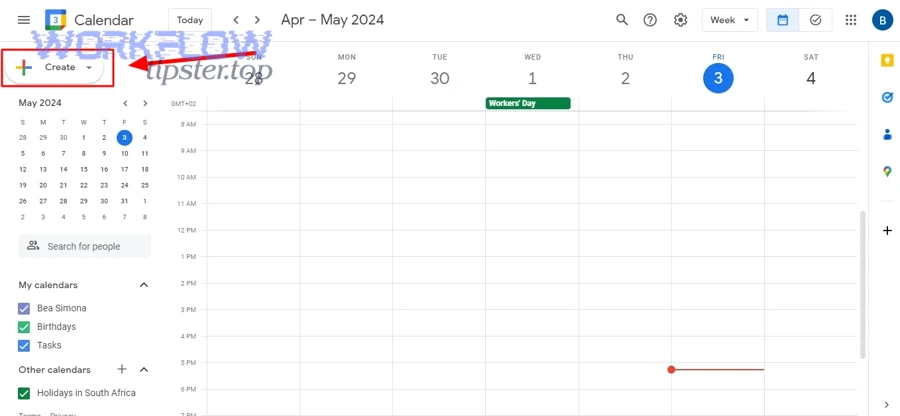
Step 1: Connect Calendly to Google Calendar the right way
Connect Calendly to the correct Google account and choose the right calendar(s) for conflict checking and event creation, because misaligned calendars are the #1 cause of missing events and double-booking. Next, standardize these settings:
- One “source calendar” for event creation (the calendar where booked meetings land)
- Clear conflict-check rules (which calendars block availability)
- Consistent event titles (include invitee + purpose, but don’t depend on title for identity)
If your organization uses multiple calendars, document which one is authoritative for “booked meetings” versus personal scheduling.
Step 2: Ensure Google Meet is reliably added to events
Enable Google Meet as the location/conferencing method and verify that the Meet link appears consistently in the created event, because downstream Jira creation often depends on capturing that Meet URL. Then, reduce variability:
- Use a single event-type policy for conferencing (don’t mix Zoom/Meet unless you must)
- Ensure the connected Google account has Meet conferencing enabled
- Decide where you will store the Meet URL for syncing (event location vs description vs custom field)
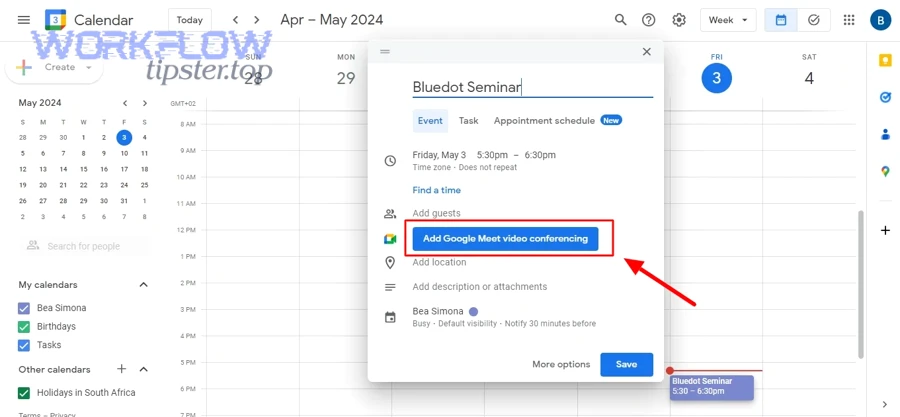
If you’re using an automation tool, add a short delay or a “re-check step” before reading the Meet link, because conferencing details may not populate instantly.
Step 3: Turn calendar events into Jira issues (create/update/cancel logic)
Create or update a Jira issue from the calendar event using three paths—create on new booking, update on changes, and transition on cancellation—so Jira stays synchronized with scheduling changes. More specifically, your Jira issue should include:
- Summary: Meeting purpose + invitee/company
- Description: Agenda, booking answers, and the Google Meet URL
- Dates: Meeting start time (as a custom field) + due date if you use it
- Ownership: Assignee (host) + watchers (stakeholders)
- Context: Labels/components that reflect event type (e.g., “demo,” “support,” “handoff”)
This is also where you can naturally reuse cross-workflow patterns. For example, the same “event-to-record” logic shows up in google forms to hubspot to google sheets to google chat lead capture, where you transform a scheduled touchpoint into an actionable pipeline item.
If your organization also runs document-heavy processes, keep the narrative consistent: a meeting can trigger follow-up paperwork, like airtable to google slides to dropbox to docusign document signing, where the Jira issue becomes the coordination hub for assets and approvals.
Step 4: Prevent duplicates with idempotency keys and field mapping
Prevent duplicates by using one immutable idempotency key (Calendly booking ID or Google Calendar event ID) and storing it in a dedicated Jira field so every replayed trigger updates the same issue instead of creating a new one. Then, enforce field mapping rules:
- Idempotency key → Jira custom field (required)
- Calendar event ID → Jira custom field (optional but helpful)
- Meet URL → Jira field (description + dedicated field if possible)
A practical mapping pattern that works well:
- Jira Summary = “Meeting: {Event Type} — {Invitee Name}”
- Jira Description = agenda + answers + Meet link + Calendar event link
- Jira Custom Field “External ID” = Calendly booking URI/ID
- Jira Custom Field “Meeting Start” = ISO timestamp
If you also need “task creation from scheduled items” in other stacks, reuse the same idempotency strategy. For example, calendly to outlook calendar to google meet to asana scheduling follows the same rule: one meeting must equal one task object, updated over time.
What are the most common failure points and how do you troubleshoot them?
The most common failures are missing Meet links, duplicated Jira issues, and silent automation breaks—each fixable by improving timing, identifiers, and monitoring. However, troubleshooting is only fast when you know which hop failed and which “source of truth” to trust.
Next, isolate failures hop-by-hop: Calendly → Calendar → Meet → Jira.
Why do Meet links sometimes not appear—and how do you fix it?
Meet links sometimes don’t appear because conferencing details are created asynchronously, because the connected account lacks permission/policy to auto-generate Meet, or because the automation reads the event before conference data is populated. Then, fix it with a reliable sequence:
- Confirm Meet is enabled on the Google Workspace account and allowed by policy.
- Check where the Meet link is stored (location vs conference section vs description).
- Add a delay/retry before reading event details in your automation platform.
- Patch/update the event if your method requires a second call to add conferencing.
If you manage multiple hosts, ensure each host’s calendar permissions allow event creation with conferencing. Mixed permission models are a common root cause.
Why do Jira issues duplicate or fail—and how do you fix it?
Jira issues duplicate when the automation treats each update as “new,” when it lacks a stable idempotency key, or when multiple triggers fire for the same event (created + updated events close together). Then, fix duplicates with a strict dedupe design:
- Always search for an existing issue by external ID before creating.
- Store the external ID in a single dedicated field, not only in description text.
- Implement create-or-update logic rather than “always create.”
- Debounce bursts: when rescheduling happens, multiple updates can fire rapidly.
Failures often happen due to permissions (cannot create issues in project), field configuration (required fields missing), or rate limits. Your automation should capture the full error payload and route it to a team channel.
How do you monitor runs and build alerts?
Monitor reliability by logging every run, capturing errors with context, and sending alerts only when action is required—so humans are notified when the workflow breaks, not when it succeeds. More specifically:
- Run logs: keep trigger time, event ID, booking ID, Jira issue key, and status.
- Alert rules: alert on repeated failures, missing Meet URL after X minutes, or Jira create/update failure.
- Fallback behavior: if Jira creation fails, create a “manual triage” task with event details.
A simple but effective practice is to create a dedicated “Automation Ops” Jira project or board that receives failures as issues; this keeps remediation in the same tool the workflow supports.
What does “Skip Manual Updates” require for a team rollout?
It requires (1) correct permissions, (2) a standardized issue template, and (3) scheduling policy alignment—so people trust the automation and stop doing shadow manual work. Next, rollout succeeds when you treat this as operational change management, not just a technical integration.
What permissions do you need in Google and Jira?
You need enough Google permissions to create and read event + conferencing details, and enough Jira permissions to create issues, edit fields, and transition statuses—otherwise the automation will fail silently or partially. Then, define the permission model:
- Google: OAuth scopes for calendar read/write and conference details (depending on method)
- Jira: permission scheme allowing issue creation in the target project, plus edit/transition rights
To reduce risk, use least-privilege service accounts where possible and avoid personal accounts being the long-term “owner” of the automation.
Evidence: According to a study by McKinsey (McKinsey Global Institute), in 2024, currently demonstrated technologies could theoretically automate about 57% of US work hours, highlighting how much repetitive coordination work can be shifted into automated systems.
How do you design issue templates that teams will actually use?
Design an issue template that captures meeting outcomes, not just meeting metadata, because adoption fails when the Jira issue feels like a duplicate calendar invite. Next, include:
- A clear “Definition of Done” for meetings (e.g., notes posted, decisions recorded, follow-ups created)
- A structured description block:
- Meet link
- Attendees
- Agenda
- Key questions
- Required artifacts/links
- Labels/components that reflect workstream ownership
If your team does demos or support calls, add checkboxes like “recording link added,” “follow-up email sent,” or “ticket created,” so the Jira issue becomes a completion checklist.
How do you handle time zones, working hours, and meeting policies?
Handle time zones by storing timestamps in ISO format and displaying them in the user’s locale, handle working hours by aligning Calendly availability with team schedules, and handle policies by standardizing conferencing and cancellation rules. Then, document these team rules:
- Default meeting duration + buffers
- Cancellation windows and what happens in Jira after cancellation
- Reschedule rules (same issue updated vs new issue created)
- Meet link reuse policy for recurring series
If you operate across regions, explicitly define “working hours” by team, and ensure your automation doesn’t assign work outside that boundary.
How can you optimize this workflow for scale, governance, and advanced edge cases?
You can optimize the workflow by enforcing governance (audit logs + least privilege), handling edge cases (recurring and multi-host scenarios), and extending the pattern carefully—while also knowing when the opposite flow (Jira → Calendar) is a better fit. Next, treat “optimization” as a stability layer on top of correctness.
How do you add enterprise governance: audit logs, retention, and least privilege?
Add governance by centralizing ownership, documenting field mappings, restricting who can edit automations, and retaining logs long enough to investigate failures. Then, implement:
- Audit trail: who changed the automation, when, and why
- Secret management: secure storage for tokens and webhook secrets
- Access review: quarterly checks of OAuth scopes and Jira permissions
- Retention policy: keep run logs for a defined period (e.g., 30–90 days)
This prevents “automation drift,” where the workflow still runs but slowly stops matching real operational needs.
What are advanced edge cases: recurring series, multiple hosts, and one-to-many meetings?
Edge cases break naive designs, so you should explicitly plan for them:
- Recurring series: decide whether one Jira issue tracks the series or each occurrence creates an issue.
- Multiple hosts: ensure the correct host/calendar is used; otherwise Meet links and organizer fields can misalign.
- One-to-many meetings (group sessions): decide whether to create one Jira issue per attendee or one master issue with sub-tasks.
A robust approach is to use one “master external ID” plus a “child occurrence ID,” so updates remain deterministic.
How can you extend the pattern to other automation workflows without breaking intent?
Extend the pattern by reusing the same primitives—trigger, stable IDs, mapping, retries, and monitoring—rather than copying a brittle flow and changing app names. Then, keep the intent stable: “scheduled event → accountable work item.”
For example, you can extend this to capture new demand automatically (like google forms to hubspot to google sheets to google chat lead capture) while keeping the same reliability principles: one submission/event equals one record, updated safely over time.
What is the opposite workflow: Jira → Calendar/Meet scheduling—and when is it better?
The opposite workflow is Jira → Google Calendar/Meet scheduling, and it’s better when Jira is the source of truth for planning (release tasks, on-call changes, sprint ceremonies) and the calendar is just the execution surface. Then, you invert the data flow:
- Jira issue created/updated → calendar event created/updated
- Jira due date changes → calendar time shifts
- Jira status transitions → calendar event reminders or cancellations
This inversion is often better for internal delivery work, while Calendly-first is usually better for external-facing scheduling (sales, recruiting, customer success), where booking intent starts outside Jira.