


If your team wants a reliable scheduling pipeline, the fastest path is to connect Calendly → Google Calendar → Google Meet → ClickUp so every booking becomes a calendar event, includes a meeting link, and creates a trackable task with the right owner and due date.
Next, you’ll need to choose the right integration method for your workflow complexity—native connections for simplicity, or a no-code automation tool when you need conditional routing, templates, and “update-not-duplicate” behavior.
Then, you’ll want to map the correct fields (time, timezone, invitee, meeting URL, and unique IDs) so reschedules and cancellations stay consistent across your calendar and task system, instead of creating confusion.
Introduce a new idea: once the workflow works end-to-end, the real win comes from standardizing it for teams—naming conventions, task templates, permissions, and troubleshooting patterns that keep automation trustworthy as volume grows.
What does “Calendly to Google Calendar to Google Meet to ClickUp scheduling automation” mean in practice?
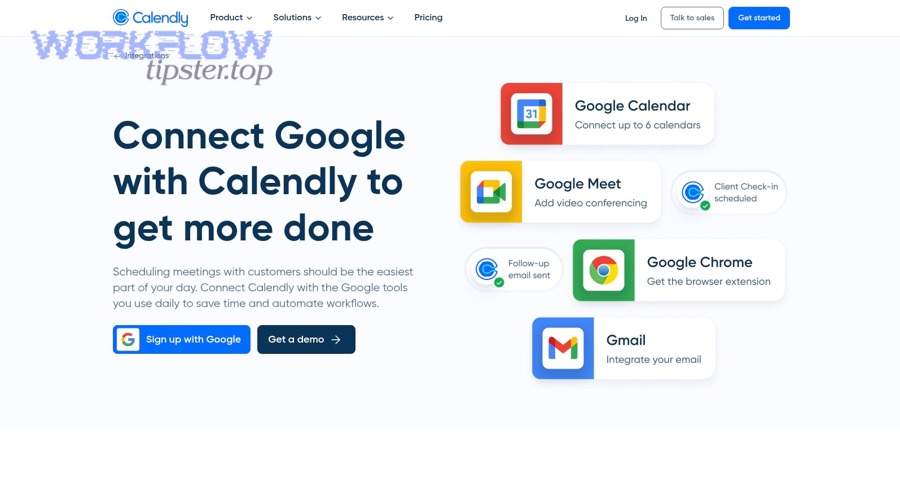
Calendly → Google Calendar → Google Meet → ClickUp scheduling automation is a no-code workflow that turns each booking into a Google Calendar event, attaches a Meet link for attendance, and creates a ClickUp task to track ownership and follow-through.
To better understand the workflow, it helps to picture the chain as “time + link + accountability,” where each app contributes one essential part.
Here’s what “meaning in practice” looks like for a typical team:
- Calendly is the trigger and the source of booking truth. A booking gets created, rescheduled, or canceled. That event includes critical metadata: event type, invitee name/email, start/end time, timezone, answers to intake questions, and often a unique booking identifier.
- Google Calendar is the meeting container. It holds the canonical meeting time on the organizer’s schedule and is usually the system that generates conferencing details and sends calendar invitations.
- Google Meet is the access layer. The Meet URL is the “join link” that needs to appear consistently in the Calendar event so guests don’t hunt for it.
- ClickUp is the execution layer. It turns a meeting into work: a task with an assignee, status, due date, and context (agenda, notes, next steps, related customer/project).
Why teams adopt this chain is straightforward: it removes manual copying and reduces “calendar chaos” caused by missing meeting links, inconsistent invite details, and follow-ups that live only in someone’s memory.
Evidence: According to a study by University of California, Irvine from the Donald Bren School of Information and Computer Sciences, in 2008, researchers examined the disruption cost of interruptions and the time needed to reorient to an interrupted task, highlighting why reducing manual scheduling friction improves focus and continuity. (ics.uci.edu)
Do you need Google Calendar connected to Calendly to generate Google Meet links?
Yes—if you want Google Meet links to appear automatically and consistently, you typically need Google Calendar connected so the Calendar event can create and carry the Meet conferencing details, and you need correct conferencing settings and permissions to ensure link generation works at scale.
Besides that dependency, the practical issue is that Meet links are often governed by Calendar-level rules (participant requirements, admin defaults, and conferencing behavior), so the Calendar connection becomes the most reliable “link factory.”
Here are three clear reasons this connection matters:
- Google Calendar controls conferencing behavior. Many organizations configure Meet as the default conferencing provider and automatically add conferencing links under specific conditions (often when participants are included). (support.google.com)
- The Calendar event is the shared reference point for guests. Even if Calendly can show a location or link, the guest experience typically depends on what appears in the calendar invite and event details.
- Permissions and policies live in Google Workspace. If Meet link creation requires certain settings (or admin governance), the Calendar connection ensures the system follows those rules rather than relying on inconsistent manual steps. (support.google.com)
A useful rule of thumb: if your team’s meetings live in Google Calendar, make Google Calendar the source of the meeting link so every attendee sees the same join experience.
Which setup options can automate Calendly → Google Calendar → ClickUp, and when should you use each?
There are 3 main types of setups for Calendly → Google Calendar → Google Meet → ClickUp scheduling: (1) native scheduling + manual ClickUp, (2) native scheduling + no-code automation, and (3) automation-first orchestration, based on the criterion of how much routing, mapping, and update logic you need.
Next, the choice becomes easier when you match the setup to your operational reality: volume, number of event types, number of owners, and how painful duplicates are for your team.
What can you automate using native connections only (without a third-party tool)?
Native connections can automate the calendar side very well—booking creation, event placement, and often conferencing link behavior—while leaving ClickUp task creation and advanced routing either manual or limited, depending on your exact plan and features.
To illustrate the boundary, native integration usually excels at “time and place,” but it’s rarely built for “task templating and assignment.”
What native connections can typically cover:
- Create calendar events for bookings (and reflect reschedules/cancellations as updates to the event).
- Use conferencing defaults to attach meeting links at the Calendar level when configured by user or admin. (support.google.com)
- Keep attendee experience consistent because guests receive standardized Calendar invitations.
Where native usually falls short for teams:
- ClickUp task creation with structured fields (assignee, status, custom fields, rich descriptions).
- Conditional logic like “If event type is Demo, create task in Sales list; if onboarding, create task in CS list.”
- Dedupe and idempotency logic that prevents duplicates across retries.
What can Zapier/Make/Relay/Integrately automate better than native connections?
A no-code automation tool wins in conditional routing, structured mapping, templated task creation, and “update instead of duplicate,” while native connections are best for simple calendar sync and minimal maintenance.
However, the real difference is operational: automation tools behave like workflow engines, so you can control steps, conditions, and error handling in a way that native connections don’t expose.
Where automation tools shine for this workflow:
- Multi-step sequencing: create/update Google Calendar event → confirm Meet link exists → create ClickUp task → add task link back into the event notes.
- Advanced mapping: convert date-time formats, normalize timezones, build consistent task titles, and store unique IDs.
- Team routing: assign ClickUp tasks by event type, invitee answers, round-robin owner, or calendar used.
- Standardization across automation workflows: once you learn the pattern, you can reuse it for other ops chains like “github to trello to google chat devops alerts” without reinventing your team’s logic.
How do you choose between Zapier vs Make vs other no-code tools for this workflow?
Zapier wins for speed-to-launch and simplicity, Make is best for complex branching and data transformation, and other tools can be optimal for budget or specific governance needs—so your choice depends on whether your bottleneck is time, complexity, or operational control.
Meanwhile, the most practical decision framework is to start from your failure modes: if duplicates and reschedules are painful, prioritize a tool that can search-by-ID and update records reliably.
Use this quick comparison checklist:
- Choose Zapier-style simplicity when you have 1–3 event types, light branching, and you mainly need “create task + populate fields.”
- Choose Make-style flexibility when you have multiple calendars, heavy routing, custom transformations, or you need robust “search then update” logic.
- Choose a governance-friendly option when you need admin controls, shared ownership, and clearer run logs for team operations.
How do you set up the workflow step-by-step for teams?
Use a no-code orchestration method with 6 steps—connect accounts, confirm calendar routing, enforce Meet link creation, map booking fields, create ClickUp tasks from templates, and test reschedules/cancellations—so every booking produces a consistent event, link, and task.
Below is the team-safe approach that minimizes surprises after you turn the workflow on.
How do you connect Calendly to Google Calendar so events sync correctly?
Connect Calendly to the correct Google account and map each event type to the intended calendar so bookings land in the right place, avoid double-booking, and reflect reschedules accurately.
To begin, treat calendar selection as a team policy—not a personal preference—because the wrong calendar creates silent failure later.
Implementation steps that teams should standardize:
- Pick the “event calendar” per event type. For example, Sales demos go to a Sales calendar; onboarding goes to a CS calendar.
- Confirm timezone behavior. Ensure Calendly and Google Calendar use the same default timezone expectations for organizers.
- Align availability rules. If the Google Calendar is the availability source, confirm that busy blocks reflect the actual schedule you want to protect.
- Test three scenarios: new booking, reschedule, and cancellation—because each is a different operational risk.
A practical team pattern: create a shared “Scheduling” Google Calendar (or per-team calendars) specifically for bookings, and keep personal calendars separate unless you truly need mixed availability.
How do you ensure the Google Calendar event includes a Google Meet link every time?
Yes—you can ensure Meet links appear reliably by making Meet the default conferencing option (where applicable), ensuring events have participants when required, and validating that your workflow adds conferencing consistently before invitations go out.
Then, treat missing links as a configuration problem, not a user problem, because users won’t fix it consistently under pressure.
Team-focused best practices:
- Check your organization’s Meet defaults and conferencing rules. Admin settings can control whether Meet is added automatically and under what conditions. (support.google.com)
- Standardize event creation path. If bookings create events through the connected calendar, you reduce variation across users.
- Add a “verification step” in automation tools. If the event lacks conferencing details, update the event (or alert an owner) before the meeting happens.
Operationally, the goal is simple: the guest should see one join link in one place—the Calendar invite—every time.
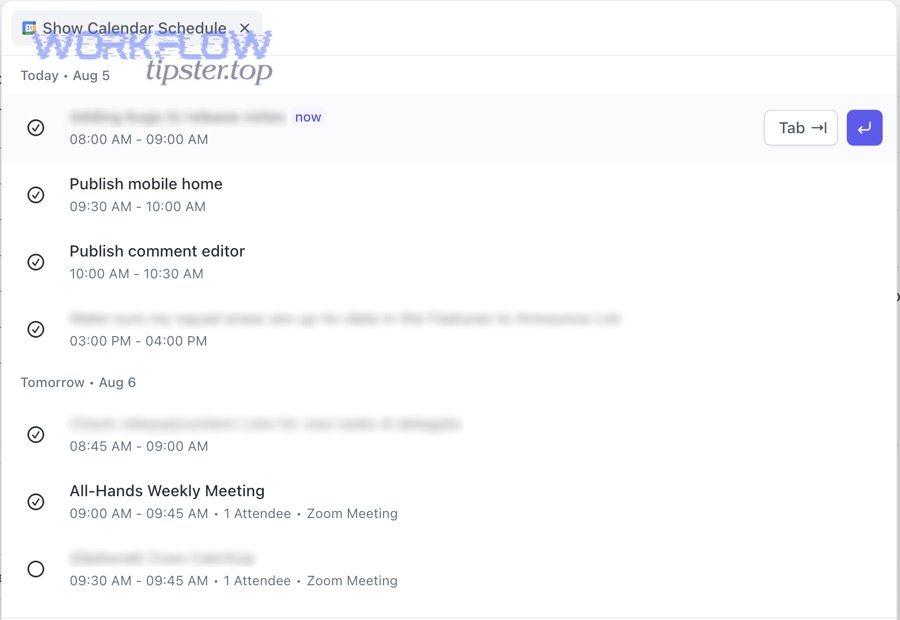
How do you create a ClickUp task from each Calendly booking with the right fields?
Create ClickUp tasks using a template-driven mapping with 5 required fields—task name, assignee, due date/time, status, and a structured description—so the booking becomes actionable work instead of an isolated meeting.
Specifically, you should build the ClickUp task as a repeatable “meeting work object,” not a free-form note.
A team-ready field strategy:
- Task name (standardized):
{{Event Type}} — {{Invitee Name}} — {{Date}} - Assignee: event owner, round-robin owner, or the responsible team role
- Due date/time: meeting start time (or follow-up deadline if you prefer action-based tasks)
- Status: “Scheduled” → “Held” → “Follow-up” → “Done”
- Description (structured):
- Booking details (time, timezone, invitee, email)
- Meeting link (Meet URL)
- Intake answers (budget, goal, priority, etc.)
- Agenda prompts + next-step checklist
If your team uses custom fields, add: account name, opportunity stage, region, meeting type, and the unique booking ID (for dedupe).
How do you handle reschedules and cancellations so ClickUp stays accurate?
There are 2 main ways to handle reschedules and cancellations: (A) update the existing ClickUp task using a unique booking ID, or (B) create a new task and mark the old one as rescheduled/canceled, based on the criterion of how much history and reporting you need.
More importantly, pick one rule and enforce it, because inconsistency is what creates messy backlogs.
A practical team policy:
- Reschedule rule (recommended): update the same task (due date/time and description) so there is one source of task truth.
- Cancellation rule (recommended): update the existing task status to “Canceled,” store the cancellation reason (if available), and stop reminders.
If you need historical analytics (e.g., reschedule rates), you can keep a log field or a linked subtask, but still avoid duplicating “active” tasks.
What information should you map from the booking into Google Calendar and ClickUp?
There are 8 core data groups you should map—identity, timing, timezone, event type, location/Meet link, organizer/ownership, intake answers, and unique IDs—based on the criterion of what’s required to run the meeting and what’s required to execute follow-up work.
Next, use a consistent map so your team can predict where every detail will appear.
Here is a recommended mapping table, which shows what to capture and why it matters for reliability:
- Identity: invitee name, invitee email
- Timing: start time, end time, duration
- Timezone: invitee timezone, organizer timezone (or normalized timezone)
- Event type: demo/onboarding/support, etc.
- Location: Meet link or conferencing details
- Ownership: assigned rep/CSM/support agent
- Intake answers: form responses that shape agenda
- Unique IDs: booking ID / event UUID for dedupe
To operationalize, structure your ClickUp description into sections so anyone can scan it quickly:
- Meeting basics: who, when, where
- Context: why they booked, key answers
- Plan: agenda and desired outcome
- After: next steps checklist
This is the difference between “a task exists” and “a task is usable.”
How do you prevent duplicate ClickUp tasks and mismatched updates?
Prevent duplicates by using one unique booking identifier as the task’s “idempotency key,” searching for an existing task before creating a new one, and updating the same task on reschedule/cancel events so retries don’t multiply work.
Then, treat deduplication as a first-class feature, because every automation eventually retries or replays.
The most reliable duplicate-prevention pattern:
- Store a unique ID in ClickUp (custom field or a standardized line in the description).
- On every new booking event, search ClickUp for that unique ID.
- If found, update the task (time, status, description).
- If not found, create the task and write the ID immediately.
Where teams get burned is “create-only” workflows. They look fine in testing and fail in production when:
- The automation tool retries after a timeout
- A webhook event gets delivered twice
- A teammate manually triggers a run
- A reschedule arrives as a new event type payload
If your tool supports it, also add a “lock” behavior: once a task is created, future runs must update it, not create another.
What are the most common failures and how do you troubleshoot them quickly?
There are 6 common failure categories—auth, wrong calendar routing, missing Meet links, timezone drift, ClickUp destination errors, and duplicates—based on the criterion of which system breaks first in the chain (calendar, conferencing, or tasks).
Below are fast troubleshooting patterns that teams can reuse instead of reinventing fixes under deadline pressure.
Why isn’t the Google Meet link appearing in the calendar invite?
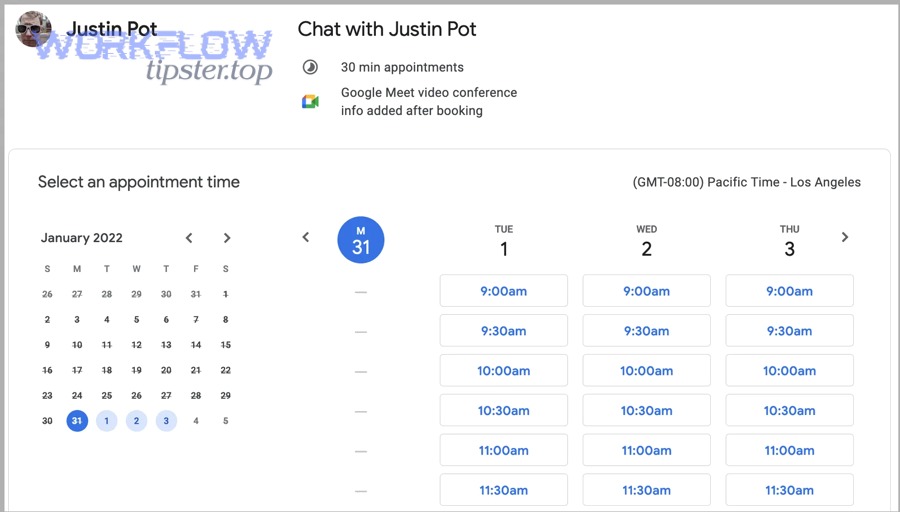
The Meet link usually fails to appear because conferencing defaults aren’t enabled, the event lacks required participant conditions, or the event is being created on a calendar/account where Meet conferencing rules differ.
However, you can diagnose it quickly by checking whether Meet is configured as the default provider and whether your organization auto-adds conferencing under specific conditions. (support.google.com)
Fast checks:
- Confirm the event is created on the intended Google Calendar.
- Check admin or user conferencing rules and “auto-add” behavior. (support.google.com)
- Validate the workflow creates/updates the event before invitations finalize.
If your organization uses managed accounts, treat Meet link behavior as a policy-controlled setting rather than a per-user tweak.
Why are ClickUp tasks not being created (or created in the wrong list)?
ClickUp tasks usually fail or land in the wrong place because the workflow points to the wrong Workspace/List, permissions don’t allow creation, or field mapping fails when required fields are missing.
On the other hand, you can troubleshoot faster by testing a single booking and watching which step fails: list selection, task creation, or field population.
Fast checks:
- Verify the target Space/Folder/List IDs in your automation step.
- Confirm the connected account has permission to create tasks where you expect.
- Confirm your mapping has safe fallbacks (e.g., if invitee company is blank, don’t fail the task creation).
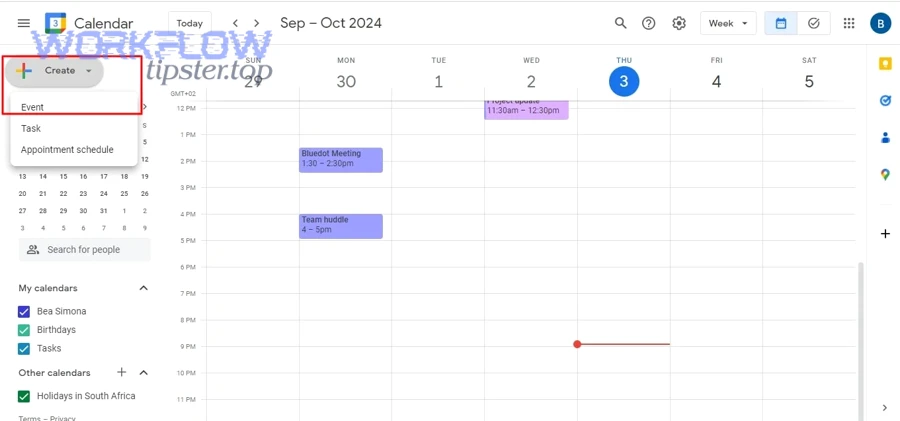
- Validate whether your team is relying on ClickUp’s calendar integration vs a task-creation automation, because they behave differently. (help.clickup.com)
Why are the meeting times wrong in ClickUp or Google Calendar?
Wrong times happen when timezone normalization is inconsistent, daylight-saving shifts are handled differently across tools, or one step interprets the datetime as “local” while another treats it as “UTC.”
Moreover, you can fix it reliably by standardizing one timezone representation (store both the original invitee timezone and the normalized organizer timezone) and mapping due dates using the same base.
Fast checks:
- Confirm the organizer’s calendar timezone setting.
- Confirm the booking includes timezone data and your mapping uses it.
- Ensure the ClickUp due date uses the intended timezone conversion (or store the meeting time as text in the description as a fallback).
When in doubt, store the “human-readable time” in the task description alongside the normalized due date so teammates can spot drift instantly.
What does a “best-practice” workflow look like for a sales or ops team?
A simple workflow wins in speed and low maintenance, a standardized workflow is best for team consistency and reporting, and an orchestration workflow is optimal for scale and reliability—so the best-practice choice depends on whether your primary constraint is setup time, coordination, or volume.
In addition, best-practice is less about tools and more about repeatability: the same inputs should always produce the same outputs.
Option A: Simple workflow (good for early-stage teams)
- One event type → one calendar → one ClickUp list
- Create task on booking
- Manual handling for reschedules/cancels (or minimal updates)
Option B: Standardized workflow (best for growing sales/ops teams)
- Multiple event types mapped to templates
- Structured task naming + required fields
- Update task on reschedule/cancel
- Basic run logs + alerting
Option C: Orchestration workflow (best for high volume or strict ops needs)
- Search-before-create + idempotency key
- Conditional routing (team, region, priority)
- Automated reminders and follow-up creation
- Governance: permissions, shared ownership, audits
This is where teams often expand into broader automation workflows across departments—for example, a support organization might pair scheduling with “freshdesk ticket to jira task to google chat support triage” to keep service work and real-time notifications aligned.
Evidence: According to a study by the University of Nebraska Omaha from the Department of Psychology, in 2018, researchers summarized meeting science findings noting that employees average about 6 hours per week in meetings and managers average around 23 hours per week, reinforcing why meeting-related work needs structured systems and follow-through. (par.nsf.gov)
How can teams optimize, secure, and scale this Calendly → Google Calendar → Google Meet → ClickUp workflow?
Teams can optimize, secure, and scale this workflow by standardizing templates and naming, enforcing least-privilege access, implementing idempotency keys for “update-not-duplicate,” and defining a clear source-of-truth rule so changes propagate predictably.
More importantly, scaling is about reducing variability: fewer “personal setups,” more shared process.
A useful micro-semantics lens is the antonym pair “open access” vs “least-privilege access”—because the more people you add, the more your workflow must protect accounts, calendars, and data while staying usable.
How do you standardize ClickUp task templates by event type (and avoid messy workspaces)?
Standardize with 3 template layers—task title format, required fields, and a structured description block—based on the criterion of what must remain consistent across every booking regardless of who owns the meeting.
Next, attach each template to an event type so the workflow does the organizing automatically.
Practical template rules:
- One list per workflow purpose (Demos, Onboarding, Support Calls)
- One status pipeline per purpose (Scheduled → Held → Follow-up → Closed)
- Required custom fields: booking ID, meeting type, owner, account/project
- Description sections: details, agenda, notes, next steps
How do you stop duplicates across tools using a unique booking ID (idempotency)?
Stop duplicates by writing the booking’s unique ID into ClickUp immediately and using that same ID as the match key for future runs, so every reschedule/cancel updates the same record instead of creating a new one.
Then, make that ID visible to humans (custom field or top of description) so support and ops can debug without guesswork.
Implementation checklist:
- Store
Booking IDin a ClickUp custom field - Search tasks by that field before creating anything
- Update task fields on reschedule
- Mark task canceled on cancellation
This is also the transferable pattern behind other reliable chains, including “airtable to docsend to onedrive to dropbox sign document signing,” where the document or transaction ID prevents duplicate records across systems.
What’s the best “source of truth” when events change—Calendly, Google Calendar, or ClickUp?
Calendly wins for booking state (scheduled/rescheduled/canceled), Google Calendar is best for attendee-facing meeting details, and ClickUp is optimal for execution status and internal follow-through—so you should split source-of-truth by function rather than forcing one system to govern everything.
However, once you define this, your workflow becomes dramatically easier to scale because every update has a clear direction.
A clean rule set:
- Booking state changes originate in Calendly
- Attendee-facing time/link lives in Google Calendar
- Work tracking lives in ClickUp
- The automation layer translates changes into updates, not duplicates
How do you secure permissions and reduce risk (shared calendars, team access, audit logs)?
Secure the workflow by using least-privilege accounts, limiting calendar scopes, avoiding shared personal calendars, and documenting who owns each integration, because “open access” increases the risk of accidental changes, while “least-privilege access” preserves reliability and auditability.
Besides security, this also improves uptime: fewer broken connections caused by account changes, password resets, or offboarding.
Practical governance steps:
- Use team-owned integration accounts where appropriate (not personal accounts for critical pipelines)
- Restrict calendar access to the minimum needed
- Document re-authentication procedures
- Centralize run logs and set alerts for failed runs
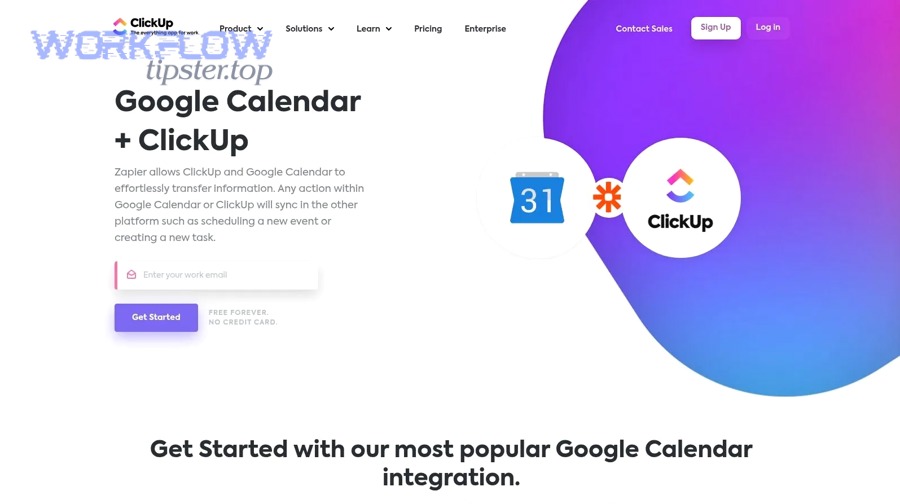
- Validate how calendar integrations behave in ClickUp, especially around what syncs and what does not. (help.clickup.com)