


If your team books meetings in Calendly and you want every booking to instantly create an actionable follow-up in Asana—with Google Meet details included—you can automate the full workflow by connecting your calendar, standardizing the data you capture, and choosing a no-code or manual setup that fits your scale.
To make this work reliably, you also need to ensure Google Meet links are generated consistently (based on your connected Google Calendar and event location settings), so invitees and internal stakeholders see the same conferencing details in confirmation messages, calendar invites, and downstream Asana tasks. (help.calendly.com)
Next, the Asana side must transform raw booking data into useful work: the right project, the right assignee, the right due date, and a clean task description that includes the meeting link, invitee context, and next steps—so the team’s scheduling automation workflow becomes a true execution system, not just notifications.
Introduce a new idea: once the basics are in place, the difference between “it works sometimes” and “it works every time” comes from lifecycle handling (reschedules, cancellations, duplicates) and from choosing the right implementation path—no-code vs manual—based on complexity, volume, governance, and maintenance.
What does “Calendly-to-Calendly scheduling with Google Meet → Asana tasks” mean in a real workflow?
Calendly-to-Calendly scheduling with Google Meet → Asana tasks is an end-to-end scheduling automation workflow where a booking created in Calendly (often routed between team members) automatically generates Google Meet conferencing details and then creates an Asana task for follow-up execution.
To better understand the workflow, it helps to break it into “what triggers,” “what gets created,” and “what gets tracked” across the three systems.
In practical terms, this workflow usually looks like the following macro sequence:
- Scheduling trigger (Calendly): An invitee books a time slot through a Calendly event type.
- Conferencing creation (Google Meet): The booking results in a calendar event that contains Google Meet details (link + dial-in, if applicable), which are also surfaced in notifications.
- Work creation (Asana): A task is created in the correct Asana project (or section), assigned to the correct owner, with the meeting time, context, and link included.
- Lifecycle updates: If the meeting is rescheduled or canceled, the existing Asana task is updated (not duplicated), and the team stays aligned.
The “Calendly-to-Calendly” part matters for teams because many organizations don’t schedule into a single person’s calendar. Instead, they route bookings to:
- Different hosts (sales rep rotation, customer success managers, recruiters)
- Different event types (demo vs onboarding vs support triage)
- Different teams (regional pods, product lines, languages)
When routing is involved, automation must do more than “create a task.” It must also preserve ownership logic: the right host gets the right task, in the right project, with the right SLA.
What is the minimum viable setup to get Google Meet details into a booking and an Asana task created?
The minimum viable setup is: connect Calendly to your Google Calendar so Google Meet conferencing details are automatically added to the Calendly meeting, then use an automation step to create an Asana task that includes the meeting link, invitee details, and meeting time. (help.calendly.com)
Specifically, the most important requirement is that Google Meet is actually generated and saved to the calendar event, because Asana can only store what your automation passes downstream.
A “minimum viable” task payload should include:
- Who: invitee name + email
- When: start time + timezone (and optionally duration)
- What: event type name + any answers to custom questions
- Where: Google Meet link
- Next step: checklist or subtask placeholders (“Prep agenda,” “Send recap,” “Update CRM”)
A simple, team-friendly naming convention often works best:
- Task title: [Meeting Type] – [Invitee Name] – [Date]
- Task description (top lines): Meet link + key context + prep checklist
This is where the workflow becomes operational: a meeting stops being “a calendar thing” and becomes “a deliverable with owner + deadline.”
Which parts of this workflow are handled by Calendly vs Google Meet vs Asana?
There are three functional layers—Calendly handles scheduling logic, Google Meet provides conferencing details through the connected calendar event, and Asana manages execution as tasks, projects, assignments, and due dates.
However, the handoff between layers is the critical link in the chain, because each system owns different “truth.”
Here is the clean division of responsibilities:
- Calendly (scheduling truth):
- Availability rules, buffers, minimum notice
- Event type selection and routing rules
- Invitee data capture (questions, forms)
- Lifecycle signals (scheduled, rescheduled, canceled)
- Google Meet (conferencing truth):
- Conferencing link generation (when configured)
- Conferencing details stored on the calendar event and shared via invite/notifications (calendly.com)
- Asana (execution truth):
- Task creation, assignment, and ownership
- Workflow stages (sections), custom fields, due dates
- Collaboration (comments, attachments, checklists)
The “automation layer” (no-code or custom) is what connects these truths so the team doesn’t have to re-enter data manually.
Evidence: According to a study by University of California, Irvine from the Department of Informatics, in 2008, researchers found that interruptions significantly affect work patterns and stress—highlighting why converting meetings into structured tasks reduces cognitive overhead and context churn. (ics.uci.edu)
Can you automate Calendly → Google Meet → Asana without code?
Yes—Calendly → Google Meet → Asana can be automated without code because Calendly can generate Google Meet details via a connected Google Calendar and an automation tool can create structured Asana tasks, reducing manual handoffs, preventing missed follow-ups, and standardizing team execution. (help.calendly.com)
Next, the key is to treat “no-code” as an engineering choice: you still design triggers, field mapping, and lifecycle rules—you just build them with connectors instead of code.

A no-code approach is usually strong when:
- You need fast implementation and iteration
- You have clear, stable rules (event type → project, host → assignee)
- You can tolerate “configuration maintenance” (updating mappings when workflows change)
- You want visibility into runs and failures for ops teams
To make no-code reliable, you must design around three realities:
- Data shape changes: event types evolve; questions change; teams rename projects.
- Lifecycle events happen: reschedules and cancellations are not edge cases—they’re normal.
- Duplicates are expensive: duplicates create operational noise and distrust in the system.
Which no-code tools and connectors are most commonly used for this automation?
The most common no-code tools for this automation are connector-based iPaaS platforms that support (1) Calendly scheduling triggers, (2) data transformation, and (3) Asana task actions—often with filters, branching, and error handling.
Then, you select the tool based on what your team values most: speed, flexibility, or governance.
Typical connector patterns include:
- Trigger: “Invitee Scheduled” (new booking) from Calendly
- Action: “Create Task” in Asana
- Enhancements: filters (event type), paths (routing), lookup tables (project mapping), and “find task” steps for deduplication
Even if your team later chooses a manual/API route, the no-code blueprint is valuable because it forces you to document:
- Which fields matter
- Which ownership rules are real
- Which lifecycle actions must happen
This also makes the workflow portable across adjacent automations—like calendly to google calendar to google meet to basecamp scheduling—because the macro structure stays the same: schedule → confer → create work → update lifecycle.
How do you map Calendly booking data into a clean Asana task structure?
Calendly booking data maps cleanly into Asana when you standardize a task template (title + description + fields), map event types to projects/sections, and convert time information into a clear due-date rule so every task is immediately actionable.
Specifically, the most important mapping decision is whether your Asana task represents the meeting or the follow-up work—because that choice determines due dates, assignees, and checklists.
A strong baseline mapping (works for most teams):
1) Task Title
- [Event Type] – [Invitee Name] – [Start Date]
2) Task Description (top block)
- Google Meet: {meet_link}
- Time: {start_time} ({timezone})
- Invitee: {name} – {email}
- Context: {answers_to_questions}
- Internal notes: {host} / {team} / {routing_reason}
3) Project + Section logic
- If Event Type = Demo → Project “Sales Pipeline” / Section “Scheduled”
- If Event Type = Onboarding → Project “CS Onboarding” / Section “Upcoming”
- If Event Type = Support → Project “Support Triage” / Section “To Review”
4) Assignee logic
- Assign to the host (if 1:1 ownership)
- Assign to a pod owner (if team handles follow-up)
- Assign to a queue owner (if triage model)
5) Due date logic (pick one)
- Meeting-based: due at meeting start time (task is “attend/prep”)
- SLA-based: due X hours after meeting end (task is “follow-up deliverables”)
- Hybrid: meeting start is in description; follow-up SLA is due date
This is why automation workflows become a semantic system: you’re not just moving data—you’re enforcing meaning.
Evidence: According to a study by University of California, Irvine from the Department of Informatics, in 2008, interruptions increase stress and alter work rhythm, which supports designing automation so teams don’t repeatedly “rebuild context” after every booking notification. (ics.uci.edu)
How do you handle reschedules, cancellations, and duplicates in the automation?
There are three lifecycle types you must handle—reschedules, cancellations, and duplicates—and the best practice is to update a single Asana task using a stable Calendly event identifier, rather than creating new tasks for every change.
Moreover, lifecycle handling is what makes the system trustworthy: when the task reflects reality, the team stops double-checking calendars and starts working from Asana.
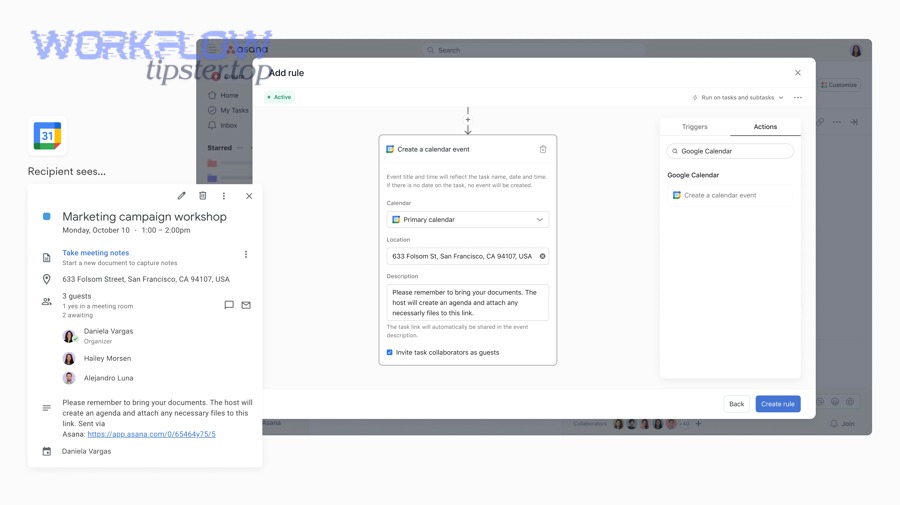
To manage lifecycle cleanly, you need two macro principles:
Principle 1: One meeting = one task (unless you intentionally split)
The task should represent the meeting record (or its follow-up record). If it represents the meeting record, it should persist even if time changes.
Principle 2: Every lifecycle event becomes a predictable task update
- Scheduled → create task, set status “Scheduled”
- Rescheduled → update time fields, add a comment, keep the same task
- Canceled → mark complete or move to “Canceled,” add a reason comment
What’s the best rule to prevent duplicate Asana tasks from the same Calendly event?
The best rule is to store a stable Calendly event ID in the Asana task and use a “find or create” pattern: first search for an existing task with that ID; only create a new task if none exists.
Specifically, the most important implementation detail is where you store the ID so it remains searchable and consistent.
Common storage options (pick one and standardize):
- Asana custom field: “Calendly Event ID” (ideal if available)
- Task description token:
calendly_event_id: XXXXX - Task name suffix: not recommended (humans edit titles)
A practical dedup flow:
- Trigger fires: booking scheduled
- Lookup: search Asana for task with Calendly Event ID = {id}
- If found: update it (don’t create)
- If not found: create task + set ID field
This single rule eliminates a huge portion of operational noise—especially for teams with frequent reschedules.
How should the Asana task change when an invitee reschedules or cancels?
An Asana task should change predictably: reschedules update the time and meeting link fields (and leave a trace comment), while cancellations mark the task complete or move it to a “Canceled” stage—so your workflow reflects reality without extra human cleanup.
However, teams often miss one subtlety: reschedule/cancel events can happen after someone already started preparation, so you must preserve context while changing status.
Recommended task update behaviors:
When rescheduled
- Update “Meeting time” block in description
- Update due date (if due date is meeting-based)
- Add a comment: “Rescheduled from X to Y”
- Keep assignee unchanged (unless host changes due to routing)
When canceled
- Add a comment: “Canceled by invitee” (or reason if available)
- Move to a “Canceled” section or set a status field
- If follow-up work is still needed (e.g., send resources), create a subtask: “Send cancellation follow-up”
Evidence: According to a study by University of California, Irvine from the Department of Informatics, in 2008, frequent task switching creates measurable costs in work continuity—supporting the design choice to update one canonical task instead of creating multiple duplicates that fragment attention. (ics.uci.edu)
How do you set up Calendly-to-Calendly routing so the right Asana project gets the right task?
You set up Calendly-to-Calendly routing by defining a routing criterion (event type, routing-form answer, team member/host, or calendar) and mapping each route to a specific Asana project/section and assignment rule, so every booking lands in the correct operational lane.
Next, treat routing as a taxonomy problem: you’re building a consistent “meaning map” from meeting intent to execution ownership.
A stable routing design usually answers these questions in order:
- What is this meeting for? (event type)
- Who should own it? (host/pod)
- Where does work live? (Asana project/section)
- What is success? (task template/checklist)
To keep it maintainable, avoid creating a new Asana project for every minor variation. Instead:
- Use one project per function (Sales, CS, Support, Recruiting)
- Use sections for stages (Scheduled, Prep, Completed, Canceled)
- Use custom fields for segmentation (Region, Segment, Product line)
Which routing methods work best for teams: round-robin, routing forms, or multiple event types?
Round-robin wins in fairness and load balancing, routing forms are best for intent-based matching, and multiple event types are optimal for clarity and reporting—so the best choice depends on whether your priority is distribution, qualification, or analytics.
On the other hand, many teams combine them: routing forms decide the lane, then round-robin assigns within the lane.
A comparison by criterion:
- Round-robin
- Best for: equal distribution (sales SDR rotations)
- Risk: can ignore specialization unless segmented by pools
- Routing forms
- Best for: capturing intent (“What do you need help with?”)
- Strength: maps naturally to Asana projects/sections and templates
- Risk: form sprawl if you keep adding questions
- Multiple event types
- Best for: reporting clarity and clean templates
- Strength: very stable mappings (event type → project)
- Risk: too many event types can overwhelm users
If you’re building a scalable system, a simple rule works well:
- Use event types for macro intent
- Use routing forms for micro intent
- Use round-robin for ownership distribution
How do you standardize task templates across multiple hosts so teams get consistent follow-ups?
You standardize task templates by creating one canonical task format (title, description block, fields, checklist), enforcing consistent mapping rules across all hosts, and centralizing ownership of template changes so routing doesn’t create fragmented task quality.
Especially in teams, standardization prevents “automation drift,” where each host’s tasks look different and collaboration becomes harder.
A practical standardization kit:
- Title formula for all event types
- Description header block (Meet link, time, invitee, context)
- Checklist library (Prep, During, After)
- Custom fields (Stage, Segment, Priority)
- Comment macros (Reschedule note, Cancellation note, Follow-up note)
This is also where cross-workflow semantic connectivity helps: if your org already runs google forms to hubspot to google sheets to google chat lead capture, you can reuse the same ideas—standard fields, stable IDs, and predictable lifecycle updates—so teams experience one coherent system across tools.
Evidence: According to a study by Harvard University from Harvard Business School, in 2021, researchers described how meeting overload harms productivity and quality—supporting standardization and automation patterns that reduce unnecessary coordination overhead. (hbs.edu)
No-Code vs Manual setup: which approach is better for your team’s scheduling automation?
No-code wins in speed and iteration, manual/API setup is best for complex governance and advanced logic, and a hybrid approach is optimal when you need no-code agility with selective custom controls—so the “best” choice depends on scale, risk, and maintenance capacity.
Meanwhile, the smartest way to decide is to evaluate your workflow against a few non-negotiable criteria rather than personal preference.
Before the details, here’s the decision frame: the more your workflow requires “state,” “idempotency,” and “multi-tenant governance,” the more manual builds become attractive. If your workflow is mostly “trigger → create task,” no-code is usually perfect.
To make this concrete, the table below compares common decision criteria so teams can choose the right implementation path.
| Criterion | No-Code setup | Manual/API setup | Hybrid setup |
|---|---|---|---|
| Time to launch | Fast (hours–days) | Slower (weeks) | Medium |
| Lifecycle handling | Good if configured well | Excellent (custom logic) | Excellent where needed |
| Dedup/idempotency | Possible but tool-dependent | Strong (built-in logic) | Strong (custom core + no-code edges) |
| Governance & audit | Varies by platform | Highest control | High (split responsibilities) |
| Ongoing maintenance | Config maintenance | Engineering maintenance | Shared |
When is no-code the right choice (and when does it break)?
No-code is the right choice when your routing rules are clear, your volume is moderate, and you can standardize templates, but it breaks when you need advanced deduplication, complex multi-domain permissions, or highly customized lifecycle logic that exceeds connector capabilities.
However, “breaks” often means “becomes expensive”: the workflow works, but it becomes hard to maintain and easy to misconfigure.
No-code is ideal if:
- You have 1–10 event types with stable mappings
- You can map to a handful of Asana projects
- You can accept connector limitations (rate limits, feature gaps)
- Your team wants to own the workflow without engineering
No-code becomes fragile if:
- You have many routing branches that constantly change
- You must support multiple Google Workspace domains
- You need strong idempotency across reschedules/cancellations
- Compliance requires strict logging and least-privilege separation
At that point, your ops team spends more time “managing the automation” than benefiting from it.
When should you use APIs/webhooks or custom scripts instead of no-code?
You should use APIs/webhooks or custom scripts when you need consistent idempotency, high-volume performance, strict governance, advanced routing logic, or multi-tenant handling that no-code platforms can’t guarantee reliably—because custom logic can enforce state and policy precisely.
More importantly, manual builds are justified when the cost of failure is high: duplicates, missed follow-ups, or misrouted tasks create revenue and customer-risk issues.
Manual/API becomes the better fit when:
- Your workflow needs a persistent database of events and states
- You must reconcile multiple sources of truth (calendar changes vs booking changes)
- You need custom monitoring, retries, and alerting
- You must implement least-privilege separation for security
Evidence: According to a study by University of California, Irvine from the Department of Informatics, in 2008, interruptions and fragmented work patterns create measurable productivity costs, reinforcing that reliable automation (with fewer manual corrections) protects focus and execution time. (ics.uci.edu)
What are the most common setup problems in Calendly → Google Meet → Asana automations and how do you fix them?
The most common problems fall into four categories—missing Google Meet links, tasks not creating or misrouting, permission/authentication issues, and multi-account scaling challenges—and you fix them by validating the calendar connection, verifying field mapping, adding run visibility, and enforcing consistent routing rules.
Besides, troubleshooting becomes much easier when you treat each failure as “which link in the chain broke”: Calendly trigger, Meet generation, or Asana action.
Below is a practical diagnostic principle: start with what the invitee experienced, then work backward.
- If the invitee didn’t get a Meet link → focus on calendar and location settings
- If the invitee did, but Asana doesn’t → focus on mapping and automation runs
- If Asana exists but is wrong → focus on routing logic and filters
Why isn’t a Google Meet link generated (or why is the link missing from the Asana task)?
Yes, a missing Google Meet link is usually fixable because it typically comes from one of three causes: the Google Calendar connection isn’t correctly authorized, the event location isn’t set to Google Meet, or your automation isn’t passing the Meet field into Asana. (help.calendly.com)
Specifically, Google Meet details are created and included when Calendly is properly connected to Google Calendar and configured to add conferencing details to the event. (help.calendly.com)
Fix checklist (fast path):
- Confirm Calendar Connection: Verify the correct Google account is connected in Calendly.
- Confirm Event Location: Ensure the event type uses Google Meet as the location (not “ask invitee” or a physical location).
- Test Booking: Create a test booking and check the calendar event itself first.
- Verify Field in Automation: Ensure the automation uses the correct output field for conferencing details (Meet URL).
- Update Task Template: Make the Meet URL appear near the top of the Asana description so it’s always visible.
A reliability tip: treat the calendar event as the “source of truth” for conferencing. If the calendar event has no Meet URL, downstream systems won’t either.
What should you do if tasks aren’t created, are delayed, or are created in the wrong Asana project?
There are four main failure modes—trigger not firing, filters blocking, field mapping failing, or routing logic misconfigured—and you resolve them by checking run history, simplifying conditions, validating credentials, and testing mappings with a controlled event type.
However, many teams skip the step that matters most: building a “test lane” in Asana for safe iteration.
A structured debug sequence:
- Trigger validation: Did the booking actually occur under the expected event type?
- Filter validation: Are you filtering by event type, host, or answers—could it be excluding runs?
- Action validation: Does the connected Asana account have permission to create tasks in the target project?
- Routing validation: Is your event type → project mapping correct (and updated after renames)?
- Payload validation: Did required fields exceed limits or include invalid characters?
A practical governance pattern:
- Create one “Automation QA” project/section in Asana
- Route all test events there first
- Promote changes only after consistent success
This turns debugging from “panic after failure” into “controlled deployment.”
How do you secure and govern this automation for teams (least privilege, PII, auditability)?
You secure and govern the automation by using least-privilege access for the connected accounts, minimizing the personal data stored in Asana, and maintaining an audit trail through run logs and standardized task updates so teams can trace what happened and why.
More importantly, security is not just about permissions—it’s about reducing accidental exposure through over-logging and over-sharing.
Governance checklist:
- Least privilege: Connect accounts with the minimum required access to create and update tasks.
- PII minimization: Store only what the team needs (name, email, context) and avoid sensitive fields unless required.
- Auditability: Ensure every lifecycle event produces a visible change (comment, status, field update).
- Change control: Assign one owner for template changes and routing map updates.
- Failure notifications: Notify an ops channel or owner when the automation fails, so it doesn’t fail silently.
If your organization already standardizes data flows in other automations, reuse the same governance playbook so teams don’t face a different “security story” in every workflow.
How do you scale the workflow for multiple Calendly accounts or Google Workspace domains?
Scaling across multiple accounts/domains is best handled by separating workflows by domain, standardizing templates and mappings, and adding strict deduplication rules—because multi-tenant setups increase the risk of permission mismatch, identity confusion, and inconsistent data fields.
On the other hand, centralizing everything into one giant workflow often creates brittle dependencies and makes debugging harder.
Two common scaling patterns:
Pattern A: Per-team automation (recommended for most orgs)
- One automation per team or domain
- Separate credentials, separate projects, consistent templates
- Easier governance and troubleshooting
Pattern B: Central automation with routing tables (for mature ops teams)
- One automation with a mapping table (event type + domain → project)
- Requires strict standardization and monitoring
- Best when you have dedicated automation owners
If you’re scaling, build a micro “contract” for your data:
- Required fields for every task
- Stable IDs for deduplication
- One canonical “meeting link” slot
- One lifecycle update strategy
Evidence: According to a study by Harvard University from Harvard Business School, in 2021, researchers described how meeting overload reduces productivity and quality, supporting scalable systems that reduce coordination friction while preserving clarity and accountability. (hbs.edu)