


If you want a reliable, end-to-end signing flow, the Airtable → Microsoft Word → OneDrive → Dropbox Sign document signing workflow is one of the most practical ways to move from “structured data” to “signed agreement” without manual handoffs.
Then, you’ll want to confirm whether you truly need all four tools in your stack, because the best workflow is the one that matches your document volume, compliance requirements, and the skills of the team maintaining it.
After that, the real leverage comes from designing your Airtable base and Word templates so that file naming, versioning, and signer routing behave predictably—especially when multiple teams and multiple document types share the same pipeline.
Introduce a new idea: once the foundation is stable, you can decide whether to scale with no-code automation or go deeper with APIs—and you can harden the system against the most common failure points that break signing cycles.

What is the Airtable → Microsoft Word → OneDrive → Dropbox Sign document signing workflow?
The Airtable → Microsoft Word → OneDrive → Dropbox Sign workflow is a paperless document pipeline that turns database records into a Word-based agreement, stores it in controlled cloud folders, and sends it for legally binding eSignature tracking—end-to-end in one repeatable process.
To begin, it helps to treat this workflow like a “data-to-document assembly line,” where every step has a clear input, a clear output, and a clear owner.
What data moves through each step of the workflow?
In practice, each tool plays a distinct role :
- Airtable holds structured fields (customer name, address, pricing, start date, approver, signer email, status).
- Microsoft Word turns those fields into a human-readable, branded document (DOCX) using a template.
- OneDrive stores the generated file in a governed location with permissions, naming rules, and version control.
- Dropbox Sign delivers the document to signers, captures signatures, and exposes status and completion artifacts. (help.dropbox.com)
What outcomes does the workflow produce for operations teams?
The most valuable outputs are consistency and speed: every record generates a correctly formatted agreement, every agreement is stored in the right place, and every signature request can be monitored from a single “status source of truth” (usually Airtable).
More specifically, operations teams tend to measure success by (1) fewer document errors, (2) faster turnaround time to signature, and (3) less time spent chasing stakeholders.
Who owns each step, and why does that matter?
Ownership prevents “blame gaps” when something fails mid-flow:
- Airtable base owner: field design, data validation, and status rules.
- Template owner: Word document structure, tokens/fields, and legal text updates.
- Storage owner: OneDrive folder structure, access control, retention rules.
- Signature owner: Dropbox Sign templates, signer routing, reminders, and audit artifacts.
In short, clear ownership is what keeps the workflow stable when your organization adds new contract types, new teams, or new compliance requirements.
According to a case study by the University of California San Diego Student Business Services, in 2018, manual processing “could take up to five days,” and moving to e-signature eliminated scanning and other manual steps. (calstate.edu)
Do you need all four tools to automate document signing end-to-end?
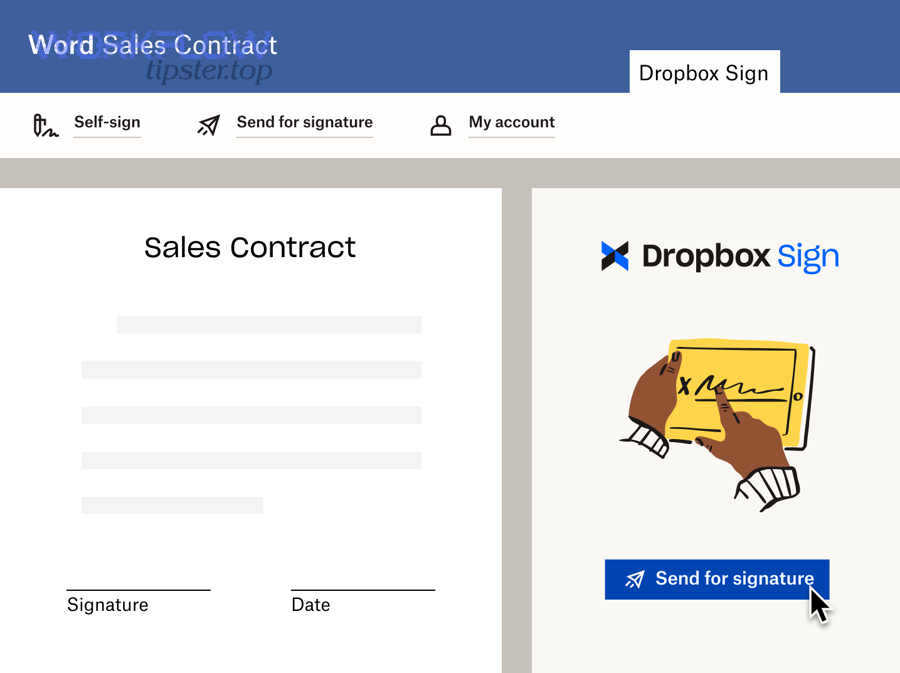
Yes—if you want a robust end-to-end pipeline, you typically need all four tools because Airtable manages the structured process, Word creates editable DOCX outputs, OneDrive provides controlled storage, and Dropbox Sign handles legally binding eSignature tracking; together they reduce manual steps, errors, and “where is the file?” confusion.
Then, the smarter question becomes: when can you replace one component without breaking the system?
When can you replace Microsoft Word in this workflow?
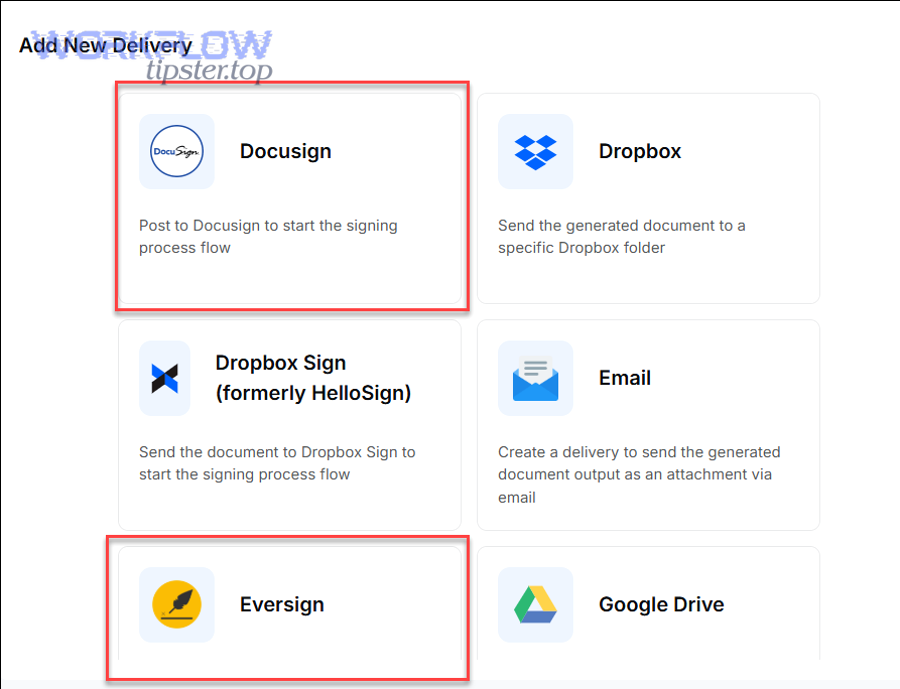
You can replace Word when your document doesn’t need rich formatting control, tracked changes, or “legal doc” editing workflows. For example, PDF-first templates, HTML-to-PDF generators, or document tools that generate DOCX/PDF from data can work well.
However, Word remains the safest choice when legal teams insist on Word-native review and versioning or when your clauses and formatting rules are complex.
When can you replace OneDrive (or skip it entirely)?
You can replace OneDrive if your organization standardizes on a different governed repository (SharePoint, Box, Google Drive, or even Dropbox itself). You can also skip OneDrive only if:
- Dropbox Sign is your canonical storage for signed files, and
- your compliance team accepts that storage model for retention and eDiscovery needs.
On the other hand, most operations teams keep OneDrive because it gives them a predictable folder structure, permissions tied to Microsoft identity, and easy sharing inside Microsoft 365 environments.
When can you replace Airtable with another system of record?
You can replace Airtable when your “source of truth” is already in another structured system (CRM, ERP, HRIS). But the key capability you must preserve is the same: a controlled status machine (Draft → Sent → Viewed → Signed → Archived) that you can report on without manual reconciliation.
According to a report by the University of South Carolina Division of Information Technology, in 2017, e-signature ROI comes from eliminating scanning and re-keying, reducing printing/mailing, and reducing errors—benefits that usually require a structured process plus governed storage. (sc.edu)
How do you design your Airtable base for document generation and signing?
The best method is to build your Airtable base around a clear status lifecycle with required fields, automation-ready IDs, and validation rules, so your document generation and signing steps run from clean data and produce predictable outputs.
Specifically, your base should behave like a “workflow controller,” not just a spreadsheet with notes.
Which Airtable fields are required for automation-ready document signing?
At minimum, design a table (or tables) that cover:
- Record identifiers: Contract ID, customer ID, or a unique key you never change.
- Document metadata: document type, version, owner, requested-by, and due date.
- Signer routing: signer name(s), email(s), signing order, CC list, authentication method (if required).
- File metadata: output filename, OneDrive folder path, file URL(s), and final signed file URL(s).
- Status fields: generation status, upload status, signature request ID, signature status, completion timestamp.
More importantly, make your “status” a single-select field that your automations depend on, rather than scattered checkboxes that drift out of sync.
How do you prevent duplicates and overwrites?
To illustrate a practical pattern, treat duplicates as a design problem, not a user mistake:
- Use a computed “Unique Document Key” (e.g., ContractID + DocType + Version) and enforce uniqueness via views and automation checks.
- Generate filenames from immutable IDs (e.g.,
CON-10492_MSA_v3.docx) rather than human-edited names. - Write back the OneDrive file URL and Dropbox Sign signature request ID immediately after creation so reruns can detect “already created.”
How do you handle sensitive data and access control in Airtable?
Besides standard role-based permissions, focus on “data minimization”: store only what you need to generate and route signatures. For example, you often don’t need full government IDs in Airtable—only a reference ID plus a secure system lookup.
Especially in operations teams, the safest pattern is to store PII in controlled systems and keep Airtable as the orchestration layer with references and limited fields.
How do you generate a Microsoft Word document from Airtable records?
The main method is to merge Airtable fields into a standardized Word template in 3 steps—prepare a template, map fields to merge tokens, and generate a DOCX output—so every record becomes a consistent document ready for review and signing.
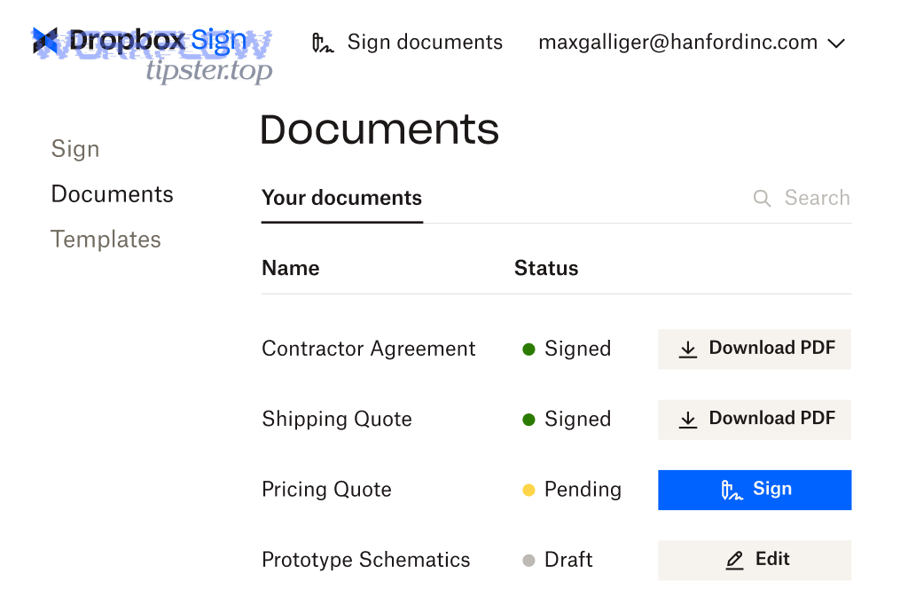
Next, you need to pick the generation approach that fits your team’s technical profile and your formatting complexity.
What are the best Word template strategies for automation?
Most teams succeed with one of these patterns:
- Simple merge tokens: placeholders like
{{ClientName}}replaced by automation tools. - Content controls: Word “structured document tags” for more complex, reliable placement.
- Section-based clauses: optional blocks included or excluded based on Airtable fields (jurisdiction, pricing model, add-ons).
Meanwhile, your template should include “non-negotiable” elements: legal footer text, version number, and a prominent agreement ID that matches the Airtable record.
How do no-code tools generate Word documents from Airtable?
Most no-code stacks follow the same logic:
- Trigger on an Airtable status change (e.g., “Ready to Generate”).
- Fetch the Airtable record and map fields to the template.
- Create a DOCX file and return a file link.
This is where you should consciously design for automation workflows: retries, idempotency (safe reruns), and logs that make failure obvious instead of silent.
For example, a practical walkthrough of Airtable-based document automation can help teams visualize the core flow before they harden it for production. (youtube.com)
When should you use an API/script approach instead of no-code?
You should use an API/script approach when you need strict control over formatting logic, advanced clause assembly, complex conditional sections, or high-volume generation where platform limits become a bottleneck.
More specifically, API generation becomes a better fit when your Word template is not a single template, but a “template system” with legal logic and edge cases that no-code tools struggle to model cleanly.
How do you store and organize generated documents in OneDrive for signing?
The best method is to store generated documents in OneDrive using a consistent folder taxonomy, deterministic filenames, and permission boundaries, so teams can find the right file instantly and the signing process always references the correct version.
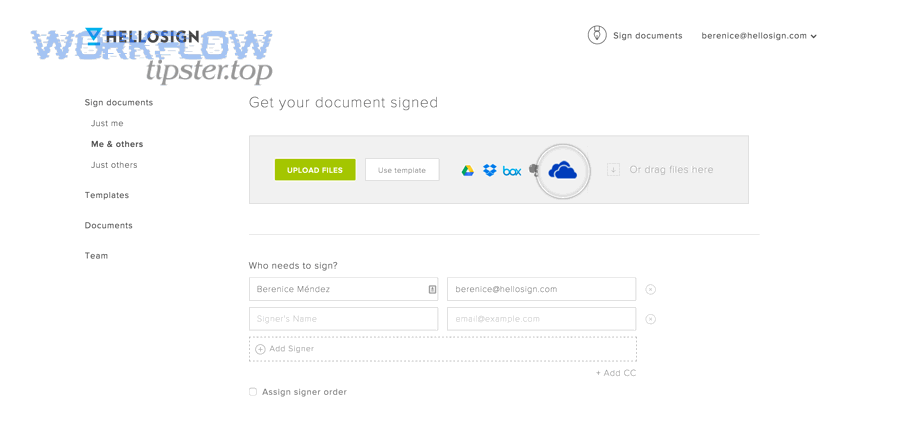
To better understand why this matters, remember that storage is not just “where the file lives”—it’s how you prevent the wrong document from being signed.
What is a practical OneDrive folder taxonomy for signed documents?
A simple, scalable structure looks like this:
/Agreements/{Year}/{ClientName or ClientID}/{AgreementType}//Agreements/{Year}/{ClientID}/{AgreementType}/Drafts//Agreements/{Year}/{ClientID}/{AgreementType}/Executed/
For example, moving a file from Drafts to Executed after signature is a small operational ritual that makes audit and retrieval dramatically easier.
How should you name files to support automation and audits?
File naming should be deterministic and based on IDs, not on human preference. A strong pattern includes:
- Agreement ID
- Document type
- Version number
- Date stamp (optional)
So instead of Final Contract - John - updated (2).docx, you get CON-10492_MSA_v3.docx.
What permissions and sharing rules reduce risk?
At minimum:
- Only document owners and approvers can edit drafts.
- Signing files should be read-only to prevent last-minute edits.
- Executed PDFs should be locked and accessible to audit/legal teams.
In addition, keep “public links” disabled for sensitive agreements unless your organization explicitly allows them.
How do you send a OneDrive document to Dropbox Sign and track status back in Airtable?
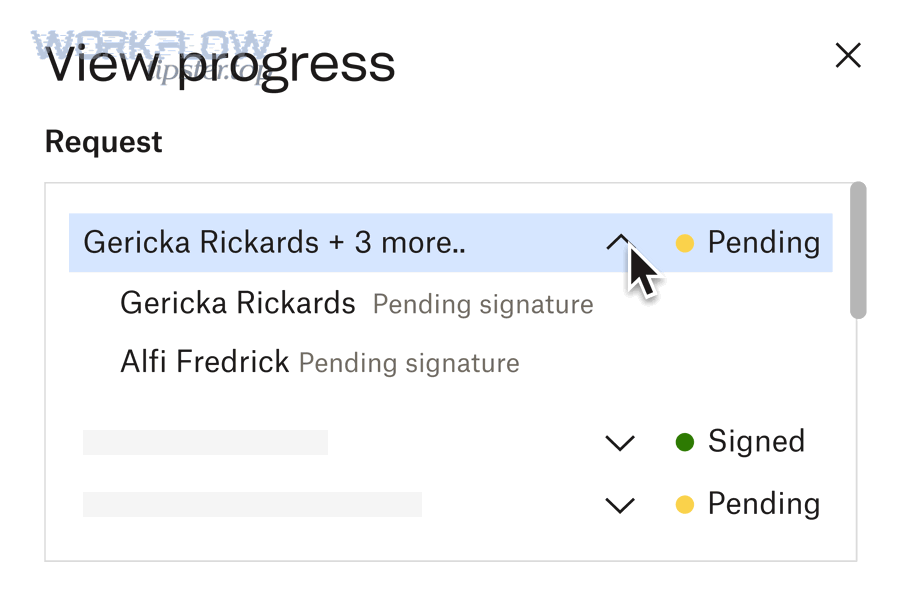
The main method is to create a Dropbox Sign signature request from the OneDrive file, capture the signature request ID, and sync status updates back into Airtable using webhooks or scheduled checks, so your Airtable record becomes the live control panel for signing.
Then, you can treat signing like a state machine: Sent → Viewed → Signed (or Declined / Expired) with clear next actions.
How do you create a signature request from a file?
Dropbox Sign supports signature requests that bundle document preparation, delivery, signing, and return of completed documents as a single transaction. (help.dropbox.com)
In a typical automation:
- Download (or stream) the OneDrive file to your automation layer.
- Send it to Dropbox Sign as a signature request (using files, templates, or form fields).
- Store the resulting
signature_request_idin Airtable.
How do you retrieve status and completed documents reliably?
When you use the Dropbox Sign API, you can retrieve signature status and download final documents in multiple ways, including direct download or file URLs. (developers.hellosign.com)
More specifically, design for two reliability layers:
- Event-driven: webhooks update Airtable as status changes occur.
- Fallback polling: a scheduled check reconciles status for any missed events.
Dropbox Sign’s event system includes events like “all signed” and also flags email issues like bounces, which is critical for operations visibility. (developers.hellosign.com)
How do you write the final signed PDF back to OneDrive and close the loop?
Once the agreement is fully signed:
- Download the completed PDF from Dropbox Sign.
- Upload it to the OneDrive “Executed” folder using the same Agreement ID naming convention.
- Update Airtable with the executed file URL, completion timestamp, and final status.
In short, the loop is not complete until Airtable shows “Signed,” OneDrive contains the executed PDF, and the signature request ID is stored for audit traceability.
Should you build this workflow with no-code automation or with APIs?
No-code wins in speed-to-launch and maintainability, APIs are best for high-volume control and custom signing experiences, and hybrid setups are optimal when you need fast iteration now but want technical depth later.
However, your decision should be made on criteria that match the reality of your operations team.
When does no-code automation win?
No-code wins when your team needs to launch quickly, adjust mappings often, and keep ownership inside operations rather than engineering. It also wins when your templates are stable and your signing logic is straightforward (one or two signers, predictable routing).
To illustrate how this fits in a broader ops environment, teams often run multiple parallel process streams—like contract signing plus meeting scheduling—and they prefer tools that non-developers can adjust without waiting on a sprint (for example, “calendly to outlook calendar to google meet to basecamp scheduling” as a separate operational pipeline).
When do APIs become the best option?
APIs become the best option when you need:
- Advanced conditional logic in templates and signer routing
- Embedded signing inside your product experience
- High throughput with strong observability and custom retry logic
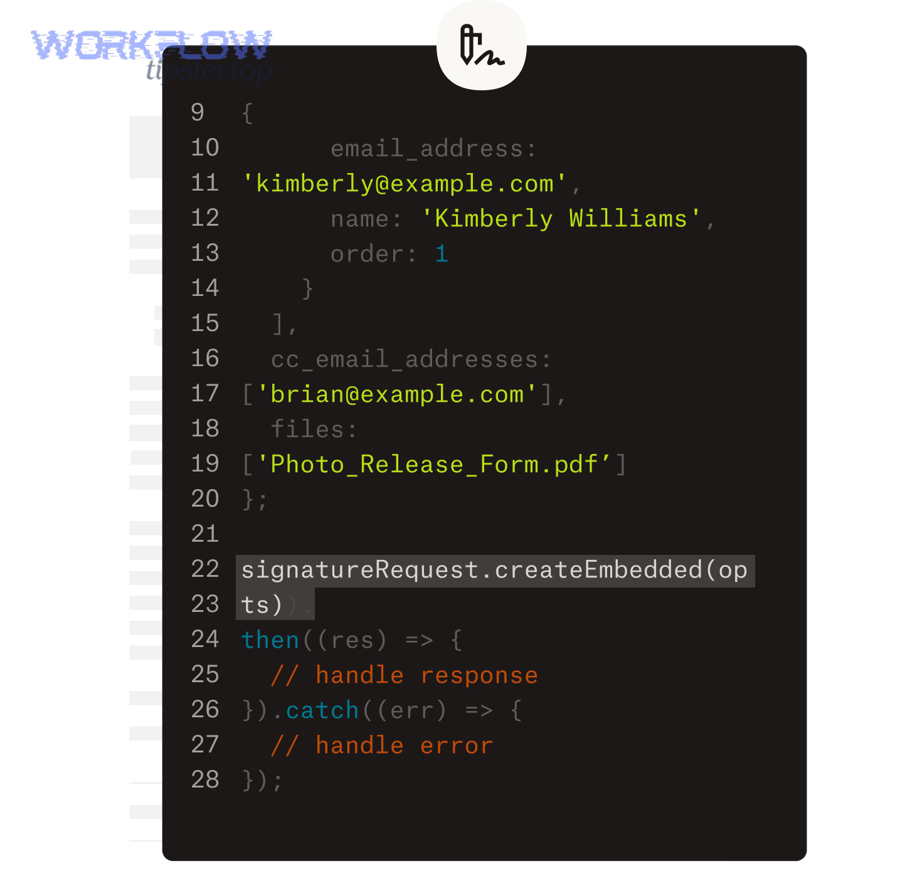
Dropbox Sign supports embedded signing patterns specifically designed to keep the signing experience inside your application. (developers.hellosign.com)
What is a practical hybrid path for teams that will scale?
A hybrid path often looks like this:
- Start with no-code for document generation and basic signature requests.
- Add API-based status reconciliation and file archiving as volume grows.
- Move to embedded experiences only when product, compliance, and engineering are aligned.
Thus, you preserve speed early and build for reliability later.
What are the most common failure points in Airtable → Word → OneDrive → Dropbox Sign automation?
There are 4 main types of failure points in Airtable → Word → OneDrive → Dropbox Sign automation: data mapping errors, document generation/upload errors, signature delivery issues, and webhook/rate-limit reliability problems—each tied to a different part of the pipeline.
More importantly, most failures are preventable when you design for them upfront.
What data mapping and formatting errors break document generation?
Common issues include:
- Date and currency formatting mismatches (e.g., 02/03 interpreted differently by regions).
- Empty required fields that generate blank clauses or broken tables in Word.
- Special characters that break token replacement or create invalid filenames.
To fix this, enforce validation rules in Airtable and generate preview outputs before you allow a record to move into “Send for Signature.”
What file generation and OneDrive upload errors are most common?
Typical failures look like:
- Generated file exists but upload fails due to permissions.
- Upload succeeds but link sharing is restricted, so downstream systems can’t access the file.
- Version confusion: a new draft overwrites an older file that was already sent for signing.
Meanwhile, deterministic filenames plus a “lock” field (e.g., “Sent to Sign = Yes”) prevents accidental overwrites.
What signature request issues stop agreements from being signed?
On the signature side, the biggest operational blockers are:
- Signer email bounces or deliverability issues
- Wrong signer order or missing CC visibility
- Misconfigured authentication requirements that confuse signers
Dropbox Sign explicitly surfaces events like email bounces, which should automatically create an “Action Required” status in Airtable rather than leaving teams guessing. (developers.hellosign.com)
What webhook and rate-limit issues cause “silent failures”?
Silent failures happen when events don’t arrive, arrive late, or arrive twice. The practical fix is to build idempotent updates: if the same “signed” event arrives twice, your Airtable update should not create duplicate executed files or duplicate status logs.
In addition, keep a scheduled reconciliation job that checks any record stuck in “Sent” for too long and refreshes status via API. (developers.hellosign.com)
How can you optimize and harden the workflow for scale and compliance?
The best method is to harden the workflow with audit-friendly metadata, resilient event handling, and clear fallback procedures, so the system remains trustworthy at higher volume and under compliance pressure.
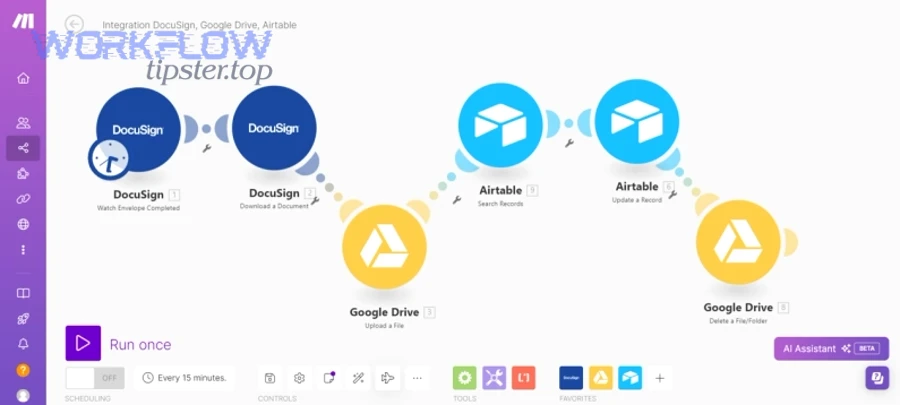
Especially as you scale, you want the workflow to behave like a product: observable, testable, and recoverable.
How do you strengthen audit trails and retention?
Start by ensuring each Airtable record contains:
- Signature request ID
- Completion timestamp and signer list
- Executed file URL in OneDrive
- Immutable agreement ID included inside the document body
Then, store executed PDFs in a locked OneDrive folder with retention rules aligned to your legal team’s policy.
When should you add embedded signing or stronger signer authentication?
Add embedded signing when user experience and conversion matter—like customer onboarding or high-frequency sales motions—and when you want signers to complete agreements without leaving your application. (developers.hellosign.com)
For higher assurance, consider options like SMS delivery or verification features where appropriate, but only after you confirm your legal and privacy requirements. (help.dropbox.com)
What is the best “paperless vs paper-based” fallback runbook?
A paperless system is faster and more reliable when it works, but a paper-based fallback protects you when systems fail, signers can’t access links, or compliance exceptions occur. That antonym pairing—paperless vs paper-based—should be explicit in your operations runbook:
- Paperless primary: fix the workflow issue, retry, and keep audit continuity in Airtable.
- Paper-based fallback: generate a manual PDF, capture wet signature if required, and archive with a “manual exception” flag in Airtable.
In other words, the fallback should be controlled and documented—not improvised.
How do you monitor the pipeline like an operations system?
Create a dashboard view in Airtable that shows:
- Records stuck in “Ready to Generate”
- Records stuck in “Sent for Signature” beyond SLA
- Failures by category (mapping, upload, signer bounce, webhook)
Then assign a named owner—some teams call this role a Workflow Tipster—to review failures daily, tune automations, and keep templates aligned with legal updates.
As your organization expands into other signing flows, you may also standardize adjacent patterns, such as “airtable to microsoft word to dropbox to pandadoc document signing,” while keeping the same governance principles: deterministic IDs, governed storage, and clean status tracking.
According to the Dropbox Sign developer documentation, in 2023–2024, teams can retrieve completed files through multiple delivery modes (binary, downloadable link, or data URI), which makes it practical to build redundant archiving flows when you scale. (developers.hellosign.com)