


Modern ops teams lose time when “document signing” means copying data across apps, chasing approvals in email, and hunting for the latest file version. This guide shows how to automate the full Airtable → Excel → OneDrive → Dropbox Sign chain so a record in your database reliably becomes a ready-to-sign document, gets signed, and returns as a tracked outcome—without manual handoffs.
You’ll also learn how to define a clean “source of truth” between Airtable, Excel, and OneDrive, so people stop editing the wrong file and you stop sending duplicate signature requests. That clarity is what turns a one-off automation into a repeatable operations system.
Next, we’ll cover the practical setup: what triggers start the workflow, how to map Airtable fields into Excel templates without breaking formatting, and how to store and version documents in OneDrive so Dropbox Sign always pulls the right artifact.
Introduce a new idea: once the workflow is running, the real win is governance—status tracking, idempotency, and failure-proofing—so the process stays automated even when signers delay, files move, or records change.
What does an “Airtable → Excel → OneDrive → Dropbox Sign” eSignature workflow mean in practice?
An Airtable → Excel → OneDrive → Dropbox Sign eSignature workflow is an automation pipeline that turns structured records into a standardized document, stores it in cloud folders, sends it for legally binding signatures, and writes the signed outcome back to your ops system with tracked statuses.
To better understand why this chain works, you need to see it as one lifecycle rather than four disconnected tools.
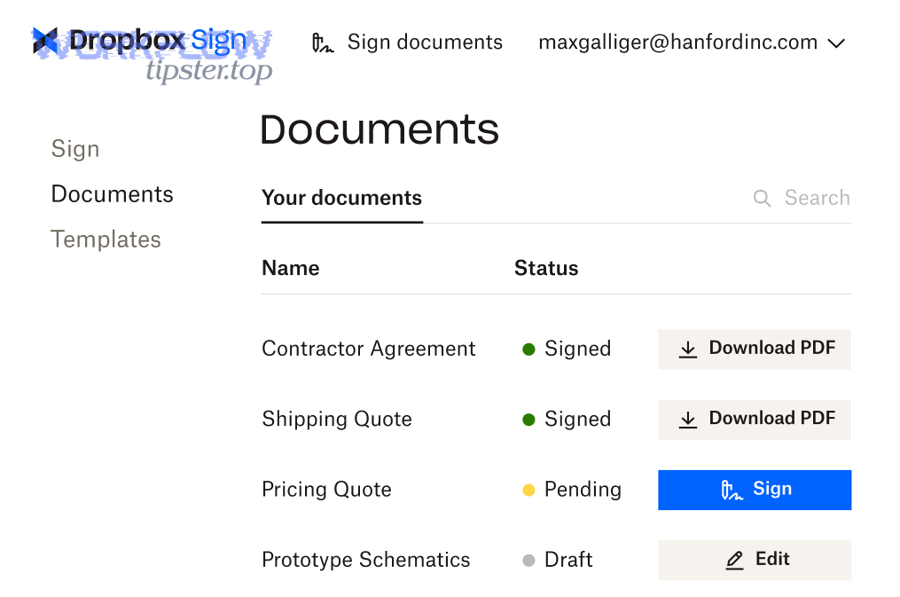
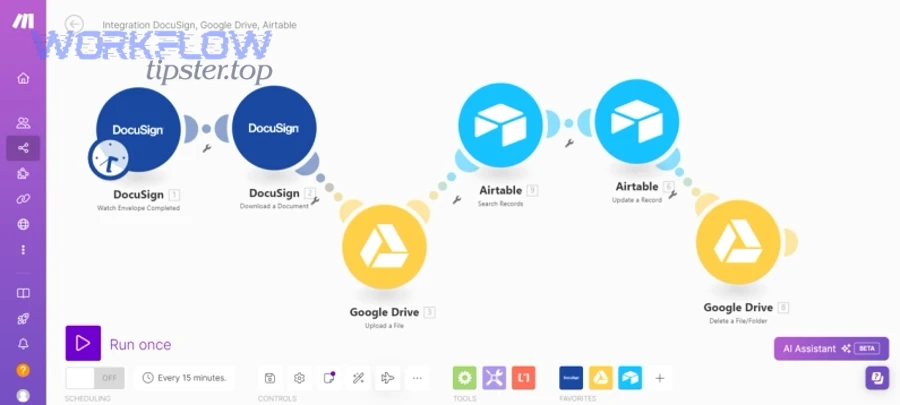
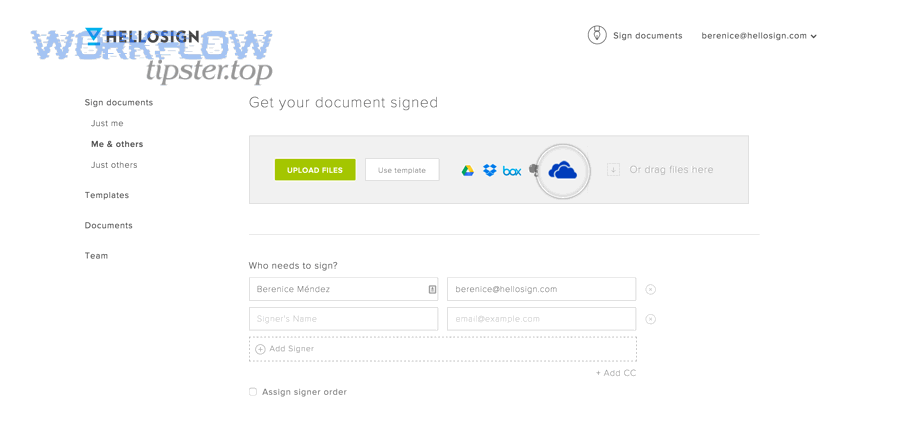
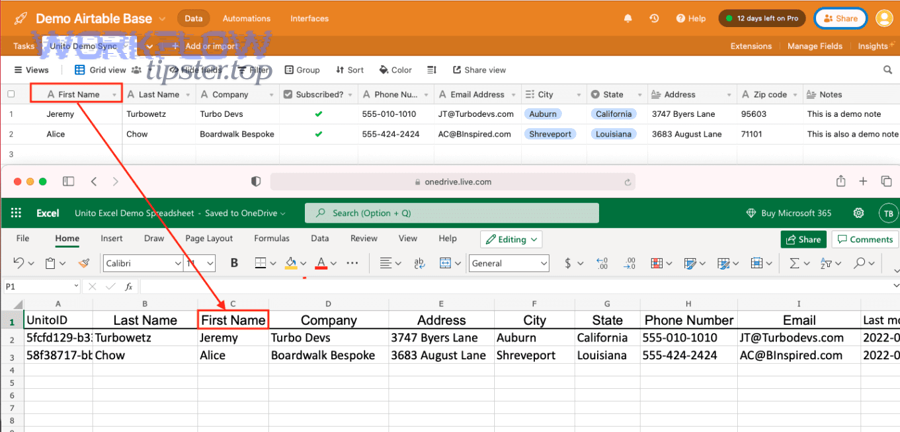
In practice, an ops-safe workflow usually looks like this:
- Capture and validate: a record exists in Airtable with required fields (signer name, email, document type, totals, dates).
- Generate the artifact: the workflow populates a spreadsheet or template in Microsoft Excel (often for line items, pricing tables, or calculated values).
- Store and share: the output file is saved into OneDrive using a predictable folder and filename strategy.
- Request signatures: Dropbox Sign sends a signature request, monitors progress, and produces final signed copies plus an audit trail.
- Close the loop: the workflow updates Airtable statuses (Sent → Viewed → Signed/Declined/Expired) and attaches the signed file link.
That “close the loop” step is the difference between a demo automation and a production automation. A production workflow treats each record as a state machine: it moves forward only when conditions are met, and it writes back every milestone so a human doesn’t need to guess what happened.
Which data and files are the “source of truth” in this workflow—Airtable, Excel, or OneDrive?
Airtable wins in record accuracy and status tracking, OneDrive is best for file storage and access control, and Excel is optimal for document computation and template-based generation—so the safest design is “Airtable for metadata, OneDrive for files, Excel for calculations.”
However, that statement only helps if you translate it into hard rules that prevent confusion:
Rule 1: Airtable is the source of truth for operational facts.
Airtable should own the values your team debates and reports on: customer identity, pricing inputs, renewal dates, signer assignments, and the workflow stage. That means you never “fix pricing” by editing the Excel sheet manually; you fix it in Airtable and regenerate.
Rule 2: OneDrive is the source of truth for file storage.
If a document is “the document,” its stable home must be OneDrive. When you adopt this rule, you can standardize file permissions and keep one shareable link.
Rule 3: Excel is a generated artifact, not a collaboration canvas.
Excel is great at calculations, structured tables, and predictable formatting. But when multiple humans edit the file at random, automation breaks. Treat Excel output as build output: it is created by rules, not by ad-hoc edits.
To make these rules real, embed identifiers across the chain:
- Add an Airtable Record ID into the OneDrive filename (e.g.,
SOW_RecA1B2C3_v03.xlsx) - Store the OneDrive file path/URL in Airtable
- Store the Dropbox Sign request ID in Airtable to prevent duplicates
What does “document signing” include—signatures only, or also audit trail and signed PDF storage?
Document signing includes the signature itself, the signer’s actions (who signed and when), and the signed output artifacts—typically a signed PDF plus an audit trail/certificate that supports legal defensibility.
More specifically, ops teams should define “done” as a bundle:
- Signed document file (often PDF)
- Audit trail (time stamps, signer email, IP/device signals depending on settings)
- Completion status written back into Airtable
- Storage location saved in OneDrive so it’s retrievable without logging into multiple systems
Dropbox Sign’s cloud storage integrations also emphasize the operational value of having signed documents sync back to your storage account, so your file system becomes the destination—not just the signing app. (help.dropbox.com)
Do you need Excel in the chain, or can Airtable send documents to Dropbox Sign without it?
No, you don’t need Excel in the Airtable → Excel → OneDrive → Dropbox Sign document signing chain, because (1) many teams can sign PDFs or existing templates directly, (2) Excel adds value only when computations/tables are required, and (3) removing Excel reduces formatting risk and maintenance.
Next, the decision becomes: when is Excel a strategic “generator,” and when is it unnecessary complexity?
The fastest way to decide is to ask what Excel uniquely contributes:
- Structured tables and line items (quotes, invoices, pricing matrices)
- Calculated fields (tax, discounts, tiered pricing, totals)
- A consistent template that converts reliably into a signing-ready file
If your document is already a stable PDF template, or your fields are simple (name/date/checkbox), you can generate or store the document in OneDrive and send it to Dropbox Sign directly—keeping Excel out of the chain.
When is Excel the best “document generation” step (vs Word/Google Docs/PDF templates)?
Excel wins for line-item tables and calculations, Word is best for narrative-heavy contracts and formatting control, and PDF templates are optimal for locked layouts with simple form fields—so choose Excel when data density and computation matter most.
However, it’s not just about the document type; it’s about error risk.
Excel is best when:
- You must render variable-length tables (items list changes per record)
- You need totals that must always reconcile
- You want a single “calculation engine” rather than scattered formulas across systems
Word/PDF is best when:
- Legal text is long and formatting is strict
- You want fewer moving parts (less template drift)
- The signer experience is primarily “review + sign,” not “review a complex table”
A practical ops pattern is: compute in Excel → export to PDF → send for signature. That keeps the signer experience clean while preserving Excel’s strengths upstream.
What are the minimum fields you should store in Airtable to support Excel + signing reliably?
There are 10 main field groups you should store in Airtable to support Excel + signing reliably: identity, signer, document type, pricing inputs, generated file info, signing request info, status pipeline, timestamps, exceptions, and audit references—based on the criterion of “what prevents duplicates and enables recovery.”
To illustrate, the table below lists a “minimum viable schema” that lets automation workflows run without manual patching.
| Field group | Example fields | Why it matters |
|---|---|---|
| Identity | Record ID, account/company, deal name | Anchors filenames, links, and reporting |
| Signer | signer_name, signer_email, signer_role | Prevents misroutes and bounced requests |
| Document type | template_key, doc_category | Selects the correct template branch |
| Pricing inputs | line_items, discount, tax, currency | Produces correct totals every time |
| Generated file | onedrive_path, file_url, file_version | Prevents “wrong file” signing |
| Signing request | dropboxsign_request_id, request_url | Enables status syncing + idempotency |
| Status pipeline | Draft, Ready, Sent, Viewed, Signed | Makes progress visible in one place |
| Timestamps | created_at, sent_at, signed_at | SLA tracking and operational analytics |
| Exceptions | error_code, error_message, retry_count | Fast troubleshooting and safe retries |
| Audit references | audit_trail_link, signed_pdf_link | Compliance and retrieval |
Once these fields exist, your workflow stops being “magic” and becomes a managed process: you can filter for failures, retry safely, and prove outcomes.
How do you build the workflow step-by-step from Airtable to Dropbox Sign through Excel and OneDrive?
Build the workflow with a 7-step method—trigger, validate, map, generate, store, send, sync—so one Airtable record reliably produces a OneDrive file, sends a Dropbox Sign request, and updates statuses automatically.
Then, you operationalize each step with clear inputs, outputs, and guardrails so the chain stays “not manual” even when edge cases happen.

Here’s the workflow blueprint ops teams use when they want reliability:
- Trigger: a record changes to a “Ready to Send” state
- Validate: required fields exist (especially signer email and template choice)
- Map: transform Airtable fields into a stable mapping plan for Excel
- Generate: create/update the Excel file using the template
- Store: save the file to OneDrive using deterministic naming + folder rules
- Send: create a Dropbox Sign request using the stored file
- Sync: write back request ID + status updates + signed file links into Airtable
What triggers should start the automation workflow in Airtable?
There are 5 main trigger types for starting signing automation workflows from Airtable: status-based triggers, approval-based triggers, time-based triggers, event-based triggers, and manual override triggers—based on the criterion of “who controls the send and how you prevent accidental sends.”
Specifically, ops teams usually pick one primary trigger and keep the rest as backups:
- Status-based: When status becomes “Ready to Send”
- Approval-based: When an “Approved” checkbox flips to true
- Time-based: When a due date arrives and the record is approved
- Event-based: When a related record is created (e.g., Deal → Contract)
- Manual override: A “Resend” button/flag that creates a controlled retry
To prevent duplicates, add two guardrails:
- A Lock field like
signing_in_progress = true - An Idempotency key stored after the first request (Dropbox Sign request ID)
How do you map Airtable fields into an Excel template without breaking formatting?
Map Airtable fields into Excel by using stable anchors (named ranges, consistent headers, or structured tables) and by enforcing data types (dates, currency, numbers) so automation writes values without shifting layout or corrupting formulas.
More importantly, you should design the template to be automation-friendly:
- Use a single input sheet (e.g., “Data” tab) that automation writes to
- Reference input cells from the presentation sheet using formulas
- Keep styles and merged cells away from the input region
- Use controlled formatting (currency/date formats pre-set in the template)
A high-reliability pattern is “Airtable → Excel Data Tab → Excel Output Sheet,” because it separates machine writing from human-readable layout.
How should you store and version files in OneDrive so Dropbox Sign always uses the correct document?
There are 4 main OneDrive storage patterns that keep Dropbox Sign requests stable: immutable sent copies, structured folder hierarchies, deterministic filenames, and version markers—based on the criterion of “can you always find and reproduce what was signed?”
To better understand why this matters, consider the failure mode: someone overwrites the file in OneDrive after it was sent, and the team can’t prove what content the signer reviewed.
Use these operational rules:
- Create a Draft folder for editable working files
- Create a Sent folder for immutable copies that get signed
- Create a Signed folder where completed PDFs land
- Put a version number in the filename and store that version in Airtable
Also, Dropbox’s own guidance highlights that signed document copies can sync into your cloud storage when integrations are enabled. (help.dropbox.com)
How do you send a Dropbox Sign signature request correctly for ops teams?
Send a Dropbox Sign request by defining signer roles, choosing signing order, setting reminders/expiration, attaching the correct OneDrive-stored file, and storing the resulting request ID back in Airtable—so the request is trackable, repeatable, and safe to retry.
Next, you turn “sending” into a controlled operation rather than an ad-hoc click.
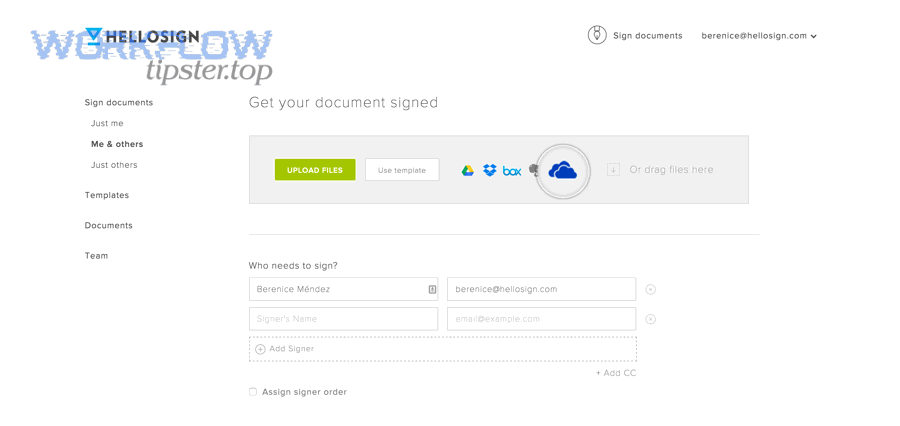
A clean sending checklist for ops teams looks like this:
- Signers: name, email, role (Customer, Legal, Finance)
- Order: parallel vs sequential signing
- Message: short context + what to review
- Reminders: automated follow-ups to reduce chasing
- Expiration: reduce stale approvals
- Copy storage: ensure the signed output lands in OneDrive
- Tracking: capture request ID and status
Dropbox Sign’s OneDrive integration materials emphasize tracking progress and safely storing signed documents back into OneDrive, which aligns directly with ops needs for visibility and retrieval. (sign.dropbox.com)
What signer routing options should you choose—single signer, multi-signer, or approval chain?
Single signer wins for speed and simplicity, multi-signer is best for shared accountability, and an approval chain is optimal for compliance-heavy sign-offs—so choose based on how many roles must explicitly approve before a document is valid.
However, routing is only “ops-correct” when it matches your data model:
- Single signer: one signer_email field; fastest cycle time
- Multi-signer (parallel): signer_1_email, signer_2_email; great for joint approvals
- Approval chain (sequential): signing_order enforced; best when Legal must sign before Customer, or Finance must approve before issuing
To keep automation stable, assign each signer a role name that stays consistent across templates (e.g., company_signer, client_signer, legal_approver). That consistency makes mapping predictable, which is the core of hook-chain flow: the role you define in Airtable is the role Dropbox Sign uses in the request.
What settings reduce delays—reminders, expiration rules, and follow-ups?
There are 6 main settings that reduce signing delays: reminders, expiration windows, resend rules, escalation paths, signer instructions, and status notifications—based on the criterion of “what eliminates manual chasing.”
Specifically, configure these defaults:
- Reminders: set a cadence that matches your SLA (e.g., every 2–3 days)
- Expiration: enforce a realistic window (e.g., 7–14 days) to prevent stale approvals
- Resend controls: limit automated resends and record each resend in Airtable
- Escalation: notify an internal owner when the request is stalled
- Signer instructions: reduce back-and-forth by clarifying what to verify
- Notifications: write status updates back to Airtable so no one needs to ask “is it signed yet?”
Dropbox Sign explicitly frames automated reminders and progress monitoring as ways to stop manual follow-ups for OneDrive documents. (sign.dropbox.com)
How do you track signing status end-to-end and prevent duplicates or missed updates?
Track signing end-to-end by storing the signature request ID in Airtable, syncing Dropbox Sign status events back to Airtable, and saving signed outputs in OneDrive—so every record has one authoritative request, one status pipeline, and one retrievable signed file.
In addition, preventing duplicates is a design discipline: you must assume triggers can fire twice and build idempotency into the process.
A practical ops tracking loop has three layers:
- Request identity: one Airtable record ↔ one Dropbox Sign request ID
- State updates: status changes written back (Sent, Viewed, Signed, Declined, Expired)
- Artifacts: signed file stored in OneDrive and linked back
Dropbox’s help documentation also explains that activating the OneDrive integration adds a Dropbox Sign folder in OneDrive and stores copies of sent/received documents there—this supports the “OneDrive as file destination” pattern that ops teams want. (help.dropbox.com)
What Airtable status pipeline best fits a signing workflow?
There are 8 main Airtable status stages that best fit a signing workflow: Draft, Ready, Sent, Viewed, Completed, Declined, Expired, and Error—based on the criterion of “can an operator understand exactly what to do next?”
To illustrate how each stage drives action:
- Draft: record is incomplete; automation must not send
- Ready: record validated; automation can generate and send
- Sent: request created; waiting for signer action
- Viewed: signer opened it; watch for completion
- Completed: signed; store artifacts and close out
- Declined: signer refused; route to human resolution
- Expired: time window passed; decide resend or abandon
- Error: automation failed; show error message and safe retry button
This pipeline is intentionally “ops-readable.” It keeps questions like “What happened?” and “What do I do?” answered inside Airtable, not in someone’s inbox.
What are the most common failure points and how do you troubleshoot them?
There are 7 main failure points in this chain—missing signer data, permission issues, template mismatch, file version drift, duplicate triggers, auth/token problems, and rate/timeout errors—based on the criterion of “what breaks automation workflows most often.”
More specifically, troubleshoot in this order (fastest to confirm first):
- Required fields: signer_email present? template_key present?
- File existence: does the OneDrive path actually exist, and is the file accessible?
- Permissions: does the automation identity have rights to the folder?
- Template mapping: are cell names/headers unchanged from the expected template?
- Duplicate trigger conditions: did status flip twice, or did the record update cause a second run?
- Authentication: did a token expire or a connected account lose access?
- Platform limits: were you rate-limited or did the job time out?
When you log failures into Airtable (error_code, error_message, retry_count), you turn troubleshooting into queue management. That is how “not manual” stays true even when things break: the fix is a controlled retry, not a detective story.
Evidence: According to a report by The California State University Quality Assurance team at San Francisco State University, in 2019, electronic signatures reduced average turnaround time by 73% versus the manual process turnaround. (calstate.edu)
Contextual Border: The primary intent—how to implement an automated Airtable → Excel → OneDrive → Dropbox Sign signing workflow with reliable generation, sending, storage, and tracking—is now fully answered. The following section expands micro semantics: conditional routing, safer file-handling models, embedded signing, and compliance-scale practices.
What advanced configurations make this signing workflow more secure, compliant, and scalable?
Advanced configurations include conditional routing, safer file-handling methods, embedded signing, and audit/retention controls that reduce manual exceptions while strengthening compliance—so your pipeline scales across teams, templates, and edge cases without turning back into manual work.
Next, you’ll apply micro-level controls that keep the workflow stable as volume increases and requirements diversify.
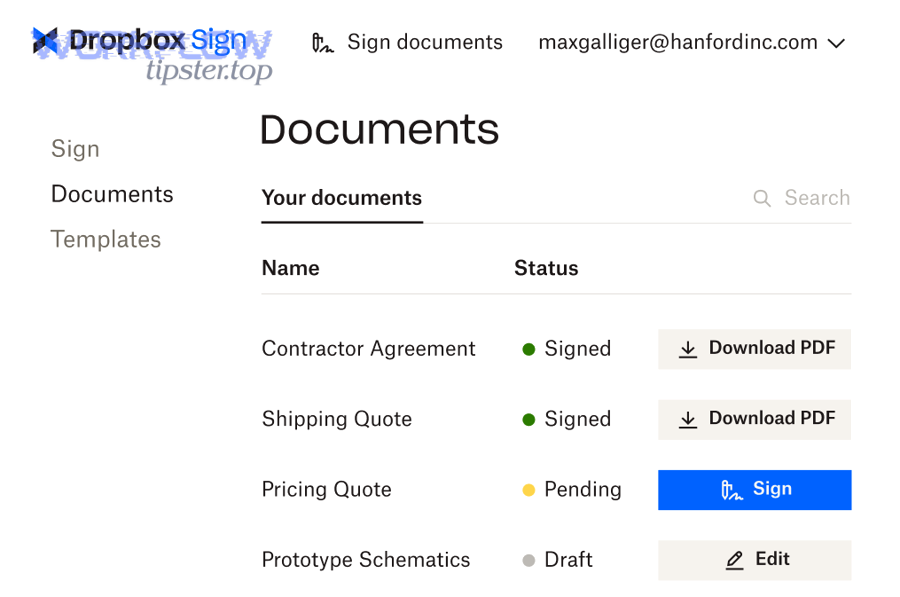
A useful way to think about this section is: you are moving from a “single happy path” to a “governed system” that supports variations safely.
Also, this is where you can connect related automation workflows across your org. For example, teams often standardize a separate scheduling chain like Calendly → Microsoft Outlook calendar → Zoom → monday.com board, so meetings and work items are created automatically just like documents are generated and signed.
How do you handle conditional routing (different templates, signers, or steps) based on Airtable fields?
There are 4 main conditional routing patterns—template branching, signer branching, step branching, and storage branching—based on the criterion of “what changes when the record changes.”
To implement conditional routing without chaos, keep the branching rule in Airtable (not inside hidden automation logic). Common examples:
- Template branching (by document type): NDA vs SOW vs Order Form
- Signer branching (by region or customer type): different legal entities or approvers
- Step branching (by deal size): over $X requires finance approval before sending
- Storage branching (by department): Sales contracts in one library, HR docs in another
A clean design uses a small number of controlled fields:
template_key(e.g.,SOW_v3,NDA_v2)routing_policy(e.g.,standard,enterprise,regulated)signing_path(e.g.,parallel,sequential)
If you keep those values enumerated (dropdowns), you prevent free-text drift and you preserve automation reliability.
This is also the right place to mention alternative, adjacent flows you may run in parallel. For instance, a pipeline like “automation workflows” for airtable to docsend to onedrive to dropbox sign document signing can make sense when you need tracked document viewing (DocSend) before you trigger signature. Use it only if your ops process truly requires a “view-first, sign-second” gate, because every extra link adds governance overhead.
What is the difference between “link-based file sending” and “file upload + autosave to OneDrive” for Dropbox Sign?
Link-based sending wins for speed, file upload + autosave is best for consistency and permissions, and autosave-to-OneDrive is optimal for auditability—so ops teams generally prefer upload/autosave when the document must be provably retrievable and immutable.
However, the true difference is version risk:
- Link-based approaches can break when permissions change, links expire, or files are overwritten.
- Upload/autosave patterns keep a stable copy tied to a signing event, and the storage destination remains consistent.
Dropbox Sign’s guidance on OneDrive integration and cloud storage syncing supports the “storage as destination” mindset—signed copies land where your team already works, rather than living only inside the signing tool. (help.dropbox.com)
Do you need embedded signing, and when is it better than email-based signing?
Yes, you may need embedded signing because (1) it increases completion inside portals, (2) it reduces inbox friction for repeat signers, and (3) it enables tighter identity controls—while email-based signing remains best for one-off external recipients who prefer a simple link.
On the other hand, embedded signing should be chosen for a specific product reason, not because it sounds “more advanced”:
Embedded signing is better when:
- You have a customer portal or internal system where users already authenticate
- You want a guided experience (pre-checks, required reading, confirmations)
- You need predictable UI inside your application
Email signing is better when:
- You send occasional requests to external recipients
- You want the simplest possible implementation
- You don’t control where the signer begins their journey
The ops takeaway is simple: embedded signing is a UX and control decision. If your current workflow already completes fast, embedded may not be worth the complexity.
Which audit trail, retention, and compliance practices matter most for ops teams?
There are 6 main compliance practices that matter most: audit trail capture, immutable storage, retention policy, access control, data minimization, and incident-ready logging—based on the criterion of “can you prove what happened and retrieve it later?”
To implement these practices without turning the workflow manual:
- Always store the signed PDF + audit trail link back in Airtable
- Write timestamps (sent_at, completed_at) for SLA measurement
- Use immutable Sent copies in OneDrive; never overwrite
- Restrict folder permissions so only relevant teams can access sensitive documents
- Log errors and retries so you can explain anomalies during audits
- Define retention rules (e.g., archive after 12 months, delete after X years) aligned with policy
Evidence: According to a report by The California State University Quality Assurance team at San Francisco State University, in 2019, 78% of electronic signature transactions were completed in less than one week—supporting the operational value of automated, trackable signing versus manual processing. (calstate.edu)