


Teams can automate an Airtable → Google Slides → Google Drive → PandaDoc document signing workflow by treating Airtable as the source of truth, generating slide-based outputs from structured records, storing a signing-ready PDF in Drive, and sending that file through PandaDoc for eSignature and tracking.
You’ll get the most value when the workflow is designed around repeatable document types (proposals, SOWs, quotes, onboarding packs) and when each stage has clear “inputs → outputs” and ownership, so the handoff never turns into “Where is the latest version?”
Next, you’ll see how to structure Airtable so it reliably produces slide-ready content, how to store and version outputs in Drive, and how to route the final signing package into PandaDoc with status tracking back to Airtable.
Introduce a new idea: once you build the automated path, you can still keep a deliberate manual checkpoint (legal review, pricing approval) without losing speed—because the automation handles the busywork while humans handle the risk.
What is the Airtable to Google Slides to Google Drive to PandaDoc document signing workflow?
It is a document automation workflow where Airtable stores deal/project data, Google Slides renders that data into a presentation-style document, Google Drive manages versioning and sharing, and PandaDoc collects legally trackable electronic signatures on the finalized file.
Next, to make the workflow predictable, you need to define what Airtable “owns” (data + approvals) and what the other tools “own” (presentation layout, file storage, signing + audit trail).
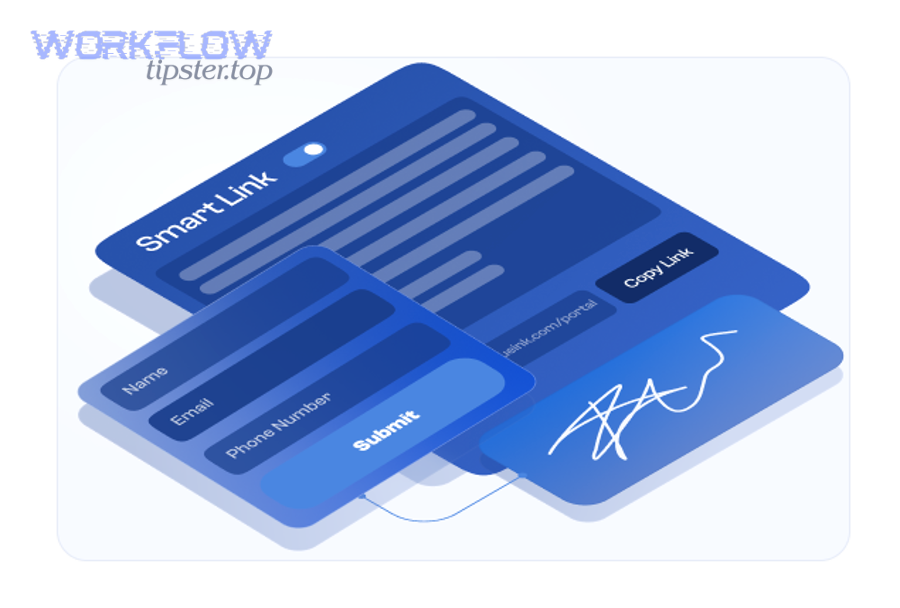
What data should live in Airtable to drive slide and document outputs?
Airtable should hold any data that must be consistent across versions, including:
- Deal/customer identity: company name, contact names, emails, role (Signer / Approver / CC)
- Commercial terms: pricing lines, discount rules, term length, renewal language references
- Scope + deliverables: bullet-ready scope items, milestones, responsibilities
- Approval metadata: internal owner, legal reviewer, approval status, last approved timestamp
- Document metadata: template version, output filename, Drive folder ID/link, PandaDoc document ID
This keeps the “truth” in one place, so slides and signing packages are always regenerated from controlled fields instead of ad-hoc edits.
Which file formats and handoffs matter in this workflow?
The workflow usually hinges on three key handoffs:
- Airtable → Slides layout (fields become slide text, tables, and sections)
- Slides → Drive (storage, permissions, version naming, and export control)
- Drive → PandaDoc (signing-ready file, typically PDF)
In practice, the format that signs most reliably is a PDF—because it locks layout and reduces “it looks different on my device” friction during signing.
How do you design your Airtable base to support Google Slides generation?
You design the base by modeling the document like a product: stable tables, linked records, and views that only expose “print-ready” fields, so your slides populate cleanly and consistently every time.
Next, treat “document output” as its own table so you can track versions, Drive links, and PandaDoc status without cluttering your CRM-style records.
How should you structure tables, linked records, and views for slide-ready fields?
A proven structure looks like this:
- Accounts/Customers (company profile, billing, legal entity, address)
- Contacts (email, role, signing order, phone; linked to Accounts)
- Deals/Projects (scope summary, value, start date, owner; linked to Accounts + Contacts)
- Line Items (SKU, qty, unit price, discount; linked to Deals)
- Outputs (Docs/Slides) (template version, output status, Drive URL, PandaDoc ID; linked to Deals)
Then create a “Slide Output View” that only includes:
- pre-formatted text fields (short paragraphs)
- rollups that produce bullet-ready strings
- “display fields” that combine raw values into human-readable lines (e.g.,
"$12,000 / year — billed annually")
Which field types reduce formatting and signing errors?
Use field types that minimize ambiguity:
- Single select for statuses (Draft → Internal Review → Approved → Sent → Signed)
- Email field for signers (so you don’t accidentally store invalid emails)
- Currency/Number for pricing (so totals are computed, not typed)
- Formula fields for display strings (so the slide text is consistent)
- Long text only for controlled blocks (scope paragraphs), not for everything
Here’s a quick reference table showing common Airtable field choices and what they prevent (the table maps data structure → output stability):
| Airtable field | Best used for | Prevents |
|---|---|---|
| Single select | document status, approval gates | “almost the same” status labels |
| Formula | display-ready pricing & terms | inconsistent phrasing across docs |
| Linked record + rollup | scope items, line items | manual copy/paste mistakes |
| signer email | bounced invites + delayed signing | |
| Attachment/URL | Drive/PandaDoc links | “lost file” handoffs |
How do you generate Google Slides from Airtable data without manual copy-paste?
You generate slides without copy-paste by using a repeatable layout system that pulls fields from a record into a designed template, producing consistent “slide pages” for each document instance.
Next, your choice is usually between Airtable Page Designer (fast + structured) and a template-merge approach (more flexible at scale).

How can you use Airtable Page Designer to output slide-like layouts?
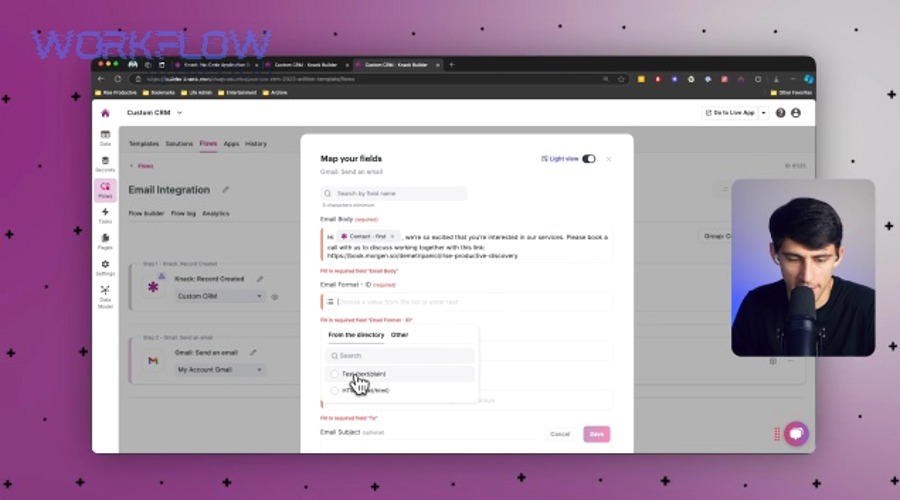
Airtable’s Page Designer can fill a custom layout from a record, which is exactly the pattern you need for recurring decks or document pages. The Airtable team specifically describes using Page Designer to generate slide decks by populating custom layouts from base records.
Practical setup that works well:
- Build a “Document Output View” (one record = one output package)
- Add Page Designer and select that view
- Set a slide-like canvas size (widescreen-ish dimensions)
- Drag fields into consistent regions (header, scope block, pricing table, signatures note)
- Use text labels for clarity (because fields don’t auto-label)
- Export each page as a PDF page or compile into a single PDF if your process supports it
Where Page Designer shines: predictable layouts (proposals, one-pagers, onboarding summaries) where the “shape” of the content is consistent.
Here’s one solid walkthrough video you can embed for your internal enablement:
When should you use a Google Slides template and API-based merge instead?
Use a Slides template + merge approach when you need:
- Many slide variants (per product line, region, language)
- Complex charts, images, and conditional layouts
- Higher-volume generation (dozens/hundreds per week)
In that model, Airtable still remains the data source, but a middle layer (script or integration platform) merges record fields into a Google Slides template, then exports to PDF into Drive.
The decision rule is simple:
- Page Designer = fastest path for structured, repeatable layouts
- Template merge = best for high variability and high volume
How do you store and version Google Slides in Google Drive for signing readiness?
You store and version files by using a strict folder structure, naming conventions, and permission rules, so the “signing-ready” file is always obvious and immutable.
Next, you’ll want to enforce a “one source PDF” rule: only the exported PDF is allowed to enter PandaDoc, not editable drafts.
How should you name, folder, and permission files for fast approvals?
A practical Drive structure:
/Sales Docs//2026//Q1//ACME Inc/Drafts/Signing/Archive/
Naming convention example:
ACME_SOW_v03_Approved_2026-02-02.pdfACME_Proposal_v02_Draft_2026-02-01.gslides
Permission rules that reduce delays:
- Drafts folder: editor access for internal team
- Signing folder: restricted editors, viewers as needed
- Archive folder: read-only
What is the best way to export Slides to PDF for eSignature?
The best way is to export a final PDF after approvals, then lock it:
- Confirm the slide content matches approved Airtable fields (no side edits)
- Export to PDF
- Place PDF in the Signing folder
- Do not overwrite the PDF—create a new version if anything changes
This ensures the signer sees a stable document and your internal team can always reconcile “what was signed.”
How do you send Google Drive files into PandaDoc for eSignature?
You send Drive files into PandaDoc by importing or uploading a signing-ready file, setting recipients/roles, placing signature fields, and sending with tracking enabled.
Next, you must confirm your Drive-to-PandaDoc method is still supported—because PandaDoc has announced changes to its Google Drive add-on availability. (support.pandadoc.com)

How do you upload PDFs from Google Drive into PandaDoc safely?
The safe “always works” approach is:
- Export Slides to PDF into Drive
- Download the PDF locally (or export directly to PDF and keep the file stable)
- Upload PDF into PandaDoc as a new document
- Assign roles + add signature/date/text fields
- Send via PandaDoc email link
If you were relying on the Google Drive add-on: PandaDoc’s own Help Center notes that the Google Drive integration is being sunset and the add-on is no longer available for installation from the Google Workspace Marketplace. (support.pandadoc.com)
So, treat “direct add-on import” as optional and plan a fallback path.
What should you configure in PandaDoc templates, recipients, and roles?
Configure these items before sending:
- Roles: Signer 1, Signer 2, Internal Approver (if needed), CC
- Signing order: sequential (legal first) vs parallel (two co-signers)
- Fields: signature, date, name, title; lock any fields that must not change
- Message: short, specific, includes what to review and deadline
If your organization generates documents from data systems regularly, you can also connect Airtable and PandaDoc via Zapier to create documents from new Airtable records, which reduces repetitive creation work and keeps the pipeline moving. (zapier.com)
How do you track signing status back in Airtable and keep stakeholders aligned?
You track signing status by writing the PandaDoc document link/ID and status timestamps back to Airtable, then using automations to notify owners only when meaningful state changes occur.
Next, build your alerts so they support your automation workflows rather than creating noise—because noisy alerts lead to ignored alerts.
Which status fields and timestamps should you write back to Airtable?
Minimum set of fields in your Outputs table:
- PandaDoc Document ID
- PandaDoc Document URL
- Status (Draft / Sent / Viewed / Completed / Declined / Expired)
- Sent timestamp
- First viewed timestamp
- Completed timestamp
- Declined/Expired reason (short text)
- Last sync timestamp (when you last refreshed the status)
This gives you “pipeline visibility” for documents the same way you track deals.
How can you automate notifications and reminders without spamming?
A practical approach:
- Notify owner when status becomes Viewed (signal of engagement)
- Notify owner + manager when Declined or Expired
- Send signer reminders only:
- 24 hours before deadline
- on deadline day
- 48 hours after deadline (final)
Also, treat signing alerts like any other operational signal. For example, if your team already runs automations like “calendly to calendly to zoom to clickup scheduling” or “calendly to google calendar to zoom to trello scheduling,” you can reuse the same routing logic: only trigger notifications when the state truly changes, not on every sync.
What are the most common errors in this workflow and how do you fix them?
There are three main categories of errors in this workflow: data-to-layout mapping issues, Drive permission/versioning issues, and PandaDoc recipient/field setup mistakes.
Next, the fastest way to fix them is to diagnose by stage: Airtable → Slides → Drive → PandaDoc, so you isolate the break instead of guessing.
Which data mapping issues break slide generation?
Common issues and fixes:
- Empty fields render blank sections → add “required field” rules before output
- Rollups produce unreadable blobs → create a formula field that formats rollup values into clean bullets
- Too much text overflows → enforce character limits and add a “long scope appendix” rule
- Incorrect linked record → lock relationships at approval time (no relinking after approval)
Which Google Drive permission issues block PandaDoc access?
Typical causes:
- File is in a restricted folder and the sender’s account can’t export/download
- Sharing is inconsistent (viewer vs commenter vs editor)
- The team relies on an add-on that is no longer installable
Because PandaDoc notes its Google Drive add-on is being sunset, your best mitigation is to standardize on exporting to PDF and uploading into PandaDoc rather than depending on the add-on path. (support.pandadoc.com)
Which PandaDoc field/recipient mistakes delay signatures?
Most delays come from:
- Signer email typo (invite never arrives)
- Fields not assigned to the correct recipient
- Missing required fields (signer can’t complete)
- Wrong signing order (approver waits on signer, signer waits on approver)
- “Editable text blocks” left open (causes back-and-forth)
Your fix is to implement a pre-send checklist in Airtable: “Recipients verified,” “Fields placed,” “Signing order confirmed,” “PDF matches approved version.”
Contextual Border: Up to this point, the article focused on building and running the core workflow end-to-end. Next, the focus shifts to micro-optimizations—compliance, security, and proving speed gains—so you can scale with confidence.
How can you optimize compliance, security, and speed in automated vs manual document signing?
You optimize automated vs manual document signing by combining audit trails, access controls, and clear approval gates so the workflow stays fast without increasing legal or operational risk.
Next, you’ll want proof that the “automated” path isn’t just convenient—it measurably reduces cycle time compared with manual routing.
How do audit trails and access controls reduce risk?
Audit trails reduce risk because they create a defensible record of:
- Who received the document
- When it was opened
- What actions were taken (signed/declined)
- Which version was signed
Access controls reduce risk by preventing unapproved edits:
- Airtable: restrict who can change “Approved” records
- Drive: restrict who can edit the Signing folder
- PandaDoc: lock fields and limit edits to designated roles
When is a manual review step better than full automation?
Manual review is better when:
- Contract language is non-standard
- Pricing has exceptions
- Regulatory requirements demand human verification
- The document includes negotiated redlines
In those cases, keep the automation for generation, storage, and routing—but insert a single “human approval” gate in Airtable before the PDF is exported and sent.
Which metrics prove ROI for revenue teams?
Three metrics show ROI quickly:
- Turnaround time (sent → completed)
- Rework rate
- Time-to-first-view (sent → viewed)
Evidence can be found in operational studies showing electronic signature can materially reduce turnaround times in real workflows. For example, a clinical workflow study published on PubMed Central reported that median time from transcription to final signature dropped from 11 days to 3 days after introducing electronic signature for abdominal ultrasound reports (and from 10 days to 5 days for chest radiographs). (pmc.ncbi.nlm.nih.gov)
If you translate that mindset to revenue operations, the same logic applies: automation removes the “paper loop,” and your team spends time on deal value, not document chasing.
According to a study by McGill University’s Radiology-related clinical workflow researchers (published in 2003 on PubMed Central), in 2001–2002, introducing electronic signature reduced median turnaround time from 11 days to 3 days for one report type, demonstrating how removing manual routing loops can sharply compress completion time. (pmc.ncbi.nlm.nih.gov)