


To connect and sync Basecamp to Google Sheets, you build an integration that moves Basecamp project activity into structured spreadsheet rows (and, when needed, pushes selected sheet updates back into Basecamp) so your team can automate tracking, reporting, and coordination.
Next, you’ll see the main integration methods teams use—no-code automation tools, two-way sync platforms, and more technical connector/API approaches—so you can pick the right path based on how often data changes and who needs to edit it.
Then, you’ll get practical workflows and field-mapping patterns that prevent messy spreadsheets, duplicated rows, and “who changed what?” confusion—because a team sheet must stay readable, stable, and governed.
Introduce a new idea: once the setup is clear, the real win comes from running reliable sync rules and troubleshooting edge cases—so your Basecamp to Google Sheets integration becomes a dependable team system instead of a fragile experiment.
What does it mean to “connect and sync Basecamp to Google Sheets” for a team?
Connecting and syncing Basecamp to Google Sheets is a workflow automation setup that links Basecamp work items (like to-dos and projects) to spreadsheet rows so a team can capture updates, standardize reporting, and coordinate actions without manual copy-paste.
Specifically, this matters because “sync” can mean anything from a one-way activity log to a two-way operational system, so your team must define what moves, when it moves, and who controls each field.
A team-friendly Basecamp to Google Sheets integration usually has three layers:
- Data layer: what objects you track (projects, to-dos, assignees, due dates, status, comments).
- Process layer: what events matter (new to-do, completion, reassignment, due-date changes).
- Governance layer: who edits which fields and how you prevent conflicting changes.
When you treat the spreadsheet as a team system (not a personal notebook), you typically add stable identifiers, controlled status values, and a clear “source of truth” rule for each column. That prevents the most common failure mode: a sheet that looks helpful for a week and then becomes untrustworthy because edits happen everywhere.
What Basecamp data can be synced into Google Sheets (and what usually can’t)?
You can sync most “structured” Basecamp fields into Google Sheets—such as to-do titles, due dates, assignees, completion status, and links—while highly unstructured content and file attachments typically sync as references (URLs, names, timestamps) rather than full content.
For example, teams usually succeed when they focus on a few stable objects and fields, then expand only after the first workflow is reliable.
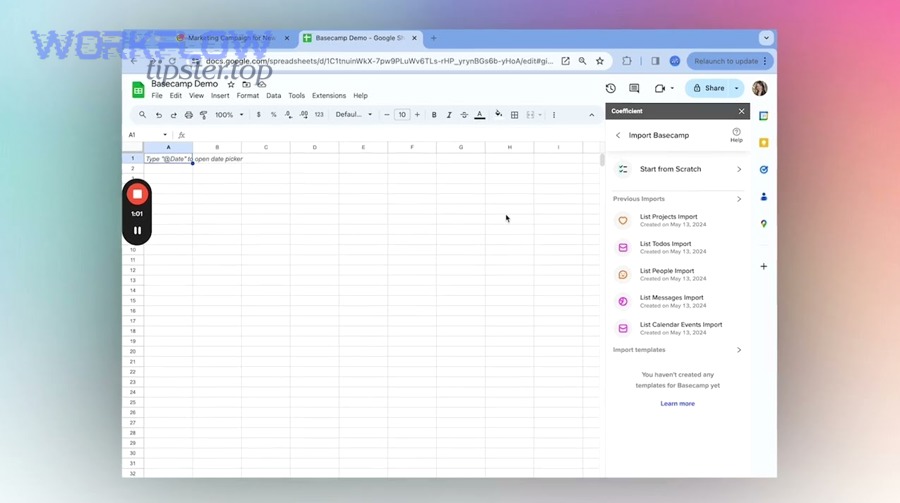
Common Basecamp-to-Sheets fields that map cleanly:
- Project: project name, project ID, team, client, created date.
- To-do: title, to-do ID, list name, assignee, due date, status (open/complete), completed date, priority (if you define it).
- Activity metadata: created by, last updated timestamp, item URL, comment count.
Data that usually does not map cleanly as “cells,” but can still be tracked:
- Comments and discussions: often best stored as counts, latest-comment timestamp, and the Basecamp link, rather than full comment bodies.
- Files/attachments: typically synced as filenames and URLs; the file contents are better handled in a file system or doc tool.
- Rich formatting: checklists, embedded formatting, and long text can be summarized or linked instead of copied verbatim.
The practical rule is simple: if the team needs it for sorting, filtering, or reporting, put it in a column; if the team needs it for reading context, store a link back to Basecamp.
What’s the difference between “logging to Sheets” and “true two-way sync”?
Logging to Sheets wins for reporting and visibility, while true two-way sync is best for operational workflows where Sheets edits should update Basecamp; in exchange, two-way sync requires stricter rules for ownership, conflicts, and field mapping.
However, the best choice depends on how your team actually works: if Basecamp is your execution hub, Sheets should usually be a reporting layer—not a second place to manage tasks.
Here’s the core comparison:
- One-way logging: Basecamp → Google Sheets. Low risk, great for dashboards, weekly reports, workload views, and client summaries.
- Two-way sync: Basecamp ↔ Google Sheets. High power, higher risk; best when Sheets is used as a controlled intake form or planning grid.
Two-way sync becomes safe when you define field ownership. For example: Basecamp owns “completion,” Sheets owns “priority,” and only a designated tab (or protected range) can trigger updates back to Basecamp. Without that, you invite silent overwrites and “why did my due date change?” arguments.
What are the best ways to integrate Basecamp with Google Sheets?
There are three main ways to integrate Basecamp with Google Sheets: no-code automations, two-way sync platforms, and technical connectors/APIs, based on your team’s need for speed, control, and bidirectional updates.
To better understand which method fits your team, start by deciding whether your spreadsheet is a reporting destination, a controlled intake tool, or a true co-equal system with Basecamp.
Most teams choose one of these paths:
- No-code automation (one-way or limited two-way): good for quick “when X happens, add a row” workflows.
- Two-way sync platform: good for keeping Basecamp items and sheet rows aligned with update rules.
- Connector/API approach: best for advanced reporting, large datasets, custom scheduling, and strict governance.
This table contains a practical comparison of integration approaches so you can match your Basecamp to Google Sheets integration to team needs:
| Method | Best for | Strength | Trade-off |
|---|---|---|---|
| No-code automation | Logging activity, lightweight workflows | Fast setup, templates, low technical effort | Can be fragile without dedupe rules |
| Two-way sync platform | Operational syncing, controlled bidirectional updates | Ongoing alignment, conflict options | Requires governance and ownership rules |
| Connector/API | Custom reporting, scale, complex transforms | Maximum control and customization | More setup and maintenance |
Which is better for teams: Zapier vs Make vs Unito vs API/connector approaches?
Zapier wins in speed-to-launch, Make is best for complex branching logic, Unito is optimal for structured two-way sync, and an API/connector approach is strongest for custom reporting and scale—so the “best” tool depends on your team’s workflow complexity and governance needs.
Meanwhile, the real decision is not brand preference; it is whether your team needs simple Automation Integrations or a long-term data system with strict controls.
Use these decision signals:
- Choose a template-first automation tool when you want rapid wins like “new to-do → new row,” plus lightweight notifications and routing.
- Choose a scenario-builder tool when you need conditional paths like “if status = blocked, notify lead; if due date changes, update dashboard; if missing assignee, create a triage row.”
- Choose a two-way sync platform when you must keep rows and tasks aligned with ongoing updates—and you can define ownership rules.
- Choose an API/connector when you want custom schedules, transformations, and governance at higher volume.
For content marketing and operations teams, this is the practical takeaway: if you’re also running other app links like airtable to shopify or gmail to microsoft teams, you’ll benefit from standardizing how you name workflows, log runs, and document field mappings so every integration stays maintainable.
What integration “patterns” should you choose (one-way export, two-way sync, bi-directional with rules)?
There are three main integration patterns you should choose from—one-way export, two-way sync, and bidirectional with rules—based on whether the spreadsheet is primarily for reporting, coordination, or controlled task creation.
In addition, picking a pattern early prevents the most common team conflict: someone treating the sheet like a command center while someone else treats Basecamp as the command center.
- One-way export (Basecamp → Sheets): best for reporting, leadership dashboards, client summaries, and historical tracking.
- Two-way sync (Basecamp ↔ Sheets): best when Sheets is a controlled interface (planning grid, intake form) and your team can enforce rules.
- Bidirectional with rules: best when only certain columns or tabs can trigger updates, and you want a safe hybrid.
If your team is new to integration work, start with one-way export, prove reliability, and only then expand into two-way updates with strict guardrails.
Can you set up Basecamp → Google Sheets automation without coding?
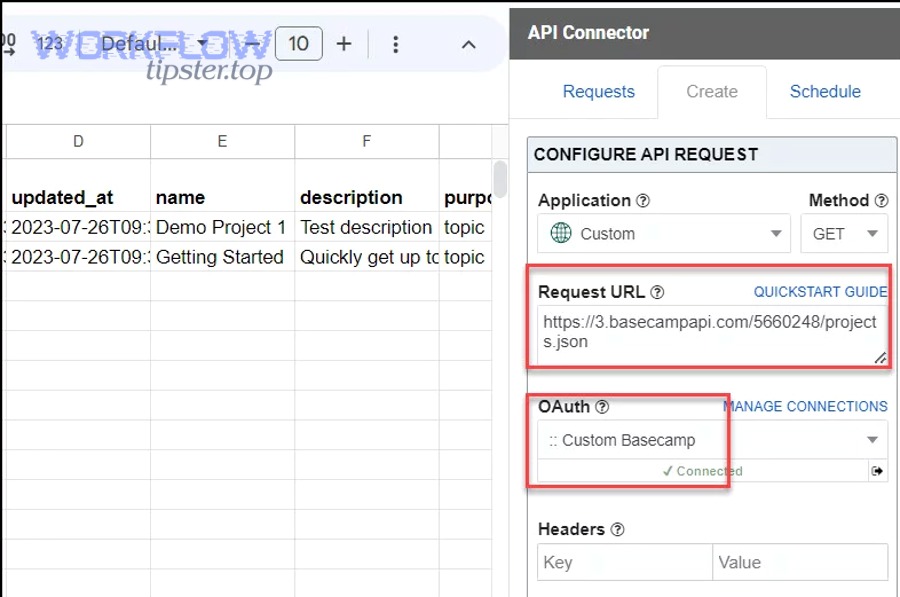
Yes—Basecamp to Google Sheets automation can be set up without coding because modern integration tools provide guided authentication, ready-made triggers and actions, and step-by-step field mapping that a team can standardize and reuse.
To begin, you’ll still need clarity on what you are automating, because “no code” does not mean “no design”: your team must define fields, ownership, and dedupe rules.
Here are three reasons no-code works well for teams:
- Reason 1: Simple connectors handle Basecamp and Google authentication reliably through standard sign-in flows.
- Reason 2: Templates let you deploy common workflows quickly and iterate later.
- Reason 3: Field mapping UI lets you align Basecamp properties to sheet columns without writing transformations by hand.
The most important success factor is not the tool; it is the spreadsheet design and governance, because a team sheet must stay consistent as multiple people view and edit it.
What do you need before you start (accounts, access, sheet structure, naming conventions)?
You need four essentials before you start: correct account access, Basecamp project permissions, a pre-structured Google Sheet with stable columns, and naming conventions that your team follows consistently across projects and workflows.
More specifically, treating this as “team infrastructure” rather than a quick experiment saves time later when multiple projects and stakeholders depend on your reporting.
- Accounts: a Google account that owns the destination Sheet (preferably a shared team account or properly shared workspace file), plus a Basecamp account with access to the right projects.
- Permissions: confirm you can view the to-do lists and items you intend to sync; lack of access is a top cause of missing rows.
- Sheet plan: decide whether you want one sheet per project, or one master sheet with a “Project” column and filtered views.
- Naming conventions: consistent names for projects, lists, and statuses; consistent column names; consistent workflow names (so your team knows what each automation does).
For a team, the simplest scalable layout is often: one master “Tasks” tab, plus optional “Projects” and “Weekly Summary” tabs. This keeps reporting consistent while still allowing per-project filters.
How should you structure your Google Sheet for a stable sync (columns, IDs, status fields)?
A stable sync sheet is a structured tracker with fixed columns, a unique identifier for every Basecamp item, and controlled status fields, designed so rows can be updated safely over time without breaking formulas, filters, or dashboards.
Specifically, you should design your sheet so it can survive real team behavior—sorting, filtering, adding notes—without corrupting the sync.

Recommended baseline columns for Basecamp to Google Sheets integration:
- Basecamp Item ID (required): a unique ID per to-do or item; treat this as the primary key.
- Item URL (required): a clickable link back to Basecamp to restore context instantly.
- Project and List names for grouping.
- Title, Assignee, Due Date, Status (Open/Complete/Blocked/Waiting—whatever your team uses).
- Last Updated Timestamp to detect stale rows and reduce overwrites.
- Notes (team-editable) as a dedicated free-text column that your sync never overwrites.
Practical governance tip: protect ranges for “synced columns” and allow edits only in columns explicitly labeled “team input.” This single rule prevents most accidental breakage.
What are the most useful Basecamp ↔ Google Sheets automation workflows for teams?
There are four high-value Basecamp ↔ Google Sheets automation workflows for teams—task logging, status dashboards, controlled intake-to-task creation, and exception alerts—because these reduce manual reporting while keeping Basecamp as the execution hub.
Let’s explore these workflows from simplest to most operational, so you can launch fast and still keep the system reliable.
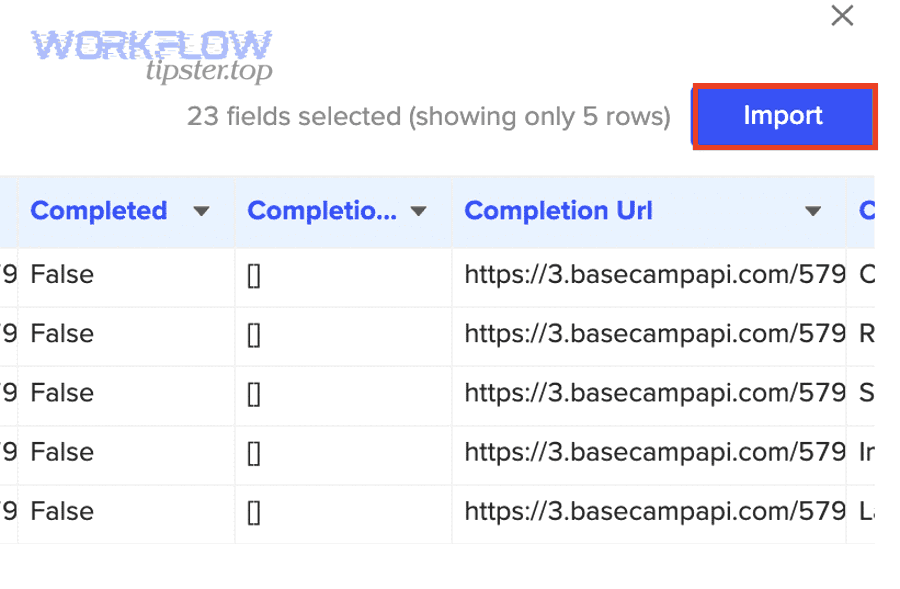
This short video can help you visualize how a trigger → action flow works for spreadsheet-based automation:
Before you build many workflows, define one shared “data contract” for the team:
- Which Basecamp items qualify for the sheet (all to-dos vs tagged to-dos vs specific lists).
- Which columns are synced and which columns are team-owned.
- What makes a row unique (usually the Basecamp Item ID).
Which Basecamp events should trigger a new row in Google Sheets?
There are four common Basecamp events that should trigger a new row in Google Sheets: new to-dos, to-do completions, due-date changes, and reassignment events, based on whether your team needs tracking, accountability, and trend reporting.
For example, a leadership dashboard often needs “new work” and “completed work,” while a delivery team needs “overdue” and “blocked” signals.
- New to-do created: best for workload intake tracking and “what just got added?” visibility.
- To-do marked complete: best for throughput reporting and weekly summaries.
- Due date changed: best for schedule risk tracking and client update preparation.
- Assignee changed: best for handoff transparency and preventing dropped tasks.
When the trigger creates the row, store the Basecamp Item ID and Item URL immediately. That makes every later update safe because your system can find the correct row to update.
Which Google Sheets changes should create or update Basecamp items?
There are three spreadsheet changes that can safely create or update Basecamp items: adding a new intake row, updating controlled status fields, and setting or changing due dates, based on team-approved columns that act as “inputs.”
However, only do this when you can enforce rules—because if everyone can edit everything, two-way updates create chaos.
- New intake row → create Basecamp to-do: use a dedicated “Intake” tab with required fields (title, project/list, owner).
- Status field change → update Basecamp status: only if status values are standardized and protected with data validation.
- Due date change → update Basecamp due date: only if you also log who changed it and when.
A safe practice is to require a “Ready to Sync” checkbox column. The team fills the row, checks the box, and only then does the automation create or update the Basecamp item.
How do you map Basecamp fields to Sheets columns without creating messy data?
Basecamp field mapping wins when you normalize status values, keep IDs stable, and separate “synced fields” from “team input” fields; meanwhile, messy data happens when you mix free-text edits with automation overwrites in the same columns.
To illustrate, treat the sheet like a database table: stable keys, consistent categories, and predictable formats.
Use these mapping rules:
- Use IDs, not names, as keys: names change; IDs remain stable.
- Normalize statuses: choose a small set (Open, Blocked, Waiting, Complete) and enforce via data validation.
- Keep timestamps: “Last Updated” helps detect stale updates and reduces accidental overwrites.
- Separate notes: keep one column that automation never touches, so humans can add context safely.
- Keep URLs: links are the fastest way to restore context and reduce long-text duplication.
If your team later needs richer reporting, you can add computed fields (like “Days to Due” or “Overdue?”) without changing the core sync columns.
Can you keep Basecamp and Google Sheets in sync reliably for a whole team?
Yes—Basecamp and Google Sheets can stay reliably in sync for a whole team if you use stable IDs, enforce ownership rules, and implement deduplication and monitoring, because reliability is less about the tool and more about consistent governance.
More importantly, team reliability requires that people trust the sheet; once trust is lost, the integration becomes ignored, and manual work returns.
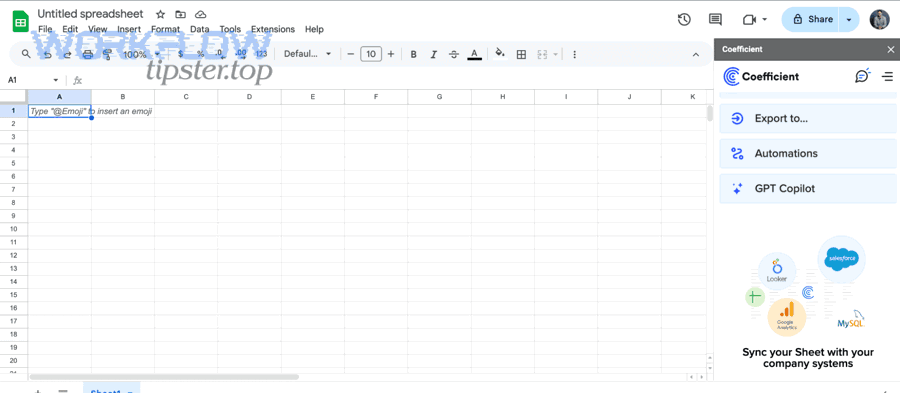
Three reasons teams achieve reliable sync:
- Reason 1: One primary key: every row maps to exactly one Basecamp item via ID.
- Reason 2: Ownership rules: Basecamp controls certain fields; Sheets controls others.
- Reason 3: Monitoring: errors and missed updates are visible quickly, not discovered weeks later.
When teams formalize these rules, the spreadsheet becomes a stable reporting and coordination surface—especially valuable for standups, weekly reviews, and cross-functional visibility.
What causes duplicates, missed updates, or mismatched status—and how do you prevent them?
Duplicates, missed updates, and mismatched status usually happen because the system lacks a stable unique key, triggers fire multiple times, or humans edit synced columns; you prevent them with ID-based row matching, “upsert” logic, and protected ranges.
Specifically, you want your integration to behave like a database update: find the row by ID, then update only the intended fields.
- Duplicate rows: prevent by using Basecamp Item ID as the unique key and updating existing rows instead of creating new ones.
- Missed updates: prevent by logging “Last Updated” and monitoring runs, plus ensuring proper permissions.
- Mismatched status: prevent by defining one owner for status (Basecamp or Sheets) and enforcing a controlled vocabulary.
If you must allow editing in synced areas, add a “Manual Override” flag. Then your automation can skip overwriting those rows until a manager clears the override.
What governance rules should teams adopt (who edits what, protected ranges, approval flows)?
Teams should adopt four governance rules: define editable columns, protect synced ranges, standardize status values, and add approval gates for creating or updating Basecamp items, based on reducing accidental changes while preserving collaboration.
Besides, governance is what turns a working prototype into an operational system that survives staff changes and project growth.
- Editable columns: label them clearly (e.g., “Team Notes,” “Priority,” “Owner Review”).
- Protected ranges: lock Basecamp IDs, URLs, and synced status fields to avoid accidental corruption.
- Approval flows: use a checkbox or “Ready” status before the sheet creates tasks in Basecamp.
- Audit habits: create a weekly “sync health” check (spot-check row counts, error logs, and stale timestamps).
According to a study by Massachusetts Institute of Technology from the Department of Economics, in 2023, access to AI assistance reduced task completion time by about 40% and increased quality ratings by 18% for certain writing tasks—showing why teams benefit when automation removes repetitive work while keeping human oversight for decisions.
When should teams use “attach a Google Sheet in Basecamp” instead of a true integration?
Attaching a Google Sheet in Basecamp wins for shared reference and collaboration, while a true integration is best for automated data flow and reporting; in short, attachments support reading and editing a document, but integrations support syncing structured work data.
On the other hand, many teams overbuild integrations when they only needed a shared spreadsheet link inside the project.
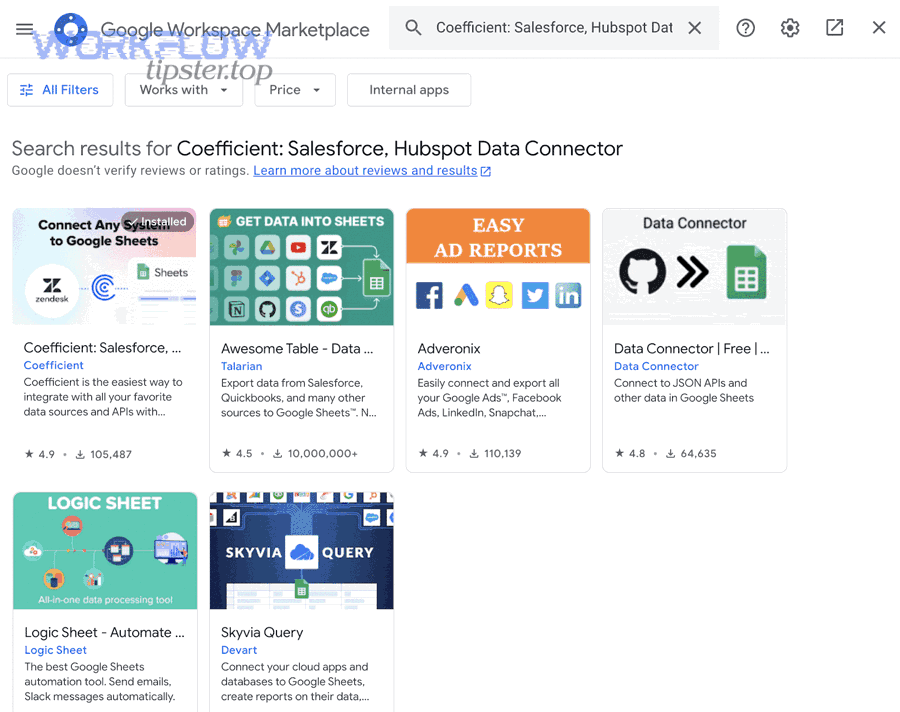
Choose attachment when:
- Your team needs a single planning sheet, budget sheet, or tracker that is edited directly in Sheets.
- You want Basecamp to be the “home” for links and context, but the sheet does not need automated row updates.
- Accuracy depends on human review, not automated syncing.
Choose integration when:
- You need Basecamp activity automatically reflected in dashboards and weekly reports.
- You want consistent metrics (throughput, overdue items, workload by assignee) without manual reporting.
- You need controlled intake rows to create tasks consistently and reduce missed handoffs.
If your team is unsure, start with attachment for shared context, then graduate to integration once you can define the exact fields and triggers that matter.
Is attaching a Google Sheet inside Basecamp the same as syncing data?
No—attaching a Google Sheet inside Basecamp is not the same as syncing data because attachment is a document link and viewing experience, while syncing data means automated creation and updating of spreadsheet rows based on Basecamp events (and sometimes the reverse).
Thus, use attachment for collaboration on the sheet itself, and use integration for automated reporting and structured workflows that must stay current without manual work.
Here are three clear indicators you need sync (not just attachment):
- Indicator 1: You need rows created automatically when new Basecamp to-dos appear.
- Indicator 2: You need status and due dates to update in the sheet without anyone touching it.
- Indicator 3: You need a consistent, filterable dataset across multiple projects for weekly review.
Contextual border: You now know what to build and which approach to choose; next, you’ll focus on troubleshooting, scale, and advanced reliability rules that keep a Basecamp to Google Sheets integration healthy as more projects and teammates depend on it.
How do you troubleshoot Basecamp ↔ Google Sheets sync issues and scale safely?
You troubleshoot Basecamp ↔ Google Sheets sync issues by checking authentication, permissions, row-matching keys, and workflow run logs, then you scale safely by adding governance rules, loop prevention, and archiving strategies so your team’s reporting stays accurate as volume grows.
Next, use the following structured checklist so you can fix problems quickly without rebuilding everything from scratch.
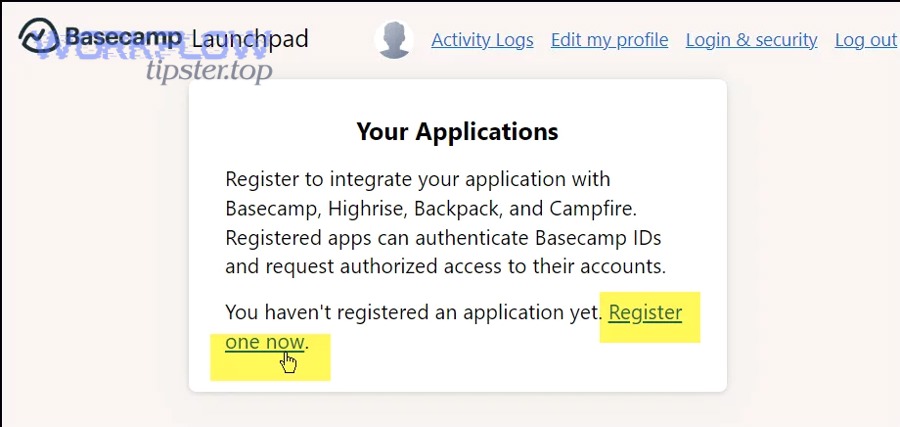
When teams scale this integration, the goal shifts from “it works” to “it stays correct.” That means you must manage edge cases like token expiration, partial failures, and human edits that conflict with automation.
What are the most common integration errors (auth, permissions, missing fields, expired tokens) and fixes?
There are four most common integration errors—authentication failures, permission gaps, missing or renamed fields, and expired tokens—and each has a predictable fix path based on re-authorizing accounts, verifying project access, and stabilizing field mappings.
To begin, treat every error as either an access problem, a mapping problem, or a data problem.
- Auth failure: re-connect Basecamp and Google accounts; confirm the correct account owns the workflow and has not changed passwords or security settings.
- Permission gap: verify the Basecamp user can access the project and lists; verify the Google Sheet is shared correctly and not moved to a restricted drive.
- Missing fields: confirm your sheet still has the expected columns; avoid renaming synced columns unless you update the mapping accordingly.
- Expired tokens: refresh authorizations on a schedule; ensure a team-owned account maintains continuity when staff roles change.
Fast diagnostic tip: compare the number of Basecamp items you expect with the number of rows you actually have, then filter by “Last Updated” to find stale or broken rows.
How do you prevent sync loops and conflict overwrites in two-way setups?
You prevent sync loops and conflict overwrites by defining field ownership, adding “ignore trigger” conditions, and using timestamps or version checks so an update from one side does not immediately trigger a contradictory update from the other side.
More specifically, two-way sync must operate like a contract: each side has responsibilities, and not every field is editable everywhere.
- Field ownership rule: Basecamp owns completion; Sheets owns priority; only a “Request Changes” column triggers updates back to Basecamp.
- Trigger filters: ignore updates made by the integration itself (some tools can tag the author) or ignore changes in “synced-only” columns.
- Timestamp checks: only update if the incoming change is newer than the “Last Updated” value.
- One-way-by-default: keep most fields one-way, and allow two-way updates only for a small set of controlled columns.
A reliable mental model is “Basecamp is execution; Sheets is coordination.” When you keep that hierarchy, overwrites become rare because the team knows where decisions are made.
How should you handle deletions, archiving, and “completed” items without breaking reports?
You should handle deletions, archiving, and completed items by using soft-delete and archive flags, preserving history in an “Archive” tab, and recording completion timestamps so reporting remains accurate over time even when Basecamp items are closed or removed.
Especially for team reporting, deleting rows is the fastest way to lose trend accuracy, so your spreadsheet should behave like a ledger.
- Completed items: keep rows, set Status = Complete, store Completed Date, and optionally move them to an Archive tab monthly.
- Archived projects: keep the data but add a Project Status field so dashboards can exclude archived work by default.
- Deleted items: if you must reflect deletion, mark a “Removed” flag and keep the ID for auditability.
- Historical metrics: compute weekly counts from timestamps so your reports do not depend on the current filter view.
This approach preserves truth: what happened, when it happened, and who owned it—even if the active project view changes.
What changes when you scale from one project to many (rate limits, batching, dashboards, access reviews)?
When you scale from one project to many, no-code tools remain fast for simple logs, two-way sync becomes more governance-heavy, and API/connector approaches become attractive for batching and dashboards—because higher volume exposes rate limits, monitoring needs, and access control complexity.
In addition, scaling introduces an organizational problem: different teams want different fields, but your reporting works best when core columns stay standardized.
- Rate limits and batching: avoid pulling everything constantly; use scheduled refreshes or batch updates, and keep incremental updates keyed by timestamps.
- Master dashboard strategy: build a master “Tasks” table and use filtered views or pivot-style summaries for teams and leadership.
- Access reviews: run periodic checks on who can view the sheet, especially if task titles or notes contain sensitive details.
- Workflow documentation: maintain a simple “integration registry” sheet that lists each workflow name, owner, purpose, and field mapping—particularly helpful if you also manage other links like airtable to shopify and gmail to microsoft teams.
If you scale thoughtfully, your Basecamp to Google Sheets integration becomes a stable reporting backbone: a single source for cross-project visibility that still respects Basecamp as the place where work gets done.