


Connecting Basecamp to Google Docs means you set up a reliable way for your team to create, share, and act on documents inside your project workflow—either by linking Docs in Basecamp or by automating document-driven tasks so work moves forward without manual copy-paste.
If your main goal is “no-code,” you can still get a strong Basecamp ↔ Google Docs connection by combining clean linking rules with an automation layer that watches a Drive/Docs folder and creates the right Basecamp items at the right time.
If you also want repeatable workflows—like “new doc in folder → create Basecamp document/to-do” or “to-do completed → append update to a Doc”—the best results come from using a trigger/action setup with clear mapping rules between projects and folders. https://zapier.com/apps/basecamp/integrations/google-docs
Introduce a new idea: once your connection works, the real value comes from preventing permission errors, duplicates, and notification spam so the integration stays trustworthy for the whole team.
What does it mean to connect Basecamp to Google Docs for a project team?
Connecting Basecamp to Google Docs is a project-collaboration setup that links or automates Google Docs activity inside Basecamp so teams can access the right document, at the right time, with the right permissions, without breaking their workflow.
To better understand what “connect” really implies, it helps to separate three levels of integration: linking, structured referencing, and automation—because teams often expect automation when they only built a link.
What counts as an “integration” vs a simple link between Basecamp and Google Docs?
A true integration wins in repeatability, a simple link is best for quick sharing, and automation is optimal for scaling documentation workflows across many projects.
However, the difference is not just “more features”—it’s whether work can move forward without a person remembering the next step:
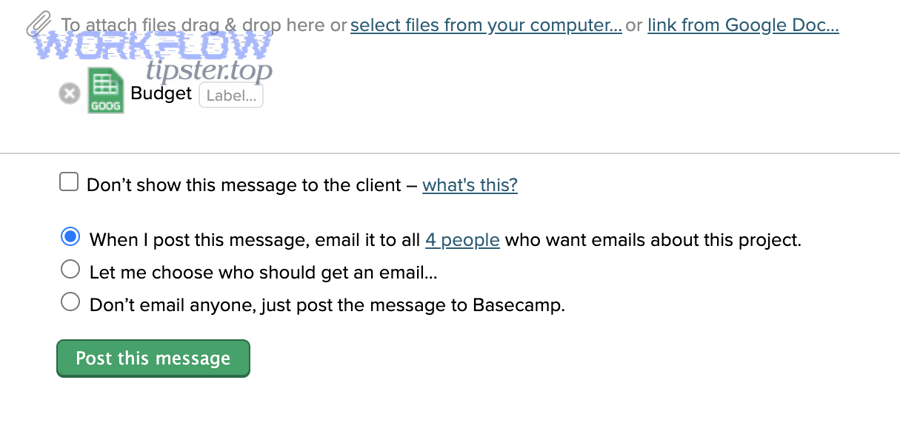
- Simple link (lowest effort): You paste a Doc URL into Basecamp so people can open it.
- Structured reference (more reliable): You standardize where Doc links live (e.g., in a specific message, document, or “Door”/reference point) so the team always knows where to look.
- Automation (highest leverage): A trigger (like “new Doc in folder”) creates or updates a Basecamp item automatically, so documentation becomes part of the workflow—not an afterthought. https://zapier.com/apps/basecamp/integrations/google-docs
A useful rule: If you want Basecamp to “do something” when a Doc changes, you need automation. If you only want Basecamp to “remember where the Doc is,” a link can be enough.
Why do teams connect Basecamp and Google Docs in the first place?
Teams connect Basecamp and Google Docs to create a single “source of action” (Basecamp) and a single “source of content” (Docs) so collaboration stays fast, searchable, and consistent.
Specifically, teams do this for four operational reasons:
- Fewer status pings: Work and context live together; people open a Doc from the Basecamp thread that explains why it matters.
- Faster onboarding: New teammates can follow a Basecamp project and quickly find recurring Docs (kickoff notes, specs, retros, decision logs).
- Cleaner accountability: A Doc can trigger Basecamp to-dos (review, approve, publish), making ownership visible.
- Less context switching: When Docs and tasks are connected, people spend less time “hunting” for the next step.
According to a study by the University of California, Irvine from the Department of Informatics, in 2008, interrupted work led people to complete tasks faster but with higher stress and frustration—showing why clean, low-friction workflows matter. https://www.ics.uci.edu/~gmark/chi08-mark.pdf
Can you connect Basecamp to Google Docs without coding?
Yes—you can connect Basecamp to Google Docs without coding because (1) Basecamp supports sharing external content via links, (2) Google Docs permissions are managed in Google, and (3) no-code automation tools can move information between Docs and Basecamp using triggers and actions. https://2.basecamp-help.com/article/210-google-docs
Next, the key is choosing the “no-code path” that matches your team’s real need: simple access, consistent documentation, or automated follow-through.
Is “linking a Google Doc in Basecamp” enough for most teams?
Yes—linking a Google Doc in Basecamp is enough for many teams because it (1) keeps the Doc accessible from the project context, (2) avoids duplicate files, and (3) preserves Google’s native collaboration features like comments and version history.
However, link-only setups fail when teams grow, because people start asking:
- “Which link is the latest?”
- “Where do we put the official doc for this project?”
- “Who is responsible for review and sign-off?”
If your team answers those questions with a standard location and naming rule, linking can stay effective for a long time.
To make link-only work, implement three habits:
- One official “Document Hub” post per project (kickoff doc, spec doc, decision log).
- A naming convention (e.g., ProjectName – Spec – v1).
- A permission rule (domain-only or specific collaborators, not “anyone with link,” when sensitive).
When do you need automation instead of linking?
Automation wins in consistency, linking is best for simplicity, and sync tools are optimal for continuous file mirroring—but most teams only need automation when the “next step” keeps getting dropped.
More specifically, you need automation when:
- Docs are created repeatedly (weekly reports, meeting notes, client updates).
- Docs drive action (review/approve tasks, publish steps, checklists).
- You route work by folder/project (Doc in folder A belongs to Basecamp Project A).
- You need auditability (proof that the workflow ran and notified the right people).
This is where “Automation Integrations” stop being a nice-to-have and become your team’s safety net: the workflow runs even when someone is busy, sick, or offline.
According to a study by the University of California, Irvine (CHI 2005), work fragmentation increases as task time shrinks and interruptions rise—highlighting why automated handoffs reduce “mental bookkeeping” in collaborative work. https://www.ics.uci.edu/~gmark/CHI2005.pdf
What are the best ways to connect Basecamp to Google Docs?
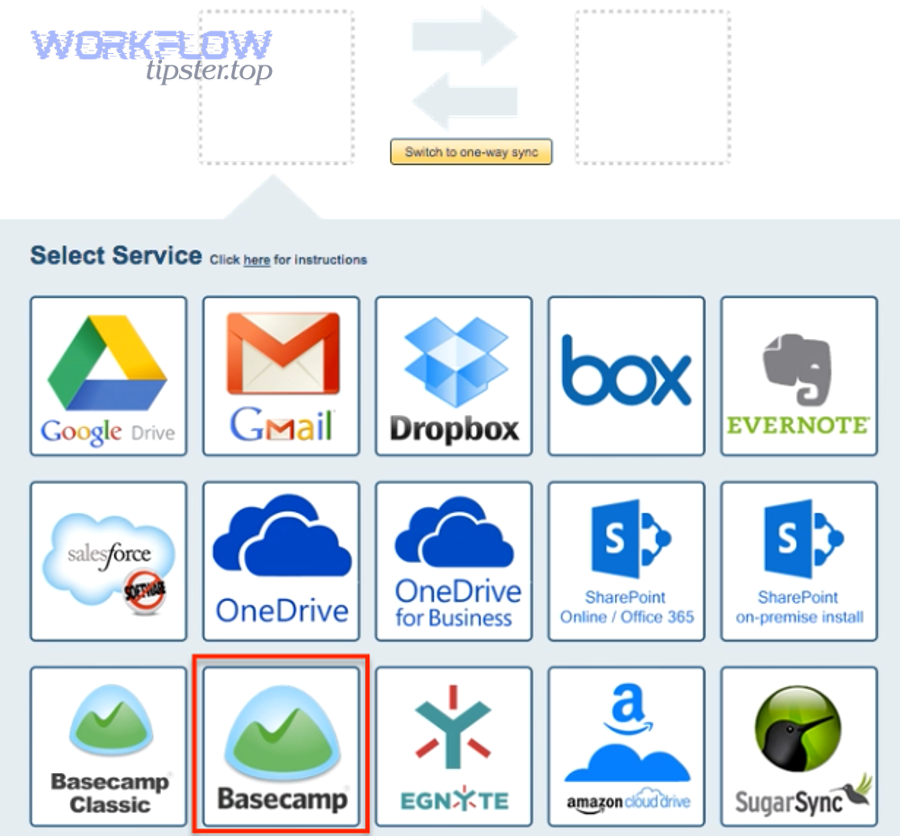
There are three main ways to connect Basecamp to Google Docs: (A) link/reference, (B) automate with triggers/actions, and (C) sync files—based on the criterion of how much the system should “do for you” after the link exists.
Then, your decision becomes straightforward: choose the lightest method that still prevents missed steps.
Which option fits your team: Link, Automate, or Sync?
Link wins in speed, automate is best for workflow reliability, and sync is optimal for file-level mirroring across systems.
Use this simple selection logic:
- Choose Link if your goal is: “Everyone can open the Doc from the Basecamp project.”
- Best for: small teams, low repetition, stable doc set.
- Choose Automate if your goal is: “When Docs change, Basecamp creates tasks/updates automatically.”
- Best for: recurring docs, approvals, review loops, multi-project environments. https://zapier.com/apps/basecamp/integrations/google-docs
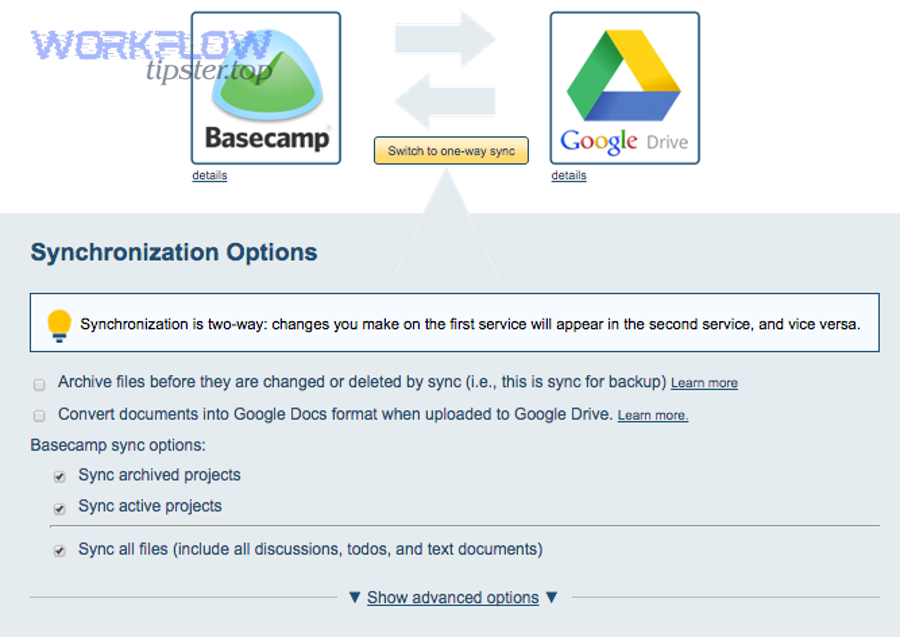
- Choose Sync if your goal is: “Keep a consistent copy/structure between Basecamp and Google Drive.”
- Best for: IT-governed environments, compliance archiving, multi-user setups. https://support.cloudhq.net/how-to-integrate-basecamp-and-google-drive-using-google-apps/
A practical note: sync tools can be powerful but risky for collaboration if people don’t understand what is being mirrored, overwritten, or duplicated.
What data can move between Basecamp and Google Docs in each method?
You can move four types of data between Basecamp and Google Docs, depending on the method: (1) URLs and references, (2) document files/templates, (3) task metadata, and (4) status updates.
More specifically:
- URLs and references (Link method):
- Doc link, folder link, “where to find the doc”
- Document creation (Automation method):
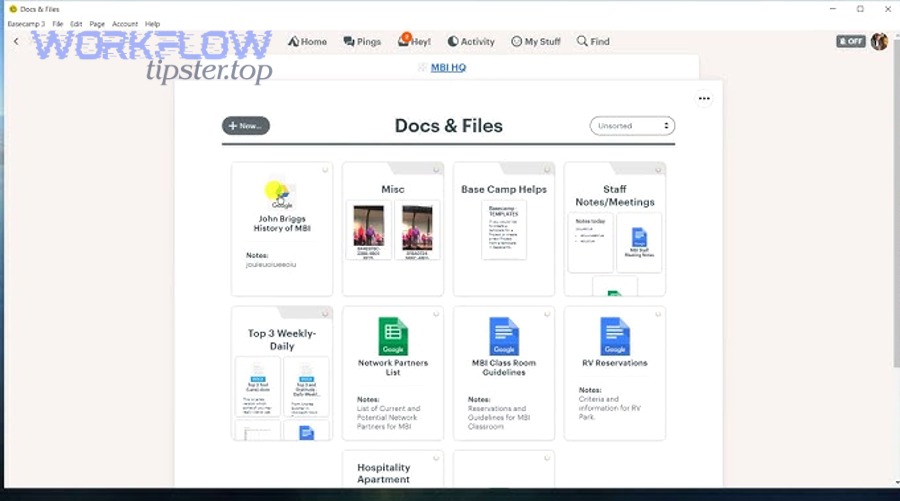
- Create a Doc from a template, name it consistently, place it in a folder, then post the link back to Basecamp
- Task metadata (Automation method):
- Create to-dos from doc events (new doc, renamed doc, moved doc)
- Status updates (Automation method):
- Append text to a Doc when a Basecamp to-do is completed/uncompleted (useful for weekly logs). https://zapier.com/apps/basecamp/integrations/google-docs
If you need a quick snapshot, this table contains the method → best-fit outcome mapping that helps teams choose without overbuilding:
| Method | What it’s best at | What it struggles with |
|---|---|---|
| Link/Reference | Fast access to the right Doc | Enforcing repeatable process |
| Automation | Reliable follow-through (tasks, updates, routing) | Requires careful rules to prevent duplicates |
| Sync | Governance, archiving, mirrored structure | Confusion if users edit in two places |
How do you set up Basecamp → Google Docs integration step-by-step?
A dependable Basecamp → Google Docs setup follows a 7-step method—define the workflow, choose connection type, authorize accounts, map projects/folders, standardize naming, test edge cases, and monitor results—so your team gets consistent docs with minimal manual effort. https://zapier.com/apps/basecamp/integrations/google-docs/255660768/create-new-basecamp-documents-from-new-google-docs-in-a-folder
Below, the most important idea is that mapping (project ↔ folder ↔ naming) determines whether the integration stays clean after the first week.
What prerequisites should you confirm before connecting accounts?
There are six prerequisite groups you should confirm before connecting Basecamp and Google Docs: access, ownership, structure, naming, security, and testing scope—based on the criterion of “what breaks later if we ignore it now.”
To begin, use this checklist:
- Access: The connector account must have access to the target Google Drive folder and Basecamp project.
- Ownership: Decide who “owns” the Doc templates and shared folder (avoid personal drives for team-critical docs).
- Structure: Define one folder per project (or one folder per client, with subfolders per project).
- Naming: Choose a naming pattern that supports sorting and searching (include project name + doc type + date or version).
- Security: Decide the default sharing mode (domain-only vs specific people).
- Testing scope: Pick one pilot project first; do not roll out to every project immediately.
This prevents the classic failure mode: the integration works during setup, then breaks when the Doc gets moved, renamed, or access is revoked.
How do you map Basecamp projects and Google Drive folders to avoid chaos?
Mapping projects to folders means you define a stable rule that tells your workflow, “Docs created in folder X belong to Basecamp project Y,” and the rule stays true even when your team grows.
Specifically, use a three-layer mapping rule:
- Project identity layer: Every Basecamp project has a “Doc Home” link pinned in a consistent place.
- Folder identity layer: That Doc Home points to a dedicated Drive folder (or Shared Drive folder) that does not change.
- Document identity layer: New Docs follow a naming convention and, when possible, are created from templates.
If you want the integration to feel “automatic,” design it so the team never wonders, “Where should this doc go?” The folder choice should be obvious from the project.
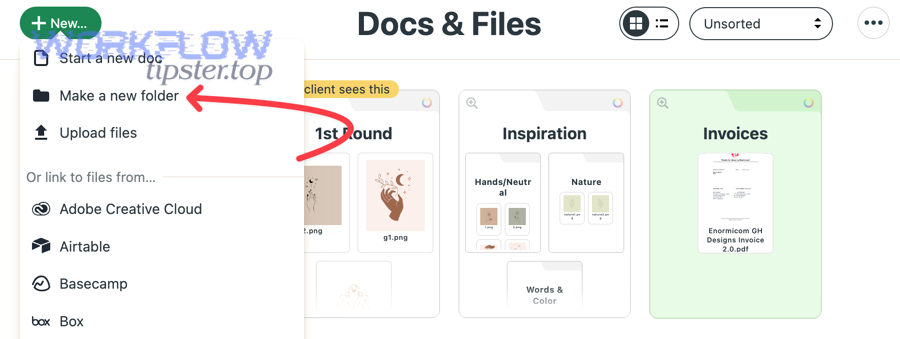
Here is one practical, automation-friendly structure:
- Shared Drive: Projects
- Folder: Client A
- Folder: Project Alpha
- Templates
- Working Docs
- Published
- Folder: Project Alpha
- Folder: Client A
According to the University of California, Irvine Department of Informatics, interrupted work environments increase stress even when output speed rises—so reducing uncertainty (“where does this doc go?”) is a direct workflow quality improvement. https://www.ics.uci.edu/~gmark/chi08-mark.pdf
https://www.youtube.com/watch?v=5OE0X2D_m1Y
Which automation workflows are most useful for Basecamp + Google Docs?
There are two main workflow groups that are most useful for Basecamp + Google Docs: Doc-to-Action workflows and Action-to-Doc workflows—based on whether the document triggers the work or the work updates the document. https://zapier.com/apps/basecamp/integrations/google-docs
Next, the goal is to pick workflows that remove repetitive coordination rather than automate everything.
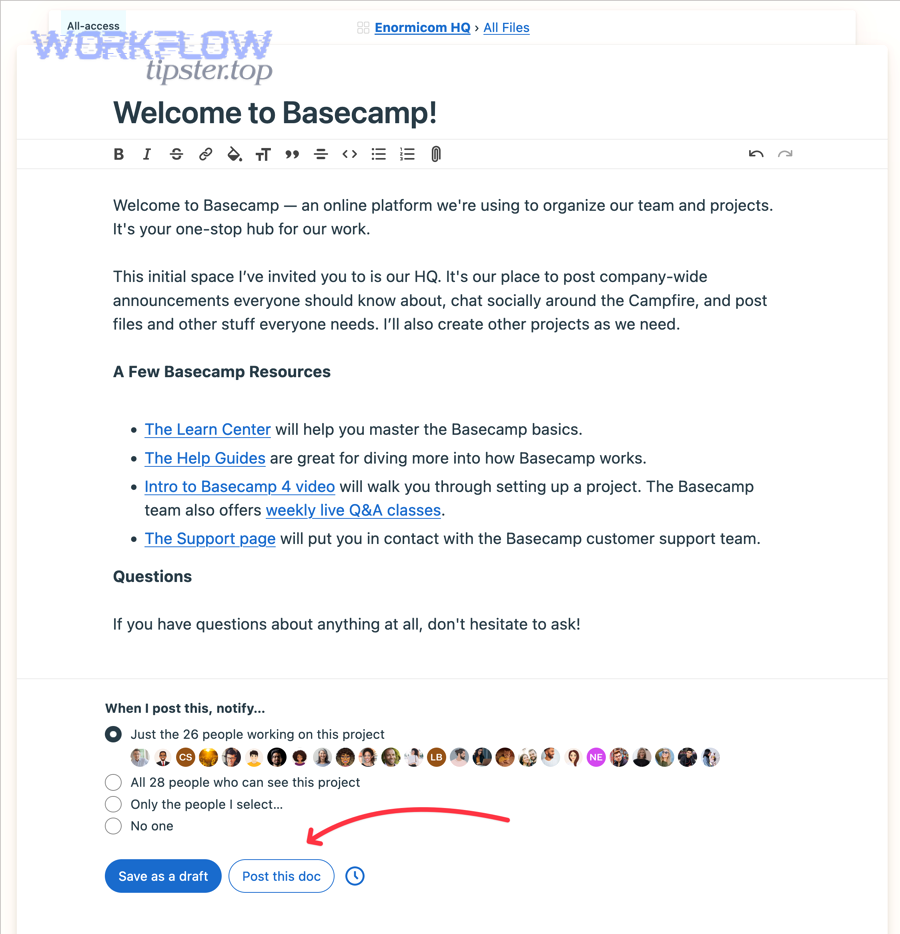
What are the top “Google Doc → Basecamp” recipes?
There are five high-impact “Google Doc → Basecamp” recipes: create document, create to-do, create message, notify reviewers, and route by folder—based on the criterion of how teams turn content into accountable action.
Most teams start with these:
- New Doc in folder → Create Basecamp document
- Best for: keeping Basecamp as the project hub while Docs stays the editor. https://zapier.com/apps/basecamp/integrations/google-docs/255660768/create-new-basecamp-documents-from-new-google-docs-in-a-folder
- New Doc in folder → Create Basecamp to-do
- Best for: review/approval loops (“Review spec,” “Approve proposal”). https://zapier.com/apps/basecamp3/integrations/google-docs/1802200/create-basecamp-3-to-dos-when-new-google-docs-documents-are-added
- Doc renamed (e.g., “Final”) → Post Basecamp message
- Doc moved to “Published” folder → Notify stakeholders
- Doc created from template → Assign checklist tasks
When you implement these, add filters (folder-specific, naming pattern-specific) so you don’t accidentally turn every random Doc into a Basecamp artifact.
What are the top “Basecamp → Google Doc” recipes?
There are four high-value “Basecamp → Google Doc” recipes: kickoff docs, meeting notes, retrospectives, and status logs—based on the criterion of which documents are repeatedly created from the same structure.
Practical examples:
- New Basecamp project → Create Google Doc from kickoff template
- Automatically generates a shared starting point with scope, roles, timeline.
- New to-do list created → Create meeting notes Doc
- Keeps agenda and notes consistent across the team.
- Milestone reached → Create retro Doc
- Ensures learning is captured while context is fresh.
- To-do completed → Append update to a status Doc
- Creates a living progress log that doesn’t rely on someone remembering to write it. https://zapier.com/apps/basecamp/integrations/google-docs
This is also where you can reference adjacent integration patterns for your team’s stack without changing the core method—for example, if you already run “freshdesk to smartsheet” reporting, you can mirror the same “trigger → action → audit” mindset for Docs and Basecamp.
According to a study by the University of California, Irvine (CHI 2008), people compensate for interruptions by working faster, but it increases stress—so automating recurring documentation reduces the human burden of remembering and re-orienting. https://www.ics.uci.edu/~gmark/chi08-mark.pdf
How do you prevent permission errors and missing-doc issues after connecting?
Preventing permission errors means you align Google Doc sharing, the connector account’s access, and folder ownership so every Basecamp link resolves consistently for every teammate, not just for the person who created it. https://2.basecamp-help.com/article/210-google-docs
Then, you harden the workflow against the most common causes: wrong account, wrong drive, and broken sharing inheritance.
Why does the automation say “file not found” even when the doc exists?
“File not found” usually means the automation account cannot see the doc because it lacks permission, is pointed to the wrong Drive context, or the file was moved outside the watched folder.
More specifically, check these causes in order:
- Wrong Google account connected
- The workflow is authenticated to a personal account, but the Doc is in a Shared Drive.
- Shared Drive restrictions
- Shared Drives have stricter membership-based access; link visibility doesn’t override membership rules.
- Folder scoping
- Many triggers watch one folder but not subfolders; moving a doc into a subfolder can “disappear” from the trigger scope. https://zapier.com/apps/basecamp/integrations/google-docs/255660768/create-new-basecamp-documents-from-new-google-docs-in-a-folder
- Ownership transfer
- If a Doc owner leaves the org, access can change depending on admin policy.
- Link type mismatch
- Some systems store a URL that is not the actual file URL (e.g., a shortcut link) which can break downstream steps.
Fix approach: confirm folder scope, ensure the automation identity has explicit access, and standardize doc location rules so people don’t “tidy up” the folder and accidentally break the workflow.
How should you set Google Doc sharing so the whole project team can access it safely?
Domain-only sharing wins for internal consistency, specific-people sharing is best for sensitive content, and “anyone with link” is optimal only for low-risk, external collaboration.
Here’s a safe default for project teams:
- Internal projects: Domain-only + add external collaborators explicitly when needed.
- Client work: Specific people/groups, plus a shared “client reviewers” group if your org uses Google Groups.
- Highly sensitive docs: Specific people only + disable download/print/copy if policy requires.
Evidence matters here because Basecamp does not change Google permissions; access is governed in Google, so the integration must be built around Google’s sharing model, not against it. https://2.basecamp-help.com/article/210-google-docs
How do you avoid duplicates, noisy notifications, and workflow spam?
You avoid duplicates and spam by adding deduplication rules, filters, and human-friendly notification thresholds so your Basecamp project stays readable while the integration still captures the actions that truly matter.
Besides keeping the workspace clean, this also protects trust: when teammates see fewer false alerts, they take the real alerts seriously.
What deduplication rules keep your Basecamp project clean?
There are four main deduplication rule types that keep Basecamp clean: unique identifiers, naming constraints, storage checks, and folder scoping—based on the criterion of what you can reliably test before creating a new item.
Use these patterns:
- Unique identifier capture
- Store the Google Doc file ID (or URL) in a Basecamp note/message so the workflow can check “already posted?”
- Naming constraints
- Only trigger when the Doc name matches a pattern like Project – Spec – or includes a tag like [BC].
- Storage checks
- Before creating a Basecamp item, search existing items for the file ID or exact URL; if found, update instead of create.
- Folder scoping
- Watch only a “Ready for Basecamp” folder to avoid triggering on drafts.
This is where “google docs to todoist” style workflows can teach a useful discipline: only create tasks when the signal is strong, not when any document event occurs.
How do you design automation that doesn’t annoy the team?
Non-annoying automation is automation that posts less often but with higher relevance, using thresholds like “milestone reached,” “final version created,” or “assigned reviewer added,” rather than “every minor edit.”
To illustrate, adopt these communication rules:
- Prefer summaries: One daily/weekly digest message beats 30 micro-updates.
- Notify by role: Reviewers get notified for review events; everyone else sees a single status update.
- Use state changes: Trigger on “moved to Published,” “renamed to Final,” or “added to Approved folder,” not on every edit.
- Separate work streams: Keep “workflow logs” in a specific Basecamp thread so they don’t pollute human conversations.
If your team uses “google forms to linear” to capture intake and convert it into actionable work, apply the same principle here: intake is noisy, but validated states (“approved,” “final,” “ready”) are clean.
According to a study by the University of California, Irvine (CHI 2005), frequent switching and interruption patterns increase fragmentation—so reducing notification noise is not a cosmetic improvement; it reduces cognitive load in daily project work. https://www.ics.uci.edu/~gmark/CHI2005.pdf
What advanced integration decisions matter for scaling Basecamp + Google Docs?
One-way automation wins in stability, two-way sync is best for continuous mirroring, and manual linking is optimal for low-risk simplicity—so scaling successfully depends on choosing the least complex option that still meets governance and reliability needs.
More importantly, the advanced decisions are not about “more automation,” but about preventing rare failures that appear months later: permission drift, ownership changes, folder restructures, and noisy loops.
Is one-way automation better than two-way sync for teams?
One-way automation wins in predictability, two-way sync is best for file parity, and hybrid setups are optimal for mixed governance where some artifacts must be mirrored while others remain link-based.
A practical comparison:
- One-way (recommended for most teams): Docs events create/update Basecamp items, but Basecamp does not rewrite Docs content.
- Pros: fewer conflicts, fewer accidental overwrites, easier auditing.
- Two-way sync (use cautiously): Changes propagate both directions.
- Pros: consistent structure across platforms.
- Risks: duplication, conflicts, “last write wins,” unclear ownership boundaries.
If your team is not explicitly managing conflict resolution rules, default to one-way workflows.
How do you handle rate limits, retries, and failed runs in automation tools?
Handling rate limits and failures means you design the workflow to retry safely, record what happened, and alert the right person—so a temporary outage does not create missing tasks or duplicate posts. https://zapier.com/apps/basecamp/integrations/google-docs
Use these operating practices:
- Retry with backoff: Avoid hammering APIs; let the system retry after short delays.
- Idempotency mindset: A replay should update, not duplicate—store identifiers and check before creating.
- Run logs: Keep a lightweight log trail (timestamp + doc ID + Basecamp item) so issues are traceable.
- Alerting: Notify an owner when failures exceed a threshold, rather than notifying on every single hiccup.
This is where mature operations matter: the workflow must be reliable even when inputs are imperfect.
What’s the least-privilege permission model for Google Workspace teams?
Least privilege means the connector account has only the access needed to the target folder(s) and projects, and document visibility is granted through groups/roles rather than broad public links.
Implement it like this:
- Use a dedicated integration identity (not a personal employee account).
- Grant that identity access only to the Shared Drive or project folders it must watch.
- Use Google Groups to grant team access so onboarding/offboarding is clean.
- Keep sensitive docs in restricted folders that are not watched by triggers.
This reduces the blast radius if credentials change, and it keeps compliance teams happy without blocking productivity.
What are the rare “gotchas” that break integrations months later?
There are four rare gotcha groups that break Basecamp ↔ Google Docs setups months later: identity changes, folder refactors, ownership drift, and workflow loops—based on the criterion of “changes that humans make for good reasons but workflows interpret as breaking events.”
Watch for:
- Identity changes
- Someone changes email domains, leaves the org, or the integration account is deactivated.
- Folder refactors
- Teams reorganize Drive structure and move watched folders.
- Ownership drift
- Templates created in personal drives get orphaned when owners leave.
- Workflow loops
- An update posted to Basecamp triggers a Doc update, which triggers another Basecamp update.
In scaled environments, treat these as governance issues, not technical glitches: write a one-page policy for where project Docs live, who owns templates, and what folder events are “allowed” to trigger automation.
According to a study by the University of California, Irvine Department of Informatics, interruptions alter how people work and increase stress—even when output speed appears to improve—so preventing silent workflow breakage protects both performance and team wellbeing. https://www.ics.uci.edu/~gmark/chi08-mark.pdf