


To connect Basecamp to GitLab, you set up a reliable link between Basecamp To-dos and GitLab Issues so work is created once, tracked in the right place, and updated without constant copying—typically by mapping fields, defining ownership rules, and automating status changes.
Next, you’ll clarify what “sync” actually means for your team: which Basecamp items should become Issues, which updates must travel back, and what the simplest “minimum viable sync” looks like so you get value fast without accidental complexity.
Then, you’ll make the integration durable by designing a field-mapping “contract” (title, description, assignee, due dates, labels, status) and choosing workflow patterns that keep everyone aligned—especially when multiple projects or repos are involved.
Introduce a new idea: once the day-to-day sync works, you can expand into smarter method selection, troubleshooting, and governance so the integration stays secure, scalable, and calm even as your team and workload grow.
What does it mean to “connect Basecamp to GitLab” to sync To-dos and Issues?
Connecting Basecamp to GitLab means linking two task systems—Basecamp To-dos and GitLab Issues—so they exchange updates in a controlled way (create, assign, comment, and close) with consistent rules, clear ownership, and traceable links.
To better understand this connection, it helps to separate the “objects” you sync (To-dos and Issues) from the “events” you sync (created, updated, completed/closed) and the “rules” that decide what happens next.
In practical terms, a Basecamp ↔ GitLab connection is a workflow that turns a To-do into an Issue (or vice versa), keeps the two linked with a permanent reference, and pushes only the updates you actually want. A good integration does not try to mirror everything; it mirrors what your team needs to move work forward without confusion.
Think of the sync as a contract:
- Source object: the item that triggers the workflow (often a Basecamp To-do).
- Destination object: the item created/updated in the other tool (often a GitLab Issue).
- Mapping: which fields map to which (title, assignee, due date, labels, status).
- Backlink: a URL or ID stored on both sides so people can jump between contexts.
- Ownership: which system is “truth” for each field, especially status and assignee.

Which Basecamp items should become GitLab Issues, and why?
There are 4 common Basecamp-to-GitLab item mappings—To-do → Issue, To-do list → label or milestone, message thread → Issue context, and file/doc link → Issue reference—based on how directly the item drives development work.
Specifically, you want GitLab Issues to represent work that developers will estimate, discuss, and complete in the repo workflow, while Basecamp remains the place where project stakeholders view progress and collaborate without needing GitLab expertise.
- Basecamp To-do → GitLab Issue (best default): A To-do is already an actionable unit of work. GitLab Issues are designed to track work, discussion, assignees, and metadata, so this pairing is natural.
- Basecamp To-do list → GitLab labels/milestones (good for structure): If your Basecamp lists represent stages or categories (e.g., “Backend,” “QA,” “Launch”), converting them into labels or milestones helps keep GitLab Issues organized and reportable.
- Basecamp message thread → GitLab Issue context (good for decisions): When a message thread contains requirements, decisions, or acceptance criteria, you can link it into the Issue description so developers don’t lose the “why.”
- Basecamp file/doc → Issue reference (good for artifacts): Instead of moving files, link the source artifact into the Issue so the team works from a single canonical document.
The “why” comes down to role clarity. GitLab Issues shine when work must connect to code, merge requests, milestones, and planning boards. Basecamp shines when you need simple, broad collaboration and fast stakeholder visibility.
What’s the minimum viable sync (MVS) for project teams?
The minimum viable sync is a 4-part setup: create a GitLab Issue when a Basecamp To-do is created, post the Issue link back into Basecamp, sync completion/closure status, and notify the assigned owner—so nothing falls through the cracks.
More specifically, MVS focuses on reducing duplicate entry and reducing status drift, not on syncing every possible field from day one.
Here’s what MVS typically includes and why it matters:
- Create once: When a Basecamp To-do is added (especially in a “Development” list), automatically create a GitLab Issue with the same title and a clean description.
- Backlink immediately: Add the GitLab Issue URL back into the Basecamp To-do details or comment thread so stakeholders can follow progress without asking for updates.
- Sync status: When the To-do is marked complete, close the Issue; when the Issue is closed, mark the To-do complete (if you choose two-way status syncing).
- Notify responsibly: Ensure the assignee gets alerted in the tool they actually use (often GitLab for developers), while Basecamp remains the stakeholder view.
According to a study by the University of California, Irvine from the Department of Informatics, in 2008, researchers found that after interruptions, people can take over 20 minutes on average to fully resume their original task—so reducing “manual copy loops” and status pings can protect focus. ([ics.uci.edu](https://www.ics.uci.edu/~gmark/chi08-mark.pdf?))
Can you sync Basecamp To-dos ↔ GitLab Issues automatically (without manual copying)?
Yes—Basecamp To-dos can sync with GitLab Issues automatically because (1) both systems support structured work items, (2) integrations can trigger actions on create/update/close events, and (3) field mapping allows consistent ownership without manual re-entry.
However, automation works best when you decide which direction each update should flow; otherwise, you risk duplicates, loops, and noisy notifications.
At a high level, automation usually follows one of these patterns:
- One-way automation: Basecamp creates GitLab Issues; GitLab remains the execution system; Basecamp receives a link and occasional status updates.
- Two-way sync: Both sides can update key fields (usually status, comments, assignee) with loop prevention rules.
- Custom/API integration: You implement logic for your exact workflow, including routing, deduping, and advanced governance.
Do you need admin access in Basecamp and GitLab to set this up?
No, you don’t always need full admin access, but you do need sufficient permissions because the integration must be able to read To-dos/Issues and create or update them; without the right access, automation can’t safely act on behalf of the team.
For example, many teams succeed with project-level access plus an “integration user” account that is explicitly granted the minimum necessary permissions. That approach reduces risk while keeping the workflow stable when employees change roles.
A practical permissions checklist looks like this:
- Basecamp: Access to the target project and the To-do tool; permission to view and create To-dos; permission to add comments or links if you post backlinks.
- GitLab: Project access that can create and edit Issues; permission to add labels, due dates, assignees; optional permissions for milestones depending on your workflow.
- Integration identity: Prefer an account dedicated to automation (not a personal employee account) so token rotation and offboarding don’t break the connection.
Even when you don’t need full admin, you should still coordinate with an admin to ensure compliance with security policies, especially if you use personal access tokens or broad scopes.
Is two-way sync required, or is one-way automation enough?
One-way automation wins in simplicity, two-way sync is best for shared ownership, and custom/API is optimal for complex governance—so the “right” answer depends on how often both sides need to update the same fields without conflict.
Meanwhile, most teams overestimate the need for full two-way sync. If GitLab is where developers live, and Basecamp is where stakeholders live, a strong one-way handoff plus status reflection often delivers 80% of the benefit with 20% of the risk.
Use this decision logic:
- Choose one-way automation if you want Basecamp to create work items and GitLab to execute them, with Basecamp receiving links and milestone-level progress.
- Choose two-way sync if PMs and dev leads update status or priority in Basecamp and you need those changes reflected in GitLab without manual intervention.
- Choose custom/API if you must route items across multiple projects, enforce strict naming/label rules, or maintain auditable logs and dedupe guarantees.
When you go two-way, treat it like a product: define “truth fields,” block loops (ignore bot updates), and decide what happens when both systems change the same field within minutes.
How do you map Basecamp fields to GitLab fields so the sync stays consistent?
Mapping Basecamp fields to GitLab fields means defining a stable translation between To-do attributes and Issue attributes—so every automated update lands in the correct place, with predictable rules for titles, descriptions, assignees, due dates, labels, and status.
To begin, treat mapping as a “data contract” that prevents drift: everyone on the team should be able to predict how a To-do becomes an Issue, and which system owns each type of update.
Below is a practical mapping table that contains the most common field translations, helping you standardize the sync and reduce disagreements later.
| Basecamp To-do Field | GitLab Issue Field | Mapping Rule | Best Practice |
|---|---|---|---|
| To-do title | Issue title | Copy verbatim; add prefix if needed (e.g., [BC]) | Keep titles short; move context to description |
| To-do notes/details | Issue description | Copy and append Basecamp link + acceptance criteria | Use a template block for consistent sections |
| Assignee | Assignee | Map user email/name across systems | Use a lookup table; handle “unmapped” safely |
| Due date / date span | Due date | Convert timezone-aware date; store original in notes | Decide whether GitLab or Basecamp is the source of truth |
| To-do list name | Labels / Milestone | List name becomes label or milestone | Standardize list names to reduce label sprawl |
| Complete / incomplete | Closed / open | Define status translation rules | Prevent loops; ignore bot-origin updates |
Which field mappings are “must-have” vs “nice-to-have”?
There are 2 tiers of field mappings—must-have (title, description, status, backlink) and nice-to-have (labels, due date, priority, milestones)—based on whether the field prevents confusion and duplication in daily work.
For example, if you skip the backlink, stakeholders can’t verify progress without asking; if you skip status mapping, the two systems drift and teams start mistrusting the integration.
- Must-have mappings:
- Title: so the work item remains recognizable in both tools.
- Description + context: so developers get requirements without hunting.
- Status: so “done” actually means done in both places.
- Backlink: so anyone can jump between the Basecamp conversation and GitLab execution.
- Nice-to-have mappings:
- Assignee: helpful, but only if identity mapping is reliable.
- Due date: useful for planning, but can create conflict if both sides edit it.
- Labels/milestones: great for reporting, but can explode without naming standards.
- Priority/weight/time tracking: powerful in GitLab, but often not necessary for the first iteration.
A helpful rule is to start with must-haves, run the integration for a week, then add one nice-to-have at a time—so you can see which change improves clarity versus which change adds noise.
How do you handle status alignment (complete ↔ closed, reopen, blocked)?
Status alignment works when you define a translation table—Basecamp complete ↔ GitLab closed, Basecamp incomplete ↔ GitLab open—and choose a single source of truth for exceptions like “blocked,” which often becomes a label rather than a status.
However, status is where integrations most often fail socially, not technically, because status reflects meaning: stakeholders may mark a To-do complete when a feature is “ready for review,” while developers close an Issue only when it is merged and deployed.
To avoid that mismatch, define these rules explicitly:
- Rule 1: Define “Done.” Decide whether “Done” means code merged, QA passed, deployed, or simply “handed off.”
- Rule 2: Use labels for nuance. Instead of inventing new statuses, use labels like blocked, needs-review, or waiting-on-client to capture reality without breaking the sync.
- Rule 3: Prevent loops. If Basecamp completion closes the Issue, configure the workflow so the “Issue closed” event does not re-trigger another Basecamp update endlessly.
- Rule 4: Decide reopen behavior. If an Issue reopens, should the To-do reopen automatically? Many teams say “yes” for engineering lists and “no” for stakeholder lists.
GitLab Issues are designed to support editing metadata like assignees and labels, so using labels for nuanced states usually keeps the system flexible without forcing Basecamp to mimic GitLab’s structure. ([docs.gitlab.com](https://docs.gitlab.com/user/project/issues/managing_issues/?))
What are the best workflow patterns to connect Basecamp and GitLab for project teams?
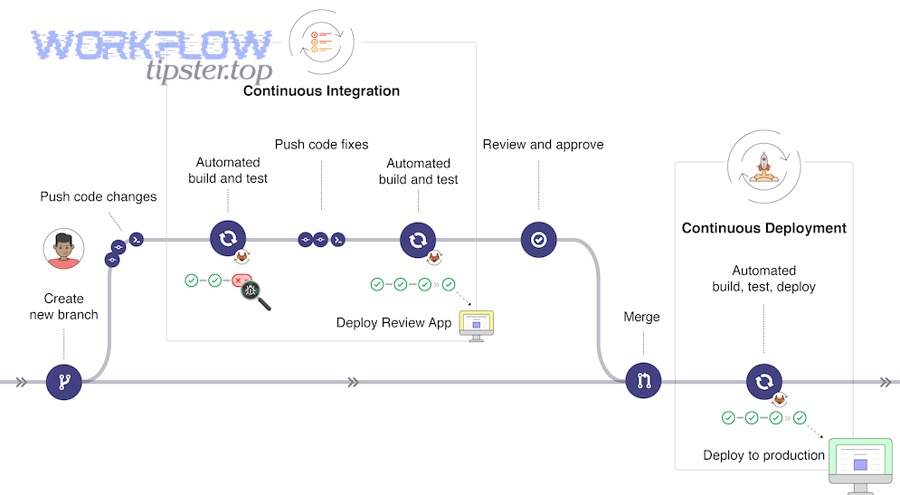
There are 4 best workflow patterns—stakeholder-to-dev handoff, structured list-to-label routing, decision-thread-to-issue context, and milestone-driven delivery—based on how your team divides planning, execution, and reporting responsibilities.
Next, choose patterns that match your team’s real behavior rather than forcing everyone into a new process overnight; integrations succeed when they reduce friction, not when they demand perfect discipline.
Here are the patterns that most consistently work in real teams:
- Pattern A: Basecamp as intake, GitLab as execution: PMs create Basecamp To-dos; integration creates GitLab Issues; developers work in GitLab; Basecamp gets links and closing signals.
- Pattern B: Basecamp lists as categories: Each Basecamp To-do list maps to a GitLab label (or milestone) to preserve organization and reporting.
- Pattern C: Basecamp message board as requirements hub: The Issue description includes a “Requirements” section with the Basecamp thread link, key decisions, and acceptance criteria.
- Pattern D: Release/milestone alignment: GitLab milestones represent delivery windows; Basecamp groups To-dos by delivery stage; sync attaches Issues to milestones for predictable planning.
How do you route the right Basecamp To-dos into the right GitLab project or repo?
Routing works when you choose 3 routing keys—Basecamp project, To-do list name, and a simple tag/keyword rule—so each To-do lands in the correct GitLab project with the correct labels and minimal human correction.
To illustrate, you can think of routing as a funnel:
- Funnel stage 1 (Basecamp project): If you have separate Basecamp projects for “Website,” “Mobile,” and “Ops,” map each to a GitLab project or group.
- Funnel stage 2 (To-do list name): Lists like “Frontend,” “Backend,” or “Bugfix” map to labels that automatically place Issues on the right board.
- Funnel stage 3 (keyword rule): A keyword such as “API” or “iOS” can add an extra label or route to a different repository when necessary.
A simple, scalable tactic is a routing table stored in one place (even a short internal doc): it defines which Basecamp list names are valid, what labels they map to, and which GitLab project receives them. That reduces “tribal knowledge” and prevents integrations from becoming fragile.
If your team uses milestones for delivery planning, you can also route by timebox. GitLab milestones support start and due dates and are built to group issues and track progress toward a goal, which makes them ideal for release-oriented mapping. ([docs.gitlab.com](https://docs.gitlab.com/user/project/milestones/?))
How do you prevent duplicate Issues when syncing from Basecamp?
You prevent duplicate Issues by using a 3-layer defense: a unique identifier in the Issue, a “search-before-create” step, and a single source-of-truth rule—so the integration acts idempotently even when events fire twice.
More importantly, duplicates are usually a symptom of unclear ownership: two people create similar To-dos, or the integration replays an event after a failure. Your job is to make duplicates unlikely and harmless.
- Layer 1: Unique identifier: Insert a stable identifier (like the Basecamp To-do URL or ID) into the GitLab Issue description and store the GitLab Issue URL back in Basecamp.
- Layer 2: Search-before-create: Before creating a new Issue, search GitLab for that identifier; if it exists, update instead of creating.
- Layer 3: Ownership rule: Decide that Basecamp is the only place where new work is initiated (for a period), or GitLab is the only place—so you don’t have two competing creation sources.
Practically, teams often start with “Basecamp creates, GitLab executes” because it reduces duplicate creation paths early. Later, if you truly need two-way creation, you add strict filters to ensure only items in an “Engineering Intake” list can create Issues.
Which integration method should you choose: no-code automation, two-way sync, or custom API?
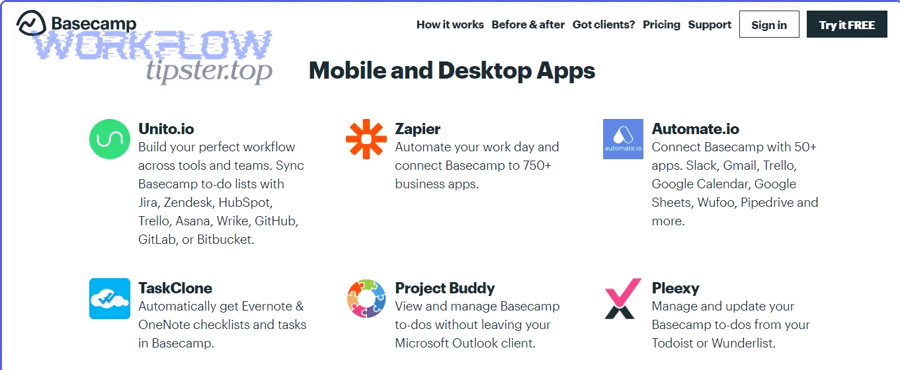
No-code automation wins for speed, two-way sync is best for shared updating, and a custom API integration is optimal for complex routing and governance—so you should choose based on workflow complexity, compliance needs, and the cost of maintaining the integration.
Besides tool features, method choice is really about risk management: the more “power” you add (two-way updates, custom logic), the more you must control loops, permissions, and edge cases.
Below is a decision guide that contains the main criteria teams use to pick the right approach.
| Criterion | No-code Automation | Two-way Sync | Custom API |
|---|---|---|---|
| Setup speed | Fast | Medium | Slow |
| Two-way updates | Limited | Strong | Full control |
| Routing complexity | Basic | Medium | Advanced |
| Auditability & governance | Depends on platform | Often strong | Customizable |
| Maintenance burden | Low | Medium | High |
What’s the fastest setup for a simple Basecamp → GitLab handoff?
The fastest setup is no-code automation with 3 steps—trigger on new Basecamp To-do, create a GitLab Issue, and write the Issue link back into Basecamp—so your team gets immediate value with minimal configuration.
Then, you harden the workflow with two small upgrades: add a filter (only certain lists create Issues) and add a mapping block (labels, assignee, due date) so Issues land ready-to-work.
A fast handoff configuration typically includes:
- Trigger: “New To-do created” in a specific Basecamp project and list.
- Action: “Create Issue” in the target GitLab project.
- Backlink action: Add a comment or update the To-do with the Issue URL.
- Filter: Only run if To-do list name matches “Engineering Intake” (or equivalent).
- Labeling: Apply a default label like incoming to keep triage visible.
This “intake to execution” approach fits project teams because it respects existing habits: stakeholders continue using Basecamp To-dos, while developers live in GitLab Issues.
When is a custom integration worth it?
Yes, a custom integration is worth it when you need advanced routing, guaranteed deduplication, strict security controls, or auditable logs—because those requirements usually exceed what generic connectors can safely provide.
Especially as your organization scales, custom logic often becomes less about features and more about predictability: you want the same input to produce the same output every time, even under retries, outages, or permission changes.
Common “custom is worth it” signals include:
- Multi-project complexity: One Basecamp workspace routes into many GitLab projects/groups with different rules.
- Governance requirements: You need audit logs, approvals, or restricted scopes that standard connectors can’t enforce.
- Strict idempotency: Duplicate Issues are costly (e.g., regulated workflows, billing impact), so you need stronger safeguards.
- Custom field logic: You translate Basecamp structures into GitLab labels, milestones, or templates with nuanced rules.
GitLab provides an Issues API that supports creating and updating issues and managing metadata like assignees, labels, and milestones—making custom integration feasible when your team has development capacity. ([docs.gitlab.com](https://docs.gitlab.com/api/issues/?))
Finally, as you think about method choice, it helps to view Basecamp ↔ GitLab alongside other Automation Integrations you may already run—like routing requests from email tools into trackers (for example, gmail to linear or gmail to salesforce)—because the same principles apply: clear ownership, clean mapping, and loop prevention.
What problems happen most often, and how do you troubleshoot Basecamp ↔ GitLab sync?
There are 6 common integration problems—permissions failures, token expiry, webhook/trigger misses, duplicate creation, noisy notifications, and looped updates—based on how automated systems behave under real-world change and intermittent failures.
Moreover, troubleshooting becomes much faster when you diagnose in the same order every time: first identity/permissions, then connectivity/events, then mapping, then loop/dedupe logic.
Use this step-by-step checklist before you change anything:
- Step 1: Confirm the integration identity still has access to the Basecamp project and GitLab project.
- Step 2: Verify the trigger event is firing (create a test To-do in the correct list).
- Step 3: Check if the action succeeded (Issue created) or failed (error logs).
- Step 4: Validate mapping outputs (labels, assignee, due date, backlink).
- Step 5: Confirm loop prevention rules are working (bot updates don’t retrigger).
Why did the sync stop working (tokens, permissions, webhooks)?
Syncs usually stop because permissions changed, tokens were revoked/expired, or event delivery failed—so the integration can no longer read a Basecamp To-do or create/update a GitLab Issue when the trigger fires.
For example, a common failure is silent: an employee who owned the integration leaves, their account is deactivated, and the automation identity loses access. Another common failure is scope-related: a token exists but lacks permission to set labels or assignees, so partial updates fail.
Diagnose systematically:
- Permissions drift: Has the integration user been removed from the Basecamp project or had its role changed? Has GitLab project membership or role changed?
- Token health: Was the token rotated? Did SSO or security policy revoke it? Was it created with insufficient scope?
- Trigger correctness: Is the To-do created in the exact project/list the automation expects?
- Event delivery: Did the connector miss events during downtime? If so, do you need a backfill/replay mechanism?
In many cases, the fix is simple: re-authorize the integration identity and re-run a test To-do. The key is documenting “where the integration lives” so it isn’t tied to a single person.
How do you fix noisy notifications or automation loops?
You fix noisy notifications and loops by applying 3 controls—filters (when to run), attribution rules (ignore bot-origin events), and throttling (batch or delay updates)—so automation remains helpful rather than disruptive.
On the other hand, if you do nothing, automation can amplify minor changes into major distraction: one comment triggers a status update, which triggers another comment, which triggers another status update—until the team mutes notifications and misses real signals.
Use these fixes in order:
- Control 1: Filter early. Only sync To-dos from specific lists (e.g., “Engineering Intake”) and only sync Issue updates from specific labels (e.g., “tracked-in-basecamp”).
- Control 2: Ignore bot updates. Configure the workflow so events created by the integration identity do not trigger downstream actions.
- Control 3: Reduce chatter. Post one structured status comment (e.g., “Issue closed”) rather than streaming every small edit back to Basecamp.
- Control 4: Add delay windows. If your platform allows, wait 1–5 minutes before syncing non-critical updates so rapid edits don’t spam both systems.
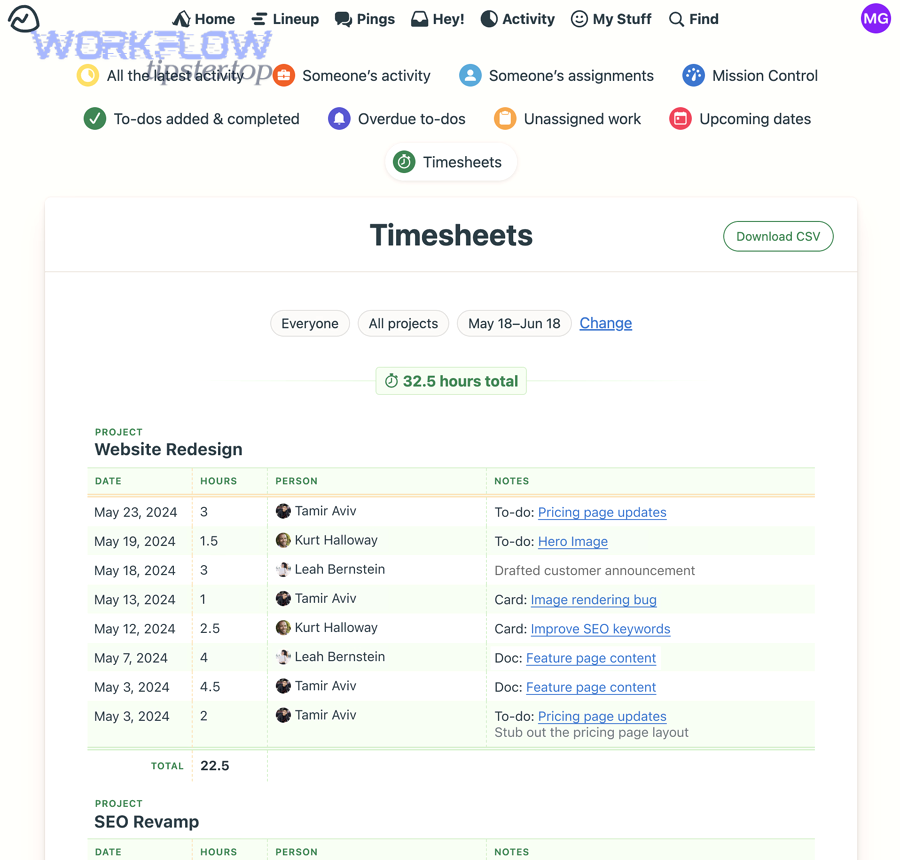
Basecamp To-dos support assignments and due dates and generate notifications for assignees, so “notification discipline” matters: if you mirror every tiny change into a To-do, you can inadvertently create repeated reminders and attention noise. ([3.basecamp-help.com](https://3.basecamp-help.com/article/853-assigning-to-dos?))
Now that your Basecamp ↔ GitLab sync is mapped, method-chosen, and troubleshootable, you can strengthen the system for scale—by adding governance, security, and operational monitoring that prevents subtle failures from turning into big project risks.
How do you secure and govern a Basecamp ↔ GitLab integration for larger teams?
The best way to secure and govern a Basecamp ↔ GitLab integration is to use a 4-pillar approach—least-privilege access, standardized mappings, operational monitoring, and documented ownership—so the sync remains safe, auditable, and stable as more people and projects depend on it.
Especially in larger teams, the integration becomes infrastructure: when it fails, it doesn’t just break a feature—it breaks coordination. That’s why governance is less about bureaucracy and more about preventing predictable failure modes.
What permissions and token scopes are safest for this integration?
The safest permission model uses an integration-specific account with the minimum project-level access required, plus narrow token scopes that allow only issue and comment operations—so you reduce blast radius if credentials are leaked or misused.
Specifically, you should align access with outcomes:
- If you only create Issues: grant rights to create/edit issues, but avoid broader repository or admin permissions.
- If you apply labels/milestones: ensure the token can manage issue metadata, but avoid rights unrelated to tracking work.
- If you must post back into Basecamp: limit Basecamp access to the specific projects involved, and avoid all-access roles if not needed.
Operationally, add token rotation practices (scheduled rotation, documented storage, emergency revoke plan) and ensure at least two people can manage the integration identity.
How do you handle attachments and formatting differences (Basecamp rich text vs GitLab Markdown)?
You handle attachment and formatting differences by using a link-first strategy, normalizing key sections in plain text, and treating Basecamp threads/docs as canonical sources—so GitLab Issues contain actionable summaries without fragile formatting conversions.
For example, instead of trying to move every file and preserve every rich-text nuance, you can:
- Use a structured Issue template: “Context,” “Acceptance criteria,” “Links,” “Notes,” so information remains readable even when formatting shifts.
- Link to artifacts: store a stable Basecamp doc/file link in the Issue rather than re-uploading duplicates.
- Summarize decisions: copy the final decision points into the Issue description so developers can act without scrolling long threads.
This approach also reduces governance risk: fewer duplicated files means fewer “which version is correct?” debates.
How do you scale across multiple Basecamp projects and GitLab groups without chaos?
You scale cleanly by standardizing list/label naming, maintaining a central routing registry, and enforcing “valid intake locations” in Basecamp—so the integration behaves predictably even when dozens of projects and repos exist.
To illustrate, scaling requires three systems working together:
- Naming system: Basecamp list names are controlled (e.g., “Engineering Intake,” “Bugs,” “Enhancements”) and map to a known label set in GitLab.
- Routing registry: A single reference that states “Basecamp Project A + List X → GitLab Project Y + Labels Z.”
- Policy system: A rule that only To-dos created in certain lists will create Issues, preventing accidental routing chaos.
If you operate across multiple GitLab groups, consider adding a lightweight “integration change process” so label schema changes or routing updates don’t break reporting or boards unexpectedly.
What should you monitor to keep the sync reliable over time?
You should monitor 4 signals—failed runs, event gaps, duplicate rates, and notification volume—so you detect integration drift early and fix it before stakeholders lose trust in the system.
In short, treat monitoring as a trust system:
- Failures: Track error counts and their causes (auth, permission, field validation).
- Event gaps: Detect periods where triggers fire but actions don’t complete (possible downtime or API limits).
- Duplicates: Count repeated Issues created from the same Basecamp identifier (indicates idempotency weakness).
- Noise metrics: Watch how many automated comments/updates are posted per day; if it rises, people will mute notifications.
When monitoring is visible and ownership is clear, teams keep using the integration instead of reverting to manual copying—which is the real win this guide is designed to deliver.