


Connecting Asana to OneDrive is the most practical way to keep task context and file context in one workflow: your team can attach OneDrive files to tasks and, with rules-based automation, route task attachments into a structured OneDrive folder system. (asana.com)
Next, this guide helps you decide whether you need “linked files,” “uploaded copies,” or both—because that single choice determines how your team handles versioning, access requests, and duplication inside your Asana projects.
Then, you’ll learn what “file sync” realistically means in an Asana–OneDrive workflow, so you don’t expect real-time mirroring when the setup is actually about secure linking and workflow-based file routing. (asana.com)
Introduce a new idea: once your intent and expectations are clear, the step-by-step setup becomes predictable—and your automation choices become easier to test, govern, and maintain over time.
Is “Asana to OneDrive” the right integration for your team’s file workflow?
Yes—Asana to OneDrive is a strong fit for teams because it (1) reduces file-hunting by anchoring documents directly to tasks, (2) improves access consistency when you share from OneDrive correctly, and (3) supports repeatable storage patterns through rules-based automation for attachments. (asana.com)
To better understand whether this fit is real for your environment, start by defining how your team wants files to behave once they appear inside Asana.
Do you need linked files, uploaded copies, or both?
There are 2 main types of Asana–OneDrive file handling—linked files and uploaded copies—based on whether the file stays in OneDrive as the “source of truth” or gets duplicated into a destination folder as an attachment artifact.
1) Linked files (recommended for living documents)
- A team member attaches a OneDrive file (or a sharing link) to an Asana task.
- The file remains governed by OneDrive permissions and stays versioned where it was created.
- The task becomes the “why/when/who” context, while the file remains the “what” asset.
Use linked files when:
- Multiple people co-edit in Office apps.
- You want a single source of truth and OneDrive’s version history.
- You want fast access control changes without re-uploading anything.
2) Uploaded copies (recommended for workflow artifacts)
- The team uploads attachments to tasks (screenshots, exports, deliverables), then rules can route those task attachments into a chosen OneDrive folder.
- This creates a structured archive that reflects your workflow stages (e.g., Approved, Final, Published). (help.asana.com)
Use uploaded copies when:
- You want a clean, stage-based archive of what was submitted/approved.
- The attachment is a snapshot (PDF export, image, signed file) that shouldn’t keep changing.
- You need consistent folder hygiene for audits or handoffs.
A practical team workflow often uses both: link living documents (briefs, spreadsheets, decks) and upload immutable artifacts (final PDFs, exports, screenshots).
Will your organization require Microsoft admin approval to connect apps?
Yes—many organizations will require admin involvement because (1) Microsoft tenant policies may restrict third-party app consent, (2) conditional access or external sharing policies may block expected flows, and (3) security teams often require documented integration scopes before enabling Microsoft app connections. (help.asana.com)
Besides, even when individual users can connect tools on their own, the team experience breaks if the organization later changes consent or external sharing rules. If you’re operating in a work/school tenant, treat “permissions readiness” as a real prerequisite—especially if you plan to scale the workflow across projects.
What does the Asana–OneDrive integration actually do?
The Asana–OneDrive integration is a cloud file connection that lets teams attach OneDrive files to tasks and automate the routing of task attachments into a OneDrive folder, so collaboration stays linked to work and storage stays organized. (asana.com)
Next, it’s important to translate “integration” into concrete behaviors: what is a link, what is an upload, and what does (and doesn’t) synchronize automatically.
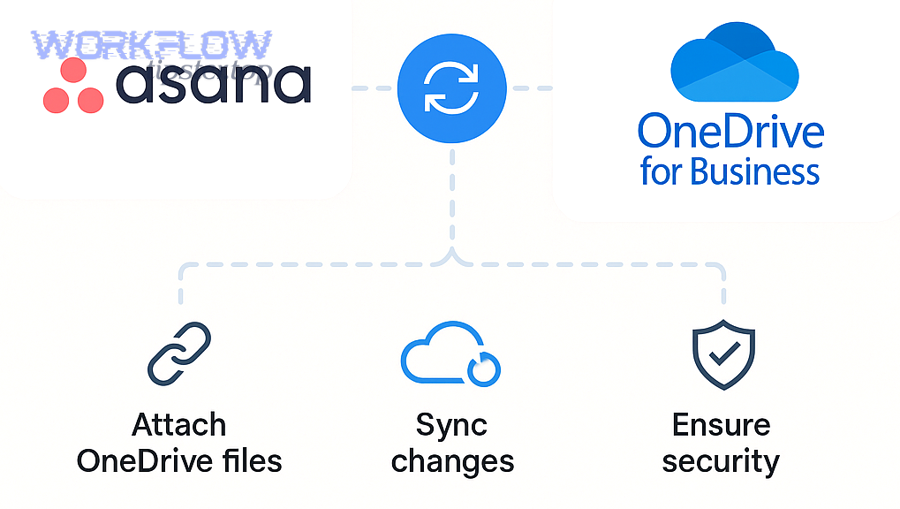
What is the difference between attaching a OneDrive link and uploading a task attachment to OneDrive?
OneDrive link wins in versioning and collaboration, uploading wins in workflow archiving, and a blended approach is optimal for teams that need both living docs and final artifacts.
Attaching a OneDrive link (or file picker attachment)
- Best for: documents that change over time (roadmaps, briefs, spreadsheets).
- Strength: the file remains one file; updates happen in OneDrive; Asana simply points to it.
- Risk: “access denied” appears if the link was shared incorrectly or the user lacks permissions. (support.microsoft.com)
Uploading task attachments into OneDrive via rules
- Best for: workflow submissions (exports, signed documents, screenshots).
- Strength: the OneDrive folder becomes a curated archive that reflects your process.
- Risk: duplicates can occur if the same asset is uploaded multiple times or if naming isn’t standardized. (help.asana.com)
A simple decision rule: If the file should keep evolving → link it. If the file represents a stage completion → upload/archive it.
What does “file sync” mean here—real-time sync or workflow-based routing?
“File sync” in this context is workflow-based routing and access linkage, not a guarantee that every OneDrive change will instantly mirror inside Asana tasks or projects.
Then, set expectations clearly:
- Asana can show/access a OneDrive file attached to a task.
- Asana Rules can upload task attachments into a specified OneDrive folder. (asana.com)
- But Asana is not trying to become a full OneDrive file explorer, nor is it a bidirectional live-sync engine for your entire drive.
This expectation-setting is not a minor detail; it prevents teams from building a process on a false assumption and blaming the integration when the real issue is an unclear definition of “sync.”
What prerequisites do you need before connecting Asana to OneDrive?
There are 5 main prerequisites to connect Asana to OneDrive smoothly—accounts, permissions, folder structure, ownership model, and a test plan—based on the criterion of “what must be stable before automation and sharing can scale.”
Below, treat these prerequisites as a checklist you complete once per team (not once per task).
Which OneDrive account type should you use for teams—personal or work/school?
Personal wins for easy consumer-style setup, work/school is best for organizational governance, and the optimal choice depends on whether your team needs admin-controlled security and lifecycle management.
- Personal OneDrive
- Wins in: fast setup for small teams, light governance.
- Trade-off: weaker organizational controls and continuity when team members change roles.
- Important note: some rule-based capabilities may be limited by account type, so verify your environment early. (asana.com)
- Work/School OneDrive (Microsoft 365 tenant)
- Best for: teams that need admin governance, external sharing control, and consistent access policies.
- Trade-off: setup may require admin consent and policy alignment. (help.asana.com)
A practical team strategy is to standardize on work/school for official work—but to confirm whether your specific Asana workflow (especially rules-based uploading) is supported for your account type.
What should you prepare in OneDrive first—shared folders, naming rules, and ownership?
There are 3 main preparation steps—define folder destinations, standardize naming, and assign ownership—based on the criterion of “what prevents chaos once automation begins.”
1) Define destination folders by workflow, not by emotion
- Good: /Projects/Project-A/Approved/
- Good: /Marketing/Campaign-X/Final-Assets/
- Risky: /Random/Uploads/ (you’ll never find anything later)
2) Standardize naming so duplicates remain understandable
Use a simple template: Project_TaskName_YYYY-MM-DD_Owner_V1. This makes it obvious why a file exists, who created it, and whether it’s a new version or a new artifact.
3) Decide ownership and long-term access
- Make sure the folder isn’t tied to a single person’s private structure if the team needs it long term.
- Use group-based access where possible so offboarding doesn’t break the workflow.
Finally, align your sharing expectations: OneDrive files are private until shared, and sharing links can be configured with different permissions and controls. (support.microsoft.com)
How do you connect Asana to OneDrive step-by-step?
Connecting Asana to OneDrive follows 4 steps—connect, authorize, test, and standardize—and the expected outcome is a working file workflow where tasks can reference OneDrive documents and your team can confirm access consistency. (asana.com)
To begin, treat setup like onboarding: you’re not just connecting an app; you’re establishing a shared operational standard.
How do you authorize the integration safely (least privilege mindset)?
Authorize the integration safely by granting only necessary scopes, documenting what was approved, and involving IT early in governed environments, so the connection remains stable and compliant over time. (help.asana.com)
Then, apply a simple safe-authorization practice:
- Read the permission prompt like a contract (because it is).
- If you’re in a tenant-managed environment, follow your IT approval path rather than forcing workarounds.
- Capture a short internal note: “Asana OneDrive integration approved on [date], for [team], for [use case].”
This approach protects you from the most common enterprise failure mode: a connection that works for one champion user but breaks for everyone else once policies are enforced.
How do you confirm the integration is working after setup?
Yes—you can confirm the integration is working if (1) you can attach a OneDrive file to a task, (2) a teammate can open it without access errors, and (3) your test task proves permissions behave consistently across accounts. (help.asana.com)
Next, run a practical 5-minute test:
- Create a test task: “OneDrive Integration Test”
- Attach a OneDrive file (not a local upload).
- Ask a teammate to open it.
- If they can’t, fix the share settings at the OneDrive level (don’t “solve” it by re-uploading files into random places).
- Document the final working pattern: “We share from folder X with group Y.”
How do you attach OneDrive files to Asana tasks and keep collaboration smooth?
Attaching OneDrive files to Asana tasks works best with 3 habits—attach from the source folder, write context in the task, and confirm permissions—and the outcome is a workflow where tasks remain actionable and files remain accessible. (help.asana.com)
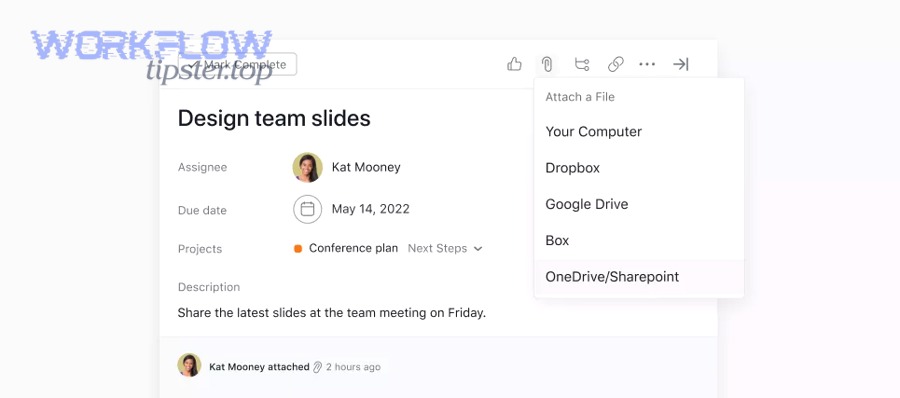
More importantly, teams don’t fail here because the button is confusing; teams fail because they treat “attachment” as a substitute for “clarity.”
What is the best practice for file naming and task context (brief, owner, version)?
There are 4 main best practices for naming and context—purpose, owner, version, and decision state—based on the criterion of “what a teammate needs to act without messaging you.”
- State the purpose in the task: Replace vague requests (“Review this”) with a specific instruction and success criteria.
- Assign the owner explicitly: Define who owns edits and who owns approval, then reflect that in task fields and the first line of the description.
- Use visible versioning: Even with OneDrive version history, add a visible version label (e.g., Campaign-Brief_V3) in the task comment for coordination.
- Mark the decision state: Draft → In review → Approved → Published to prevent the “latest version” argument.
These small habits turn file attachments into a dependable system rather than a pile of links.
How do you prevent “access denied” problems when sharing OneDrive files in Asana?
Prevent “access denied” by sharing from the correct folder level, assigning the right link permissions, and confirming the recipient’s identity context (work vs personal), so the same attached file opens consistently for every teammate. (support.microsoft.com)
Then, apply three specific fixes that work in real teams:
- Share to groups, not individuals, when the file is team-critical.
- Avoid attaching from a private personal location when the file is meant to be a team asset.
- Be deliberate with link settings (view vs edit, expiration, external sharing rules). (support.microsoft.com)
How do you automate OneDrive file handling with Asana Rules?
Automating OneDrive file handling with Asana Rules uses 3 steps—choose a trigger, define the upload action, and validate outcomes—and the expected outcome is that task attachments land in the right OneDrive folder without manual sorting. (help.asana.com)
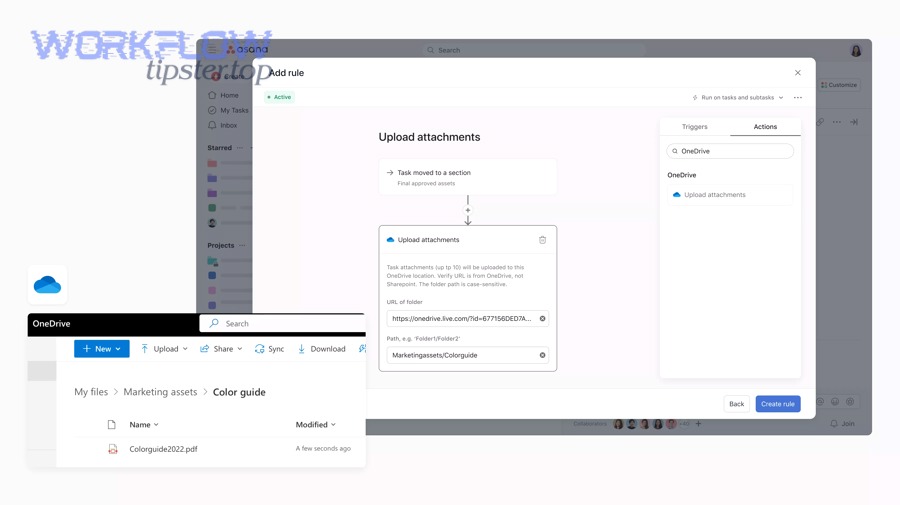
Especially for busy teams, this is where the integration becomes a time saver rather than “just another attachment option.”
Which automation patterns work best for teams (new task, status change, completion)?
There are 5 main automation patterns for Asana → OneDrive based on the criterion of “when a file becomes meaningful in a workflow”:
- When a task moves to “In Review” → upload attachments to /Review/
- When a task is marked complete → upload attachments to /Final/
- When a custom field changes to “Approved” → upload attachments to /Approved/
- When a task is added to a project → route attachments to that project’s folder
- When due date arrives (or is near) → push the latest submitted files to a deadline folder
Then, make each rule readable:
- Name: “Upload attachments to OneDrive when Status = Approved”
- Description: “This creates an archive copy of submitted deliverables.”
This is the difference between automation that scales and automation that only the original builder understands.
How do you choose the right destination folder structure for automated uploads?
Per-project folders win for long-term retrievability, per-stage folders are best for process visibility, and a hybrid model is optimal when you need both “find by project” and “audit by stage.”
- Per-project structure: /Projects/Project-A/Deliverables/ for clean long-term handoff.
- Per-stage structure: /Workflow/Approved/ for operational queues.
- Hybrid: /Projects/Project-A/Approved/ for both navigation and audit clarity.
To illustrate, automation becomes most valuable when the folder structure is predictable—otherwise you’re just moving mess from one place to another.
How do you test and monitor your automation so it stays reliable?
Test and monitor automation by running controlled scenarios, logging expected outcomes, and auditing folders periodically, so rule changes, permissions changes, or team growth don’t silently break the workflow. (help.asana.com)
Then, use a simple monitoring rhythm:
- Weekly (5 minutes): spot-check the “Approved” folder for correct naming and duplicates.
- Monthly (15 minutes): review the rules list and confirm owners still exist and are still responsible.
- After policy changes: re-run the integration test task from earlier.
Evidence: According to a study by University of California, Irvine from the Department of Informatics, in 2015, prior work cited in their CSCW paper notes that it takes people on average around 23 minutes to resume an interrupted task, which is why automation that reduces manual file-chasing can protect focus. (microsoft.com)
How do you decide between Asana–OneDrive native integration vs alternatives?
Native integration wins in simplicity and governance alignment, multi-step automation platforms are best for complex cross-app workflows, and the optimal choice depends on whether your team needs advanced triggers, multi-branch logic, or multi-app routing. (asana.com)
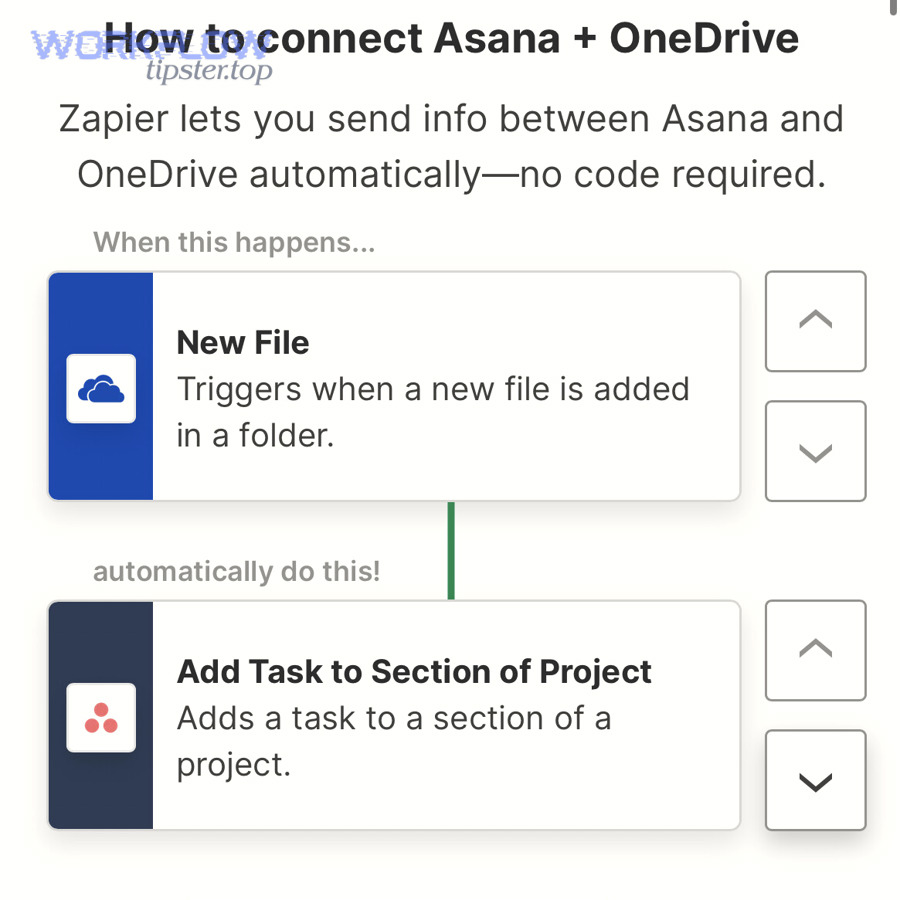
Meanwhile, it helps to treat this decision as “workflow design,” not “tool preference”—because the wrong tool choice usually creates hidden maintenance cost.
When is the native integration enough, and when do you need Power Automate/Zapier-like workflows?
Native is best for direct attachment + basic routing, advanced automation tools win for multi-step orchestration, and the best-fit approach is often native-first with automation only where needed.
Use native integration when:
- You primarily need task-level file attachment behavior.
- You want a low-maintenance workflow.
- You can keep your automation needs to clear, single-purpose rules. (asana.com)
Use advanced automation when:
- You need multi-app workflows (e.g., update a CRM, notify a channel, generate a document, then store it).
- You need branching logic and multiple actions per trigger.
- You’re building a standardized automation catalog across the company.
This is where the broader world of Automation Integrations becomes relevant: if your organization already runs an automation hub, Asana–OneDrive becomes one spoke in a larger operational system, alongside workflows like airtable to basecamp for project visibility or airtable to microsoft word for document generation. Those examples show how teams often connect “structured data → project execution → documentation” without forcing everything into one app.
What are the trade-offs: simplicity, security review, and long-term maintainability?
Simplicity favors native, flexibility favors automation platforms, and maintainability depends on ownership discipline and governance maturity.
Key trade-offs to evaluate:
- Setup time: native is faster; multi-step automations require design and testing.
- Security review: native often has clearer scope; broader automation can expand the risk surface.
- Change management: native changes less; automation workflows can break when APIs, permissions, or folder structures change.
- Team dependency: advanced workflows need owners; without owners, they become “ghost infrastructure.”
In short, the best long-term choice is the one your team can keep healthy: documented, tested, and owned.
What are the most common Asana–OneDrive integration issues ?
There are 4 main issue categories—account limitations, platform differences (OneDrive vs SharePoint), permissions errors, and expectation/limit mismatches—based on the root cause of why the workflow fails after “successful setup.” (forum.asana.com)
Below, use these fixes as a troubleshooting ladder: start with account type, move to permissions, and only then revisit workflow design.
Why does the integration fail for business accounts (tenant admin consent, conditional access, blocked scopes)?
Business-account failures usually happen because the Microsoft tenant blocks user consent, conditional access requires compliant sign-in, or the organization restricts external sharing and app permissions, which prevents a stable Asana–OneDrive connection at scale. (help.asana.com)
Then, fix it with a structured escalation:
- Ask IT/admin: “Do we allow third-party app consent for this integration?”
- Confirm policy: “Are there conditional access rules that block the sign-in flow?”
- Document the approved path and roll it out consistently across teams.
This is also why it’s risky to build a company-wide workflow based on a single user’s personal setup.
Is OneDrive the same as SharePoint for this workflow, and when does it break?
OneDrive is best for personal and small-team file storage, SharePoint is best for structured team sites and libraries, and the workflow breaks when you assume permissions and library behavior are identical across both. (help.asana.com)
Then, apply a practical rule:
- If your team needs a “team-owned” library with durable governance, align on SharePoint-backed structures.
- If your team needs quick personal-to-task attachment, OneDrive works well—but confirm how your organization governs it.
Why do teammates see “access denied” even when the file is attached in Asana?
Teammates see “access denied” because the file is shared incorrectly (wrong people, wrong link type), the folder doesn’t inherit the permissions you expected, or external sharing rules block access even though the link exists. (support.microsoft.com)
Then, solve it systematically:
- Re-share from the correct folder level (not from a random copy).
- Use explicit people/group sharing when link sharing is restricted.
- Confirm the recipient is signed into the correct Microsoft identity (work vs personal) before assuming the link is broken.
What limitations should you expect (large files, duplicate uploads, “not real-time sync”)?
There are 4 main limitations to expect—workflow-based routing (not real-time mirroring), duplication risk, policy-based sharing constraints, and occasional edge cases with inherited permissions—based on how cloud file systems and task systems integrate. (asana.com)
Then, mitigate them with simple design choices:
- Use links for living documents to prevent duplicates.
- Use standardized naming for uploaded artifacts.
- Keep folder structures predictable so automation outputs remain discoverable.
- Treat policy changes as “events” that require re-testing, not as surprises.
Evidence: According to a study by University of California, Irvine from the Department of Informatics, in 2015, their CSCW paper notes prior work finding that it takes people around 23 minutes on average to resume an interrupted task—so reducing “where is the file?” friction is not a cosmetic improvement; it protects focus. (microsoft.com)