


Connecting and syncing Asana to Notion for teams is the fastest way to keep execution (tasks, owners, due dates) and knowledge (docs, specs, meeting notes) aligned without constant manual copy-paste.
Next, you’ll learn what “connect” and “sync” truly mean in practical team workflows—what gets mirrored, what stays as a link, and where teams accidentally create duplication instead of clarity.
Then, you’ll compare the native Notion–Asana integration against automations (Zapier/Make) so you can choose the method that fits your team’s needs for flexibility, governance, and reliability.
Introduce a new idea: once the connection is clear and the method is chosen, you can build repeatable workflow patterns and a troubleshooting playbook that keeps your Asana-to-Notion system stable as your team scales.
What does it mean to “connect & sync Asana to Notion” for a team workflow?
Connecting and syncing Asana to Notion for a team workflow is the practice of linking task execution in Asana with shared knowledge in Notion so updates flow predictably, owners stay accountable, and documentation stays current without manual rework.
To better understand what you’re building, the key is to separate visibility, data duplication, and automation-driven syncing—because each creates a very different team experience.
What data can be synced between Asana tasks and Notion databases?
There are 6 main types of data teams typically sync between Asana and Notion—task identity, ownership, time, status, context, and traceability—based on the criterion of what’s required to execute work and report progress.
Specifically, if your Notion database is meant to be a project hub, you should sync only the fields that teams need for decisions, not every detail that creates noise.
- Task identity: task name/title, task URL, task ID (critical for deduplication)
- Ownership: assignee, collaborator/owner, team or project name
- Time: due date, start date (if used), created date, completed date
- Status: completion state, section/column (if you map Kanban), priority (if standardized)
- Context: short description, tags/labels, custom fields (only those that matter)
- Traceability: parent project, milestone association, related doc link(s)
A practical rule: sync what you want to measure and discuss, and link out for the rest. If the team’s weekly review asks “What is blocked? Who owns it? When is it due?” then those are the properties that must be stable in Notion.
According to a study by University of California, Irvine from the Department of Informatics, in 2008, interruptions increased stress and pressure even when people compensated by working faster, highlighting why teams should reduce unnecessary app switching through clearer systems.
Is Asana-to-Notion syncing usually one-way or two-way?
Asana-to-Notion syncing is usually one-way for reporting and visibility, while two-way is best for tightly governed workflows, and link-based references are optimal for documentation-first teams that want minimal duplication.
However, the real decision is not “two-way vs one-way” in abstract—it’s “where is the source of truth for each field?”
- One-way (most common): Asana remains the execution source; Notion becomes a curated dashboard or project wiki.
- Two-way (harder): changes in either tool can update the other.
- Links/embeds (lightweight): Notion references Asana tasks without copying fields.
If your team frequently edits the same “status” in two places, you will eventually get drift. The safest pattern is to declare: Asana owns task status; Notion owns documentation completeness; and the integration bridges them with controlled fields.
Should teams use the native Notion–Asana integration or an automation tool?
The native integration wins for quick visibility and low maintenance, automation tools win for custom workflows and logic, and a hybrid approach is optimal for teams that need both dependable basics and targeted automations.
On the other hand, the best choice becomes obvious when you compare methods by decision criteria your team actually cares about: setup time, flexibility, governance, and failure modes.
This table contains a practical decision framework that helps teams choose an integration method based on workflow complexity and control requirements.
| Criterion | Native Notion–Asana Integration | Zapier | Make |
|---|---|---|---|
| Setup speed | Fast | Medium | Medium |
| Custom logic (filters/branching) | Limited | Strong | Very strong |
| Data mapping control | Basic | Good | Excellent |
| Error handling | Minimal | Moderate | Advanced |
| Best for | Visibility + light sync | Standard business automations | Complex workflows + advanced scenarios |
Is the native integration enough if you only need visibility inside Notion?
Yes, the native Notion–Asana integration is enough for visibility inside Notion because it reduces app switching, keeps stakeholders aligned with minimal setup, and avoids fragile automation chains that require ongoing maintenance.
Moreover, if your goal is to create a “single page” where stakeholders can see what’s happening—without changing how tasks are executed—native is usually the cleanest answer.
Reason 1 (most important): Lower operational overhead
If the team doesn’t want an “integration owner,” native features avoid a silent failure where an automation breaks and no one notices until a deadline slips.
Reason 2: Fewer duplication conflicts
When teams primarily need read-style visibility (status, due dates, ownership), native linking/syncing patterns reduce the chance of edits happening in the wrong tool.
Reason 3: Faster adoption
A team can adopt “paste Asana link → view in Notion” within minutes, which matters when rollout time is a constraint.
If the team’s next step is to standardize weekly updates, start with visibility first; then automate only the repetitive actions that clearly save time.
When do Zapier or Make become the better choice for Asana → Notion?
There are 5 main situations where Zapier or Make becomes the better choice—multi-step workflows, conditional routing, enrichment, standardized templates, and cross-app chaining—based on the criterion of workflow complexity beyond native capabilities.
Especially when your team needs the integration to do something (create pages, populate structured fields, notify people), automation tools become the practical layer.
- Multi-step workflows: One Asana event should create a Notion item, post to chat, and update a sheet.
- Conditional routing: Only “High priority” tasks create documentation pages, while others do not.
- Data enrichment: Pull additional data (e.g., project metadata) and store it in Notion properties.
- Template creation: Generate a Notion page from a standard template when a task reaches a stage.
- Cross-app chaining: Your team already uses broader Automation Integrations and wants one consistent automation stack.
A useful mindset: if you can describe the workflow using “if / then / else,” you’re already beyond native integration territory.
How do you set up the native Asana–Notion connection step by step?
The native Asana–Notion connection works best when you follow 5 steps—prepare access, connect apps, choose the object to link/sync, validate the result, and document ownership—so your team gets predictable visibility without accidental duplication.
Then, once you treat the setup like a shared team asset (not a personal hack), you reduce breakage during offboarding and permission changes.

Step 1: Decide the goal (visibility vs database sync vs import)
- Visibility: paste Asana link into Notion and use preview/embed options
- Database-style sync: use Notion’s Asana database syncing approach if available in your workspace
- Import: migrate projects/tasks into Notion (useful for switching tools)
Step 2: Confirm permission boundaries
- Make sure the connector owner has access to the relevant Asana workspace/project
- Ensure the Notion workspace allows connected apps for the team
Step 3: Connect Asana in Notion settings
- Connect the account
- Confirm the workspace or team scope if prompted
Step 4: Create the Notion destination
- Choose: a database (for structured tracking) or a page (for documentation hub)
- Prepare properties you’ll need (Owner, Status, Due Date, Link, Task ID)
Step 5: Validate with a real task and document the rule
- Test with a task that has assignee, due date, and status changes
- Document “source of truth”: status lives in Asana; documentation lives in Notion
What permissions are required in Asana and Notion to connect them safely?
Permissions required to connect Asana and Notion safely are the minimum app-connection rights in Notion plus access to the relevant Asana workspace/project, typically controlled by admins to prevent accidental data exposure.
More specifically, the safest team pattern is to use least privilege and to define who owns the integration as a named role (not an individual’s personal experiment).
- In Asana: access to the workspace and the projects whose tasks you want visible/synced
- In Notion: permission to add connected apps (workspace setting) and edit rights to the destination pages/databases
- Team governance: one integration owner (or small group) who documents what’s connected and why
If your Notion hub includes cross-team documentation, also consider privacy boundaries: not every stakeholder should see every task, even if they need the document.
How do you confirm the integration is working after setup?
Yes, you can confirm the integration is working after setup by checking data appears where expected, updates behave predictably, and permissions match the intended audience, which together prevent silent drift.
Next, verify with a short checklist rather than “it looks fine” intuition.
- Check 1: The object resolves correctly (task/project shows the right title and metadata)
- Check 2: The intended fields populate (owner, due date, status if applicable)
- Check 3: Updates don’t require manual refresh (or if they do, your team knows the expectation)
- Check 4: Access is correct (a teammate with normal permissions can view what they should—no more, no less)
If a single teammate cannot see the synced content, you likely have a permission mismatch that will scale into confusion later.
How do you build Asana → Notion automations using Zapier or Make?
Asana → Notion automations work best when you build 6 components—trigger, filter, mapping, idempotency key, error handling, and monitoring—so new tasks become reliable Notion records without duplicates or loops.
To begin, treat automation as a production system: it must be understandable, testable, and maintainable by someone other than its creator.
Step 1: Choose a single clear trigger
- Examples: task created in project, task moved to section, task completed, custom field changed
Step 2: Add a filter that defines “when it matters”
- Only high priority
- Only tasks in a specific project/section
- Only tasks with a “Needs Doc” field = true
Step 3: Map fields into a Notion database item
- Name, owner, due date, status, task link
- Store task ID in a dedicated Notion property (critical)
Step 4: Enforce idempotency (duplicate prevention)
- Search Notion database for existing item with same task ID
- If exists: update; if not: create
Step 5: Add error handling and retries
- Alert channel/email for failures
- Retry strategy for rate limits
Step 6: Monitor and iterate
- Track volume, failures, and “bad records”
- Review monthly to prevent automation sprawl
Which triggers and actions are most useful for Asana ↔ Notion automations?
There are 7 main trigger/action patterns teams use most successfully—based on the criterion of events that change project reality and therefore deserve documentation updates.
For example, a task entering “In Review” often signals that a Notion page should exist and be ready for stakeholders.
High-value Asana triggers
- Task created in a project
- Task moved to a section/column
- Task marked complete
- Due date changed
- Assignee changed
- Custom field changed (e.g., Priority, Doc Needed)
- Subtask created (if subtasks represent deliverable breakdown)
High-value Notion actions
- Create database item
- Update database item properties
- Create page from template (if your tooling supports it)
- Append content or add link back to task
If your workflow requires tight review cycles, trigger on stage movement rather than creation—because creation is noisy, while stage changes represent intent.
How do you map Asana fields to Notion properties without breaking your database structure?
Mapping Asana fields to Notion properties means translating task data into stable Notion property types (text, select, date, people, URL) using a consistent schema so dashboards remain clean and automation updates do not corrupt your reporting.
Specifically, successful teams design the Notion database first, then map Asana fields into it with clear “ownership” rules.
A stable mapping blueprint (practical)
- Task Name → Title (Notion Title property)
- Assignee → Person (Notion People property, if supported; otherwise text)
- Due Date → Date
- Status/Section → Select (use a standardized set, not free text)
- Priority/Type → Select or Multi-select
- Asana Task URL → URL
- Asana Task ID → Text (unique key)
Common pitfalls (and fixes)
- Pitfall: Status values don’t match exactly → Fix: create a mapping table (e.g., “In Progress” vs “Doing”)
- Pitfall: People mapping fails → Fix: use email-based matching, or store as text + link to Asana
- Pitfall: Too many properties → Fix: keep a minimal “executive” database and link to deeper pages
If your Notion database becomes messy, the integration will feel “broken” even if it technically works—because teams stop trusting what they see.
How can you prevent duplicate pages or infinite loops in automation workflows?
Storing a unique task ID wins for deduplication, filters are best for loop prevention, and staged updates are optimal for complex workflows where multiple automations interact.
However, duplicates and loops happen for predictable reasons: the automation treats every update as new, or it triggers itself indirectly.
Duplicate prevention (idempotency) — the safest approach
- Store Asana Task ID in Notion
- On trigger: search Notion for Task ID
- If found → update
- If not found → create
Loop prevention (trigger hygiene)
- Avoid triggers that fire on “any update” unless you can filter specific fields
- Add “created by automation” flags (e.g., Notion property CreatedViaAutomation = Yes)
- Use filters so Notion updates don’t re-trigger the same workflow back into Asana
Staged updates (for complex systems)
- Workflow 1 creates the Notion item
- Workflow 2 updates non-critical fields later
- Workflow 3 handles completion-only events
If your system becomes too reactive, simplify: trigger on “moved to a specific section” instead of “updated,” because section movement is intentional.
What are the best workflow patterns teams actually use for Asana ↔ Notion?
There are 3 best workflow patterns teams use most often—documentation-on-demand, spec-to-task pipeline, and curated project hub—based on the criterion of how documentation supports execution without duplicating the entire task system.
Moreover, each pattern works because it limits syncing to the moment where documentation creates real leverage, not just more data.

How do you auto-create a Notion page when an Asana task enters a specific stage?
Auto-creating a Notion page from an Asana stage works in 4 steps—choose the stage trigger, select a Notion template, create the page, and back-link it to the task—so reviewers always land on a consistent document when work enters “review mode.”
Then, once the template is standardized, the team stops reinventing documentation per task.
Step-by-step pattern
- Trigger: task moved to a section like “In Review” or “Ready for Stakeholders”
- Filter: only for tasks tagged “Deliverable” or priority high
- Action: create Notion page (or database item) using a template
- Action: write the Notion URL back to Asana (comment or custom field) so the task and doc stay paired
What the template should include
- Goal/outcome
- Acceptance criteria
- Links (design, data, references)
- Review checklist
- Decision log
This pattern shines because it introduces documentation exactly when it becomes necessary—not at task creation, when most docs are premature.
How do you create Asana tasks from Notion database items for content or projects?
Creating Asana tasks from Notion database items works in 5 steps—define the Notion trigger, map properties into a task, assign ownership, set due dates, and write the Asana link back—so Notion becomes the intake and planning layer while Asana remains the execution engine.
Next, the key is to ensure the Notion item is “ready” before it spawns a task.
Practical example: content production pipeline
- Notion database item: “Article: Asana to Notion Sync”
- Trigger: Status changes to “Approved”
- Asana task created in “Content Production” project
- Assignee set based on Notion “Owner” property
- Due date computed from planned publish date
- Asana task URL written back into Notion
This is the same integration mindset teams use when they automate document flows—like google docs to microsoft excel for reporting summaries, or google docs to google calendar to turn published schedules into events, or google docs to freshbooks to connect deliverables to invoicing—except here the deliverable is work execution tied to knowledge.
How do you keep a Notion project hub updated from Asana without over-syncing?
A minimal-field sync wins for clarity, a summary database is best for leadership reporting, and link-first references are optimal for teams that want documentation without duplication overload.
Meanwhile, over-syncing happens when teams treat Notion as a mirror of Asana instead of a curated interface.
The “Curated Hub” design
- One Notion database: “Project Dashboard”
- Only sync fields that answer leadership questions: Owner, Status, Due Date, Blocker, Link
- Keep deep details in Asana; reference them via task/project links
- Add a Notion page per project with: goals, decisions, meeting notes, risks
Why this stays clean
- Fewer fields = fewer mapping failures
- Fewer updates = fewer automation triggers
- Less duplication = more trust in the system
If your team wants Notion to remain readable, make it a project narrative layer, not a second task manager.
What common issues happen when syncing Asana to Notion, and how do you fix them?
There are 3 common categories of issues when syncing Asana to Notion—field mapping failures, latency/limits, and governance breakdowns—based on the criterion of what causes teams to stop trusting the system.
Especially in teams, failures rarely come from “the integration is bad”; they come from unclear ownership, inconsistent schemas, and unmonitored automations.
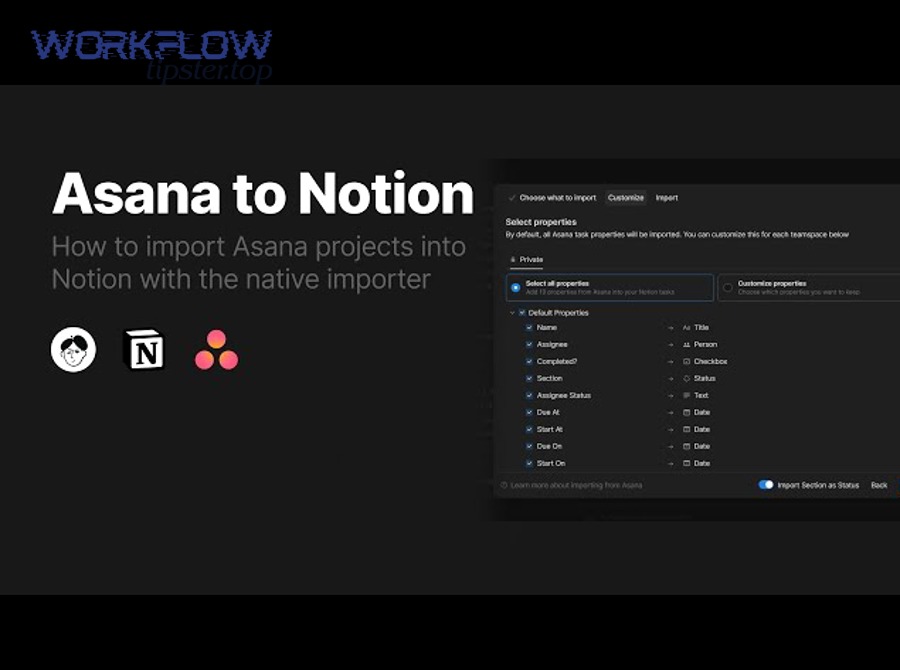
Why do fields fail to map correctly (status, assignee, custom fields)?
Fields fail to map correctly when property types mismatch, values are inconsistent, permissions block visibility, or the automation lacks a stable schema—causing status, assignee, and custom fields to arrive as blanks, wrong labels, or uneditable values in Notion.
More specifically, most mapping problems are predictable and fixable with a short diagnostic checklist.
Diagnosis checklist (fast and reliable)
- Property type mismatch: select vs multi-select vs text
- Value mismatch: “In progress” vs “In Progress” (case and spelling matter)
- Permission mismatch: automation owner can’t see the project or custom field
- Unsupported mapping: people fields require specific matching rules
- Schema drift: Notion database properties were renamed or changed type
Fix pattern
- Freeze property types first (don’t keep changing the database)
- Create a small mapping table for statuses
- Store “assignee email” as a fallback text field
- Keep custom fields minimal and standardized across projects
When teams adopt “every project uses different statuses,” no integration can save them—standardization is the real solution.
Is sync delay normal, and when is it a real problem?
Yes, sync delay is normal because integrations often process events in batches, respect rate limits, and rely on polling or queued execution, but it becomes a real problem when delays break handoffs, hide blockers, or create duplicate records due to repeated retries.
Then, you can distinguish “normal” from “dangerous” by looking at impact rather than seconds.
Normal delay indicators
- Updates arrive within a predictable window
- No duplicates appear
- The team does not depend on instant status visibility for critical decisions
Real problem indicators
- A review process depends on the Notion page existing immediately
- Multiple retries create duplicates
- The integration fails silently (no alerts)
- Teams manually re-enter data “just in case,” defeating the purpose
According to a study by University of California, Irvine from the Department of Informatics, in 2008, interruptions increased stress and pressure during knowledge work—so reducing tool-toggling through a reliable system matters more than shaving a few seconds off sync time.
How do you secure and govern integrations for teams (ownership, offboarding, audit)?
There are 6 governance controls teams should implement—integration ownership, documentation, least privilege, offboarding process, monitoring, and change control—based on the criterion of preventing silent breakage and unapproved access.
In addition, governance is what turns “one person’s automation” into “a team system.”
- Named owner: a role accountable for integration health
- Runbook: where it’s documented, what it syncs, what breaks it
- Least privilege: only required workspace/projects/databases
- Offboarding plan: transfer ownership when a builder leaves
- Monitoring: alerts for failures and high error rates
- Change control: schema changes require review (status fields, property types)
If your team cannot answer “who owns this automation?” you already have a reliability risk—even if everything works today.
How can advanced teams optimize Asana ↔ Notion syncing for scale and accuracy?
Advanced teams optimize Asana ↔ Notion syncing by designing clear sources of truth, stable identifiers, controlled taxonomies, and reliability controls so the system stays accurate at higher volume and remains maintainable beyond the original builder.
Below, the focus shifts from “make it work” to “make it resilient,” which is the difference between a helpful integration and a long-term operating model.

What’s the difference between true two-way sync and “near two-way” workflows?
True two-way sync wins for symmetrical editing, near two-way is best for controlled updates with fewer conflicts, and one-way remains optimal for most teams because it preserves a single source of truth for execution.
However, “two-way” is only safe when you define exactly which fields can be edited where.
- True two-way: both tools can update shared fields
- Near two-way: one tool owns core fields; the other sends controlled signals
- One-way: Asana → Notion for reporting and narrative
If you must use two-way, restrict it to one or two fields and treat everything else as read-only mirroring.
How do you design a stable ID + status taxonomy to avoid messy data over time?
A stable ID + status taxonomy is a structured way to store a permanent identifier (task ID) and a standardized set of status values so records remain consistent across projects, automations, and reporting views over time.
More specifically, this is where most “scaling pain” comes from—because teams add more projects faster than they standardize language.
Stable ID design (must-have)
- Notion property: Asana Task ID (unique)
- Notion property: Asana Task URL
- Automation rule: always search by task ID before creating anything
Status taxonomy design (practical)
- Choose a universal set: Backlog → In Progress → In Review → Blocked → Done
- Map each project’s internal sections to the universal set
- Keep “Blocked reason” as a separate field so you don’t multiply statuses
When your taxonomy is stable, your dashboards become meaningful. When your taxonomy drifts, your dashboards become decoration.
How do rate limits, polling intervals, and webhooks affect reliability and latency?
Rate limits, polling intervals, and webhooks affect reliability and latency by controlling how frequently integrations can read/write data and how quickly changes are detected, which influences whether updates arrive smoothly, arrive late, or fail under load.
To illustrate, polling checks periodically, while webhooks push events immediately—yet both can still be throttled by platform limits.
Practical reliability improvements
- Batch non-urgent updates (avoid updating on every tiny edit)
- Trigger on high-signal events (stage change, completion)
- Add retries with backoff for temporary failures
- Monitor error rates so “quiet failures” don’t persist for weeks
At scale, the best optimization is not “faster syncing”; it’s “fewer, smarter triggers” that reflect actual team intent.
When should you not sync Asana and Notion, and use links instead?
Yes, there are times you should not sync Asana and Notion because syncing can increase duplication risk, create governance/security exposure, and reduce trust when schemas drift, while links preserve a single source of truth with far less maintenance.
In short, “not syncing” is sometimes the most mature integration decision.
Reason 1 (most important): Your team does not have stable schemas
If statuses, fields, and ownership rules change weekly, syncing produces confusion, not clarity.
Reason 2: Sensitive information boundaries
If certain tasks must remain private to a subset of users, syncing into a shared Notion hub can leak visibility unintentionally.
Reason 3: The workflow is documentation-first, not task-first
If tasks are references inside documents, links/embeds provide context without turning Notion into a second task manager.
If you want a clean operating model, choose the simplest mechanism that preserves trust—because the goal is not to “sync everything,” it’s to help teams execute with less friction.